
Working With Your Accountant
Invite your accountant's firm into your books, choose how much they can do, see who from their firm has access, and end the connection when you need to.
On this page
When you keep your own books in LedgerOS, you can invite your accountant to work in them with you. You connect their firm, not just one person. You choose the most anyone from that firm can do. Their firm then chooses which of its people work on your books, and you can see every one of them by name. You can remove one person, or end the whole connection, at any time.
Only the owner of the business can invite or disconnect an accountant. Anyone else on your team sees the page with every control turned off and the sentence Only the owner of these books can connect or disconnect an accountant.
Understand the Your accountant page
The page has four parts, top to bottom:
- Invite your accountant — the form you use to send an invitation.
- Connected firms — each accounting firm that has accepted, with the date it connected, its Access level, and a Revoke button. Under each firm, a table lists the people from that firm who can work in your books: From Alder CPAs, Role and Added, with Remove beside each person. When nobody is connected, this part reads No accountant connected.
- Pending invitations — invitations that have not been answered yet, with Email, Access, Sent and Expires. An invitation that ran out shows Expired, and one your accountant turned down shows Declined.
- History — one line per firm (or per email address, before a firm accepts), listing what happened and when: Invited, Connected, Connected again, Declined, Revoked, Ended or Expired. The firm with the latest event is listed first. Each line has an Audit log link.
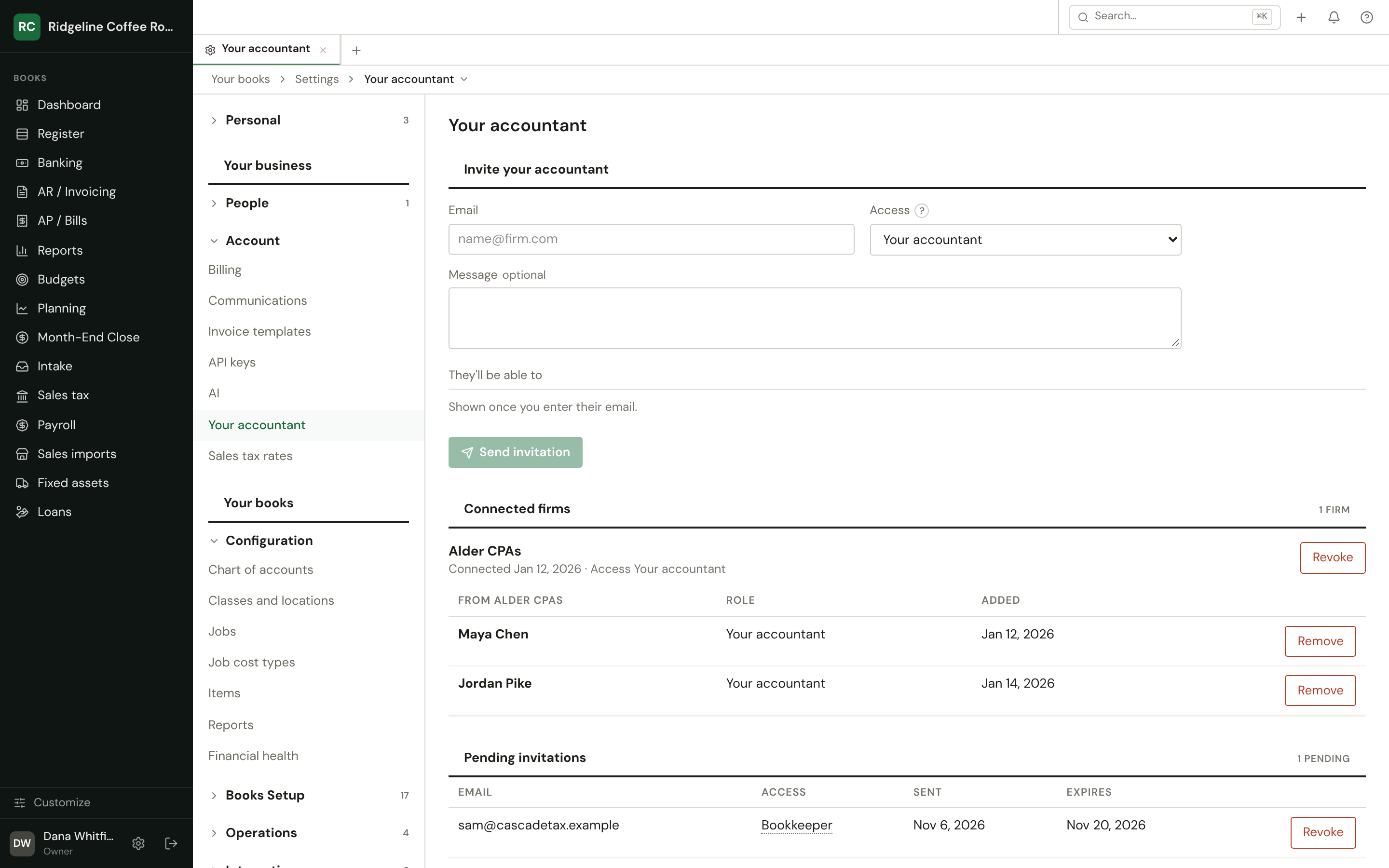 Your accountant page for Ridgeline Coffee Roasters, with Alder CPAs connected and an invitation waiting
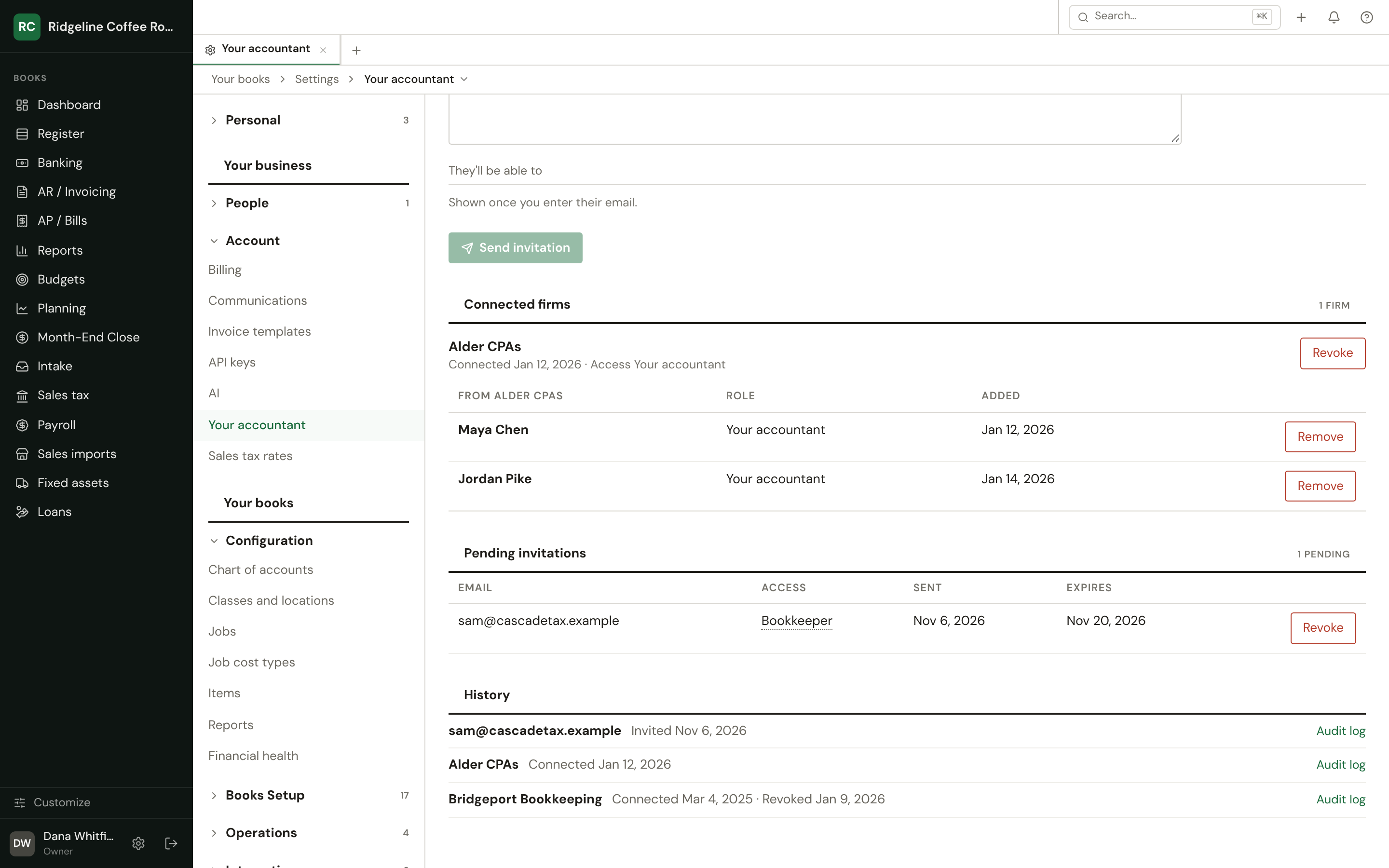 The pending invitation and the history of every connection
You can connect more than one firm. For example, a bookkeeper for the monthly work and a tax preparer at year end.
Invite your accountant
- Go to Settings → Account → Your accountant.
- In Email, type your accountant's email address.
- In Access, choose the most anyone from their firm will be able to do (see Choose how much your accountant can do). Your accountant is selected to start with.
- Add a Message if you like. It is optional, and it goes into the email under your name.
- Check the list under They'll be able to. Once you enter an email address, Books runs every check on the invitation without sending it, and lists exactly what this access level allows, with a count such as 30 permissions.
- Click Send invitation.
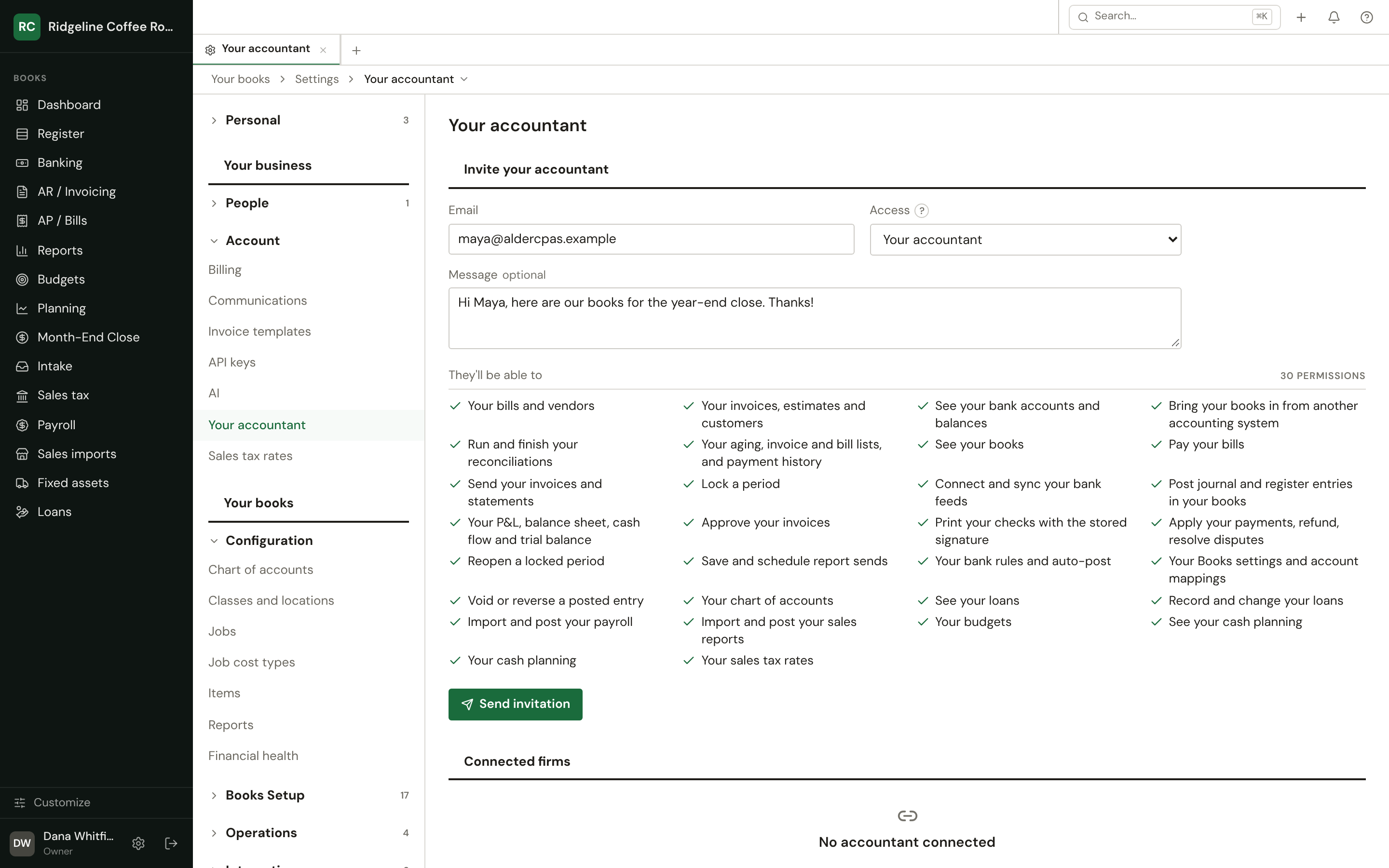 Inviting Alder CPAs, with the list of what they will be able to do
A notice confirms it: An invitation is on its way to maya@aldercpas.example. The invitation appears under Pending invitations.
If two-step sign-in is set up on your account, or your firm requires it, Books asks you to confirm it's you before it shows the list or sends the invitation. Click Verify it’s you and enter the six-digit code from your authenticator app. Once you have entered a code, it holds for the rest of that sign-in.
What your accountant receives
Your accountant gets an email that says you keep the books for your business on LedgerOS and would like to give their firm access. It includes your message, if you wrote one, and lists what their firm will be able to do. Below that is the link to review and accept the connection, a note that you can end the connection at any time, and the date the link expires.
An invitation lasts 14 days. After that, the link stops working and the invitation shows Expired. To try again, send a new invitation.
Choose how much your accountant can do
The Access you choose is a ceiling. It is the most anyone from the accountant's firm can do in your books. Their firm can give each of its people that much or less, never more. The ? beside Access says the same: The most anyone from their firm can do in your books. Their firm chooses its people and can give them this or less, never more. You can revoke at any time.
Your accountant
Everything in Books except changing your plan, including bills and bill payments, invoices, banking and bank rules, posting and voiding entries, reconciliations, locking and reopening periods, reports, Books settings, the chart of accounts, payroll and sales imports, loans, budgets, cash planning and sales tax rates.
One of your own roles
Only what that role allows in Books.
Not every role is offered. Books lists a role of yours only if it can see the books, and it can't be the owner's role or an admin role, and it can't include changing your plan, managing your team or managing roles. If a role you choose also covers things outside Books, Books gives your accountant only its Books part, and names it after the role, such as Your accountant (Read-only).
No access level lets your accountant change your plan, manage your team or change your roles. Those stay with you.
What your accountant can see and do
- Your books, as far as the access you chose allows. Each person from their firm works in your books with the role their firm gave them, which is never more than your ceiling. The Role column under Connected firms shows each person's role.
- Only the people their firm adds. The person who accepts the invitation is connected first. After that, their firm chooses who else from it works on your books, and each person appears under the firm's name on your page, with the date they were added.
- Two-step sign-in. Everyone from your accountant's firm must confirm it's them with two-step sign-in to accept your invitation, and to work in your books.
- On your Team page, too. People who came through the connection are listed on Settings → People → Team, marked From Alder CPAs. Their Remove there works exactly like Remove on the Your accountant page.
Choose who has access
You choose the firm and the ceiling. The firm chooses its own people. You still decide who stays:
- Under Connected firms, find the person.
- Click Remove.
- Read what removing them changes. For example: Jordan Pike loses access to your books on their next page load. · 37 posted entries they made stay. · 2 drafts Jordan Pike started stay in your books. You can finish or delete them. (when they left drafts) · Alder CPAs stays connected, and Maya Chen keeps access.
- Type a Reason. It is required, so the history shows why.
- Click Remove Jordan Pike (the button names the person).
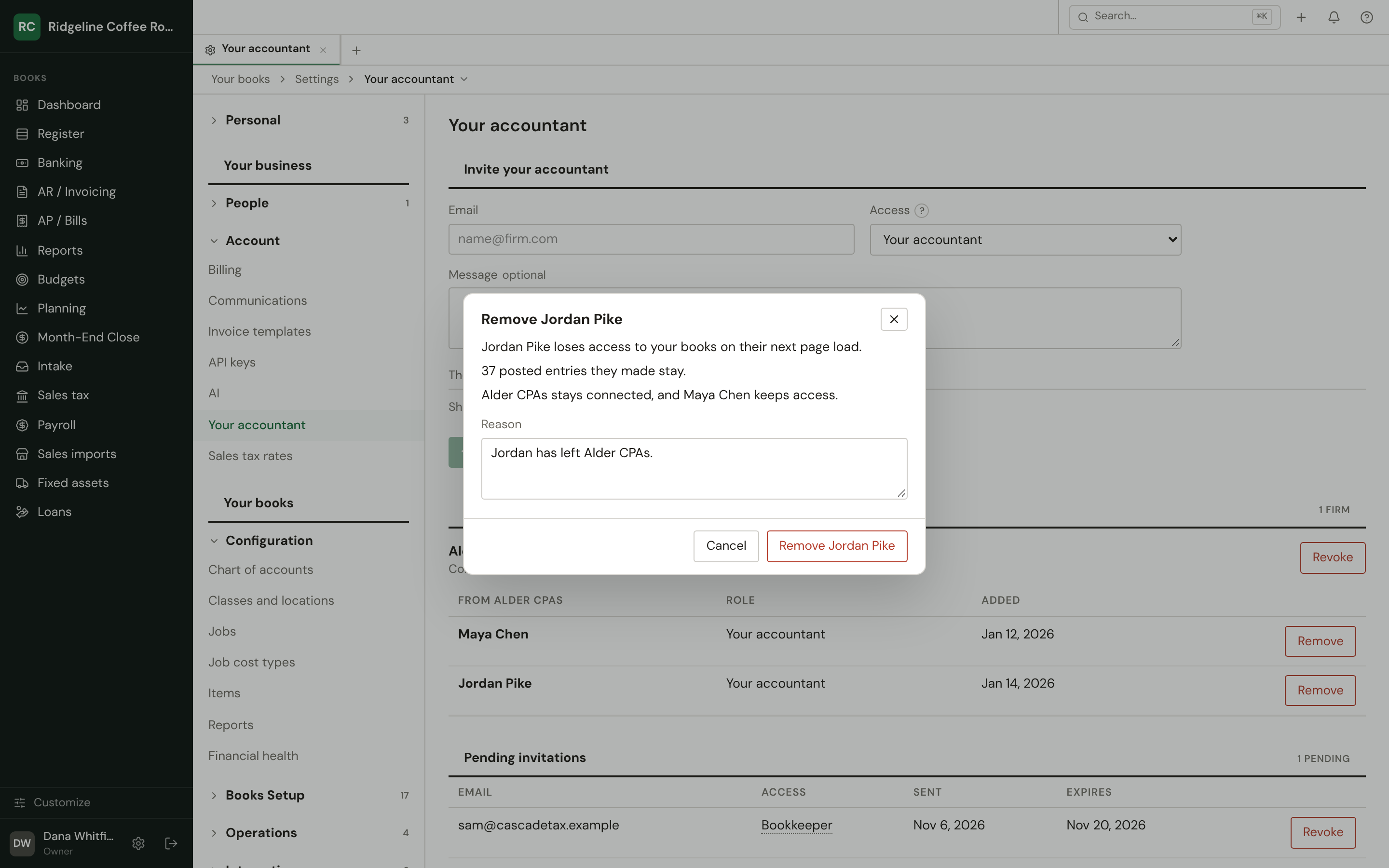 Removing one person from the accountant's firm
The firm stays connected, and everyone else from it keeps their access. A notice confirms it: Jordan Pike no longer has access to your books.
End the connection
To end a firm's access to your books:
-
Under Connected firms, click Revoke beside the firm's name.
-
Read the window. It lists, for your books, what ending the connection changes, counted from what that firm's people did. For example:
- Alder CPAs loses access on their next page load.
- 214 posted entries stay. Everything they posted stays in your books.
- 3 drafts Alder CPAs’ people started stay in your books. You can finish or delete them., when they left drafts.
- 1 scheduled report pauses. Reports their people scheduled stop sending.
- 2 pending proposals expire., when any are waiting.
- 4 close tasks are still assigned to them., when any are.
- The 9 periods they closed stay closed; you can reopen them.
Each count that is zero is left out.
Below the list are the names of everyone who loses access.
-
Type a Reason. It is required.
-
Click Revoke access.
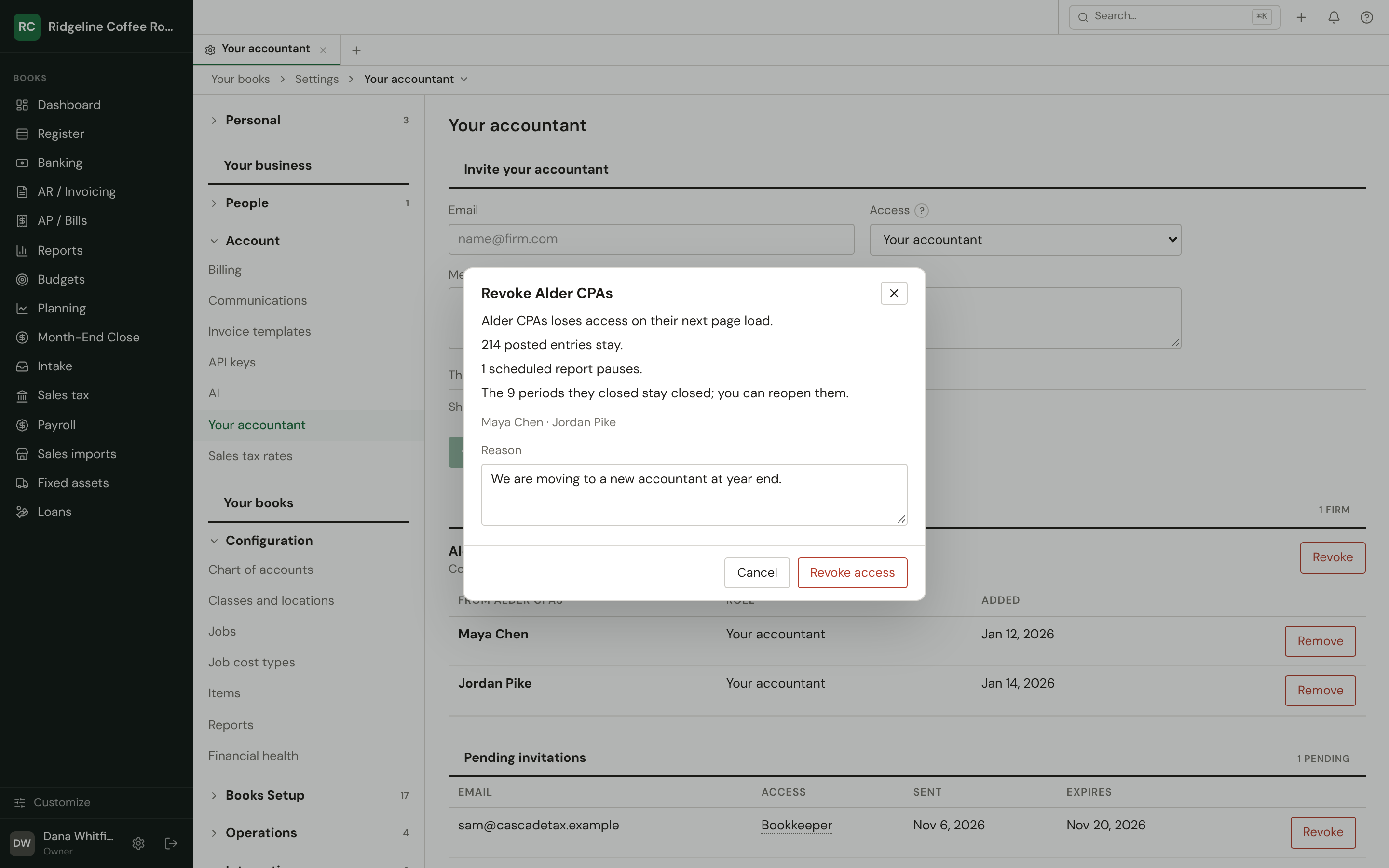 Revoking Alder CPAs, with the consequences listed
A notice confirms it: Alder CPAs no longer has access to your books. The firm's line under History gains Revoked and the date.
Cancel an invitation
To cancel an invitation that hasn't been answered, click Revoke on its row under Pending invitations. The window titled Revoke the invitation says The link sent to sam@cascadetax.example stops working at once. and Nobody has accepted it yet, so nothing else changes. Type a Reason and click Revoke invitation.
When your accountant ends it
Your accountant's firm can end the connection from their side too, with a reason. Their people lose access, and the firm's line under History shows Ended and the date.
Connect a firm again
Ending a connection doesn't stop you from working with that firm later. Send a new invitation; when they accept, History shows Connected again.
What happens on your accountant's side
You don't need to do anything after you send the invitation, but it helps to know what your accountant will see:
- The link opens a page that says your business wants to connect them to its books, with your business name, your name, the expiry date, your message, and the list under What you'll be able to do.
- They must be signed in to LedgerOS, in a firm where they can manage the team. Under Connect as, they choose which of those firms connects. Someone with no such firm is offered Set up your firm first.
- To accept, they confirm it's them with two-step sign-in and click Accept (with several firms to choose from, the button names the firm, such as Accept as Alder CPAs). They can also click Decline. If they decline, you see Declined on the invitation.
- After accepting, their firm chooses who from it works on your books, and gives each person your access level or less.
A firm that is already connected to your books can't accept a second invitation, and a person who is already on your team can't be connected again through an accountant's firm.
Why can't I…
- …use the invite form at all? Only the owner can invite or disconnect an accountant. Everyone else sees Only the owner of these books can connect or disconnect an accountant.
- …click Send invitation? The button stays off until there is a valid address (Enter the email address of your accountant.) and the list under They'll be able to has loaded. Point at the button to see why it is off.
- …invite this address? An invitation to that address is already waiting. Revoke it to send a new one. Revoke the pending invitation under Pending invitations, then send a new one. You also can't invite yourself: That's your own address. Enter your accountant's email.
- …send without entering a code? Your account has two-step sign-in set up, or your firm requires it. Click Verify it’s you and enter the code from your authenticator app.
- …confirm Revoke or Remove? A reason is required. Type one in Reason and the button turns on.
- …find my role in the Access list? It doesn't qualify as a ceiling. A role is offered only if it can see the books and doesn't include managing your team, managing roles or changing your plan, and it isn't the owner's or an admin role.
- …find Your accountant in my Settings? The page is for a business keeping its own books. An accounting firm doesn't have it: it is the accountant, and the businesses it works for are listed under its Connected books.
Tips
- Start with Your accountant for a firm that keeps your books month to month. For someone who needs less, such as a tax preparer who only reads the numbers, choose a narrower role of your own in Access, if you have one.
- Write a message. Your accountant gets a lot of email; a line about what you need ("year-end close", "catch-up for Q3") tells them the invitation is expected.
- Check the Connected firms list now and then. It names every person from your accountant's firm who can work in your books. Remove anyone who has left their firm.
- Use History before you ask. It shows when each firm connected and when it ended, and Audit log opens your audit log, where every event is recorded.