
Keeping Your Own Books: Getting Started
Set up your business's books in Books: choose a start date and a chart of accounts, enter your opening balances, and work through your Getting set up list.
On this page
When you sign up to keep your own business's books, Books opens on your books, and the first thing to do is set them up: the day they start, your chart of accounts, and what your accounts held on the day before. This article is the short path through it for a business owner.
The step-by-step detail, with every field and message, is in Set Up a Client's Books; the screens are the same, and setup names your business and speaks of your software and trial balance.
Nothing posts until you click Activate books. Setup saves your progress as you go, so you can stop at any step and pick up later with Continue setup on your dashboard.
What setup asks you
Setup is six short steps, numbered across the top of the screen: Start, Details, Chart of accounts, Opening, Periods and Review. Your answer to the first question is Start, so it shows as already done once you are past it.
1. Moving, or starting fresh, and the start date
The first screen asks Are these books moving from another system, or starting fresh? If you answered Coming from at sign-up, that answer is already chosen. When you come back to setup from your dashboard, a line says so, for example From your sign-up: starting fresh. Change it if that is not right.
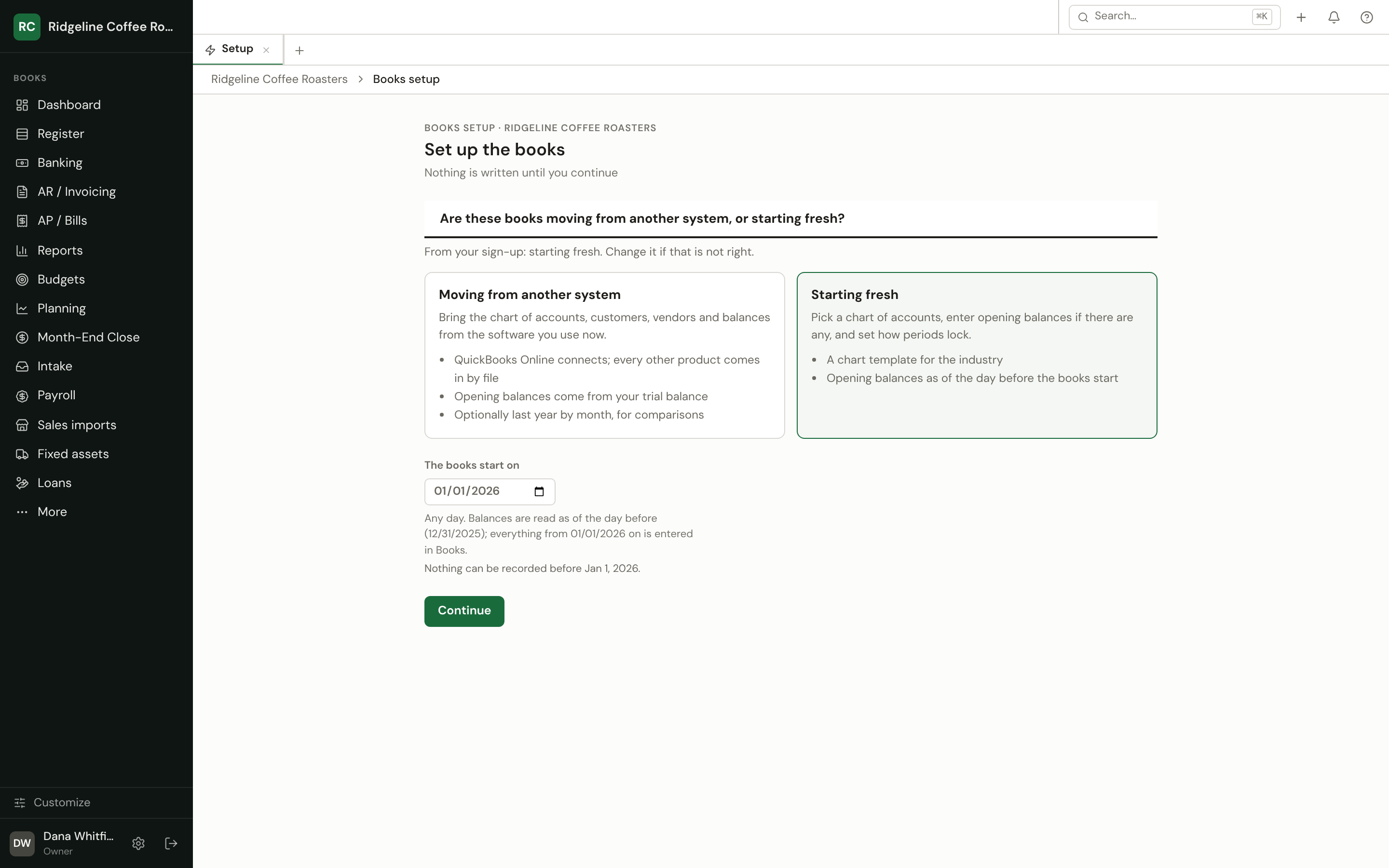 Setup's first question for Ridgeline Coffee Roasters, with the sign-up's answer chosen
- Starting fresh is for a new business, or one whose old records you'll summarize as opening balances.
- Moving from another system brings your chart of accounts, customers, vendors and balances over from the software you use now (QuickBooks Online connects; every other product comes in by file). Choosing it takes you to the import screens instead of the steps below.
Then set The books start on. Books suggests the first day of your fiscal year. It can be any day, and nothing can be recorded before it. If you need to move it later, use Settings → Books Setup → Accounting, under Books start date: Books shows what the new date affects before anything changes, and refuses a date it can't use, with the reason.
2. Your business details
Your legal name, display name, EIN (optional), entity type, industry, formation state, fiscal year end and reporting basis. Your business's name is filled in from sign-up, along with anything else Books already has on record, and each field filled that way is labeled from your business details.
Change anything that is not right. The industry picks your starting chart of accounts. As the step says, You can edit these later in Settings.
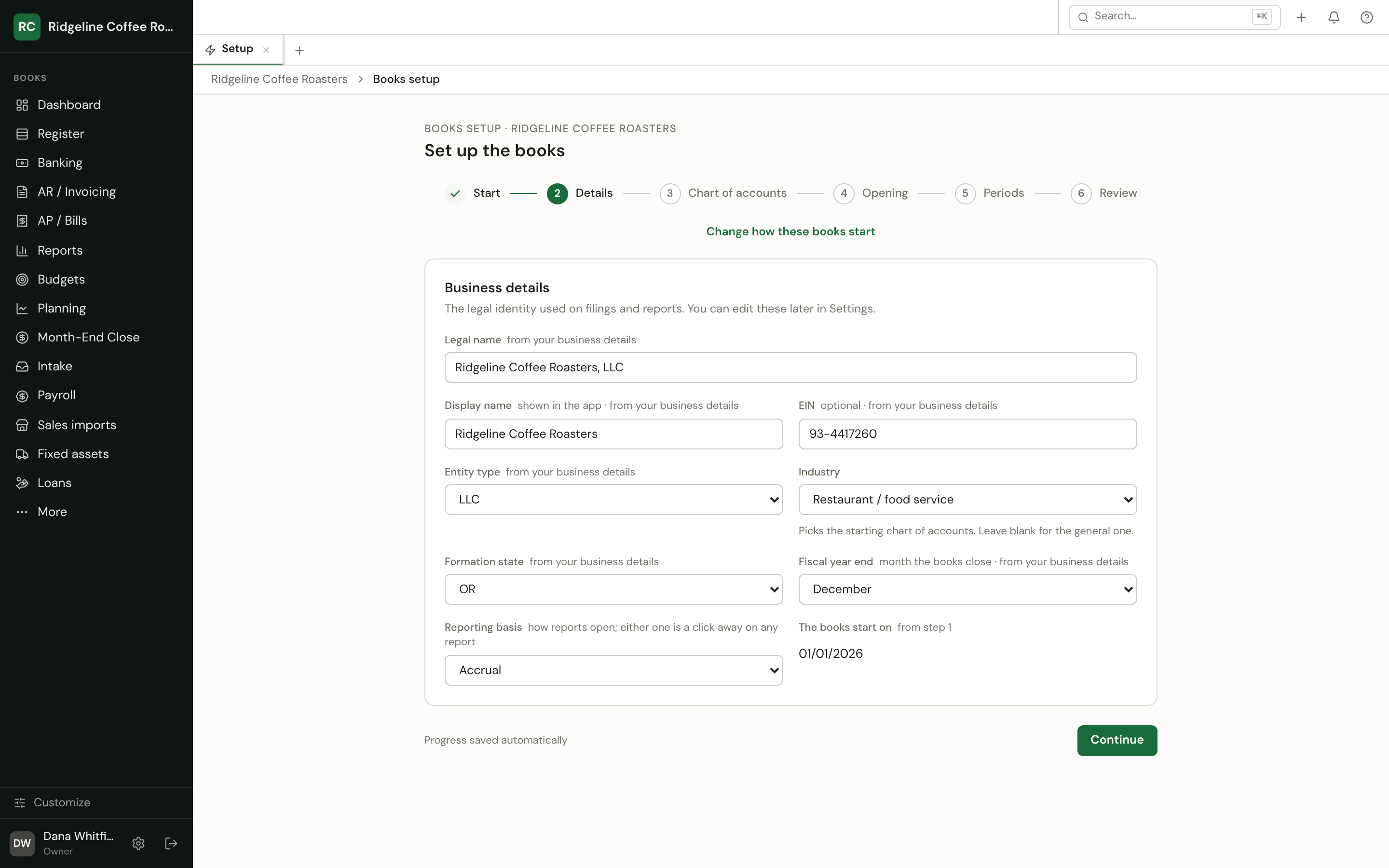 The Details step for Ridgeline Coffee Roasters, with Start done and the six steps across the top
3. Your chart of accounts
Books recommends a template for your industry, and General Business if you didn't choose one. Untick accounts you won't use, add your own with Add an account, and check the Preview. A few accounts are marked Required because Books needs them; those stay.
4. Opening balances
First, Books asks what was in each bank account, and owed on each card, the day before your books start. Type the balance from your statement, click Nothing in it (Nothing owed for a card), or click Skip — I'll enter it as a journal entry. None of these is required, and an amount here balances itself against Opening Balance Equity.
Then, if you have them, enter the rest of your trial balance in the grid as of that same day: what you own, owe and have put in, plus this year's income and expenses so far if you start mid-year.
Ask your accountant for a trial balance if you're not sure. A new business with nothing yet can leave the grid empty. Every amount field does math, so =1200+350+87.50 works. The grid's debits must equal its credits before you can activate.
5. How closed months lock
Soft lock (recommended): someone allowed to reopen periods can reopen a month later, with a written reason. Hard lock is final. You can change this later under Settings › Periods.
6. Review and activate
Check the summary, including the exact opening entry that will post, and click Activate books. Books creates your chart of accounts, posts your opening balances as one entry dated the day before your books start, and takes you to your dashboard.
Your Getting set up list
Your dashboard keeps a Getting set up list of what's left, with a count such as 1 of 6 done. Only an owner or admin sees this list.
If you stop partway through setup, the first row says where you stopped and when, in the same step numbers setup shows across the top, for example Starting fresh, stopped at Opening, step 4 of 6. Saved Nov 8, 2026. Click Continue setup to pick up at that step.
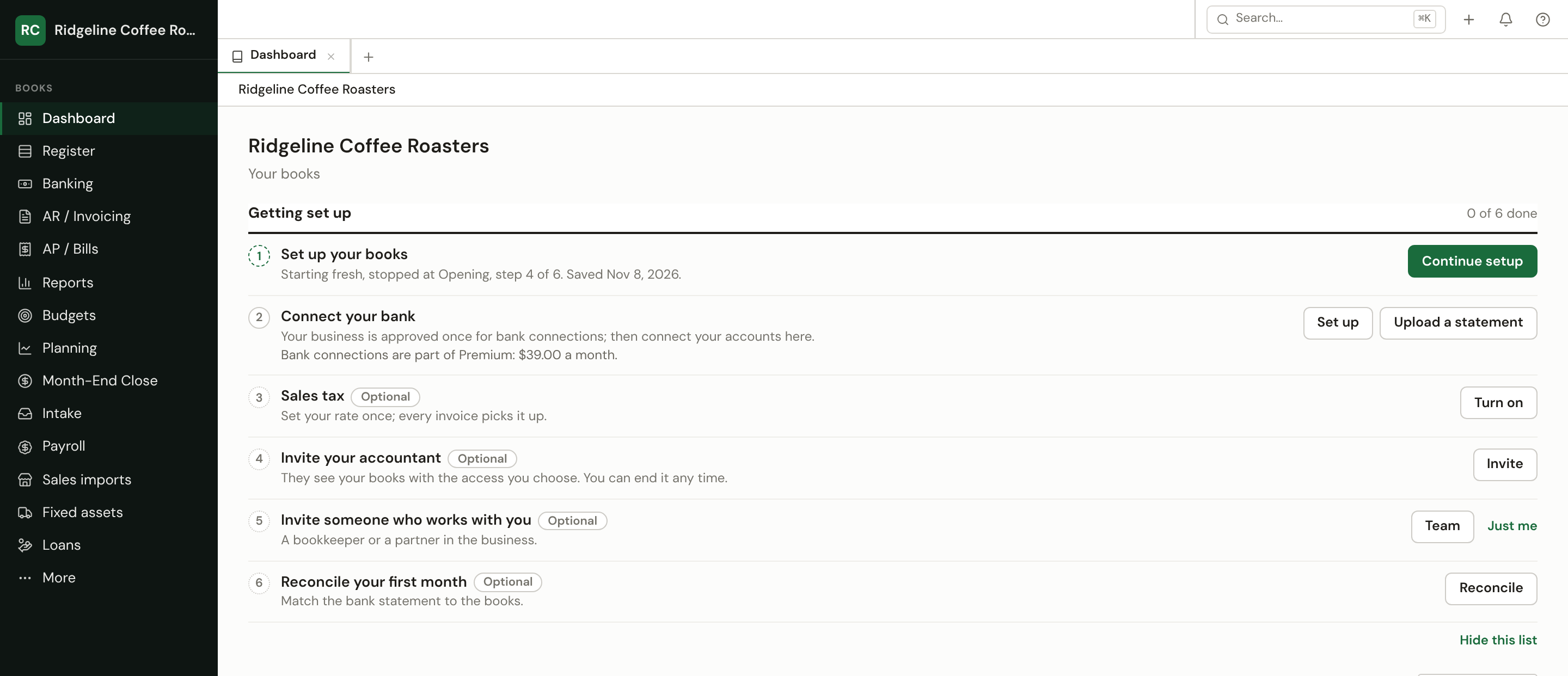 The Getting set up list partway through setup, with Continue setup and where it stopped
What each row does:
Set up your books
Opens setup. While setup is unfinished, the button reads Continue setup and the row says where you stopped and when it was saved.
Connect your bank
Set up starts the one-time approval for bank connections; then you connect your accounts. Bank connections are part of Premium, and the row shows the monthly price. Upload a statement each month is the free alternative, but it doesn't tick this row off: if the row is required, it stays until a bank is connected.
Sales tax (Optional)
Turn on: set your rate once, and every invoice picks it up.
Invite your accountant (Optional)
Invite: your accountant sees your books with the access you choose, and you can end it any time.
Invite someone who works with you (Optional)
Team to invite a bookkeeper or a partner, or Just me if it's only you.
Reconcile your first month (Optional)
Reconcile: match your bank statement to your books.
- Setting up your books is required. Connecting your bank is required too if you answered Yes or Maybe to Will you connect your business's bank or card accounts? at sign-up.
- Finished rows move to a Done line at the bottom of the list, for example Done: Set up your books, and the count goes up.
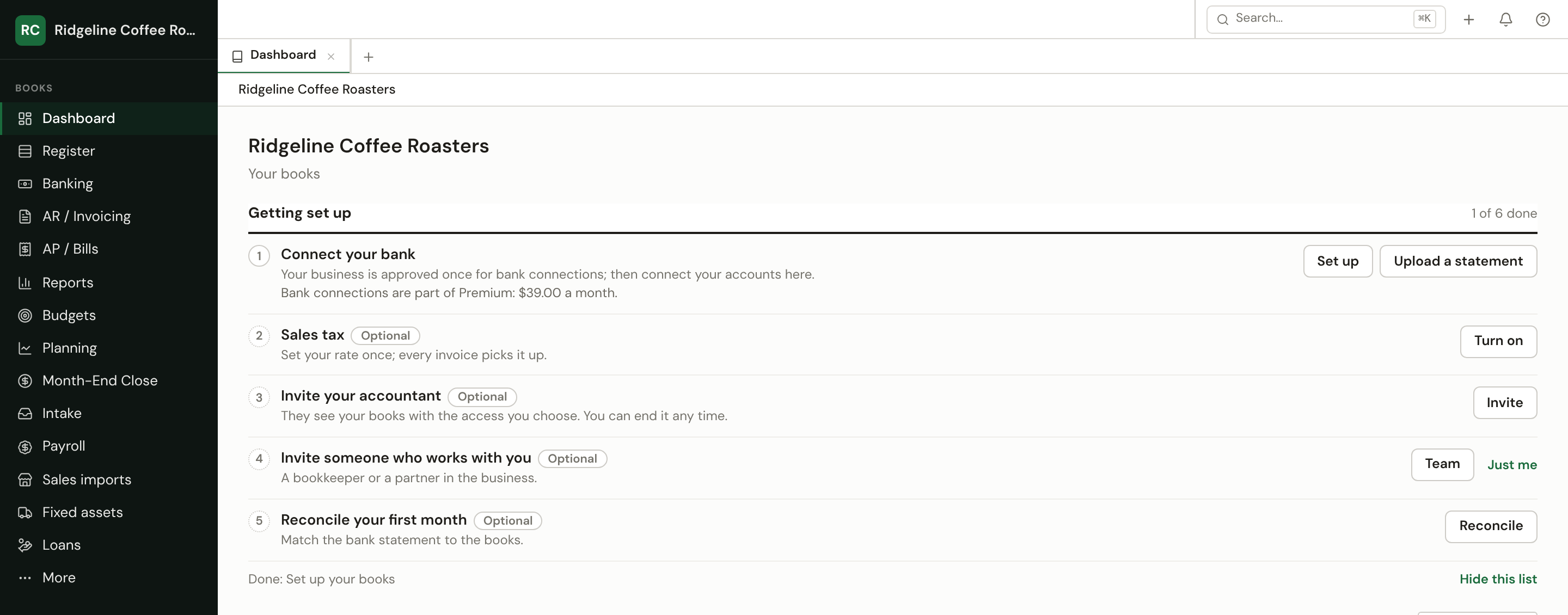 The Getting set up list once the books are set up, with Done: Set up your books at the bottom
- When the required rows are done, the list says Your books are set up. Next: reconcile your first month., with Reconcile, and then leaves your dashboard.
- Just me is undone from the bottom of the list with Undo Just me.
- Hide this list hides it, with Undo on the notice. Until the required rows are done, the help menu (the ? at the top right) keeps a Getting set up link under Your setup that brings it back.
If you take on clients
Books is built for a business keeping its own books, and for accounting firms. If you add a client, Books treats your business as an accounting firm from then on, and Settings shows a Clients page. Only an owner or admin can add a client. See Add a Client and Turn On Books before you do.
Tips
- Start on the first day of your fiscal year. Then your opening balances are only what you own, owe and have put in, with no income or expenses so far.
- Answer the bank question from your bank statement. Use the balance on the day before your start date, so your first reconciliation ties.
- Invite your accountant early, so they can look over your opening balances.