
Organize what a client sent: file, move and rename documents
Where a client's upload goes when it arrives, how to file it from Client Uploads, and how to move and rename documents once they are in the client's folders.
On this page
A client has sent you a stack of files, from the portal or from a document request link. This article covers what happens to those files when they arrive, and how you get each one into the right folder with a name you can find later.
You move and rename one document at a time. Selecting several documents does not offer Move or Rename.
What happens when a file arrives
When Document Intelligence is on (it is unless your firm turned it off), LedgerOS reads the files clients send. It works out the document type, the year and the payer and, when it recognizes the type, renames the file from your firm's naming pattern. Then it decides whether it can file the document on its own.
It files the document itself only when all of these hold:
- it recognized the document type;
- one of the client's folders auto-files that type (see Have files land in the right folder below);
- it is at least 85% sure;
- your firm's Client uploads setting, or that document type's own rule, allows it;
- the file is not a possible duplicate of one you already have.
If the folder keeps a subfolder for each year (set up from a folder template) and LedgerOS found the document's year, the document goes into the subfolder for that year, and LedgerOS creates that year's subfolder if it is not there yet.
Anything it cannot file waits for you in Client Uploads, under Needs filing, with its best guess already filled in. With Document Intelligence off, a file is not read or renamed: it is kept as the client sent it, in the client's Unfiled.
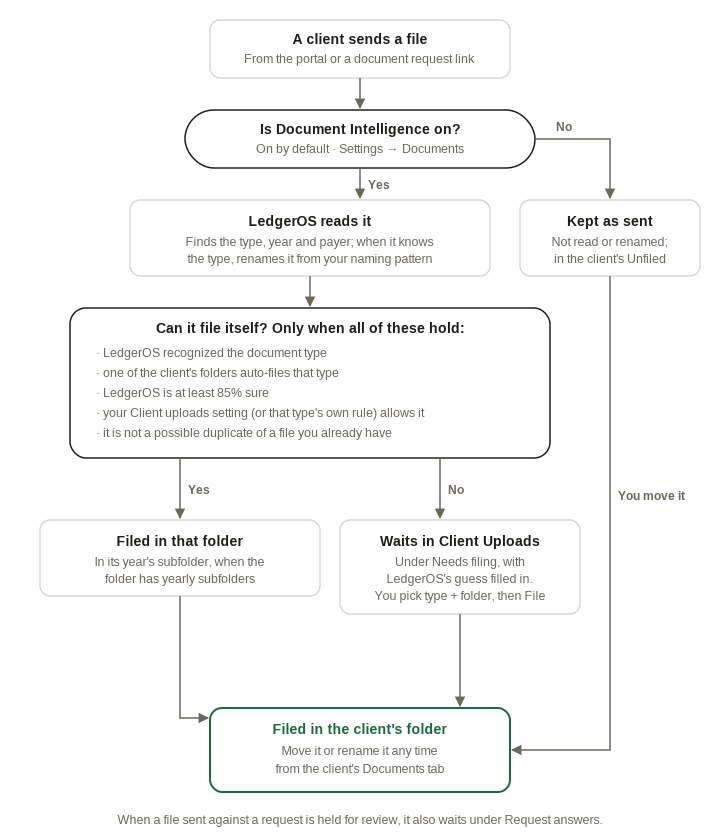 Where a client's upload goes
File what is waiting in Client Uploads
Client Uploads lists everything clients have sent that still needs a decision. It has two views: Needs filing, the list you work through, and All uploads, everything clients have sent, filed or not, newest first.
When uploads are waiting for a type and a folder, a Needs review (N) button shows at the top of every Documents tab. Click it to see only those uploads; click it again to see everything.
Each row under Needs filing says how sure LedgerOS is, for example Only 62% sure — confirm the type and folder below., or We could not tell what this is, so it has not been filed. Choose a type and folder.
- Open Documents, then Client Uploads.
- On the row, check Type. Change it if LedgerOS guessed wrong.
- Choose a Folder. The list shows only that client's folders.
- Optionally choose a Task to attach the file to a task as well.
- Click File.
The row leaves the list as soon as the file is in a folder, and you see Filed to Library. Attaching it to a task alone does not take it off the list: a task is a separate destination from a folder.
To open the file first, use the row's … menu, then View. If the file should not be kept at all, the same menu offers Discard, which moves it to Trash, where you can restore it. Some rows show Dismiss instead, which takes the file off this list and leaves it in the client's files.
If someone at your firm already set this document's type and you file it with a different one, LedgerOS asks first: Someone already classified this document. Choose Keep (followed by their type) to keep it, or Replace with (followed by yours) to use your choice. Either way the document is filed.
The client has no folders yet
If the client has no folders, the Folder list reads No folders yet. Choose + New folder… (it is at the bottom of the list for every client), type a name, and click Create folder (or press Enter). The new folder is made at the top level of the client's documents and chosen on the row. Click File to file the document into it.
Files sent against a request
A file a client sends against a document request is accepted on its own when your Client uploads setting, or that document type's own rule, allows it (see Have files land in the right folder). When it is held instead, it shows under Request answers, where you Accept, Return or Waive it. Accepting answers the request; it does not choose a folder.
If LedgerOS could not file the document itself, it also waits under Needs filing until you give it a folder. See Review what clients send.
Move a document into a folder
Every client's documents live in folders. A document with no folder sits in Unfiled, which shows in the folder list on the left whenever the client has unfiled documents.
The folder list opens with only the top-level folders showing; the folders you open are remembered in your browser for the next visit, and the folder you are looking at always stays visible. Documents → Library remembers the clients and folders you opened the same way.
From the menu:
- Open Clients, the client, then the Documents tab.
- Click Unfiled (or whichever folder holds the document).
- On the document's row, open the … menu and choose Move to folder.
- Click the folder you want. Choose Unfiled (no folder) to take a document out of every folder.
By dragging: drag the document's row onto a folder in the list on the left.
You see Moved. A document waiting under Needs filing in Client Uploads leaves that list once you move it into a folder.
If the folder is set to show its documents to the client, moving a document into it also shares that document on the client's portal and emails the client that it is there. You see Moved & shared with client. If the client cannot use the portal yet, the document is moved but not shared, and the message says why, for example Moved — No portal users for Ridgeline Coffee Roasters — invite a contact first. Moving a document out of such a folder does not unshare it.
Move documents from the firm-wide Library
Documents → Library shows every client's folders in one tree, with an Unfiled entry under each client. Click a folder (or Unfiled), then drag a document's name onto a folder in the tree to move it there.
Rename a document
- On the document's row, open the … menu and choose Rename. (This works in both the client's Documents tab and Documents → Library.)
- Under Document name, type the new name.
- Click Rename. You see Renamed to followed by the new name.
A name can be up to 200 characters. A longer one is refused with A document name can be at most 200 characters.
To change the name together with the document's type and year, open the client's Documents tab and choose Edit type & year in the row's … menu instead. The Edit details window has Name, Document type and Year; click Save.
When LedgerOS reads a document and recognizes its type, it names it from your firm's pattern, {year} {doc_type} — {payer} unless you changed it, in Settings → Documents → Document Intelligence → File naming pattern (each document type can have its own pattern under Per-type naming overrides). If someone renames the file while LedgerOS is still reading it, their name is kept.
Have files land in the right folder
The fewer uploads that wait in Client Uploads, the less you move by hand. Three settings decide how much LedgerOS files for you.
Which folder takes which document type. In Documents → Library, click a client's folder, then the Auto-files: chip above its documents. In Auto-file rules for that folder, pick the document types it should receive, for example W-2s into Source Documents.
As the panel says: Rules apply to documents filed from now on. Nothing already in this folder moves, and nothing moves out of another folder. Changing these rules needs permission to manage documents.
Folder templates. Documents → Folder Templates sets up the same folders, with their auto-file types, for every client you apply a template to. A folder in a template named {year} becomes a subfolder for each year, and auto-filed documents go into the one for their year.
How cautious to be. In Settings → Documents → Document Intelligence, under Client uploads:
| Choice | What happens |
|---|---|
| Auto-file, flag for review | The default. LedgerOS files a client's upload itself when everything above holds. |
| Hold everything for review | A client's upload waits in Client Uploads until someone at your firm files it, unless its document type is set to Auto below. |
To make an exception for one kind of document, go to Settings → Documents → Document Types and set that type to Auto (accepted without review), Review (always held for your team) or Inherit (follows the Client uploads choice). Auto does not skip the other conditions: the type still needs a folder that auto-files it, LedgerOS still needs to be at least 85% sure, and a possible duplicate is still held.
Why can't I…
…see Move to folder or Edit type & year? Your role is read-only. Ask an admin at your firm to change your role.
…move a document? Two things stop a move:
- Someone else has the document checked out. The message names them, for example Document is checked out by Maya Chen, and in Documents → Library the row's … menu shows the same. Ask them to check it in, then try again.
- The document is under a legal hold, and the move would take it outside what the hold covers. The hold has to be released first; owners and admins can release holds.
…click File in Client Uploads? Choose a folder (or a task) first: LedgerOS says Pick a folder or a task first. To file into a folder, the document also needs a type: Pick a document type before filing to a folder.
…find Unfiled on the client's Documents tab? It shows only while the client has documents with no folder. When everything is filed, it is gone.
Related
- Review what clients send: Accept, Return and Waive.
- Request documents from a client
- The Document Center
- Export a client file
- Client folders and subfolder rules, for files that come in through Document Capture.