
Set Up a Client's Books: What's Left to Do and Opening Balances
Start a client's books fresh: choose the start date, the chart of accounts, the opening balances and how periods lock, then activate the books and see what's left to do.
On this page
Before you can record anything for a client, its books need a start date, a chart of accounts and its opening balances. Books setup walks you through all three, plus how closed months lock, and then turns the books on. Nothing posts until you click Activate books at the end, and your progress is saved as you go, so you can stop and come back.
The books start on one day, and nothing can be dated before it. Opening balances are the trial balance as of the day before, and they post on that day as one entry. Every transaction from the start date on is entered in Books. Pick the start date first, because the rest of setup is built around it.
Understand Books setup
Setup has six steps, shown across the top of the wizard: Start, Details, Chart of accounts, Opening, Periods and Review. A step you have finished shows a check mark, and you can click it to go back (to change Start, use Change how these books start). Back and Continue move one step at a time.
- The footer says Progress saved automatically, or Saving… while it saves. If a save fails, it says Not saved and the reason shows above the buttons. Leave the page and come back: setup opens at the step you were on, with everything you entered.
- When Continue is turned off, the reason shows under it, for example Enter the legal name.
- Change how these books start takes you back to the first question.
Start: moving or starting fresh
The first screen asks Are these books moving from another system, or starting fresh? and The books start on. It says Nothing is written until you continue.
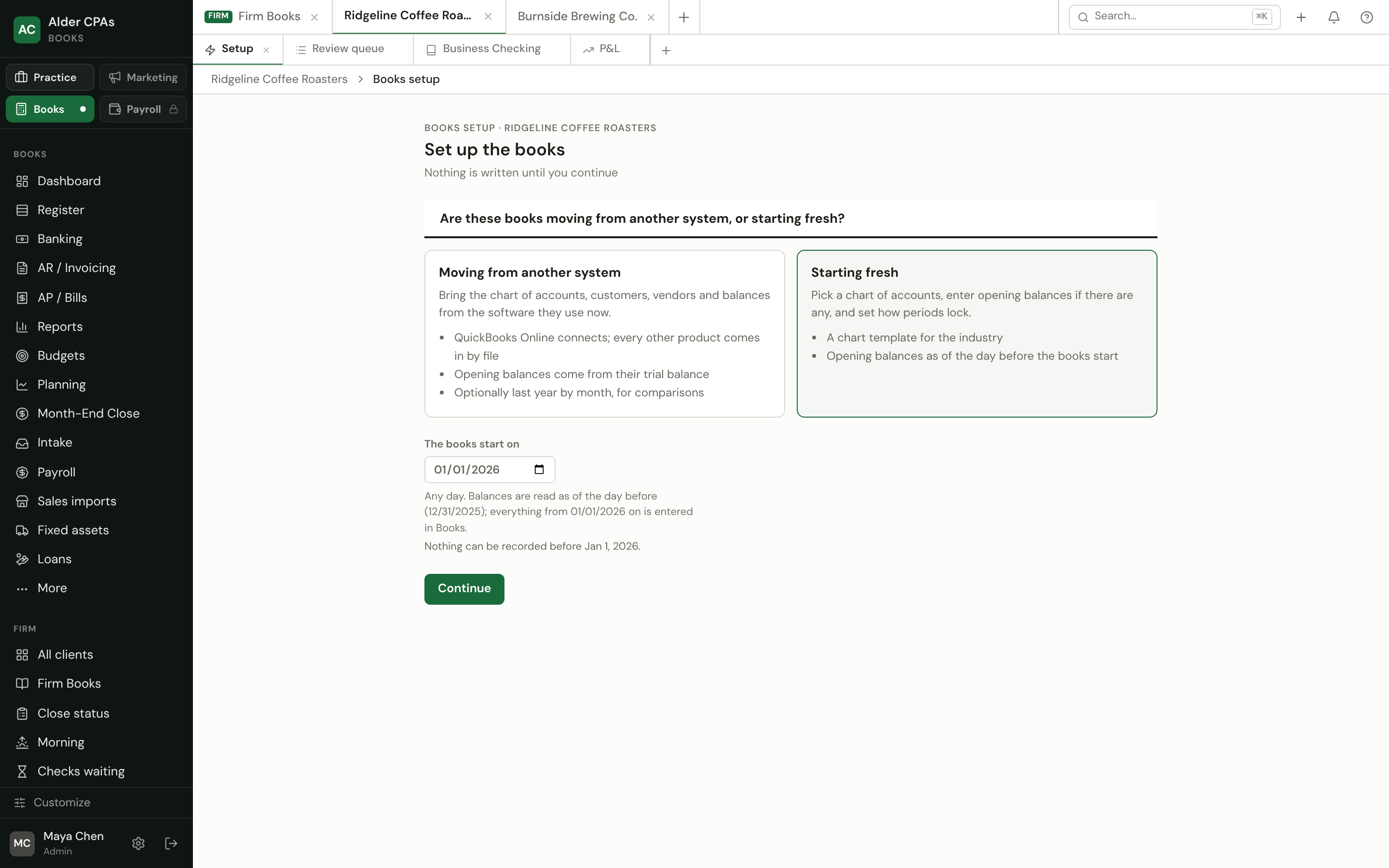 Setup's first question for Ridgeline Coffee Roasters, with Starting fresh chosen and the books starting 01/01/2026
- Choose Starting fresh: you pick a chart of accounts, enter opening balances if there are any, and set how periods lock. (Moving from another system brings the chart of accounts, customers, vendors and balances over from QuickBooks, Xero or another product instead. That path has its own screens and its own help article.)
- Check The books start on. It suggests the first day of the client's current fiscal year, and it can be any day, including one in the future. The lines under it spell out what the date means, for example Any day. Balances are read as of the day before (12/31/2025); everything from 01/01/2026 on is entered in Books. and Nothing can be recorded before Jan 1, 2026.
- Click Continue.
You can use the keyboard here: Tab to a choice and press Enter or Space to pick it.
Change the answer later
Change how these books start reopens this question with your answer chosen. You can change the path or the start date until something has been written to the books.
After that, Books refuses the change and says why, for example The answer can't change here because an import started Nov 3, 2026 is in progress, starting Jan 1, 2026. Undo that first. When the thing in the way is an import that hasn't written anything to the books yet, the screen offers Continue import → and a way to discard the import before starting fresh.
Details
The Business details step confirms the client's legal identity. Fields already on the client record are filled in and labeled from the client record until you change them.
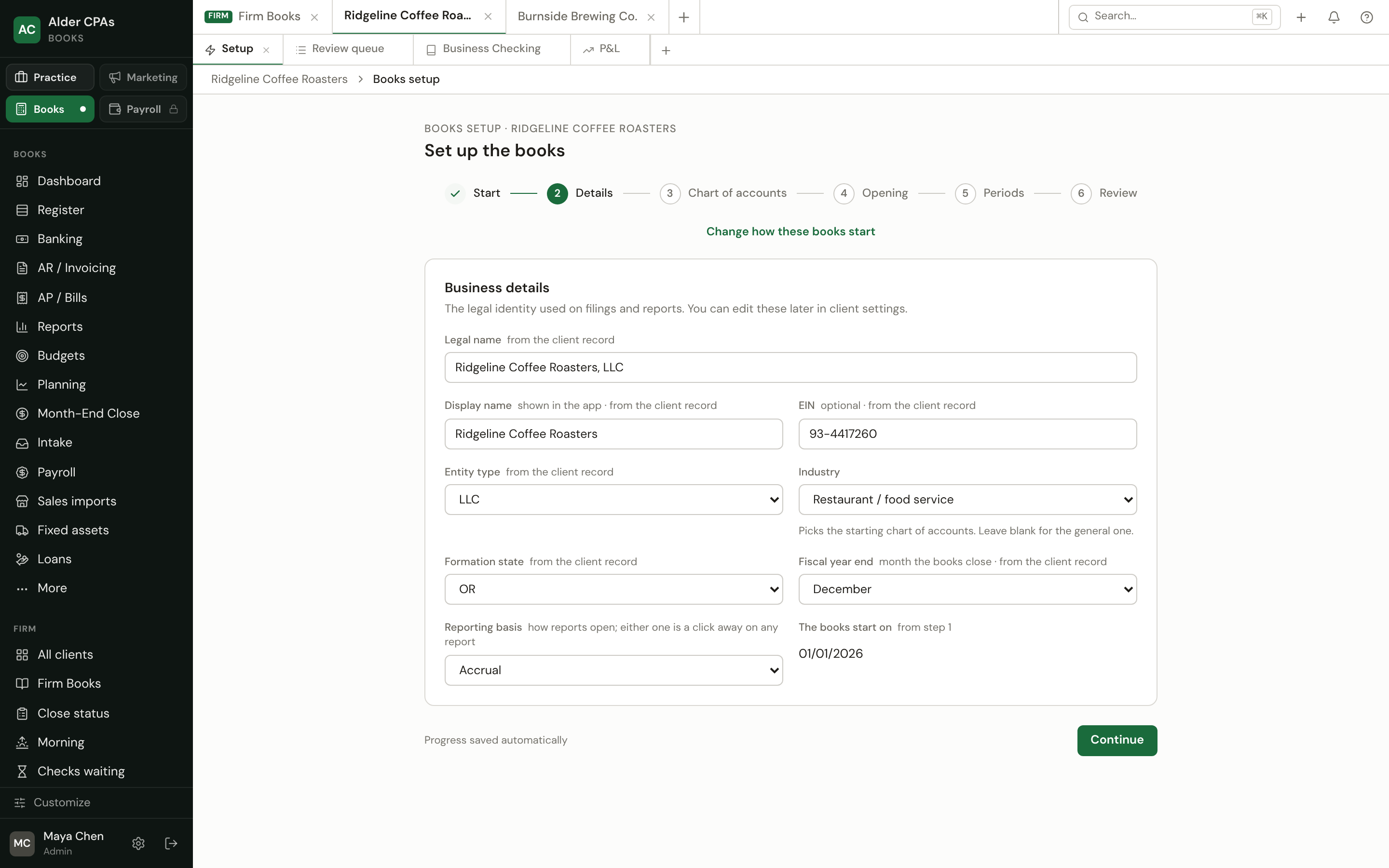 The Details step, filled in from the client record
| Field | What to know |
|---|---|
| Legal name | Required. A client added without one is offered its display name to confirm. |
| Display name | The name shown in the app. |
| EIN | Optional. |
| Entity type | Required. |
| Industry | Picks the starting chart of accounts on the next step. Leave it blank for the general one. |
| Formation state | The two-letter state. |
| Fiscal year end | The month the books close. December unless the client record says otherwise. |
| Reporting basis | Accrual or Cash: how this client's reports open. Either one is a click away on any report. |
| The books start on | Shown here, not edited. Change it with Change how these books start. |
These details are saved to the client when you activate. As the step says, You can edit these later in client settings.
Chart of accounts: choose a template
The step opens: Pick a starting template. Four accounts are always added and can't be removed: Accounts Receivable, Accounts Payable, Retained Earnings and Opening Balance Equity. Point to an account marked Required to see why. Each template card shows its name, a description and how many accounts the client will have after setup (for example 65 accts).
The template for the industry you chose is marked Recommended and selected for you; with no industry, General Business is. Minimal — start from scratch gives you only the four required accounts plus the two card-payment accounts every set of books is given (Merchant Processing Fees and Card Surcharge Income), and you add the rest yourself.
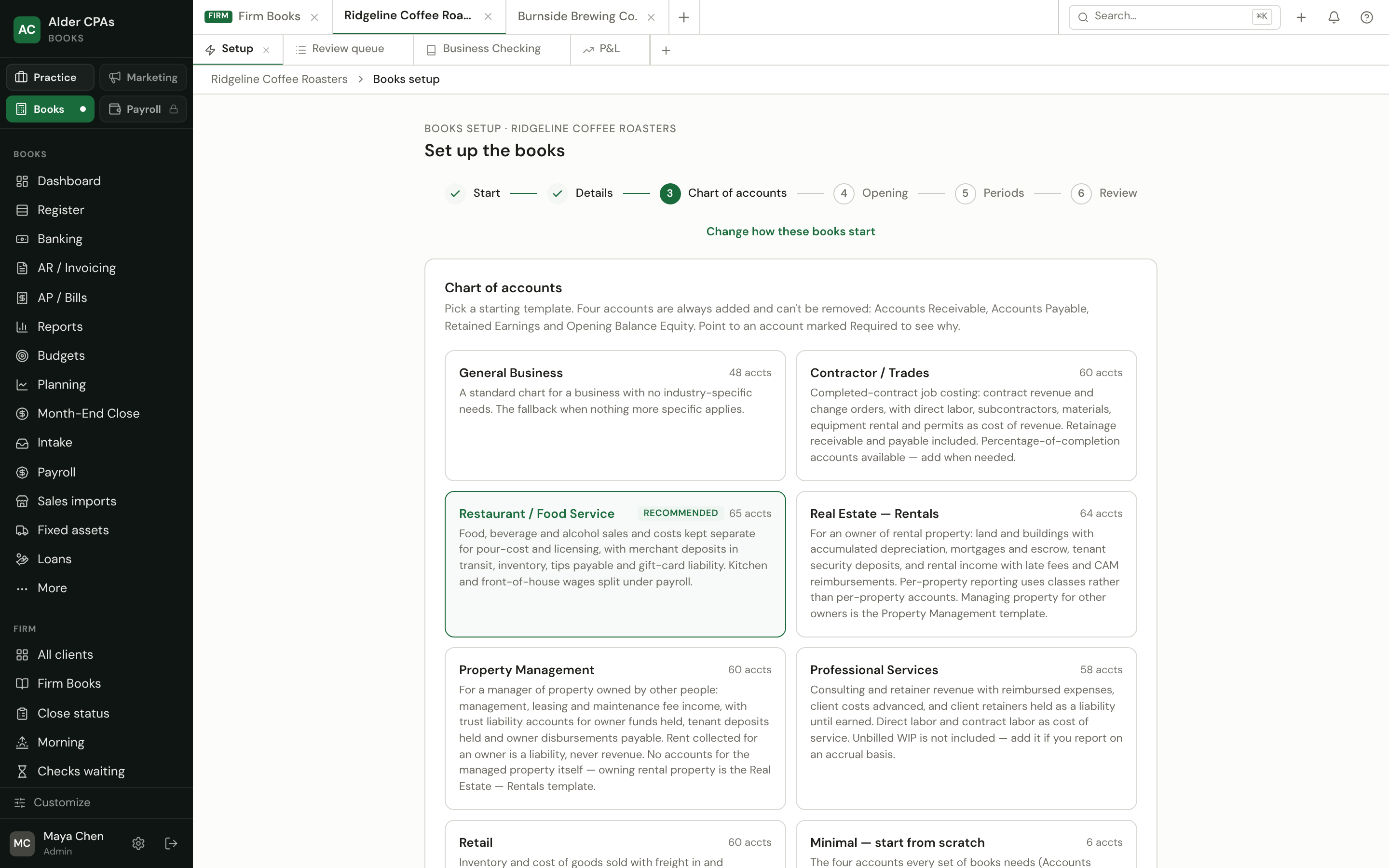 Chart of accounts templates, with Restaurant / Food Service recommended for a café
Below the templates, Preview lists every account the template creates, grouped as Assets, Liabilities, Equity, Revenue and Expenses, with sub-accounts indented under their parent. Its first line says exactly how many accounts will be created, for example 64 accounts will be created — 64 in the template, 2 excluded, 1 added, and 1 card-payment account setup adds.
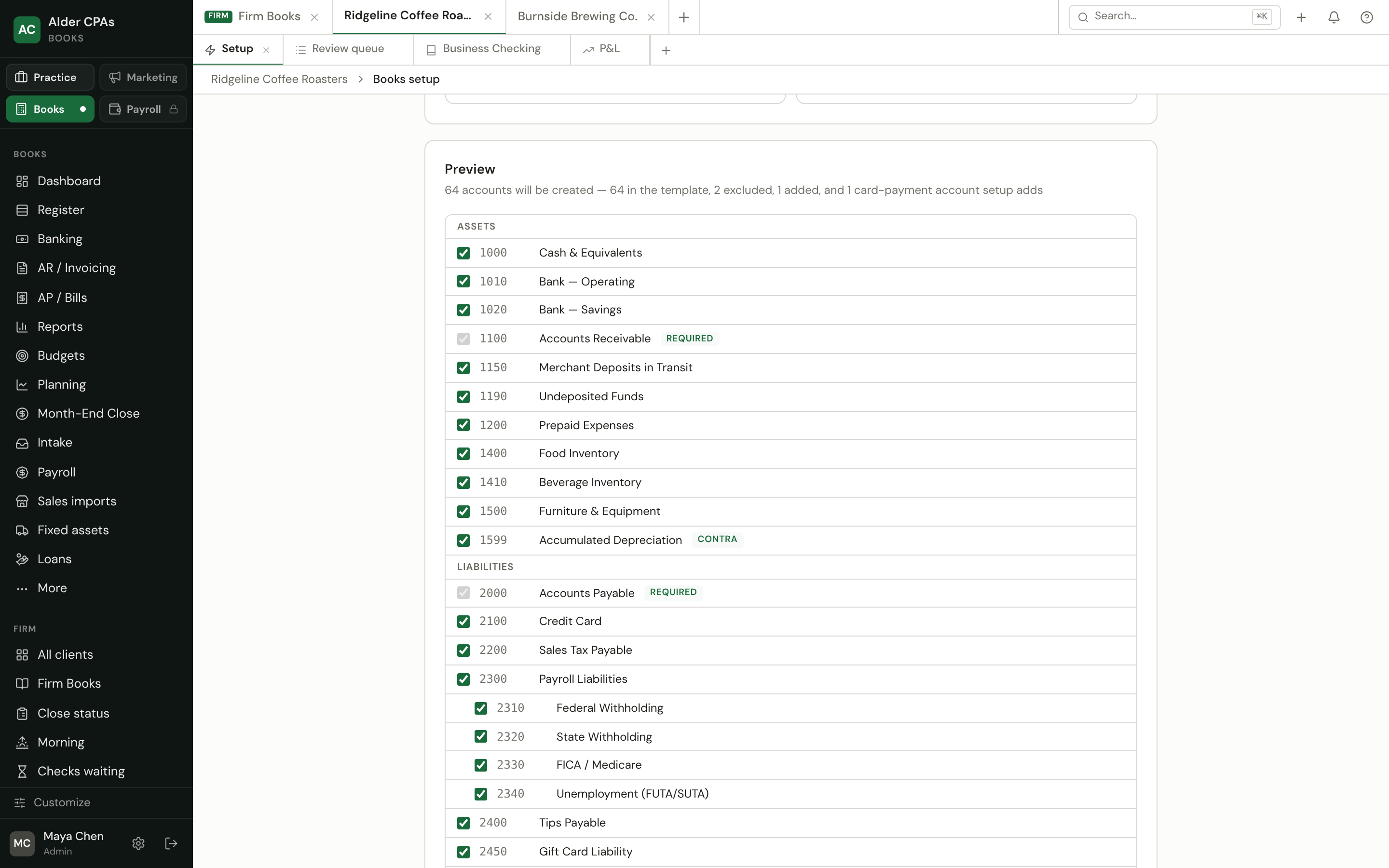 The template preview, with the required accounts marked
-
Untick an account to leave it out. Unticking a parent leaves out its sub-accounts too, and the row says so: Unticked with its 2 sub-accounts. Ticking a sub-account again brings its parent back.
-
Accounts marked Required can't be unticked. Hold the pointer over one to see why:
Account Why it's required Accounts Receivable Required — invoices and customer payments post to this account, so it cannot be removed. Accounts Payable Required — bills and bill payments post to this account, so it cannot be removed. Opening Balance Equity Required — the opening balances post against this account, so it cannot be removed. Retained Earnings Required — closing a year moves its net income into this account, so it cannot be removed. -
Add an account opens a small form: Number, Name, Type and Subtype, then Add. Click Done to close it. Added accounts appear under Added by you, with an × to remove one. Books checks the number as you type it and refuses one that's taken, before you click Add:
- one the template already creates: 4070 is already being created. Pick another number, or exclude that account first. Leaving an account out frees its number.
- one you already added: 4070 is already being added. Pick another number.
- one already in the client's chart: Account 6600 is already in this client's chart as "Equipment Rental". Give the account you are adding a different number.
The form reads the client's chart first. Until it has, it says Reading this client's chart… and Add stays off.
Switching templates clears your changes. Accounts you left out and accounts you added belong to one template, so choosing a different template starts both lists over.
You can change the chart any time after setup: see Your Chart of Accounts.
Opening: enter opening balances
Enter the client's trial balance as of the day before the books start, including the year's income and expenses so far if the books start partway through a year. It posts on that day. If the business is new and has no balances, leave the step empty and click Continue.
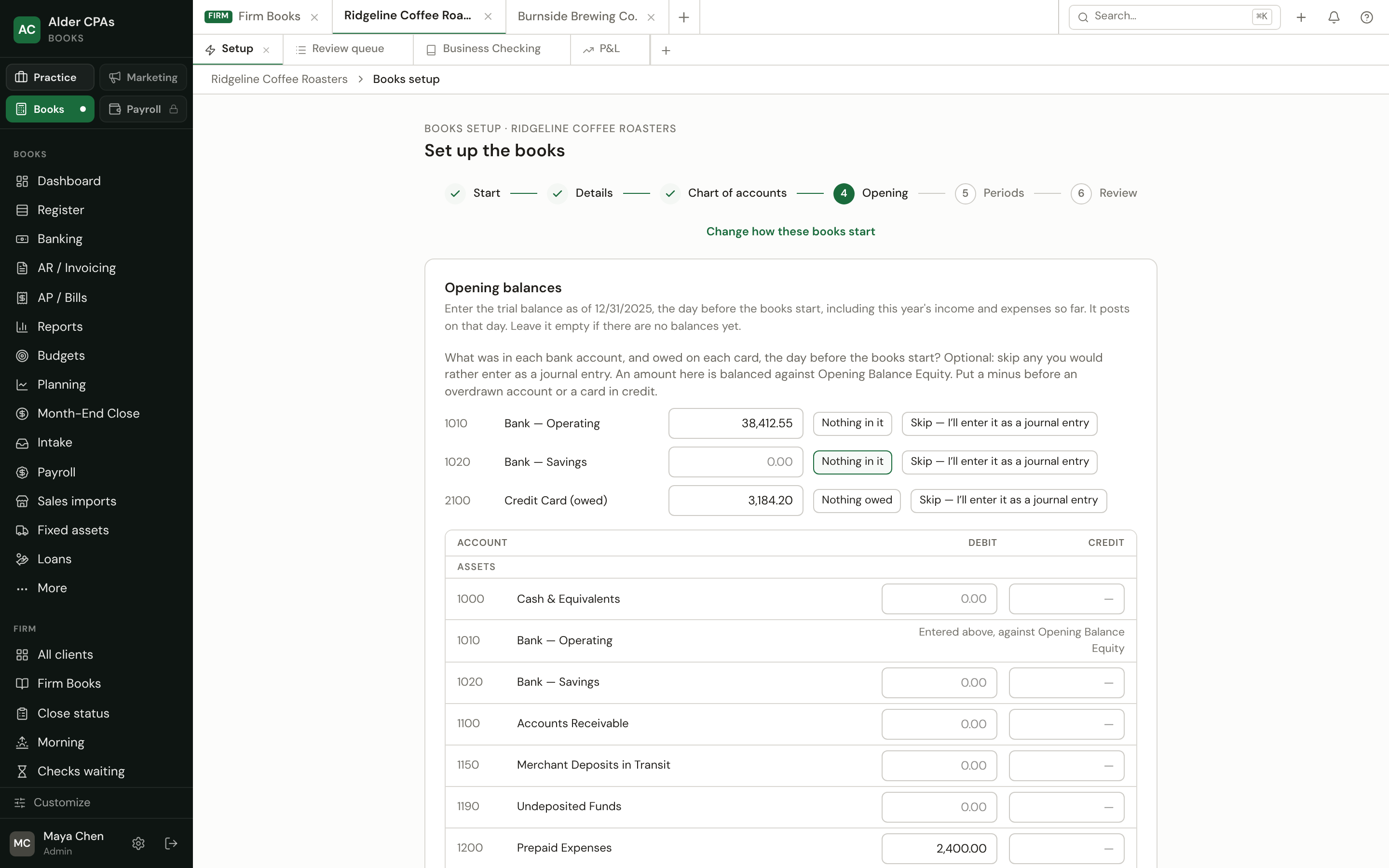 Opening balances: the bank and card question above the trial balance grid
The bank and card question
At the top, Books asks What was in each bank account, and owed on each card, the day before the books start? for every bank and credit card account in the chart. For each one, you can:
- Type the balance (for a card, what was owed). Books posts it against Opening Balance Equity, so an answer here never throws the entry out of balance. Put a minus before an overdrawn bank account or a card in credit, for example -250.00 or -40.00 (when you leave the field it shows as (250.00)): the overdrawn bank opens with a credit balance, and the card in credit with a debit balance.
- Click Nothing in it (for a card, Nothing owed).
- Click Skip — I'll enter it as a journal entry if you would rather record it yourself. A journal entry has to be dated on or after the start date.
All three are optional, and none of them stops you from continuing. Once an account has a balance here, its row in the grid below reads Entered above, against Opening Balance Equity, so the figure is never counted twice.
A figure you typed in that row before answering is set aside: it counts in none of the totals and doesn't post. If you click Nothing in it or clear the amount, the row comes back in the grid, with any figure you had typed in it, and that figure counts again.
Answering this question is what lets your first bank reconciliation tie: the bank account opens at the balance the statement shows.
The trial balance grid
The grid lists every account that setup will create (the ones you left out are not offered), with a Debit and a Credit column. The faint 0.00 shows each account's normal side.
- Type each balance on its side. When you leave a field, Books formats it (12640 becomes 12,640.00). A zero clears the field.
- Math works in every amount field. Type
=1250+3400+675,4,215.00/3or(125+50)*12and Books works it out when you leave the field or press Enter, rounded once to the cent. If it can't, the field keeps what you typed and says why, for example Can’t divide by zero. - Once you enter a figure, a strip under the grid shows Total debits, Total credits and the Difference, and says Balanced or Not balanced. The strip totals the rows you can see in the grid. A bank or card balance you answer above balances itself against Opening Balance Equity and is not in it.
- To make the grid balance, put the difference on Opening Balance Equity (or on the owner's equity accounts, if you know how it splits).
Continue stays off until the grid balances or is empty, and the reason shows under it: Opening balances must balance — debits equal credits — or be left empty. A bank or card answer that isn't an amount also holds it.
Under the question, the message names the button for that account, for example Enter the opening balance for 1010 as an amount, like 1,250.00 (with a minus if the account is overdrawn or the card is in credit), or choose "Nothing in it". (for a card, …or choose "Nothing owed".). Under Continue, the same sentence ends …or choose "Nothing in it" for a bank account or "Nothing owed" for a card.
Periods: how closed months lock
The Period locks card asks how a period is locked when its close is finished. You can change this later under Settings › Periods.
- Soft lock (recommended): Posting, voiding or editing in a locked period asks for the closing password, if one is set. Someone allowed to reopen periods can reopen it, with a written reason.
- Hard lock: Final. Nothing posts into a locked period again, and it cannot be reopened. A correction goes in a later period.
The step also repeats the start-date rule: Everything before 01/01/2026 is the opening: no entry can be dated before the day these books start.
Review and activate
Review & activate lists everything you entered, each with Edit to jump back to its step (the start date has none: change it with Change how these books start): the business details, the start date, the COA template (with how many accounts you left out and added), the Opening balances and the Period lock.
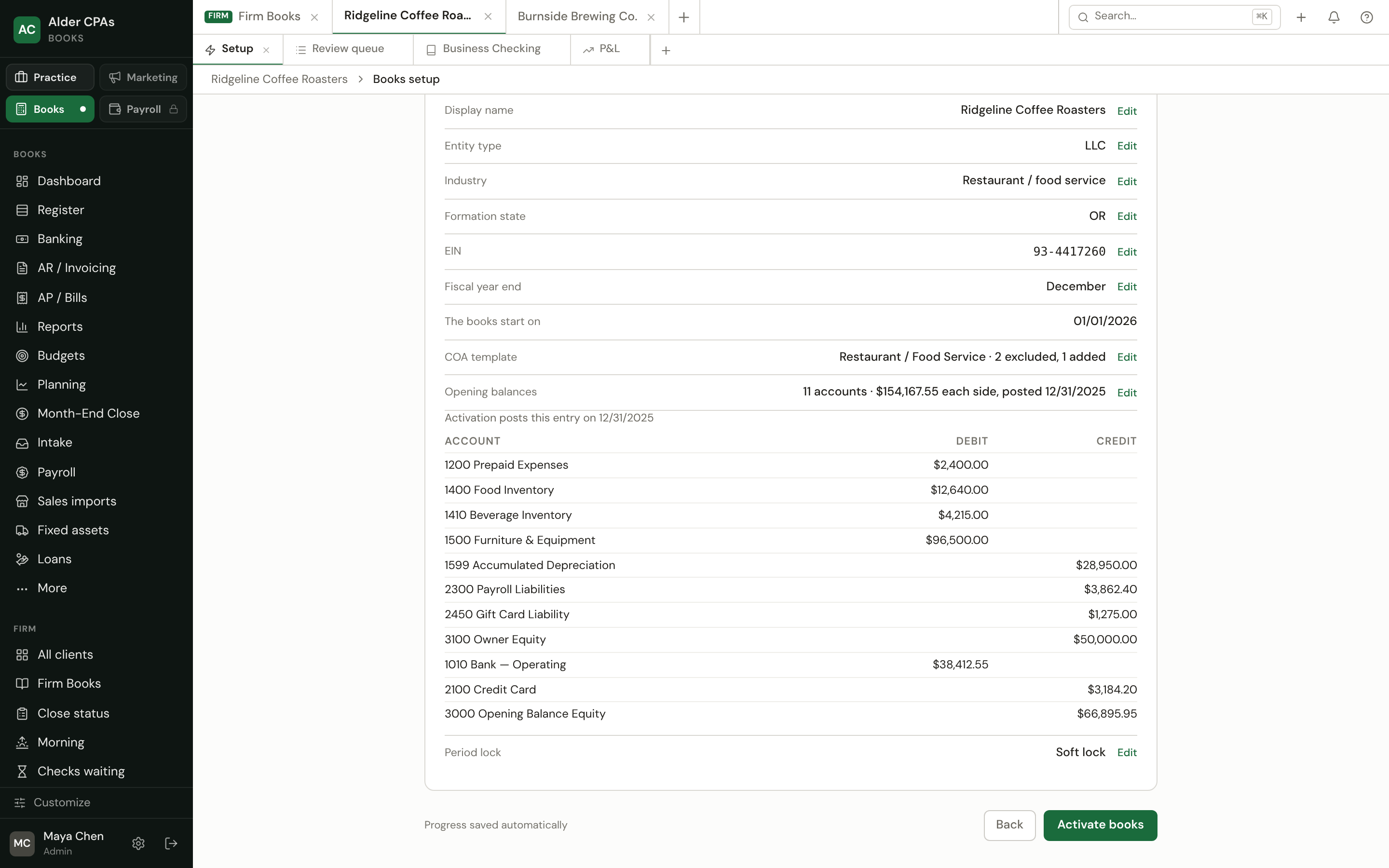 Review & activate, listing the exact opening entry that will post
The opening balances line sums up the entry, for example 11 accounts · $154,167.55 each side, posted 12/31/2025, and the table under it, Activation posts this entry on 12/31/2025, lists every line exactly as it will post. Read it before you activate: it includes the bank and card balances you answered (an overdrawn bank as a credit, a card in credit as a debit), and Opening Balance Equity as one line that carries both the grid's figure and the offset for those balances.
Click Activate books. Books first checks what could be refused — the EIN, the fiscal year end, the reporting basis (if you chose one) and, if you chose Hard lock, your permission to set it — without saving any of it.
If one is refused, activation stops with its reason and nothing is saved. A refusal while the chart is being created (see Account 1100 … below) comes after the details are saved; fix it and activate again. Then, in order, it:
- Saves the business details to the client, along with the fiscal year end and the reporting basis.
- Records the period lock choice, if you chose Hard lock.
- Creates the chart of accounts.
- Posts the opening balances as one entry, Opening balances, dated the day before the books start.
- Turns the books on and marks setup finished.
Then it opens the client's dashboard. If the grid is out of balance, Activate books is turned off. The review says by how much, Opening balances are out of balance by $250.00. Debits must equal credits before you can activate., and the line under the button reads Opening balances must balance — debits equal credits — before activating.
How opening balances post
The opening entry is an ordinary posted entry dated the day before the start date. It counts in every report from that day on, and it is described as Opening balances. Because the start date blocks anything dated earlier, the opening entry is the only thing before it.
To correct an opening balance after you activate, record a journal entry dated on or after the start date, against Opening Balance Equity. Setup itself can't be run again once the books are activated.
Change the start date after you activate
The start date can still move once the books are on. Go to Settings → Books Setup → Accounting, find Books start date and click Change (you need permission to change the client's settings). Pick the New start date: before you confirm, Books checks the date and says what it means, for example Nothing can be dated before Mar 1, 2026. 0 posted entries are affected. Click Start on Mar 1, 2026 to keep it.
Books refuses a date that would leave something on the wrong side of the start, and says what is in the way:
- A later date is refused while posted entries, finished reconciliations or closed months fall before it. The message names them and the latest date you can choose.
- An earlier date is refused once the opening balances are posted on another day, because everything recorded between the two would land before the opening balances.
- Books that came in through an import keep the import's start date. To start on another day, undo that import on its page and import again from the day you want.
What's left to do
Once a client's books are activated, its dashboard shows Next for this client, a short list of what's left, led by Ridgeline Coffee Roasters is set up.
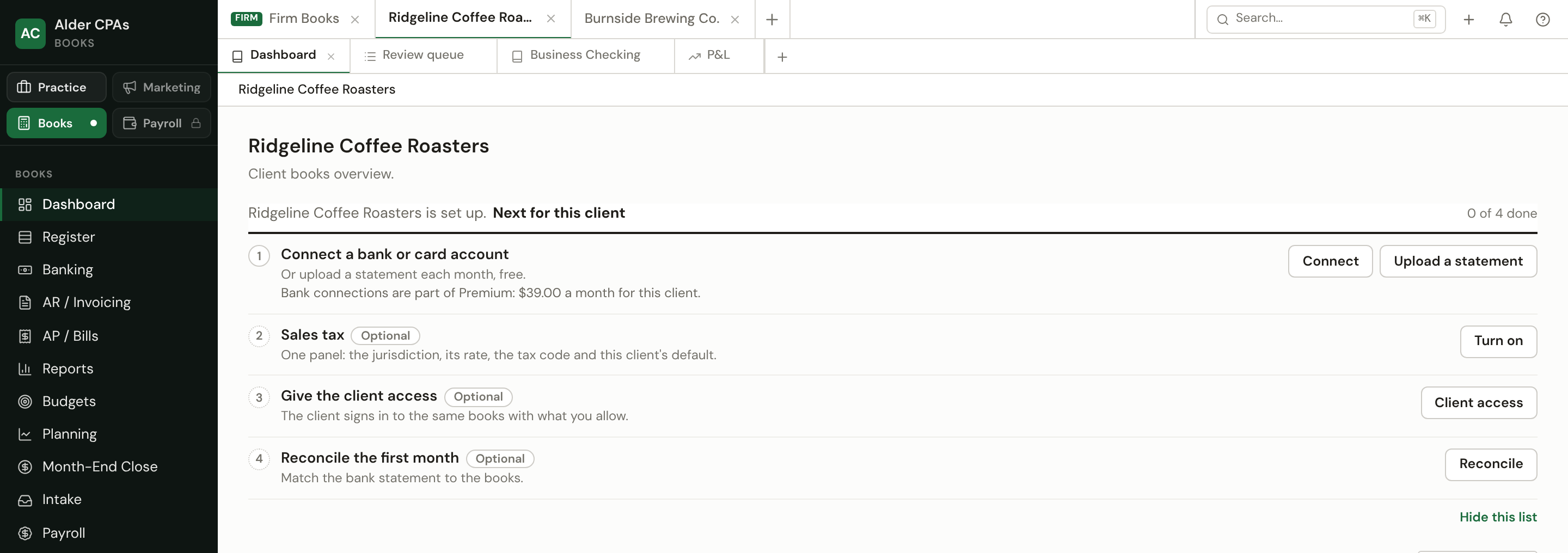 Next for this client on Ridgeline's dashboard after activation
What each row offers:
Connect a bank or card account
Connect, or Upload a statement each month, free. The row says bank connections are part of Premium and the price for this client. If your firm's approval for bank connections isn't in place yet (not started or still pending), Connect is turned off, the reason shows under the row, and the row offers Set up the approval or See status.
Sales tax (Optional)
Turn on opens the client's sales tax setup.
Give the client access (Optional)
Client access lets the client sign in to the same books with what you allow.
Reconcile the first month (Optional)
Reconcile matches the bank statement to the books.
- The count beside the title, such as 0 of 4 done, counts every row. A row is required only when it has no Optional tag; connecting a bank is required when your firm said it would use bank feeds.
- Finished rows move to a Done: line at the bottom.
- When the last required row is done, the list says You're set up. that once and then stays away. A list with nothing required shows once, then leaves.
- Hide this list hides it. A notice confirms it, Setup list hidden. You can reopen it from the help menu until it is done., with Undo. While something required is still open, the help menu (the ? at the top right) keeps a Your setup section with a Next for this client link that brings the list back.
Only people who can change the client's settings see the list.
Your firm's own list
Your firm's dashboard has its own Getting set up list while your firm is getting started: Add your first client, Set up their books (with Continue setup for a client you started and didn't finish, saying where it stopped and when it was saved), Invite your team (Team, or Just me if you work alone), Set up bank connections, Sending, and Your firm's own books.
Why can't I…
Continue is off with Enter the legal name. or Choose the entity type.
Fill in the field on the Details step.
Continue is off with Choose a chart of accounts template.
Pick a template card.
Continue is off with Opening balances must balance — debits equal credits — or be left empty.
Put the difference on Opening Balance Equity, or clear the grid.
A bank or card answer is refused as not an amount
Type a figure like 1,250.00 (with a minus for an overdrawn account or a card in credit), or click Nothing in it (for a card, Nothing owed).
The answer can't change here because …
Something has already been written to the books (an import in progress, posted entries, or finished setup). Undo that first.
Your access is read-only. Ask an admin to make this change.
Setting up books needs permission to post entries in the client's books. Ask an owner or admin.
Activate books stops with You need the "Lock a period" permission for this. Ask an admin to grant it.
You chose Hard lock, and setting it needs the Lock a period permission. Ask an admin to grant it, or go back to Periods and choose Soft lock. Nothing is saved: not the details, not the chart, not the opening entry.
Activate books stops with Account 1100 is already in this client's chart as …
The client already has an account with that number that can't take the template's place: a different kind of account, or one with entries posted to it. Renumber or remove it in the chart of accounts, then activate again.
Add refuses with Account 6600 is already in this client's chart as …
The number you typed is already in the client's chart. Give the account you are adding a different number.
Couldn’t read this client’s chart, so an added number can’t be checked against it yet. under Add an account
Books couldn't read the client's chart, so Add stays off. Click Retry.
Couldn’t load the template list. … Setup can’t continue until it loads.
The templates didn't load. When Books has a reason, it shows between the two sentences in plain words; when the connection dropped, it reads The connection dropped before LedgerOS answered, so this may or may not have saved. Reload to check before trying again.
Click Retry. The same goes for The account list failed to load. under Preview, and Couldn’t load the template’s accounts. on the Opening step, which adds Opening balances can’t be entered until they load.
Your progress could not be saved. above the buttons
The last change wasn't saved. Check your connection and make the change again; the footer says Progress saved automatically when it lands.
Starting fresh after an undone import works. If you undo or discard an import and then set the client up fresh, the few accounts the import left behind (such as Accounts Receivable and Opening Balance Equity) are taken over by the template, as long as nothing has been posted to them.
Tips
- Pick the start date with the client's last filed return in mind. The first day of the fiscal year is the cleanest: the opening entry is then a balance sheet only, with no income or expenses so far.
- Answer the bank and card question from the statements. Use the ending balance on the statement for the day before the start date, so your first reconciliation ties on the first try.
- Use math instead of a calculator. When a trial balance lists sub-accounts you are combining, type the sum straight into the cell.
- Read the review table, not just the totals. It is the exact entry that will post.