
Add a Client and Turn On Books
Add a client by hand or by importing its books, see where each client stands, turn Books off and back on, and archive or restore a client.
On this page
The Clients page is your firm's list of every client it keeps books for. Add a client here, see at a glance whose books are set up and whose are still waiting, change a client's plan, and archive a client you no longer work with.
A client you add here has Books turned on from the start. You don't need to turn anything on. Adding the client is step one; the next step is setting up its books, and Books takes you straight there.
Understand the Clients page
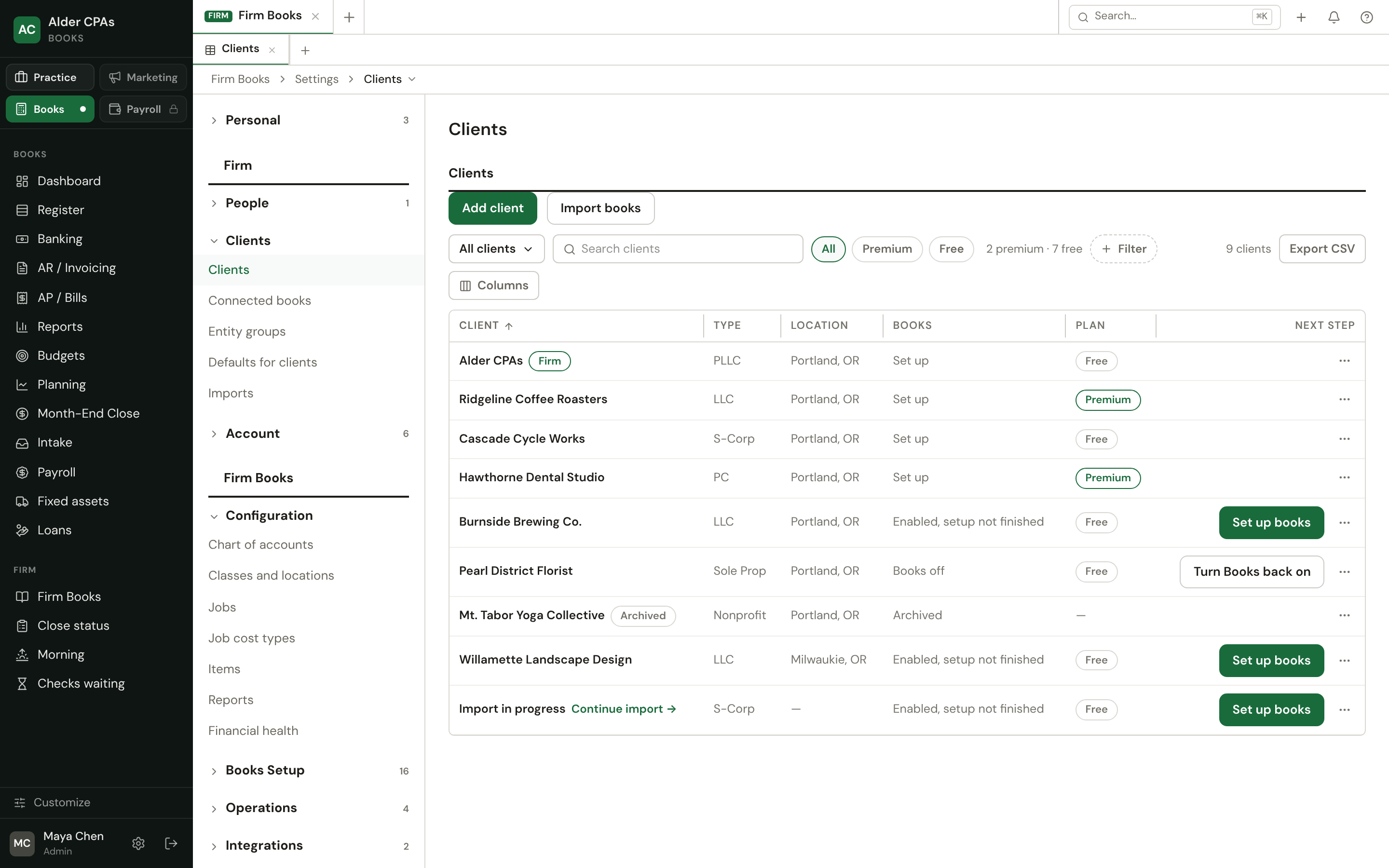 The Clients page for Alder CPAs, with clients in every state
Above the list are Add client and Import books, then the list's own tools: the All clients view picker, Search clients (it looks in the client's name, city, state and type), the All, Premium and Free buttons with a count beside them (for example, 2 premium · 7 free), Filter, Export CSV and Columns.
The columns, in order:
- Client — the client's name. Your firm's own books are marked Firm, and an archived client is marked Archived. When a client's books are set up, its name opens them.
- Type — the entity type, such as LLC or S-Corp.
- Location — the city and state from the client's address on file.
- Books — where the client's books stand (see the table below).
- Plan — Premium or Free. An archived client shows —.
- Next step — the one thing the client is waiting on, and a ⋯ menu.
| The Books column says | What it means | Next step |
|---|---|---|
| Set up | The books are set up and in use. | Nothing; click the name to open them. |
| Enabled, setup not finished | Books is on, but setup has not been finished. | Set up books |
| Not set up | Books is not on for this client, and its setup was never finished. | Set up books |
| Books off | Someone turned Books off for this client after it was set up. | Turn Books back on |
| Archived | The client is archived. | Nothing; open it from ⋯ → Edit client to restore it. |
A row named Import in progress is a client whose books you started importing. Its name and Continue import → take you back to the import, and the row keeps that name until you name the client in the import's review.
The Filter menu narrows the list by Type, Books and Status (Active or Archived).
Add a client
- Click Add client.
- Enter the Display name — the name you use for the client everywhere in Books.
- Choose the Entity type: LLC, S-Corp, C-Corp, Sole Prop, Partnership, LLP, PLLC, PC, Nonprofit, Trust / Estate, Individual or Other. Nothing is chosen for you.
- Add the Legal name (optional) if it differs from the display name.
- Under Contact, add the client's First name, Last name and Email. This person becomes the client's primary contact, offered when you send the client a question. You can leave the contact blank and add people later on the client's page.
- Click Create client.
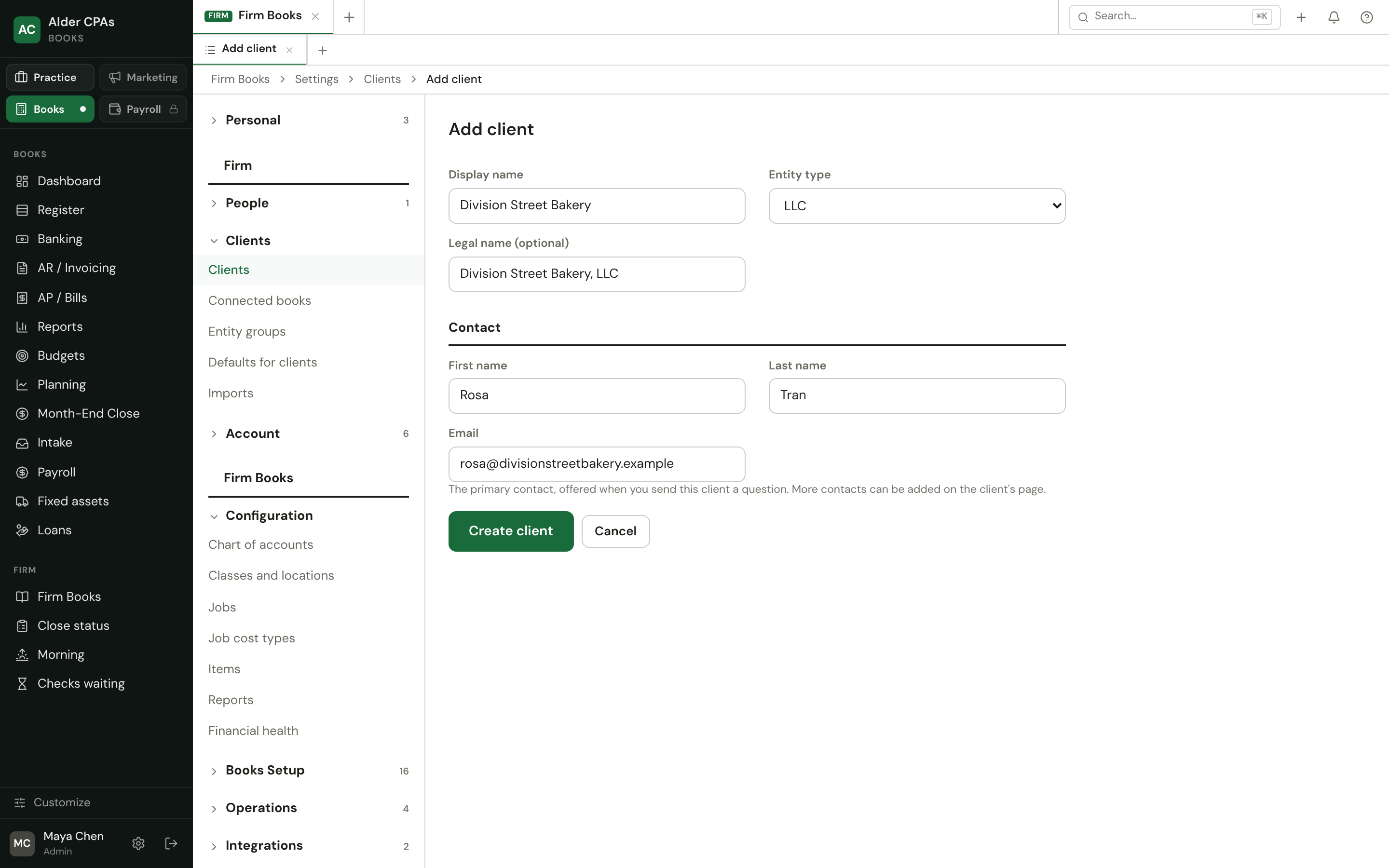 Adding Division Street Bakery, with its primary contact
Books creates the client on the free plan and takes you to its books setup, where you set the start date, the chart of accounts and the opening balances.
Until the form is ready, Create client stays off and the reason shows beside it: Enter the display name to create the client. or Choose the entity type to create the client. If you start a contact, it needs a first or last name, and the email has to look like an email address; the reason shows under the contact fields.
The form asks no plan. Every new client starts on the free plan. Move it to Premium from the Clients list or the client's page whenever you are ready (see Put a client on Premium).
A name that is already in use
When you click Create client, Books first checks whether another client, active or archived, already has the same name. It ignores capital letters, extra spaces and a period at the end, so Cascade Cycle Works. matches Cascade Cycle Works.
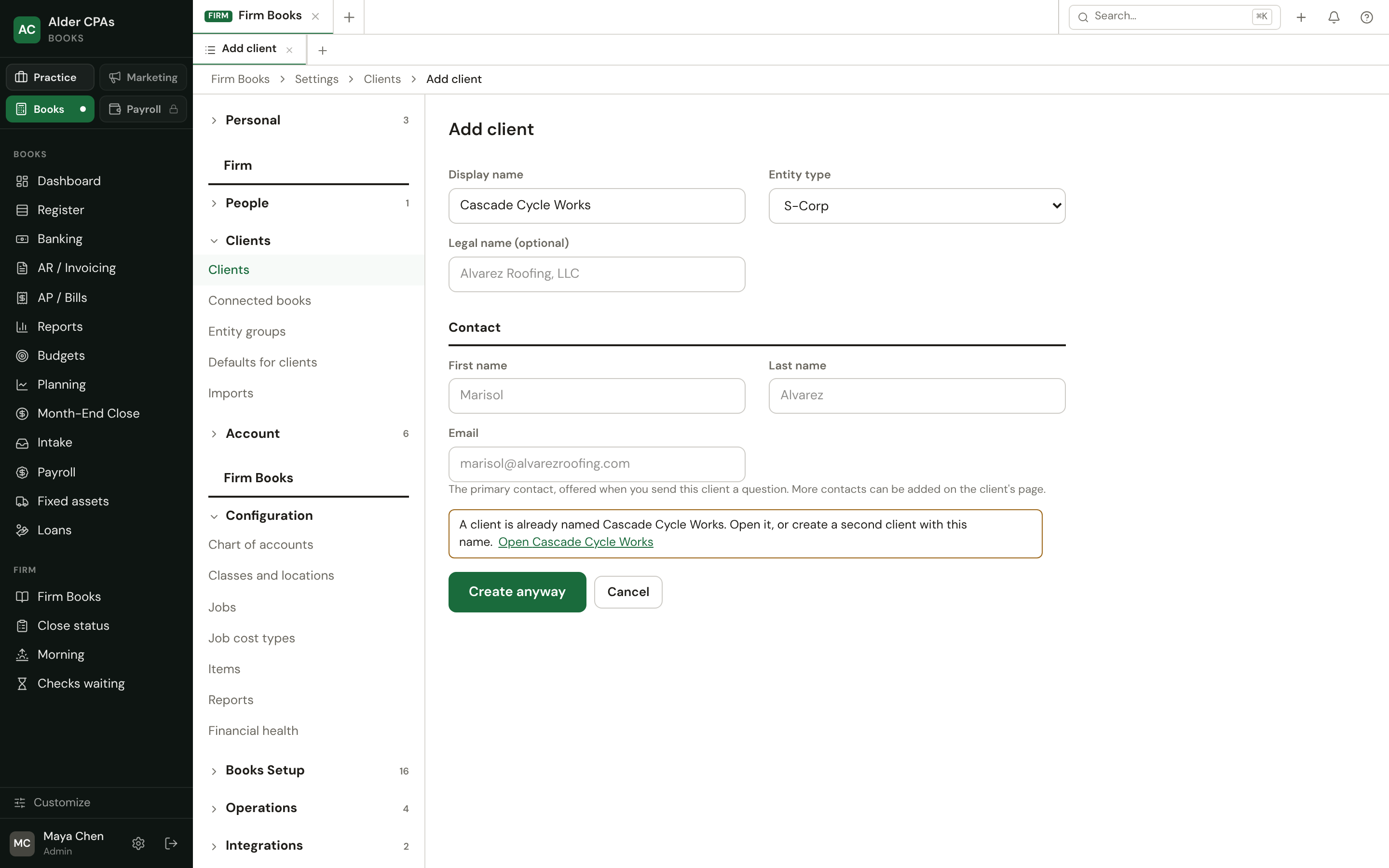 Books warning that a client is already named Cascade Cycle Works
If it finds one, nothing is created yet. The form says so — A client is already named Cascade Cycle Works. Open it, or create a second client with this name. — with a link to open the existing client, and the button becomes Create anyway.
If the match is archived, the warning suggests restoring it from its page (the link reads Open … (archived)), or creating a new one. Click Create anyway to add the new client regardless; change the name and Books checks again.
If the client list cannot be read for the check, the form says We could not check whether a client already has this name: … You can still create it.
If the contact does not save
The client and its contact are saved one after the other. If the client is created but the contact is refused, the client stays, a notice says Division Street Bakery was added, but the contact was not saved: followed by the reason, and Books opens the client's page so you can add the contact under Contacts.
Clicking twice makes one client
A double click or pressing Enter twice while Books is still creating the client does not make a second one: the button reads Creating… and further clicks do nothing until it answers.
If your business keeps its own books
When your firm is a business keeping its own books rather than an accounting firm, the Add client form says so before you save: Your business keeps its own books. Adding a client makes this an accounting firm: Settings then shows a Clients page, where this client and any others are listed.
Add a client by importing its books
If the client's books are in another accounting product, you can create the client and start the import in one go.
- Click Import books.
- Under Which product are you leaving?, pick the product: QuickBooks Online, QuickBooks Desktop, Xero, Zoho Books, FreshBooks, Wave, Sage 50, Sage Intacct, Sage Accounting, NetSuite or Other. Every product comes in By file.
- Set The books start on — any day. Balances are read as of the day before, and everything from that day on is entered in Books.
- Choose the client's Entity type.
- Click the button that names your choice, such as Continue with Xero.
Books creates the client right away so the import has somewhere to land. It shows on the Clients page as Import in progress until you name it in the import's review, where the name is filled in from the company file. If you already started an import and did not finish it, Import books lists it first, with a way to pick it up; Start a new import makes another new client.
Already have the client? Don't use Import books, which always makes a new one. Start its import from Settings → Imports instead.
Turn Books on for a client
Most clients never need this: a client you add from the Clients page has Books on from the moment it exists. What is left is setting up its books — click Set up books on its row.
A client can also show Not set up in the Books column. That client does not have Books on yet. Click Set up books; finishing setup turns Books on.
Turn Books off, and back on
Turning Books off is not deleting anything. Use it when you stop keeping a client's books but may pick them up again.
- On the Clients list, click ⋯ → Edit client on the client's row.
- Under Books for this client, click Turn off Books.
- Books checks what would change and shows it before anything happens: how many posted entries stay, and each piece of scheduled work that stops, such as recurring invoices, scheduled journal entries and bills, loans posting their payments automatically, bank connections syncing, and automatic payment reminders. If the client is on Premium, it also says Premium turns off and the client leaves the Premium bill.
- Click Turn off Books to confirm.
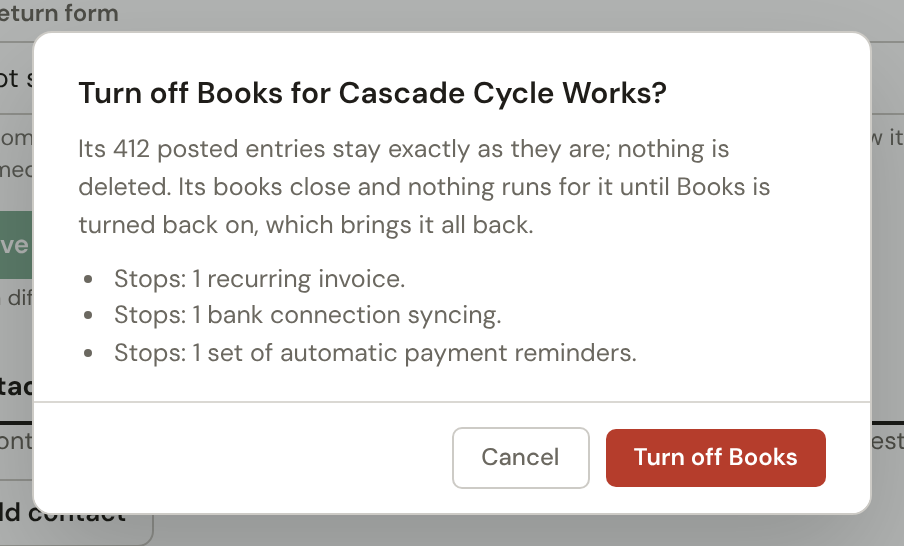 The prompt for turning off Books for Cascade Cycle Works, with what stops
The client then reads Books off on the list, with Turn Books back on as its next step. Clicking it opens the client's page, where Turn Books back on shows the same kind of prompt — what starts again — before you confirm with Turn Books on. The books open as they were.
If the client was on Premium when you turned Books off, turning it back on puts it back on Premium and on your bill again. If Premium cannot be turned back on (for example, your firm has no card on file), the prompt says Premium stays off: with the reason, and Books still turns back on.
Only the firm's owner or an admin can turn Books off or on. The switch is turned off, with the reason beside it, for your firm's own books, for the sample company, and for an archived client (restore it first).
Edit a client
Open a client's page with ⋯ → Edit client on its row.
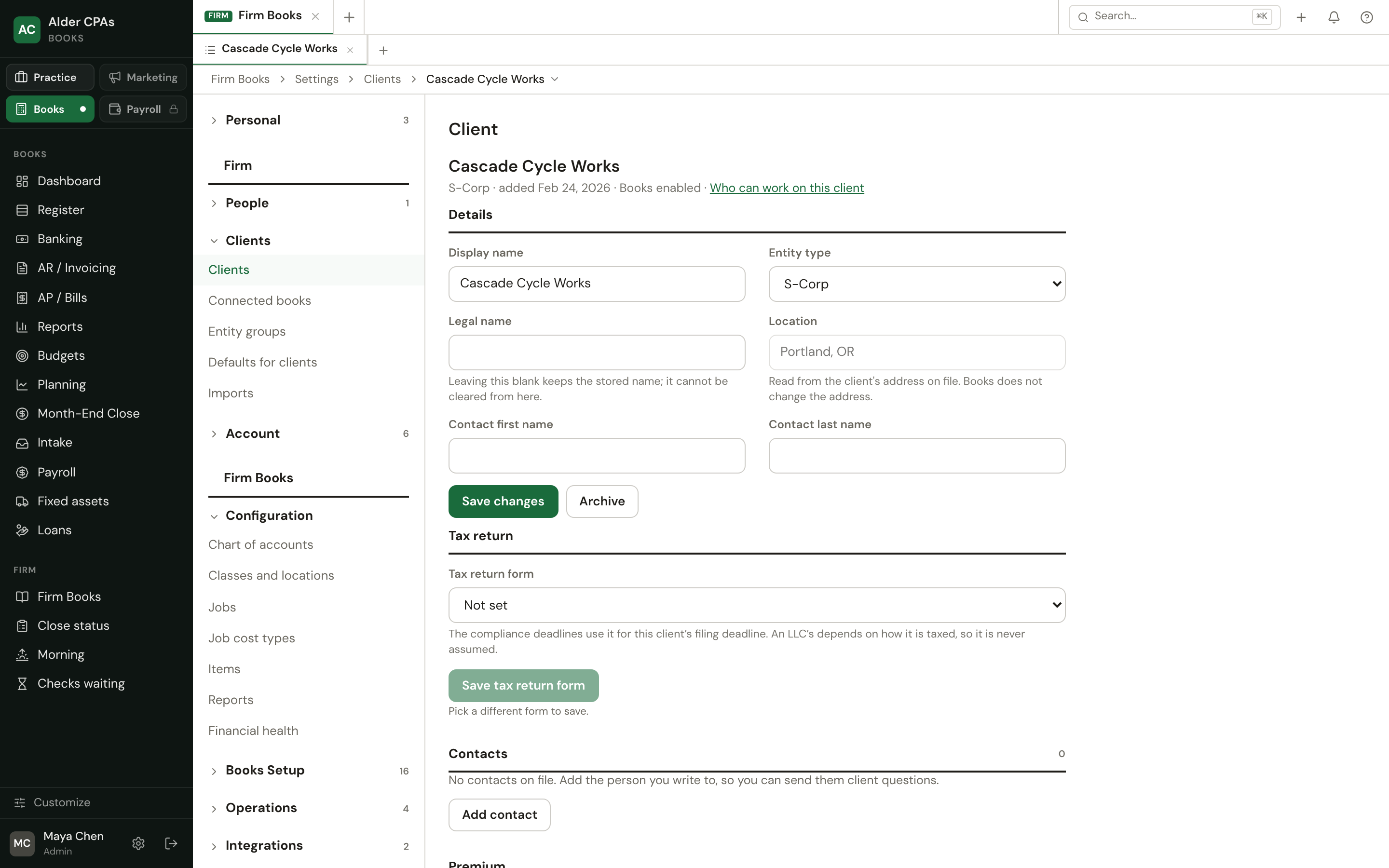 The client page for Cascade Cycle Works
The page shows the client's type, the day it was added, whether Books is enabled, and a link, Who can work on this client. Below are its sections:
- Details — Display name, Entity type, Legal name, Location, Contact first name and Contact last name. Click Save changes.
- Tax return — the client's Tax return form. Compliance deadlines use it for the client's filing deadline.
- Contacts — the client's people. Add contact to add one.
- Premium — the client's plan.
- Books for this client — turning Books off and on, above.
A few things to know about Details:
- A blank field keeps what is stored. Clearing the Legal name and saving leaves the old legal name in place; the page says so under the field.
- Location can't be changed here. It is read from the client's address on file.
Put a client on Premium
Premium is set one client at a time. On the Clients list, open the row's ⋯ menu and choose Make premium (the menu shows the monthly price under it), or click Make premium under Premium on the client's page.
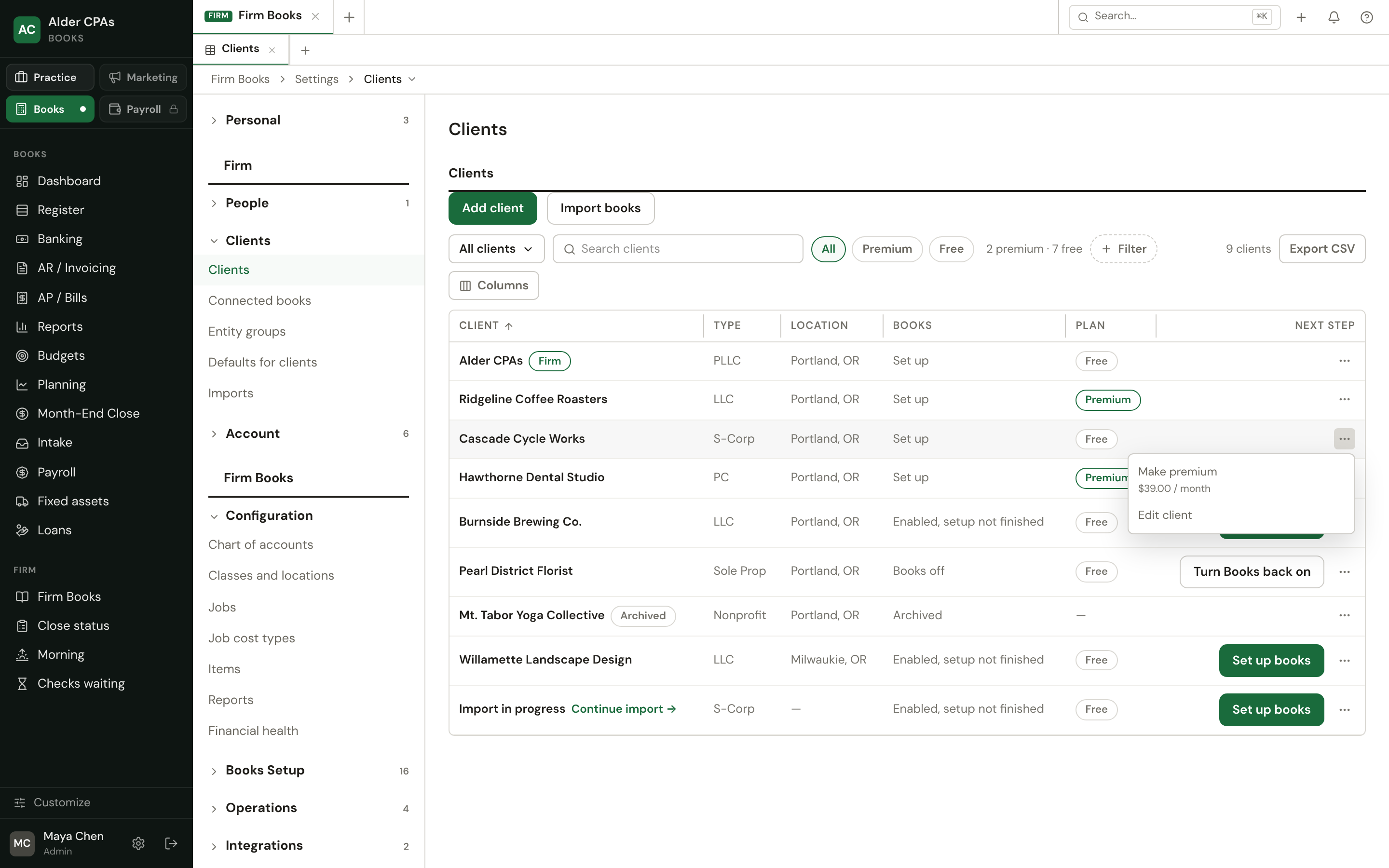 The row menu for Cascade Cycle Works, with Make premium at $39.00 / month
Before anything changes, Books shows what it will cost: what is added to your bill each month and, when your firm is already billed monthly, what is charged for the rest of the current billing period and on which day. The button names the charge, for example Make Premium — adds $39.00 / month. During your trial it reads Make Premium — included in the trial.
If your firm has no card on file, the prompt reads Turn on Premium and its button, Add a card, takes you to the page where you enter one. Nothing is charged if you cancel there.
To go back, choose Make free. When your firm is billed for the client, the prompt shows the day it is Paid through and when it Comes off your bill (no partial refund). Move to free — Premium ends now confirms it.
Who can change a client's plan depends on your role's permissions; owners and admins can by default. When you can't, Make premium is shown turned off with the reason.
Why isn't a Premium client on our bill yet?
- Your firm is in its trial. Premium is included during the trial and added to your bill when the trial ends.
- Some clients were put on Premium before your firm approved billing for them. The Premium prompt notes them — for example, 1 other Premium client isn't billed yet — with a link to review on Billing, where an owner or admin approves them.
The full picture of your bill is under Settings → Billing.
Archive a client
Archive a client you no longer work with. Its books stay; it just leaves the active list.
- Open the client's page (⋯ → Edit client).
- Click Archive.
- Confirm with Archive. The prompt reads The client leaves the active list. Its books, history and documents stay, and it can be restored at any time. The firm’s own books cannot be archived.
The client stays on the Clients list marked Archived. To see only active or only archived clients, use Filter → Status. An archived client cannot be put on Premium, and its Books cannot be turned off or on until you restore it.
Books keeps a record of who archived or restored a client and when.
Restore an archived client
- On the Clients list, open the archived client with ⋯ → Edit client.
- Click Restore.
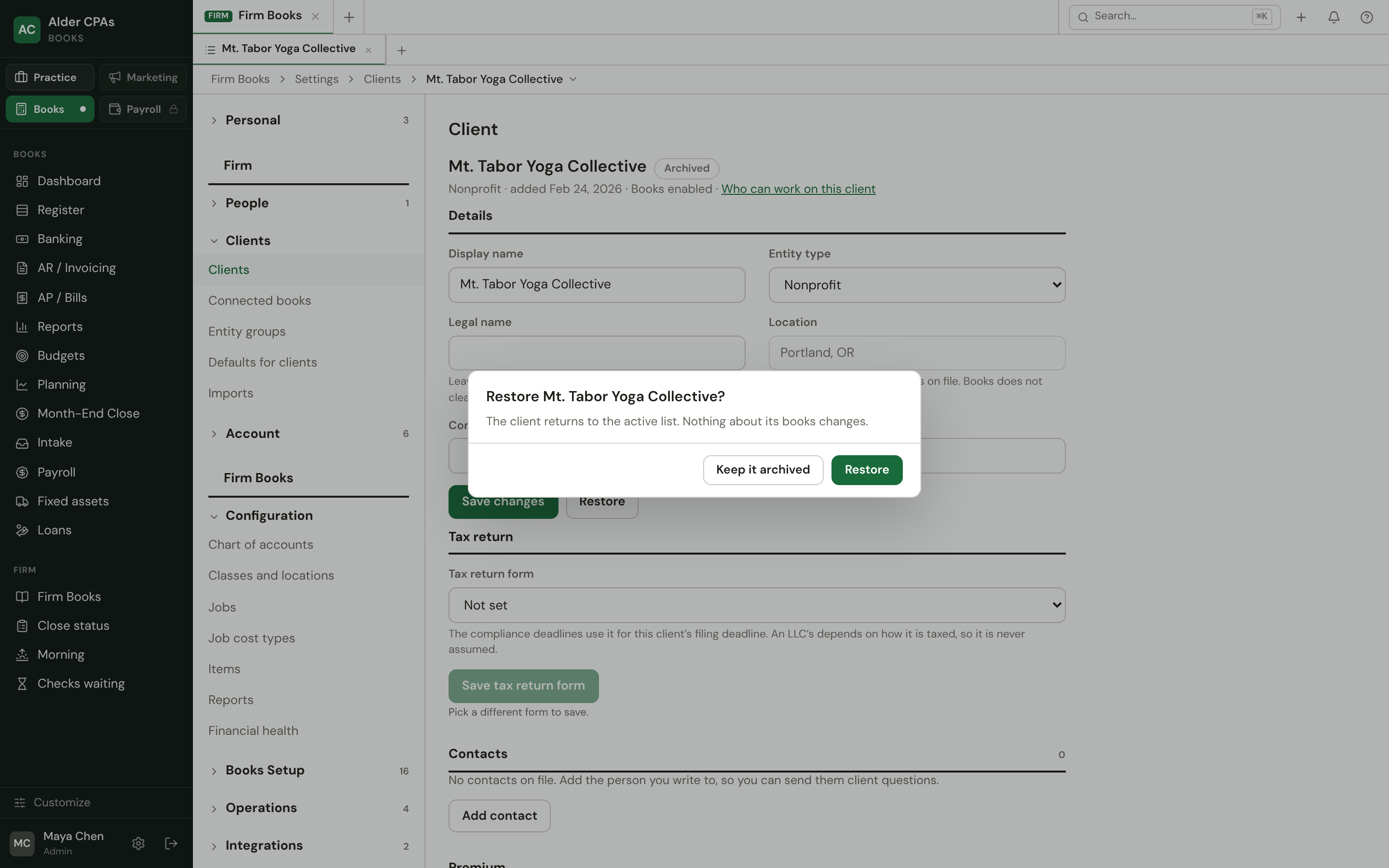 Restoring Mt. Tabor Yoga Collective
For a free client the prompt simply says The client returns to the active list. Nothing about its books changes. Click Restore, or Keep it archived to back out.
If the client was on Premium, restoring puts it back on your bill, so the prompt shows the charge first and the button names it (for example, Restore — adds $39.00 / month). With no card on file, Books asks you to Add a card before it can restore a Premium client.
Why can't I…
| What you see | Why, and what to do |
|---|---|
| Add client and Import books are turned off, with Adding and editing clients is an owner, admin or staff action. Your role is read-only. | Your role can view clients but not add or edit them. Ask an owner or admin. |
| Archive is turned off; hovering it says Archiving a client is an owner or admin action. | Only an owner or admin can archive or restore a client. |
| Archive is turned off with These are your firm's own books. They can't be archived. | Your firm's own books are always kept. |
| Turn off Books is turned off with Only the firm's owner or an admin can turn Books on or off for a client. | Ask an owner or admin. |
| Restore this client first. Books is turned on or off for an active client. | Restore the client, then turn Books off or on. |
| Make premium is turned off with Restore this client first. Premium is billed per active client. | Restore the client first. |
If your firm also uses Practice
With Practice, your clients live in one place for both products. You add, rename and archive a client once, in Practice, and it appears in Books the moment it exists — nothing to set up twice.
-
The Clients page in Books stays your Books view. It shows Practice is on: clients are added, renamed and archived there. with Open clients in Practice →. The Books and Plan columns, Set up books and the Premium menu work here as before.
-
Books settings takes the place of Edit client. On each row's ⋯ menu, Books settings opens the client's settings page in Books.
It says This client's name, entity type, contacts and archive state are edited in Practice now. The Books plan is still set here., and under that are the client's Premium section and Books for this client, where you turn Books off. On a Books off row, Turn Books back on opens the same page.
-
Books can turn on when a client signs. In Practice, mark a service Includes Books. When a client accepts a proposal with that service, Books is turned on for that client and your team gets a Set up books task (or the owners and admins are notified). Premium is not turned on.
-
See only your clients. The Clients page adds All and Mine buttons. Mine lists the clients you are on the staff of, with a My role column (Owner, Reviewer, Partner, Manager, Bookkeeper or Preparer, as named on each client's Settings in Practice).
-
The client's Practice page shows its Books. A Books card on each client that has Books on shows whether its books are set up, with Set up books when they are not, and Open books → to jump in.
Tips
- Add the contact when you add the client. It saves a trip later: the primary contact is who Books offers when you send the client a question.
- Use the Books column as your onboarding list. Filter by Books → Enabled, setup not finished to see every client still waiting on setup.
- Turn Books off rather than archiving when you pause a client's bookkeeping but keep the relationship. Archive when the client is gone.