
Give a Client Access to Their Books, and What They Can See
Invite the people at a client to sign in to their own books, choose exactly what each one can see and do, and build the dashboard they land on.
On this page
Your client can sign in to their own books. Client access is where you decide who at the client gets in, how far each person can go, and what figures they see the moment they arrive. A client user signs in to the same Books you work in, with everything their access doesn't include taken away. They never see another client, and they never see your firm's own screens.
Everything a client user does is recorded as theirs. Each entry they make is marked with their name, and you can review them all in one place: see Review What Your Client Entered. Removing a person later never removes what they entered.
Understand the Client access page
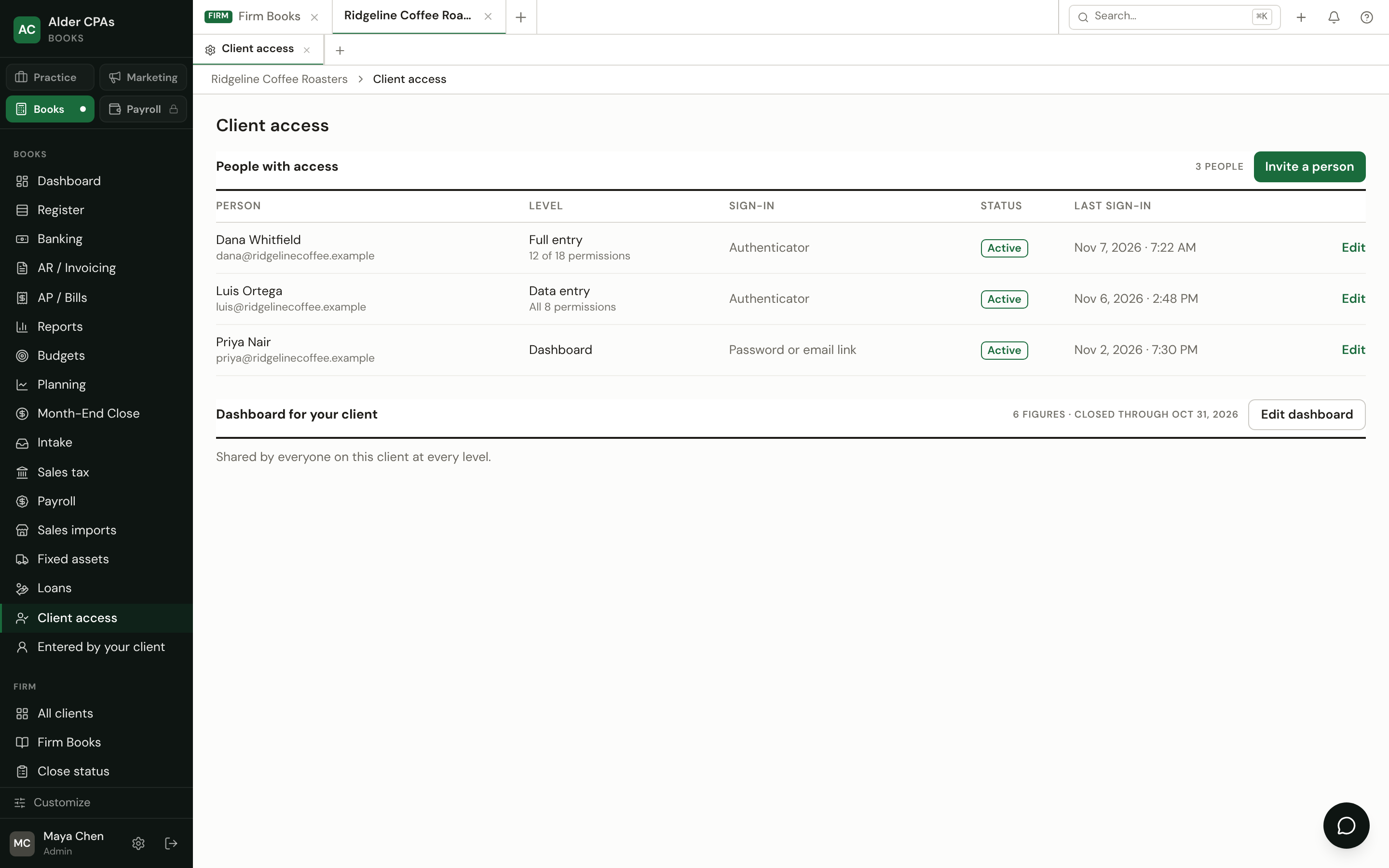 Client access for Ridgeline Coffee Roasters, with three people at three levels
People with access lists everyone who can open these books, with a count beside the title. Each row shows:
- Person — their name and email address.
- Level — Dashboard, Reports, Data entry or Full entry. Under any level but Dashboard, how many of that level's permissions they hold: All 8 permissions, or 12 of 18 permissions when you turned some off.
- Sign-in — Authenticator when the person signs in with a code from an authenticator app, otherwise Password or email link.
- Status — see the table below.
- Last sign-in — the date and time they last used these books, or Never.
- Edit at the end of the row (a suspended row offers Restore and Remove instead; an expired invitation also offers Invite again).
| Status | What it means |
|---|---|
| Active | They can open these books. |
| Invited | The invitation is out and not yet accepted. The line under it says when it was sent and when it expires. If the email couldn't be delivered, the line says so in red (Bounced, Marked as spam, Unsubscribed or Not delivered), with a sentence under the row such as The invitation email to marco@ridgelinecoffee.example bounced, so it was not delivered. Check the address, then resend. |
| Invitation expired | Seven days passed without the link being used. The row offers Invite again. |
| Sign-in off | Their access is fine, but their sign-in itself has been turned off, so they cannot open these books. |
| Suspended | You suspended them. The line under it says when, and by whom. |
Below the people is Dashboard for your client: how many figures it shows, how far your books are closed (for example, 6 FIGURES · CLOSED THROUGH OCT 31, 2026), and Edit dashboard. One dashboard is shared by everyone on the client, whatever their level.
The four levels
| Level | What the person can do |
|---|---|
| Dashboard | See the dashboard you set up for them, and nothing else. |
| Reports | Read the books: up to View the books, Financial statements, Operational reports, Bank activity and Loans. |
| Data entry | Everything in Reports, plus Invoices and customers, Bills, expenses and vendors and Categorize bank lines. |
| Full entry | Everything in Data entry, plus Journal entries, Send invoices, Reconcile, Bank rules, Chart of accounts, Apply payments, Import payroll, Import sales, Manage loans and Connect a payment account. |
Picking a level ticks its usual permissions. For Reports and Data entry that is every permission the level offers. For Full entry it is everything in Data entry plus Journal entries, Send invoices, Import payroll and Import sales; tick the others yourself if this person needs them. You can untick anything to narrow a level, but you can never give more than the level allows.
Some work is never a client user's, at any level. Closing or reopening a month, voiding, paying bills, changing the books' settings, the plan, importing from another accounting system, scheduled reports, budgets and planning stay with your team. Books does not offer them on any level, and if a client user reaches for one, they are told it is done by your team rather than something you can add.
Data entry and Full entry need the person to sign in with an authenticator app. They set one up when they accept the invitation: the page shows a code to scan and asks for the six-digit code it gives.
Only through the last closed period
Each person also has Only through the last closed period, which is on unless you turn it off. With it on, their reports, figures and ledger stop at the last month you have closed, so they are never shown figures you are still working on.
"Closed through" is the end of the last month with no open month before it. Until the books' first month is closed, there is nothing for them to see yet, and their dashboard says Your accountant shares figures through the last closed month, and the books' first month isn't closed yet.
A person who works on bills, invoices or bank lines still sees the newer ones of those, because those are what they are there to enter or categorize. Reports, figures and the ledger stay limited.
Above every report and the Register they can open, the person is told where their figures stop, so a page of zeros never looks like a mistake:
- Until the first month of the books is closed (even when a later month is): Alder CPAs shares these books through the last closed month, and the books' first month isn't closed yet, so no figures show here. (Your firm's name is the one shown.)
- Once it is: Figures through Oct 31, 2026, the closed-through date (the end of the last month with no open month before it), which is the last day they can see.
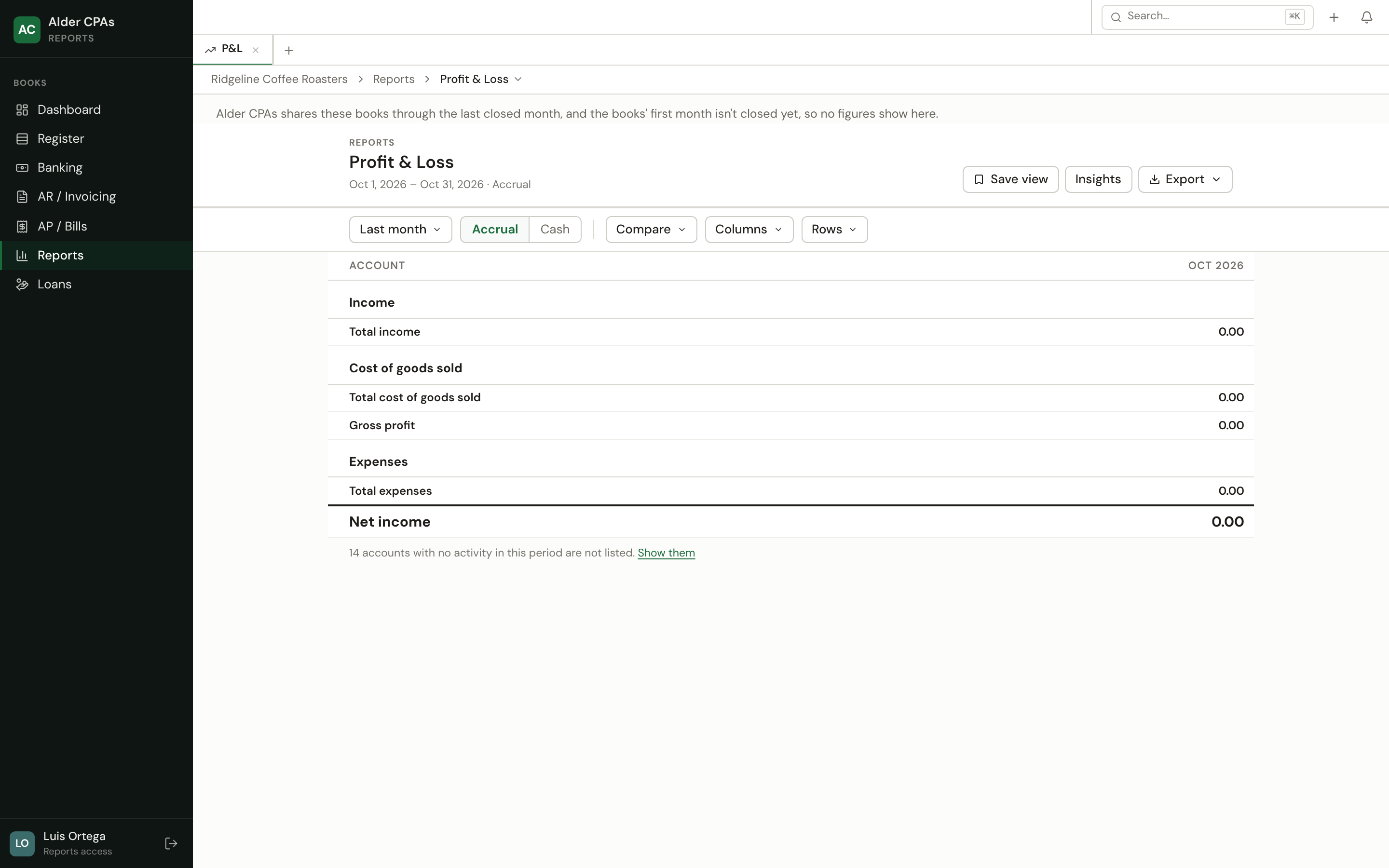 What Luis sees on the Profit & Loss before any month is closed
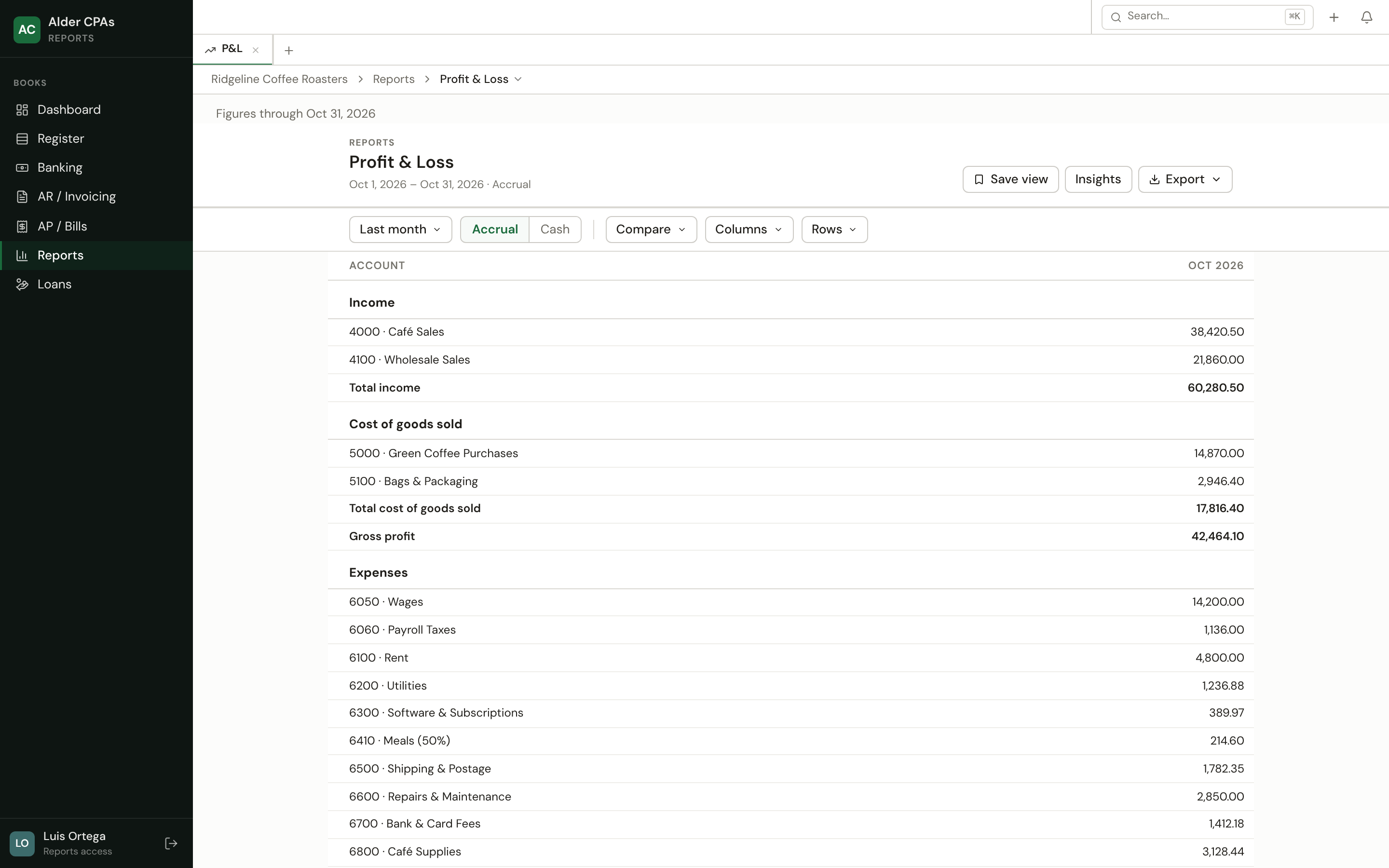 Once October is closed, the same report shows October, with Figures through Oct 31, 2026 above it
A person with the setting off sees neither line.
Invite a person
- Click Invite a person.
- Type their Email and, if you like, their Name. When you leave the field, Books checks the invitation and shows Who this is: A new person, or Already on this client as … when that address is already one of the client's people.
- Pick a Level, then adjust its Permissions.
- Leave Only through the last closed period on, or turn it off.
- Click Send invitation.
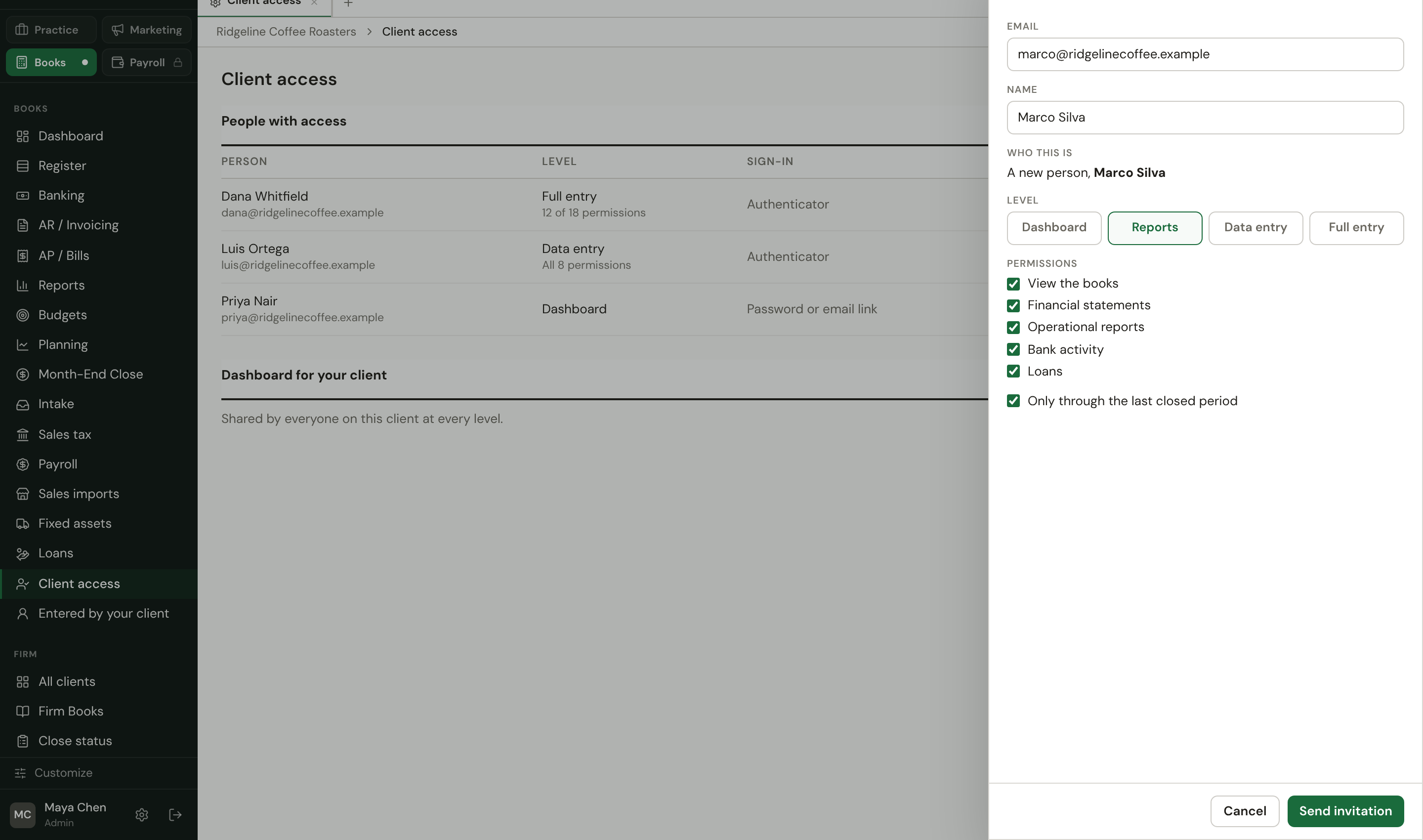 Inviting Marco Silva at the Reports level
While Send invitation is off, the drawer says why, beside the buttons: Enter the email address of the person to invite., marco@ridgeline is not an email address. or Checking the invitation….
If the person already has an invitation waiting, the drawer says so, for example Marco Silva is already invited at Reports. Sending again sends a new link and keeps that level.
The person gets an email from your firm. Its subject names your firm and the business, and the email names who invited them and at which level, and carries their link. The link works for seven days and only once.
If you use two-step sign-in, or your firm requires it, inviting someone, changing someone's level and restoring someone each ask for your two-step code if you haven't entered one since you signed in. One code covers the rest of that sign-in, and Books then carries on with what you were doing.
What your client sees when they accept
The link opens a page titled You've been invited to see your books. It shows the address the invitation is for, under Your invitation is for, and nothing else about it: no firm and no client until the person signs in. They choose how to sign in:
- Email me a sign-in link sends a one-time link to that address,
- Create a password asks for their name and a password (at least 8 characters), then Create password and open my books, or
- Sign in, under Already have a password?, if they have one.
Either way they can set a password later from their account menu.
Once they are signed in, Books checks the address is the one you invited, asks for the authenticator code if their level needs one, and opens their books.
Change what a person can see
- Click Edit on their row.
- Pick a new Level, or tick and untick Permissions, or change Only through the last closed period.
- Read the line under the choices. It names what they will lose and how many of their entries stay on the books, for example Luis loses these permissions: Bills, expenses and vendors, Invoices and customers, Categorize bank lines. Their 17 recorded entries stay.
- Click Save to Reports (the button names the level you picked).
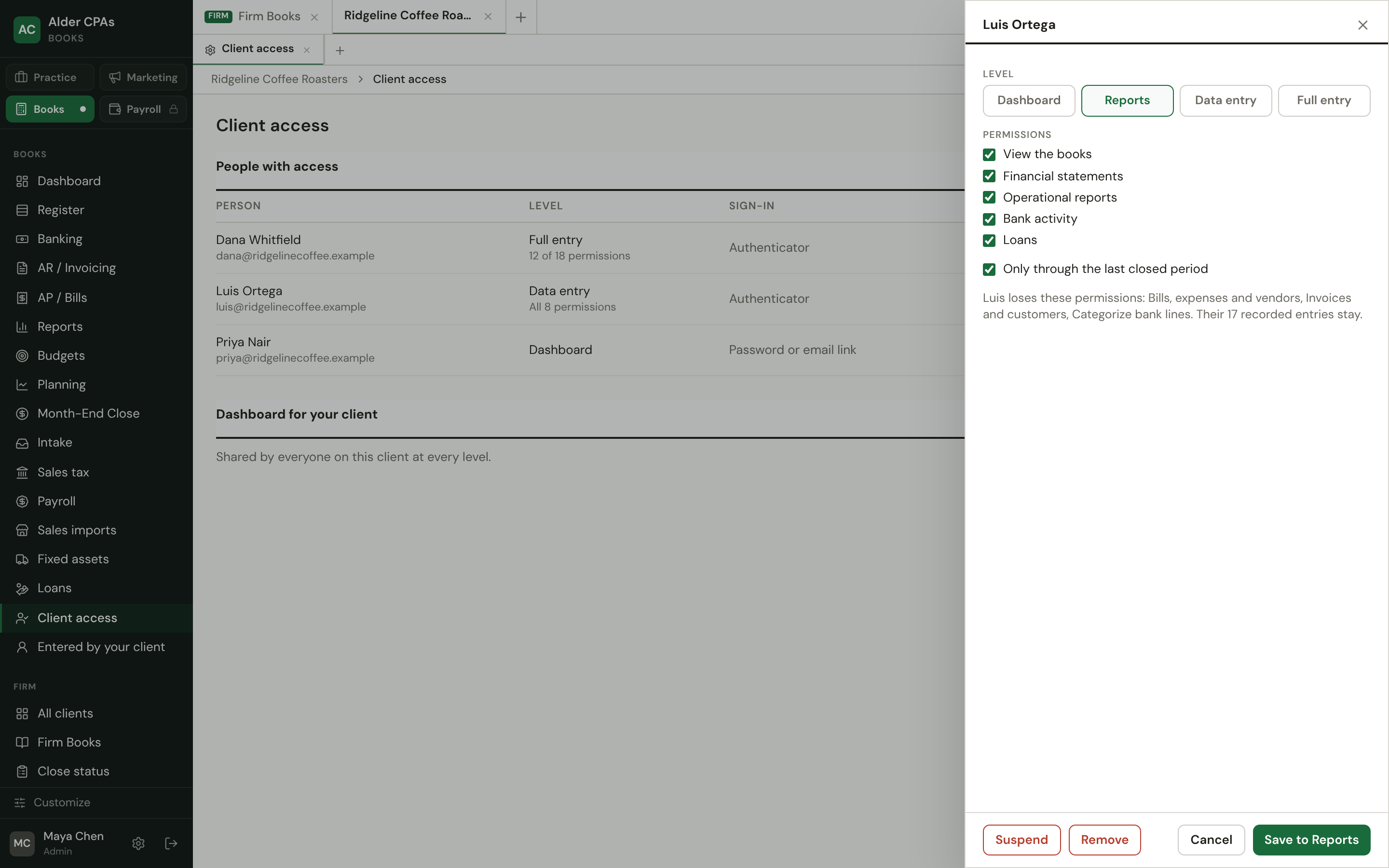 Moving Luis Ortega from Data entry to Reports
Suspend, restore or remove someone
All three ask for a Reason, which is kept with the change, and say what will happen before you confirm.
- Suspend (in Edit, for an active person) — Luis is signed out of these books on their next click. You can restore them later. A suspended row offers Restore and Remove (Withdraw invitation if they never accepted).
- Restore — gives a suspended person their access back on their next click. If they had never accepted their invitation, Restore makes the invitation usable again; when its link has expired, use Invite again.
- Remove (in Edit, or on a suspended row) — what happens depends on whether the person ever entered anything, and the prompt says which before you confirm:
- They entered something: Luis's 17 recorded entries stay, still named as theirs. They lose access on their next click. Their sign-in elsewhere is unchanged.
- They signed in but never entered anything: their access is deleted.
- They never signed in: the invitation is deleted and its link stops working. For someone who hasn't accepted yet, the button reads Withdraw invitation.
To give a removed person access again, invite them again.
Build your client's dashboard
Edit dashboard opens Dashboard for your client, the page your client lands on, drawn as they will see it: the figures, and the Income and expenses chart below them. It starts with six figures: Net income, Revenue, Cash on hand, Owed to you, You owe and Closed through.
Four more are in the tray under Not on the dashboard: Gross margin, Top expenses, Cash flow and Financial health.
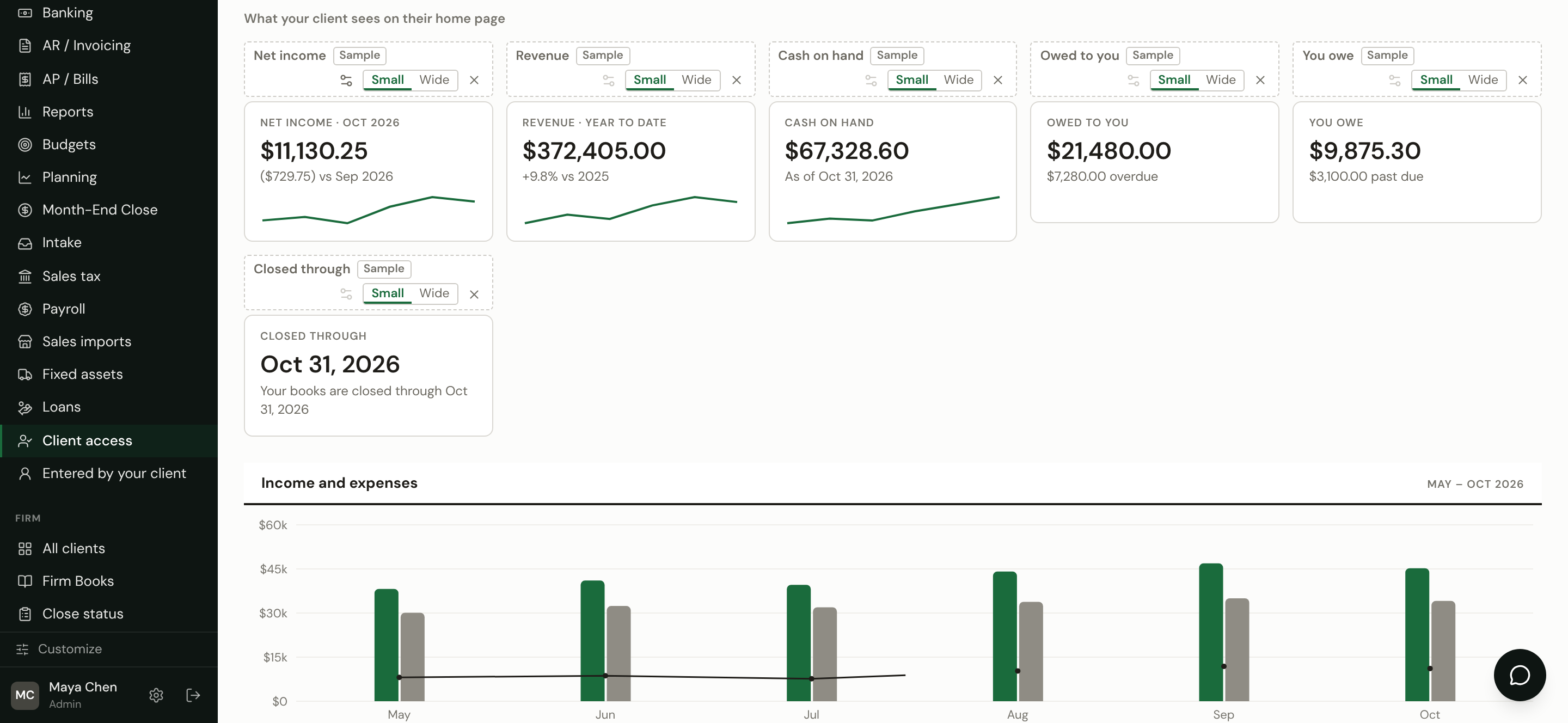 Arranging the client's dashboard, previewed with sample data
- Move a figure by dragging the dashed strip above it. From the keyboard, focus the strip and press Space or Enter to pick it up, the arrow keys to move it, and Space or Enter to drop it. Esc puts it back where it was.
- Small or Wide sets its width. × sends it back to the tray, and clicking a figure in the tray adds it at the end.
- The gear on Net income and Gross margin sets what it is compared to: Prior month or Same month last year. The other figures have nothing to set, and the gear says why.
- Sample data and Client's figures switch the preview between labeled sample numbers and the client's real ones. Until the books have a start date, the preview can only show sample data.
Nothing changes for your client until you click Save: Saved. Everyone with access to this client sees these figures now. Cancel drops your changes, and Reset to default puts back the six starting figures after telling you how many figures it replaces.
A person at the Dashboard level still sees every figure you put here, even the ones built from reports their level doesn't otherwise open.
Why can't my client sign in?
This invitation link has expired or is not valid. Ask your accountant to send a new one. (signed in, the page says This invitation link has expired. Ask your accountant to send a new one.)
The link is more than seven days old, or a newer invitation replaced it. Click Invite again if their row says Invitation expired; otherwise use Invite a person with the same address. The new email carries a new link, and any older link stops working.
Link already used
They accepted already. They sign in from the sign-in page as usual.
This invitation was sent to a different email address. Sign in as that address to accept it.
They are signed in as someone else. Log out on that page, then sign in with the address you invited.
They are asked for a code from an authenticator app
Their level is Data entry or Full entry. They scan the code shown with any authenticator app and type the six-digit code.
Suspended on their row
Click Restore and give a reason.
You’re signed in as a member of Alder CPAs. Client access works only for an email address that isn’t on a firm’s team, so this invitation can’t be used with this account. Ask your accountant to send it to another email address, or log out and open it with that one.
The address belongs to someone on a firm's team (yours or another firm's). Invite a different address for this person, and they open the link signed in with that one.
This client's books aren't set up yet, so there is nothing to share.
Set up the client's books first. The Client access page shows the same thing with Set up books.
Why can't I …
- … see Client access, or use it? Managing who can open a client's books needs permission to change that client's Books settings. Without it, the page says You don't have access to this client's settings.
- … invite someone who already has access? This person already has access to these books. Change their level instead. Use Edit on their row.
- … give a permission the level doesn't include? Pick the higher level first; each level offers only its own permissions.
- … suspend someone who hasn't accepted? There is nothing to suspend yet. Use Withdraw invitation.
Tips
- Start low, then raise. A business owner who only wants to know how they are doing is often happiest at Dashboard. Move them up when they want to read reports or start entering bills.
- Keep "Only through the last closed period" on for anyone who reads reports, so they only ever see months you have finished.
- Last sign-in tells you who uses it. A person who never signs in may prefer a monthly report from you instead.