
Client Intake: Documents Your Client Sends
Give your client one email address for bills, statements, payroll registers and sales reports, and see what Books did with each document, or why it is waiting for you.
On this page
Clients send paperwork in every way imaginable. Client intake gives each client one inbox address. Whatever they email to it, Books reads, works out what each attachment is, and sends it on to the right place: a bill to Bills, a bank or card statement to Banking, a payroll register to Payroll, a sales report to Sales imports. Anything it is unsure of waits for you in one short list, with the reason.
Only what Books is sure of moves on by itself. A document waits for you when Books can't tell what it is, is less than 80% sure, doesn't know who sent it, or can't tell which bank account a statement belongs to. Anything Books isn't sure of, you decide, in a click or two.
Understand the Client intake page
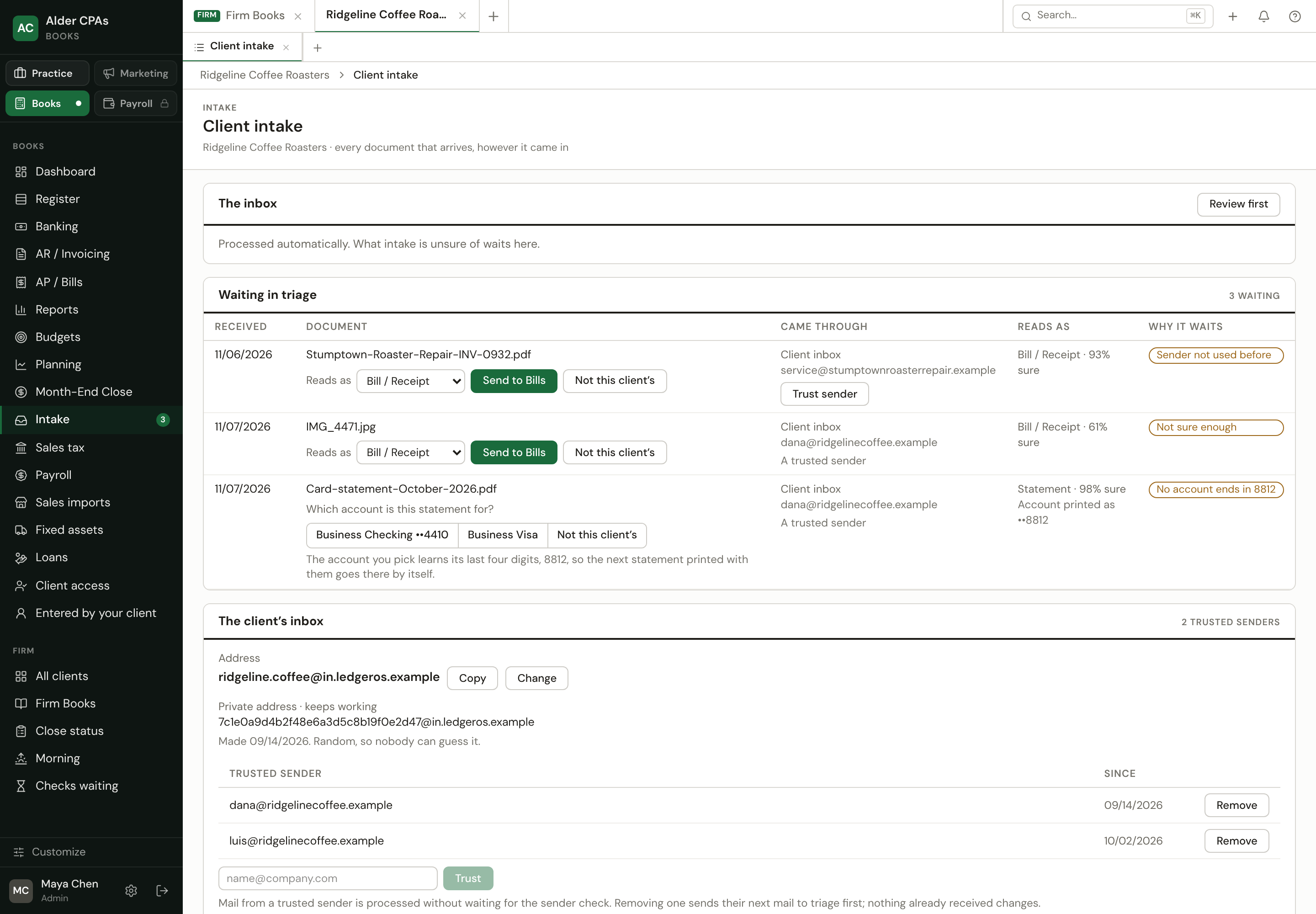 Client intake for Ridgeline Coffee Roasters, with three documents waiting
The page has four parts, top to bottom.
The inbox is one switch for the client:
- Processed automatically. What intake is unsure of waits here. — the setting a client starts with. Click Review first to change it.
- Reviewed first. Every attachment waits here. — nothing from the inbox moves on until you send it. Click Process automatically to go back.
Waiting in triage lists the documents waiting for you, oldest first, with a count (3 WAITING). The columns are Received, Document, Came through, Reads as and Why it waits. Came through says how the document arrived, such as Client inbox, or Emailed by a service for mail from a payroll or point-of-sale service, with the sender's address under it.
The client's inbox holds the client's addresses and the senders it trusts (see Give your client the inbox address).
Recently received shows the last 25 documents that are no longer waiting, newest first, and What happened to each.
What "Reads as" tells you
Reads as is what Books thinks the document is, and how it knows:
- Bill / Receipt · 93% sure — Books read it and is that sure.
- · declared — the type came with the document, so there was nothing to guess.
- · chosen by a person — someone at your firm picked it.
- Not classified — Books could not tell.
A statement waiting for its account also shows the last four digits it printed, such as Account printed as ••8812.
Why a document waits
| Why it waits | What it means | What to do |
|---|---|---|
| Sender not used before | The email came from an address Books doesn't know for this client. | Trust sender, or send it on yourself. |
| Not sure enough | Books is less than 80% sure what it is. | Check Reads as and send it on. |
| Not classified | Books could not tell what it is. | Pick what it is, then send it on. |
| This client reviews uploads before they are processed | Review first is on for this client. | Send it on, or turn the switch back. |
| No account ends in 8812 (and similar) | A statement whose account Books can't name. | Pick the account. |
| Lines don't add up | A statement whose lines don't reach the closing balance it prints. | See A statement that doesn't add up. |
| Virus scan not finished | Every emailed file is scanned before anything reads it. The row says how long it has waited. | Nothing: it moves on by itself when the scan is clean. If the row turns red and says The virus scan has not finished after 12 min., the scan has stalled. |
| Needs Premium | The client's plan doesn't include reading this kind of document automatically. | Use the link to import it by hand, or move the client to Premium. |
Send a waiting document on
- Check Reads as. Books has already picked its best guess.
- Change it if you need to: Payroll Register, Sales Report, Bill / Receipt, Statement or Other.
- Click the button beside it, which names where it goes: Send to Payroll, Send to Sales, Send to Bills, Send to Banking, or File it for Other.
When Books had no guess, the list starts at Choose… and the button stays off until you pick.
A bill or receipt you send on is added to Bills → Inbox, and a line above the list says so, with a link. File it keeps the document in the client's documents without importing anything.
If the document isn't this client's at all, click Not this client's. It leaves the list, nothing is imported, and Books never offers it again.
Pick the account for a statement
When Books can't match a statement to one of the client's bank or card accounts, the row asks Which account is this statement for? and lists them. Click one, and the statement is imported there and its lines join that account's Review queue.
When no account ends in the digits the statement printed, and at least one of the accounts offered has no last four digits yet, the row adds The account you pick learns its last four digits, 8812, so the next statement printed with them goes there by itself. Only an account with no last four digits yet learns them: pick one of those and the next statement printed with 8812 goes there by itself, so you answer once per account.
Picking an account that already has its digits (such as Business Checking ••4410) imports the statement there and leaves its digits as they are. When every account offered already has its digits, the sentence isn't shown. If the client has no bank or card account yet, the row says to add one in Banking first.
A statement that doesn't add up
When the lines read from a statement don't reach the closing balance it prints, nothing is imported. The row shows the figures side by side: Opening, plus the 42 lines read, Closing balance printed and Off by.
You can File it as a document, or click Not this client's. To import it anyway, upload it from the account in Banking; that import carries the same warning, and you check its lines in the Review queue.
Trust a sender
Mail from someone Books doesn't know waits under Sender not used before, and only those senders get a Trust sender button. Books already knows, for this client:
- the people at your firm, and the mailboxes they have connected,
- the client's own email addresses and its contacts' addresses,
- its people with access to their books,
- and every address on the client's trusted list.
Mail to the inbox from a payroll or point-of-sale service Books recognizes, once Books has verified it really came from that service, doesn't wait for the sender check either.
To trust a new sender, click Trust sender under their address. Trusted. What they sent is sent on, and their next mail is processed without waiting. Everything else they sent that was waiting only on the sender goes on at the same time. You can also type an address under the trusted senders and click Trust before they ever write.
Remove beside a trusted sender first says what it does, then asks you to confirm with Remove or Keep trusting: Mail from luis@ridgelinecoffee.example will wait in triage first, as from anyone new. Nothing already received changes.
Give your client the inbox address
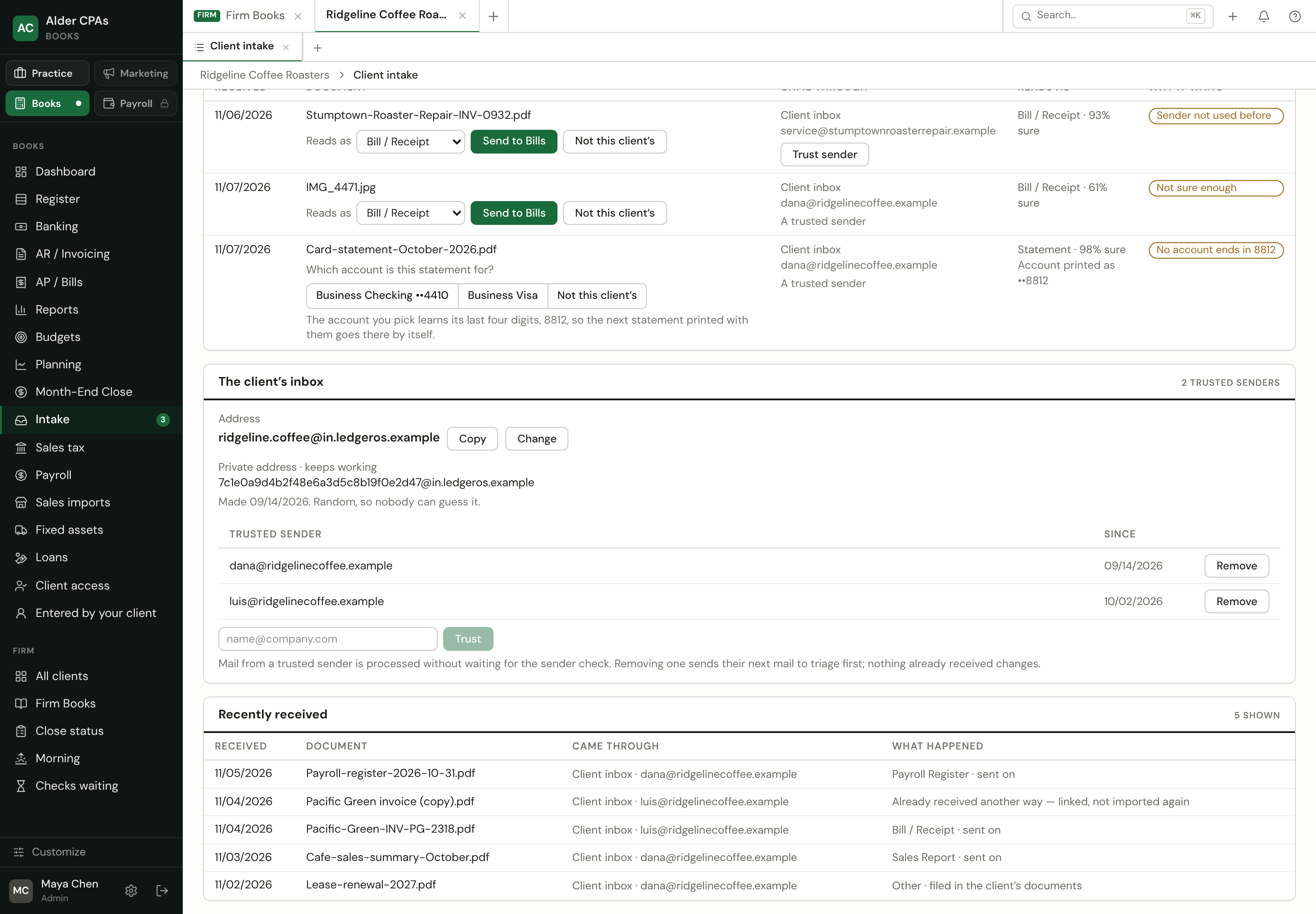 The client's inbox addresses, trusted senders and what intake did recently
The client's inbox shows the Address made from the client's business name, such as ridgeline.coffee@…. Click Copy and send it to your client. It is the address to put on vendor accounts, too, so bills arrive there; trust each vendor's address so their bills don't wait on the sender check.
Beside it is a Private address: a random one that keeps working even if the named address changes. Random, so nobody can guess it.
To change the named address, click Change (firm owners and admins only; for anyone else the button is off and says Only a firm owner or admin can change this address.). Type a name and Books checks it as you type: Available., or why not. It takes 3 to 48 lowercase letters and digits, with single dots between words, and Free names suggests some that are open.
Before you save, the dialog says what happens to the old one: mail sent to it still reaches this client for 90 days, then that name is freed for anyone. Use this address saves it.
What happened to a document
Recently received says, for each document:
| What happened | Meaning |
|---|---|
| Bill / Receipt · sent on (or Payroll Register, Sales Report) | Books sent it where it reads. |
| Statement · imported to Business Checking ••4410, 10/01/2026 – 10/31/2026 | The statement went into that account, for that period, with how many of its lines still wait in Review and Open Review. |
| Other · filed in the client's documents | Kept as a document; nothing imported. |
| Already received another way — linked, not imported again | The same file arrived before, by this or another way in. Books links them so nothing is imported twice. |
| Not this client's — nothing was imported | Someone said it was another client's. |
Download all of a client's documents
Download all documents, at the top right of the page, saves one zip of every document Books holds for the client: bills and receipts from the bill inbox, bank statements, intake documents and journal entry attachments. A file named manifest.csv in the zip lists each document with what it is, its date, the record it belongs to and its amount, and names any document left out and why. While the zip is built, the button reads Preparing…; a large client takes a minute. Anyone at your firm who can view this client's books can download it, and only the documents they can open themselves go in.
Why can't I …
- … send a document on? Your role has to be able to change this client's books and open the client's documents. Without it, the refusal says so: Your role cannot open this client's documents, so it cannot route them.
- … send on a file that is still being scanned? Nothing reads an emailed file until its scan is clean. A file that fails the scan is Quarantined and is never opened. One whose scan never finished stays quarantined until someone at your firm releases it with a reason, and the row says how many times the scan tried.
- … get a statement, payroll register or sales report read automatically? Reading them automatically is on clients on Premium. On other clients the row says, for example, Reading statements automatically needs Premium, with the link to import it by hand: Import it from Banking → Review → Upload statement, Import it from Payroll → Import or Import it from Sales imports.
- … find a document I said was not this client's? It no longer waits anywhere. It is listed under Recently received, among the last 25.
If your firm also uses Practice
With Practice, intake has three more ways in, and everything still lands in this one list:
- Portal upload — anything your client uploads to your client portal is handed to Books intake once its scan is done.
- Document request — a file your client sends in answer to a document request you made in Practice. When the request named what you asked for (a bank statement, a payroll register…), Books takes that as the document's type, so it doesn't have to guess.
- Answer to a client question — a file your client attaches when answering a question you asked them from Books. When the question was about a bank line, Books takes the file as a receipt: Reads as shows Bill / Receipt · declared.
The switch at the top then reads Portal uploads and the inbox, and covers both: Processed automatically. A portal upload or attachment intake is unsure of waits here. or Reviewed first. Every portal upload and attachment waits here.
Tips
- Trust your client's bookkeeper and their regular vendors early. Their mail then never waits on the sender check.
- Answer the account question once. Picking an account with no last four digits yet for a statement teaches it the digits, and the next statement printed with them goes straight in.
- Use Review first for a new client while you learn what they send, then turn processing back on.