
Client Emails: Who They Come From and When They Fail
Who your invoices, statements, client questions and invitations come from, where replies go, how to send from your own domain, and how Books shows an email that bounced, was marked as spam or never left.
On this page
Books emails the people your clients do business with: invoices, payment reminders, estimates and customer statements to a client's customers, and questions and invitations to your clients themselves. This article explains whose name each email carries, where a reply lands, how to send from your firm's own domain, and how to tell from inside Books whether an email arrived, bounced, was marked as spam or never left.
"Sent" only means the email left. Books records each step it hears back about: Sent when the email was handed off, Delivered when the receiving mail server accepted it, and Bounced when that server refused it. A bounce comes back after Sent, so check the invoice's Delivery history before you tell a customer "we sent it."
Who an email comes from
Every client email goes out under a name and an address. The name depends on whose document it is:
| The name your recipient sees | |
|---|---|
| An invoice, payment reminder, estimate or customer statement from a client's books | The client's business name, the same name printed at the top of its invoices. Your client's customer gets the email from the business they bought from, not from your firm. |
| The same documents from your firm's own books | Your firm's From name. |
| A question to your client, and repeating document requests | Your firm's From name. |
| An invitation: a client's people on Client access, your team on Settings → People → Team, or (for a business keeping its own books) its accountant | Your firm's From name, even when the invitation is to a client's books. |
The address and the reply path are your firm's in every case:
- Until your own domain is verified, the email is sent from a LedgerOS address, and the name carries via LedgerOS after it (for example, Ridgeline Coffee Roasters via LedgerOS), so the recipient can see who sent it and how.
- Once your domain is verified, the email comes from your own address (for example, billing@mail.aldercpas.example) with no "via".
- Replies go to the Reply-to address you set. Until you set one, Books tells you: Replies go to a no-reply address until you set one.
If you haven't saved a From name, the email carries your firm's name.
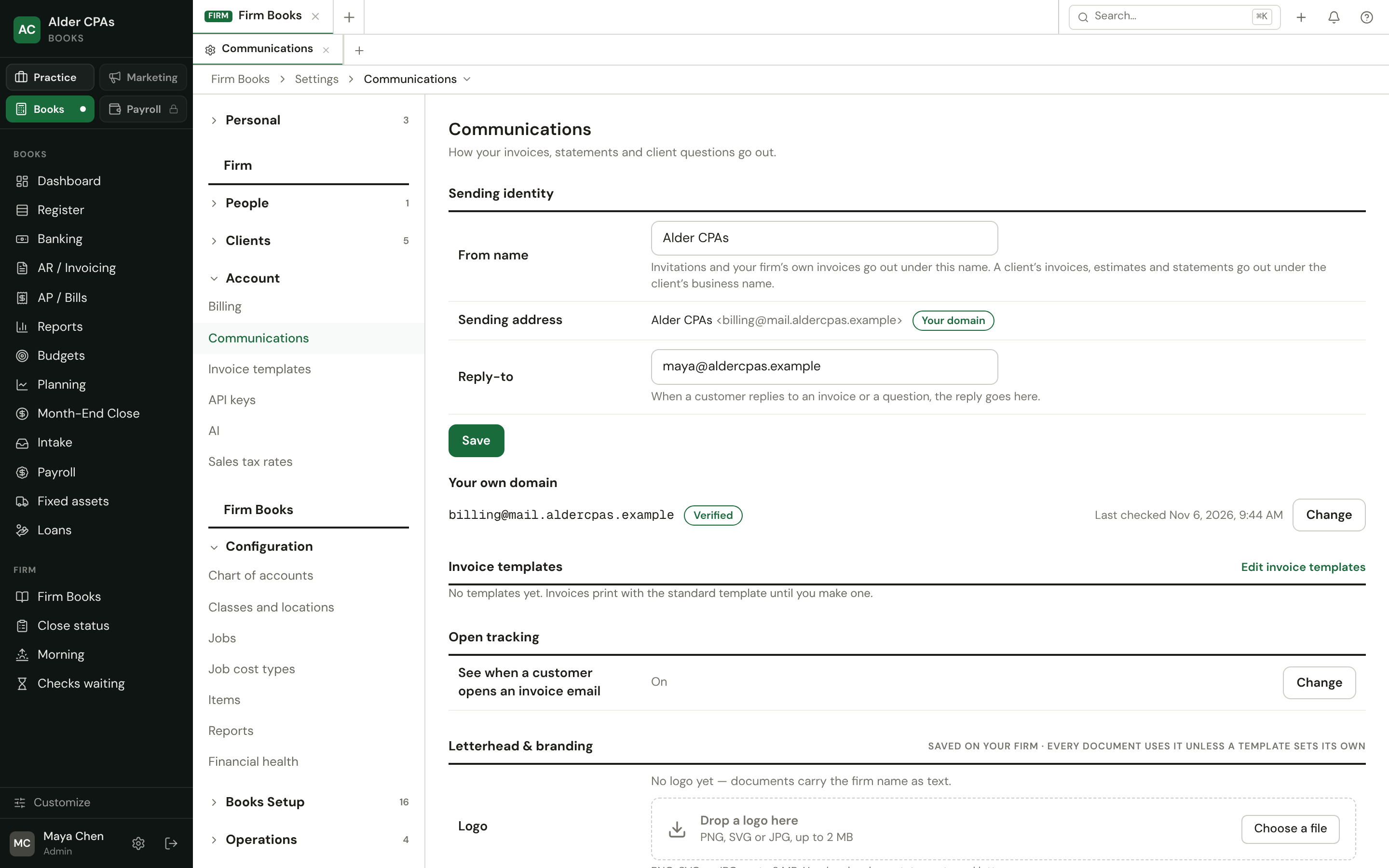 Settings → Communications for Alder CPAs: From name and its help, the Sending address row showing the From exactly as a recipient sees it on the firm's verified domain, the reply-to, open tracking and letterhead
Set your From name and reply-to
Only an owner or admin can change these. Anyone else sees the fields read-only, and Save is off with the reason: Changing how the firm sends is an owner or admin action.
- Open Settings → Account → Communications.
- Under Sending identity, type the From name. The help under it says whose mail carries it: Invitations and your firm’s own invoices go out under this name. A client’s invoices, estimates and statements go out under the client’s business name. It can't be blank.
- Type the Reply-to address: When a customer replies to an invoice or a question, the reply goes here.
- Click Save. Books confirms Saved. Replies go to maya@aldercpas.example. If nothing changed, it tells you so and saves nothing.
The Sending address row shows the From line exactly as your firm's own mail arrives in a recipient's inbox: the name, then the address in angle brackets. Once your own domain is verified it reads like Alder CPAs billing@mail.aldercpas.example with Your domain beside it.
Until then it shows your From name followed by via LedgerOS and a LedgerOS address, marked LedgerOS delivery, with Ready — nothing to set up. beside it. Your mail goes out without any setup on your part.
The From name names your firm. It does not replace a client's business name on that client's invoices, estimates and statements, which always go out under the business's name. The Sending address row shows your firm's own From; a client's invoice uses the same address with the client's business name in place of yours.
Send from your own domain
Mail from your own address is more recognizable to your clients and their customers. Books sends from a subdomain of your website, such as mail.aldercpas.example, never the main domain, so the email you already receive at @aldercpas.example is never affected.
Sending from your own domain is part of a paid firm plan. On a firm without it, Your own domain carries a Firm paid label and an Upgrade firm to connect → link to your billing settings.
-
Under Your own domain, click Set up your domain.
-
Fill in Send as (the part before the @) (it starts as billing) and Subdomain to send from. Books suggests mail. plus your website when your firm has one on file. As you type, it shows Mail will come from billing@mail.aldercpas.example once the domain is verified.
-
Click Save and set up. Books records the domain and issues the DNS records it needs.
-
Click Set up automatically. It Connects to your domain provider and adds the records for you. About three minutes.
If the automatic setup doesn't finish, the records open on their own under Set up manually instead; you can also open it yourself to do it by hand (when automatic setup isn't offered, the records are listed right away). It lists each record with its Type, Host and Value, a Copy button, and Found or Not found beside each one.
-
Click Check DNS when the records are in. DNS changes can take a few minutes to show. When they do, Books says Verified. Mail now goes out from your own domain.
While you wait, nothing stops: Until it is verified, mail goes out through LedgerOS delivery under your firm's name.
The domain's label tells you where it stands:
| Label | What it means |
|---|---|
| Verified | Mail goes out from your own address. |
| Not verified | The records aren't showing yet. Mail still goes out from the LedgerOS address under your firm's name. |
| Verified · MX pending | Sending works, but two receiving (MX) records are missing, and without these two records some recipients will reject mail from this domain. Add both, then click Check DNS. |
Last checked shows when Books last looked. Books also checks a waiting domain once, quietly, each time an owner or admin opens the page, so a domain you finished setting up at your DNS host catches up on its own. To use a different subdomain, click Change.
Books refuses a domain it knows can't work, with the reason, before anything is saved, for example an email address typed in place of a domain, a main domain where a subdomain is needed (with the subdomain offered in one click, such as Use mail.aldercpas.example), or a name that can never be registered.
See when an invoice email is opened
Under Open tracking, See when a customer opens an invoice email starts On. While it is on, invoice, reminder and estimate emails record each time they are opened, and the invoice's history shows Opened, and a count once it has been opened more than once.
An owner or admin clicks Change to turn it off; Books confirms Open tracking is off. Invoice emails no longer record opens. With it off, no new opens are recorded.
Letterhead and logo
Letterhead & branding holds your firm's Logo (PNG, SVG or JPG, up to 2 MB) and Accent color. Every document uses them unless an invoice template sets its own. Drop a logo on the box or click Choose a file; it is saved as soon as it passes the checks. Edit invoice templates under Invoice templates opens the template editor.
Check whether an invoice email arrived
The invoice list's Delivery column shows each invoice's latest email at a glance:
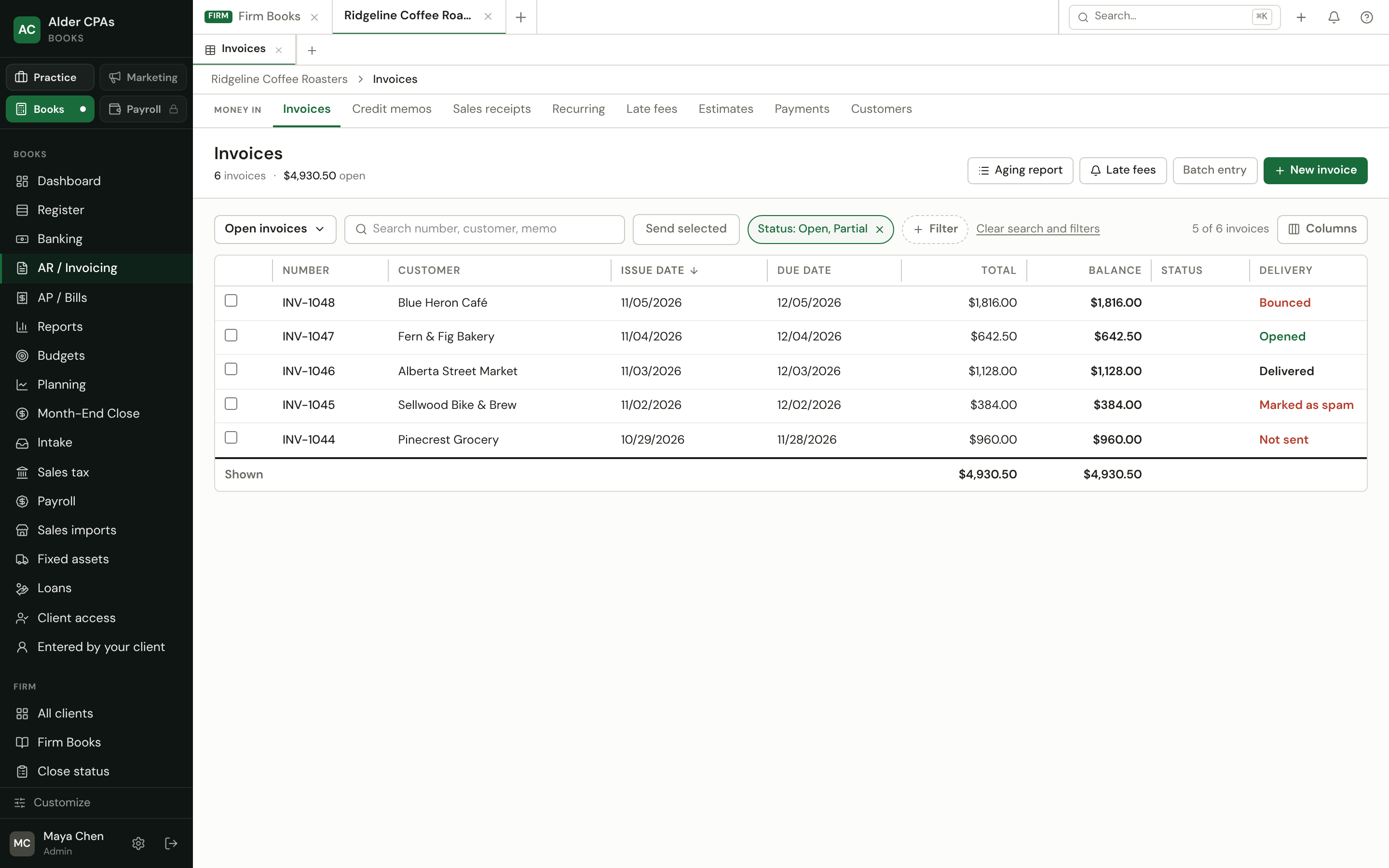 The Invoices list for Ridgeline Coffee Roasters, with its Delivery column: Bounced, Opened, Delivered, Marked as spam and Not sent
| Delivery | What happened |
|---|---|
| Queued or Sending | The email is waiting to go out, or going out now. |
| Sent | It left. Nothing has come back from the customer's mail server yet. |
| Delivered | The customer's mail server accepted it. |
| Opened | The customer opened it (with open tracking on). |
| Bounced | The customer's mail server refused it. |
| Marked as spam | The customer reported it as spam. |
| Not sent | It never left. The invoice explains why. |
| Canceled | The invoice was voided before the email went out. |
| Not emailed | The invoice was never emailed, for example because it was recorded as sent. |
A draft has nothing in the column. A bounce or a spam report outranks an open: an invoice that was opened and later reported as spam reads Marked as spam.
Open the invoice for the full story. Its Delivery section lists the latest email's address and every step, newest first, most with their date and time:
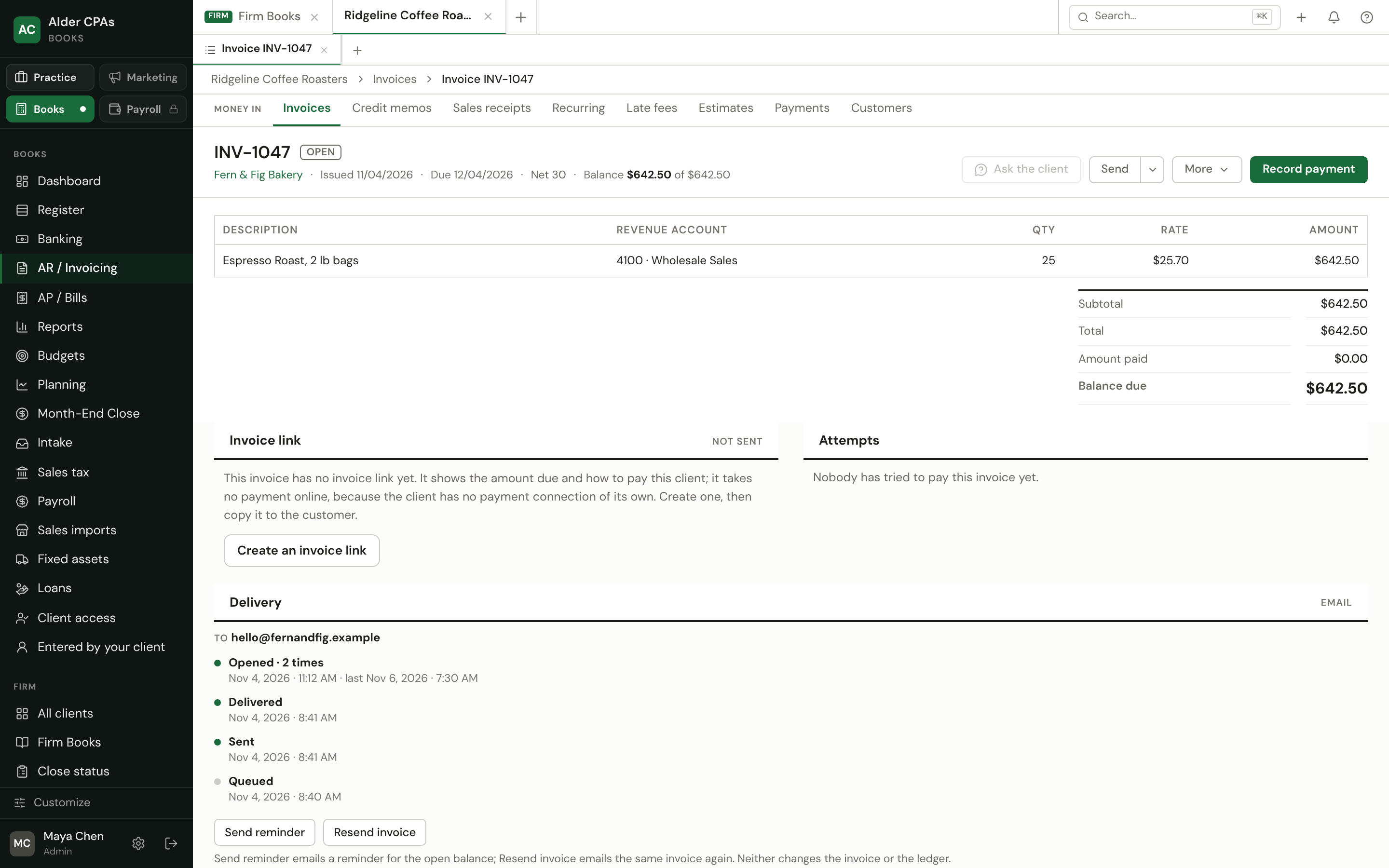 The Delivery history of an invoice that was delivered and then opened twice
Earlier emails below it holds every earlier send and reminder. A reminder's steps read Reminder queued, Reminder sent and Reminder opened, and one the automatic payment reminders sent carries an Automatic label. A note you wrote when you sent it shows under the address.
Two buttons sit under the history: Send reminder emails a reminder for the open balance, and Resend invoice emails the same invoice again. Neither changes the invoice or the ledger. Both go to the customer's email as it is now, so Books judges them by the latest email sent to that address (a customer email with two addresses separated by a comma counts as one list, in any order).
When that email bounced, was marked as spam, or went to an address that can't receive email, Resend invoice isn't offered, the line under the buttons says so (Resend invoice isn’t offered, because the last email could not reach this address; the step above says what to change.), and Send reminder is off with the reason beneath it.
Once the customer's email is changed, both are offered again. A one-off send to another address doesn't count as a change: the customer's own address is still the one that failed.
When an email fails
Bounced, with The receiving mail server said: … (or The recipient's mailbox is full, so the email bounced. Ask the customer to make room or to give another address. for a full mailbox, or The receiving mail server refused this email. Check the address on the customer record. when the server gave no reason or only a short code)
The address is wrong or can't receive mail, and Books won't email it again. Type the right address in the box under the bounce and click Save and resend. Leave Also update the customer record checked to fix the customer too, or clear it to send to that address this once (the customer's own address then still counts as bounced).
With the box checked, Books first runs every check the send would run against the new address, and changes the customer record only if the send would go. Until the address is corrected, Resend invoice isn't offered and Send reminder is off: The last email to biling@blueheroncafe.example bounced. Correct the customer's email to send a reminder.
Marked as spam by the recipient, with This address is now on the do-not-email list, so the invoice cannot be emailed to it again. Reach the customer another way, or send to a different address.
The customer reported the email. Resend invoice isn't offered and Send reminder is off: The last email to hello@sellwoodbikebrew.example was marked as spam, so that address is on the do-not-email list. Change the customer's email to send a reminder.
Agree on another address with the customer, then click Correct the customer’s email beside the message to change it on the customer record. Back on the invoice, Send reminder and Resend invoice are offered again.
Not sent, The customer had no email address when it was sent…
Add an email address on the customer record, then resend.
Not sent, The PDF could not be made, so nothing was emailed. Resend to try again.
Click Resend invoice.
Not sent, This address can't receive email; change the customer's email to send it.
The address is one that can never receive mail (such as a made-up test domain). Change the customer's email; back on the invoice, Send reminder and Resend invoice are offered again.
The other Not sent reasons, and the troubleshooting steps for invitations that bounced, are in My Client Didn't Get the Email.
Invitations that don't arrive
When an invitation email fails, Books names what happened where the invitation is listed:
| Label | Sentence |
|---|---|
| Bounced | The invitation email to luis@ridgelinecofee.example bounced, so it was not delivered. Check the address, then resend. |
| Marked as spam | The person at luis@ridgelinecofee.example marked an earlier email as spam, so the invitation was not delivered. Reach them another way, or invite a different address. |
| Unsubscribed | luis@ridgelinecofee.example unsubscribed from the firm’s email, so the invitation was not delivered. Reach them another way, or invite a different address. |
| Not delivered | The invitation email to luis@ridgelinecofee.example was not delivered. Check the address, then resend. |
- Client access (on the client): the label appears in the person's Status cell, under Invited, and the sentence runs on its own line beneath the row.
- Settings → People → Team (your firm's people) and Settings → Account → Your accountant (for a business keeping its own books that invites its accountant): the label is a badge beside the address. Hover it for the sentence.
Books reads the latest email for each invitation, so an invitation you send again reads as sent again.
Invitations follow the same two rules as your other client email. A firm whose email sending is turned off records the invitation and sends nothing (Email sending is turned off for this firm, so nothing was sent.), and an address on your firm's do-not-email list isn't emailed (This address is on the firm’s do-not-email list, so nothing was sent.).
Either way the invitation is recorded, and on Client access and Your accountant Books shows you the link to pass on yourself.
Customer statements
A customer's page lists Statements sent, with a State for each: Going out, Sent, Delivered, Failed or Not sent. Hover Failed for what happened.
A bounce reads The email bounced: the receiving mail server would not take it. Check the customer's email address; it can't be resent to this address. (a full mailbox: The recipient's mailbox is full, so the email bounced. Ask the customer to make room or to give another address.).
A spam report reads The recipient marked the email as spam, so this address is on the do-not-email list. Reach the customer another way, or use a different address. Other failures say why the statement didn't go, for example The statement could not be made for the email, so nothing was emailed. followed by Books' reason.
Hover Not sent and it says This address is on the do-not-email list, so the statement was not sent. My Client Didn't Get the Email lists every sentence.
If your firm also uses Practice
Books doesn't run a second mail system for client documents: invoices, reminders, estimates, statements and client questions go out on the same email delivery and sending identity your firm uses in Practice. Books' invitations follow the very same sender rule as Practice's invoices, so your clients see one consistent name from your firm.
With Practice on, your sending identity, domain and letterhead are managed in Practice's settings, so you set them once for both. Books shows them read-only under Practice is on — your firm now manages this there, with an Open Communications in Practice button that takes you straight to them.
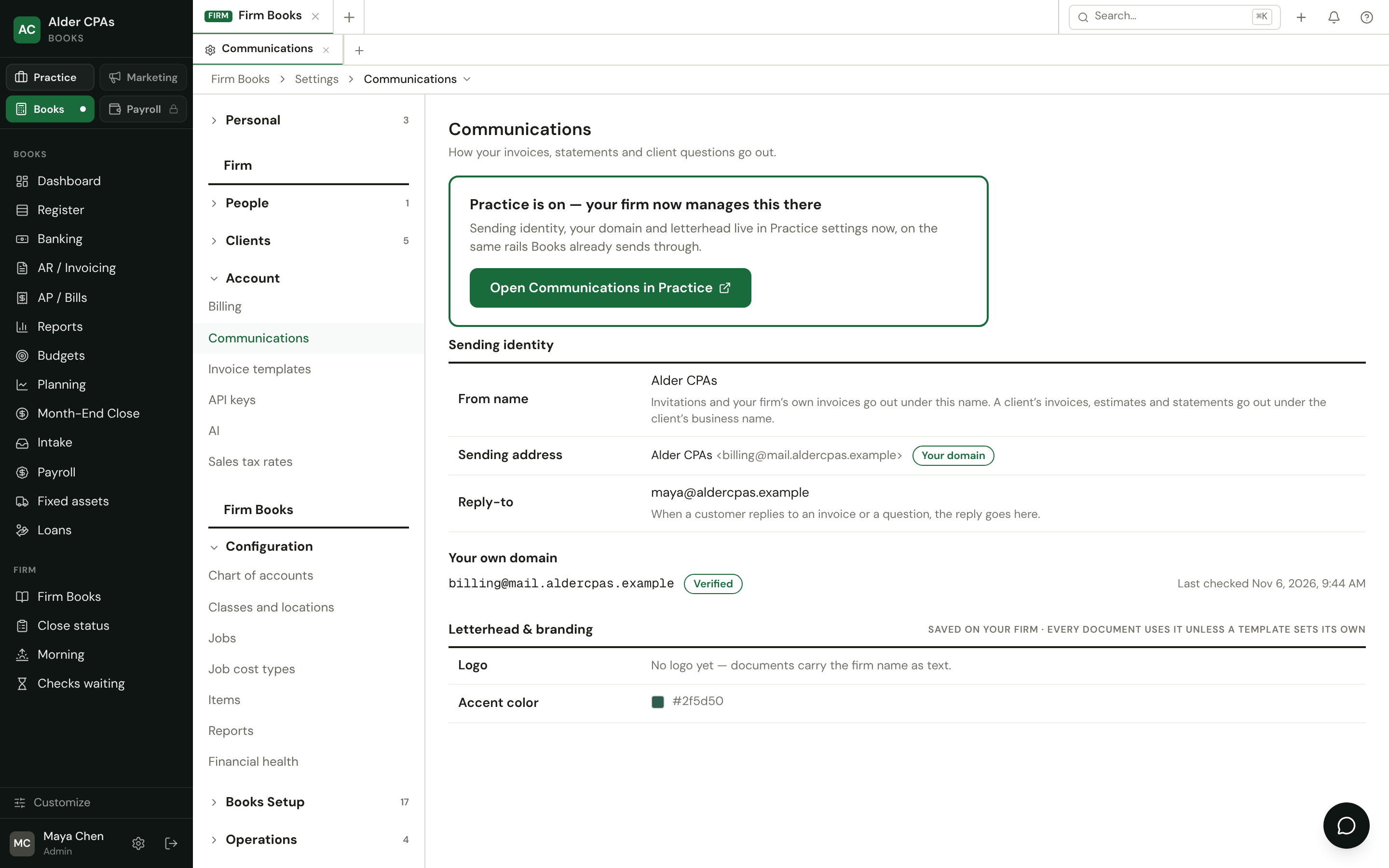 Communications in Books for a firm with Practice on: the settings shown read-only, with a button to open them in Practice
When the client's portal is on, a question you ask from Books also lands in that client's conversation in Practice, so your whole team sees it beside everything else you've sent them.