
What your clients see
The portal from the client's side, what you do in Practice to put something there, what stays private, and how to look through a client's eyes.
On this page
Your clients don't see Practice. They see your client portal: your logo and color, their own documents, requests, signatures, invoices and messages, and where their work stands. Knowing exactly what lands there, and what never does, saves you from assuming a client can see something they can't, or worrying about something they never could.
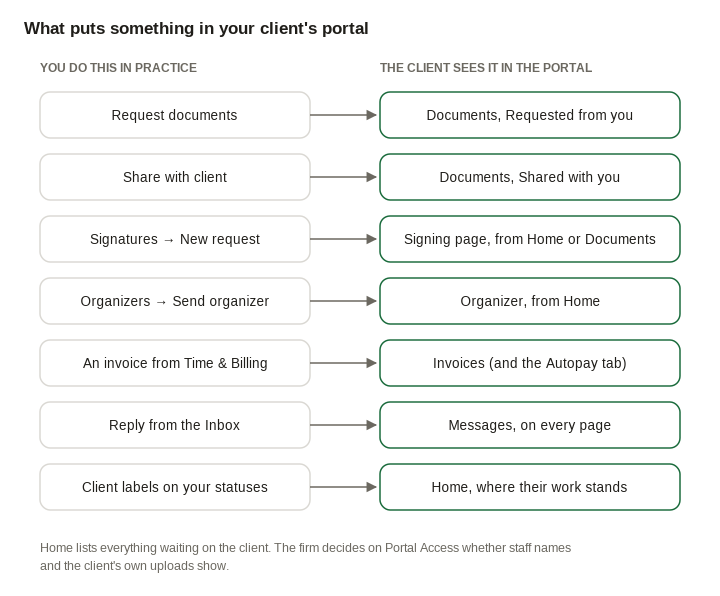 What puts something in your client's portal
What the client sees, and how it gets there
| In the portal | What the client sees | What puts it there, in Practice |
|---|---|---|
| Home | Everything waiting on them: documents requested, things to sign, invoices to pay, organizers, questions and Your to-dos. Below that, their current work with where it stands. | Everything in this table, plus the client label of each status your work moves through. |
| Documents | Needs your signature, Requested from you, folders, Shared with you and Your documents. | A document request; Share with client on a document; a payment gate on a finished document. |
| Signing page | The document to sign, opened from Home, Documents or the emailed link. | Signatures, New request. |
| Organizer | The questionnaire to fill in, opened from Home. | Organizers, Send organizer or Bulk send. |
| Invoices | Their invoices with a way to pay, upcoming repeating charges, and an Autopay tab. | An invoice sent from Time & Billing. |
| Messages | A conversation with your firm, from the button on every page. | Replies from the Inbox or the client's Communications tab. |
A client who looks after several of your clients, and holds an invitation on each, signs in once and sees one combined portal. Each item is tagged with the client it belongs to.
Where their work stands
Clients see their current and completed work, and the status of each piece. The status they see is the status's client label if it has one; with no client label they see In Progress. Set client labels in Settings, Statuses & pipelines, and write them for someone who doesn't know your process.
Whether clients see who on your team is working on something is the Show staff names to clients switch on the client's Portal Access tab.
What they never see
- Your notes on the client.
- The Activity tab and your team's internal history.
- Time entries, unbilled work and what the work cost you.
- The health score and friction events.
- Credentials, research and comp studies.
- Any other client of your firm.
Each portal page reads only the clients the signed-in person has been invited to. There's no address a client can type to reach anything else.
Look through the client's eyes
On the client's Portal Access tab, View portal as this client opens the client's real portal, as one of their signed-in contacts sees it.
- Choose View portal as this client.
- Write why you're looking (at least 10 characters). The reason is kept on the client's activity.
- Choose Open read-only preview. The portal opens in its own browser tab.
The preview is read-only: nothing can be sent, uploaded, signed, paid or marked done, and nothing you look at counts as the client having seen it. It lasts 15 minutes.
It's available once someone at the client has signed in to the portal, and only while the portal is on for that client. It needs a role that can manage the client portal.
The preview is the fastest way to check wording. A request item that's obvious to you, like 2025 K-1, can be a coin flip for a client who receives four of them.
Notes and limits
- Portal access is per client and per email address. See Invite a client to the portal.
- Turning off someone's access doesn't remove anything they already uploaded.
- Entities in the same group can't see each other's portal unless the person is invited to each, or given portal access across the group's shared entities in the group's Contacts & notifications. See Client groups.