
AI Settings and Credits
What AI does in Books, the one switch that stops all of it, the overnight routine and its reminders, how credits are counted for free and Premium clients, and how to read what your firm used each month.
On this page
AI in Books reads bank lines, statements and bills and suggests what they are. It summarizes reports and answers questions about the books, and overnight it can draft questions to your clients.
It never posts to anyone's books on its own: a person accepts each suggestion, and nothing goes to a client unless someone sends it or an owner turns on question reminders. Settings → AI is where your firm decides how much of that runs, and where you see what it used.
Only an owner can change these settings. Books goes by whether your role is an owner role, not by what the role is called. Everyone else sees every setting disabled (they can still pick a month under AI usage); hover one and it begins Only an owner can change this. The settings are firm-wide: one choice covers every client.
Understand the AI page
The page opens with one paragraph on what AI does, then four sections. Each setting has a line under it saying what it does, and a ? where a line isn't enough.
| Section | What's in it |
|---|---|
| Assist | AI reads, the switch for all of it, and Daily limit. |
| Overnight | Overnight routine, its Hour, how sure AI must be before a line is kept for your team instead of going to the client, and automatic reminders. |
| Free allowance | Free AI credits this month, for clients on the free plan. |
| AI usage | What AI work used in the month you pick: by kind of work, by client, and what was released without a charge. |
A section whose switch is off shows the switch and one line, nothing else.
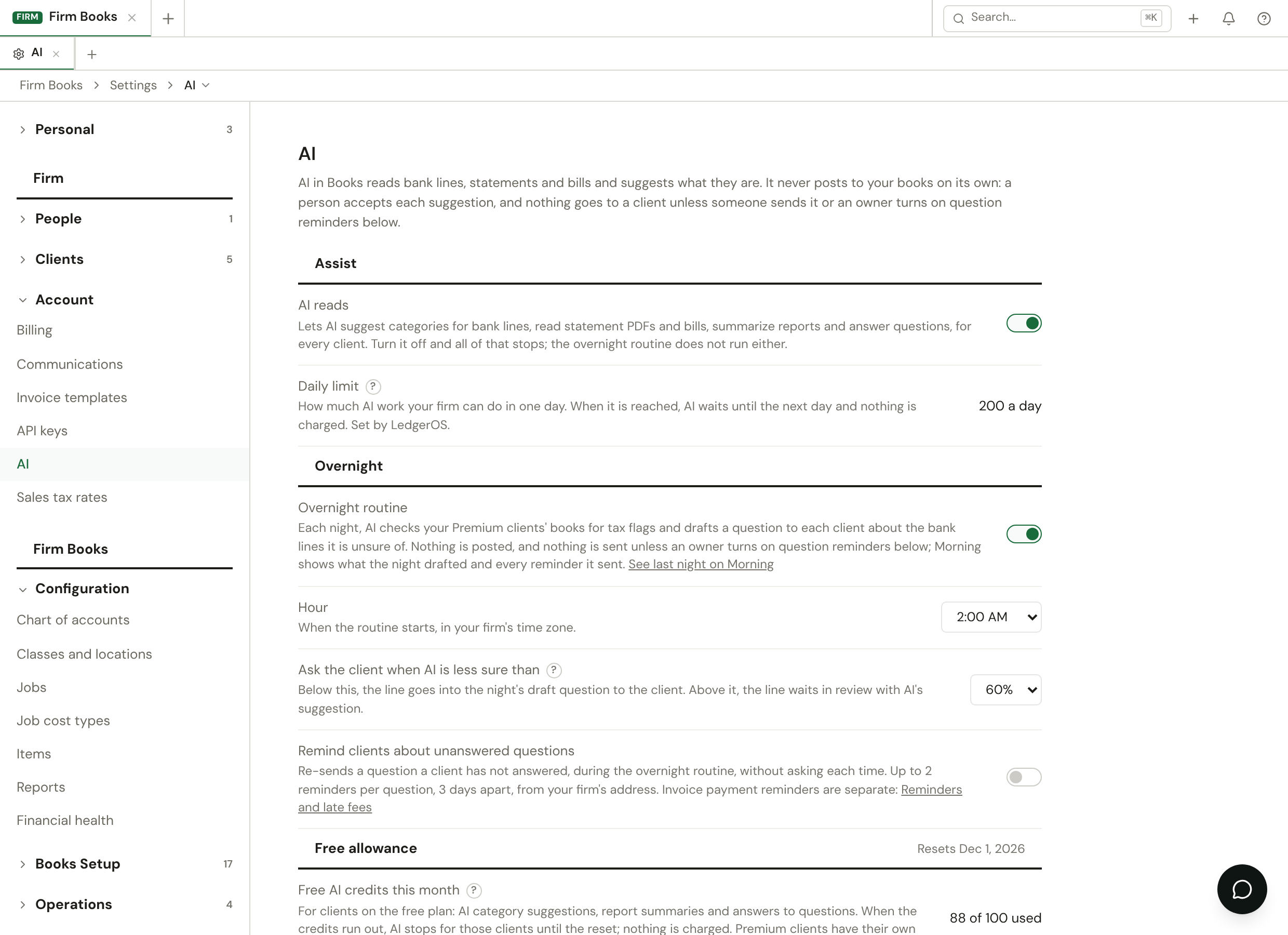 Settings → AI with AI reads and the overnight routine on, before automatic reminders are turned on
Turn AI on or off for the firm
AI reads turns off every AI read at once. Hover the label for the full list: Turns off every AI read: categorization suggestions, report summaries, questions, overnight messages, statement PDFs, bills in the intake inbox and reconciliation review. With it off, the line under it reads AI is off for every client. Bank lines, statements and bills wait for a person. The overnight routine doesn't run either.
Anything AI would have done is still yours to do by hand: categorize in the Review queue, enter a bill, import a statement file.
The daily limit
Daily limit is how much AI work your firm can do in one day, for example 200 a day. It is set by LedgerOS, so it is shown but can't be changed here. Click ? for what it counts: Up to this many payees looked up for category suggestions a day (no more than 50 for one client), and separately up to this many report summaries, answers and overnight messages. Reading statement and bill pages has its own daily limit.
When the limit is reached, AI waits until the next day and nothing is charged. The day is your firm's own: it runs from midnight to midnight in your firm's time zone. Someone asking AI for something in the meantime is told, for example, Today's AI limit for this firm is reached (200 of 200). It resets at midnight.
Set up the overnight routine
-
Turn on Overnight routine. The line under it says what the routine does each night: it checks your Premium clients' books for tax flags and drafts a question to each client about the bank lines AI is unsure of. Nothing is posted, and nothing is sent unless an owner turns on question reminders.
-
Pick the Hour it starts, in your firm's time zone. The default is 2:00 AM.
-
Set Ask the client when AI is less sure than, from 30% to 95% (the default is 60%). Each night, a bank line still waiting for review goes into a draft question to its client when AI is less sure of its category than this, or has no suggestion.
Above it, the line waits in review with AI's suggestion. Click ?: Raise it to ask clients about more lines; lower it to keep more for your team to decide. Only lines that were already waiting at the previous night's run are included, up to 20 per client a night.
A draft question waits on the client's Client questions page, marked Drafted overnight, until a person clicks Review and send, checks it and sends it. The routine never sends one.
The routine's tax flags and draft questions are only for clients whose plan includes AI review (Premium clients). Reminders, once an owner turns them on, go to any client with an unanswered question. All of it runs only while AI reads is on.
If none of your firm's clients is on Premium, the routine's line says so: Works on Premium books only, and none of your books are on Premium, so there is nothing for it to run. No night is recorded and nothing fails; it starts with the first Premium client., with See plans in Billing.
If AI reads is off, the routine's line reads Paused: the overnight routine does not run while AI reads is off. With both on, See last night on Morning opens what the last night left. See Morning: What Ran Overnight, and How to Undo It.
Turn on automatic question reminders
Remind clients about unanswered questions re-sends a question a client hasn't answered, during the overnight routine, without asking each time: Up to 2 reminders per question, 3 days apart, from your firm's address. (The number of days can't be changed here.) It shows only while the overnight routine is on.
- Turn on Remind clients about unanswered questions.
- Books asks Turn on automatic reminders? and names what it will do: Books will send up to 2 reminders per question, 3 days apart, from your firm's address, without asking each time.
- Click Turn on, or Cancel to leave it off.
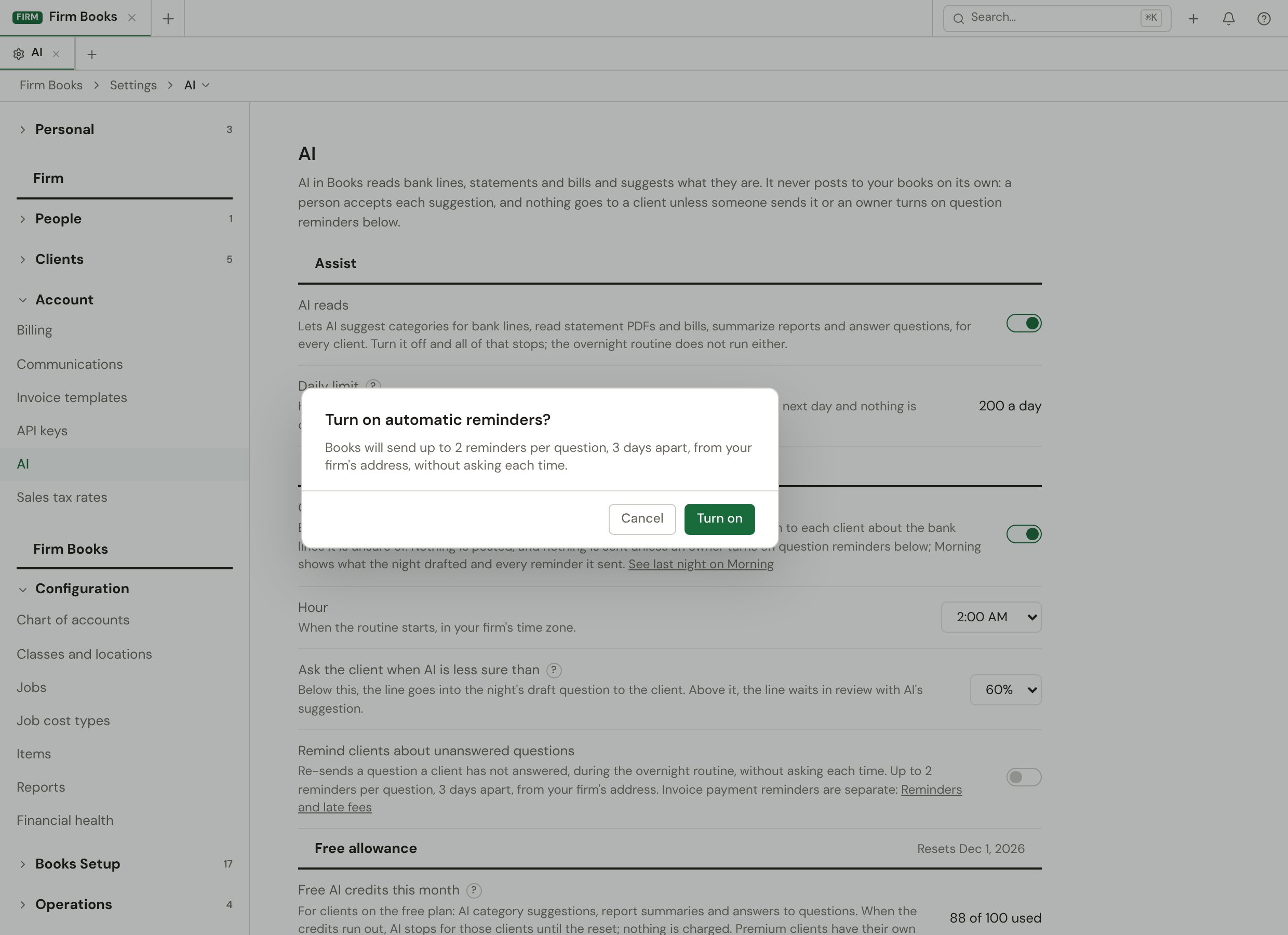 The confirmation Books shows before it turns automatic reminders on
Turning reminders on records which owner turned them on and when. Turning them off means the next night sends none. Each morning, Morning lists the reminders the night sent, by client.
These are reminders about client questions only. Payment reminders for invoices are a separate setting: the line under the switch links to Reminders and late fees.
How credits work
A credit is how Books counts AI work. Click ? beside Free AI credits this month: A credit is how Books counts AI work: a category suggestion or an answer uses 1, a report summary uses 2. Work that fails or is thrown out is released, not charged. Premium clients do not use these credits; each has its own monthly allowance.
| Work | Credits |
|---|---|
| A category suggestion | 1 |
| An answer to a question about the books | 1 |
| An overnight message to a client | 1 |
| A report summary | 2 |
| A page of a statement or bill read (Premium clients, counted against the client's document pages) | 2 |
Books reserves the credits when the work starts and charges them only when it finishes. Work that fails or is thrown out is released and costs nothing.
Clients on the free plan
Your firm's free clients share one Free allowance, shown as Free AI credits this month, for example 88 of 100 used. The section header says when it resets, for example Resets Dec 1, 2026: on the first of the month, in your firm's time zone. The free allowance covers category suggestions, report summaries and answers to questions. Reading statements and bills, and the overnight routine, need Premium.
Premium clients
A Premium client doesn't use the free credits. Each Premium client has its own monthly allowance of AI credits and document pages, and one client running out never touches another's. Each client's use is under Premium allowance in Settings → Account → Billing (the Billing link on the AI page goes there).
What happens when a client runs out of credits?
Nothing is charged, and nothing is lost: AI stops for that client until the reset, and the work waits for a person.
- A free client, when the firm's free allowance is used up, sees for example This firm's free AI allowance for November 2026 is used up. It resets on Dec 1, 2026. AI stops for every free client until then.
- A Premium client at its own limit sees for example Ridgeline Coffee Roasters has used its 2,000 AI credits for November 2026. Contact LedgerOS about Enterprise pricing to go past the monthly limit. It resets on Dec 1, 2026. For document pages the sentence ends …and documents are still filed.: a statement or bill is still kept, it just isn't read by AI.
Bank lines still arrive and wait in the Review queue; you categorize them by hand.
Why is AI off for this client?
| What you see | Why | What to do |
|---|---|---|
| AI is turned off for this firm. An owner can turn it on in Settings → AI. | AI reads is off. | An owner turns it on. |
| AI work is not on this client's plan. Move the client to premium, or use the firm's free allowance. | The work needs Premium (for example reading a statement) and the client is on the free plan. | Move the client to Premium. |
| The firm's free allowance is used up | A free client, at the firm's monthly free limit. | Wait for the reset, or move the client to Premium. |
| The client's own allowance is used up | A Premium client at its monthly limit. | Wait for the reset. |
| Today's AI limit is reached | The firm's daily limit. | Wait until midnight in your firm's time zone. |
| Off plan on Morning | The overnight routine skips clients without AI review. | Move the client to Premium. |
How many AI credits have we used?
Open AI usage and pick a month in the selector (this month and the five before). The line under the header says what you are looking at: The credits AI work used in the month you pick, by kind of work and by client.
- By kind: Kind · Charged · Released · Credits, a row for each kind of work done that month (Categorization, Page extraction, Summaries, Questions, Overnight messages), with a Total. Charged and Released count pieces of work.
- By client: Client · Credits, the clients that used the most first, with a Total.
- Released, not charged: each reason work was released and how many times, with a Total.
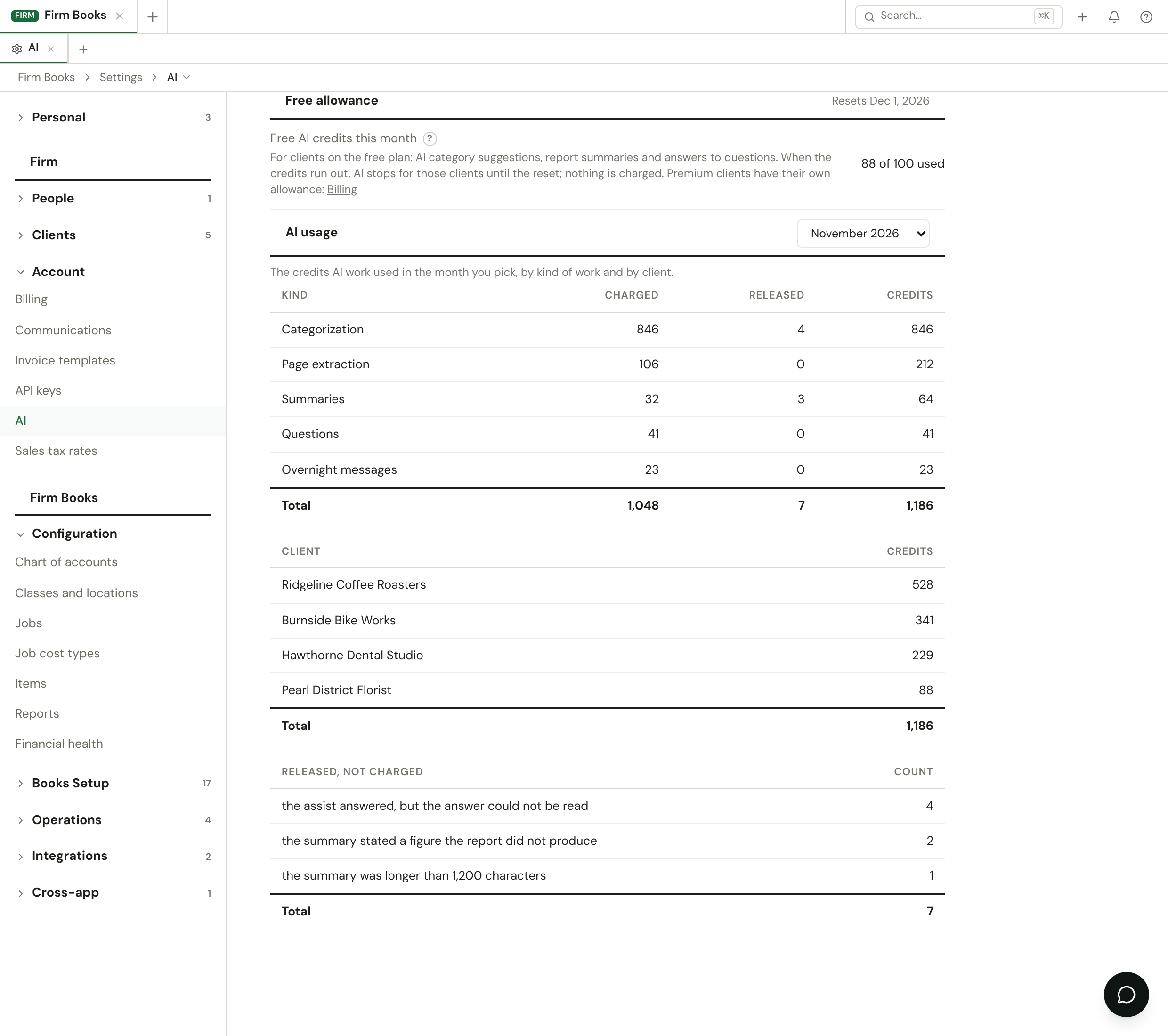 AI usage for November 2026: credits by kind of work, by client, and the work released without a charge
A month with no AI work says No AI work in October 2026. Once there is, this shows the credits used by kind of work, by client, and any work released without a charge. The Free allowance line always shows this month, whichever month the tables show.
Tips
- Lower the confidence setting before a busy close to keep more lines for your team and send clients only the ones AI really can't place; raise it when you'd rather clients explain more.
- Turn reminders on once your clients are used to questions. Reminders stop after 2, so nobody is chased forever.
- Read Released, not charged after a month with many statement imports: it tells you what AI couldn't read, and confirms none of it was billed.
- For how a suggestion earns the right to post by itself, see How Rules and Matches Earn Automatic Posting. To connect other tools to your firm's books, see API Keys and Connecting Other Tools; these AI settings can be changed only by an owner signed in, not through a key.