
How Rules and Matches Earn Automatic Posting
How a bank rule earns the right to post on its own, what Books checks on every line before it does, and how to see and undo what it posted.
On this page
In Books, a bank rule starts out only suggesting. It earns the right to post by itself one confirmation at a time: every time a person posts one of its suggestions without changing the category, it counts a clean post. When the count is high enough, Books offers automatic posting, and a person decides whether to turn it on. Matches to entries already on the books earn trust in a similar way, one bank account at a time.
Nothing posts on its own until a person turns it on. Earning the count only makes Books offer, and only a person in your firm can accept.
A tool connected to Books with an API key can't turn it on: when one asks to turn on a rule's automatic posting, Books checks it as it would for you; if the rule has earned it, Books keeps the request for a person to approve in Books, and if not, the tool is refused with the reason; and a request to turn on auto-confirm for a bank account is refused.
A key that may make changes can turn off a rule's automatic posting, or an account's auto-confirm, directly, without approval. Even after you turn it on, Books checks every line again before it posts, and a line that fails a check waits in the Review queue for you. Automatic posting is part of Premium.
Understand the Auto-post column
Banking → Rules lists the client's rules in the order they run. Three columns show how each rule is doing, and the Auto-post column shows where it stands.
- Hits — how many bank lines the rule has suggested a category for.
- Clean — how many of its suggestions a person has posted with the category it suggested since the count last started over.
- Corrected — how many corrections the rule has had, such as one of its lines posted to a different category.
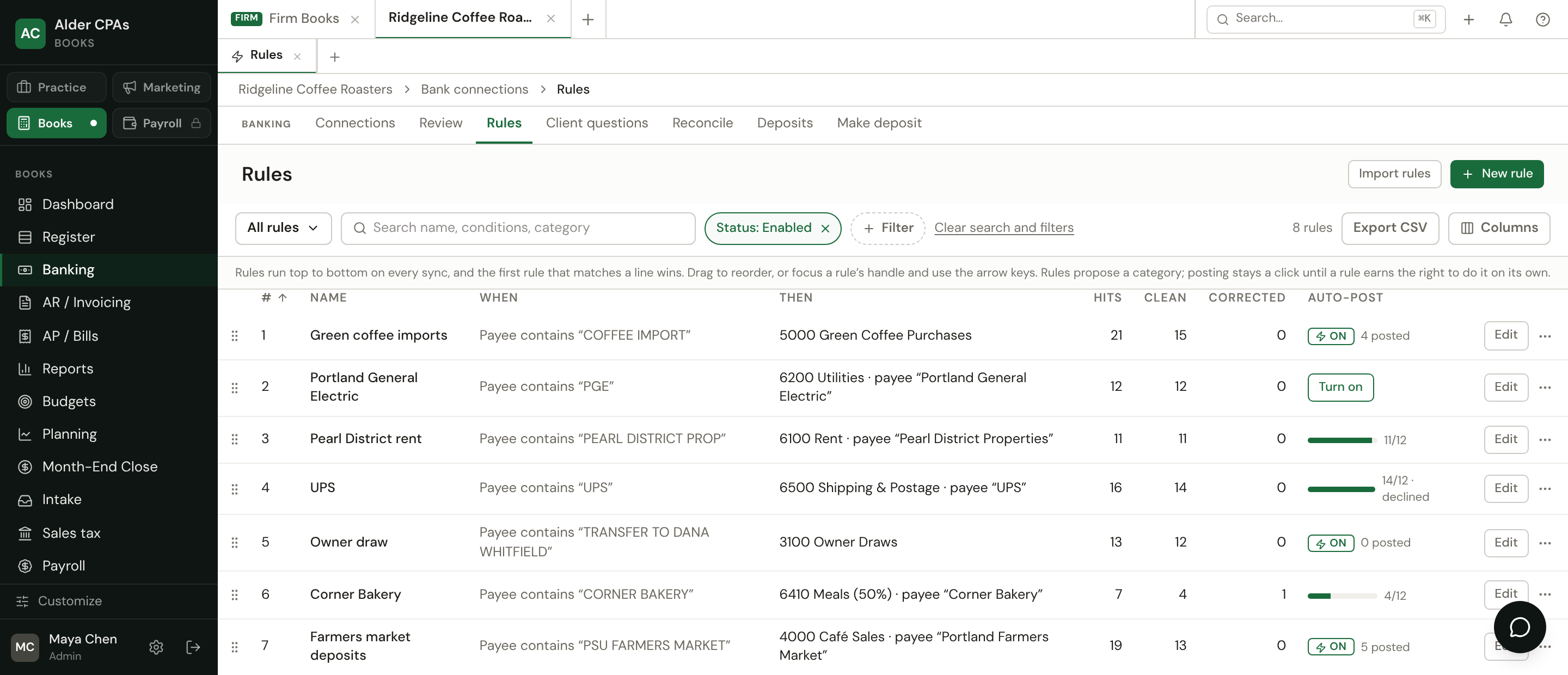 The Rules page for Ridgeline Coffee Roasters, with rules at every stage in the Auto-post column
| What the Auto-post column shows | What it means |
|---|---|
| A progress bar and 4/12 | Earning. The rule has 4 clean posts toward the 12 it needs. |
| Turn on | Earned, not on. The rule has reached 12. Click to see the offer. |
| A full bar and 14/12 · declined | Declined. Someone chose Not now on the offer. |
| On and 4 posted | On. The rule posts matching lines by itself. The number is how many it has posted. |
Hover a progress bar for the rule in words: Offered after 12 proposals posted unchanged in a row. A corrected category restarts the count.
What counts as clean
- Only a person's post counts. When someone posts a line the rule suggested and the entry goes to the rule's category, the count goes up by one.
- Only the category is compared. Books reads the category off the entry that was actually posted. Changing the payee or adding a memo does not count against the rule.
- Split rules earn the same way. A post from a split rule counts as clean when the entry's lines are exactly the rule's split: the same accounts at the same amounts. A split rule that earns its count can post on its own like any other.
- A corrected category starts the count over. If someone posts one of the rule's lines to a different account, Corrected goes up by one and Clean goes back to zero.
- Automatic posts never add to the count. A rule's own automatic posts are counted under posted, not under Clean. Only people earn a rule its trust.
Turn on automatic posting
- On Banking → Rules, find a rule that shows Turn on in the Auto-post column. To find them quickly, click the Auto-post column header to sort by it, or filter the list by Auto-post: Earned, not on.
- Click Turn on. The Post matches automatically window opens, marked Offered, and says how many times the rule's suggestions were posted unchanged.
- Click Turn on.
The column now shows On.
Books checks the count again when you click Turn on, so a rule that has not really reached 12 can't be turned on. A paused rule has to be resumed first.
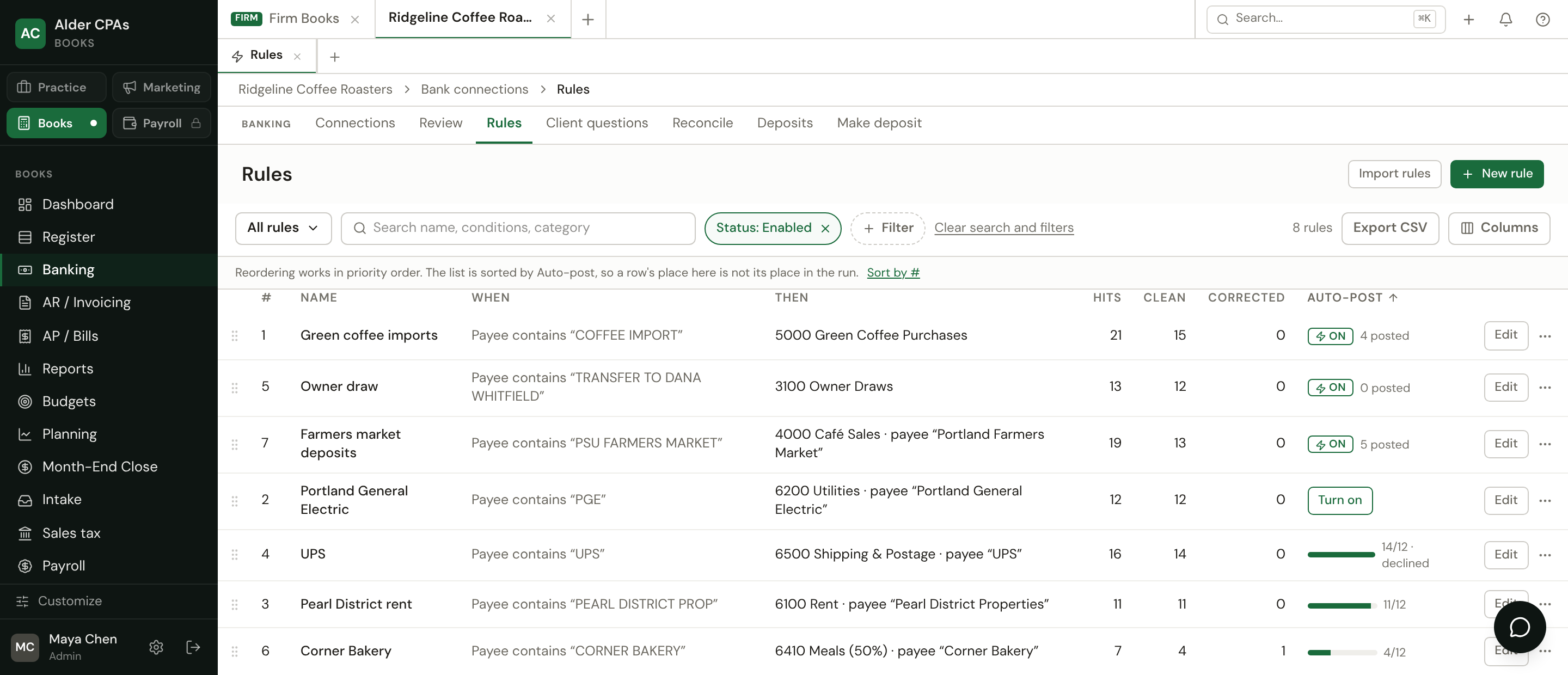 The rules sorted by the Auto-post column: on first, then earned, declined and earning
Not now
Not now in the offer window hides the offer. The column then shows the bar with declined, and the rule keeps suggesting as before. The offer only comes back after you change what the rule matches or does (see Change or stop a rule that posts on its own): that starts the count over, and the rule is offered again once it earns 12 more.
When an automatic post happens
When new lines arrive, Books runs the client's rules, then looks at each line a rule with automatic posting has matched. For lines from a connected bank, this happens on each sync. For lines from uploaded statements, it happens on Books' regular pass over them. A line that passes every check below is posted to the rule's category, using the payee and memo the rule sets, and leaves the Review queue.
What Books checks on every line
Books does not trust a setting that was true yesterday. Each time, for each line, it checks again:
| Check | What happens if it fails |
|---|---|
| The line is waiting in review and has settled. | A pending line waits until it clears. |
| No match or transfer is proposed for the line. | Matching gets the first say, so the line waits for you to confirm the match. |
| The bank account is linked to an account in the chart. | The line waits, marked with the reason. |
| The rule has automatic posting on, and 12 or more clean posts right now. | The line waits for you. |
| The client is still on Premium. | The rule keeps its count and goes back to suggesting. |
| The month is open. | A line dated in a closed month is never posted on its own. |
| The category can take a post. | An archived account, or one kept by another part of Books, is never posted to on its own. |
| The category is not a balance-sheet account. | Lines for loans, equity, fixed assets and other balance-sheet accounts are held for a person, however well the rule has earned. Bank and credit card accounts are not held. |
| A person has already accepted this rule for this payee. | See below. |
Earned per payee
A rule earns its trust on the payees people actually accepted it for. Before it posts a line by itself, Books looks for a line from the same payee that a person posted from this rule's suggestion since the rule's count last started over, and that is still posted. If there is none, the rule only suggests that line.
This matters when a rule matches more than one payee. Say your Green coffee imports rule (Payee contains "COFFEE IMPORT") earned its count on Pacific Green Coffee Imports.
A first charge from a new supplier, Cascadia Coffee Imports, also matches it, but nobody has accepted the rule for Cascadia yet, so the line waits for you. Once a person posts one Cascadia line to the rule's category from its suggestion, later Cascadia lines can post on their own.
It also means that reordering, pausing or deleting other rules can't hand an automatic rule lines it never earned. If a change sends a rule lines from a payee nobody accepted it for, it suggests those lines instead of posting them.
Lines that were held back
When a rule with automatic posting matches a line but does not post it, the line stays in the Review queue with a Not auto marker. Hover it to see the reason Books recorded. The common ones read:
- Not posted automatically — no one has accepted this rule on CASCADIA COFFEE IMPORTS yet, so it proposes this line
- Not posted automatically — held for review: 3100 · Owner Draws is a balance-sheet account, so a person posts it
- Not posted automatically — the period for this date is closed
- Not posted automatically — Automatic posting is a premium feature.
Post, change or exclude the line as you would any other.
See what was posted automatically
Banking → Connections lists what automation did under Bank automation · last 7 days. The list appears only when the client has bank connections. View all opens the last 30 days. Use Search, or the pills, to narrow it:
- Auto — lines a rule posted, and matches confirmed automatically. What shows the bank's description and, after the arrow, the account it went to (or the entry it was matched to). By names the rule (Rule · Green coffee imports) or the bank account (Auto-confirm · Business Checking ··4410).
- Held — lines a rule with automatic posting matched but left for a person, with the reason Books recorded. Review opens the Review queue.
- Offers — rules and bank accounts that have earned an offer.
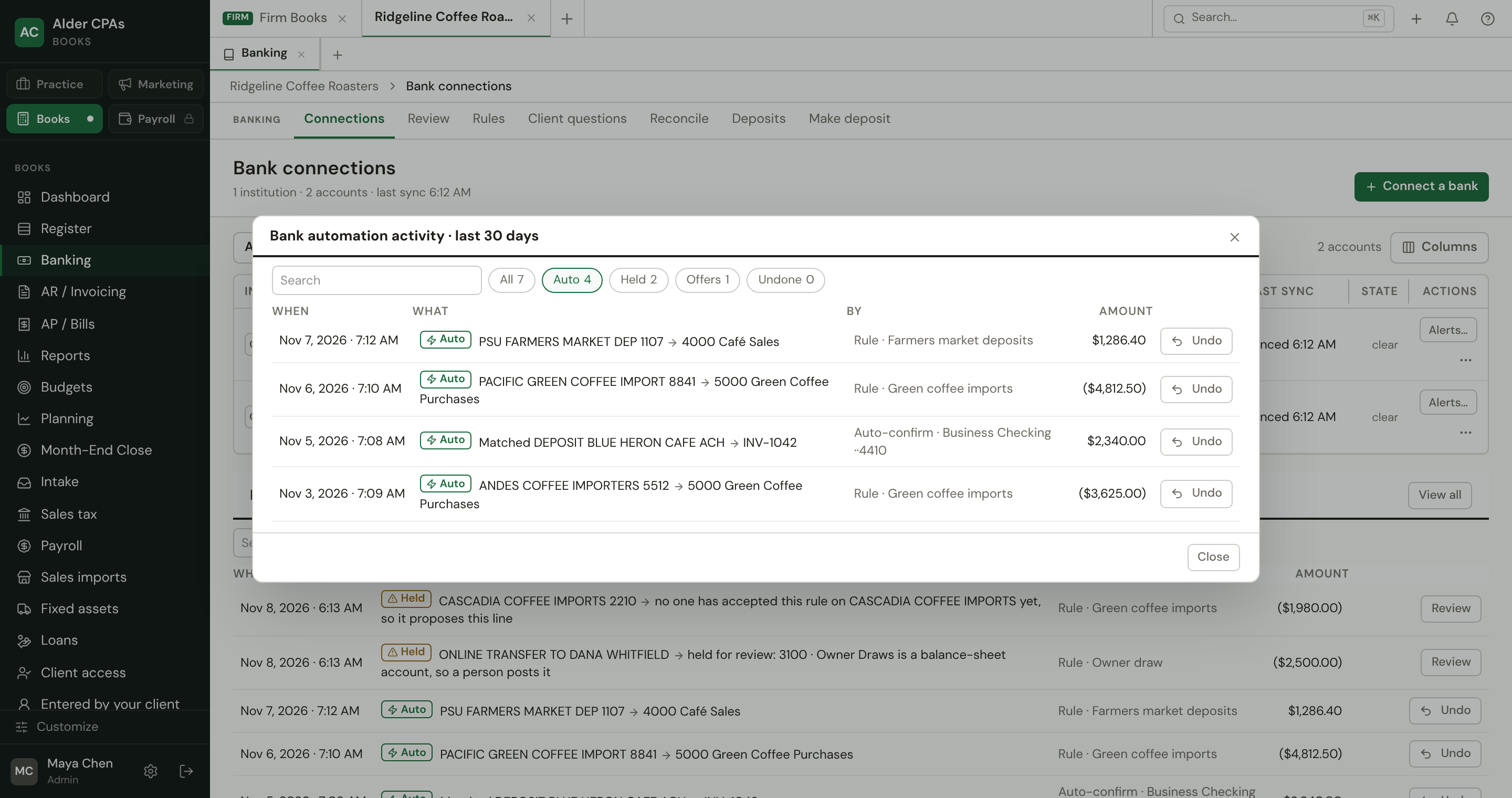 View all, on the Auto pill: what posted and matched on its own in the last 30 days, each with Undo
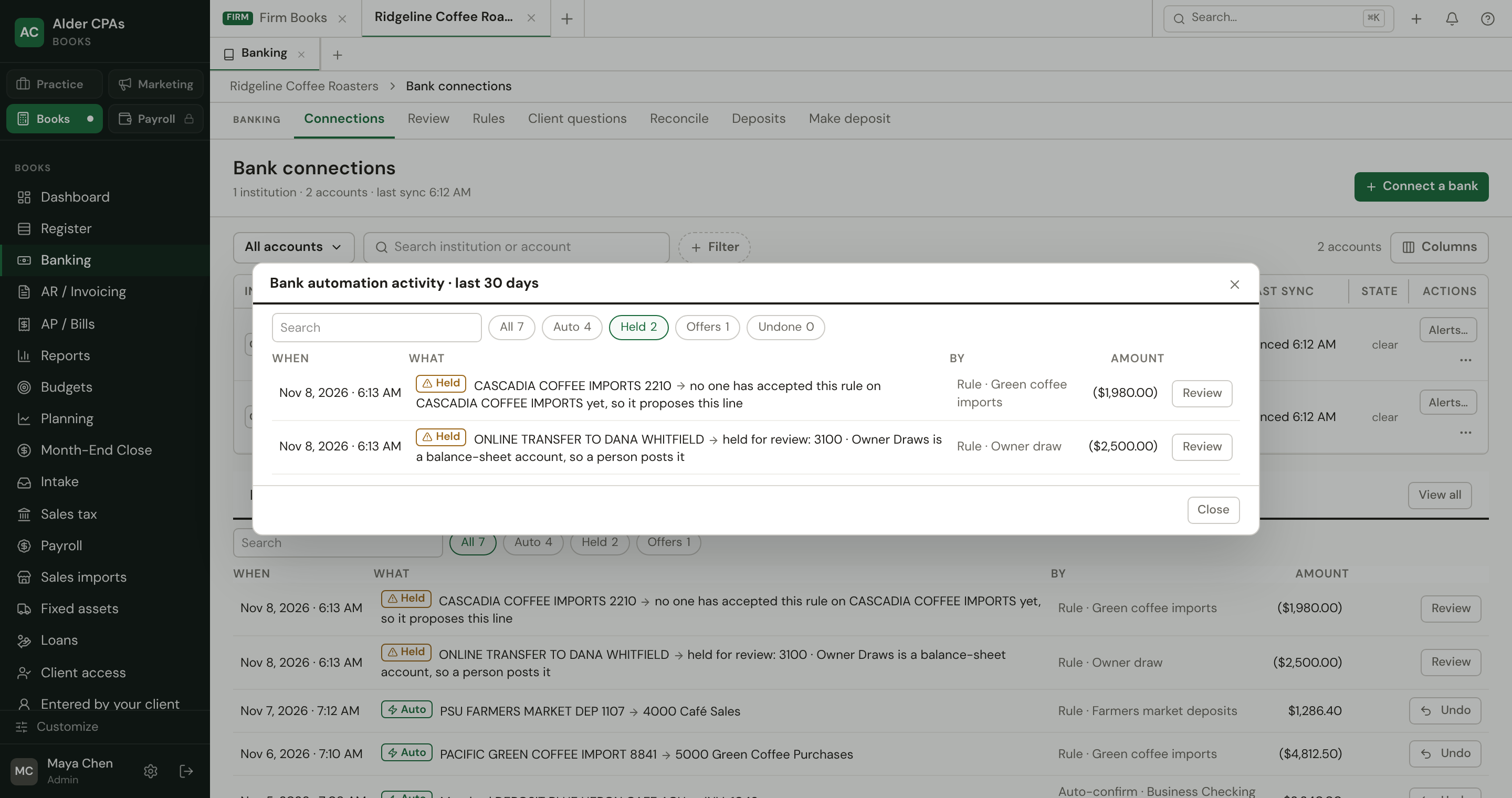 View all, on the Held pill: two lines a rule matched but left for a person, each with its reason
The entry itself also says how it got there. Open it in the register and click Audit trail: the history reads Posted automatically by a rule.
Undo an automatic post
- On Banking → Connections, under Bank automation · last 7 days, click Undo on the line. (Use View all for anything from the last 30 days; for older posts, open the entry in the register.)
- The Undo posting window names the bank line, its amount and the account it was posted to, and says the entry will be reversed and the bank line returned to review.
- Type a Reason of at least 10 characters. Books then checks the undo, without changing anything, and shows the reason in red if it would be refused. For example, an entry dated in a closed month can't be undone while that month is closed.
- Click Undo posting.
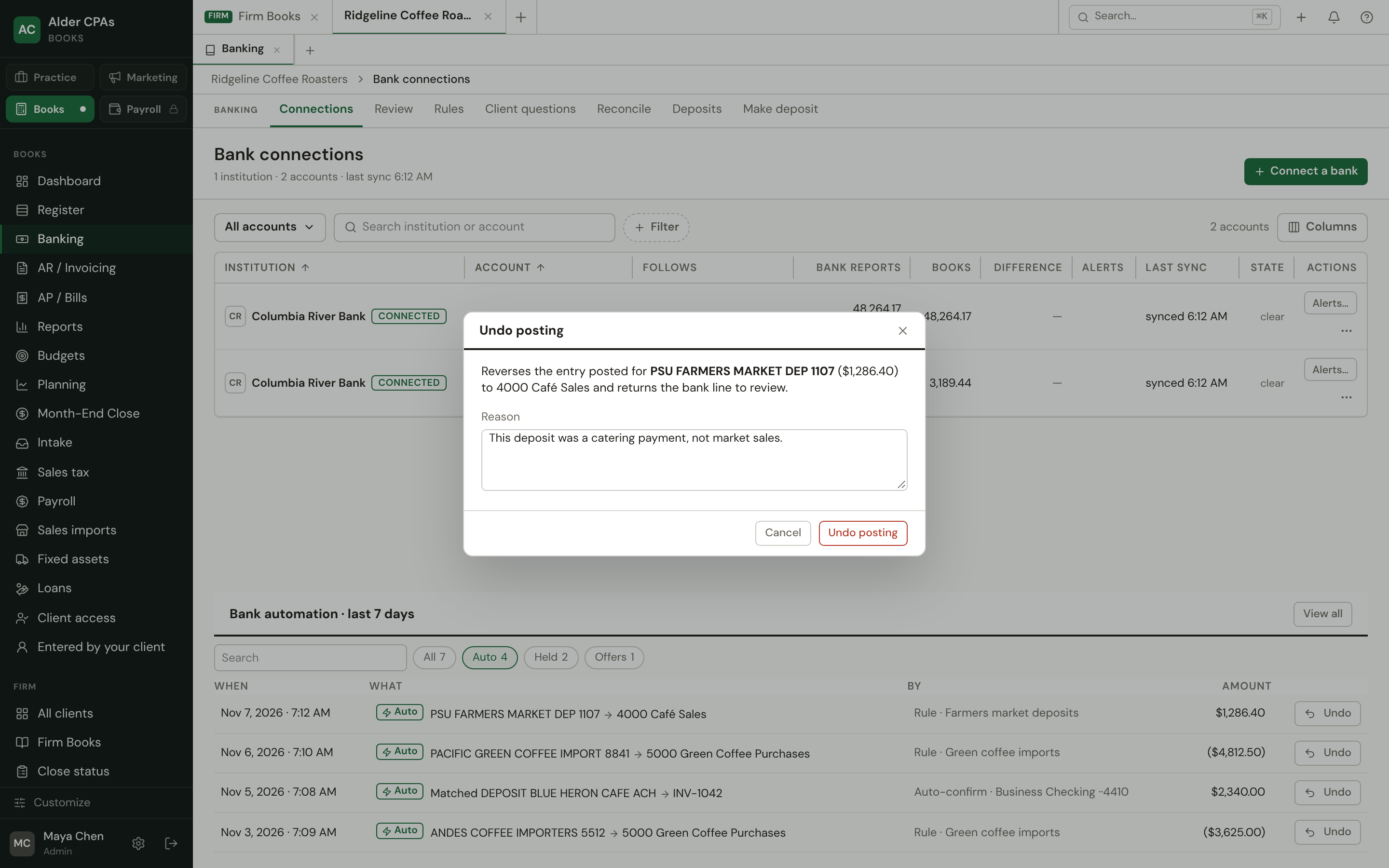 The Undo posting window, with a reason filled in
The entry is reversed and the bank line goes back to the Review queue, where you post it the right way. The notice reads Posting undone. The bank line is back in review.
Undo appears only while the automatic post is still in place. Once it has been undone, its row has no Undo.
An automatic match is undone the same way: Undo opens Undo match, which needs no reason, and the line returns to review.
Change or stop a rule that posts on its own
-
Turn it off. On Banking → Rules, open the rule's ⋯ menu and choose Turn off automatic posting. The notice reads Automatic posting is off. This rule proposes again. Turning it off is never blocked by your plan, and the rule keeps its count, so if that is still 12 or more it shows Turn on again and you can switch it back on later.
-
Edit what it does. Changing a rule's conditions, its exceptions, or what it sets (the category, payee or memo) with Edit turns automatic posting off and starts the count over, because the trust was earned for the rule as it was.
The notice says so: Rule saved. Because what it does changed, its earned streak restarted and automatic posting is off again. Renaming a rule changes nothing: Rule saved. Its counters are untouched.
-
Fix what it posted. Use Undo, or open the entry in the register and edit it in place, as with any bank line (see Reviewing Bank Transactions).
Creating, ordering and editing rules is covered in Bank Rules.
Let matches confirm themselves
Bank accounts earn trust for matching in a similar way to rules. Each confirmed match that Books proposed counts a clean confirm for that account, including ones Books confirmed automatically. Once an account reaches 25, Books offers to confirm its exact matches for you.
Each bank account has its own card, Business Checking ••4410 · auto-confirm exact matches, with:
- When it applies: Applies only when: one candidate, amount exact, and within the 3-day window. Near-amounts, multiple candidates, and transfers always wait for you.
- Three counts, side by side: clean confirms, auto-confirmed and unwound. The last one is the count against the account: how many automatic matches a person took back.
- Enable once the account has earned it. Until then the card says how close the account is: 18 of 25 clean confirms so far. Auto-confirm unlocks at 25. Turn off stops it at any time.
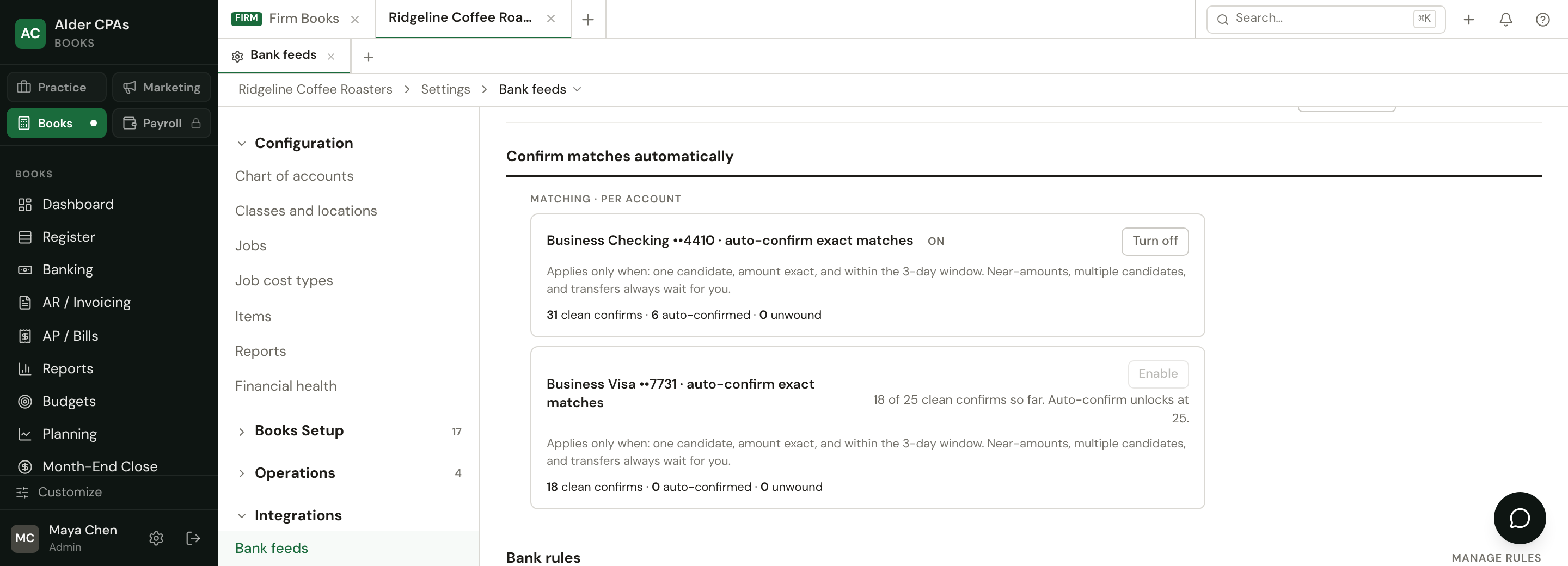 Confirm matches automatically on Settings → Bank feeds: one account on, one still earning
When an account earns it, the Review queue also offers it in a banner above the queue: 31 clean match confirms on Business Checking ••4410. Auto-confirm exact matches? Near-matches and anything ambiguous still come to you. with Not now and Enable. Not now hides the banner; the account keeps earning.
How the count moves:
- Confirming the match Books proposed adds one clean confirm, whether a person confirmed it or Books did.
- Matching a line to a different entry than the one proposed is a correction, and the count goes back to zero.
- Unmatching an automatic match adds one to unwound and puts the count back to zero.
An automatically confirmed match appears under the Matched pill in the Review queue with an Auto marker, and Unmatch beside it. Like rules, auto-confirm is part of Premium.
Why can't I turn on automatic posting?
- The rule shows a bar, not Turn on. It hasn't earned it yet. Keep posting its suggestions; at 12 clean posts the button appears.
- The bar says declined. Someone chose Not now. Change what the rule matches or does to start a new count.
- The offer says the feature is Premium. The window reads Automatic posting by rules is a premium feature. The rule keeps proposing, and its count keeps growing. Automatic posting works on clients on Premium. The count is kept, so the rule is ready when the client moves to Premium.
- An On rule says "not posting". The client is no longer on Premium: not posting: Automatic posting by rules is a premium feature. The rule keeps its count and goes back to suggesting.
- You don't have permission. Turning automatic posting on or off, and Not now, need the Bank rules and auto-post permission. Without it, Books refuses: You need the "Bank rules and auto-post" permission for this. Ask an admin to grant it.
Why didn't my rule post this line?
Lines with a Not auto marker in the Review queue, or under Held on Banking → Connections, show the reason Books recorded. The common ones:
- The payee is new to the rule. Post one line from that payee to the rule's category from its suggestion, and the next one can post on its own.
- The category is a balance-sheet account, such as 3100 · Owner Draws. These always wait for a person.
- The month is closed.
- The client is not on Premium.
A line with no marker was not this rule's to post:
- The line is still pending at the bank.
- A match or transfer is proposed for the line, so matching handles it.
- Another rule matched first. Rules run top to bottom and the first match wins. To change the order, see Bank Rules.
Tips
- Sort by Auto-post to see every rule that is on, then every rule waiting for a decision. Shift-click a second header to sort within that.
- Make rules narrow before you turn them on. A rule that matches one payee earns trust for that payee. A broad rule earns it payee by payee, and the first line from each new payee always waits for you.
- Check the Held pill each week. It is the short list of lines your rules wanted to post but Books would not.
- Let the Corrected column guide you. If a rule keeps getting corrected, consider narrowing it or making two rules before you turn it on.