
API Keys and Connecting Other Tools
Create an API key so another tool can read or work in your clients' books as you, see which apps act for you, and revoke or disconnect them.
On this page
Books can be reached by other tools as well as by people: a reporting tool that reads your clients' figures, a script that brings in receipts, or an assistant that answers questions about the books. A tool gets in one of two ways: with an API key you create here, or by asking you to sign in and Allow it. Either way it acts as you, with your access and no more.
A key works only for clients on Premium. A tool using your key is refused on any other client with The API connector is a premium feature. Turn on Premium for this client to use it.
Understand the page
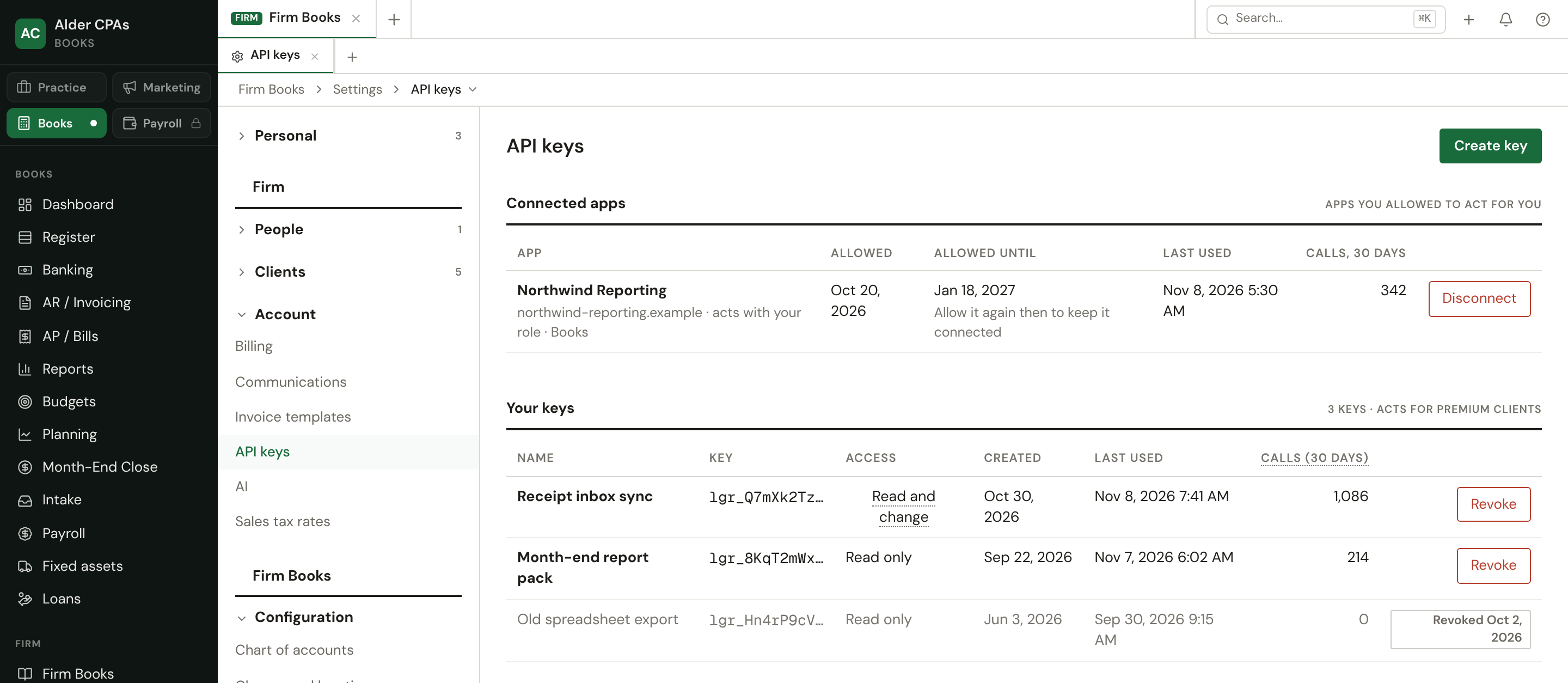 API keys at Alder CPAs, with one connected app and three keys
Connected apps appears when you have allowed an app to act for you by signing in (see Connect an app by signing in). Each row shows:
- App — the app's name, then where its identity is published, acts with your role, and the products it reaches.
- Allowed and Allowed until — when you allowed it, and when the permission runs out, with Allow it again then to keep it connected.
- Last used and Calls, 30 days.
- Disconnect. An app that has run out or been disconnected stays listed, grayed, marked Expired or Disconnected.
Your keys lists the keys you created, with a count and the reminder Acts for Premium clients above it:
| Column | What it shows |
|---|---|
| Name | The name you gave the key. |
| Key | The first characters of the key, so you can tell which one a tool is using. The rest is never shown again. |
| Access | Read only or Read and change. |
| Created | The day you created it. |
| Last used | When a tool last used it, or Never. |
| Calls (30 days) | Requests made with this key in the last 30 days. |
| Revoke, or Revoked and the date for a key that no longer works. |
Live keys come first, newest first (for the owner, Books keys come before other products' keys within each group); revoked keys stay at the bottom, grayed, so you keep a record of them.
The firm's owner sees every key. For the owner, the section is called Every key in the firm, counts live and revoked keys, and shows Product and Acts for (the member each key belongs to) in place of Key, with the start of each key under its name.
The owner's list also includes keys made for other products; for those, Last used and Calls, 30 days stay blank, because Books doesn't see how another product's key is used. Hover Acts for to read A key can do only what this member can do, and stops working if they leave the firm. The owner's Connected apps adds an Acts for column too.
Connect a client app, at the bottom of the page, shows the address a tool connects to, with Copy.
Create an API key
- Click Create key.
- Give it a Name you will recognize later, such as the tool it is for (up to 80 characters).
- Choose its Access:
- Read only — the tool can look but change nothing. This is the default.
- Read and change — hover the info icon beside it to read exactly what this allows: Can read and make changes this member could make. Each change is previewed first, then confirmed exactly as previewed. Closing a period, moving money and reversing an entry are always approved by a person in Books.
- Click Create key.
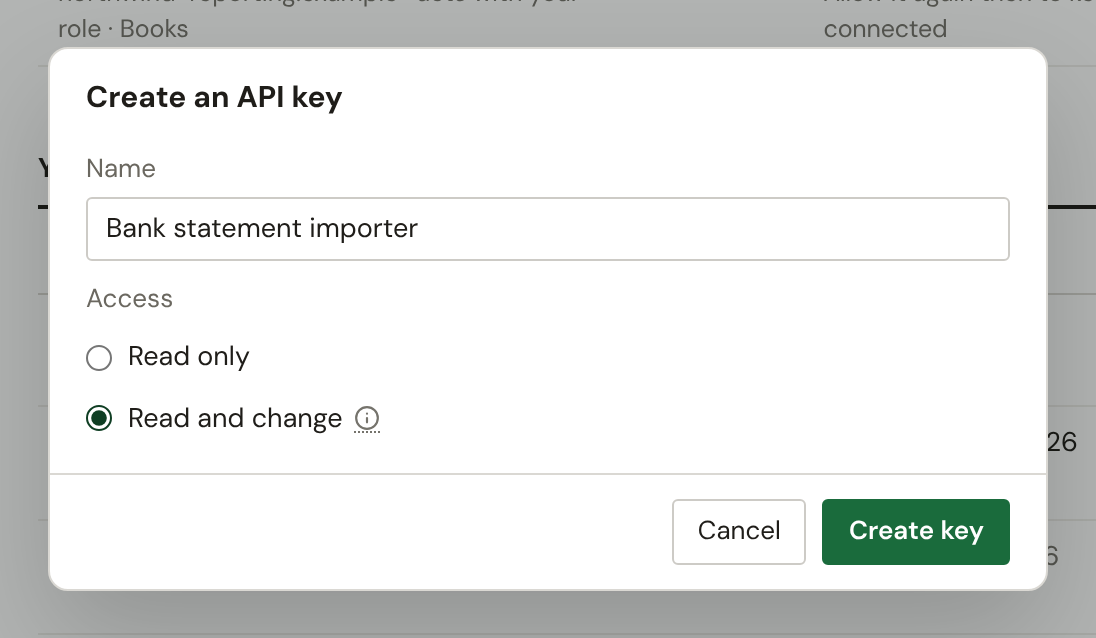 Creating a key with Read and change access
Copy your new key opens with the key and a Copy button: This is the only time the key is shown. If it's lost, revoke it and create another. Below it is the Endpoint, the address to give the tool along with the key. Copy both into the tool, then click Done. If the tool asks how to send the key, choose a bearer token (the usual way) or, if it offers an API key header, give the header name X-Api-Key and paste the key as it is. The window has no other way out, so a key can't be closed away by accident.
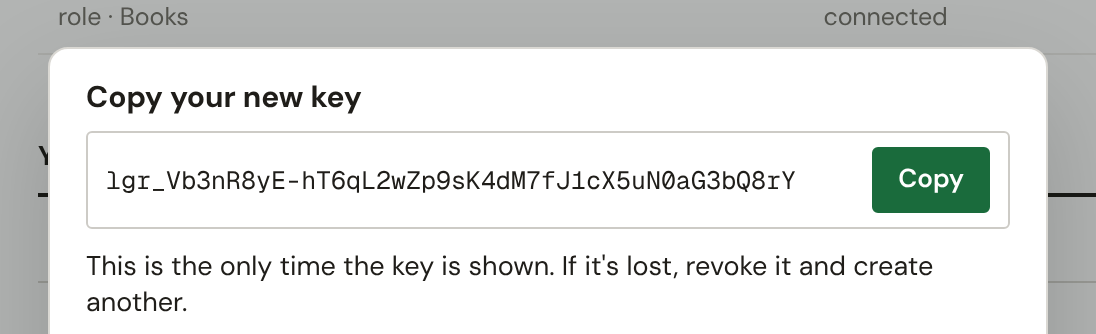 The new key, shown once
Treat a key like a password. Anyone who has it can do in your clients' books whatever its access and your own role allow, until it is revoked. Give each tool its own key, so you can revoke one without stopping the others.
If Copy doesn't work in your browser, Books says Couldn't copy. Select the text and copy it yourself.
Who can create an API key?
- The owner of the firm can always create keys, and sees and can revoke every key in the firm.
- Any other member can create keys for themselves if they can see the books of at least one client. Otherwise Books refuses with Only a member who can see Books for at least one client can create a Books API key.
A key always acts as the member who created it:
- It can do only what that member can do, on the clients that member can reach, and only in your firm.
- If they leave the firm, the key stops working: a tool using it is told That API key no longer works: the person it acts for is no longer an active member of the firm.
Creating and revoking keys is always done by a person signed in to Books, never by another key. No key can approve anything: approvals are always made by a person.
What a key can't turn on
A key can't turn on automatic posting or any other automation Books earns. When a tool asks to turn on automatic posting for a bank rule, a vendor's bills, payroll or sales imports, receipts from a vendor that confirm themselves, or Books filling in a vendor's account on captured bills, Books checks the request the way it would check you turning it on.
If it passes, Books keeps it for a person in your firm who can make that change to approve in Books, and nothing changes until someone does. If it doesn't pass (for example, the rule hasn't earned it yet), the tool is refused with the reason.
A request to turn on auto-confirm for a bank account's matches is refused: a person turns those on in Books. See How Rules and Matches Earn Automatic Posting.
Revoke a key
- Click Revoke beside the key.
- Books asks first: Anything using this key stops working on its next request. Proposals it made stay for a person to decide.
- Click Revoke key, or Keep the key.
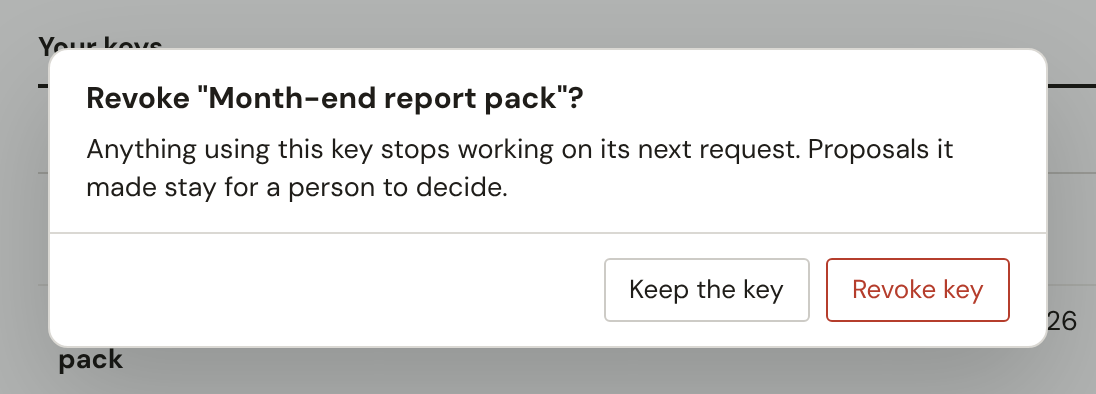 Revoking a key asks first
The key stays in the list, grayed and marked Revoked with the date. A tool still using it is told That API key was revoked. Create a new one in Books settings. A revoked key can't be turned back on: create a new one instead.
You can revoke your own keys. The owner can revoke any key in the firm.
Connect an app by signing in
Some tools connect without a key: they send you to Books to sign in and ask your permission.
- Start connecting from the tool. It opens a Books sign-in page.
- Sign in if Books asks you to. If you belong to more than one firm, Books asks Which firm should … act in? An app acts for you in one firm.
- Books shows Allow … to act for you in … with what the app will be able to do. Among the lines: It can’t close a period, move money or reverse an entry. It can only propose those, for a person to approve in Books.
- Click Allow. You are sent back to the tool.
The app then appears under Connected apps. Its permission lasts until the Allowed until date; allow it again then to keep it connected.
To stop an app, click Disconnect. Books asks first: … stops working with Books on its next request. To reconnect, it has to be allowed again. and Proposals it made stay in Books for a person to decide. Click Disconnect, or Keep connected. An app whose permission ran out or was disconnected is told This app's connection to LedgerOS isn't valid any more. Connect the app again from the app.
Why can't I …
- … create a key? You can't see the books of any client yet. Ask whoever manages your firm's team to give you access to a client's books.
- … use a key on this client? The client isn't on Premium.
- … see my key again? It is shown only once, when it is created. Revoke it and create another.
- … see other people's keys? Only the owner sees every key in the firm. Everyone else sees their own.
Tips
- Start with Read only. Give a tool Read and change only when it needs to make changes, and then watch Calls (30 days) and Last used for anything you don't expect.
- Name keys after the tool, so Last used tells you which tool is still active and which key can go.
- A retry never makes a second key. If your connection drops while you click Create key, clicking Create key again, without closing the window or changing the name or access, answers the key already created, without showing it again: The key was shown once, when it was created. If it was lost, revoke it and create another.