
Your Close Checklist
Set the steps every month-end close follows, choose which ones Books ticks for you, and give a client its own list when its close is different.
On this page
Every month's close in Books comes with a checklist: reconcile the accounts, clear the Review queue, review the balance sheet, lock the month. Settings → Close checklist is where you decide what is on that list. Your firm keeps one default for each kind of business, and any client can have its own version when its close is different.
Several items don't need you to tick them at all. Books checks the books and ticks the item itself once the work is really done, and you choose which items work that way.
A change applies to closes created from now on. A month whose close has already started keeps the checklist it started with. When you save a client's own list, Books offers to bring that client's open month in line too, and you choose.
Understand the firm default
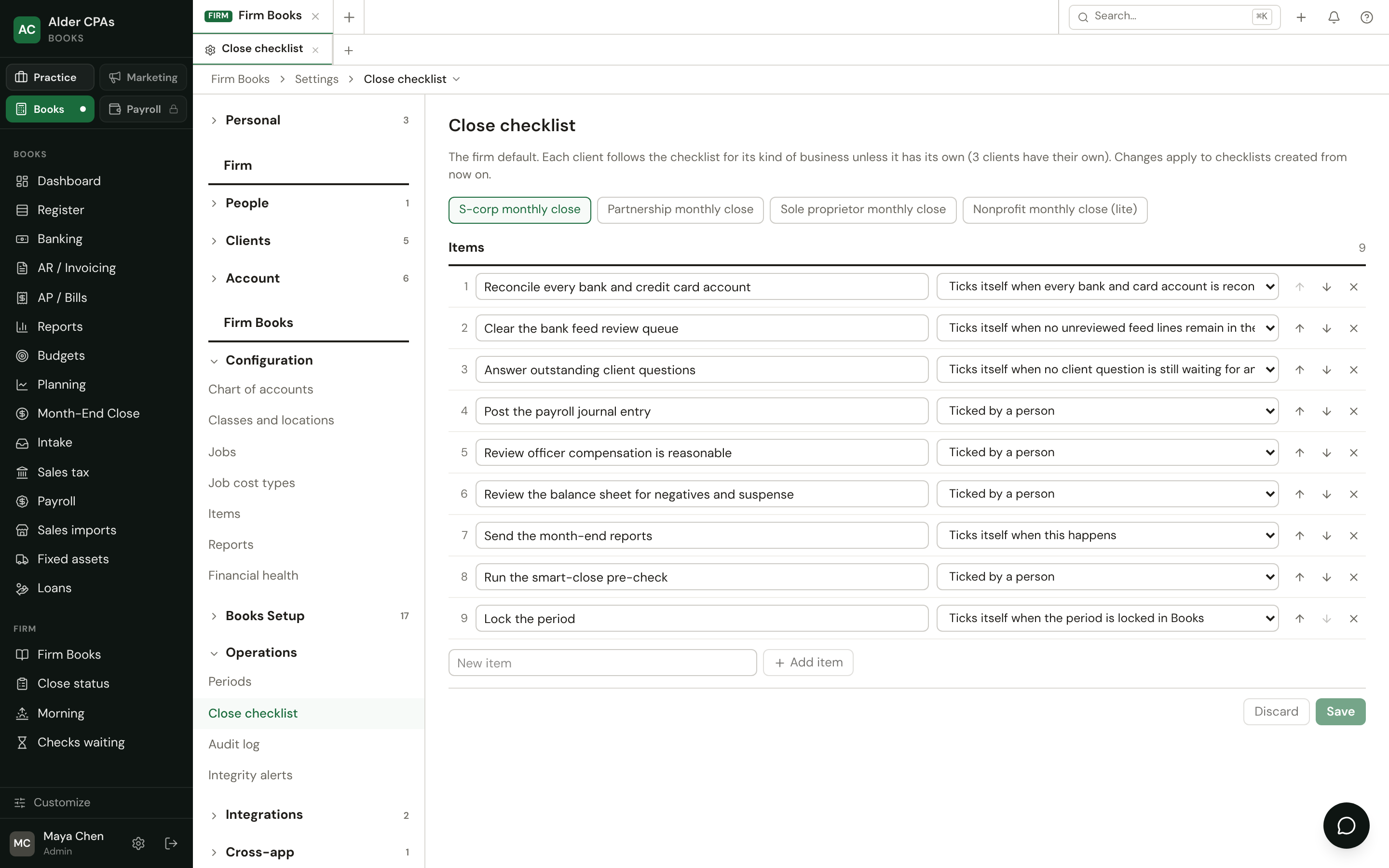 The firm default: the S-corp monthly close checklist, with a tab for each kind of business
Your firm has four checklists, one per kind of business, shown as tabs: S-corp monthly close, Partnership monthly close, Sole proprietor monthly close and Nonprofit monthly close (lite). The line under the title tells you how many clients have their own version, for example (3 clients have their own). It counts every client with its own list, whatever its kind of business, so it reads the same on every tab.
Each client follows the tab that matches the Entity type on its client record:
| Entity type | Checklist |
|---|---|
| S-Corp, C-Corp, PC, PLLC | S-corp monthly close |
| Partnership, LLP, LLC | Partnership monthly close |
| Nonprofit | Nonprofit monthly close (lite) |
| Sole Prop, Trust / Estate, Individual, Other, or not set | Sole proprietor monthly close |
Each row of a checklist has its number, the item's name, how it gets ticked, and three buttons: move up, move down and remove. The count beside Items is the length of the list.
The default items
A firm starts with these. The middle rows depend on the kind of business.
| Item | On | Ticked |
|---|---|---|
| Reconcile every bank and credit card account | All four | By Books |
| Clear the bank feed review queue | All four | By Books |
| Answer outstanding client questions | All four | By Books |
| Post the payroll journal entry | S-corp, Partnership | By a person |
| Review officer compensation is reasonable | S-corp | By a person |
| Review partner draws and capital accounts | Partnership | By a person |
| Review restricted-fund balances and grant tracking | Nonprofit | By a person |
| Review the balance sheet for negatives and suspense | All four | By a person |
| Send the month-end reports | All four | By Books |
| Run the smart-close pre-check | All four | By a person |
| Lock the period | All four | By Books |
If your firm has never saved its checklist, the page shows these defaults with the line These are the default checklists. They are saved for this firm the first time you save. Your first Save asks Start the close checklist? and saves all four from the defaults, with your changes to the tab you were on. Opening a client's first close also starts them, so you never have to set this up before you can close a month.
Items that tick themselves
The drop-down on each row says how the item gets ticked: Ticked by a person, or Ticks itself when followed by a condition. For the conditions below, Books checks the books for that month, not a note that something happened. Finishing one reconciliation doesn't tick Reconcile every bank and credit card account while another account is still open.
| Choose Ticks itself when… | Books ticks the item when |
|---|---|
| every bank and card account is reconciled through the period end | Every active bank and credit card account that has activity or a balance through the end of the month has a completed reconciliation whose statement date is on or after month end. An unused account with a zero balance never holds it up. |
| no unreviewed feed lines remain in the period | No bank line dated in that month is still waiting in the Review queue. |
| no client question is still waiting for an answer | No question you sent this client is still waiting for an answer, whatever month it was about. |
| the period is locked in Books | The month is locked. |
| a statement covering the period end has arrived for every bank and card account | Every bank and card account added by month end has an uploaded statement that covers the last day of the month. An account added after the month ended isn't counted. |
| the payroll entry for the period is posted | A posted payroll that hasn't been voided has a check date in the month. A client with no payroll imports and no active payroll enrollment meets it. |
| every loan's period-end entry is posted | When the client's loan settings accrue interest or reclassify the current portion, every active loan that started by month end has its month-end entry. Met when no loan needs one. |
| depreciation is posted through the period end | Depreciation is posted through month end. Met when the client has no asset in service. |
| no uncategorized or suspense account carries a balance at the period end | No uncategorized or suspense account has a balance at month end. |
| the smart-close pre-check is ready to lock | The smart-close pre-check is ready to lock. |
| this happens | The thing the item waits for happens for that month. Nothing else has to be true. |
Send the month-end reports uses Ticks itself when this happens, and hovering its drop-down names what it waits for: Ticks itself when the month-end reports are sent. It ticks when a month-end report, or a customer statement, is sent to this client between the 1st of the month and 60 days after it ends.
Saving the checklist, for the firm or for a client, keeps what the item waits for. If you pick this happens for an item of your own, it waits for a customer statement to be sent. Once you save, the hover says Ticks itself when a customer statement is sent.
When does Books look? Whenever you open a month's close page, Books checks every automatic item again, and it re-checks every open close once a day. Several also tick the moment the related thing happens: a reconciliation finishing, the last line leaving the Review queue, a client answering, the month being locked.
Books also takes a tick back. If a locked month is reopened, Lock the period is unticked. If a reconciliation is undone and the account is no longer reconciled through month end, Reconcile every bank and credit card account is unticked.
Change the firm default
You need the Manage — Templates permission to change the firm default. Without it the page is read-only, and hovering a button says You need the "Manage — Templates" permission to change the close checklist.
- Open Settings → Close checklist in Firm Books and pick the tab for the kind of business.
- Make your changes:
- Rename an item by typing in its name box.
- Change how it is ticked with the drop-down beside it.
- Reorder with the up and down arrows.
- Add an item: type it in New item and press Enter, or click Add item. It goes to the bottom of the list, ticked by a person until you choose otherwise.
- Remove an item with ×. Books asks first, and names the consequence: "Run the smart-close pre-check" leaves the S-corp monthly close checklist for every client that follows it, and any change a client made to it goes too. Changes apply to checklists created from now on.
- Click Save. Books checks the list and asks you to confirm, saying what will change.
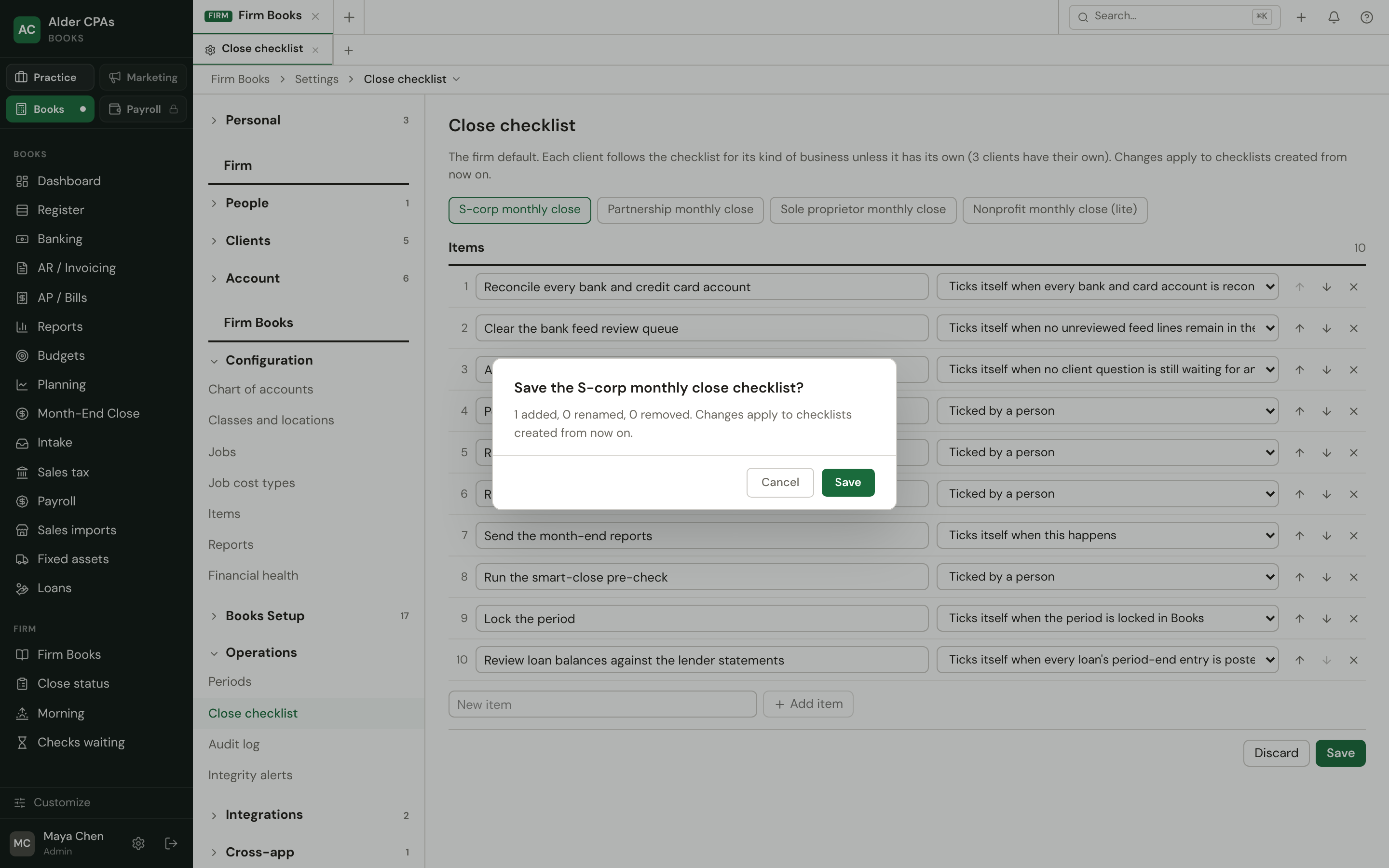 Saving the S-corp checklist after adding an item
The confirmation reads, for example, Save the S-corp monthly close checklist? 1 added, 0 renamed, 0 removed. Changes apply to checklists created from now on. If you removed an item some clients had changed, it names them too, such as These client changes go with the removed items: Ridgeline Coffee Roasters, "Run the smart-close pre-check" (removed for this client).
Nothing is saved until you click Save in that window; Cancel takes you back to the list. Discard, beside Save on the page, puts the list back the way it was.
Give a client its own checklist
A client's close can differ from the firm's: a client with inventory needs a count, a client with a roaster needs its depreciation posted. Change the client's list, and only that client changes.
- Open the client's books, then Settings → Close checklist. From a month's close page, Edit this client’s checklist takes you straight there.
- Rename, add, remove, reorder or change how items tick, exactly as for the firm default.
- Click Save.
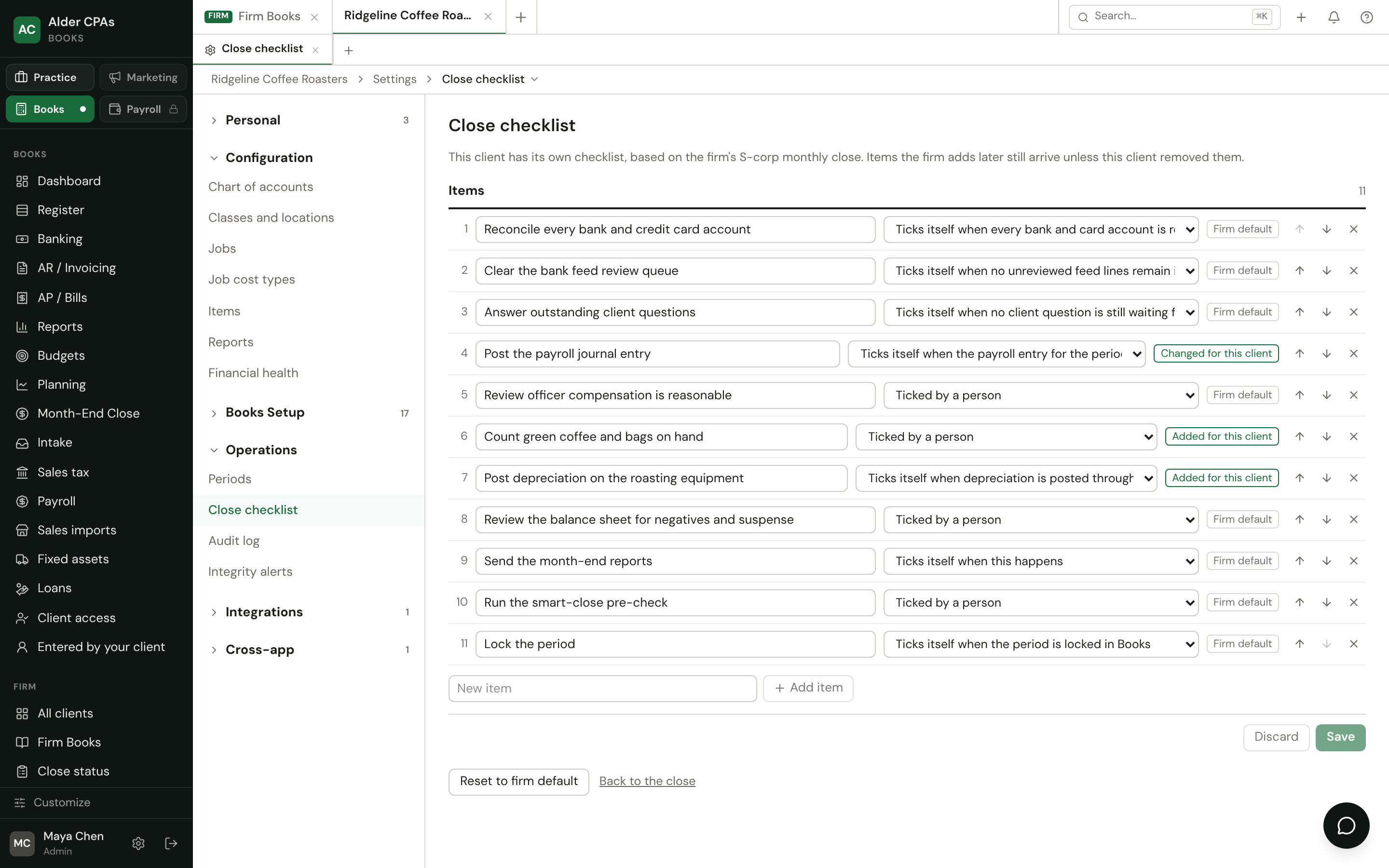 Ridgeline's own checklist, with an item changed and two added for this client
The line under the title says where the list comes from: This client follows the firm's S-corp monthly close. Change anything here and it gets its own; the firm default is not changed. Once it has its own: This client has its own checklist, based on the firm's S-corp monthly close. Items the firm adds later still arrive unless this client removed them.
Each row carries a badge:
- Firm default — the item as the firm has it.
- Changed for this client — renamed, or ticked a different way.
- Added for this client — on this client's list only.
Books keeps only what is different for this client. When the firm later edits an item the client hasn't touched, the client gets the edit.
Remove an item for one client
Click × on the row. Books confirms: "Run the smart-close pre-check" leaves this client's checklist only. Other clients and the firm default keep it.
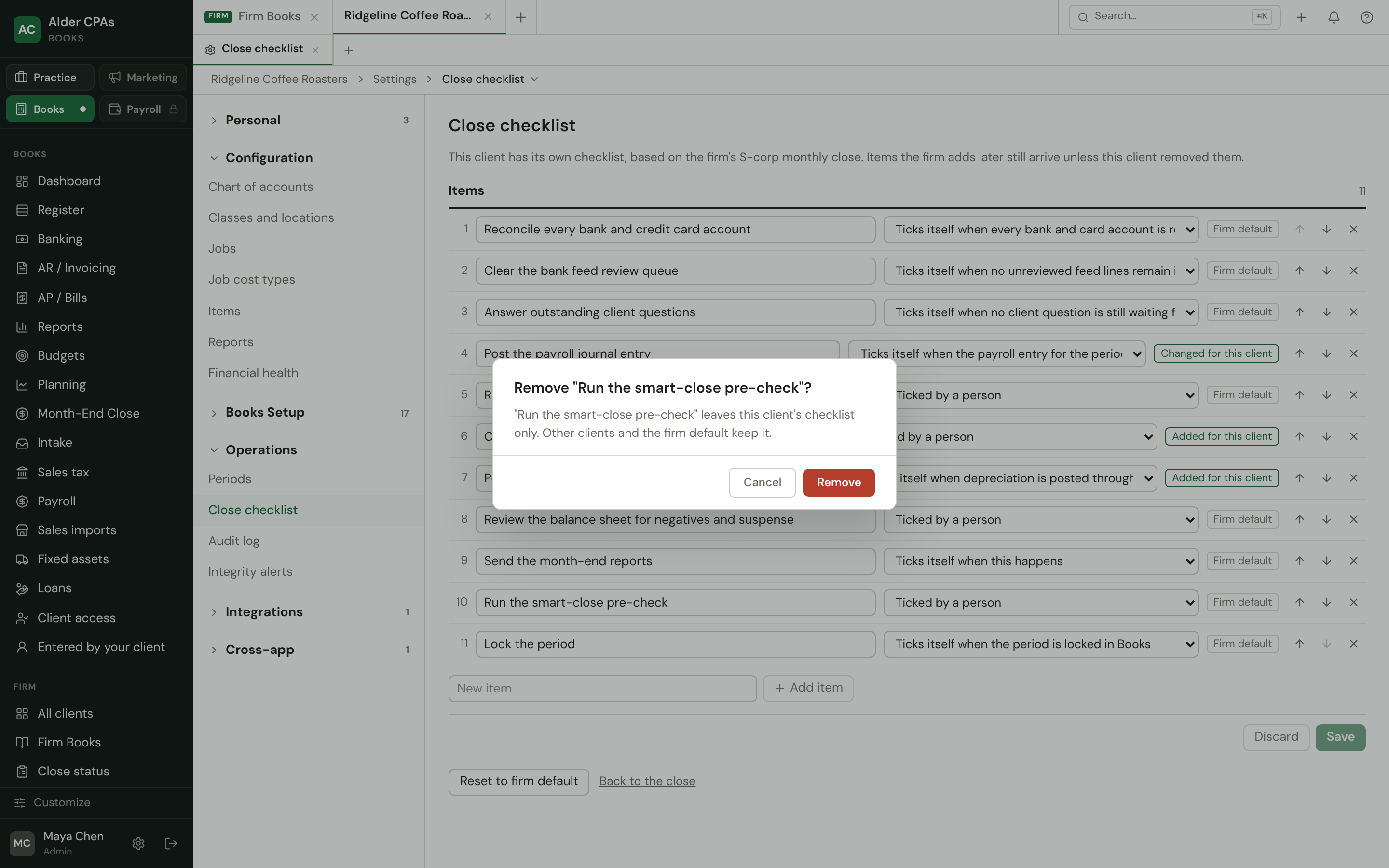 Removing an item from one client's checklist
A firm item you remove moves to Removed for this client below the list. Click Restore to bring it back as the firm has it, at the bottom of the list, then Save. An item you added for the client is simply gone when you save.
Change this month's close to match
After you save, or after Reset to firm default, Books offers to bring the open month in line: Also change October 2026’s open close to match? with Change October 2026 and Not this month. The month is the one whose close page you came from, or the current month if you opened Settings directly.
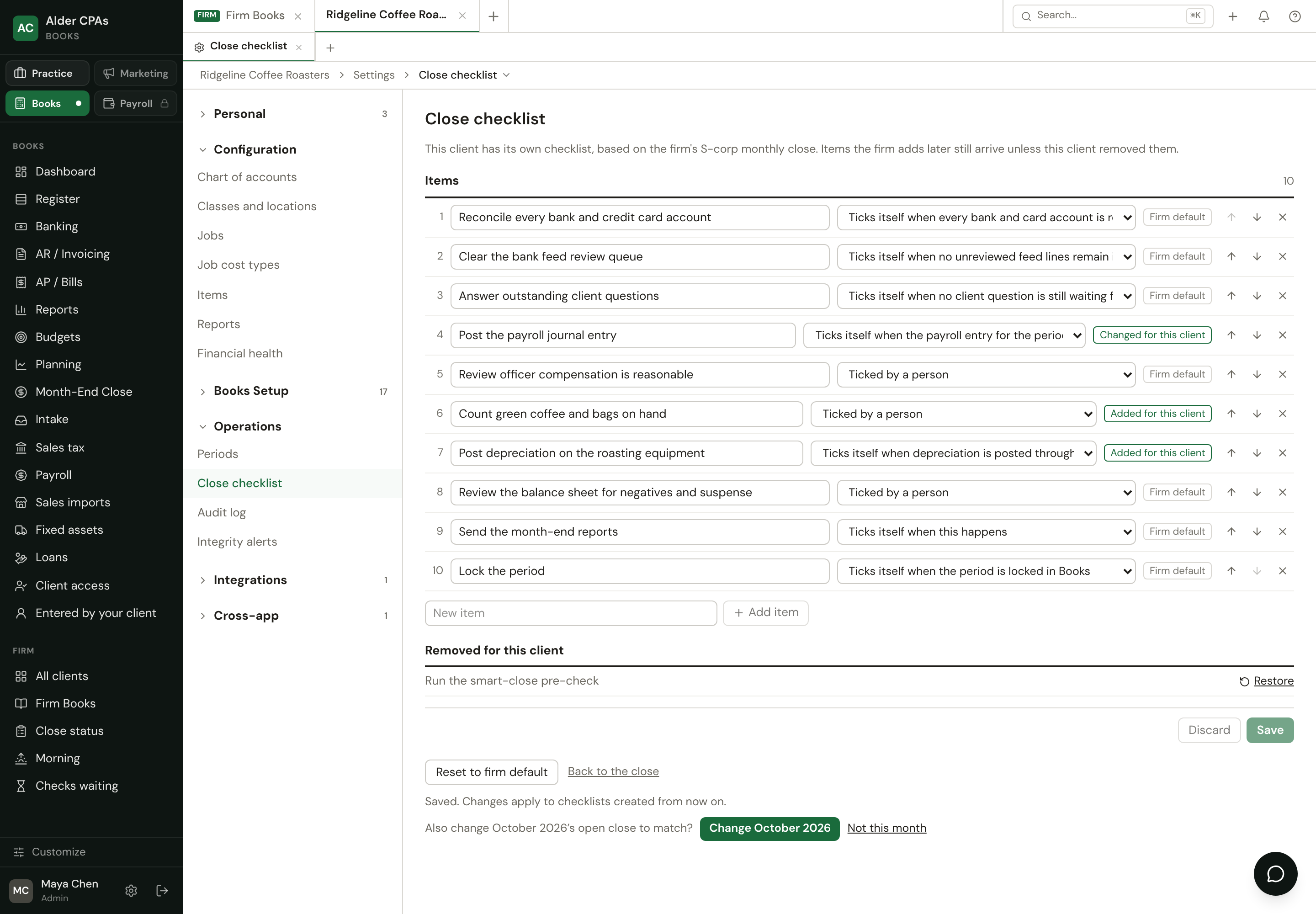 Saved, with the offer to change October's open close
Change October 2026 adds, renames, removes and reorders that month's items to match, and says what it did: October 2026's close now follows this checklist: 0 added, 0 renamed, 1 removed. It never undoes work:
- An item already done keeps its tick and its place. If you renamed it, it keeps its old name.
- An item with work recorded against it, such as time logged to it or a document request attached, stays on the month.
Books names anything it kept, for example Kept "Run the smart-close pre-check" (it is already done). If that month's close hasn't started yet, Books says This month's close has not started, so it will use this client's checklist when it does. A locked month keeps the checklist it was locked with.
Go back to the firm default
Reset to firm default deletes the client's own changes. Books names them first: This client's own changes are deleted (3 changed or added, 1 removed) and it follows the firm's S-corp monthly close again. Closes already started keep their checklist. The button is off, with This client already follows the firm default., when there is nothing to reset.
Shortcuts and tips
- Enter in the New item box adds the item.
- Two items can't share a name, and capitals don't make a name different: Lock the period and lock the period count as the same.
- Saving the firm default runs every check first, so the numbers in the confirmation are what will really happen.
- Every save is recorded in the Audit log, with the list before and after. A reset records everything it deleted.
- On a client that doesn't run payroll, Post the payroll journal entry is left off its months automatically, as long as the item keeps that name. You don't need a separate checklist for it.
Why can't I…
- Save? Hover Save. Nothing has changed. means the list is the same as what was saved. Otherwise the reason shows beside the button:
- A close checklist needs at least one item.
- Every checklist item needs a name.
- Two checklist items are named "Lock the period". Give each its own name.
- Edit the firm default? You need the Manage — Templates permission. Ask an admin.
- Edit a client's checklist? You need permission to post in that client's books, and a role that can make changes. The page still opens without them, and Save says why when you try. Clients who sign in to their own books aren't offered this page; the checklist is the firm's.
- See a client's checklist? If the page reads This firm has no close checklist for this kind of business yet., the firm's checklists haven't been started. They start when that client's next close opens, or when someone who manages templates saves the firm's close checklist.
- Add an item? Add item stays off until you type a name.
- Move an item further? The first item can't go up (Already first.) and the last can't go down (Already last.).
Questions people ask
I changed the firm default. Why does this month still show the old list? A close keeps the checklist it started with. The firm default reaches each client's next month. To change one client's open month now, use that client's checklist and Change the month.
What is left before I can close the month? A month's close page shows the checklist with a count such as 6 of 10 done. Under an automatic item that isn't ticked yet, Books says why, in the words of the condition: for example Not yet: 1000 Business Checking isn't reconciled through Oct 31, 2026. Do that work and the item ticks itself the next time Books checks.
I unticked an item Books had ticked. Why won't it tick again? Books treats your untick as a decision. For the rest of that month, the item says Reopened after Books completed it — Books will not tick it again this period, and ticking it is up to you.
An item doesn't apply to this client this month. Do I have to remove it? No. On the month's close page, click Not applicable this month under the item and say why it doesn't apply (at least 3 characters). It is offered on an item that isn't done yet, in a month that isn't locked. Books doesn't tick or untick it after that, and it counts as done. Clear undoes it. Remove it from the client's checklist only when it never applies.
The client changed its entity type. Which checklist does it follow now? The one for its new kind of business, from its next close. Items added for this client come along; changes it made to the old checklist's own items don't. A month already started keeps its checklist.
Can I add a one-off item to just one month? Yes. When your firm doesn't use Practice, use Add an item on that month's close page while the month is open. It stays on that month only. With Practice, add it on the month's card in Practice.
If you also use Practice
When your firm also runs Practice, the close checklist becomes real work your team can see and plan around. Each month's close is a card on the Month-end close pipeline, titled Month-end close — October 2026, and its subtasks are that client's checklist.
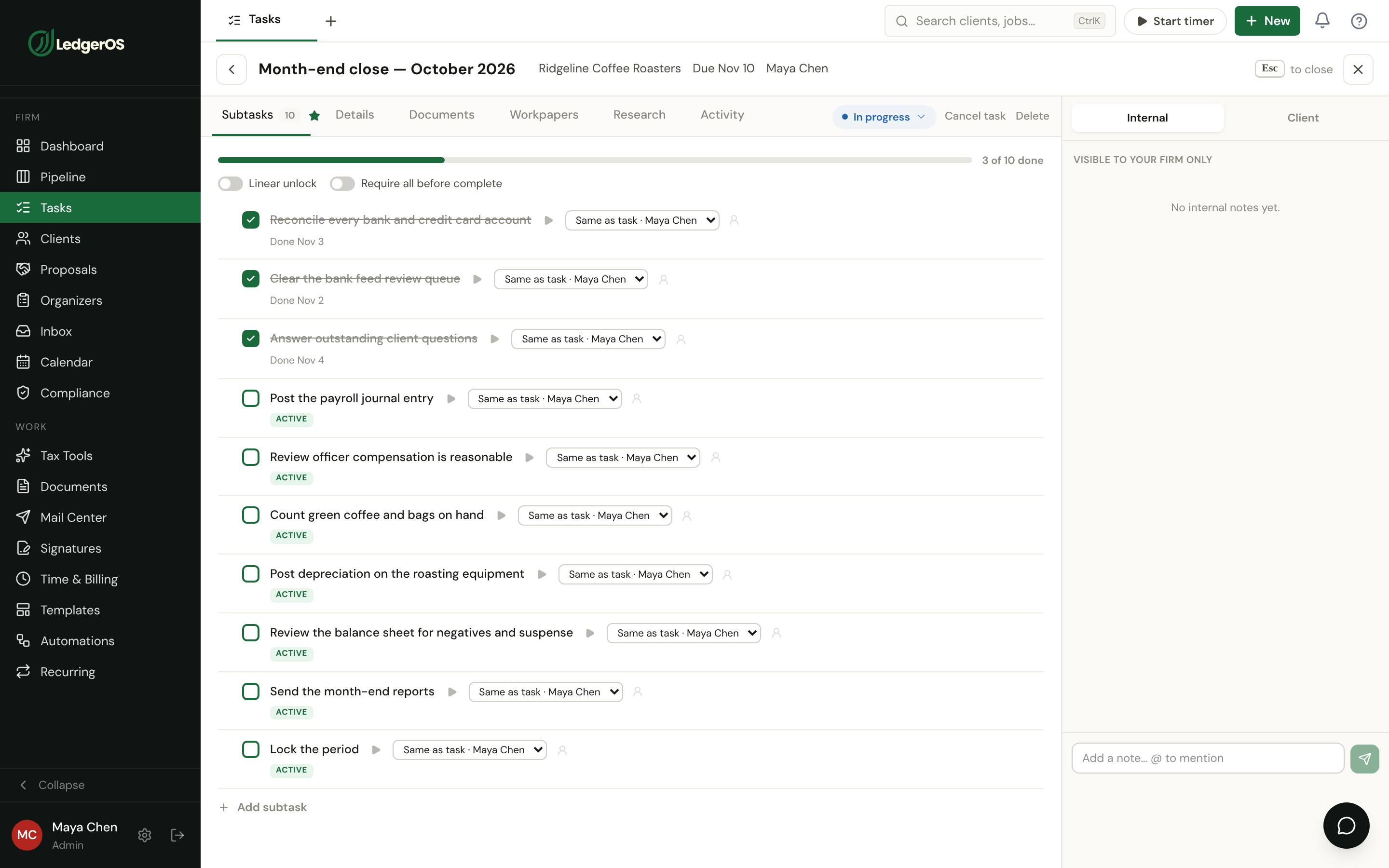 Ridgeline's October 2026 close card in Practice, with three subtasks ticked by Books
- Books ticks the subtasks for you. When an automatic item is met, the subtask is ticked in Practice and the card's Activity says what did it: Completed by Books reconciliation · 11/03/2026, Completed by Books bank feed review · 11/02/2026, Completed by a client answer · 11/04/2026. When Books ticks an item on one of its own re-checks rather than on the event, the line reads Completed by Books · 11/03/2026.
- Books takes ticks back the same way. Reopen a locked month and the card notes Reopened "Lock the period": the period was reopened in Books · 11/09/2026.
- Changing a client's open month shows on the card, for example Checklist set to this client's own: 0 added, 0 renamed, 1 removed, 0 rules changed. Each item the change adds also gets its own line, such as Added "Count green coffee and bags on hand" from Books (this client's checklist).
- The card moves itself. When Books next updates a card still in its first stage and finds an item done, it moves the card to the in-progress stage (or to Review, once every item Books checks is done), and its Activity says In progress: the first checklist item is done · 11/02/2026.
- Each card is assigned to the client's owner and due 10 days after the month ends (October's is due Nov 10), so it lands in the right person's work with a real deadline.
Your four checklists are also templates in Practice, so the list you edit in Books is the list the cards are made from. With Practice on, a month's items are edited on the card, and Books' close page says so: Items are edited in Practice. Books completes the ones it can prove, and says which. Its Open the Pipeline card in Practice link takes you to the card.