
Firm-Wide Lists: Open Questions, Bank Connections, Anomalies and Report Sends
See every client's waiting questions, bank connections that need reconnecting, flagged bank lines and scheduled report sends on one page each, and jump straight to the one that needs you.
On this page
Your firm dashboard counts what needs attention across every client: questions your clients have not answered, bank connections that need to be reconnected, bank lines Books flagged as unusual, and reports scheduled to send.
Most of those counts open a list behind them, one row per item, across all your clients. From a row you go straight to the item on that client's own page, with the item marked so you don't have to hunt for it.
The count is the list. Each list is built on the same rules as the dashboard count that opens it, so the list holds the rows the count counted. These lists show what is waiting. You fix each item on the client's own page, and once it's fixed it drops off the list.
How to get to the lists
The four lists open from the firm dashboard's cards.
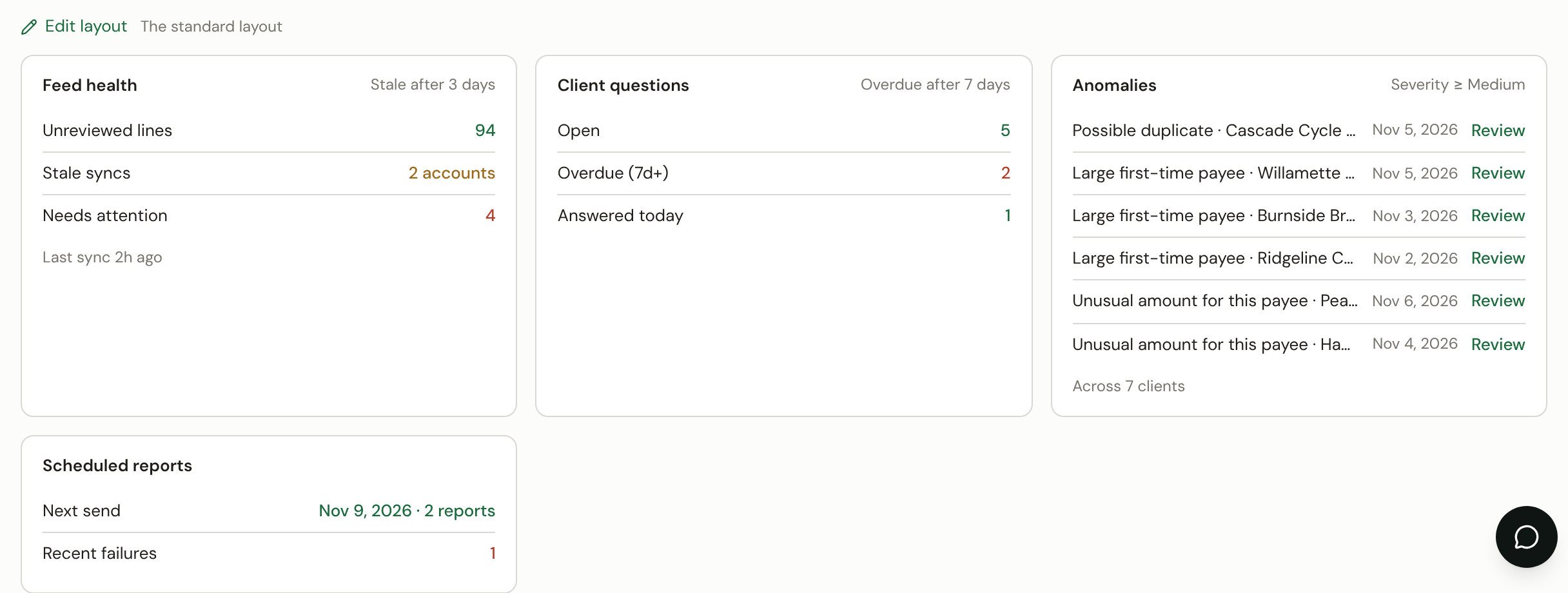 The Feed health, Client questions, Anomalies and Scheduled reports cards on the firm dashboard
| On the dashboard | Opens |
|---|---|
| Feed health → Needs attention | Bank connections needing attention |
| Client questions → Open, or the card's title | Client questions, on the Open tab |
| Client questions → Overdue (7d+) | Client questions, on the Overdue tab |
| Client questions → Answered today | Client questions, on the Answered today tab |
| The Anomalies card's title | Anomalies, at the card's severity |
| Scheduled reports → Next send | Report sends, on the Upcoming tab |
| Scheduled reports → Recent failures | Report sends, on the Failed, last 30 days tab |
Two counts on the Feed health card, Unreviewed lines and Stale syncs, open Close status instead, where you see them client by client next to the rest of the close; so does the Feed health card's title. The Scheduled reports card's title isn't a link; use its two counts.
Once you're on a list, the last step of the breadcrumb at the top of the page switches between the four lists. Click it and pick Client questions, Bank connections, Anomalies or Report sends.
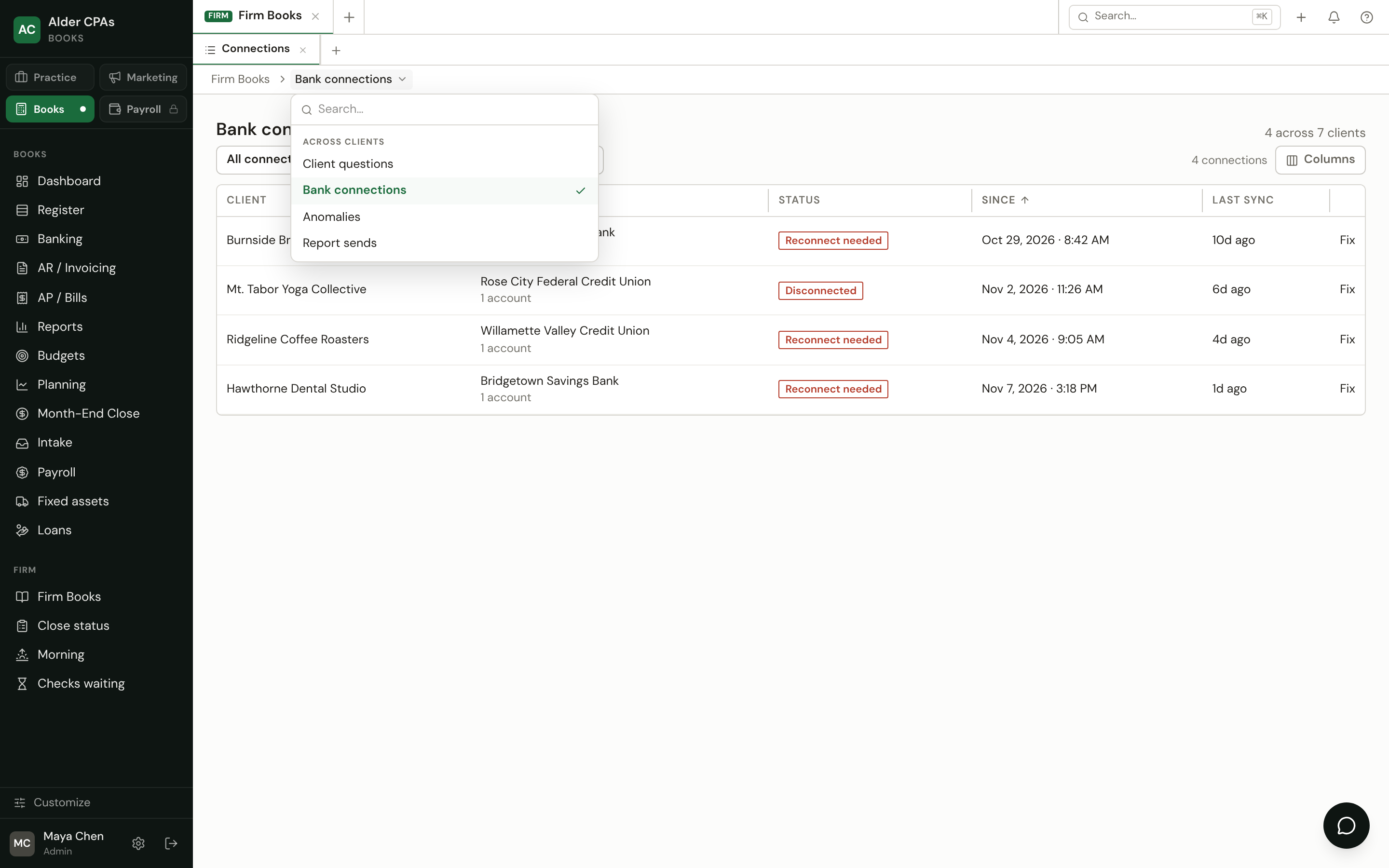 The breadcrumb switcher listing the four lists across clients
Understand the lists
All four lists work the same way:
-
Across N clients, top right: on Client questions, Bank connections and Anomalies it counts every client with Books turned on; your firm's own books aren't counted as a client. On Report sends it counts the clients that have an upcoming send or a failed send in the last 30 days, and it's the same number on both tabs.
The sample company is never in any of the lists. When a row belongs to your firm's own books, it has a small firm badge (on every list except the Failed, last 30 days tab of Report sends).
-
Search matches any part of the text in the searchable columns. Type several words and a row must contain all of them, in any column, in any order.
-
Click a column header to sort. Click once to sort, again to reverse, a third time to go back to the list's own order. The column a list opens sorted by is already one click in, so clicking it may reverse it or clear the sort: on Bank connections, the first click on Since clears the sort, which puts the most recent change first. Shift-click a second header to add it as a tiebreaker (up to three).
-
Columns shows, hides and reorders columns. The column that names each row, and the Fix or Review column, are always shown.
-
The view menu on the left (for example, All questions) saves your search, sort and columns as a view with Save as a new view…. Choose Just me or Whole firm. Sharing a view with the whole firm needs the owner or admin role.
The address of each list includes the tab or severity you picked, so you can bookmark a list or send its link to a colleague.
Client questions: which clients have questions waiting
Client questions lists the questions your firm has sent that are still open, and those answered today, across all your clients.
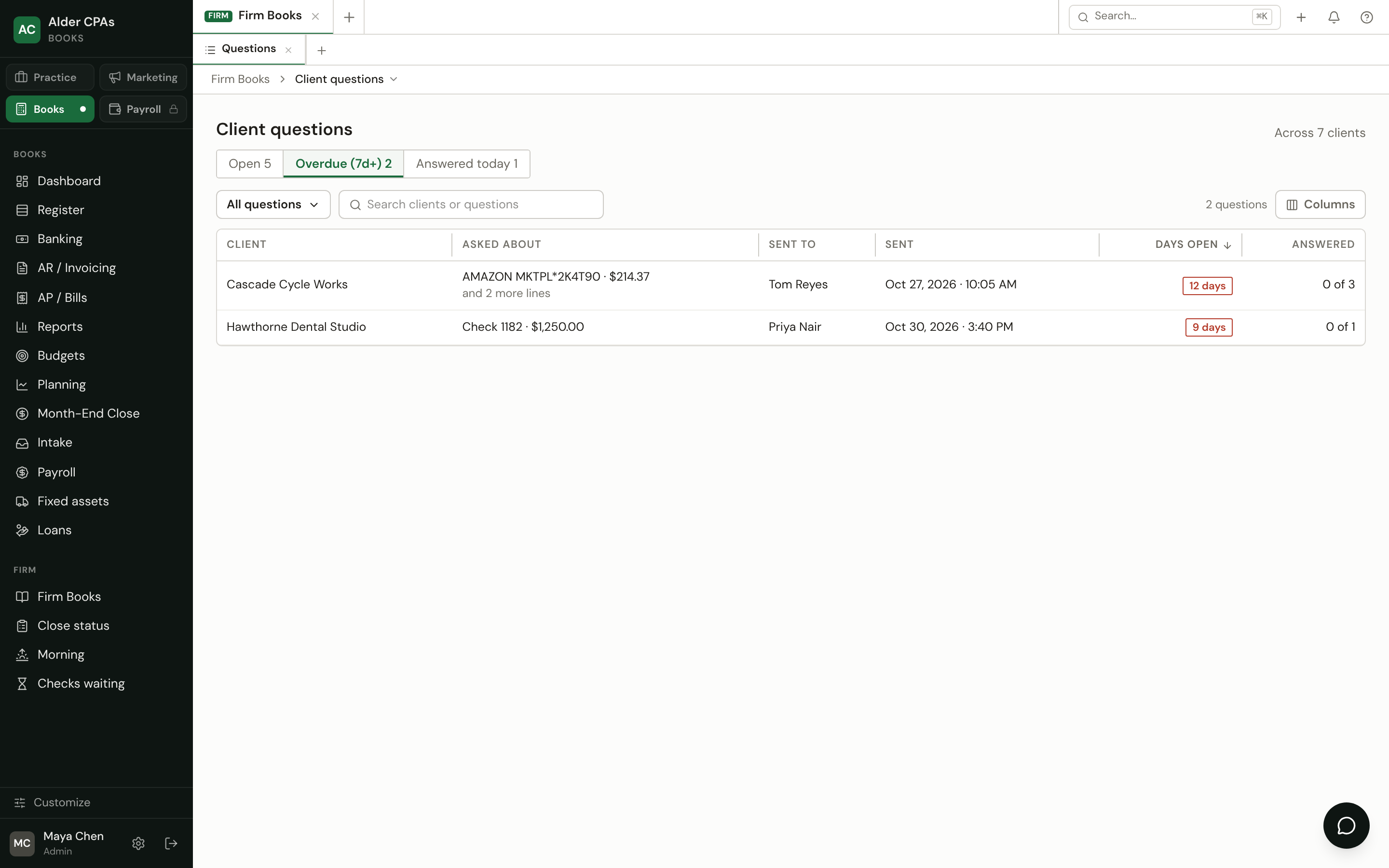 The Overdue tab of Client questions: two questions waiting more than seven days
Three tabs across the top, each with its count:
- Open — every question you've sent that is still waiting for the client's answer.
- Overdue (7d+) — open questions sent more than seven days ago. The number of days comes from the Client questions card, which reads Overdue after 7 days by default.
- Answered today — questions the client finished answering today. "Today" is your firm's day: it starts at midnight in your firm's time zone (Eastern time unless your firm's time zone has been set to another). The Answered today count on the dashboard card uses the same day.
The columns, in order:
| Column | What it shows |
|---|---|
| Client | The client. Click the name to open that question. |
| Asked about | The first line you asked about and its amount, for example *VENMO J ALVAREZ · $300.00, with and 1 more line when the question covers more than one. |
| Sent to | The person at the client who received it. |
| Sent | The date and time you sent it. |
| Days open | Days since you sent it, rounded to the nearest day (on an answered question, the days it took). On an overdue question it's outlined in red. |
| Answered | How many of its lines the client has answered, for example 1 of 2. |
The list opens sorted by Days open, longest first, so the questions that have waited longest are at the top.
Open a question. Click the client's name. Books opens that client's questions page with the question already open. If someone withdrew the question after you loaded the list, it still opens, marked Withdrawn.
Bank connections: which ones need to be reconnected
Bank connections needing attention lists the bank connections, across all your clients, that have stopped bringing in transactions and need to be reconnected. The count beside the title, for example 4 across 7 clients, matches the Needs attention count on the Feed health card.
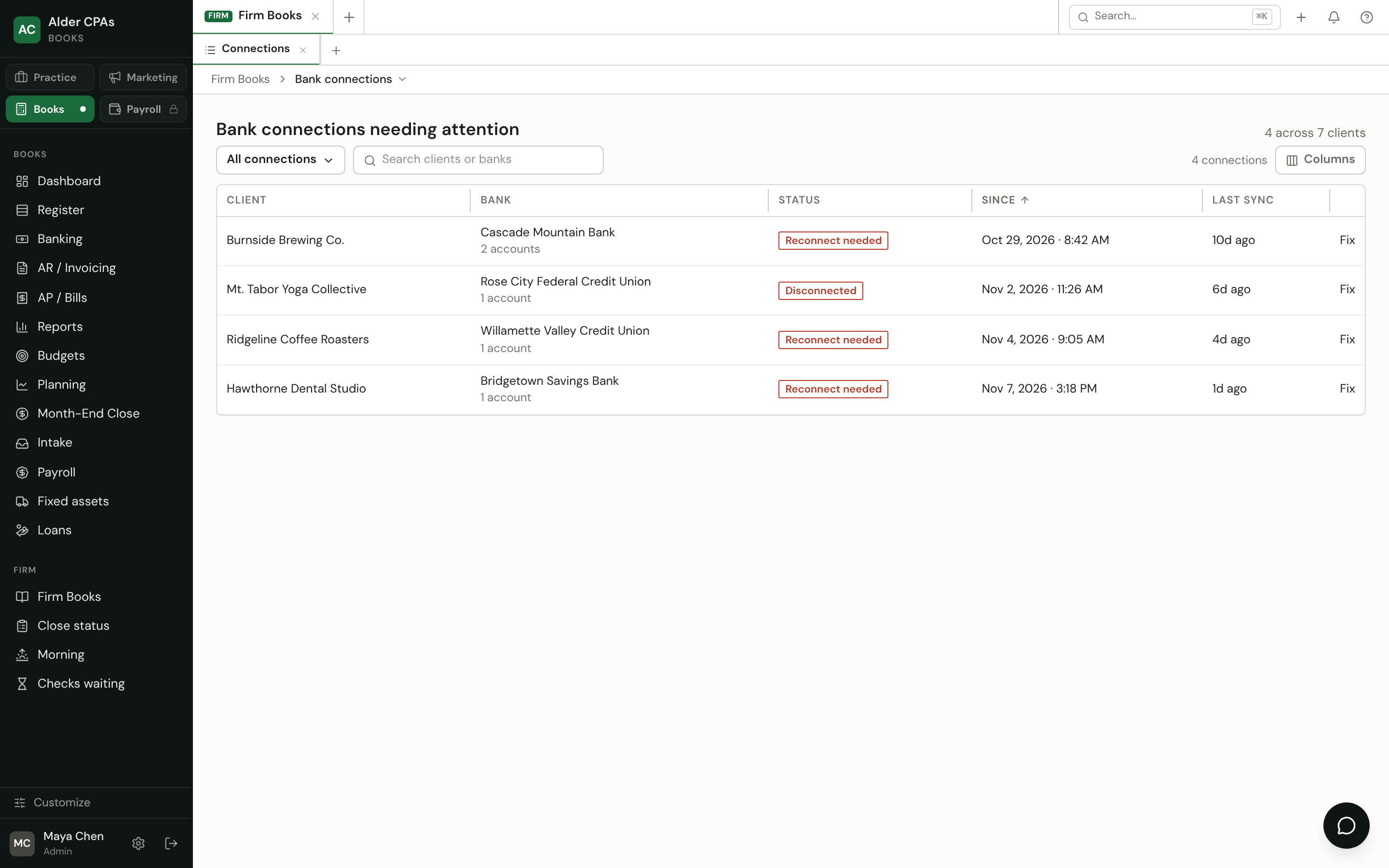 Bank connections needing attention: three connections that need a reconnect and one the bank disconnected
| Column | What it shows |
|---|---|
| Client | The client the connection belongs to. |
| Bank | The bank's name, with the number of accounts the connection brings in. |
| Status | Reconnect needed — the bank is asking for the sign-in to be renewed. Disconnected — the bank ended the connection. Either way, nothing new comes in until it's reconnected. |
| Since | When the connection changed to that status. |
| Last sync | How long ago Books last brought in transactions from it, or Never. |
| Fix |
The list opens sorted by Since, oldest first, so the connection that has been waiting longest is at the top. Use Search clients or banks to find one bank across all your clients.
Only bank connections are listed. Accounts you keep up to date by uploading statements never appear here. A connection someone at your firm unlinked on purpose isn't listed either, and isn't counted under Needs attention: it's marked Unlinked on the client's Banking page, where Connect again starts it syncing again.
Fix a connection. Click Fix. Books opens that client's Bank connections page (under Banking), scrolls to the connection and marks its rows with a green tint and a green bar on the left. Click Reconnect on its row; it's there for both Reconnect needed and Disconnected. See Bank Connections: Syncing, Reconnecting, Missing Transactions.
Anomalies: bank lines worth a second look
Anomalies lists the flags Books put on bank lines that are still waiting in your clients' Review queues. A flag comes from a fixed check on the line, not from AI. It doesn't post or change anything; it asks you to look before you post.
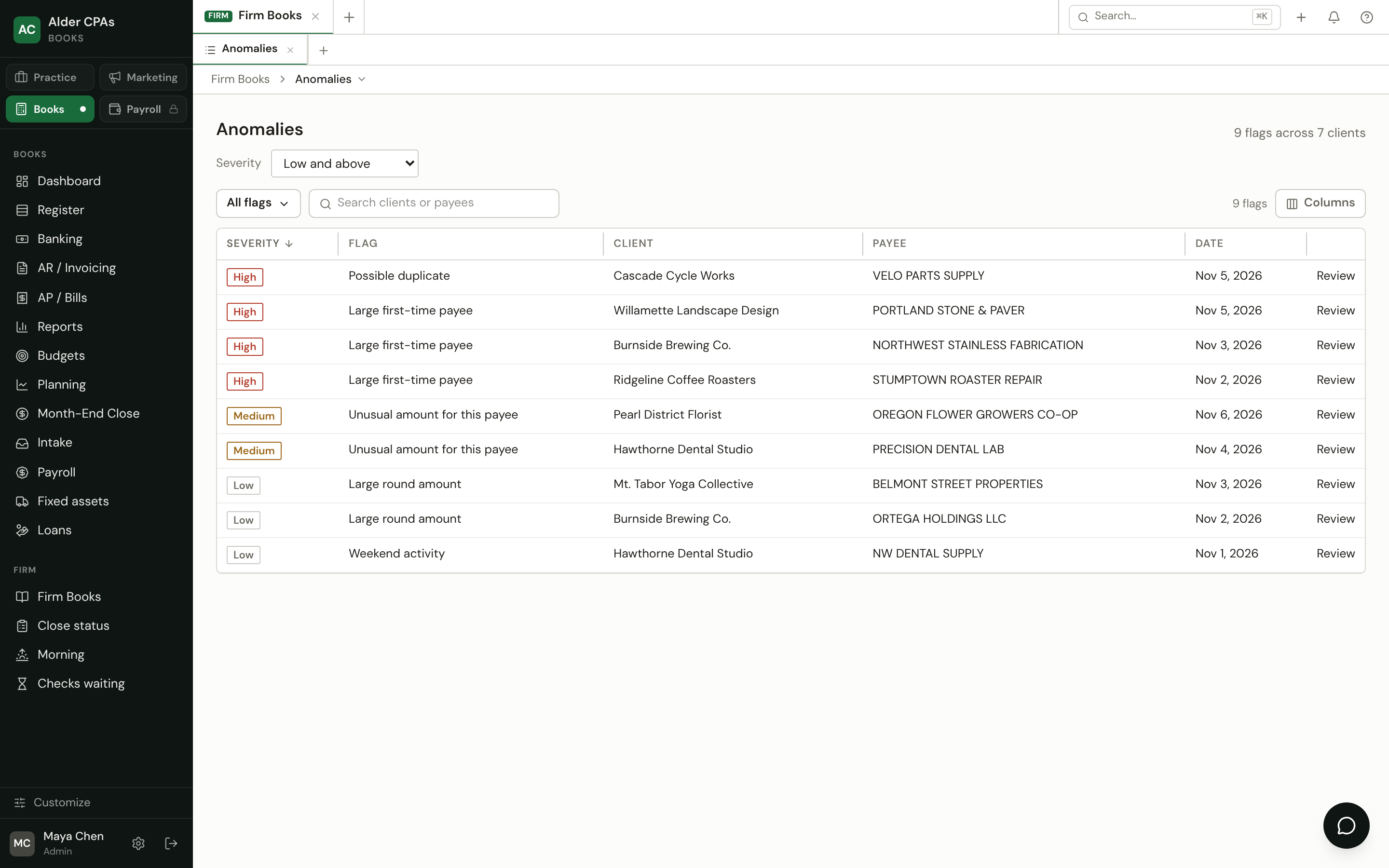 Anomalies at Low and above: nine flags, on every one of seven clients
Severity at the top sets how serious a flag has to be to be listed: Low and above, Medium and above or High only. The list opens at Medium and above unless you came from the Anomalies card, which opens it at the card's own setting (shown on the card, for example Severity ≥ Medium).
The count beside the title reads, for example, 9 flags across 7 clients: the number of flags listed, and how many of your clients with Books turned on it looked at.
| Column | What it shows |
|---|---|
| Severity | High, Medium or Low. |
| Flag | What Books noticed (see the table below). |
| Client | The client. |
| Payee | The payee on the bank line. |
| Date | The day the bank posted the line. |
| Review |
The list opens sorted by severity, highest first. One line can carry more than one flag; each flag is its own row.
What does this anomaly mean?
Possible duplicate · High severity
The same payee and the same amount as another bank line, no more than three days apart, that is already in the books: posted, matched to an entry, or posted as a transfer. Posting this one too may count the money twice. An entry that has been reversed doesn't count, and once someone marks this line as not a duplicate of that entry, it isn't flagged for it again.
Large first-time payee · High severity
$500.00 or more, in or out, with a payee the client has no earlier bank line from: none posted, and none waiting for review ahead of this one. Transfers and card payments don't count as payees.
Unusual amount for this payee · Medium severity
The client has at least four other posted lines from this payee, their amounts vary, and this amount is far from the usual: more than three standard deviations from the average, and more than $25.00 away.
Large round amount · Low severity
A round amount of $1,000.00 or more in whole hundreds (for example, $5,000.00), in or out, that the client has never posted with this payee before (the same amount, in the same direction). Once that exact amount with that payee has been posted, it isn't flagged again, so monthly rent of $2,000.00 stops being flagged after the first. Business clients only.
Weekend activity · Low severity
The line is dated on a Saturday or Sunday, and the client rarely has any: at least 20 posted lines in the past year, with no more than 5% of them on a weekend. Business clients only.
"Business clients only" means clients whose entity type is a business. Individuals, trusts and estates, clients set to "other" and clients with no entity type set never get the two Low flags.
Review a flagged line. Click Review. Books opens that client's Review queue, scrolls to the line and marks it. Categorize, match or exclude it there; see Reviewing Bank Transactions. Once the line is no longer waiting for review, its flags leave this list.
If a filter on the Review queue hides the line, a bar says The line you opened is waiting in review, but the current filters hide it. Click Show it to clear the filters. If someone has already dealt with it, the bar says The line you opened is not waiting in review. It has been categorized, matched or excluded, or its account is not connected to the books yet.
On the dashboard card, several flags of the same kind on one client are one row, showing the number of lines (for example, 3 lines) instead of a date. Its Review opens that client's whole Review queue. The Anomalies list always shows one row per flag.
Report sends: what's going out, and what didn't
Report sends lists the reports your firm has scheduled to send, across all your clients. Across N clients counts the clients on either tab.
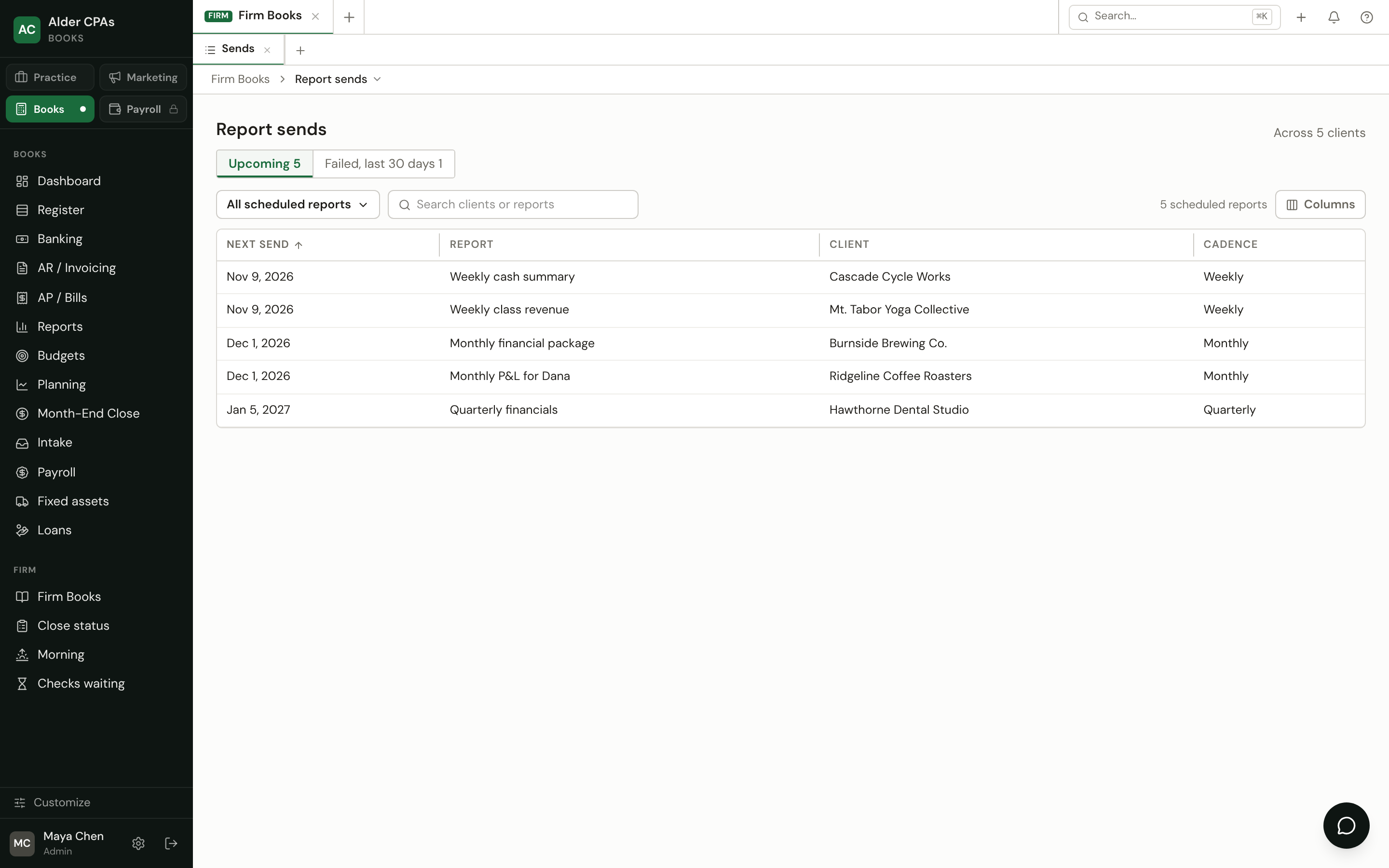 Report sends, Upcoming: five scheduled reports, soonest first
Upcoming lists every active schedule with a next send date:
| Column | What it shows |
|---|---|
| Next send | The date the report goes out next. |
| Report | The schedule's name. Click it to go to the schedule. |
| Client | The client. |
| Cadence | Daily, Weekly, Monthly or Quarterly. |
It opens sorted by Next send, soonest first. The Next send count on the Scheduled reports card is the earliest date here and how many reports go out that day, for example Nov 9, 2026 · 2 reports.
Failed, last 30 days lists the sends that failed in the last 30 days, newest first, up to the 50 most recent:
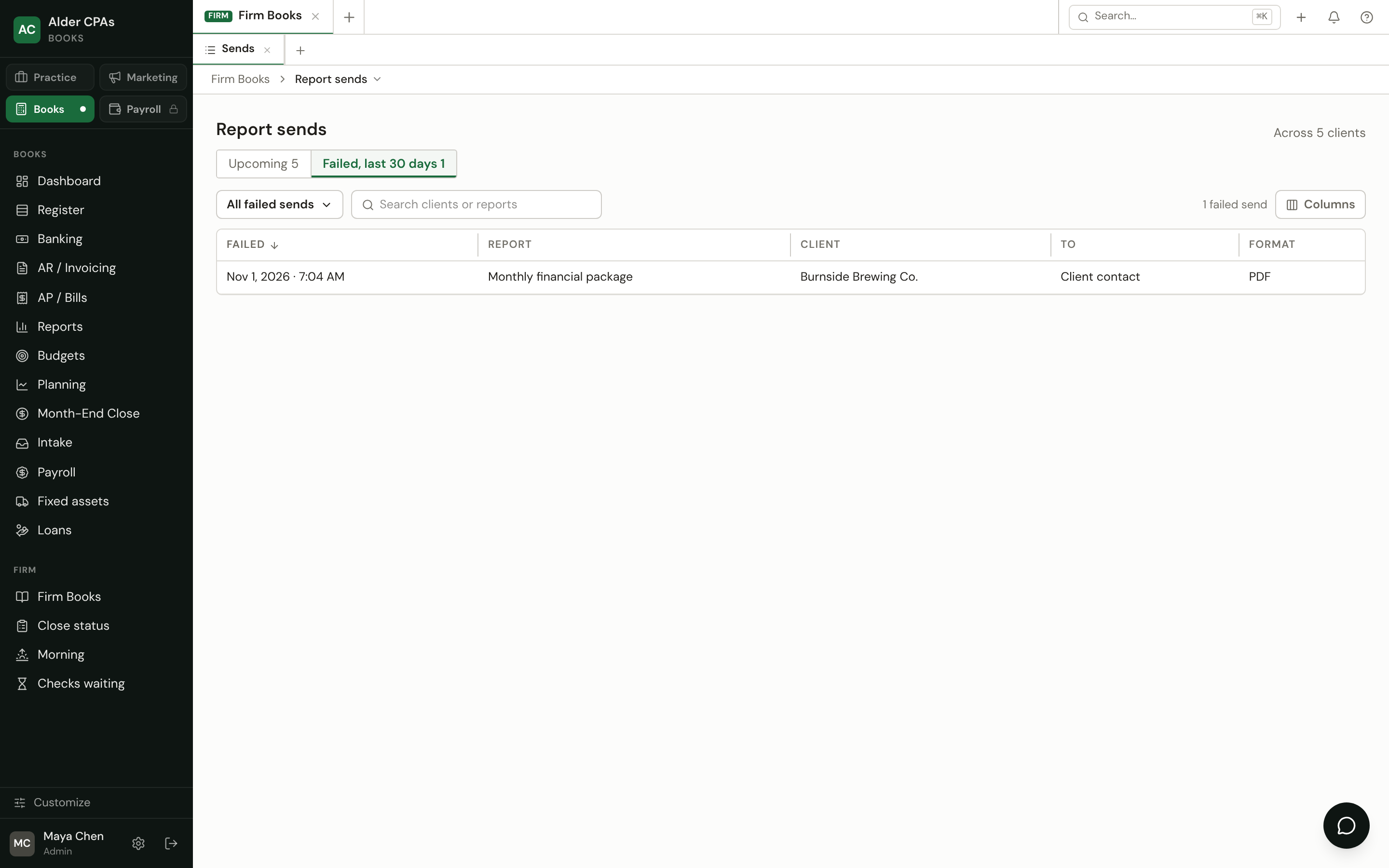 Report sends, Failed, last 30 days: one failed send. Across 5 clients counts the clients on both tabs.
| Column | What it shows |
|---|---|
| Failed | When the send failed. |
| Report | The schedule it came from. Click it to go to the schedule. |
| Client | The client. |
| To | Who it was going to: Client contact, Firm user or Email. |
| Format | PDF, XLSX or CSV. |
Go to a schedule. Click the report's name. Books opens that client's Scheduled reports page, scrolls to the schedule and marks it. If the schedule was deleted, the page says The schedule you opened is not on this client’s list any more. It may have been deleted.
Why can't I …
…see a list at all? These lists are for members of your firm. If your account isn't an active member of the firm, the list won't load and says why. Ask a firm owner to check your access.
…see one client's anomalies? To read a client's flags you need the See a client's books permission for that client; a client you can't open isn't listed or counted at all, here or on the dashboard.
If a client's flags couldn't be read, the Anomalies list still shows every other client and adds a red line at the bottom, for example 6 of 7 clients counted · Hawthorne Dental Studio: not counted. The dashboard card reads 6 of 7 clients counted · 1 could not be read and names up to three of them, each on a line of its own. Reload the list to try that client again.
…find a question that is still a draft? The Client questions list only counts questions that have been sent. A draft, or a question you withdrew, isn't listed.
…find a flag on a line I already posted? Anomalies only lists flags on lines still waiting for review. Once a line is posted, matched or excluded, its flags leave the list.
…find an older failed send? The Failed tab covers the last 30 days, up to the 50 most recent failures.
When a list has nothing to show, it says so: No questions are open., No questions are overdue., No questions were answered today., No bank connection needs attention., No flags at this severity. (or No flags at this severity in the clients that could be read. when some clients weren't counted), No reports are scheduled. or No send failed in the last 30 days. When a list couldn't load, it says that instead and offers a retry, so an empty list is never a failed read in disguise.
If you also use Practice
If your firm also uses Practice, the same Books data can sit on your Practice dashboard next to the rest of your firm's work.
Click Add widget on the Practice dashboard and choose from its Books group: Bank feeds, Client questions, Anomalies and Scheduled reports read the same Books data these lists and the Books dashboard read, so a client in trouble shows up in both places. Each row opens that client in Books. These cards are offered only when your firm has Books.
Shortcuts and tips
| Do this | To |
|---|---|
| Type in the search box | Filter as you type. Enter applies it right away. |
| Escape in the search box | Clear the search. |
| Click a column header | Sort; click again to reverse, a third time to clear the sort. |
| Shift-click another header | Add it as a second (or third) sort. |
| Drag the edge of a header | Resize the column. Double-click the edge to reset it. |
| Alt+← / Alt+→ on a focused header | Make the column narrower or wider. |
| The breadcrumb's last step | Switch to another of the four lists. |
A morning routine that works for many firms:
- Bank connections first. A connection that needs reconnecting brings in nothing, so every day it waits leaves more to catch up on.
- Client questions → Overdue. Sort by Days open and follow up with the clients at the top.
- Anomalies at High only. A possible duplicate or a large first-time payee is worth checking before someone posts it.
- Report sends → Failed, so you can fix a send before the client notices the report didn't arrive.