
Close Status Across All Your Clients
See where every client's month-end close stands on one page, find the ones that are behind, and open any client's close in one click.
On this page
Close status is one table for the whole firm: a row for every client, showing where that client's close for one month stands. Which clients haven't started, who is waiting on the client, which books still have unreviewed bank lines or accounts not reconciled, and which months are ready to lock. Most cells are links to the page behind them, so you can go from "who is behind?" to fixing it without searching.
The page opens on the last month that has ended, not the current month. On Nov 8, 2026 it shows Oct 2026, the month your team is closing. Pick this month or any of the 11 before it in the period list above the table.
Understand the Close status table
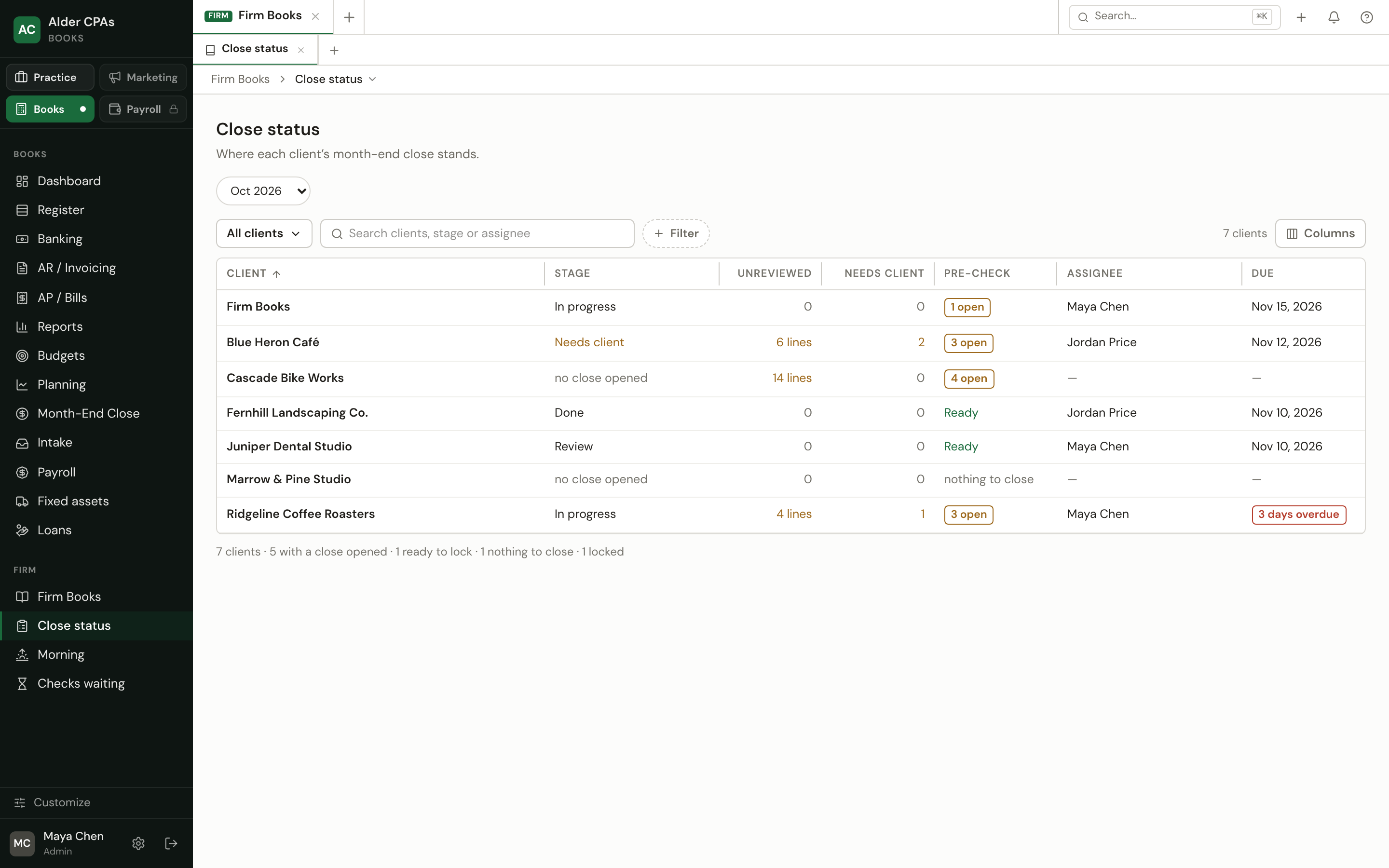 Close status for Alder CPAs, October 2026, with the seven default columns
Each row is one client. Your firm's own books appear as Firm Books, at the top of the list while the table is sorted by client. Clients only show up here when Books is turned on for them; the sample company is never listed. A business that keeps its own books and has connected your firm as its accountant is listed too, with a Connected badge beside its name: its owner keeps the books, and you work in them through that connection.
The table shows seven columns until you choose otherwise:
| Column | What it shows |
|---|---|
| Client | The client's name. Click it to open that client's close for the month. |
| Stage | Where the client's close for the month is, such as In progress, Needs client, Review or Done. no close opened means nobody has opened a close for that client and month yet. |
| Unreviewed | Bank lines still waiting in Review that are dated on or before the last day of the month (and not before the client's books start in Books), for example 6 lines. Click it to open the client's Review queue. |
| Needs client | Questions you've sent the client that they haven't answered yet. Click it to open the client's Client questions. |
| Pre-check | The result of the month-end checks: Ready, a count of what is still open (for example 3 open), or nothing to close. Click Ready or a count to open the client's close. |
| Assignee | Who the close is assigned to. unassigned means a close is open with nobody on it; — means there is no close yet. |
| Due | The close's due date, such as Nov 12, 2026. Once the date has passed it turns into a red badge, for example 3 days overdue. |
A zero count of lines or questions shows as a plain 0. Open pre-check items, an overdue date, any month left to reconcile and an open alert are drawn as outlined badges, and Unreviewed and Needs client counts above zero are in amber, so the rows that need you stand out.
Under the table, one line totals the month: for example, 7 clients · 5 with a close opened · 1 ready to lock · 1 nothing to close · 1 locked.
More columns
Click Columns to add any of these:
Tasks
Checklist items done out of the total, such as 5 / 9. An item marked not applicable counts as done.
Oldest unreconciled
The oldest month not yet covered by a finished reconciliation, across the client's active bank and credit card accounts. current means every account is reconciled through the end of the month. The header reads Unreconciled to save space.
Alerts
Open integrity alerts for the client: none, or a badge such as 1 open. The badge adds · posting paused or · snoozed when that applies. Click it to open the client's Integrity alerts.
Feed
When Books last heard from the client's bank connections: synced today, 1 day ago, 6 days ago, or no connection. Three days or more is shown in amber.
Lock
Whether the month is open, soft locked or hard locked.
Last activity
How long ago the client's close was last updated, for example 2h ago or 3d ago. The header reads Activity.
Health
The client's financial health grade as of the last day of the month (or as of today, while the month is still running). Click a grade to open that client's Financial health card. A client can also read not enough history, could not be computed, not scored yet (it is scored on a later load) or not measured.
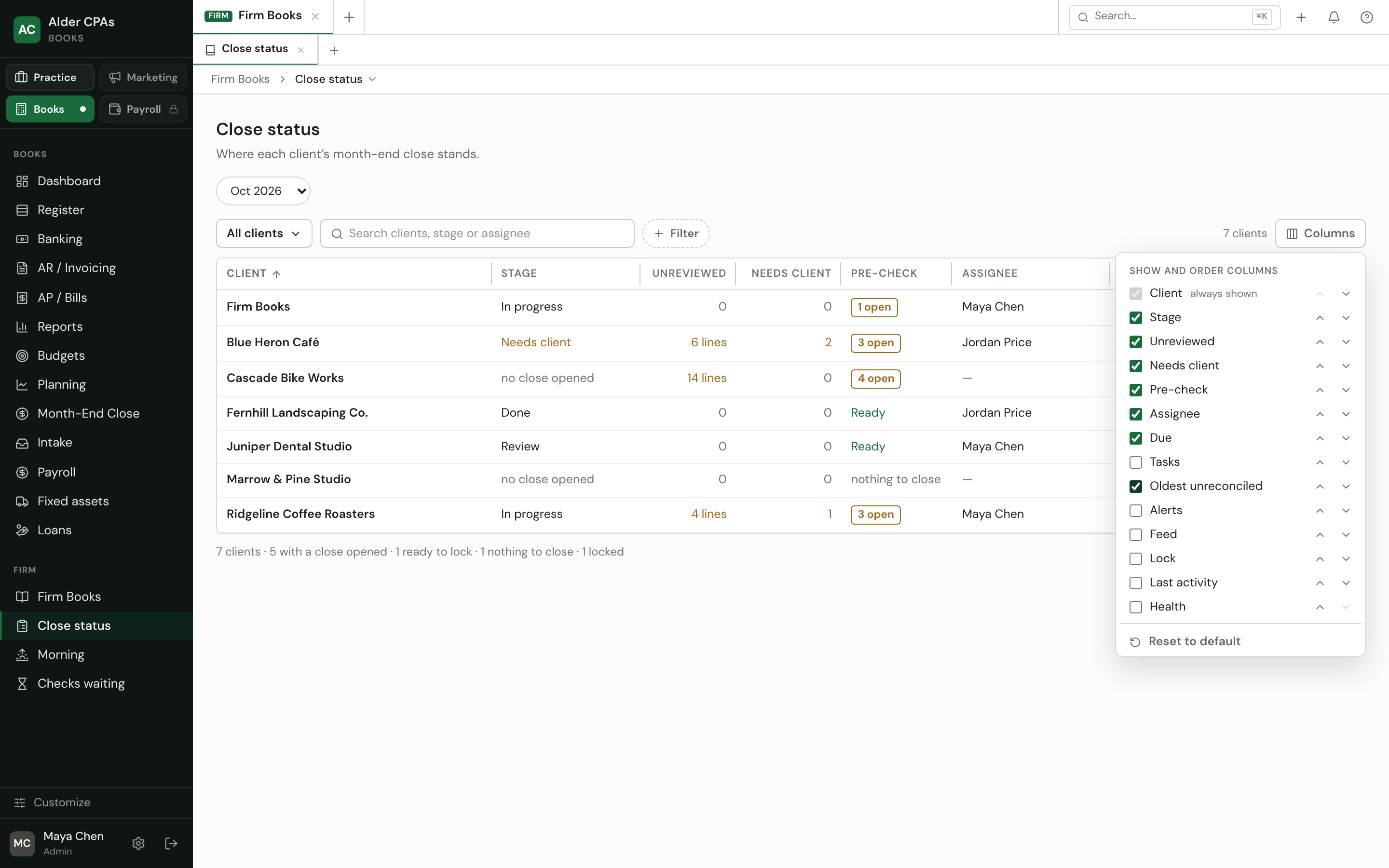 The Columns menu, with Oldest unreconciled turned on
In the menu, check or uncheck a column to show or hide it, and use the arrows to move it up or down. Client is always shown. Reset to default brings back the seven standard columns. Books remembers your choice for you; it doesn't change what anyone else sees.
If you turn on more columns than fit the window, Books sets the last ones aside and tells you which, for example: 2 columns don't fit at this width: Feed, Lock. Turn others off in Columns, or widen the window.
Which clients are behind on their close?
Three places answer this, and they work together:
- Sort by what matters to you. Click the Pre-check, Unreviewed or Needs client header and the clients with the most open come first. Click Due to put the earliest due dates on top; the red days overdue badges show who has missed theirs.
- Filter by progress. Click + Filter, choose Progress, and check one or more of Not started, Needs client, Ready to lock or Locked. Each choice shows how many clients it matches. Click Apply.
- Turn on Oldest unreconciled. A month badge in red means the client's reconciliations stop before the month you're looking at: they are behind by more than this month. A month badge in amber means only the month you're looking at is left to reconcile.
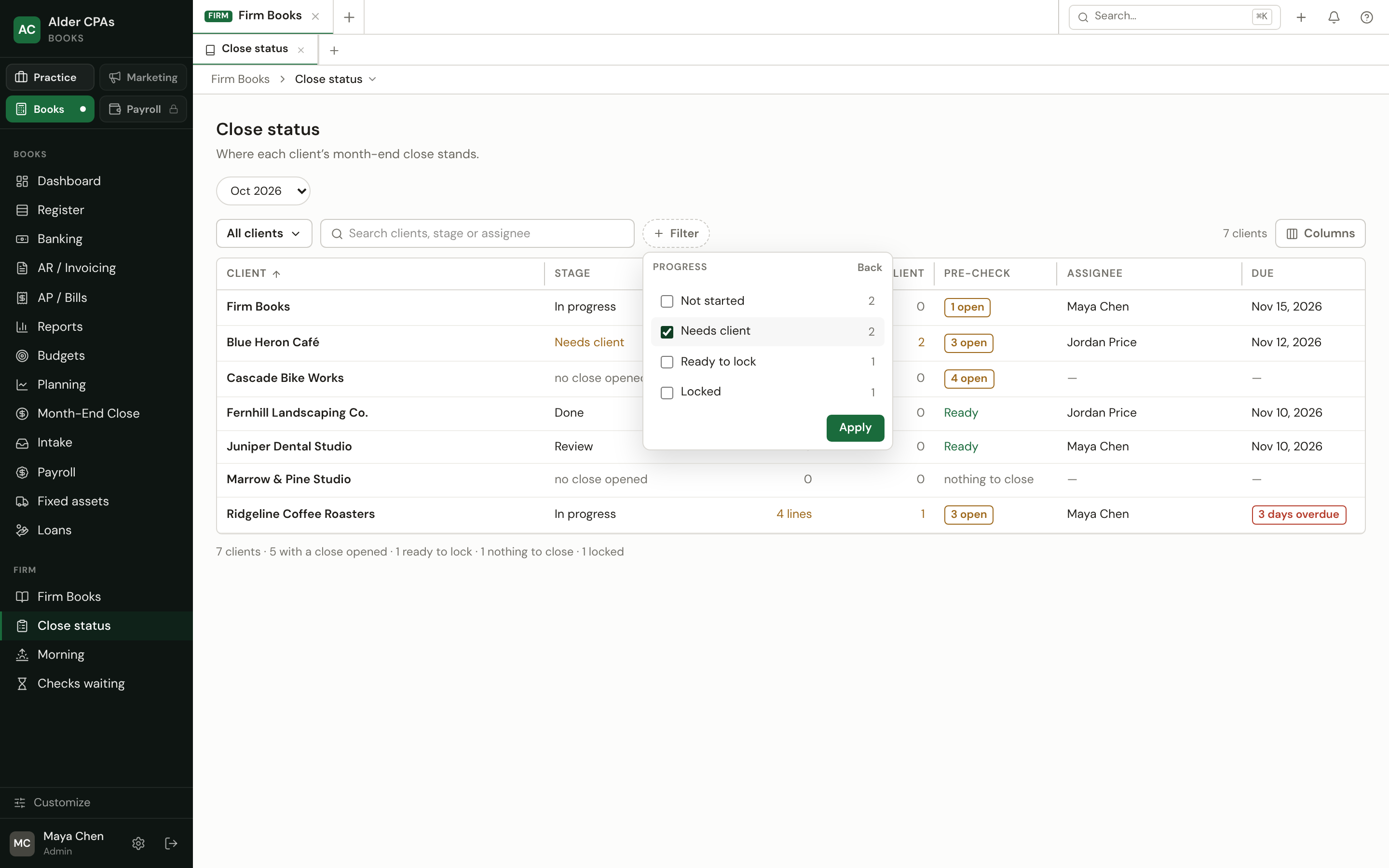 Choosing Progress → Needs client
What each Progress choice means:
| Choice | The clients it shows |
|---|---|
| Not started | No close opened for the month, or its stage is Not started. |
| Needs client | The close is waiting on the client, or the client has at least one question you haven't heard back on. |
| Ready to lock | Every pre-check item is clear, the month is still open, and there is something in the books to close. |
| Locked | The month is soft locked or hard locked. |
A client can match more than one choice: a close sitting in Needs client whose checks are all clear is also Ready to lock. With two choices checked, a client that matches either one is shown.
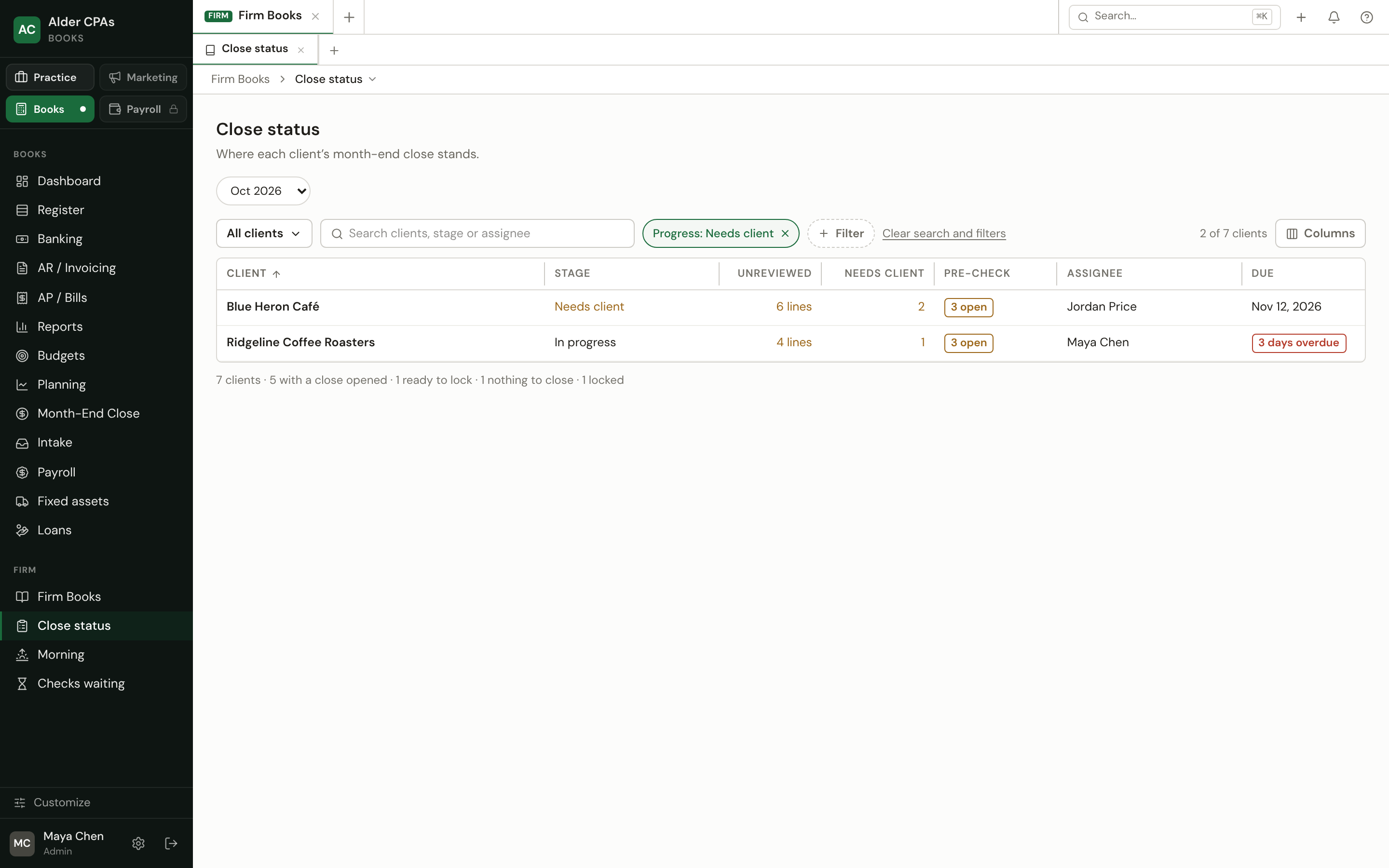 Progress: Needs client applied, showing 2 of 7 clients
The filter shows as a chip, Progress: Needs client. Click the chip to change it, its × to remove it, or Clear search and filters to start over. The count on the right changes to show how many rows match, such as 2 of 7 clients. When your firm's own books are on the board, that count reads in sets of books instead, because Firm Books is not a client. The total under the table counts clients only.
Other filters
Under + Filter you'll also find:
- Stage — one choice per stage: Not started, In progress, Needs client, Review, Ready, Done, and No close opened.
- Assigned to — Me, Unassigned, or any member who has a close in the month you're viewing.
- Lock — open, soft locked or hard locked.
- Due — a date range, From and To. Clients with no due date are left out while it is on.
- Health — appears once the Health column is on: one choice per grade (for example Grade B), plus Not enough history and Could not be computed.
Search
Type in Search clients, stage or assignee to narrow the list. It matches the client's name, the stage, the assignee and the lock (so soft locked finds those months). With several words, a client must match all of them. Press Enter to search at once, or Escape to clear the box.
Why does a client show accounts not reconciled?
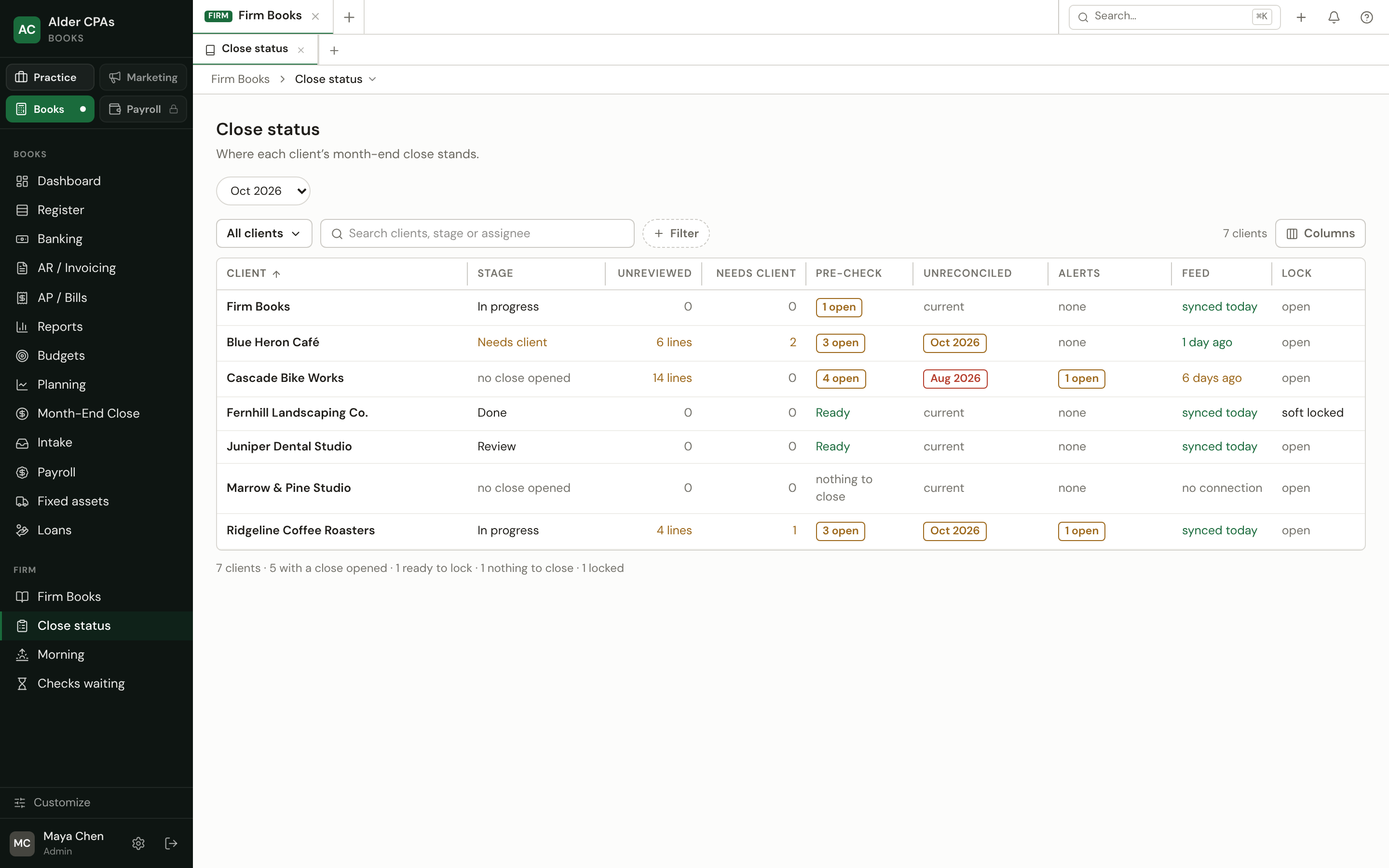 Oldest unreconciled, Alerts, Feed and Lock turned on, with Assignee and Due turned off
The Oldest unreconciled column looks at each of the client's active bank and credit card accounts and asks: has a reconciliation been finished with a statement date on or after the last day of this month? Any account that hasn't is behind, and the column shows the oldest month among them.
- An account reconciled through Sep 30, 2026 is behind from Oct 2026.
- An account that has never been reconciled counts from the month of its first posted entry.
- Nothing counts from before the client's books start in Books. An account whose first entry is older reads from the month the books start, and a month that ends before the books start has nothing to reconcile.
- An account that has never been reconciled and has nothing posted to it on or before the month end has nothing to reconcile yet, and doesn't count.
- Only finished reconciliations count. One you've started and not finished leaves the account behind.
Hover the badge for the details. When the badge is the month you're looking at, it reads, for example, 1 account not reconciled through Oct 31, 2026.
When it is earlier, it names the oldest account and its last reconciliation: 2 accounts not reconciled through Oct 31, 2026 · oldest: Business Checking, last reconciled Jul 31, 2026. An account never reconciled reads Business Checking has never been reconciled · first activity Mar 3, 2026.
Click the badge to open the client's Reconcile page and finish the missing months, oldest first. See Reconcile an Account.
The Pre-check column has its own check for accounts not reconciled through the month end, and it also starts at the books start. Finishing those reconciliations clears that pre-check item too.
What the pre-check counts
Pre-check runs the same month-end checks you see on a client's close. Each check that is not clear adds one to the count, so 3 open means three different checks need attention, not three transactions. The checks include:
- accounts not reconciled through the month end, reconciliations required before the month closes, and reconciliation review flags still open;
- unreviewed bank lines dated on or before the month end (and not before the books start), and unusual lines in the month not yet reviewed;
- client questions still waiting for an answer;
- draft entries dated in the month that were never posted;
- uncategorized or suspense accounts carrying a balance, and Opening Balance Equity still carrying a balance once the books are more than a year old;
- a trial balance out of balance, and Accounts Receivable or Accounts Payable not tying to its invoices or bills;
- customer payments, credit memos, bill payments or vendor credits not fully applied;
- asset or liability accounts with a negative balance;
- invoices 30 or more days overdue at the month end, and bills due in the 7 days after it (for the month still running, as of today and the next 7 days).
Click the count to open the client's close and see each check with its own link.
"nothing to close" is not the same as Ready. A client with no posted entries and no bank lines dated on or before the month end (a new client whose books start later, for example) shows nothing to close. It is not counted as ready to lock, and it has its own number in the line under the table.
The Unreviewed column and the pre-check count the same bank lines: every line still waiting that is dated on or before the month end and not before the client's books start in Books.
The client's Review queue is different. It lists every line still waiting, whatever its date, on the bank accounts linked to an account in the books. So the queue can show more lines than the column (lines dated after the month end, or before the books start) and, now and then, fewer (lines on a bank account not linked to the books yet). See Reviewing Bank Transactions.
Open a client's close
Click the client's name. Books opens that client's close for the month you're looking at, where you work the checklist, read each pre-check item and lock the month. The Pre-check, Tasks and Lock cells open the same page.
The other cells go straight to where the work is: Unreviewed to the Review queue, Needs client to Client questions, Oldest unreconciled to Reconcile, Alerts to Integrity alerts, and Feed to Bank connections.
Sort the table
The table starts sorted by client name, A to Z, with Firm Books first.
- Click a header to sort by it. Counts (Unreviewed, Needs client, Pre-check, Alerts, Feed) sort biggest first, Tasks puts the most items left first, and Last activity puts the most recent first. Oldest unreconciled puts the oldest month first. Names and dates sort A to Z and earliest first.
- Click it again to reverse the order, and a third time to clear the sort.
- Shift-click another header to add a second sort, and a third. A small number beside each arrow shows the order.
Clients with no value in the sorted column (no due date, current, no connection) always go last, whichever direction you sort.
Shortcuts and tips
| Do this | What happens |
|---|---|
| Enter in the search box | Searches at once instead of waiting for you to stop typing. |
| Escape in the search box | Clears the search. |
| Shift-click a column header | Adds a second (or third) sort. |
| Drag the edge of a column header | Resizes the column; its neighbor gives up the space. |
| Double-click the edge of a column header | Puts the two columns back to their standard widths. |
| Alt+← / Alt+→ on a focused header | Narrows or widens the column from the keyboard, a step at a time. |
- Bookmark a view of the work. The address keeps the month, your filters and your sort. Bookmark Progress: Needs client sorted by Due, or send the link to a colleague, and it opens the same way.
- Save a view. Open the All clients menu at the left of the toolbar and choose Save as a new view…. It keeps the search, filters, sort and columns. Choose Just me, or Whole firm to share it; sharing a view with the firm needs the owner or admin role.
- Start your week with Assigned to → Me. It shows only the closes on your plate, and Due sorted earliest first puts the next deadline on top.
- From the firm dashboard. The Close status widget on the firm dashboard counts clients by lock, by Needs client and, when stages are available, by stage. Each of its rows opens this page filtered to exactly those clients.
Why can't I …
… see Close status in the sidebar? It is in the Firm section, which accounting firms see.
… find a client in the table? The table lists clients that have Books turned on, are active, and that you have permission to see. A client whose books you can't view isn't listed; ask an admin. A client whose import is still being finished, and the sample company, aren't listed.
… see the Health column? It is off until you turn it on in Columns. The Health filter appears only while the column is on.
… see the table at all? If Books couldn't load the table, the page says why and offers a way to try again. Try again in a moment.
… get a number where a cell says not measured? Books couldn't work out that value for that client this time. It is never shown as 0 or Ready in its place, so you never mistake a missing answer for a clean one.
… tell a locked month from a ready one? Ready in the Pre-check column only means every check is clear. Whether the month is locked is in the Lock column, and a locked month is never counted as ready to lock.
If you also use Practice
With Practice, your month-end close runs on the Practice Pipeline, and Close status works alongside it:
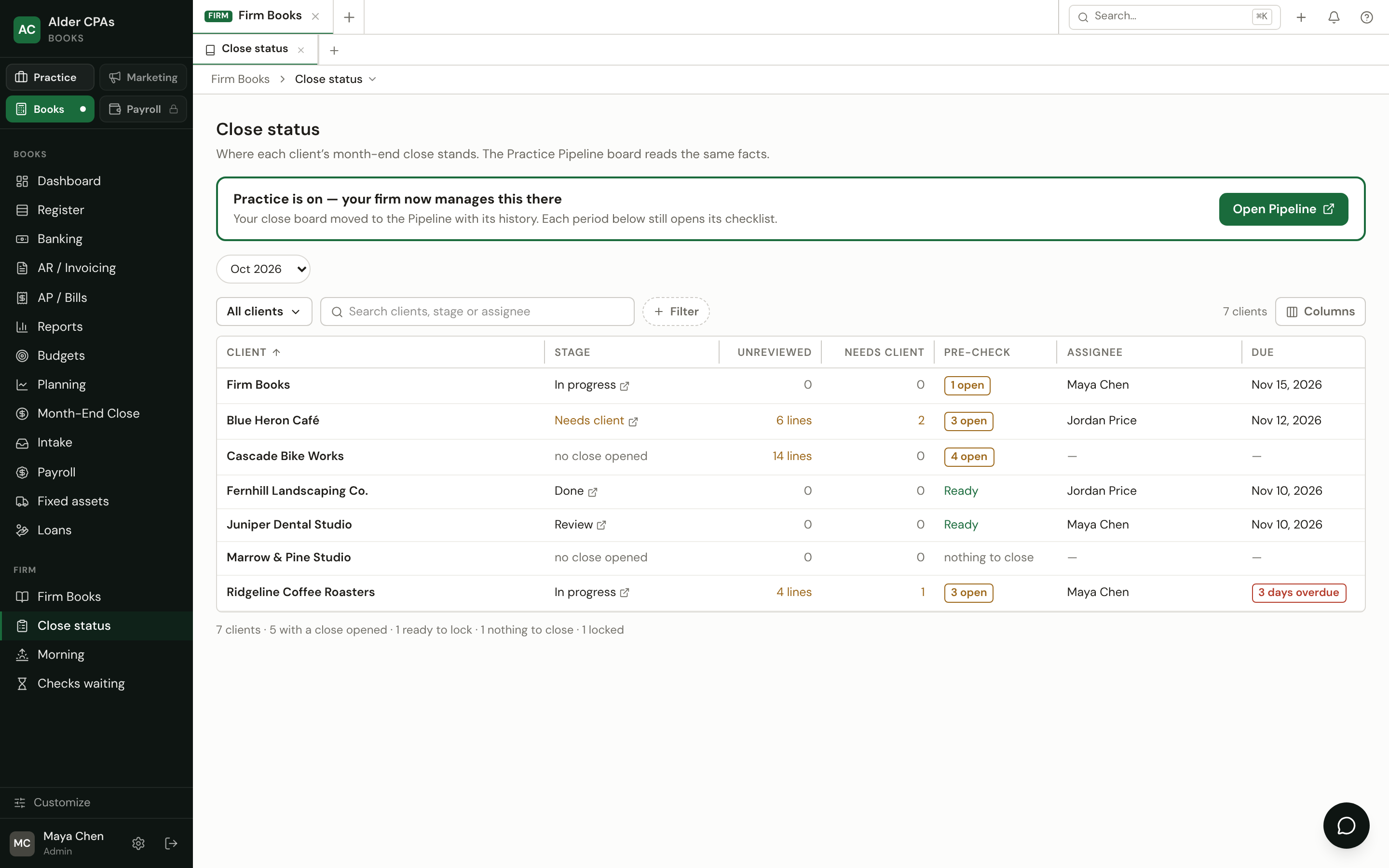 Close status with Practice on: the subtitle sentence, the Practice strip with Open Pipeline, and Stage links to each card
- The subtitle says so. It adds The Practice Pipeline board reads the same facts.
- Jump to the card. A strip at the top, Practice is on — your firm now manages this there, has an Open Pipeline button. Each client's Stage becomes a link that opens that client's close card in Practice in a new tab.
- The table stays. Close status still lists every client at once, and each client's name still opens its close in Books.
A month-end routine
- Early in the month, open Close status (it lands on last month) and sort by Pre-check.
- Filter Progress → Not started and make sure every client has a close opened and an assignee.
- Turn on Oldest unreconciled and Feed. A red month or a feed several days old is the client to call first.
- Filter Needs client and follow up on the oldest questions.
- As the counts reach zero, filter Ready to lock and lock those months from each client's close.