
Budgets and Budget vs. Actual
Build a monthly budget by account, class or location, fill it from last year, a spreadsheet or a file, and compare it with the books in Budget vs actual.
On this page
A budget is the plan for one fiscal year: an amount for each income and expense account, month by month. Books keeps as many budgets as you like for each client and year — an operating budget, a stretch version, last year's — and marks one of them the Default for each fiscal year. Budget vs actual is the profit and loss with that budget beside it, so you can see which lines are running ahead or behind.
A budget never touches the ledger. Creating, changing or deleting one posts nothing and changes nothing outside Budget vs actual and the long-range plan in Planning. Budgets are part of Premium: on a client without Premium, the budgets already there stay readable, but creating and changing them is turned off and the page says so.
Understand the Budgets page
Budgets lists the client's budgets for the fiscal year chosen in Fiscal year at the top right. Each row shows:
- Name, with a Default badge on the year's default budget (its row is also tinted).
- Fiscal year — the months it covers, such as Jan 2026 – Dec 2026.
- Status — Draft or Final.
- Detail — Accounts, By class or By location.
- Income, Expenses and Net income — the totals of the amounts saved in the budget. Expenses here include cost of goods sold.
- Last changed.
- A Budget vs actual link, which opens the report already comparing against this budget for its fiscal year.
- A ⋯ menu.
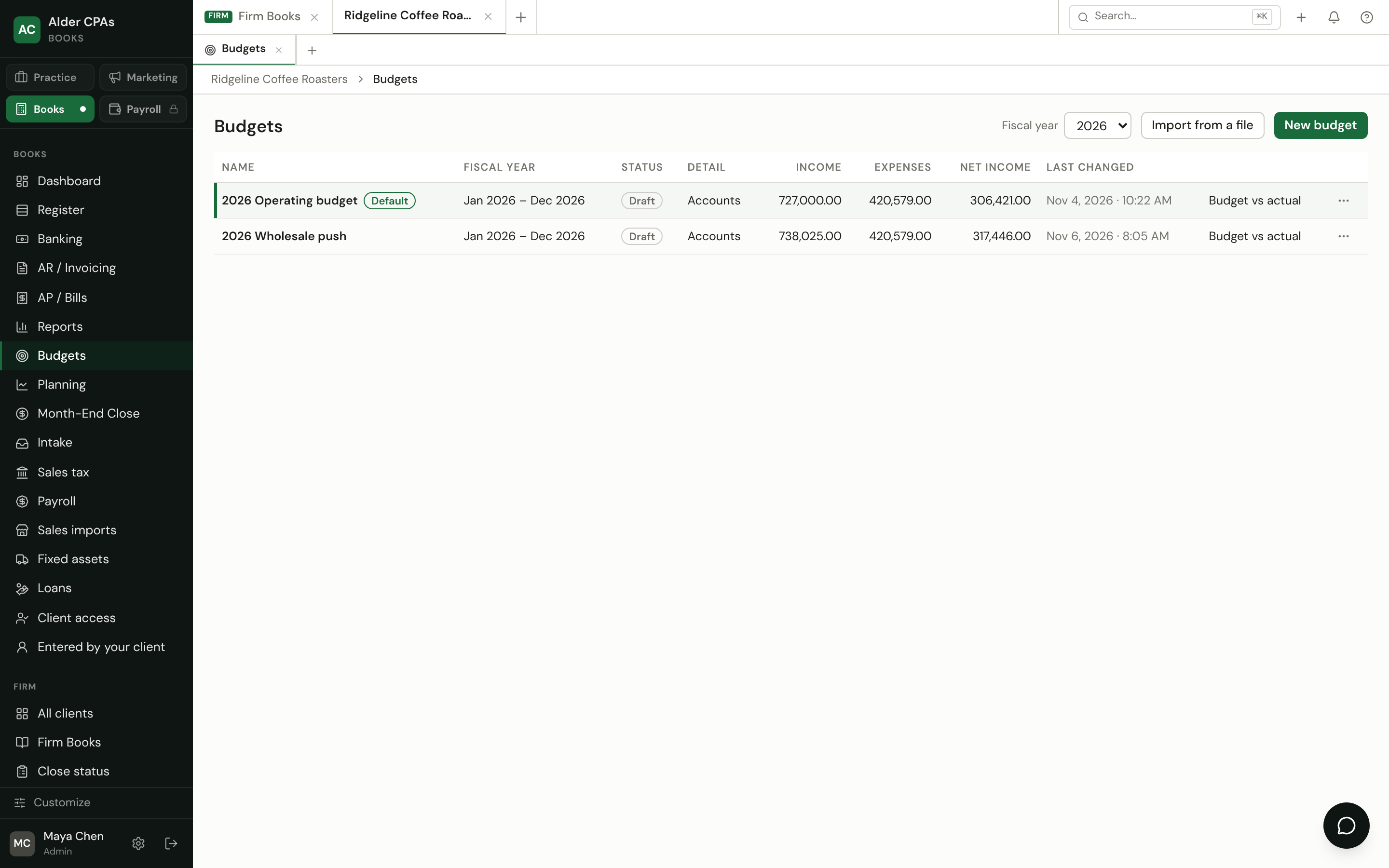 The Budgets page for Ridgeline Coffee Roasters, with two budgets for fiscal year 2026
The ⋯ menu offers only what makes sense for that budget: Open, Rename, Set as default (not on the default itself), Mark final or Mark draft, Duplicate, Budget vs actual and Delete.
Set up a budget
- Open Budgets and click New budget.
- Type a Name. If the name is just a year, such as 2027, and you pick a different fiscal year, Books points it out — The name says 2027, but this budget is for fiscal year 2026.
- Choose the Fiscal year. Each choice shows its months, such as 2027 (Jan 2027 – Dec 2027).
- Choose the Detail:
- Accounts only — one amount per account per month.
- Accounts by class or Accounts by location — a separate set of amounts for each class or location. These are offered only when the client has classes or locations; otherwise the option explains This client has no classes yet. Add one in Classes and locations to budget by class.
- Choose where it Start from:
- Blank.
- Copy another budget — pick the budget; the copy keeps that budget's detail and amounts.
- Last year's actuals — Books creates the budget and opens Copy last year's actuals for you (see below).
- Click Create. The budget opens in its grid.
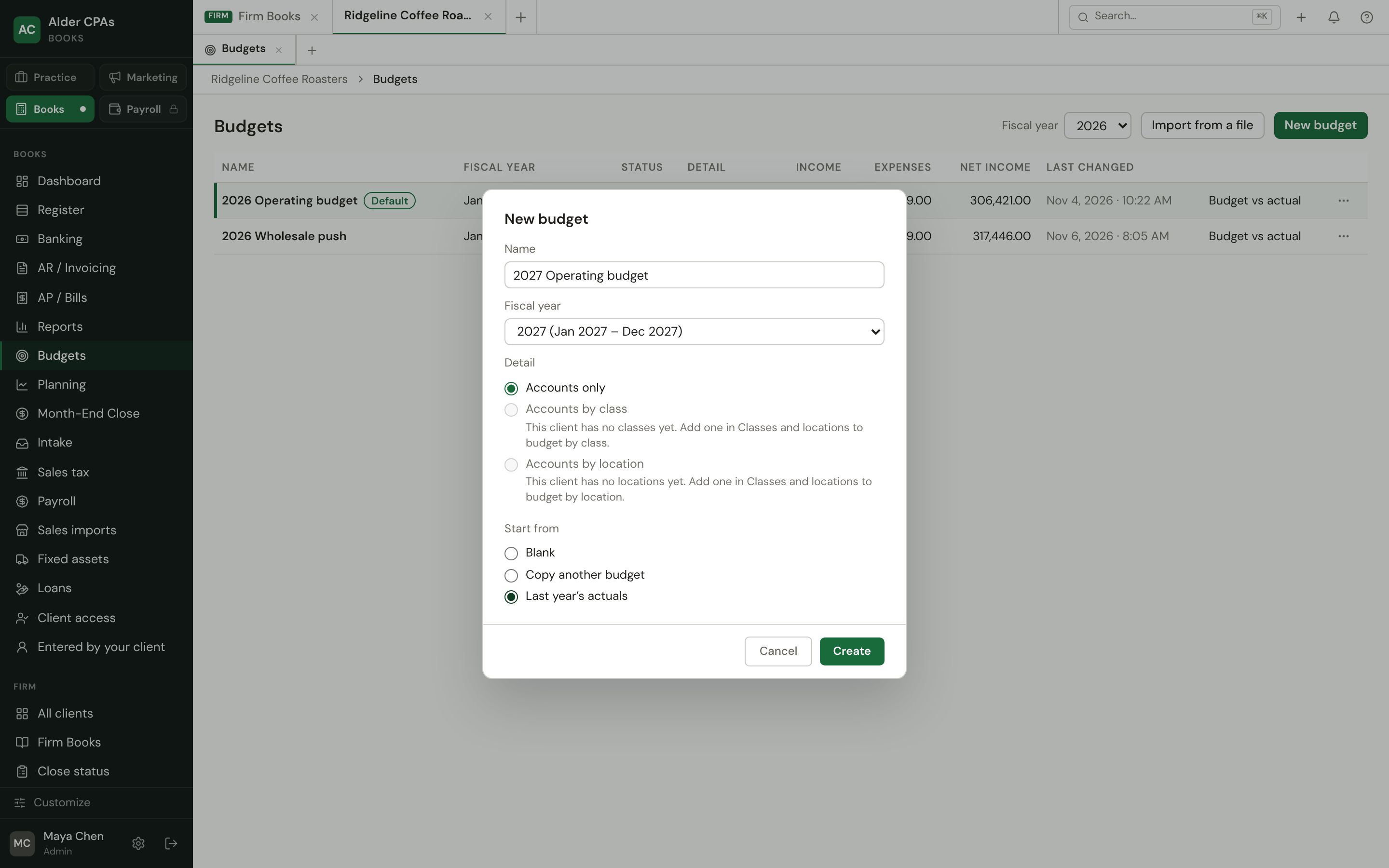 The New budget window, starting a 2027 budget from last year's actuals
The first budget you create for a fiscal year becomes that year's default. To make another budget the default later, use ⋯ → Set as default.
Fill in the grid
The grid has one row per active income and expense account, grouped under Income and Expenses, one column per month of the fiscal year, and a Total column. Total income, Total expenses and Net income update as you type. When the months run off the right edge, a note such as Dec is to the right → says so.
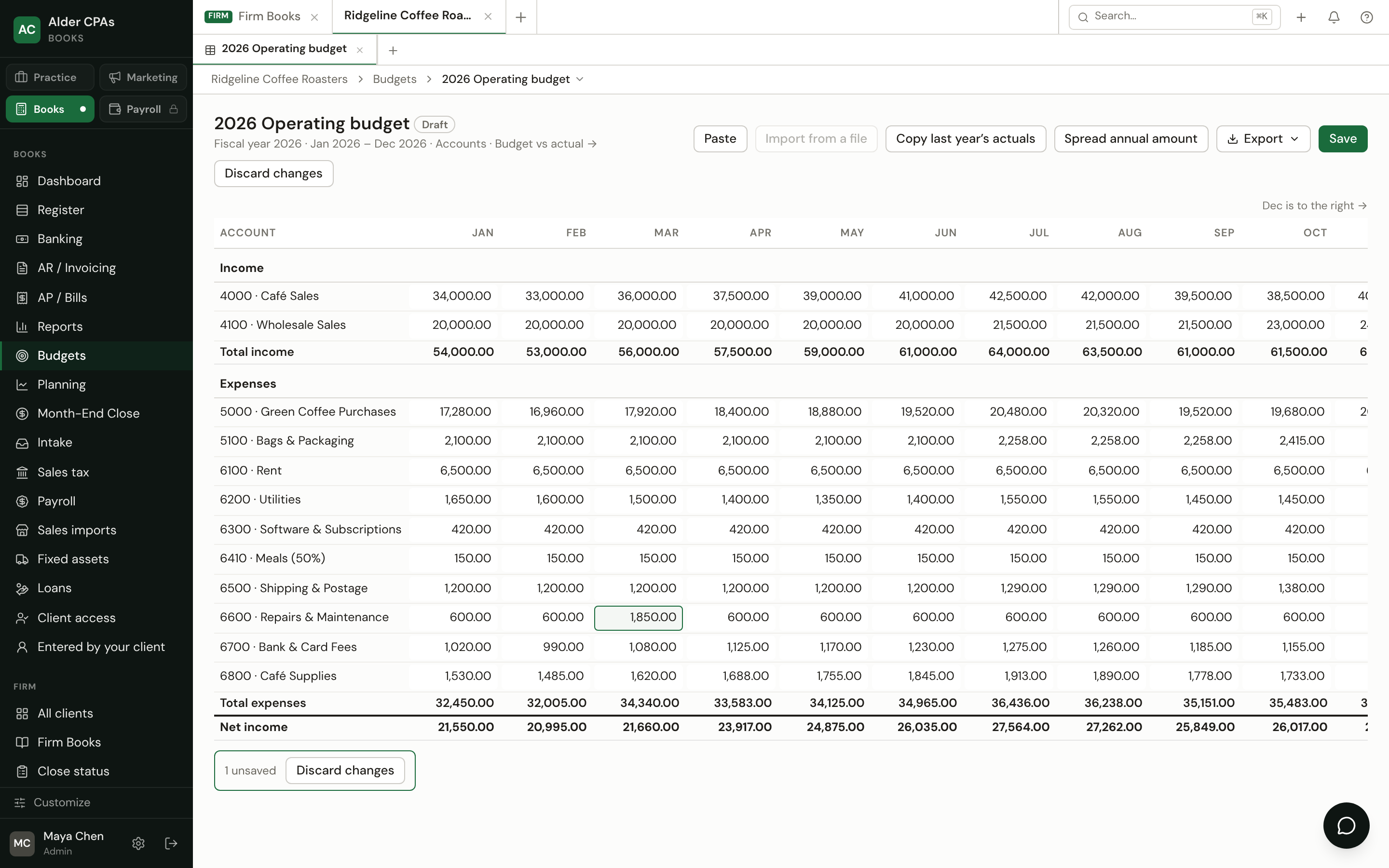 The 2026 Operating budget grid, with one amount changed and not yet saved
Click a cell and type an amount. When you land on a cell, by clicking, with Tab or Enter, or with an arrow key, its amount is selected, so the first key you type replaces it: typing 77 over 600.00 gives 77.00.
Backspace or Delete clears the cell; to change part of an amount instead, press Home or End first and edit it in place (← and → move to the neighboring month). A changed cell is outlined in green, and a box under the grid counts what is unsaved (1 unsaved). Nothing is kept until you click Save; Discard changes puts the grid back to what was saved.
Keys and shortcuts in the grid
| Key | What it does |
|---|---|
| Enter | Keeps the amount and moves down to the same month in the next account. |
| ↓ and ↑ | Move down or up one account. |
| → and ← | Move to the next or previous month once the cursor is at the end or start of the amount. |
| Esc | Cancels what you typed in the cell. |
Every cell does arithmetic. Type 600+1250 and the cell settles to 1,850.00. You can use +, -, *, x, / and parentheses, and a leading = is ignored, so a spreadsheet habit like =6500*1.03 works too. The result is rounded to the cent once, at the end.
Amounts can be typed with a dollar sign and commas. A negative amount can be written as -125.00 or (125.00). A cell that is not an amount turns red, its tooltip reads "abc" is not an amount, and Save stays off until you fix it — the reason shows under the toolbar, for example 1 cell needs attention before Save.
Copy last year's actuals
Copy last year's actuals fills the grid from the previous fiscal year's profit and loss, month by month, on the client's default basis (accrual or cash).
- Click Copy last year's actuals. The window names the year it reads, for example From fiscal year 2025 (Jan 2025 – Dec 2025), accrual.
- Set Adjust by (%) to raise or lower every amount — 3 for 3% more, -5 for 5% less. Leave it at 0 to copy as is.
- Under Cells that already have an amount, choose Keep them or Replace them.
- Check the count (Fills 132 cells in 11 accounts) and click Fill grid, then Save.
If last year's books were opened from balances on its last day, every amount from that year sits in one month. Books says so and offers Spread each account's year evenly across the months, which is on by default. If last year has no income or expenses at all, the window says there is nothing to copy.
Spread an annual amount
When you know the year's figure but not the months, click Spread annual amount, choose the Account (it starts on the row you last clicked) and type the Annual amount. Books shows the result before you apply it: 604.16 a month · 604.24 in the last. Cents that do not divide evenly go to the last month. Click Spread, then Save.
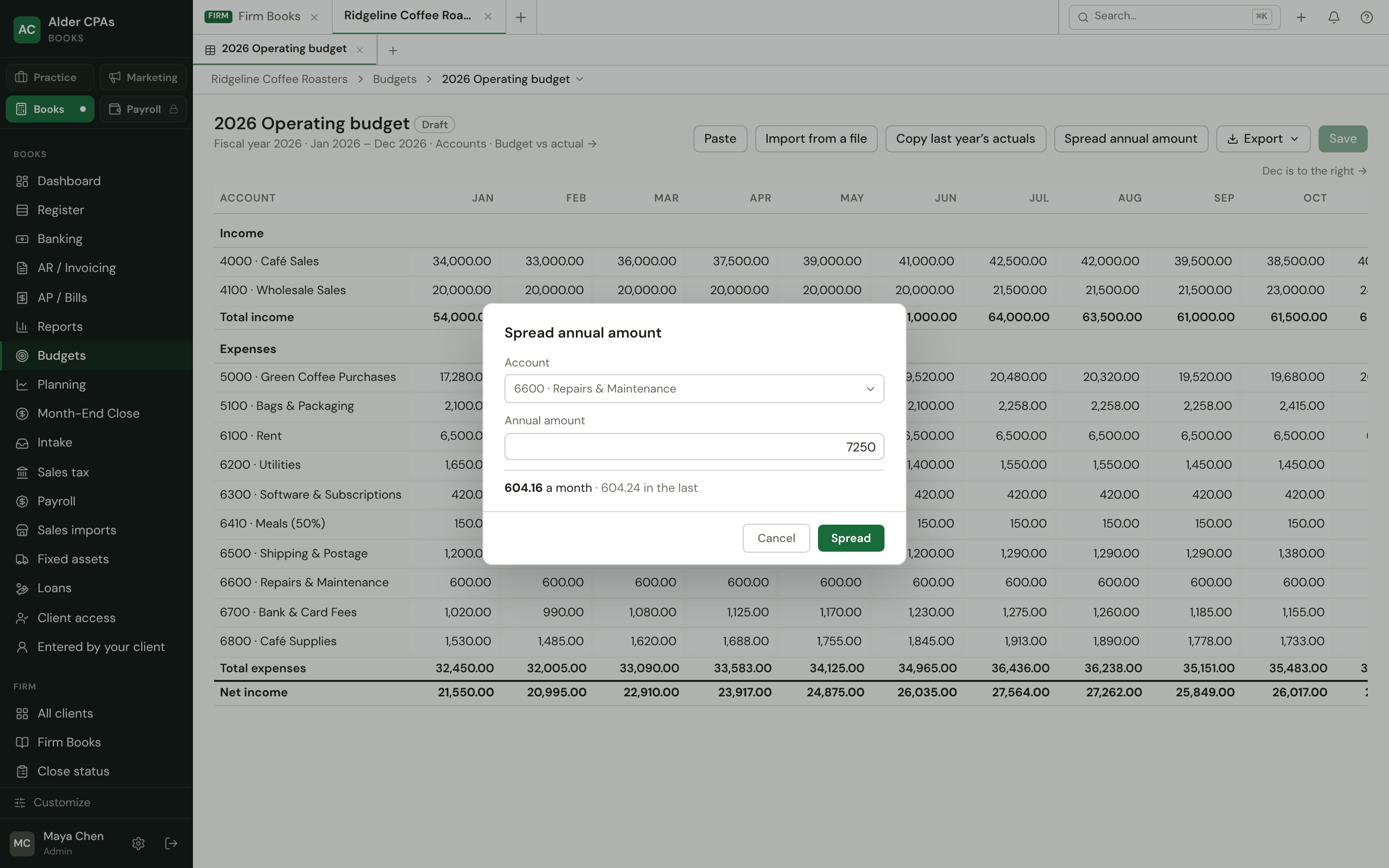 Spreading $7,250.00 across the year for Repairs & Maintenance
Paste from a spreadsheet
Copy rows from a spreadsheet and either:
- click a cell and paste straight into the grid; or
- click Paste and paste into the Paste a budget window, then click Paste into grid.
When each row starts with an account number or name, its amounts fill that account's months from the first month of the year. A block of amounts alone lands from the cell you pasted into, to the right and down. A header row of month names (Jan, Feb… or Jan 2026) is optional; when present, it decides which month each column fills.
An empty cell leaves the grid as it was, and a cell that is not an amount is marked rather than guessed. Rows that cannot be placed are listed under the grid with the reason, such as No account named "Coffee".
Import from a file
Import from a file (on the Budgets page, or in a draft budget's toolbar) reads a .csv, .txt or .xlsx file — a budget exported from Books, or any sheet with an account column and month columns, or one annual column.
- File — drop or choose the file. For a workbook with several sheets, Books picks the sheet with the most filled cells and lets you choose another. Under Import into, choose A new budget (name, fiscal year, and a detail that Follows the file by default) or An existing budget. A Final budget cannot be imported into until you mark it draft.
- Columns — Books says how many columns and rows it read and what each column is. Change any it got wrong, and set which line holds the headings. If you imported a file of the same shape before, Use it reapplies that mapping.
- Review — every row is checked the same way a save would check it. Rows that will not be imported are struck through with the reason, such as 1200 Accounts Receivable is not an income or expense account, and you can Download the rows not imported (.csv). When importing into an existing budget, Clear this budget's other amounts first (off by default) removes the amounts the file does not name.
- Click Import N amounts. A new budget is created only at this step.
An Annual amount, spread by month column is spread the same way Spread annual amount spreads it. A Total, checked against the months column is compared with the months; if they disagree, the months are imported and the row says so.
Budgets by class or location
A budget by class or location holds a separate grid for each one. Choose the Class (or Location) at the top of the grid; it is locked while you have unsaved changes (Save or discard the changes first). Paste, Copy last year's actuals and Spread annual amount fill the class or location chosen there. Import from a file reads the class or location from a column in the file.
Unsaved amounts are kept in this browser
If you leave a budget without saving, the amounts you typed are kept in this browser. When you come back, the grid offers them: 3 amounts typed here on Nov 6, 2026 · 4:12 PM were not saved. Choose Restore them (then Save) or Discard them.
If you click Budget vs actual → with unsaved amounts, Books stops you: You have 3 unsaved amounts. Budget vs actual shows saved amounts only. Choose Stay or Save and open.
Final and draft
Mark final (in the ⋯ menu) locks a budget's amounts. A final budget opens read-only, with Mark draft in place of Save. Mark it draft again to change its amounts. A final budget can still be renamed, duplicated, set as the default or deleted.
Export or print a budget
In the grid, Export offers:
- CSV — the budget exactly as Import from a file reads it back, so you can edit it in a spreadsheet and re-import it.
- Excel workbook.
- PDF — the budget, landscape, each month and the total. The PDF is made from the saved budget, so it is turned off while there are unsaved amounts: Save the 2 unsaved amounts first: the PDF is built from the saved budget.
- Print.
The CSV and Excel exports include any unsaved amounts on screen.
Compare with the books: Budget vs actual
Budget vs actual is the profit and loss with four columns for each account and total: Budget, Actual, Difference and % of budget. It opens on Last month (the last complete month), comparing against Each year's default budget.
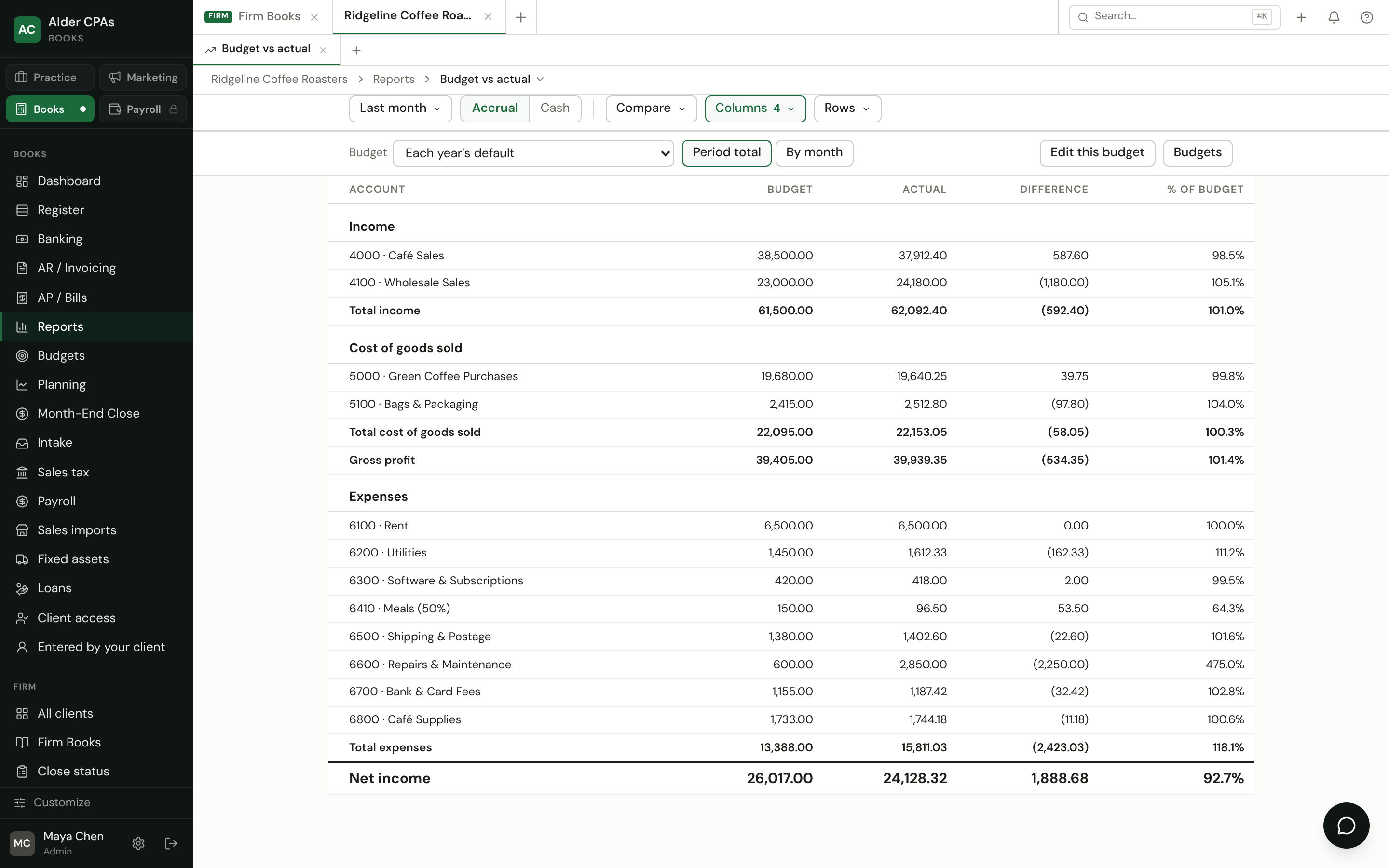 Budget vs actual for last month (October 2026)
Open it from Reports → Budget vs actual, from a budget's Budget vs actual link on the Budgets page, or from Budget vs actual → in a budget's grid.
The bar under the report's toolbar controls the budget side:
- Budget — Each year's default, or one named budget. With a range that crosses two fiscal years, each year's default covers its own months.
- Period total or By month. By month shows the four columns for each month of the range, then for the Total. It covers up to 12 months; for a longer range it is turned off with the reason, such as By month shows up to 12 months; this range covers 18.
- Class or Location — appears when the budget is by class or location, to compare one of them (All classes by default).
- Edit this budget opens the budget being compared. Budgets opens the list. When no budget covers the range, the bar says No budget and the button reads New budget and opens the Budgets page.
Everything else works as it does on the profit and loss: the range, Accrual or Cash, Save view, Export and scheduling.
How to read the Difference
Difference is Budget minus Actual, on every row. Negative amounts show in parentheses.
- On an income row, a negative Difference means you earned more than budgeted. In the October example, Wholesale Sales shows (1,180.00): $24,180.00 earned against $23,000.00 budgeted.
- On an expense row, a negative Difference means you spent more than budgeted. Repairs & Maintenance shows (2,250.00): $2,850.00 spent against $600.00 budgeted.
% of budget is Actual divided by Budget: 475.0% for that repair line.
Why is the variance off?
- The range covers part of a month. Budgets are whole months, and Books does not prorate them. When a range starts or ends mid-month, the report says so: This range ends Nov 7, 2026, partway through November. Budgets are whole months, so November's full budget is compared with only part of November's actuals. Use whole months for a fair comparison.
- A different budget is being compared. Check the Budget picker. With Each year's default, changing which budget is the default changes the report.
- The amounts are not saved yet. Budget vs actual reads saved amounts only.
- The basis differs from what you expect. Actual follows the report's Accrual or Cash setting.
- A class or location is chosen, or the budget is by class and you are reading All classes. Check the bar.
- Actual changed. Actual is the profit and loss as the books stand now, so an entry posted, edited or voided since you last looked moves it.
Why can't I…
Budgets are a premium feature. on New budget, Import from a file or a menu item
The client is not on Premium. Its budgets stay readable; creating and changing them needs Premium.
You need the Budgets permission to change budgets. Ask an admin to grant it.
Opening and reading budgets needs access to the client's books (firm members). Budget vs actual needs the same permission as the profit and loss. Creating, changing, importing and deleting budgets needs the Budgets permission. Ask an admin.
A budget named "2026 Operating budget" already exists for fiscal year 2026; choose another name.
Each name is used once per fiscal year. Pick another name.
"2025 Operating budget" is final; mark it draft to change its amounts.
Use Mark draft first.
6410 Meals (50%) is inactive; reactivate it to budget for it.
Reactivate the account in the chart of accounts, or leave it out.
These books have no classes yet. on a budget by class
Click Add a class beside it, add one in Classes and locations, then come back to the budget.
Import from a file is off in the grid
Save or discard your changes first.
By month is off
The range covers more than 12 months. Shorten it.
Rename, duplicate or delete a budget
- Rename changes the name; the amounts stay.
- Duplicate makes a copy named "… copy" in the same fiscal year, with all its amounts, and opens it.
- Delete first shows what goes with the budget, for example 144 amounts across 12 accounts go with it. If it is the default, it adds: It is the default budget for fiscal year 2026; Budget vs actual will show no budget for that year until another is set as the default. Click Delete budget to delete it, or Keep it. The deletion is permanent, and Books records the whole budget in its audit history.
A budget that a saved report compares against by name cannot be deleted: 1 saved report uses this budget: "Monthly board review". Remove the budget column from it, or delete it, first. The window links to each saved report (Open Monthly board review), so you can change it and click Try again.
Tips
- Keep one budget per year as the default and treat other budgets as versions. Budget vs actual, saved views on Each year's default and the long-range plan in Planning all follow the default.
- Start next year from Last year's actuals with an Adjust by (%), then change only the lines you expect to move.
- Export to CSV to work on a budget offline with a client, then bring it back with Import from a file.