
The Reports Library and the Core Statements
Find any report in the library, run the Profit & Loss, Balance Sheet, Statement of Cash Flows, Trial Balance and General Ledger for the dates and basis you need, compare periods, open the entries behind any figure, and export or save the result.
On this page
Reports is where every report for a client lives. The library groups them the way an accountant reads them, and the four core statements (the Profit & Loss, the Balance Sheet, the Statement of Cash Flows and the Trial Balance) share one report bar: pick the dates, the basis and the columns, click any figure to see the entries behind it, then export it or save it as a view.
Every figure comes straight from the ledger when the report runs. When an entry is edited, voided or posted, the next run of the report reflects it. A PDF is built by running the report again, not by copying the screen.
Understand the library
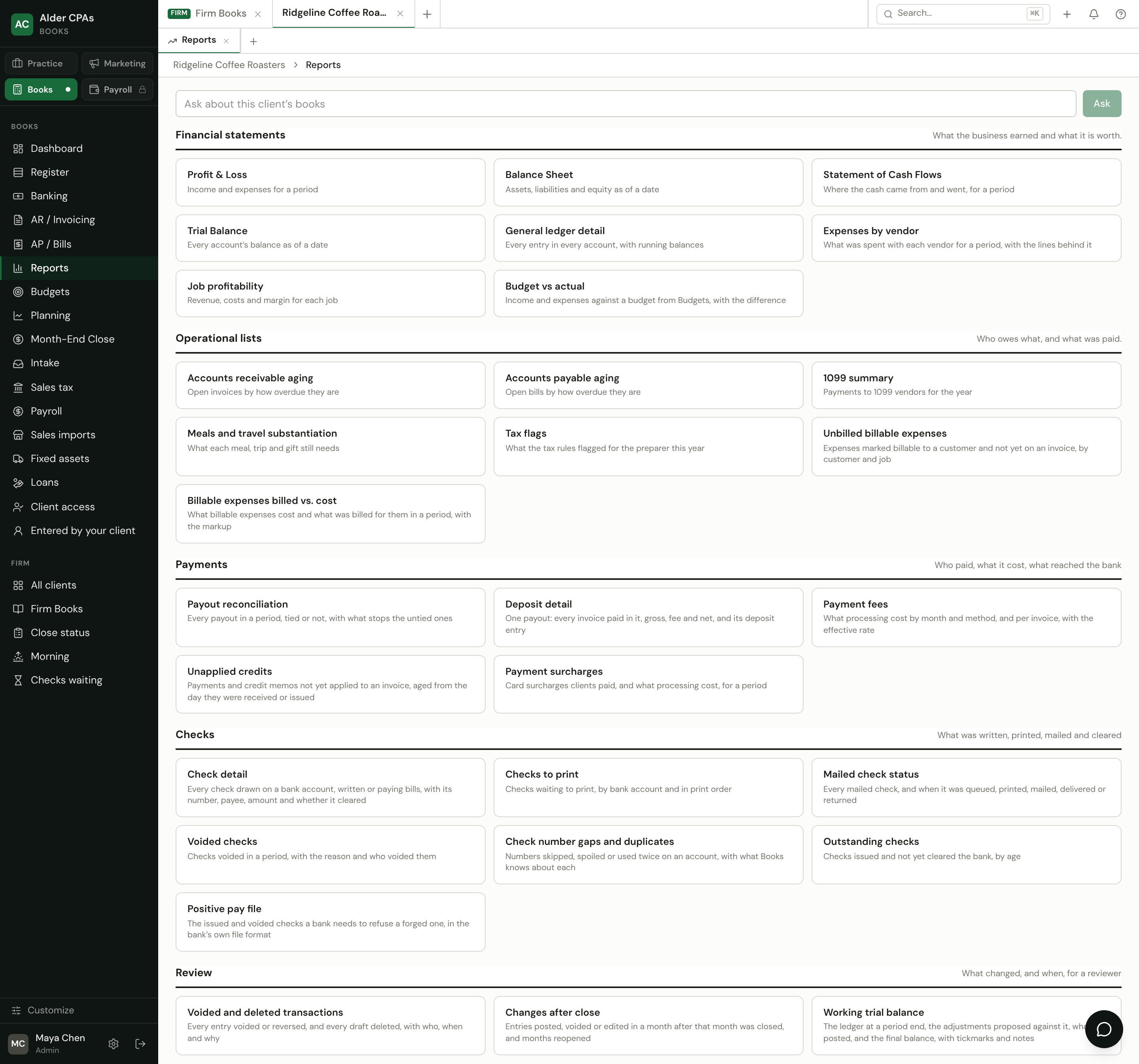 The Reports library for Ridgeline Coffee Roasters
The library lists the reports you can open on this client, in groups:
| Group | What's in it |
|---|---|
| Financial statements | Profit & Loss, Balance Sheet, Statement of Cash Flows, Trial Balance, General ledger detail, Expenses by vendor, Job profitability and Budget vs actual. |
| Operational lists | Who owes what and what was paid: Accounts receivable aging, Accounts payable aging, Meals and travel substantiation and the billable expense reports, among others. |
| Payments | Payouts, deposits, processing fees, unapplied credits and surcharges. See the article Payment Reports: Fees, Payouts and Unapplied Credits. |
| Checks | Check detail, checks to print, mailed checks, voided checks, number gaps, outstanding checks and the positive pay file. See Check Reports: Outstanding, Voided, Number Gaps and Positive Pay. |
| Review | What changed and when, for a reviewer, such as Voided and deleted transactions and Changes after close. |
Some groups appear only when the client has something for them: Inventory for a client with an inventory item, Fixed assets for a client that keeps an asset register, Loans for a client on a plan with loans that has a loan set up, and By class and location for a client that uses classes or locations. Owners and admins also see a Firm group with Mailed check charges, which covers every client of the firm.
After the report groups come the saved views, then By class and location and Firm when they are shown:
- Firm views: Shared with everyone in the firm who can open that report. Ready-made views are here from the start, such as P&L + prior year, P&L by month + YoY %, P&L by quarter, Cash-basis P&L and Balance Sheet — comparative.
- My views: Only you can see these. Until you save one, it reads Open any statement, set it up the way you want, and save it here.
Each saved view is marked Firm or Mine, has a one-line description, and shows Used by: what depends on it, or nothing else — safe to delete.
You see only the reports your role lets you open. The financial statements need the P&L, balance sheet, cash flow, trial balance permission.
The Review reports need it too, plus permission to see the audit log. The operational lists, payment reports and check reports need Aging, invoice and bill lists, payment history, and the Positive pay file also needs Post journal and register entries.
A group you don't hold is left out entirely, not shown and then refused. If your role holds neither, the library says Your role on this client does not include any reports. and An admin can grant financial statements or operational lists from Team → Roles.
New report, at the top right, lists the statements you can open, under the line Start from a statement; build its columns, basis and grouping, then save it as a view. Pick one to open it on its defaults.
If you hold the financial statements permission, an Ask about this client's books box sits above the groups (on a free plan with a small free allowance each month; otherwise Books shows what the plan needs). Type a question in plain words and click Ask. Books answers with the matching lines, and every figure in the answer opens the lines behind it.
Run a statement
Open Profit & Loss, Balance Sheet, Statement of Cash Flows or Trial Balance. Under the title is the period and basis the report ran on, such as Oct 1, 2026 – Oct 31, 2026 · Accrual, and under that the report bar.
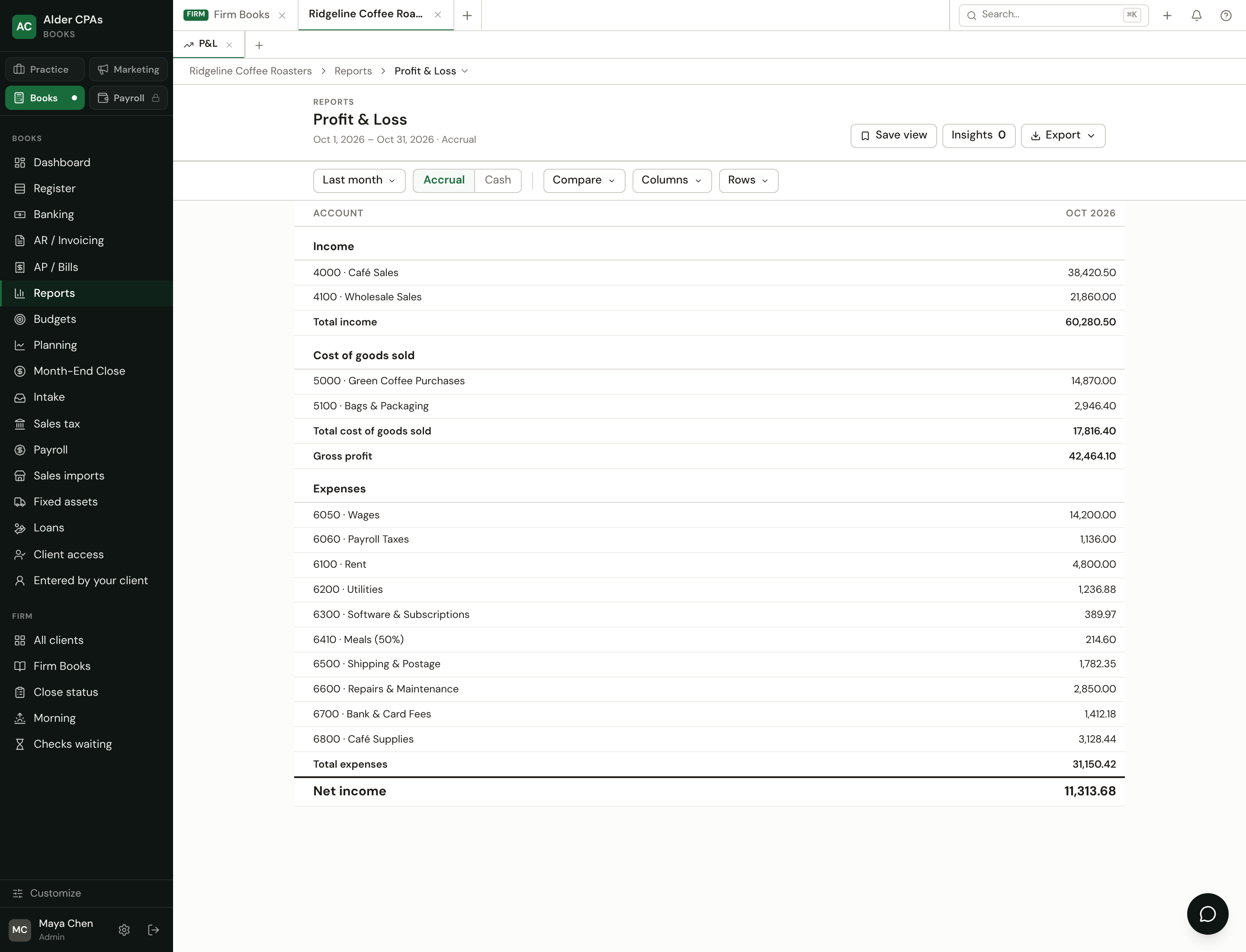 The Profit & Loss for October 2026
Where a statement opens
- Profit & Loss and Statement of Cash Flows open on Last month while last month is still open, and on This month once last month is closed. In the first days of November you see October, not a November that has barely started.
- Balance Sheet and Trial Balance open on Fiscal year to date, which is the balances as of today.
- The basis is the client's reporting basis, set on the client's Accounting settings. See Accounting Settings for a Client.
A saved view opens on the dates and basis it was saved with.
Change the dates
Click the period button at the start of the bar. It shows the period in use, such as Last month.
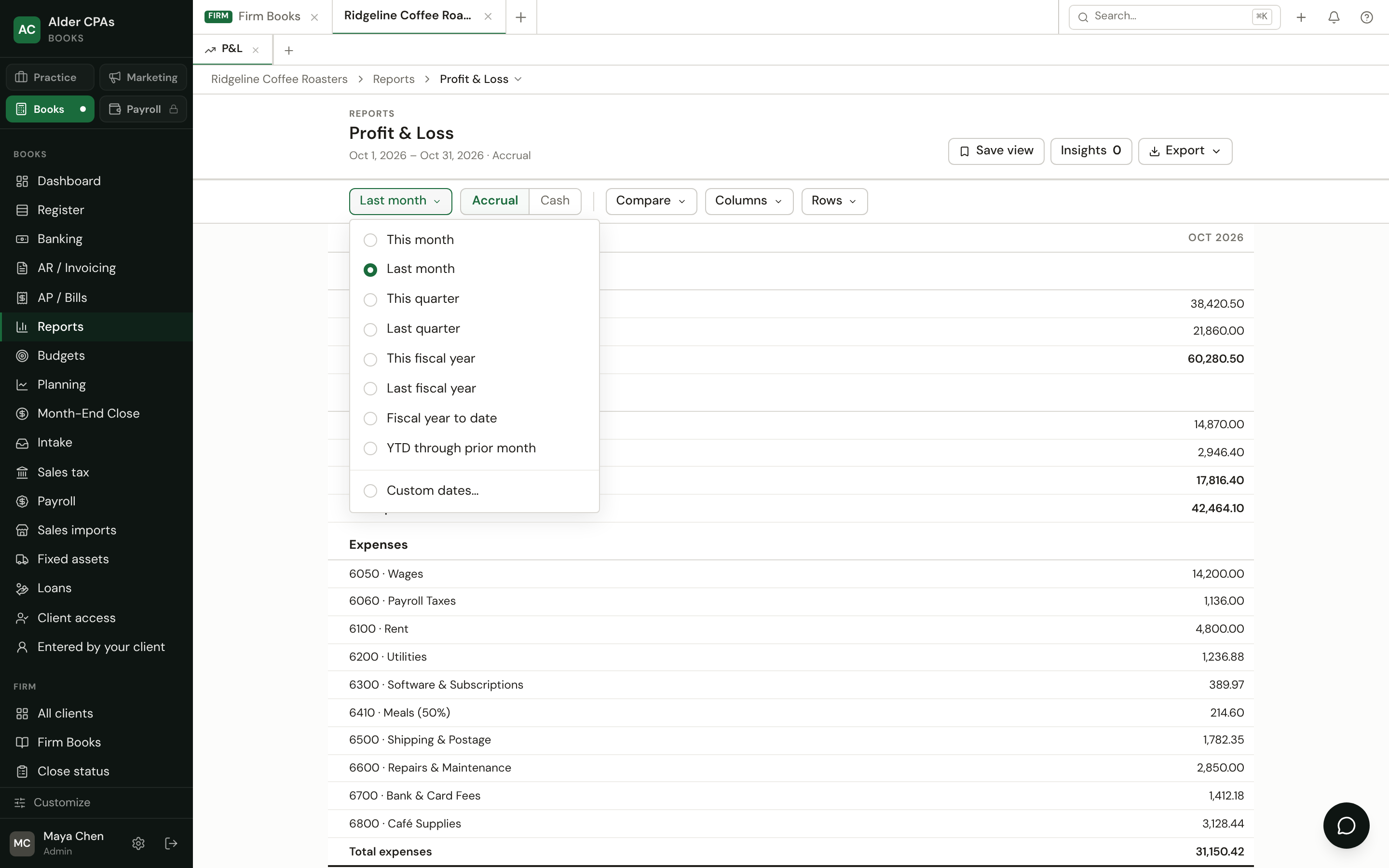 The period menu on the Profit & Loss
- This month, Last month, This quarter, Last quarter, This fiscal year, Last fiscal year, Fiscal year to date and YTD through prior month follow the client's fiscal year and move with the calendar.
- Custom dates… takes a start and an end date. On a Balance Sheet or Trial Balance it reads Custom date… and takes one date. Click Show. Until the dates make sense, Show is off and the menu says Pick an end date, and a start on or before it. (or Pick a date. on a Balance Sheet or Trial Balance).
Accrual or cash
Accrual and Cash sit beside the period. Accrual counts income when you invoice and expenses when you are billed. Cash counts them when the money moves: Books leaves out the invoices, bills, credit memos, vendor credits, late fees and write-offs themselves, and counts each payment on the accounts of the invoice or bill it paid.
Compare periods
Open Compare to add columns beside the period:
- Compare with: Prior period, Prior year, Year to date, and the other basis (Cash basis on an accrual report, Accrual basis on a cash one).
- Show: % change and % of income.
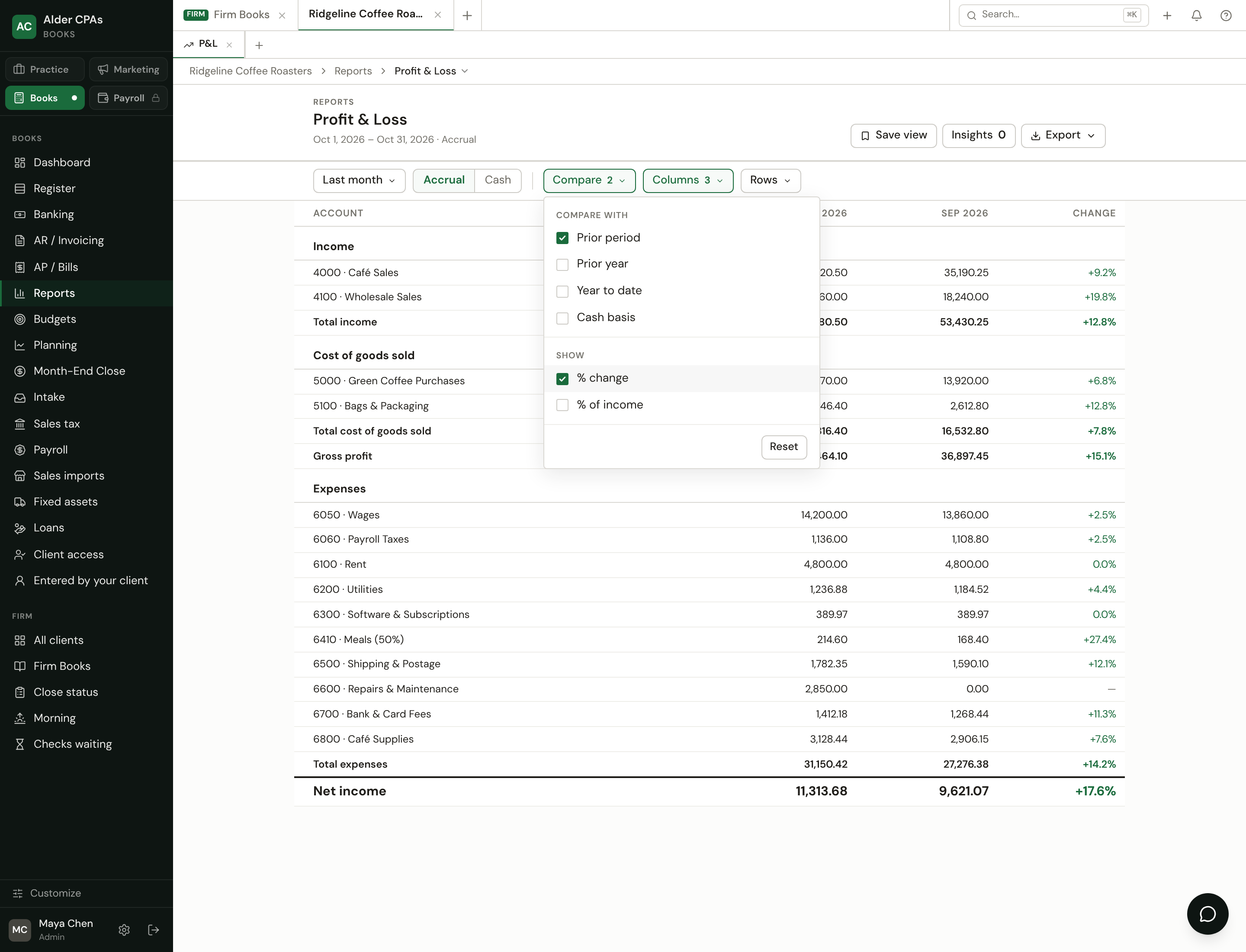 The Profit & Loss for October 2026 beside September, with % change
The button counts what you have on, such as Compare 2. Reset goes back to the period alone.
- % change compares the period with the last comparison column in the list, so it needs a comparison first. Until then it reads needs a comparison. % of income is on the Profit & Loss only.
- The other basis adds the same period on the other basis, then a Difference column (accrual minus cash). It works on the Profit & Loss and the Balance Sheet, but not with a series.
Build the columns
Columns lists every column in order. Drag a column by its grip, or use its up and down arrows, to move it, and × to remove it. The first column, the period itself, is marked Always shown.
- Series: By month or By quarter, with Periods of 3, 4, 6, 12 or 24, adds one column per month or quarter before your other columns. A Balance Sheet or Trial Balance is one date, and the Statement of Cash Flows shows one period, so they have no series.
- Split columns by: Class, Location or Job. A split gives one column per class or location, then Unclassified or No location, then Total. It works on the Profit & Loss and the Balance Sheet, and Job on the Profit & Loss only. When the client has none yet, the choice says so: no classes yet, no locations yet or no jobs yet.
- Add column adds A period (one of the periods above) or Two dates you choose.
A report holds up to 60 columns. Reset columns removes the extra columns and the series, leaving the period alone.
Rows
An account with sub-accounts has a small arrow beside it. Click it to fold the sub-accounts into their parent. Rows → Levels does it for the whole report: All levels, Top level only, 2 levels or 3 levels. Folding never changes a total.
On a Profit & Loss, accounts with nothing in the period are left out, and a line under the report says how many, such as 3 accounts with no activity in this period are not listed. Show them lists them, and Hide them takes them away again. A Balance Sheet or Trial Balance leaves out accounts with no balance and says Accounts with no balance are not listed.
What each statement shows
Profit & Loss. Income, then Cost of goods sold and Gross profit when the client has cost-of-goods accounts, then Expenses, then Net income. When the client has other income or other expense, Operating income comes before them and Net other income (expense) after.
Balance Sheet. Assets (Current assets and Non-current assets), Liabilities (Current liabilities and Long-term liabilities) and Equity, as of one date. Retained earnings and this year's Net income are worked out from the income and expense accounts, so no closing entry is ever posted to roll the year over.
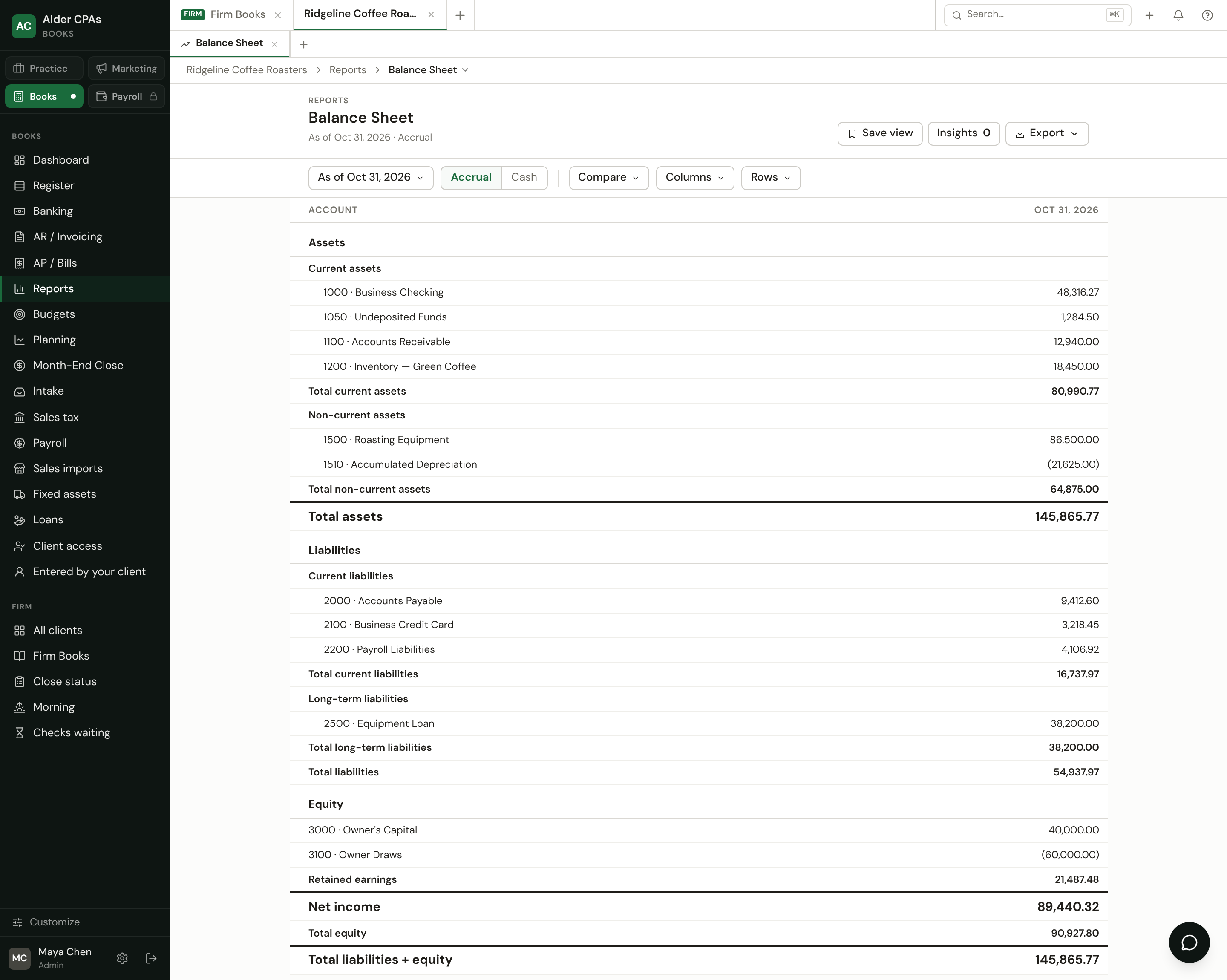 The Balance Sheet as of Oct 31, 2026
Trial Balance. Every account with a balance, in Debit and Credit columns, as of one date.
Statement of Cash Flows. Operating activities, Investing activities and Financing activities, each with its net, then Net change in cash, Cash at beginning of period and Cash at end of period. Its lines are grouped by kind of account rather than listed account by account.
Each statement checks itself, and speaks only when the check fails. A balance sheet that does not balance shows Not balanced beside its title, and a trial balance whose sides differ shows Out of balance.
A cash flow whose ending cash differs from the balance sheet says This statement does not tie to the balance sheet., names the amount unaccounted for in each column, and turns off the exports until it is resolved.
The Statement of Cash Flows needs every kind of account the client uses mapped to a section. If one isn't, the statement does not run. It names the kind of account and links to Map it in Settings → Reports → Cash flow sections. Map it there and the statement runs.
General ledger detail
General ledger detail lists every entry in every account with a running balance. Choose the dates with From and To (or All history to start from the first entry), narrow it to one Account, and pick Accrual or Cash.
Each account shows an Opening balance at line (with the start date), its entries (Date, Entry, Description, Source, Debit, Credit, Balance) and a Closing balance line. An account with many entries shows them 100 at a time, with a Show more button that loads the next 100. The ledger opens on the last full month, and the Trial balance link beside the filters opens the Trial Balance.
See the entries behind a figure
Click any account's figure on a statement. A panel opens with every entry behind it.
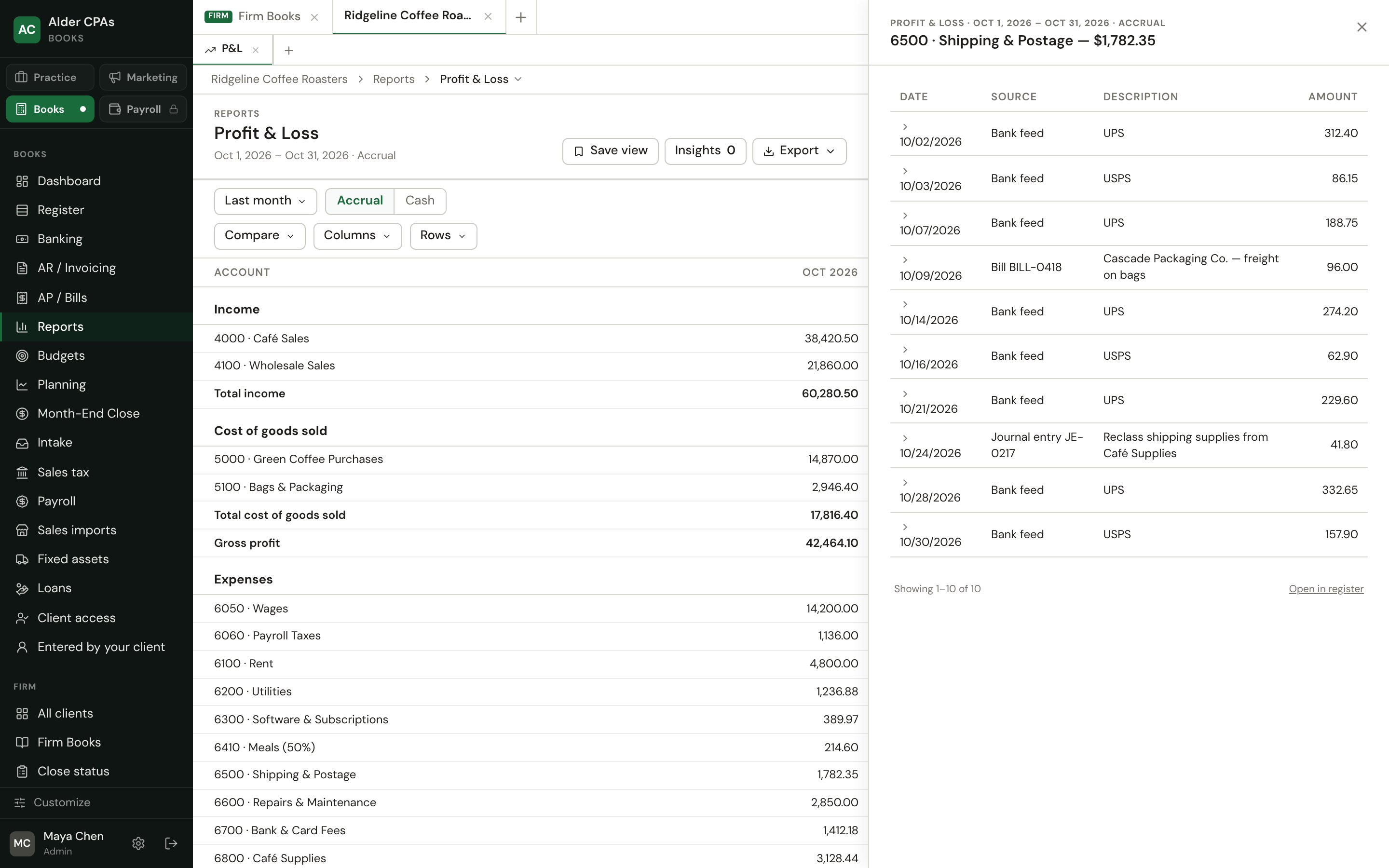 The entries behind October's Shipping & Postage
- The title names the account and the figure, such as 6500 · Shipping & Postage — $1,782.35, under the report, period and basis.
- Each entry shows its Date, Source (Bank feed, Bill, Journal entry, Payment received and so on, with its number), Description and Amount.
- Click an entry to see the whole transaction beneath it, with Open in register to edit.
- When the figure is a single account, Open in register at the bottom opens its register in a new tab beside this one. When you come back, the report is on the period you picked, with the same panel open.
- Entries show 100 at a time, with Previous and Next.
On the cash basis, an amount that comes from a payment counted on an invoice's or bill's accounts is marked · recognized from this payment, so you know why it appears on an account the payment never touched directly. A Difference column's figure opens the invoices and bills that make the difference: an invoice dated in the period and not fully paid adds to it, and a payment in the period on an earlier invoice takes away from it.
On a wide window the panel sits beside the report, so you can keep clicking figures with it open.
Export, print and save
Export offers CSV, Excel workbook, PDF, Month-end pack (PDF) and Print.
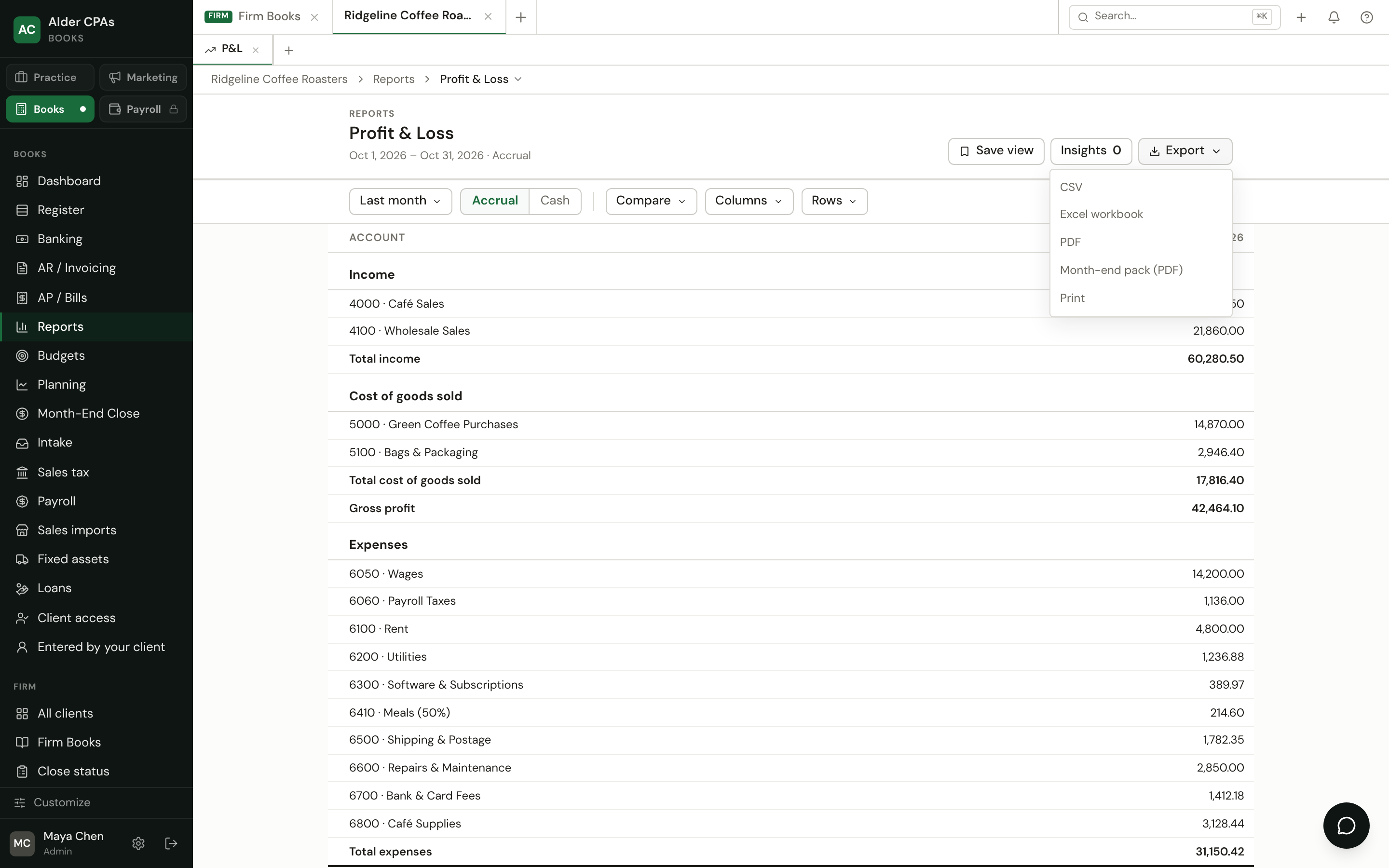 The Export menu on the Profit & Loss
- CSV and Excel workbook download the report as it is on screen, named after the report and its end date.
- PDF is the one statement, with this report's period and basis, headed with the client's name, the report, the period and the basis.
- Month-end pack (PDF) is a cover page, then the Trial Balance, Profit & Loss, Balance Sheet and Statement of Cash Flows in one PDF, on this report's period and basis.
- Print prints the report under the same header, without the buttons.
Save view saves what you set up (the dates, basis, columns, rows and grouping) under a name. Choose Just me to keep it under My views, or Whole firm to share it under Firm views with everyone in the firm, on this client. A view saved on a period such as Last month moves with the calendar.
In the library, Rename changes a view's name in place (Enter saves, Esc cancels) and Delete removes it. A view something else depends on shows In use instead of Delete, and hovering it gives the reason.
Why can't I …
- …see a report a colleague can? Your role on this client doesn't include its permission. Ask an admin to grant it under Settings → Roles.
- …share a view with the firm? That takes the Settings — Firm permission. Without it, Books says You need the "Settings — Firm" permission to share a view with the firm. Save it as your own view instead.
- …delete a firm view? The same permission: You need the "Settings — Firm" permission to delete a firm-shared view. Ask an admin to grant it.
- …rename a firm view? Renaming a firm view also takes the Settings — Firm permission; without it, Books refuses the new name. Save the view as your own under a new name instead.
- …click Save view or Export? They wait for the report to finish running, and say so: Save view and Export wait for the report to load.
- …export the Statement of Cash Flows? It doesn't tie to the balance sheet, and the Export menu says This statement does not tie to the balance sheet, so it cannot be exported. Exporting it would put a figure in front of a client that the books do not support. Print still works.
- …add a series to a Balance Sheet? A balance sheet is one date. The menu marks the series one date, and its help gives the reason: A series is a run of periods; a balance sheet or trial balance is one date. Use Compare → Prior period or Prior year instead.
Shortcuts and tips
- Every account figure opens its entries. Hover one and it says Show the entries behind this figure.
- Your place is kept. Open an entry in the register from the panel, come back, and the report and its panel are as you left them.
- Save on a period, not on dates. A view saved on Last month or Fiscal year to date is always current.
- Insights, on the Profit & Loss and the Balance Sheet, opens a panel of what changed in the period and what is worth a look, with the count beside the button. When bank lines for the period are still waiting in review, the report shows a Not caught up. notice above the figures. See Why Doesn't This Report Match My Bank?.