
Planning: Cash Forecast, Scenarios and Plan vs. Actual
See where a client's cash is heading over the next 13 weeks, test what-ifs in scenarios, plan years ahead, and compare a kept forecast with what happened.
On this page
Planning answers the question every owner asks: will we have enough cash? It reads the books as they stand today — open invoices and bills, recurring schedules, payroll, loan payments, credit cards — and lays them out week by week for the next 13 weeks. You set a low-cash threshold, try what-ifs (a new hire, a slow-paying customer, a loan) in scenarios of their own, look years ahead in the long-range plan, and later compare a kept forecast with what actually happened.
Nothing in Planning posts to the books or changes a document. What-ifs, moved invoices and scenarios live only in the plan. Planning is part of Premium; on a client without it, the page shows what the books already say about cash — Cash today, Bills due in 30 days, Cash pace and Owed by customers — and offers Premium.
Understand the Planning page
Forecasts opens on the client's default plan: a summary strip, a sentence about the runway, and the list of plans.
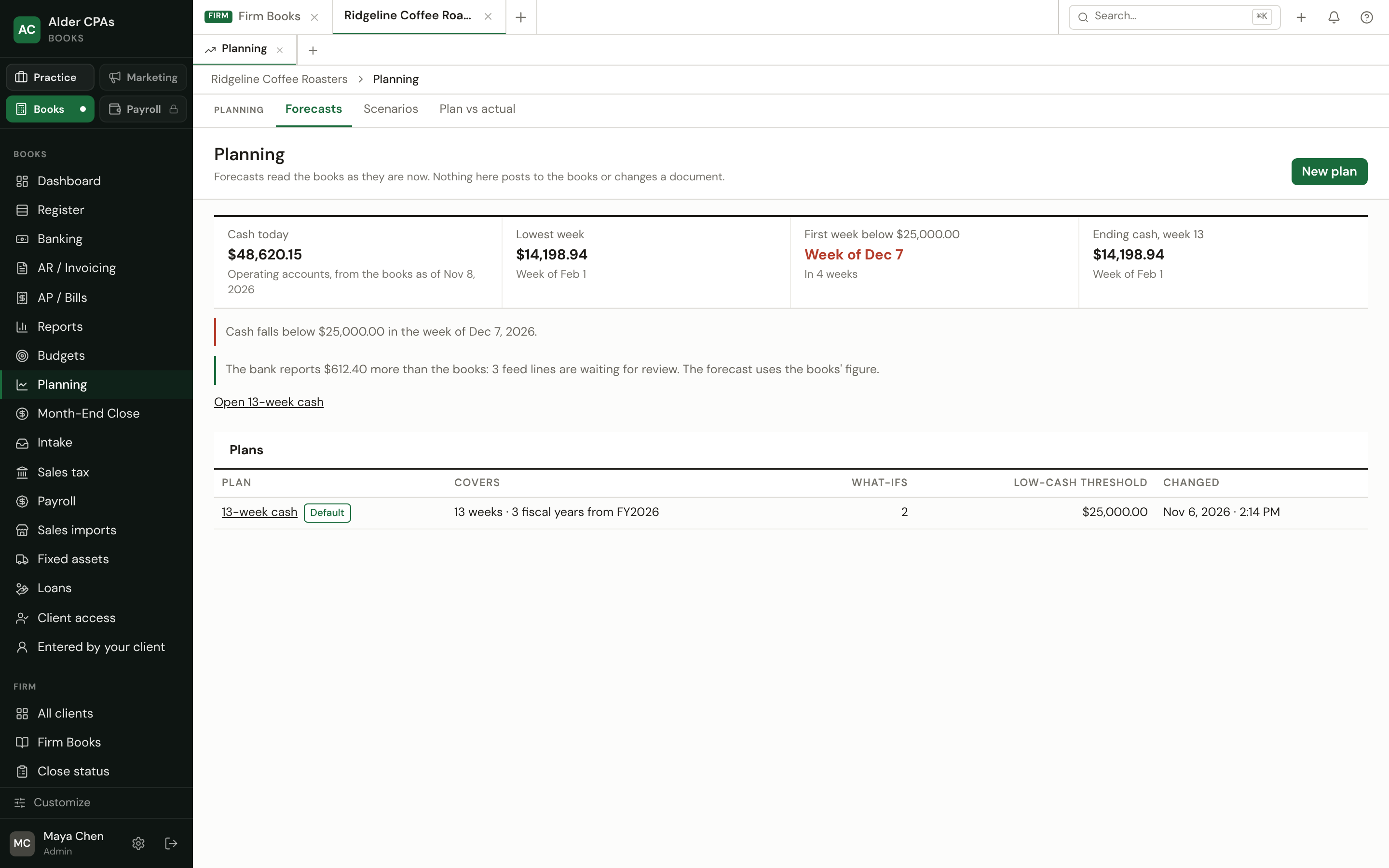 Planning for Ridgeline Coffee Roasters: the summary strip and the 13-week cash plan
The summary strip has four figures:
- Cash today — the balance of the operating accounts, from the books as of today.
- Lowest week — the lowest week-ending cash in the 13 weeks, and which week.
- First week below $25,000.00 — the first week that ends under the plan's low-cash threshold, in red, with how far away it is (In 4 weeks). None in 13 weeks when cash stays above it.
- Ending cash, week 13.
Under it, a sentence states the runway — Cash falls below $25,000.00 in the week of Dec 7, 2026. or Cash stays above $25,000.00 through Feb 7, 2027. Other notes appear only when they apply:
- The bank and the books differ: The bank reports $612.40 more than the books: 3 feed lines are waiting for review. The forecast uses the books' figure.
- Entries dated in the future: if the books hold posted cash entries dated after today, Books says how many, where and what they net to. The forecast starts from today's balance and does not count them, so check their dates.
- A source could not be read: the forecast says which one and states no runway, rather than counting it as zero.
The Plans table lists each plan with what it Covers (13 weeks plus its fiscal years), its number of What-ifs, its Low-cash threshold and when it last Changed. Click a plan's name to open it.
With no plan yet, the strip still shows the forecast, with no threshold.
Make a plan
- Click New plan.
- Name it (it starts as 13-week cash).
- Set the Low-cash threshold — a week ending below it is marked, and the first one is named.
- Choose how far the long-range plan reaches: Fiscal years (1 to 10) and Monthly detail, years (up to the first 5). The 13-week view is always there; the long-range plan is monthly for the monthly years and one column per year after.
- Leave These books' default plan (the one Planning opens with) checked if this is the plan Planning should open on.
- Under Credit cards, each card's posted balance is forecast as paid on the 20th of next month. Type another day of the month (1 to 31) beside a card to change it.
- Click Create plan.
Change any of this later with Plan settings on the plan.
Read the 13-week forecast
Open a plan to see its weeks. Each column is a week, headed by its Monday (Nov 9), with a 13 weeks total at the end.
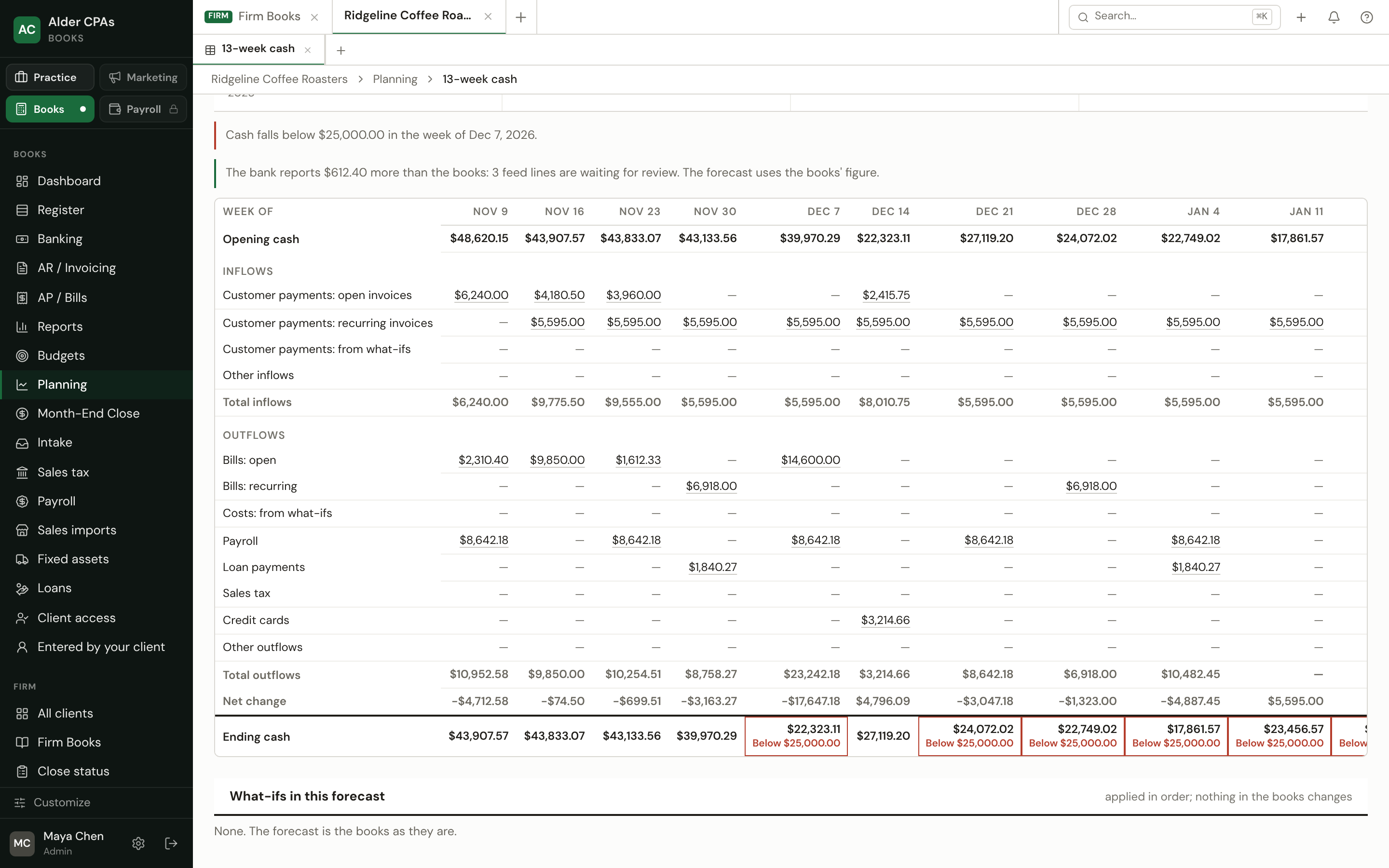 The 13-week forecast, with the weeks that end below the threshold marked
From top to bottom:
- Opening cash.
- Inflows — Customer payments: open invoices, Customer payments: recurring invoices, Customer payments: from what-ifs and Other inflows, then Total inflows.
- Outflows — Bills: open, Bills: recurring, Costs: from what-ifs, Payroll, Loan payments, Sales tax, Credit cards and Other outflows, then Total outflows. Owner draws, Estimated tax and Line of credit appear only when a what-if fills them.
- Net change.
- Ending cash — a week ending below the threshold is outlined in red and says so (Below $25,000.00); a negative ending is in red.
A dash means nothing lands in that week.
See what is behind a figure
Every figure with something behind it is underlined. Click it to open the items in that week, each with the rule that placed it — for example Due Oct 28, 2026; Division Street Deli pays 38 days late on average (5 paid invoices) · Dec 16, 2026. The panel ends with how much came from the books and how much from the scenario you are viewing.
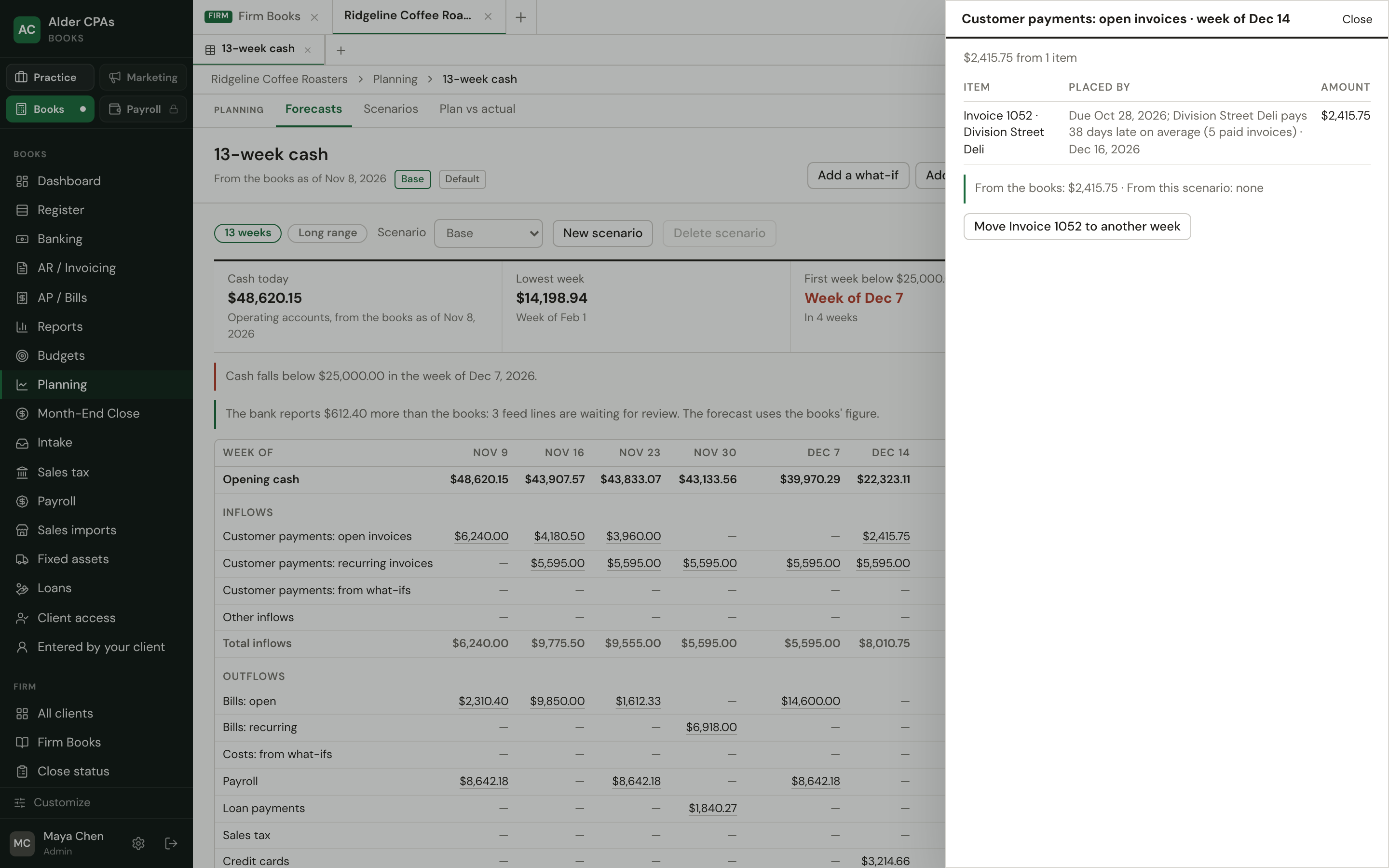 The items behind a week's customer payments
For an invoice, a bill, a card balance or a sales-tax amount, the panel offers Move … to another week. Choose the Week and click Place it. This becomes a what-if in the scenario you are viewing; the invoice or bill itself does not change.
How each row is placed
The bottom of the page spells out the rules under How each row is placed:
Customer payments
Each open invoice on its due date, moved later by that customer's own average days past due over the last 12 months, when they have 3 or more paid invoices. An invoice 1 to 90 days past due lands at today plus that average, or on the forecast's first day when the customer has no payment history. Over 90 days past due, it is not counted.
Recurring invoices and bills
Every future occurrence inside the 13 weeks, on its creation day plus its terms.
Payroll
From the client's payroll imports in Books: the pattern and average of the last 3 payrolls, for example Every 2 weeks, from your last 3 payrolls, averaging $8,642.18.
Loan payments
From each loan's payment schedule. A recurring bill that posts only to a loan is counted once, under Loans.
Sales tax
The amount owed, on the next filing deadline for its state.
Credit cards
The posted balance, paid on the 20th of next month unless the plan sets another day.
Not counted and Needs a due date
Anything Books found but could not place is listed under Not counted or Needs a due date, each with Why: an invoice Over 90 days past due, something that lands Past the end of the forecast, payroll with no imports to follow, or a loan with No payment schedule in Books. Set up the loan to forecast its payments (with a Set up the loan link).
Place in a week puts an invoice, bill, card balance or sales-tax amount into a week as a what-if. For payroll, the list points you to Add a what-if › Payroll.
Why does the forecast show cash falling below my threshold?
The forecast is built only from dated items in the books. When a week turns red:
- Click the outflows in that week to see exactly which bills, payroll, loan or card payments land there.
- Check what is missing on the money-in side. Sales that never become an invoice — counter sales, card deposits, cash — are not in the forecast. Neither are invoices still in draft. Add expected money with a what-if, such as a One-off amount.
- Check the notes under the strip: unreviewed bank lines, entries dated after today, or a source that could not be read.
- Check the threshold in Plan settings — it may be set higher than you need.
How does the forecast decide when a customer will pay?
Each open invoice starts on its due date. If the customer has paid at least 3 invoices in the last 12 months, Books moves it later by that customer's own average days late.
An invoice already past due by 1 to 90 days lands at today plus that average (and never before tomorrow), or on the forecast's first day when the customer has no payment history. The drill shows the rule for each invoice. To test slower collections across the board, add the Customers pay later what-if.
Why is an invoice not counted in the forecast?
- It is a draft. Only sent invoices with a balance are forecast. Send it, and it appears.
- It is more than 90 days past due. It is listed under Not counted with the reason. Use Place in a week if you expect it to be paid.
- It is due after the 13 weeks. It is listed under Not counted as Past the end of the forecast. Use Place in a week if you expect it sooner.
- It is paid, voided or written off. Nothing is left to collect.
Add a what-if
A what-if changes only the scenario you are viewing. Nothing in the books changes.
- Click Add a what-if. The menu groups the what-ifs under Growth, Costs, Financing, People and One-offs.
- Pick one. Start typing to filter the list; ↑ and ↓ move through it, Home and End jump to the ends, and Enter opens the one highlighted.
- Fill in the fields. As you type, the Preview shows the forecast before and after — Lowest week, First below $25,000.00 and Ending cash, week 13 — and the Effect on ending cash, week 13. Nothing is saved until you click Save what-if.
- Click Save what-if.
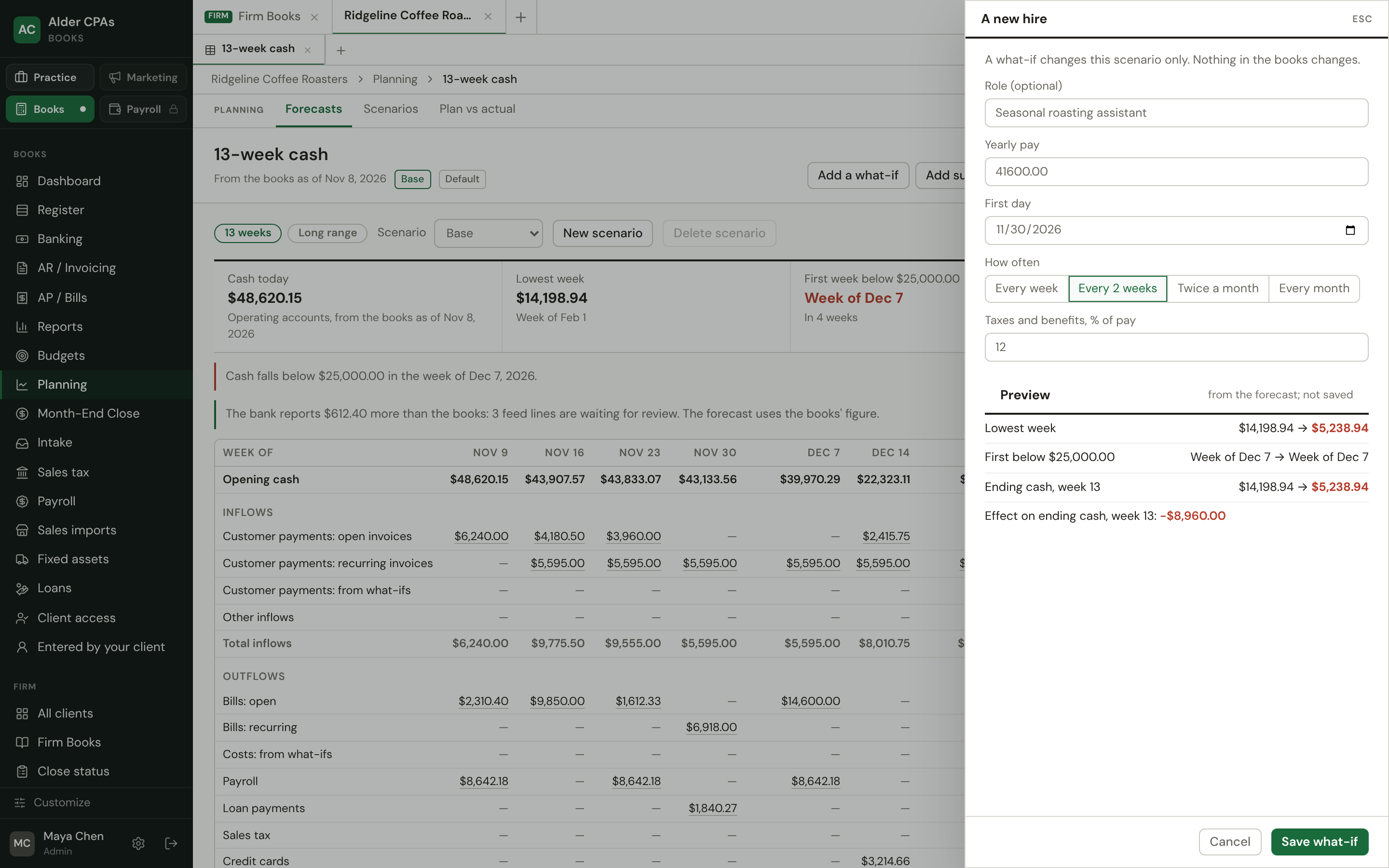 Adding a seasonal hire, with its effect previewed
The what-ifs in each group:
Growth
Revenue growth % (all sales, or one customer, item or account), A price change, Seasonality (shape revenue by a past year's months), New location or service line, Buy a business or book of clients, Losing a customer
Costs
Expense change % (all costs, or one account or vendor), A capital purchase
Financing
A new loan, Line of credit (draw below, repay above), Owner draws or distributions, Estimated tax payments (on the federal dates Apr 15, Jun 15, Sep 15 and Jan 15, moved to the next business day), Customers pay later, Pay vendors later or sooner
People
A new hire (pay and taxes and benefits from a start date), Payroll (for when Books cannot follow it from imports; it replaces the payroll Books worked out, in this scenario only)
One-offs
One-off amount (money in or out, on a day)
Money fields in the what-if forms accept arithmetic, so 41600*1.03 works for a raise.
The what-if list
Under the grid, What-ifs in this forecast lists each one with its Name, what it does In words ($41,600.00 a year from Nov 30, 2026, every 2 weeks, burden 12%), which weeks it falls in, and its Change to ending cash, week 13. They are applied in order, each on top of the ones above it.
The footer shows ending cash from the books as they stand, ending cash with the what-ifs that are on, and the change between them.
- The switch at the start of each row turns a what-if off without deleting it. It stays on the scenario and is left out of every figure.
- Remove deletes it.
Try scenarios side by side
A plan always has a Base. Add others to test different futures without touching it.
- On the plan, click New scenario, name it, and leave Start from the what-ifs of … checked to copy the scenario you are viewing. Click Create scenario.
- Use Scenario to switch between them. Every figure on the page follows the scenario chosen.
- On a scenario other than the base, turn on Compare with base to add Ending cash, base and the Difference under the grid, and the plan-end effect beside each what-if.
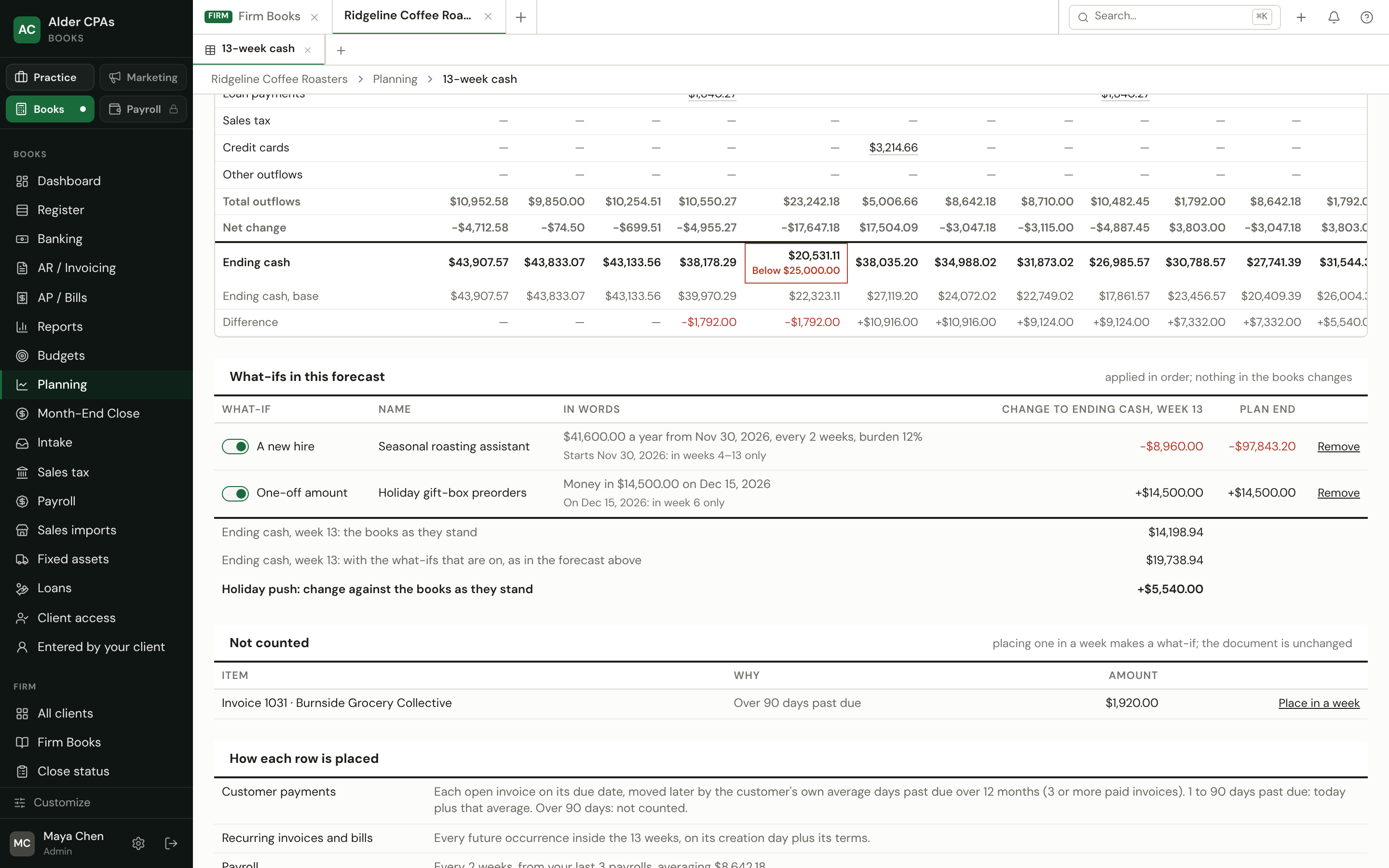 The Holiday push scenario compared with the base
Delete scenario shows what goes with it (its what-ifs and any snapshots) before you confirm. The base cannot be deleted; delete the plan instead.
The Scenarios page
Planning → Scenarios draws the base and up to three scenarios of one plan on one chart of week-ending cash, with the threshold as a dashed line. Hover the chart to read every scenario for a week.
Below it, each scenario's Lowest week, First below and Ending, week 13, then the weeks as rows — with a Difference column when you compare one scenario with the base. Long range compares ending cash and net income across the whole plan.
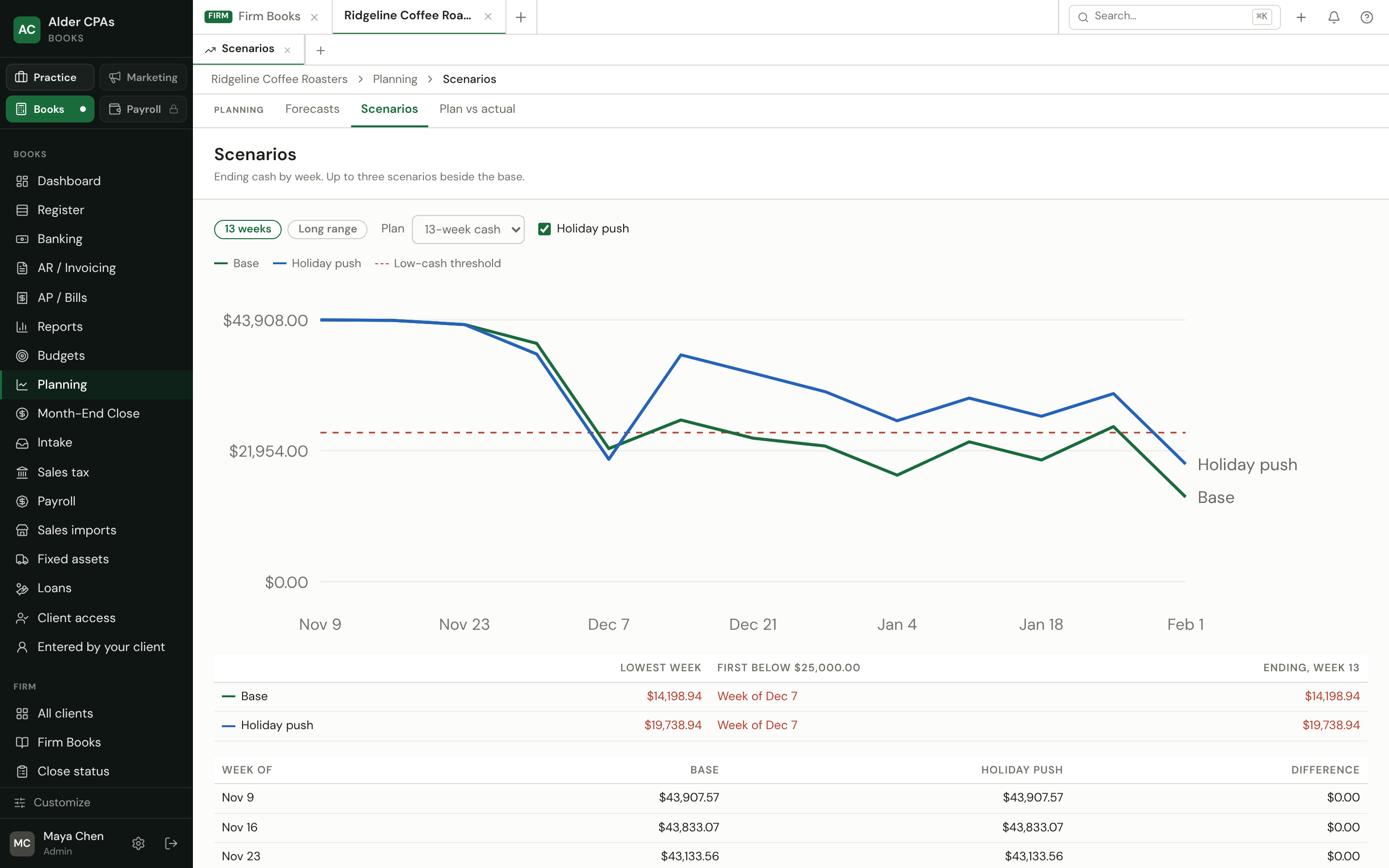 Base and Holiday push compared on the Scenarios page
Look further ahead: Long range
Click Long range on a plan to see it across the fiscal years you chose, monthly for the monthly-detail years and then one column per year. It has three statements — P&L, Balance sheet and Cash flow — and a strip with net income for the first whole fiscal year, ending cash at the plan's end, the Lowest period-end cash and the first period below the threshold.
- The P&L uses the fiscal year's default budget where one exists, otherwise the same month last year. See Budgets and Budget vs. Actual.
- The balance sheet ties in every period: total assets equal total liabilities and equity, to the cent.
- Add a driver moves the long-range plan only: Revenue growth (% a year), Cost of goods sold (% of revenue), An expense (fixed or % of revenue), Days to collect, Days to pay and Owner money (put in or taken out). The 13 weeks keep to the books' dated items.
Compare a forecast with what happened: Plan vs actual
To measure a forecast later, keep a copy of it. Keep snapshot on a plan saves the scenario's forecast exactly as it reads now, with an optional label. Books also keeps one of the default plan's base automatically every Monday, such as Oct 12, 2026.
Planning → Plan vs actual compares a snapshot with what the books show happened in the weeks that have ended since.
- Choose the Plan and the Snapshot.
- Choose By week or By month.
- Read each row's Forecast, Actual and Difference.
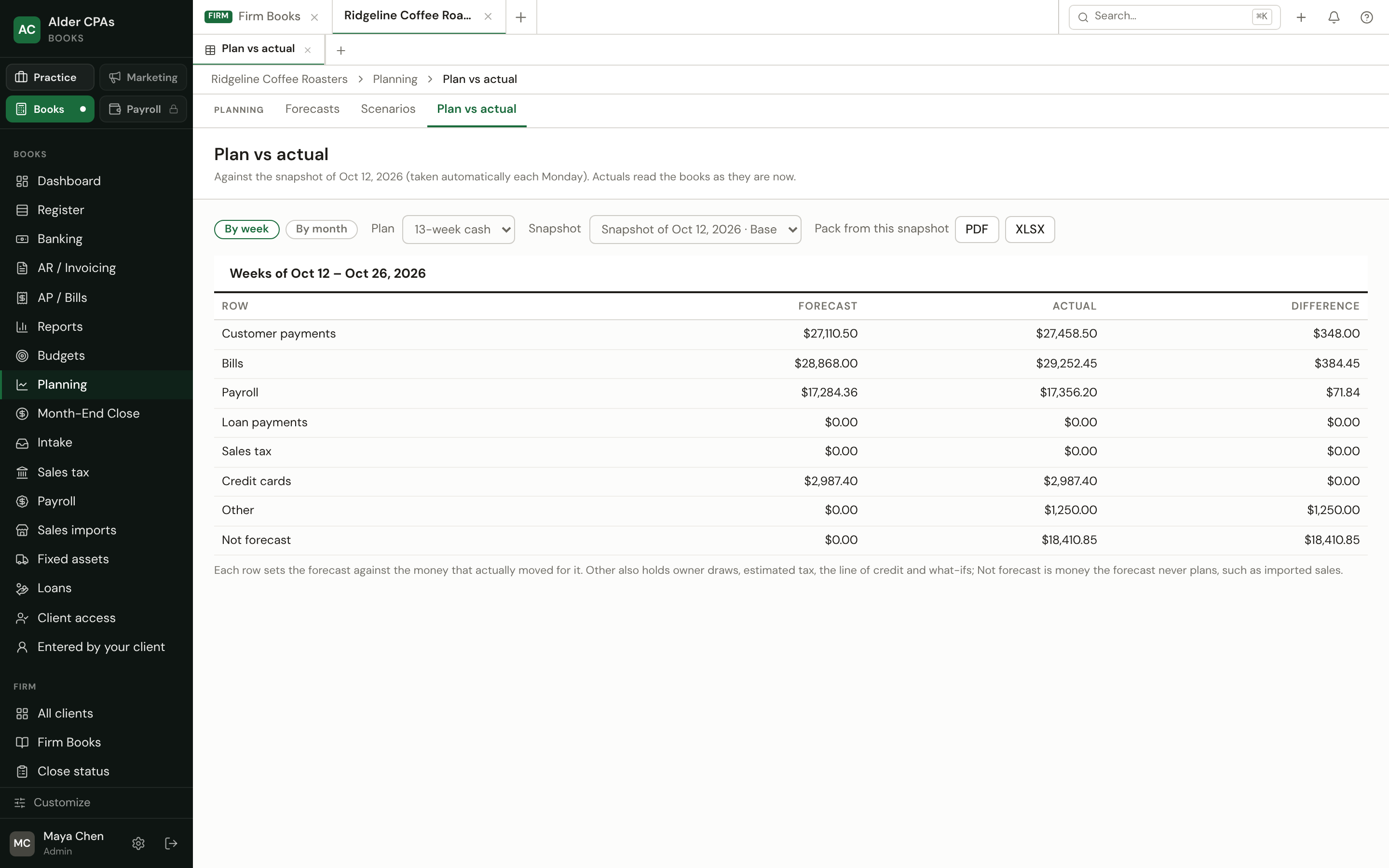 Plan vs actual against the automatic snapshot of Oct 12, 2026: the weeks of Oct 12 – Oct 26, 2026
Difference is Actual minus Forecast. Outflow rows (bills, payroll, loans, sales tax, cards) show the amount paid, so a positive Difference on Bills means more went out than forecast; on Customer payments, a negative one means less came in.
By week, the note under the table sums it up: Each row sets the forecast against the money that actually moved for it. Other also holds owner draws, estimated tax, the line of credit and what-ifs; Not forecast is money the forecast never plans, such as imported sales.
What-ifs that land outside the named rows (owner draws, estimated tax, a line of credit, growth and cost what-ifs) count in Other's forecast. Money in that the forecast never forecasts, such as counter and card sales deposited, is shown on its own Not forecast row, so it doesn't swell Customer payments. Actuals read the books as they are now.
Export and share the forecast
Export on a plan offers:
- PDF pack and Spreadsheet (xlsx) — each keeps a snapshot first, then downloads the pack made from it, so the figures you send stay the figures you saw. The snapshot also appears on Plan vs actual.
- CSV (this grid) — the 13 weeks as shown (on the long range, the statement in view).
On Plan vs actual, Pack from this snapshot downloads the PDF or XLSX of any kept snapshot.
A plain-English summary for the client
Add summary on a plan opens the Summary: Write the summary drafts a short summary for the client from the forecast's own figures. It stays a Draft until you Approve it; you can Edit, Write again or Discard it. If the forecast moves after that, the summary is marked Out of date and stays out of every pack until you write or edit it again. Approved words go into the PDF pack.
If your firm also uses Practice
When your firm runs Practice alongside Books, Plan vs actual adds Send to the client… beside Pack from this snapshot, so the forecast reaches the client from the same place you reviewed it.
- Choose the snapshot to send, then click Send to the client….
- Type the address in To (for example dana@ridgelinecoffee.example). The Subject starts as Your cash plan, as of Oct 12, 2026; add a Message if you like.
- Leave Include the approved words checked to put the approved summary in the PDF. It is offered only when the summary was approved against this snapshot's figures; otherwise the box says why.
- Books checks the send before offering it and says what will happen, including the PDF's file name. The figures are the snapshot's, not the books as they move. Click Send to ….
The PDF is emailed through your firm's client communications and filed in the client's documents in Practice, so it sits with everything else you have sent them. Nothing in the books changes.
Why can't I…
| What you see | Why, and what to do |
|---|---|
| You need the Cash planning permission to make a plan. (or to change a plan.) | Reading plans needs the View cash planning permission; making and changing them needs Cash planning. Ask an admin. |
| Keeping a snapshot needs the Cash planning permission. on PDF pack or Spreadsheet | A pack keeps a snapshot first. CSV (this grid) still works. |
| Delete scenario is off on the base | The base scenario is the plan itself; delete the plan instead. |
| Create plan is off | Name the plan, enter the threshold (Enter the low-cash threshold, like 25,000.00.), keep the horizon to 1 to 10 years with monthly detail for up to the first 5, and type each card payment day as a day from 1 to 31, or leave it blank for the 20th. |
| Save what-if is off | A field is missing or out of range; the preview area says which. |
| Planning shows only four cash figures | The client is not on Premium. Cash-flow planning is a premium feature. |
When Books refuses a change to a plan, scenario or what-if, the reason ends with Nothing was saved. (or Nothing was removed. or Nothing was changed.), so you know the plan is as it was.
Change or delete a plan
- Plan settings changes the name, threshold, horizon, default and card payment days.
- Delete names what goes with the plan — Deletes 1 scenario, 2 what-ifs, and 3 snapshots. Nothing in the books changes. — and, for the default plan, that no other plan becomes the default. Click Delete plan or Keep it.
Tips
- Set the threshold to the cash the business needs as a floor — a month of rent and payroll is a common start — so the red weeks mean something.
- Keep the base as the books' honest view, and put hopes and worries in named scenarios.
- Review the client's bank lines and send draft invoices before you read the forecast; both change what it shows.
- Keep a snapshot before a client meeting, then use Plan vs actual a month later to see how close the forecast was.