
Give Someone Access to One Client
Give a team member a different role on one client, or on a handful, without changing what they can do anywhere else, and see who can work on each client.
On this page
Most people at a firm work on most clients the same way, and their Books role says how. An exception is the one place they work differently: a new hire with no Books access who starts on one client, a senior who is Read-only everywhere except the client they run, a contractor kept off a client's books. You set it for one client or for many at once, and nothing else they can do changes.
On a client with an exception, the exception is their role there, in full. Books checks the exception first, then their Books role. An exception can be wider or narrower than their Books role. An owner always has every permission on every client, and an exception never applies to an owner.
Understand Member access
The person's page starts with their name and one line saying where they stand, for example No Books access across the firm, with no exceptions.
- Books role shows their role Firm-wide, which applies on every client without an exception. Changing it here needs the Manage — Roles permission.
- Exceptions lists the clients where they work differently: Client · Role here · Effect · Actions. Effect says in words what the exception changes against their Books role, for example Gains here: see a client's books, post journal and register entries, chart of accounts, … for a wider role, or Loses here: post journal and register entries, chart of accounts, …, P&L, balance sheet, cash flow, trial balance, save and schedule sends; gains here: apply payments, refund, resolve disputes. when the role there takes some things away and adds others. With none, it reads No exceptions — Marcus Webb works on every client as No Books access.
- Assign clients to Marcus Webb is where you add, change and remove exceptions.
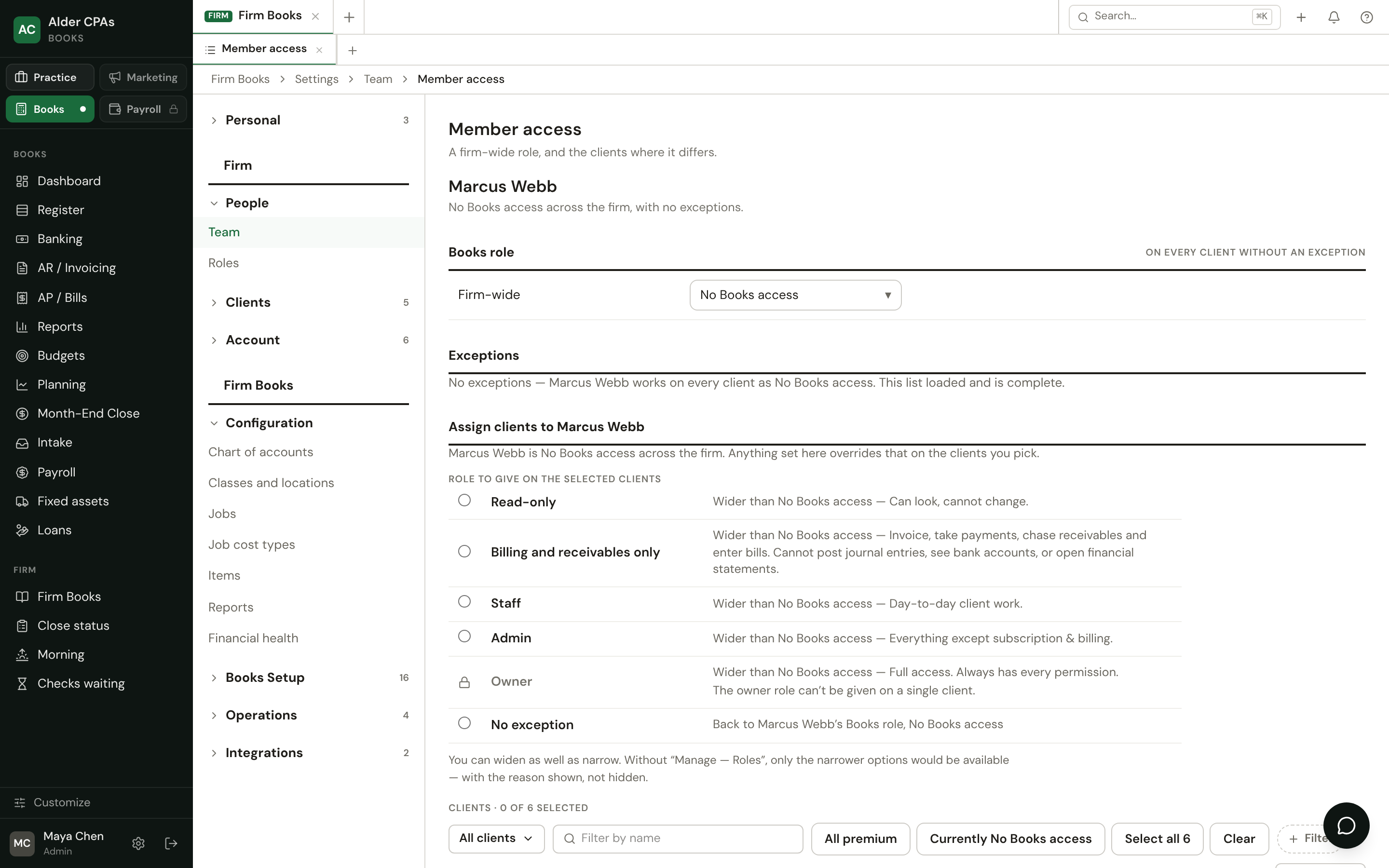 Member access for Marcus Webb: No Books access as his Books role, with no exceptions
Give someone a role on one client
Marcus Webb joined Alder CPAs as Staff, with No Books access as his Books role. He will work on Ridgeline Coffee Roasters only.
- On Team, click the Per-client exceptions link on Marcus's row (it reads None).
- Under Role to give on the selected clients, choose Staff. Each role says how it compares with his Books role (Wider than No Books access) and what it is for.
- Tick Ridgeline Coffee Roasters in the client list. Role today shows what he has on each client now; After this change shows what he will have.
- Read What will happen: 1 client changes to Staff. Nothing else moves.
- Click Assign 1 client.
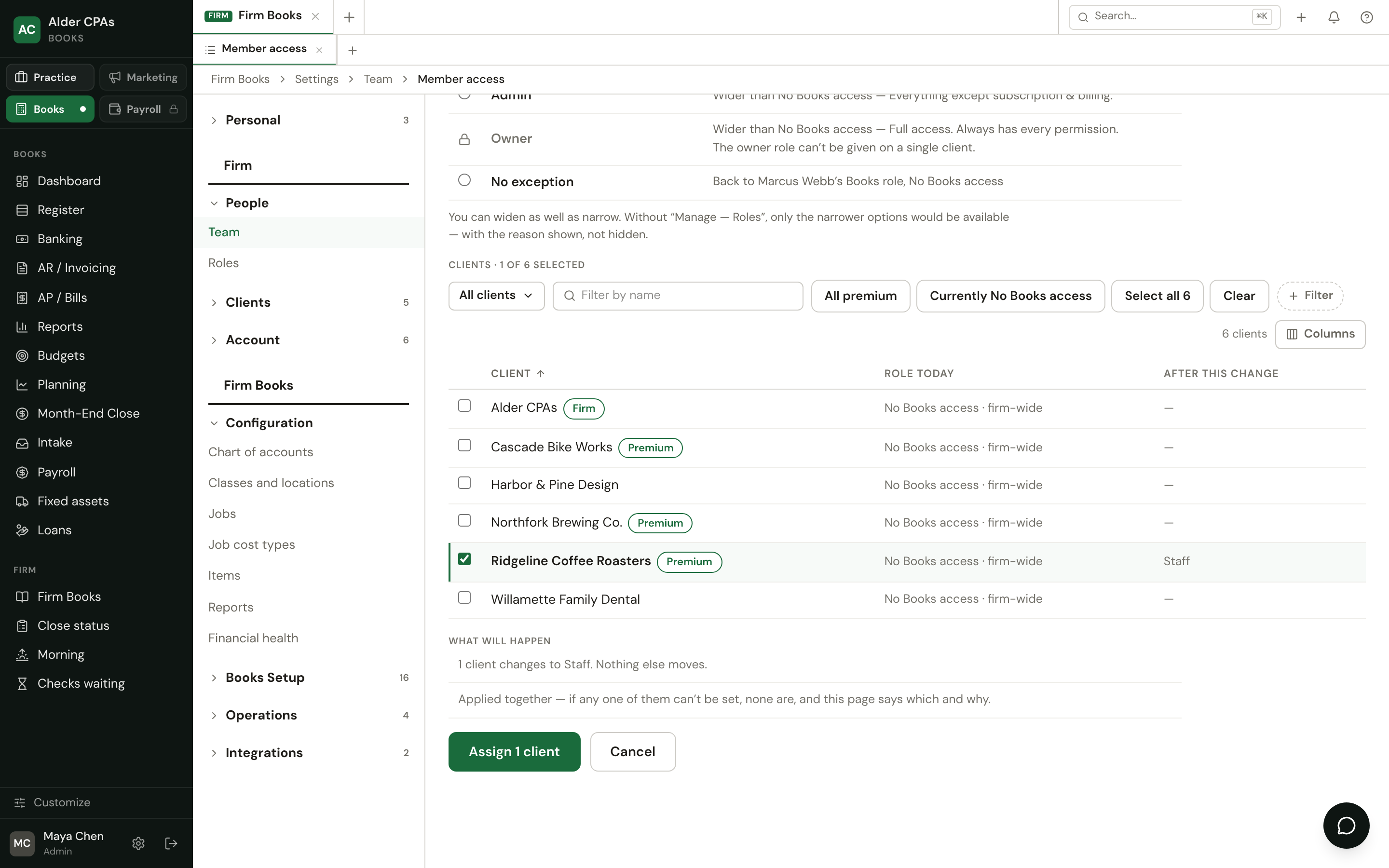 Staff on Ridgeline only: what will happen, before anything is saved
Books confirms with Marcus Webb: 1 client set to Staff. The exception appears under Exceptions, his summary line reads No Books access across the firm, with exceptions on 1 client., and Role today for Ridgeline shows Staff with an Exception pill. The role choice clears, ready for the next change.
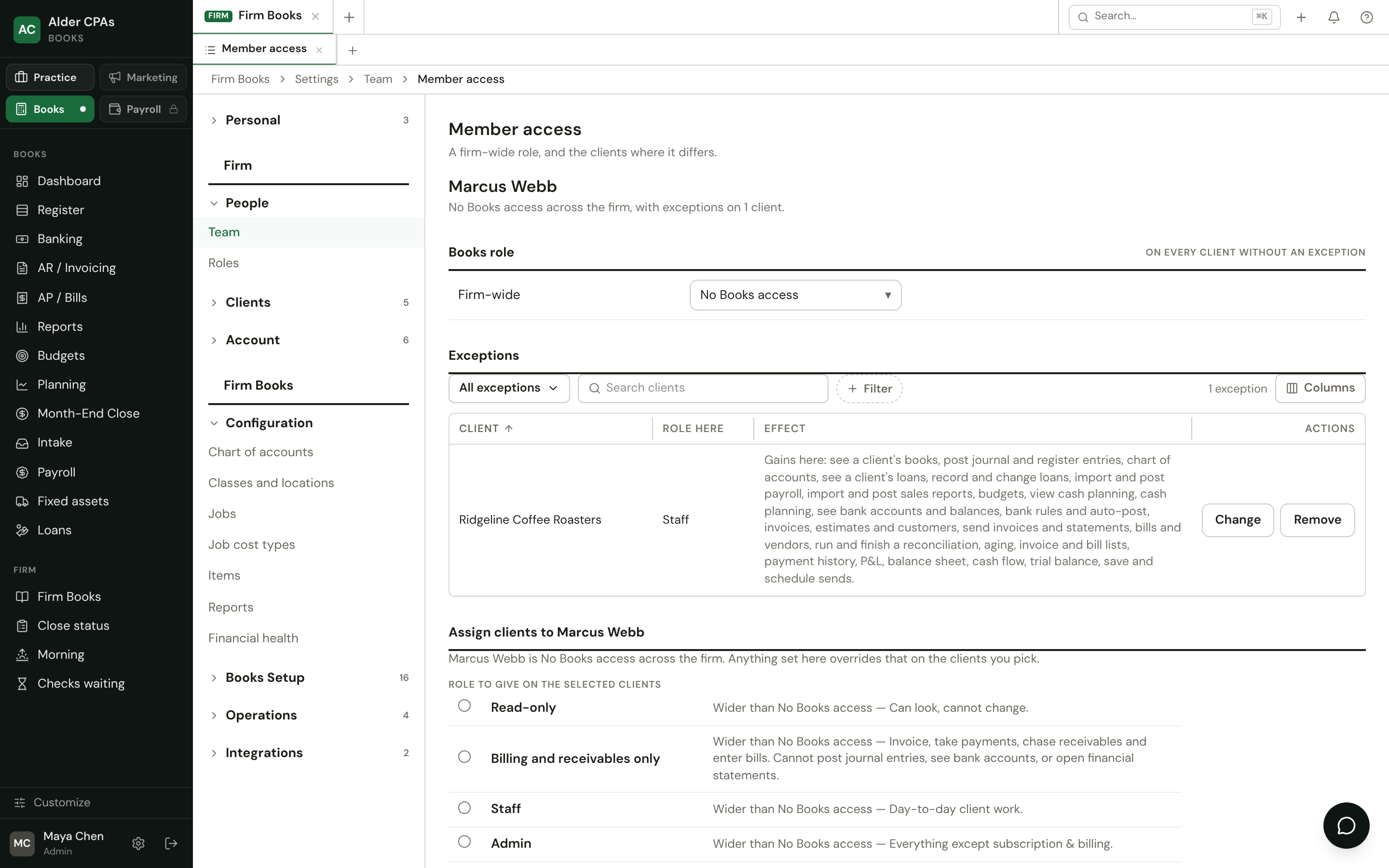 The exception, and what it adds for Marcus on that client
Many clients at once
The same section takes any number of clients. Tick them one by one, or use the buttons above the list: All premium (every client on Premium), Currently No Books access (every client where he has no exception yet), Select all 6 and Clear. Search, filter and sort the list as on any list in Books.
The change is applied together — if any one of them can’t be set, none are, and this page says which and why. You never end up with half the clients changed.
Change or remove an exception
- Change: click Change on the exception. Books ticks that client below, so you only pick the new role and click Assign 1 client.
- Remove: click Remove on the exception, or choose No exception (Back to Marcus Webb’s Books role, No Books access) for the clients you tick. What will happen then reads, for one client with an exception, 1 client goes back to their Books role across the firm. Nothing else moves., and the client goes back to his Books role.
Removing an exception with Remove never asks for a two-step code. If you use two-step sign-in, giving a role, changing a Books role, and any change for several people at once ask for your authenticator code when this sign-in hasn't entered one yet.
See who can work on a client
From the client's settings, Who can work on this client opens Client access: Who can work on this client, and where that comes from.
-
The first line is your own standing on that client, for example You work on this client as Admin, your firm-wide role.
-
Each member’s role on this client lists every active member: Select · Member · Role here · From · Actions. Role here is what they actually have on this client, with an Exception pill where one applies, and a pill when it limits them: Can’t post here, Pending (nobody has chosen a Books role for them) or No Books access.
From says where that role comes from: Books role or Firm-wide where no exception applies, Firm-wide · owner for an owner, and for an exception, how it compares with their Books role, for example No Books access across the firm, widened here (or narrowed here).
-
Add exception opens that person's Member access page; Remove takes an exception away right here.
-
Filter by From, Can post (Posts entries, Can’t post here, Pending, No Books access, Owner) or Role here.
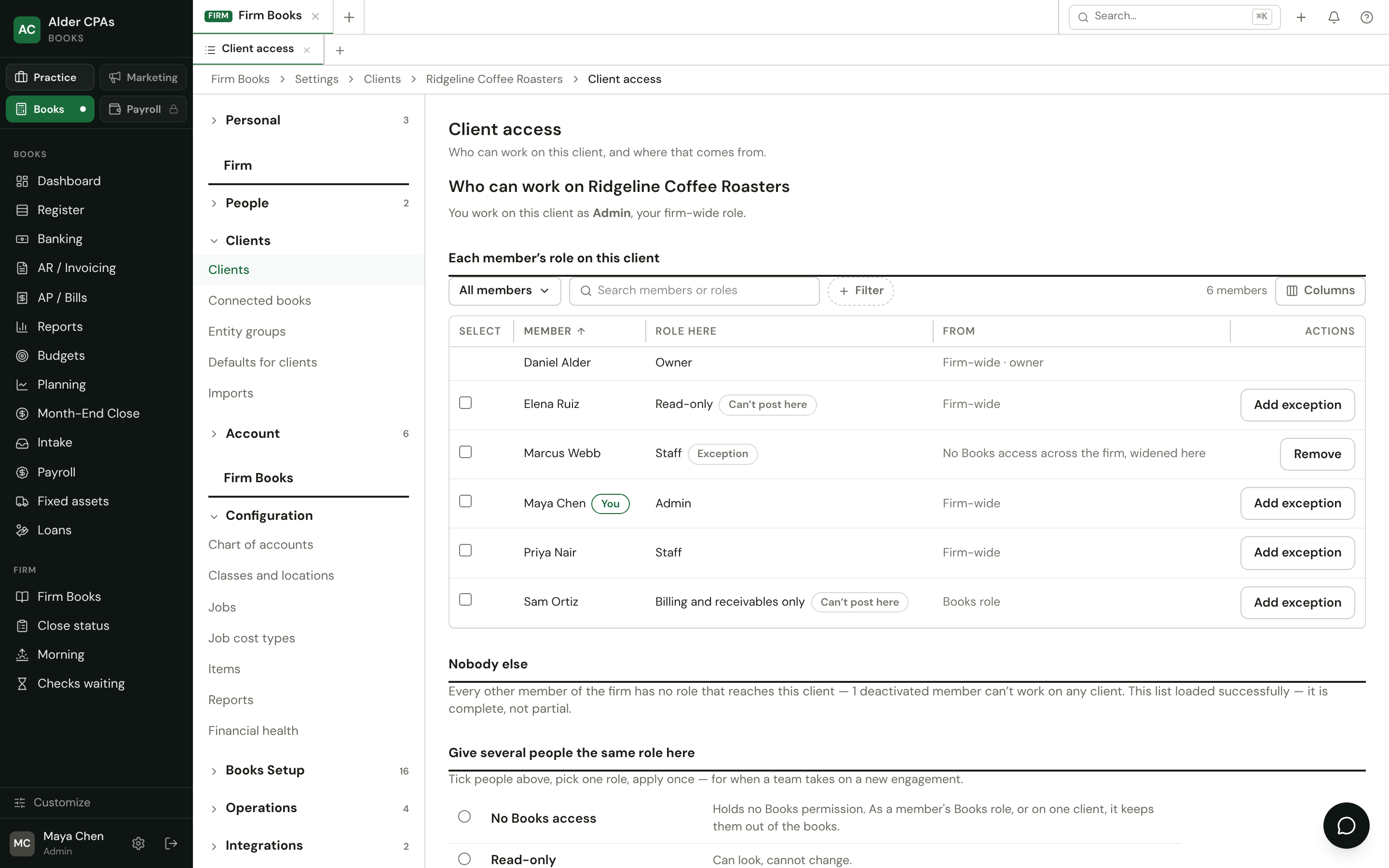 Client access for Ridgeline: Marcus's exception reads No Books access across the firm, widened here
Below the list, Nobody else confirms that every other member has no role that reaches this client, and counts deactivated members, who can't work on any client.
Give several people the same role on one client
When a team takes on a new engagement: tick the people in the list, choose the role under Give several people the same role here, and click Apply to 2 people.
Books asks first and names the consequence, for example Give Priya Nair and Sam Ortiz Staff on Ridgeline Coffee Roasters? — They will work on this client as Staff. Each still works on the other 5 clients as before. It is one change: if any person can't be set, nobody changes. This needs the Manage — Roles permission.
Who can give access, and the narrow-only rule
Changing who can work on a client needs one of two firm permissions: Manage — Team or Manage — Roles. An owner always can, and Admins hold both.
- With Manage — Roles you can give any role except Owner, wider or narrower than the person's Books role.
- With Manage — Team only you can narrow, never widen. Every role wider than their Books role is shown but locked, with the reason on the row: Wider than their Books role, No Books access. Giving a wider role on a client needs the “Manage — Roles” permission. Books checks this again when you click, so a wider role can't slip through.
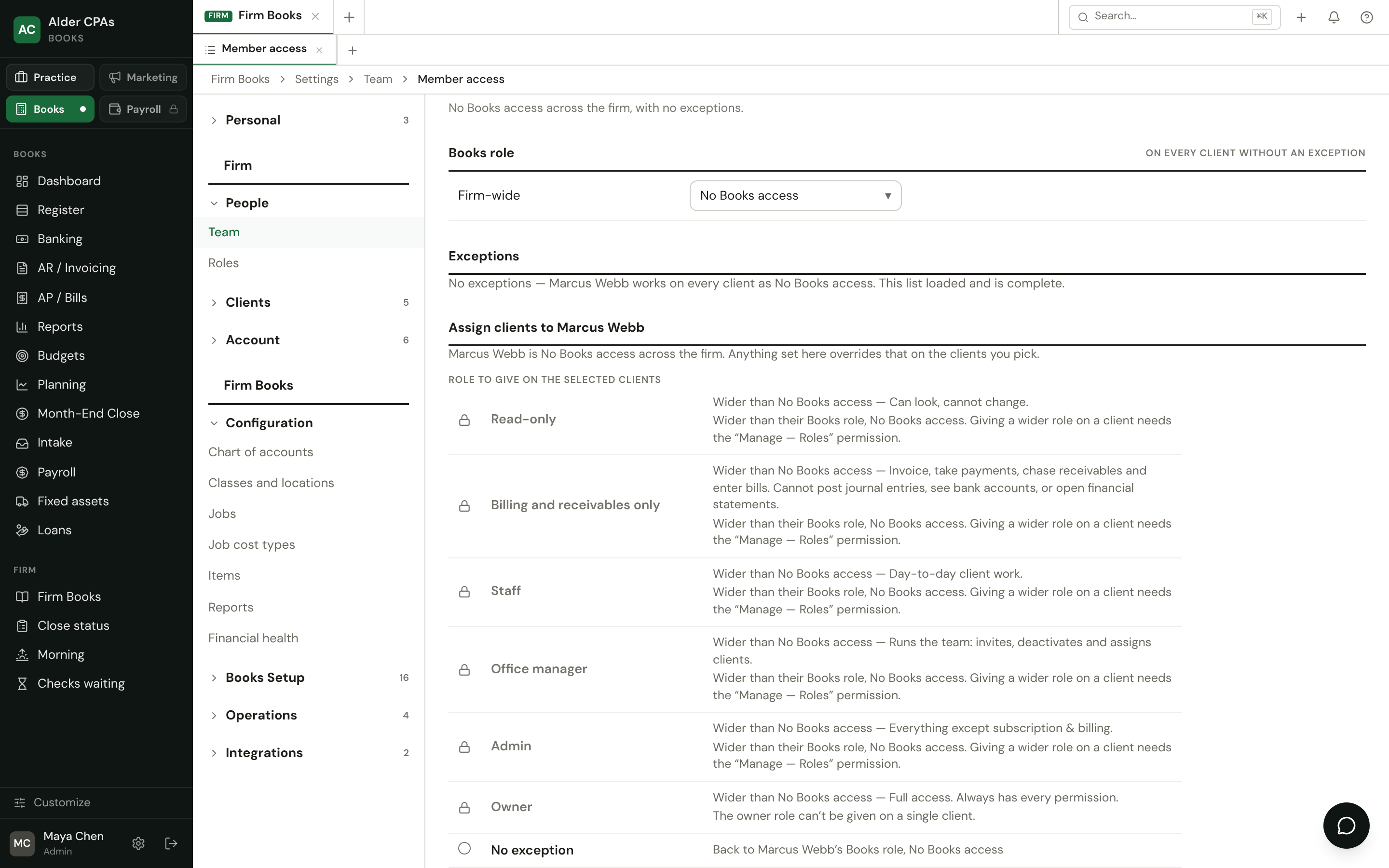 With Manage — Team only, every role wider than Marcus's Books role is locked, with the reason
"Wider" follows the order of the roles on Roles (a role you make sits where you placed it with Sits between). Because Marcus's Books role is No Books access, the lowest, every other role is wider for him.
Delete a role that people hold on clients
A role you made can't be deleted while an active member holds it on a specific client: Books never drops an exception quietly. The Delete dialog on Roles counts the people and the clients, for example 1 person has this role on 2 clients. Change them on each client’s Client access page first; deleting the role is refused until then., and Delete role stays off.
Change or remove those exceptions on each client's Client access page (or on the person's Member access page), then delete the role.
An exception held by a deactivated member isn't listed on Client access, Books refuses a change to it while they're deactivated, and it doesn't hold the delete: the dialog says, for example, 1 deactivated member moves to Staff, as their Books role or on their clients., and when you click Delete role the exception moves to the role you chose under Move to. See Your Team, Roles and Permissions.
Why can't I …
- … change anyone's access? Changing who can work on a client needs the “Manage — Team” or “Manage — Roles” permission, and your role has neither. followed by the names of the people who can.
- … pick that role? It is wider than the person's Books role and you don't hold Manage — Roles. If Books refuses it when you click, it says That role is wider than their Books role — That role is wider than their Books role across the firm, which needs Manage roles. Nothing was applied. — and lists the clients that stayed as they were.
- … give someone Owner on a client? The owner role can’t be given on a single client. Ownership is firm-wide.
- … add an exception for an owner? Daniel Alder is an owner. Owners hold every permission on every client, and an exception never applies to them.
- … give several people a role at once? That needs Manage — Roles: Giving several people a role at once needs the “Manage — Roles” permission. You can still give each person their exception from their own page.
Tips
- Start new people on No Books access. Invite them with No Books access as their Books role (see Your Team, Roles and Permissions), then give them a role on exactly the clients they work on. Nobody sees a client's books by accident.
- Narrow a sensitive client with an exception. No Books access works on a single client too: it keeps one person out of one client's books while everything else stays as it is.
- Check a client before a review. Client access answers "who can touch these books?" in one list, including everyone with no role there.