
Defaults for New Clients
Set the register, accounting, numbering, cash flow and reminder settings every client starts with, see which clients follow them, and change them for all of those clients at once.
On this page
Defaults for clients is where your firm decides how a client's books are set up before anyone touches them: how long account numbers are, which basis reports open on, how invoices are numbered, how the cash flow statement is grouped, and whether customers get payment reminders.
Every new client starts on these values, and every client that hasn't been given its own keeps following them. Change a default here and all of those clients change with it.
A default changes what happens next, never what already happened. As the page says: A change reaches only what happens next: posted documents and closed periods never change. Reports already saved or sent stay as they were, numbers already issued never change, and no client's next number goes down.
How a default reaches your clients
Each client setting that has a firm default is in one of two states, and the client's own Settings page says which beside the control:
- Firm default — the client follows the firm. When you change the default here, this client changes too.
- This client’s own — the setting was changed for that client. The client keeps its value whatever the firm does.
How do new clients get these settings? A client you add starts on the firm's values and follows the firm for each of them. There is nothing to copy or apply. A client that isn't using Books yet carries the firm's register and accounting values too, so it starts from them when Books is turned on.
Does changing a default change existing clients? Yes, for every client that follows the firm. The change reaches them the moment it saves. A client with its own value keeps it.
To give one client its own value, change that setting on the client's Settings page; it becomes This client’s own. To put it back, click Use firm default (…) beside it, which names the firm's value, for example Use firm default (Accrual). See Accounting Settings for a Client.
Understand the page
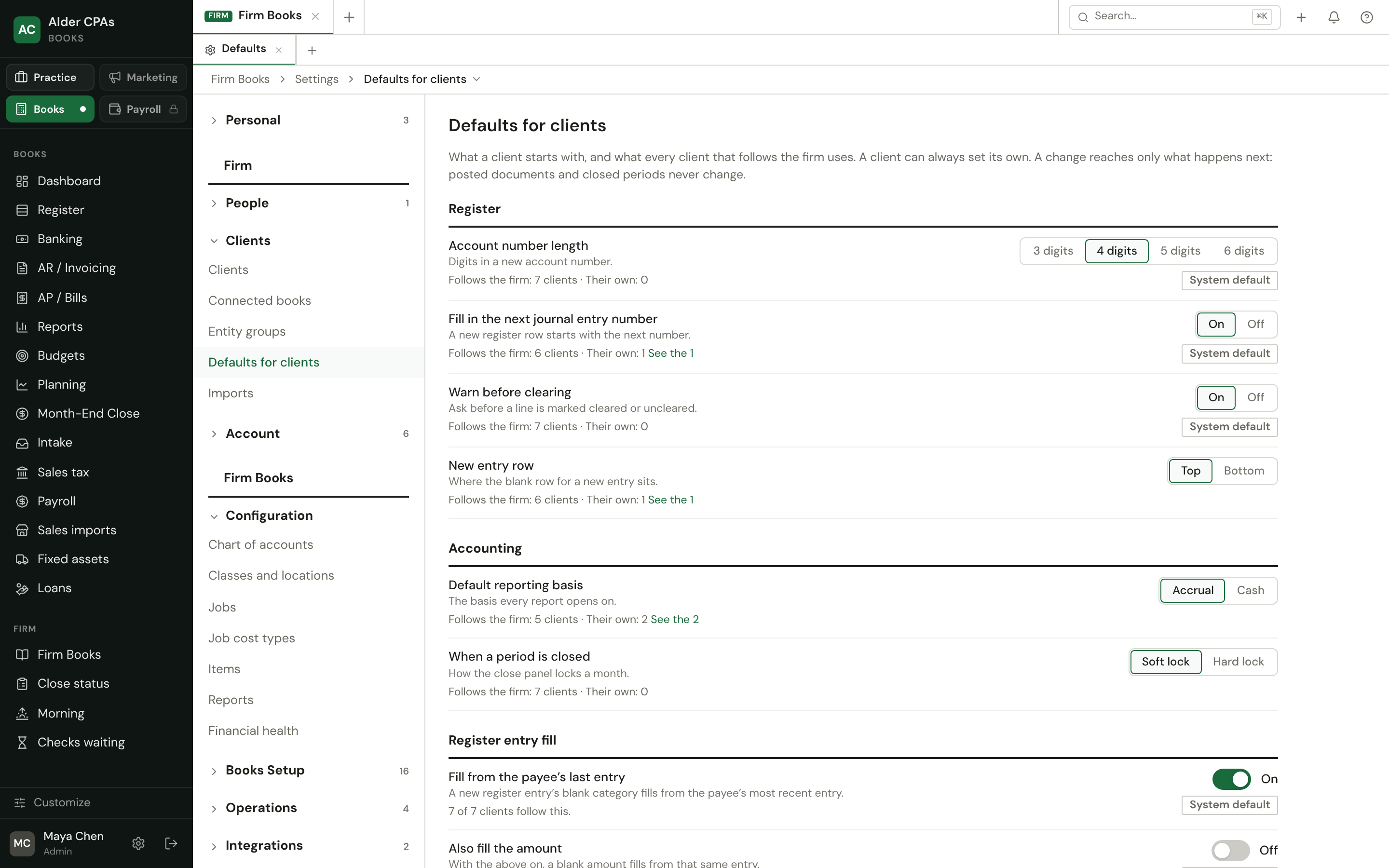 Defaults for clients at Alder CPAs: the Register and Accounting defaults, with who follows each
Most defaults show three things:
- The control, set to the firm's current value.
- Who follows it, such as Follows the firm: 5 clients · Their own: 2. Counts are of your clients that use Books. When any client has its own value, See the 2 lists those clients, each linking to the matching page of that client's Settings.
- System default, when your firm has never set this default and Books' own starting value applies.
A few differ: Register entry fill shows its count as 6 of 7 clients follow this., with no See the N list; Late fee shows no count of its own; and Cash flow sections and Reminders and late fees never show System default.
The page has six headings, in this order: Register, Accounting, Register entry fill, Document numbers, Cash flow sections, and Reminders and late fees.
Register and Accounting
| Default | Choices | What it controls |
|---|---|---|
| Account number length | 3 digits, 4 digits, 5 digits, 6 digits | Digits in a new account number. |
| Fill in the next journal entry number | On · Off | A new register row starts with the next number. |
| Warn before clearing | On · Off | Ask before a line is marked cleared or uncleared. |
| New entry row | Top · Bottom | Where the blank row for a new entry sits. |
| Default reporting basis | Accrual · Cash | The basis every report opens on. |
| When a period is closed | Soft lock · Hard lock | How the close panel locks a month. |
When your firm has never set them, these start at 4 digits, On, On, Top, Accrual and Soft lock.
Register entry fill
- Fill from the payee’s last entry — a new register entry's blank category fills from the payee's most recent entry. Starts On.
- Also fill the amount — with the above on, a blank amount fills from that same entry. Starts Off.
Each line says how many clients follow it, for example 6 of 7 clients follow this. 1 has its own.
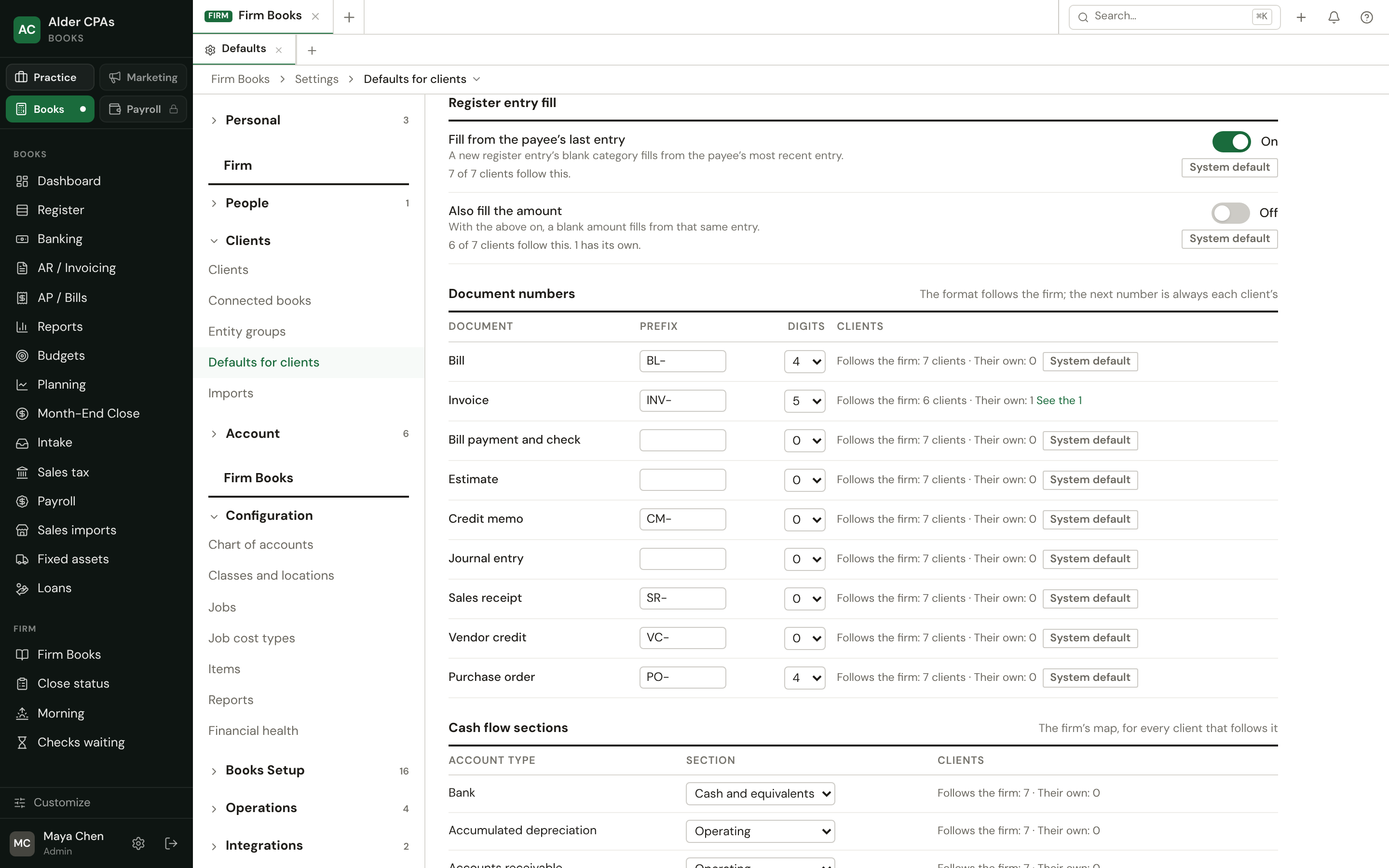 Register entry fill and Document numbers
Document numbers
One row per kind of document: Bill, Invoice, Bill payment and check, Estimate, Credit memo, Journal entry, Sales receipt, Vendor credit and Purchase order. For each, set the Prefix and the Digits (0 to 10). With prefix INV- and 5 digits, invoice 42 reads INV-00042.
As the heading says, The format follows the firm; the next number is always each client’s. Changing a format never renumbers anything already issued, and never moves a client's next number down.
A prefix can be up to 12 letters, digits and the characters - _ / . #, and can't end in a digit.
Cash flow sections
Your firm's map for the Statement of Cash Flows: one row per Account type (Bank, Accounts receivable, Fixed asset, Long term liability and so on), each placed in a Section: Cash and equivalents, Operating, Investing or Financing.
Clients that follow the firm's map group their statements this way. See the 1 lists the clients that set their own section; each name opens that client's Settings → Reports page.
Reminders and late fees
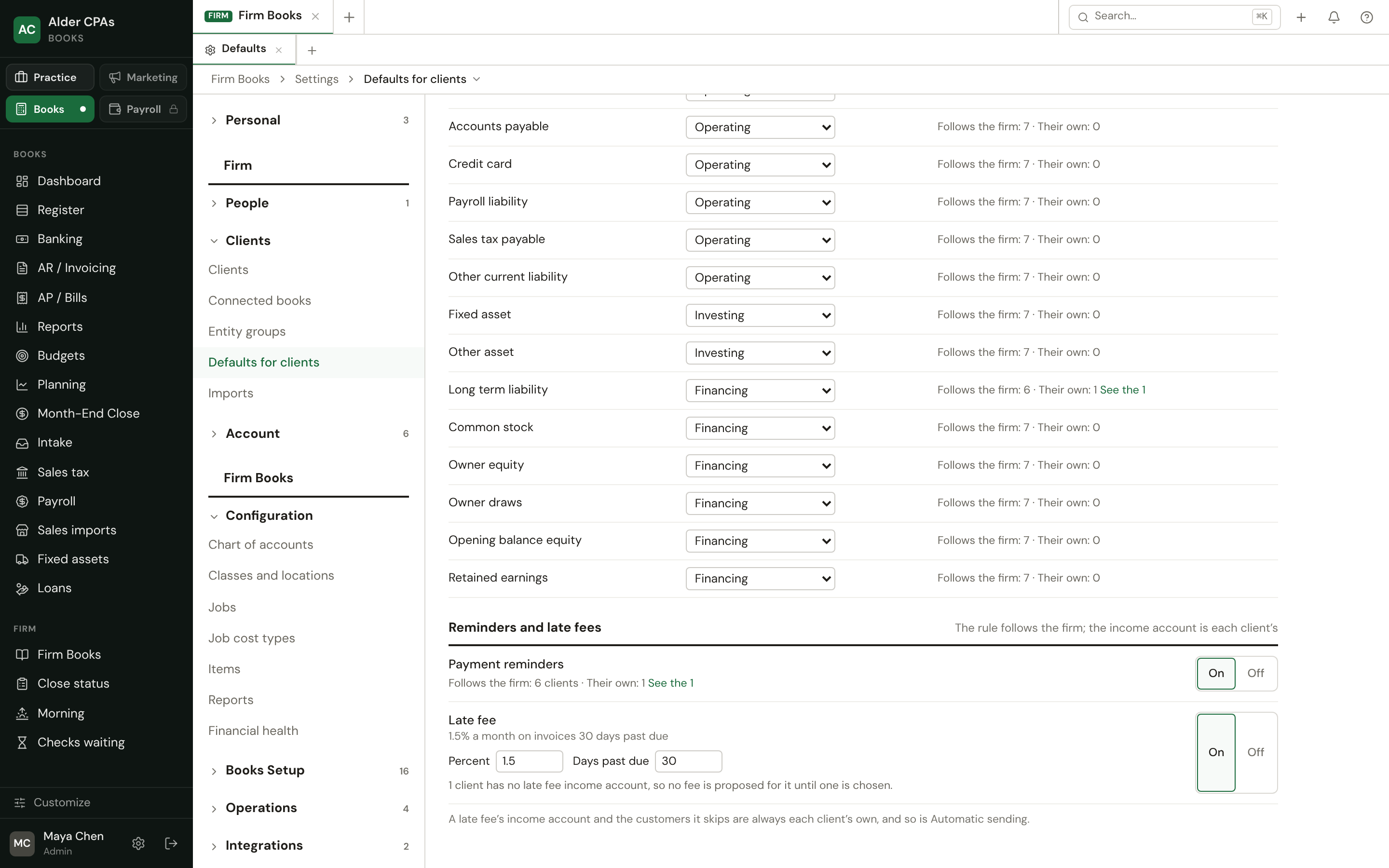 Reminders and late fees, with one client still needing a late fee income account
- Payment reminders — On or Off for every client that follows the firm.
- Late fee — On or Off. When it's on, the line under it reads like 1.5% a month on invoices 30 days past due, and you can change the Percent and the Days past due. Turning it on starts it at 1.5% and 30 days.
The heading says what stays with each client: The rule follows the firm; the income account is each client’s. The note at the bottom adds the rest: A late fee’s income account and the customers it skips are always each client’s own, and so is Automatic sending.
If the late fee is on and a client that follows the firm has no late fee income account chosen yet, the page says so, for example 1 client has no late fee income account, so no fee is proposed for it until one is chosen. Choose the account on that client's Settings → Reminders and late fees.
Change a default
- Open Settings → Clients → Defaults for clients from your firm view.
- Click the value you want, pick it from the list, or type it and leave the box. There is no Save button: the change saves as you make it, and Books shows Saved.
- Read the line that appears under the default. It says how many clients follow the firm for that default and how many keep their own, for example Changed just now. Applies to 5 clients that use the firm default. 2 have their own and keep it. Reports already saved or sent are not changed.
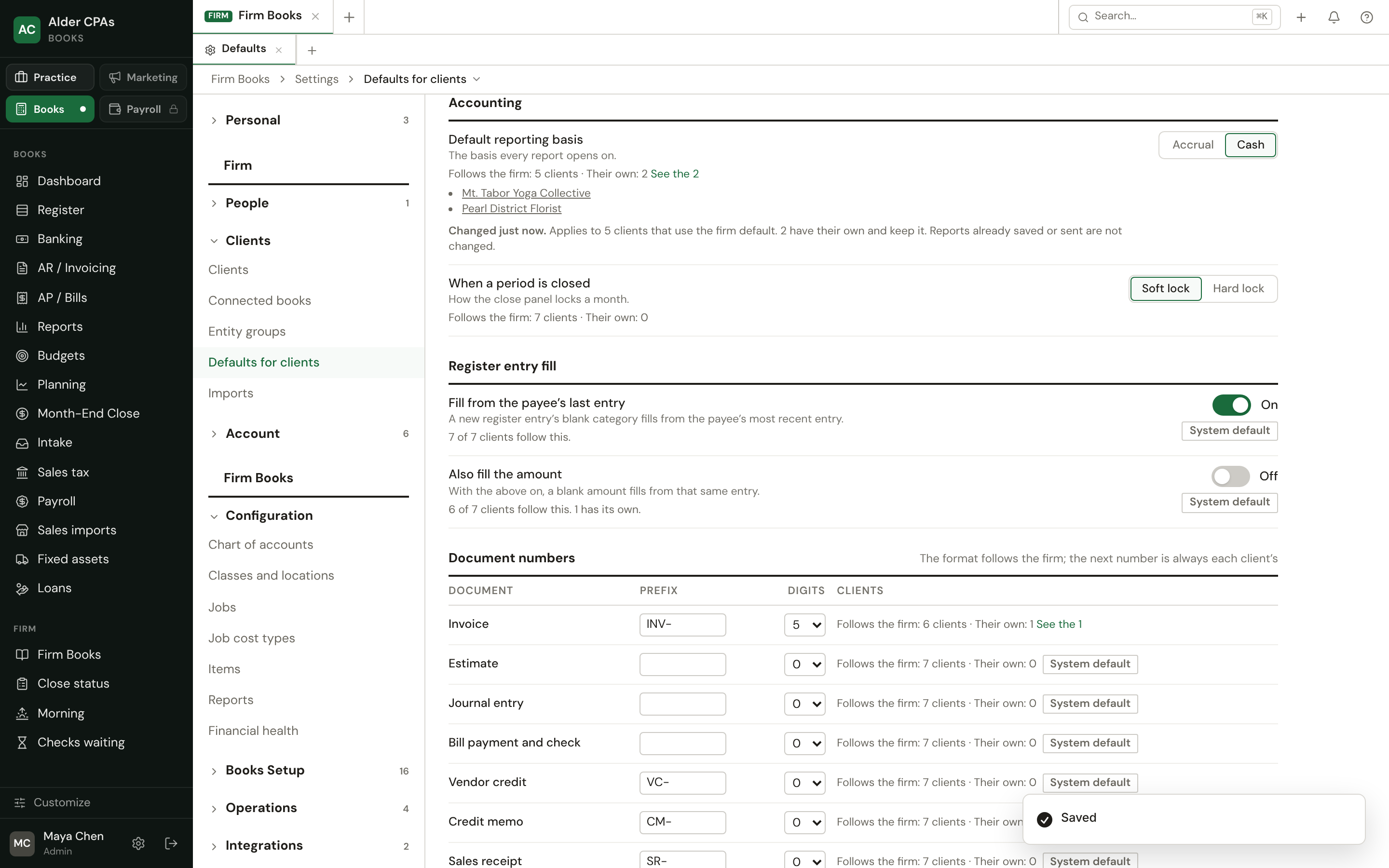 The default reporting basis changed to Cash, with what it reached and the two clients that keep their own
The last sentence of that line fits what you changed: for the register and accounting defaults it is the one about reports, for document numbers it reads Numbers already issued never change, and no next number goes down., for cash flow sections Statements already saved or sent are not changed., and for reminders Invoices already sent and fees already saved are not changed., followed by a note when a client has no late fee income account. (Register entry fill shows only Saved.)
Why can't I change a default?
- You need the "Settings — Firm" permission to change a firm default. Ask an admin to grant it. Shown under Register entry fill. Changing any default here needs your role to hold the Settings — Firm permission.
- You need the "Books settings and account mappings" permission for this. Ask an admin to grant it. A register, accounting or document number default reaches every client that follows the firm, and you need this permission on each client the change would actually alter. If you lack it on even one, nothing is changed. For the reminder rule, the permission named is Invoices, estimates and customers.
- A prefix is refused. Books refuses a prefix that is longer than 12 characters, uses other characters, or ends in a digit.
- A late fee is refused. The percent must be from 0.01 to 25, and the days past due from 0 to 365.
- A business using Books on its own has no defaults for clients: its settings are its own, under Settings. Your firm keeps only its own books, so there are no clients to set defaults for. Change each setting directly in Settings.
Undo a change
There is no undo button, but every default can be set back the same way it was changed: click the earlier value, and the line under it says again what that reached. (Register entry fill shows only Saved.) Clients with their own value are never touched either way.
To undo the effect on one client only, give that client its own value on its Settings page.
Tips
- Change a default whenever you need to. Because clients follow the firm, you can set or change a default at any time; it reaches every client that follows it.
- Use "See the N" to find the exceptions. It lists exactly which clients have their own value, and each name opens the setting on that client's page, where Use firm default brings it back in line.
- Read the "Changed just now" line. It says how many clients follow the firm for that default and how many keep their own.