
Firm Details
Keep your firm's legal name, website, phone and mailing address up to date, and see why a field may be read-only for you.
On this page
Firm details is your firm's own profile: its legal name, website, phone and mailing address. These are the details LedgerOS uses wherever it names your firm, and bank connection registration uses your legal name, website and address, so it pays to keep them current.
Each field saves on its own. There is no Save button: change a field and leave it (or press Enter), and Books saves it and shows Saved. A value Books can't accept is never saved: what you typed stays in the box, outlined in red, with a message under it that says what Books expects. Fix it and leave the field again.
Understand the page
Firm details is a page of your firm's settings, not of any client's. A client's own name and address live on the client's profile, and the name and address printed on a client's invoices and statements are on that client's Settings → Business details. On your firm's own books, Business details starts from these firm details; typing over a value there changes only what your firm's invoices and statements print.
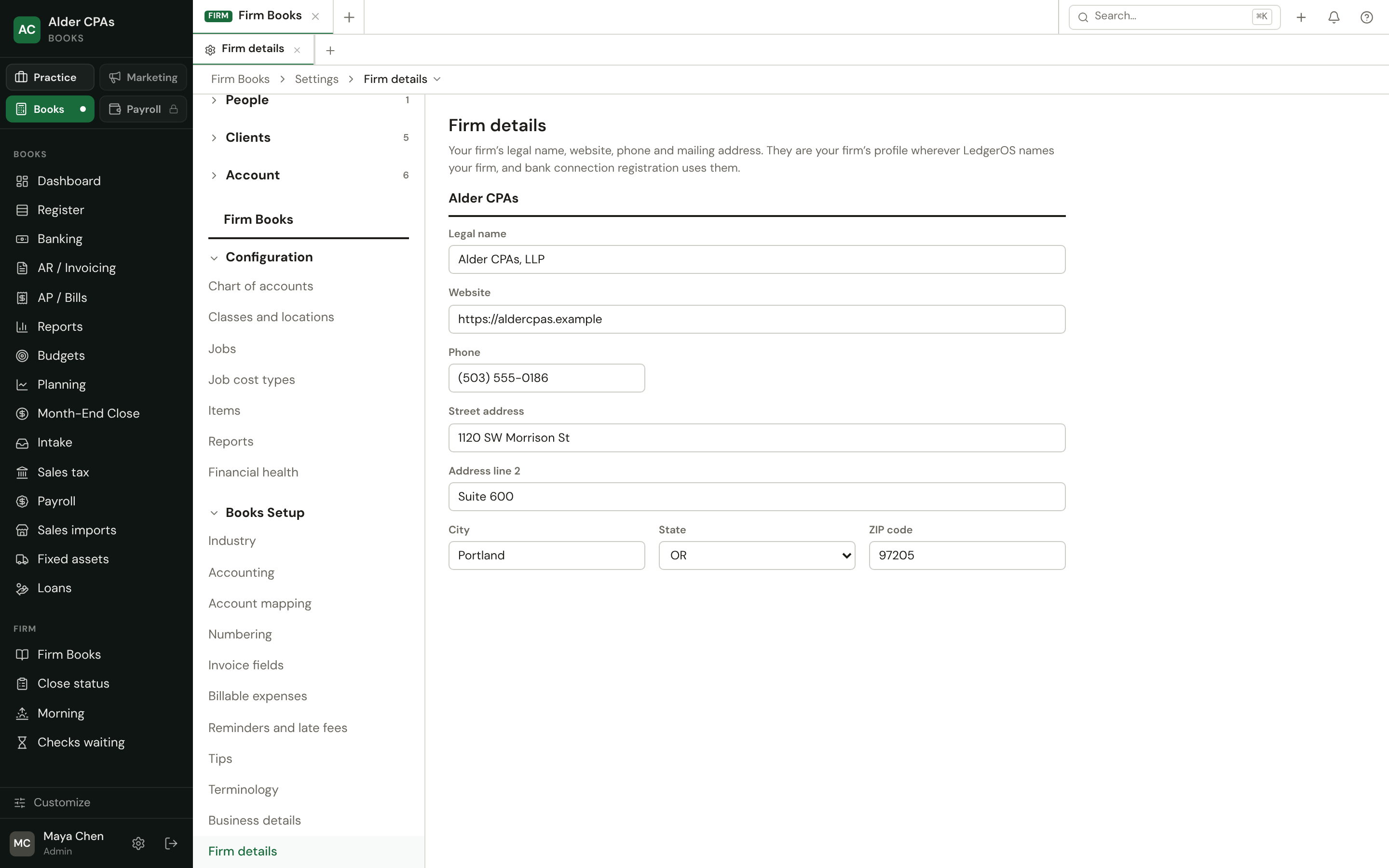 Firm details for Alder CPAs
Under your firm's name, the page has these fields, in this order:
| Field | What to enter | What Books does with it |
|---|---|---|
| Legal name | Your firm's legal name, if it differs from the name you go by (for example, Alder CPAs, LLP). | Saved as you typed it. |
| Website | Your firm's web address. | A bare address such as aldercpas.example is saved as https://aldercpas.example, and the field shows it that way. |
| Phone | A 10-digit US number, typed any common way. | Saved and shown as (503) 555-0186. A leading 1 is dropped. |
| Street address and Address line 2 | Your mailing address, with any suite or floor on the second line. | Saved as you typed it. |
| City | Saved as you typed it. | |
| State | Pick the two-letter code (for example OR) from the list of the 50 states and DC, or Not stated. | Saved as soon as you pick. |
| ZIP code | Five digits, or ZIP+4 such as 97205-1234. | Saved as you typed it. |
Books trims spaces from the start and end of what you type. Clearing a field and leaving it removes that detail.
The firm's name at the top of the page is shown here but not changed here.
Change your firm's address
- Open Settings → Books Setup → Firm details from your firm view.
- Click Street address and type the new street address. Press Tab to move on; the field saves as you leave it.
- Update Address line 2, City and ZIP code the same way, and pick the State.
- Watch for Saved after each field. If a message appears instead, see Why won't Books save what I typed?
A field can also save by itself while you pause in it. Pausing never costs you your place: the field keeps your cursor and everything you typed, and whatever you add after the pause saves when you leave the field. A ZIP code or phone number saves on a pause only once it is complete, so you can stop after the dash of a ZIP+4 and finish it.
Why can't I change these details?
When you can't change them, the fields are read-only and a line above them says why:
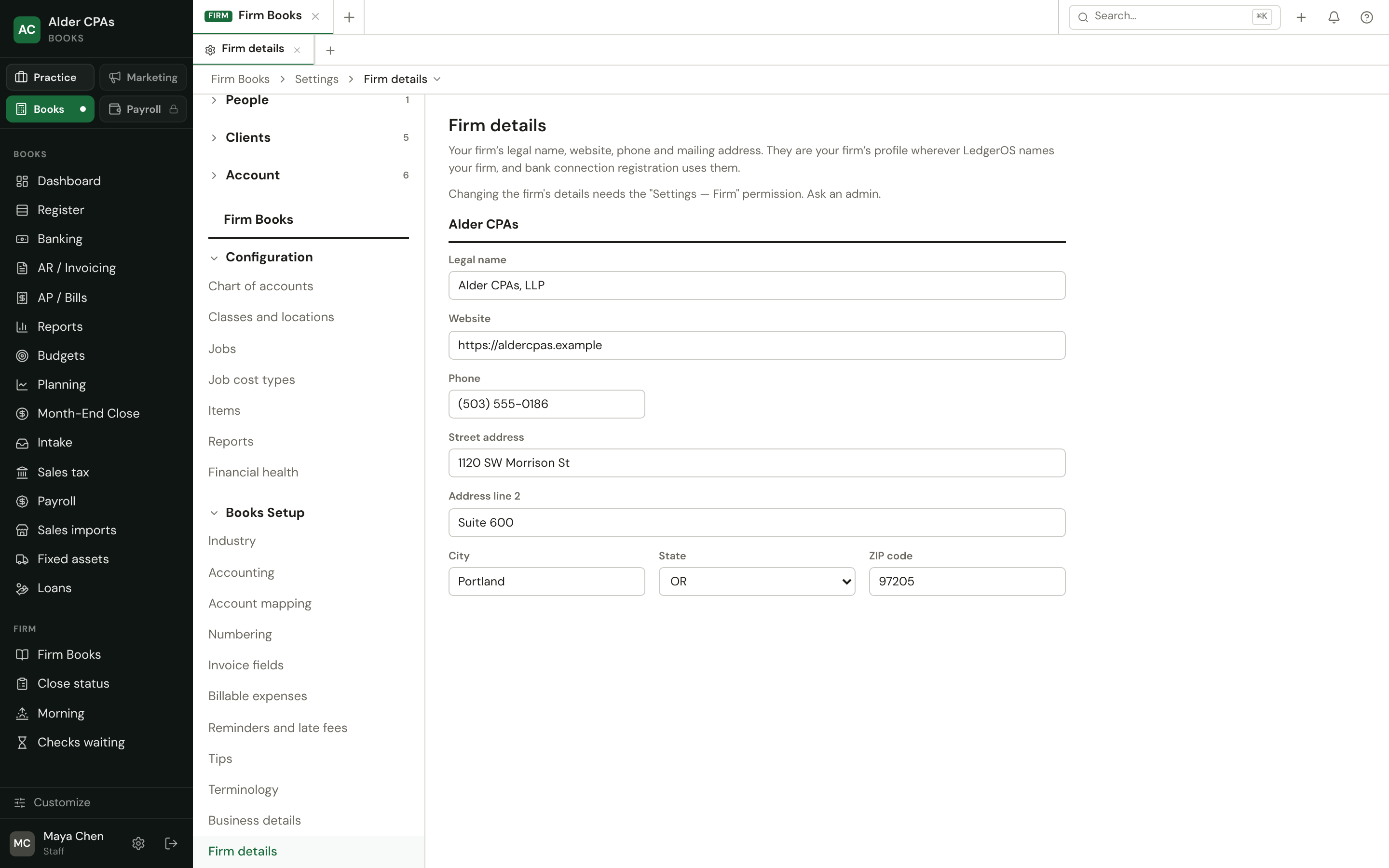 Firm details read-only, with the reason above the fields
- Changing the firm's details needs the "Settings — Firm" permission. Ask an admin. Your role doesn't include that permission. An owner or admin can give it to you, or make the change themselves.
- Support access can read the firm's details but not change them. You are signed in with support access to this firm, which can read but never change the firm's details.
Why won't Books save what I typed?
Books checks each field when it saves. When a value doesn't fit, nothing is saved: what you typed stays in the box, outlined in red, and the message under it (and in a notice at the bottom of the screen) tells you what Books expects. Your firm's details keep their last saved value until you enter one Books accepts. As soon as you type in the box again, the message goes away:
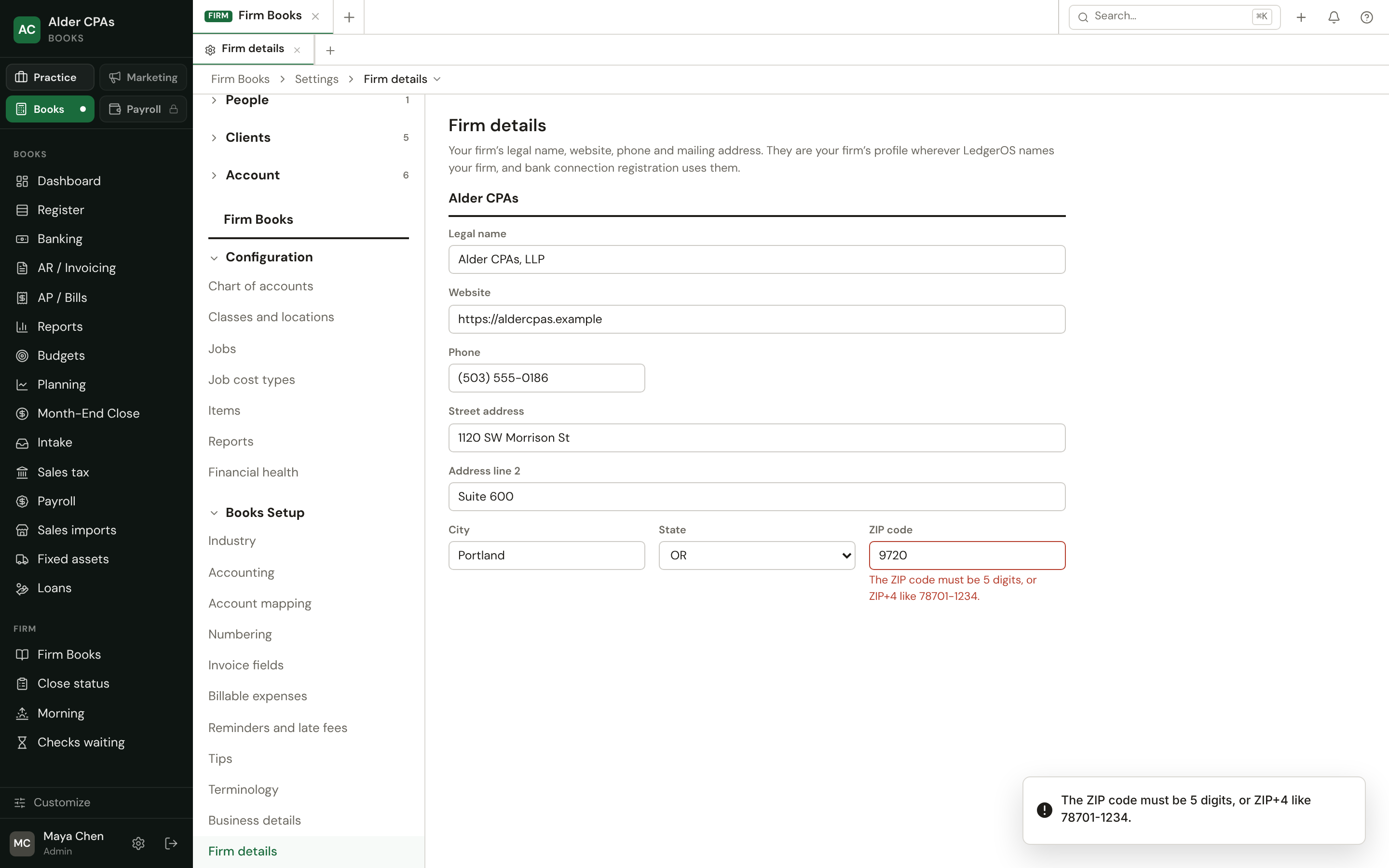 Books refusing a four-digit ZIP code
| What you see | What to do |
|---|---|
| The website must be a web address, like https://yourfirm.com. | Type the address the way it appears in a browser's address bar, such as aldercpas.example or https://www.aldercpas.example. |
| The phone must be a 10-digit US number, like (512) 555-0142. | Enter all 10 digits, with or without a leading 1. Use only digits, spaces, parentheses, dashes, dots and +. Extensions and letters aren't accepted. |
| The ZIP code must be 5 digits, or ZIP+4 like 78701-1234. | Enter five digits, or five digits, a dash and four digits. |
| The street address is longer than 200 characters. (or the legal name, website, address line 2 or city) | Shorten it. Each field holds up to 200 characters. |
If the page doesn't load
If the details can't be read, the page says so in place of the fields, with a Retry button. If it says You don’t have access to this. You do not have access to this firm., there is no Retry, because trying again won't change the answer: your account is not an active member of this firm, or this sign-in hasn't finished a second step the firm requires of you. Sign in again, or ask an owner or admin to check your membership.
If your firm also uses Practice
Your firm has one profile, and Practice shows it too. In Practice, Settings → Firm details holds these same details (there the street address is Address line 1 and the ZIP code is Postal code), so a change made in either product is the change your whole firm sees.
Practice saves them through the same checks as Books, so a value Books refuses is refused there too, with the same message. That page also keeps the rest of your firm's profile in one place:
- your Firm name,
- your Entity type and EIN (your firm's federal employer ID),
- your firm's Timezone and Fiscal year start month,
- how individual clients' names are shown, and what your firm calls a multi-task job.
Practice describes these details as how your firm appears on invoices, engagement letters and emails.
Tips
- Type the shortest form. Books fills in the rest:
aldercpas.examplebecomes a full web address, and503.555.0186or1 503 555 0186becomes (503) 555-0186. - Leave a field to save it. Tab from field to field and each one saves as you go. Enter saves the field you are in.
- Take your time. A pause in the middle of a word never moves you out of the field or loses what you type next.
- Check the read-only line first. If the fields don't respond, the line above them says why: which permission you need, or that you are signed in with support access.