
Your Team, Roles and Permissions
Invite people to your firm, choose what each person can do at the firm and in your clients' books, and build roles of your own from the permissions Books enforces.
On this page
Everyone at your firm has two answers to "what can they do?" Their role at the firm decides firm work: inviting people, changing firm settings, adding clients.
Their Books role decides what they can see and do inside your clients' books: posting, reconciling, invoicing, reports. This article covers both: the team list, inviting someone, the built-in roles, and roles you build yourself. To give someone a different role on just one client, see the companion article, Give Someone Access to One Client.
The firm role and the Books role are separate on purpose. A person can be Staff at the firm (they add and edit clients) and still have No Books access, or be Read-only at the firm and post in the books. When Books decides whether someone may post to a client, it reads their Books role, unless that client has an exception for them (a member with no Books role set follows their role at the firm). An owner always has every permission, everywhere.
Understand the Team page
Members lists everyone at the firm. The columns are Name · Email · Role · Joined · Per-client exceptions · Actions.
- Name carries a You pill on your own row and a Deactivated pill on anyone who can no longer sign in.
- Role is the role at the firm. Owners and admins see a menu here to change it; everyone else sees the role as text.
- Per-client exceptions says None, 1 client or the number of clients where this person works on a different role. Click it to open their access page. A Books pending pill means their role holds no Books permission and nobody has decided yet (see below).
- Search with Search name, email or role, and narrow the list with the Role, Status (Active / Deactivated) and Joined filters.
Pending invites lists invitations nobody has accepted yet: Email · Role · Expires · Actions. An invitation whose email bounced shows a Bounced pill beside the address; hover it for why.
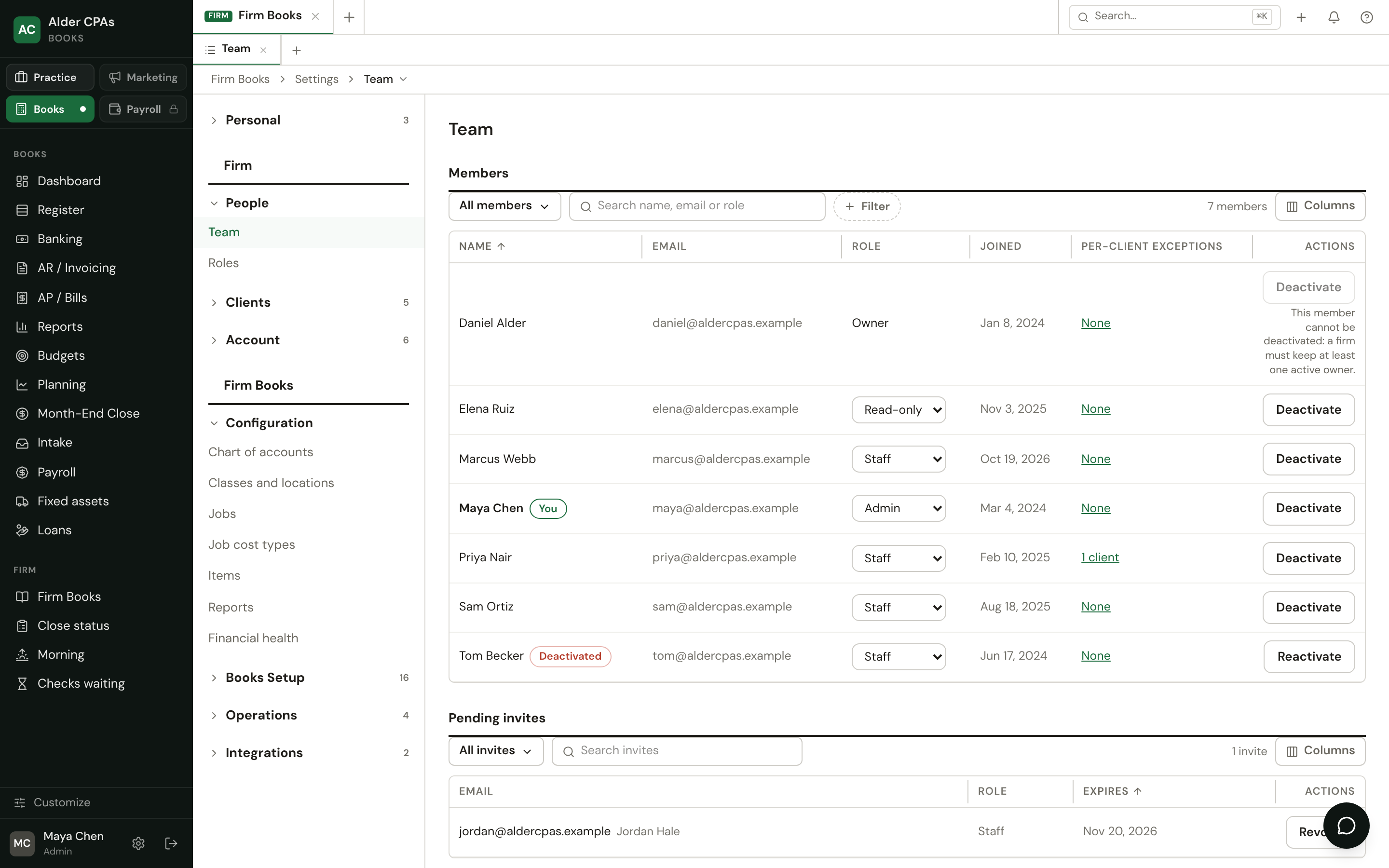 The Team page: members, their roles and per-client exceptions, and a pending invite
Inviting, changing roles, deactivating and revoking are for owners and admins. Anyone else sees the roles as text and those buttons turned off, with Inviting, changing roles and deactivating members is an owner or admin action.
Invite someone
- Under Invite, click Invite someone.
- Enter their Email, and a Name (optional).
- Choose their Role at the firm: Admin, Staff or Read-only. The line under it says what each means: an admin invites people and changes firm settings, staff can add and edit clients, read-only can do neither.
- Choose their Books role. Books marks the built-in role with the same name as their firm role recommended and picks it for you; you can choose any Books role, including No Books access.
- Click Send invitation.
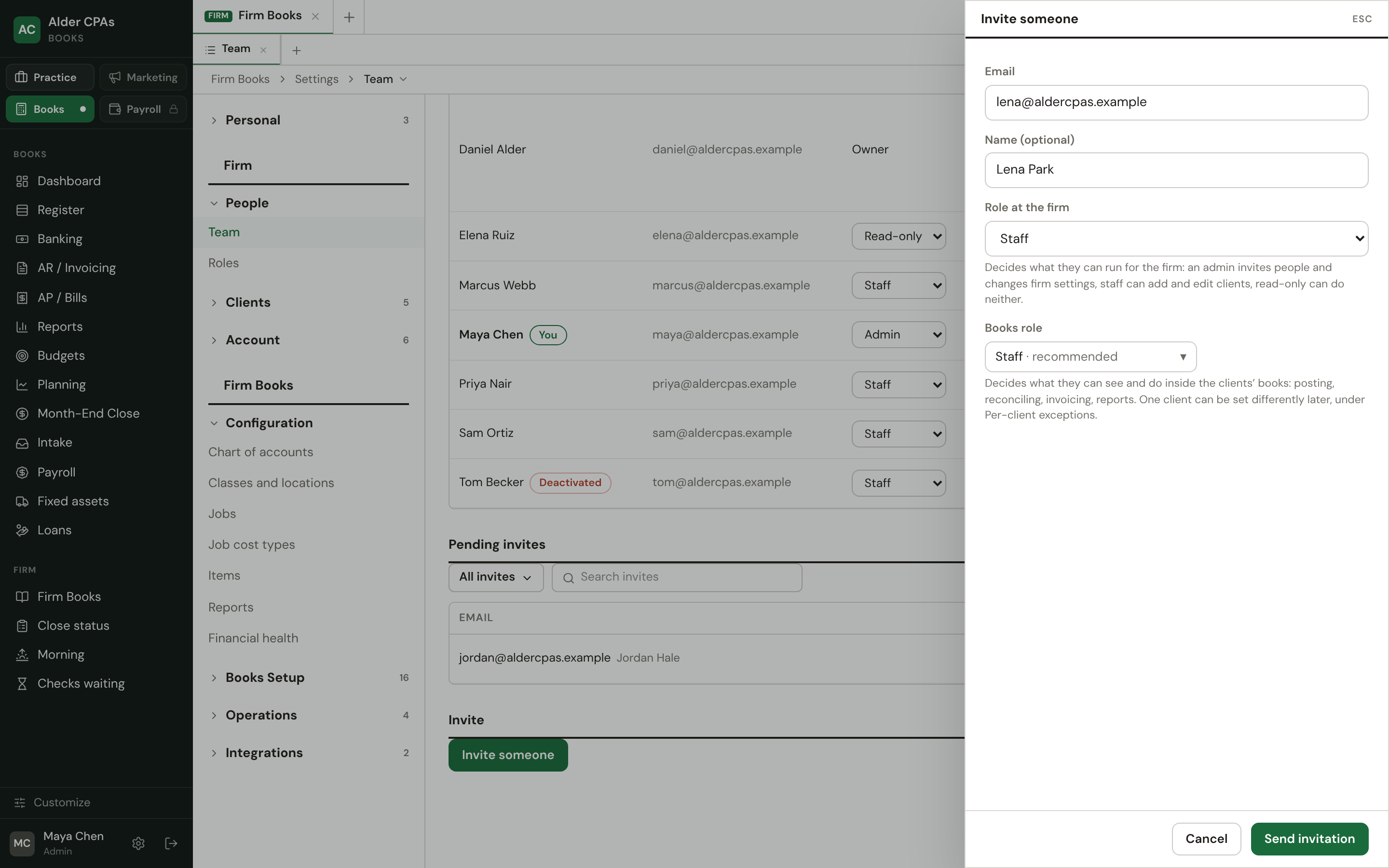 Inviting someone: their firm role, and the Books role Books recommends for it
The page then says An invitation is on its way to lena@aldercpas.example. The invitation is good for 14 days, and its Expires date shows under Pending invites.
- If the email could not be sent, the page says The invitation is recorded, but the email did not go out: with the reason, followed by the Invite link so you can pass it on yourself.
- If that address already has an invitation waiting, nothing new is sent and the page offers Resend. A resend says The invitation was sent again with a new link. The old link no longer works.
- To take an invitation back, click Revoke: The link in their email stops working. You can invite them again later.
Change someone's role at the firm
Pick the new role in the Role menu on their row. It saves at once, and Books confirms with, for example, Priya Nair is now staff.
The owner's row has no menu. Hover it: Ownership is not granted from here. It moves only through an ownership transfer, and a firm keeps exactly one owner.
To change someone's Books role, open their access page from Per-client exceptions and use the Books role menu at the top. Changing a Books role needs the Manage — Roles permission.
Deactivate or reactivate someone
Members are deactivated, not deleted, so their work stays theirs. Click Deactivate on their row:
They lose access on their next request. Their work, assignments and history stay. You can reactivate them later.
Reactivate brings them back: They can sign in and work in the firm again, with the role shown. A firm always keeps one active owner, so the last owner's Deactivate is turned off, with the reason under it.
If you use two-step sign-in, inviting or resending, reactivating someone, changing someone's role or Books role, creating, editing or deleting a role, changing what a role can do, and giving someone a role on a client ask for your authenticator code when this sign-in hasn't entered one yet. Deactivating, revoking an invitation and removing an exception don't ask.
The roles and what each can do
Roles (beside Team, once your firm has a second member) lists every role: Role · Description · Members · Permissions · Actions. The line above the list counts them, for example 6 built-in · 0 custom · counts are of the 37 permissions that govern something here, and each role's Permissions reads the same way: Staff holds 21 of 37.
Members is the number of active people who hold the role, as their role at the firm or as their Books role. Someone who is Staff at the firm with No Books access as their Books role counts under both.
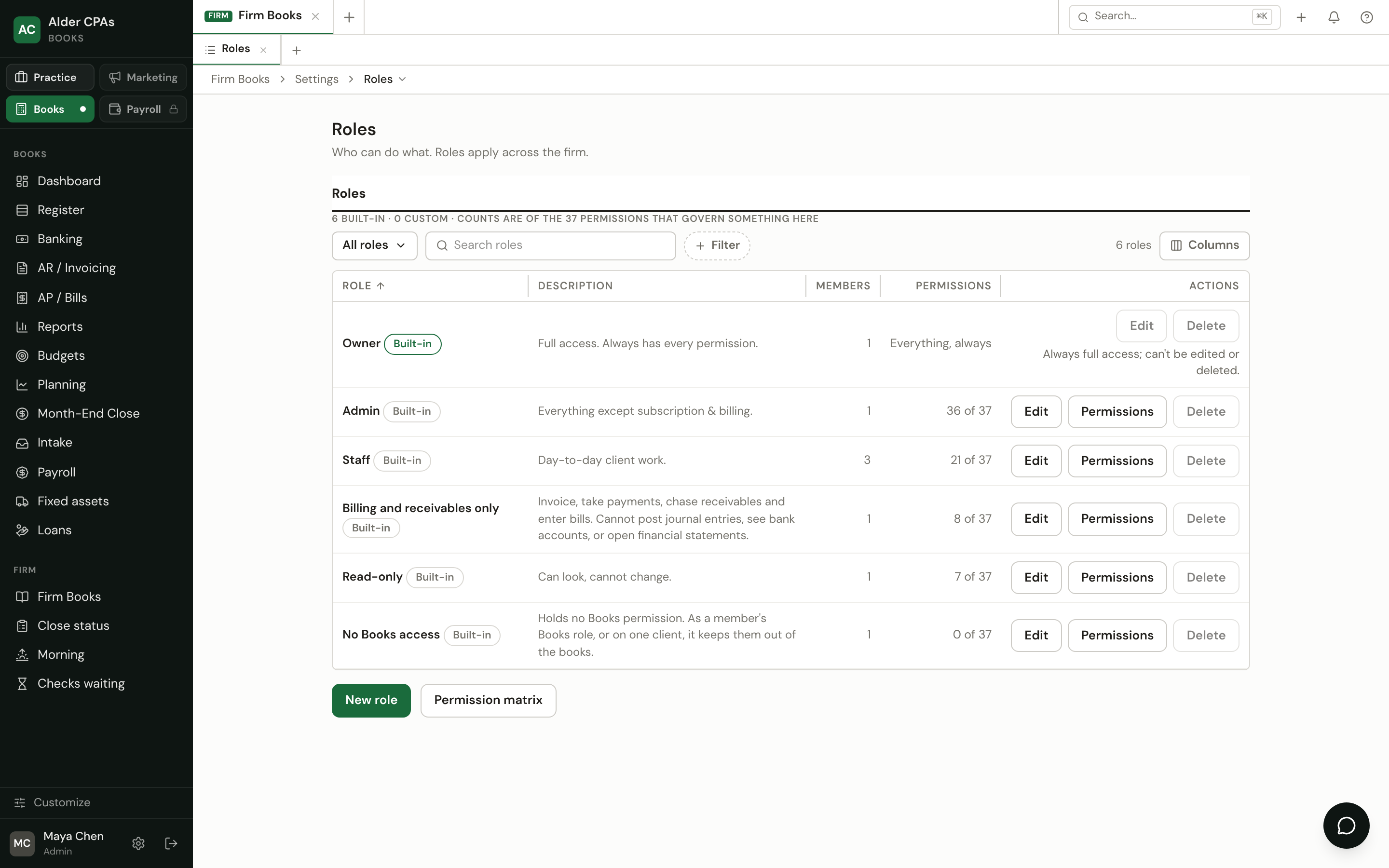 Roles: each role's permissions, counted out of the permissions your firm is shown
Every firm starts with these built-in roles:
Owner — Full access. Always has every permission.
Out of the box: Everything, always. Can't be edited or deleted.
Admin — Everything except subscription & billing.
Out of the box: every permission except Print checks with the stored signature (36 of 37).
Staff — Day-to-day client work.
Out of the box: sees and posts in the books, reconciles, runs the chart of accounts, rules, invoices and bills, reports, loans, payroll and sales imports, budgets and cash planning, plus View — Clients and Edit — Clients (21 of 37). Not: void, lock or reopen a period, pay bills, apply payments, approve invoices, connect bank feeds, migrations, Books settings, sales tax rates, a client's plan.
Billing and receivables only — Invoice, take payments, chase receivables and enter bills. Cannot post journal entries, see bank accounts, or open financial statements.
Out of the box: sees the books (no bank accounts or statements), invoices, sending, applying payments, bills and vendors, the aging and payment lists, viewing cash planning (8 of 37).
Read-only — Can look, cannot change.
Out of the box: sees the books, bank balances, loans and cash planning, the financial statements, and the aging, invoice and bill lists (7 of 37).
No Books access — Holds no Books permission. As a member's Books role, or on one client, it keeps them out of the books.
Out of the box: nothing (0 of 37).
A firm can change what any role except Owner holds, so treat each "Out of the box" line as the starting point and the Permissions page as the truth.
The Permissions page
Click Permission matrix under the list, or Permissions on a role's row. Each permission is a row and each role a column, grouped as Books groups them: Closing the books, Money in, Money out, Reports, Setup, The bank and The books.
Switch between Books and Platform (the firm-level permissions such as Manage — Team and Manage — Roles); the line on the right says Showing 31 of 37 · the rest are Platform.
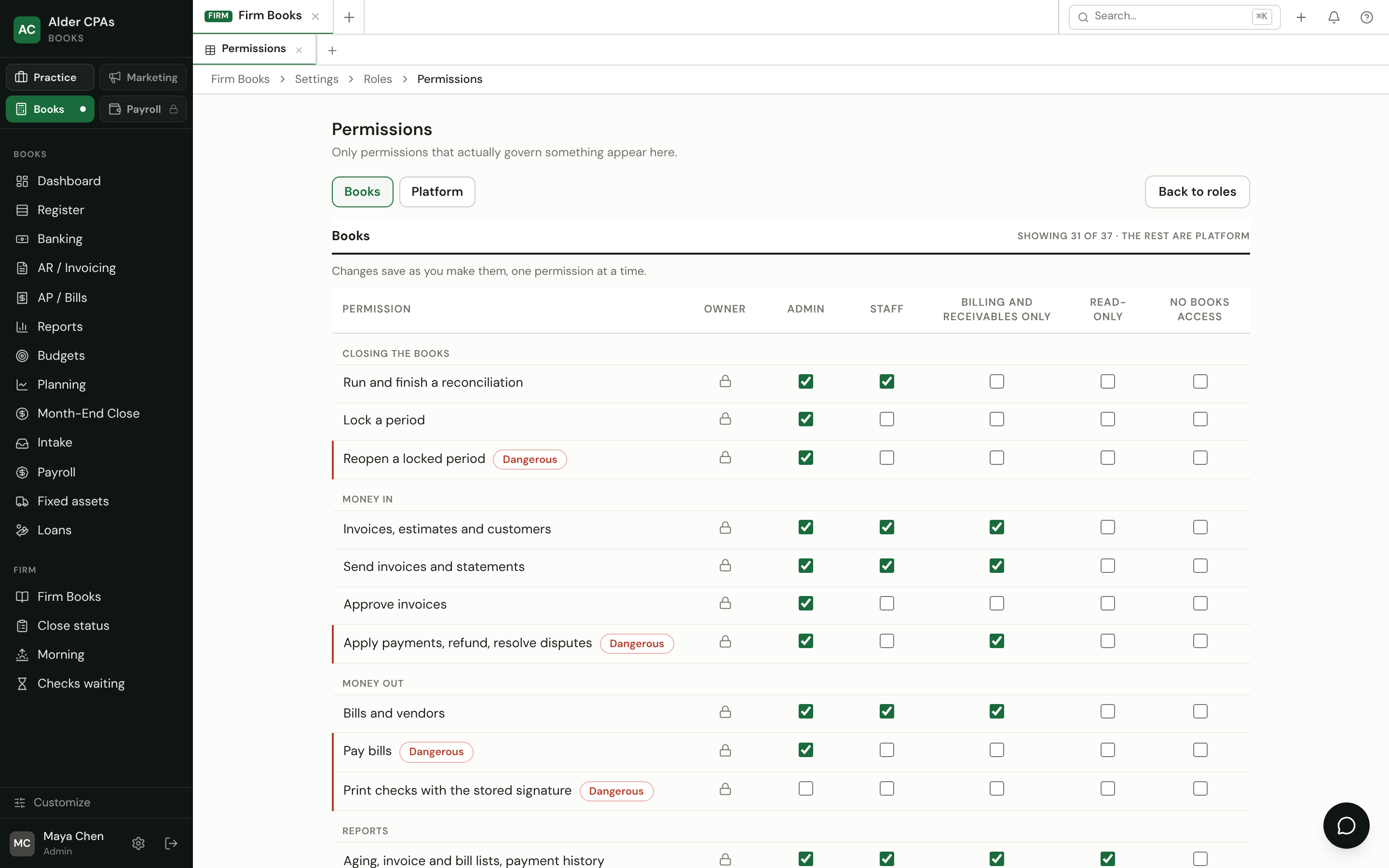 The Permissions page, with the risky permissions marked Dangerous
- A permission that moves money, reverses history or changes what was reported carries a Dangerous pill: Pay bills, Void or reverse a posted entry, Reopen a locked period, Apply payments, refund, resolve disputes, Connect and sync bank feeds, Print checks with the stored signature, Change a client's Books plan, Import books from another accounting system and Delete — Clients.
- Changes save as you make them, one permission at a time. Tick or clear a box and Books confirms, for example Staff now holds “Lock a period”.
- The Owner column is locked. Hover it: The owner role always holds every permission, by rule rather than by a setting.
- View — Clients stays ticked while a role holds any Books permission (Included because this role has a Books permission.), because Books work happens inside a client.
- Only permissions that actually decide something appear here, so every box you tick changes what someone can do.
Make a role of your own
- On Roles, click New role.
- Give it a Name and, if you like, a Description.
- Choose Start from: the role whose permissions it copies. Books shows how many that is, for example Copies Staff’s permissions — 21 of 37 — so you’re adjusting rather than building from nothing.
- Choose where it Sits between the other roles. That decides ordering in lists and who can change whom: a role that sits higher counts as wider when someone without Manage — Roles gives roles on a client.
- Click Create role.
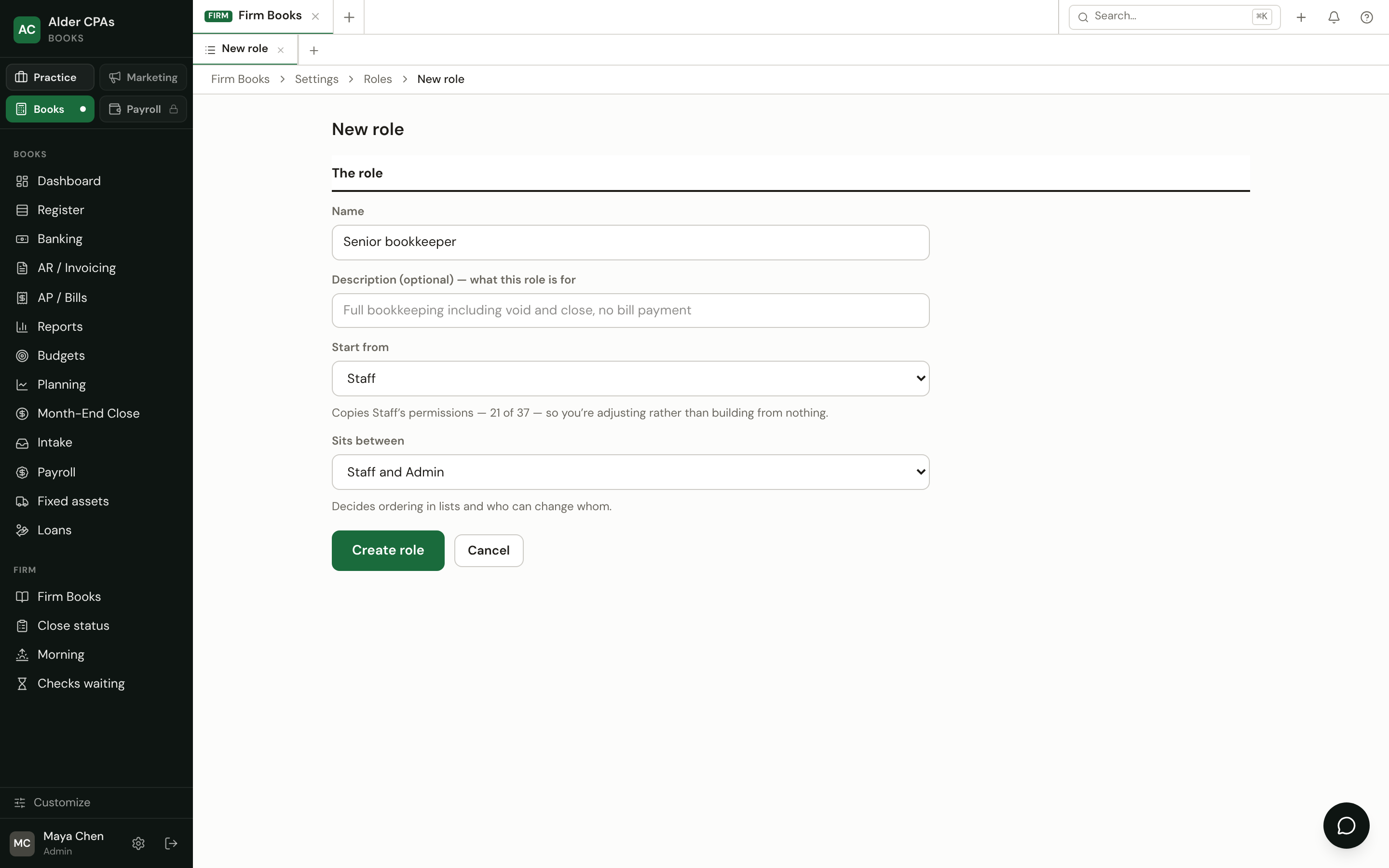 A new role, copied from Staff and placed between Staff and Admin
Books confirms with Senior bookkeeper was created with 21 permissions copied from Staff., the same count the form showed. Click Adjust its permissions to fine-tune it on the Permissions page, or Back to roles.
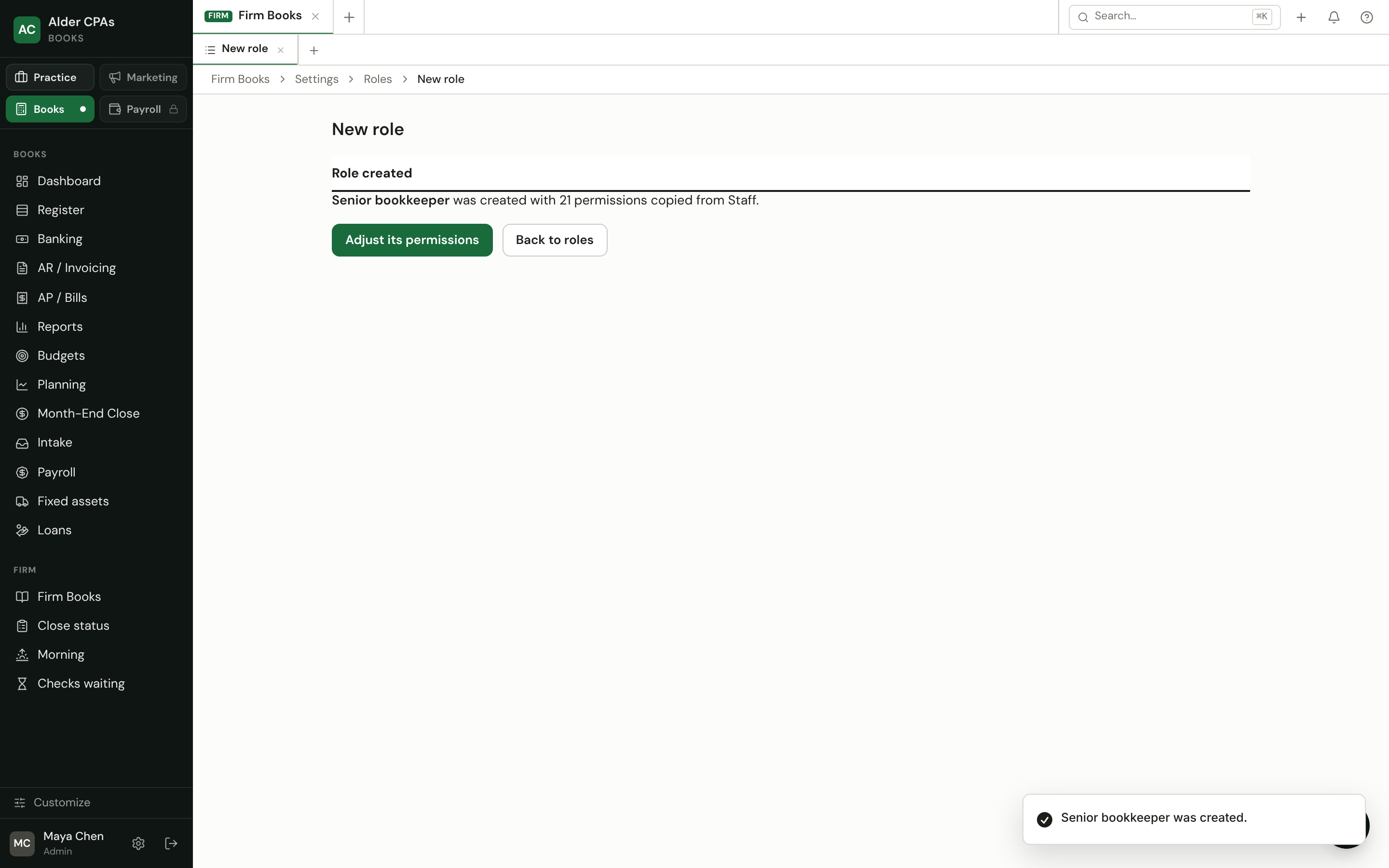 The new role, created with the 21 permissions it copied
Edit on any role except Owner changes its description; a role you made can also be renamed. A built-in role keeps its name (A built-in role can't be renamed.) and can't be deleted.
Creating, changing and deleting roles, and changing what a role can do, need the Manage — Roles permission (Admins have it; an owner always does). Without it these buttons are off with Needs the “Manage — Roles” permission.
Delete a role you made
Only a role you made can be deleted. On a built-in role, Delete is off: Built-in roles can't be deleted.
- On Roles, click Delete on the role.
- Read what the dialog says about who holds it. If people have it as their role at the firm, it says, for example, 2 members hold this role. Choose the role they all move to before it is deleted. If nobody holds it in any way: Nobody holds this role. Any pending invitation that names it moves to the role you choose.
- Under Move to, choose where those people, and any invitation still waiting on the role, go. Every other role except Owner is offered, and Staff is picked to start.
- Click Delete role. Books confirms, for example, Senior bookkeeper was deleted. 2 members moved to Staff.
Two things keep a role you made from being deleted, and the dialog tells you which before you click. Both are about active members; see below for deactivated ones. Books never moves those people for you; you change them first. While either applies, Delete role is off and gray, and the reason is the line above it.
An active member uses it as their Books role. The Members count on Roles includes them, and the dialog says:
1 member uses this role for Books. Move them to another Books role first; deleting the role is refused until then.
Change their Books role on their access page, then delete. (Without Practice, that's the link in their Per-client exceptions column on Team; with Practice, click Add exception beside them on any client's Client access page, which opens it.)
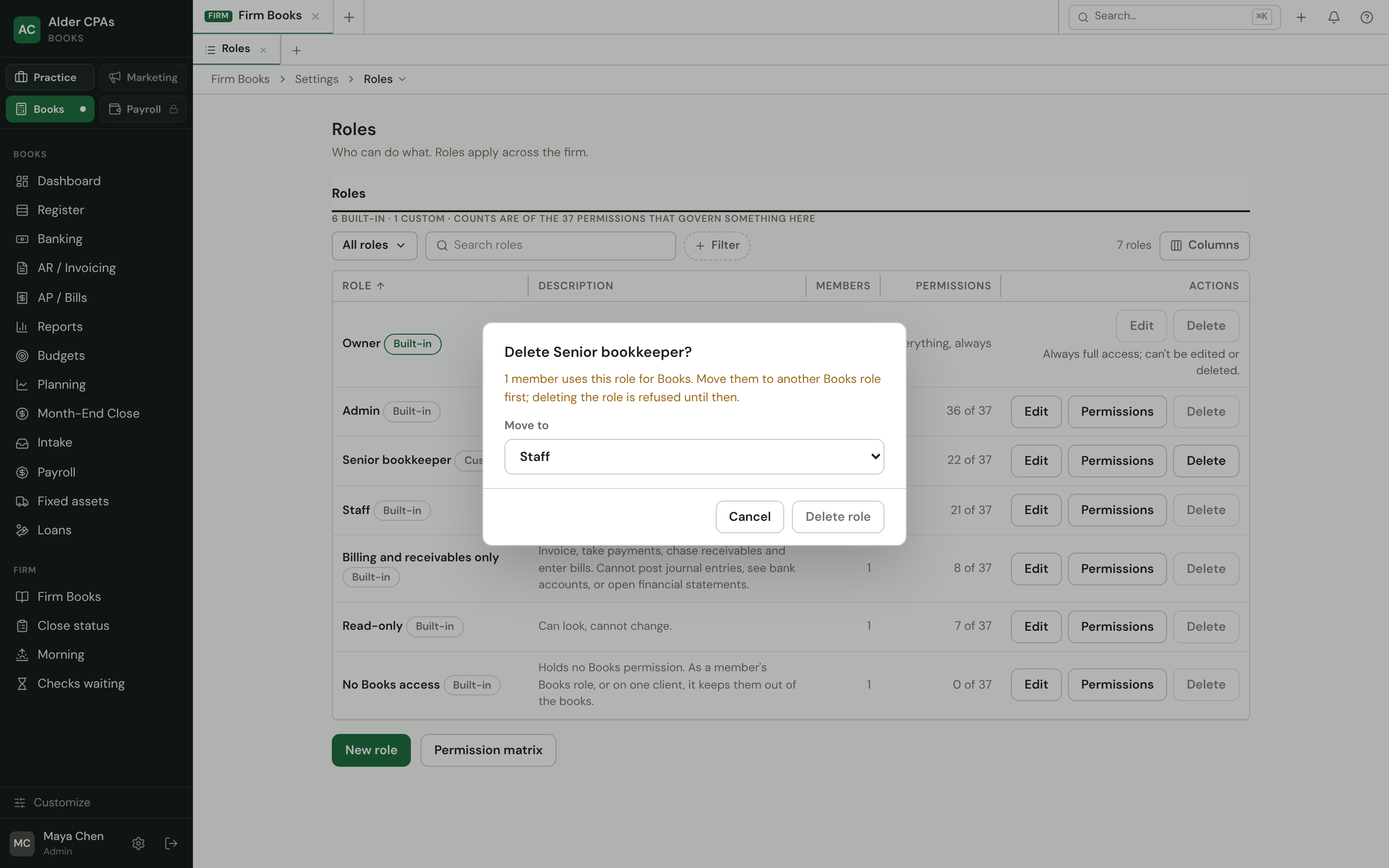 Deleting a role someone uses as their Books role: Delete role is off, with the reason
An active member holds it on a specific client. Books won't quietly drop those exceptions. The dialog counts the people and the clients:
1 person has this role on one client. Change it on that client’s Client access page first; deleting the role is refused until then.
With more, for example 1 person has this role on 2 clients. Change them on each client’s Client access page first; deleting the role is refused until then. Change or remove those exceptions on each client's Client access page, or on the person's access page; see Give Someone Access to One Client.
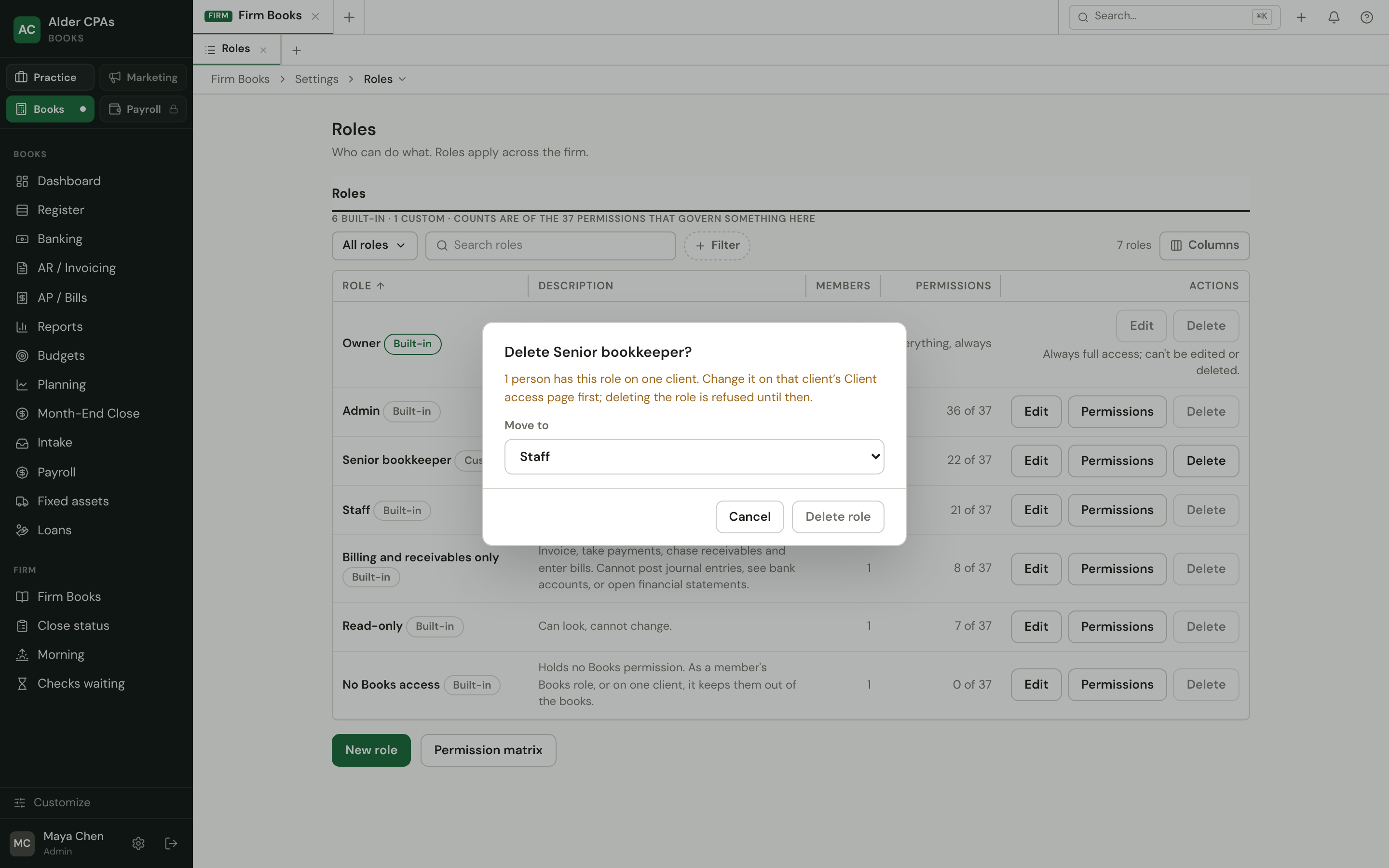 Deleting a role someone holds on one client: Delete role is off, with the reason
If someone added an exception or set the role as a Books role after you opened the page, Books refuses when you click Delete role and says so once, in the dialog, which stays open, naming each one, for example 1 client exception uses this role: Elena Ruiz on Cascade Bike Works. Change or remove those exceptions first. Nothing is deleted or moved. Make the change, then try again.
When only deactivated members hold it
A deactivated member's Books role and client exceptions can't be changed directly: Client access lists only active members, and Books refuses a change for someone who is deactivated. So they don't keep a role from being deleted. When the only people holding a role (as their Books role or on a client) are deactivated, the dialog names the move before you click, for example:
1 deactivated member moves to Staff, as their Books role or on their clients.
Delete role is on. The sentence follows your choice under Move to. When you click Delete role, their Books role and their exceptions on this role move to the role you chose, and Books records each move in the audit log. If they're reactivated later, they come back with that role.
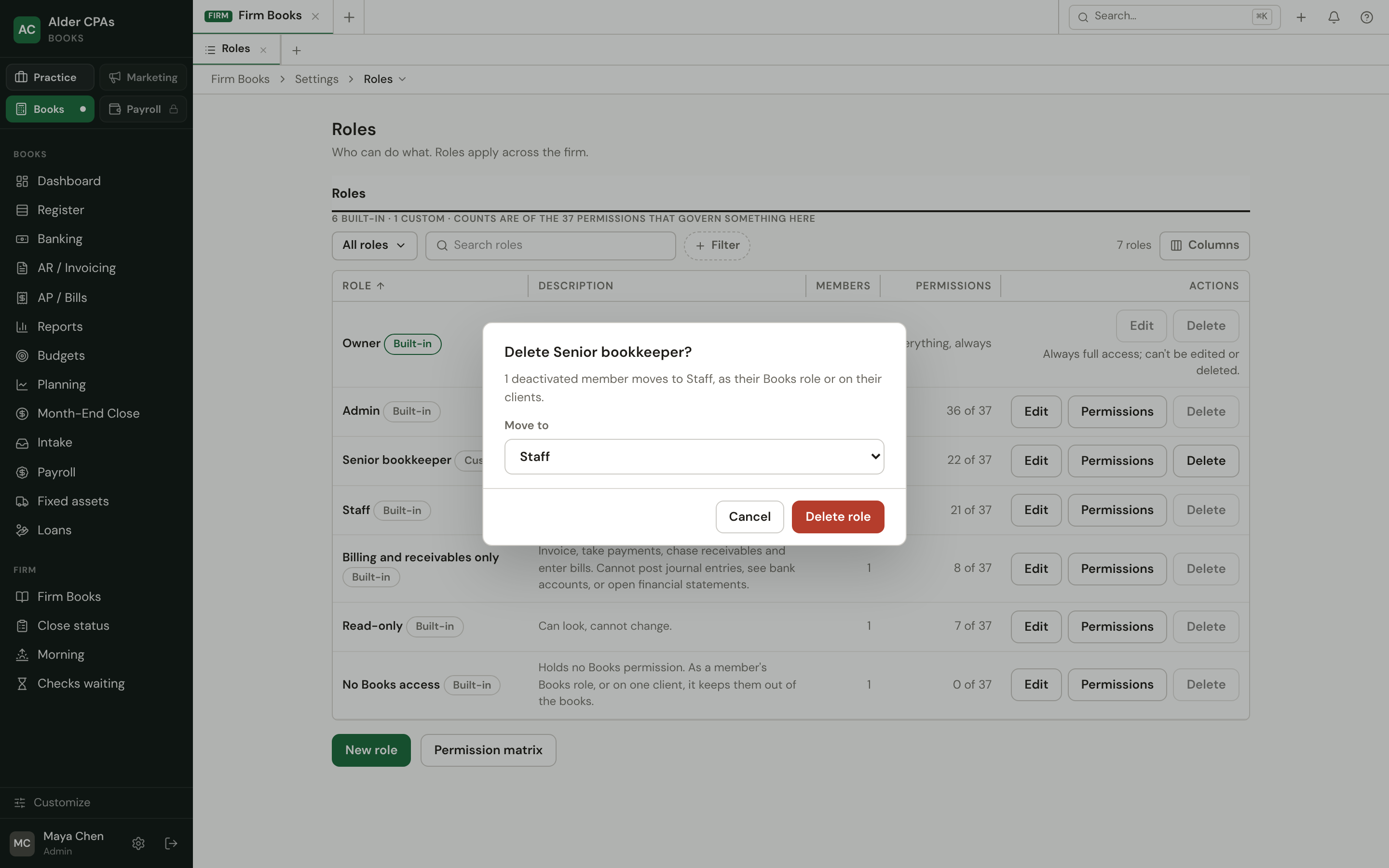 Deleting a role only a deactivated member holds: the dialog names the move, and Delete role is on
Why can't this person post?
Posting needs the Post journal and register entries permission in the role they have on that client. Books looks in this order: an exception on that client, then their Books role (or their role at the firm if no Books role is set), and an owner always passes. So:
- Their Books role doesn't include it. Read-only and Billing and receivables only can't post journal or register entries (Billing and receivables can still invoice and take payments, which have their own permissions). Change their Books role, or give them a wider role on just that client.
- They have an exception on that client. A narrower role there wins over their Books role. Their access page lists every exception.
- Their Books role is No Books access. They don't see that client's books at all.
- Books pending. Their role holds no Books permission and nobody has chosen one. Books tells them Your firm hasn’t set who can do what in Books yet, with the names of the people who can set it. Give them a Books role.
Why can't I …
- … invite, change roles or deactivate? Those are owner and admin actions at the firm. Ask an owner or admin.
- … invite this address? lena@aldercpas.example is already on your team. means they're a member already. If the address belongs to another firm, Books says so beside the address and they can't join yours with it; ask them for another email.
- … deactivate the owner? A firm must keep at least one active owner.
- … change a role or its permissions? That needs Manage — Roles. Owner can never be narrowed, and built-in roles can't be renamed or deleted.
- … delete a role I made? An active member uses it as their Books role, or holds it on a specific client. The dialog says which, and Delete role stays off until you change those (see Delete a role you made).
If your firm also uses Practice
With Practice, your people and roles are one list for the whole firm, managed in Practice's settings. Books shows the same team as Members (read-only), with Open Team in Practice to manage it there: one list of people and roles for your whole firm, in Books and Practice.
The Permissions page then adds a Practice tab beside Books and Platform, and the role counts include Practice's permissions, so one role can say what someone does in both apps.
Tips
- Invite with No Books access, then add the clients they need. A new hire can start with No Books access as their Books role and get a role on just the clients they work on. See Give Someone Access to One Client.
- Copy, don't build. Start a new role from the closest built-in and change a few boxes; the count beside Start from tells you where you began.
- Watch the Dangerous pills. Those are the permissions worth giving to fewer people.