
Two-Step Sign-In
Turn on two-step sign-in with an authenticator app, see when Books asks for a code, and remove or replace an authenticator.
On this page
Two-step sign-in adds a second check to your password: a 6-digit code from an authenticator app on your phone. Once it is on, a password alone no longer opens Books for your account: the code from your phone is needed too. Each person turns it on for their own account.
A code you enter when you sign in covers that whole sign-in. Books asks for it once, after your password. Acts that change who can do what at your firm (inviting someone, changing a role and the others listed below) check that a code was entered on this sign-in. If you entered one, they go straight through; if this sign-in has no code yet, Books asks for it first.
Understand the page
The page has one section, Your authenticator.
- With nothing set up, it reads Two-step sign-in is off. No authenticator is set up for your account. and offers Set up an authenticator app.
- With an authenticator, it lists it under Authenticator and Added, with a Remove button. Books names each authenticator after the moment you set it up, for example Authenticator app · Oct 14, 2026 · 9:42 AM.
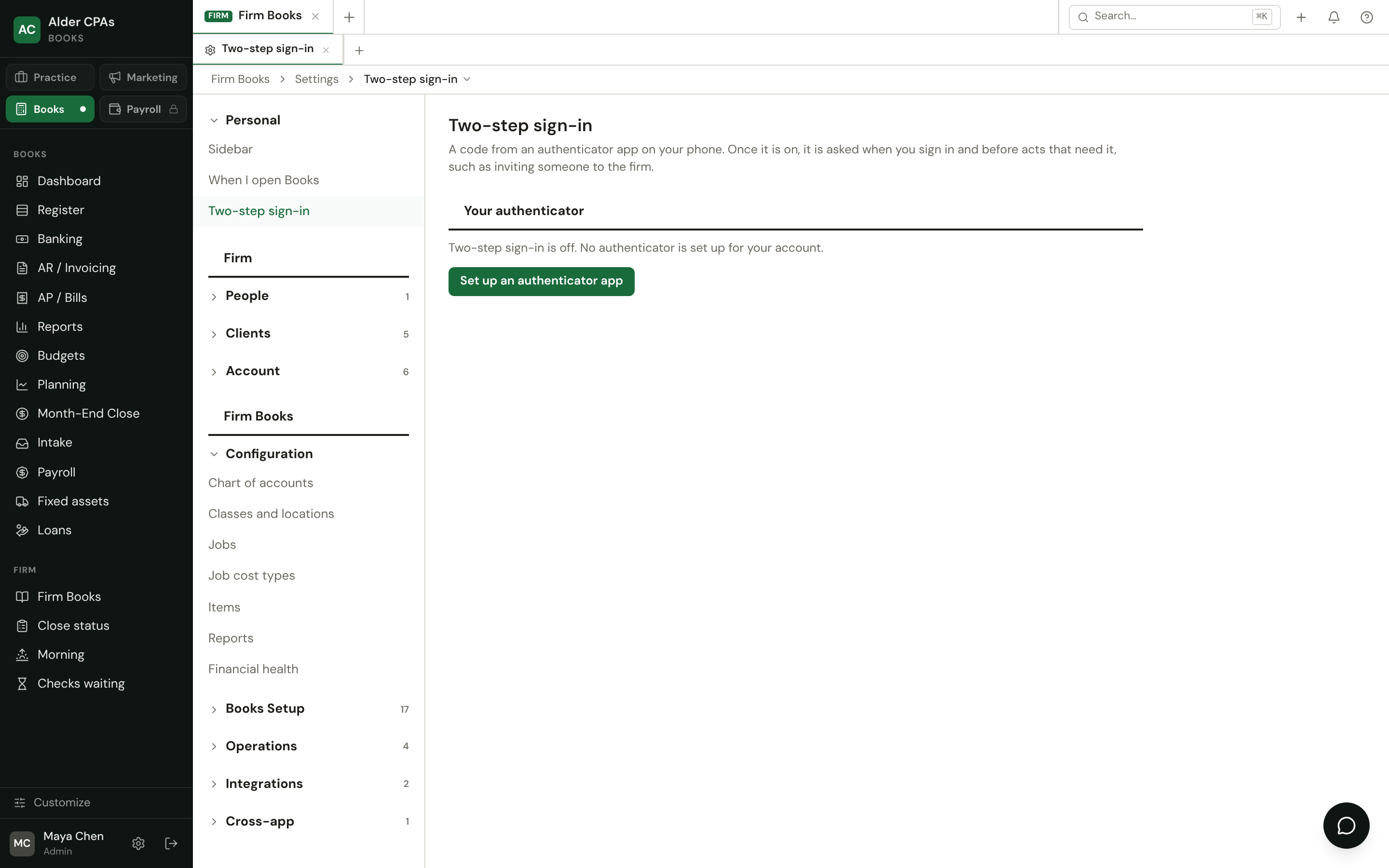 Two-step sign-in, off, with the button to set it up
Turn on two-step sign-in
You need an authenticator app on your phone: one that reads a QR code and then shows 6-digit codes.
- Click Set up an authenticator app.
- Scan the QR code with your app. If you can't scan it, use Can’t scan? Enter this key in your app: type the key into your app, or click Copy to copy it. The key is shown in groups of four to make it easier to read.
- Your app now shows a 6-digit code. Type it into 6-digit code. Spaces are ignored, so
482 913works as well as482913. - Click Turn on two-step sign-in.
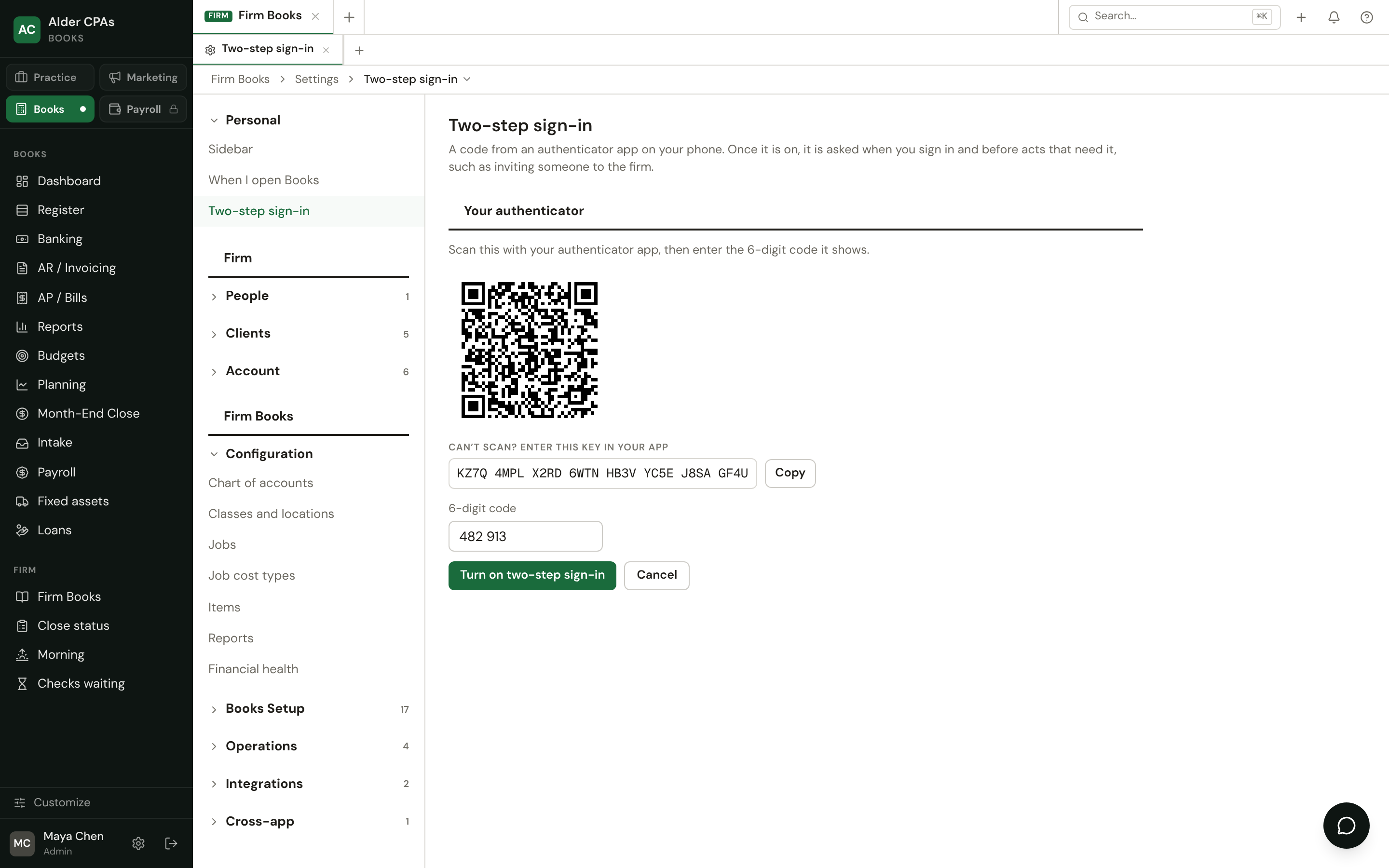 Setting up an authenticator: the QR code, the setup key and the code
When the code matches, the page says Two-step sign-in is on. Books asks for a code from this app when you sign in and before acts that need it. and lists your authenticator.
Cancel stops the set-up and turns nothing on. If you leave a set-up unfinished, the next Set up an authenticator app clears it and starts fresh, with a new QR code.
Sign in with a code
After your password, Books shows Two-step sign-in and asks you to Enter the 6-digit code from your authenticator app. Type the code from your app and click Verify. Verify stays off until all six digits are in, and the box takes digits only. Once the code is accepted, Books opens the page you were going to.
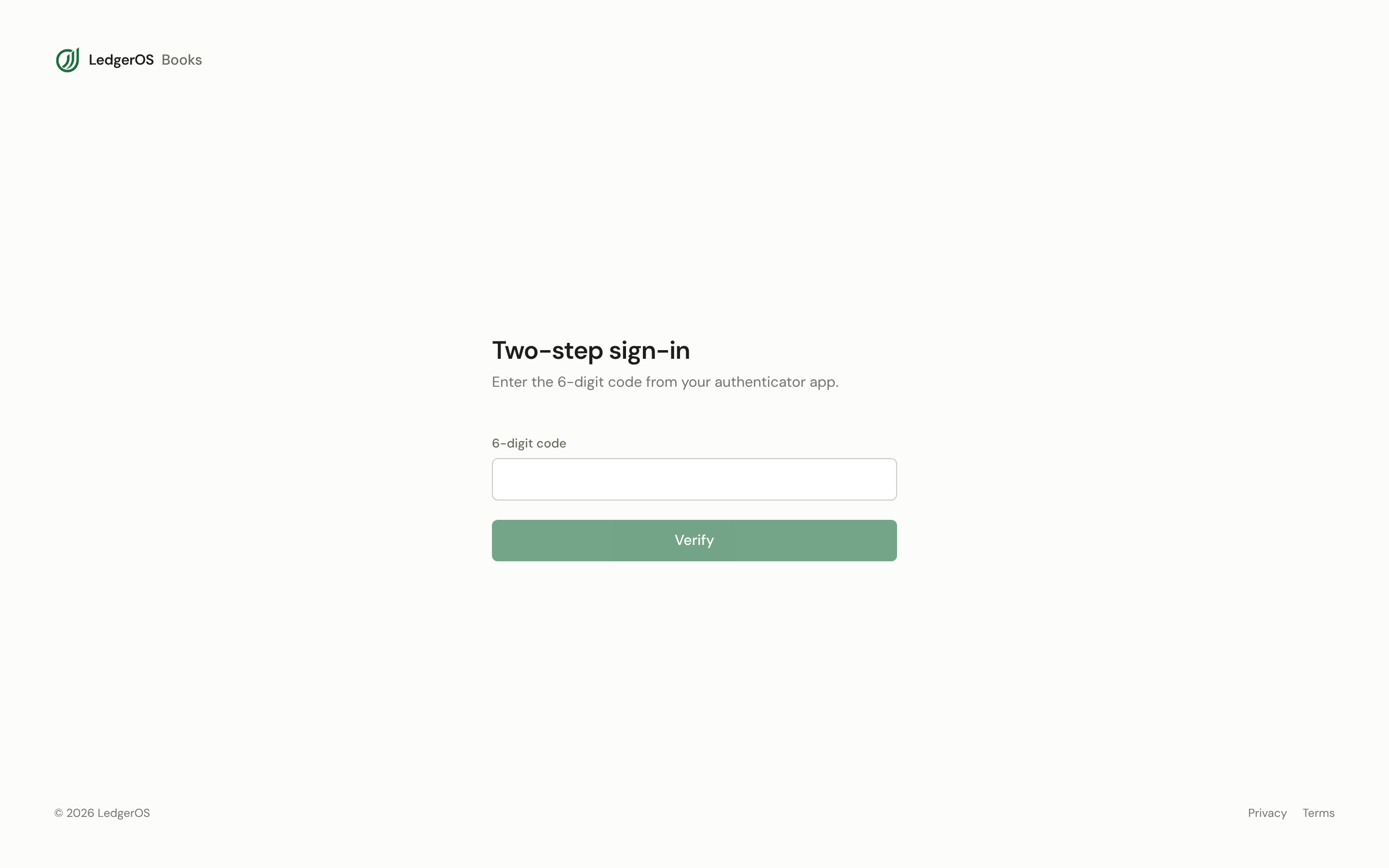 The code step after a password sign-in
Until the code is entered, no Books page opens for that sign-in. At a firm that also uses Practice, a browser you told Practice to remember skips the code at sign-in; the acts listed below still ask for one.
Why does inviting someone ask for a code?
Some acts change who can get into your firm's books or what they can do there, so Books makes sure the person doing them has entered a code on this sign-in. In Books, they are:
- inviting someone to your firm, resending an invitation, or changing the role on an invitation you've sent;
- changing a member's role, or reactivating a member;
- creating, changing or deleting a role, or changing what a role can do;
- giving someone a role on one client, or changing who can do what in Books;
- inviting a client's own people to their books, changing what they can see, or restoring one;
- inviting an accountant to a business's books, or choosing who at the accountant's firm can see them;
- changing who signs checks, loosening the owner's approval rules, or changing the bank numbers or signature printed on checks.
When the code is needed, a Two-step sign-in window opens over the page and says which act it is for. Enter the code and click Verify, and Books finishes what you were doing. Click Cancel and nothing is done.
If you entered a code when you signed in, none of these acts asks again. If you have no authenticator and your firm doesn't require one, they don't ask at all. Deactivating a member and creating an API key never ask for a code.
If the window says This needs two-step sign-in, and your account has no authenticator app set up., click Open security settings, set one up as described above, then go back and try again. (At a firm that also uses Practice, the button opens Practice's Password & 2FA page, where you set it up.)
Remove or replace an authenticator
- Click Remove beside the authenticator.
- Books asks first: Remove “Authenticator app · Oct 14, 2026 · 9:42 AM”? Books stops asking for your codes.
- Click Remove authenticator, or Keep it to leave it as it is.
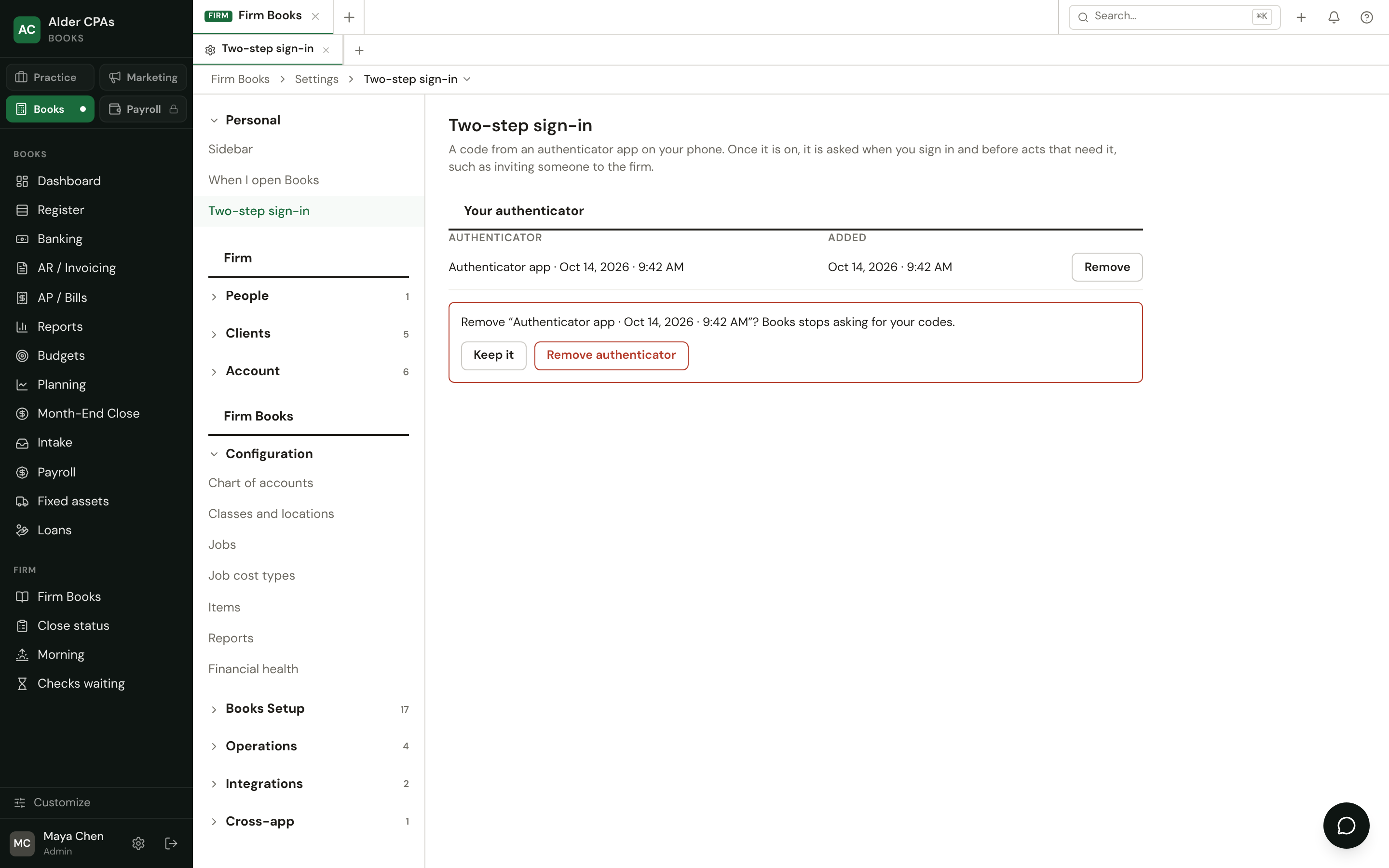 Removing an authenticator asks first
When it is gone, the page says The authenticator was removed. Books no longer asks for its codes. From then on a password alone signs you in, and the acts listed above go ahead without a code, until you set up an authenticator again. (If your firm requires two-step sign-in, it's different: see below.)
Moving to a new phone? Do it while you still have the old one: sign in with its code, remove the old authenticator, then set up the new phone. This page sets up one authenticator, so Set up an authenticator app appears again only once the old one is removed.
Why can't I …
- … turn it on? That code didn’t match. Enter the newest code from your app. Type the code your app is showing now, not an earlier one. A code is 6 digits. Enter the newest one your app shows. means the box holds something other than six digits.
- … remove my authenticator? To remove an authenticator, sign in with its code first, then remove it. Sign out, sign in again with your password and code, then remove it.
- … open anything but this page? Your firm requires two-step sign-in and you have no authenticator yet. See the next section.
If your firm also uses Practice
With Practice, an owner or admin can require two-step sign-in for everyone at the firm, so nobody works in your clients' books on a password alone.
Turn it on in Practice. In Practice, go to Settings → Security (the Firm security page) and switch on Require two-factor for everyone at this firm: Every member must set up an authenticator app before they can use LedgerOS.
Only an owner or admin can change it, and turning it on needs a code entered on your own sign-in, so you can't lock yourself out. The same page lists every member with On or Not set up, so you can see who still needs to do it.
What your team sees in Books. A member with no authenticator is taken straight to Two-step sign-in, whatever page they open, with Your firm requires two-step sign-in. Set up an authenticator app here to keep working in Books. As soon as they turn it on, Books takes them on to the page they were opening. A member who already has an authenticator sees Your firm requires two-step sign-in for everyone. on the page.
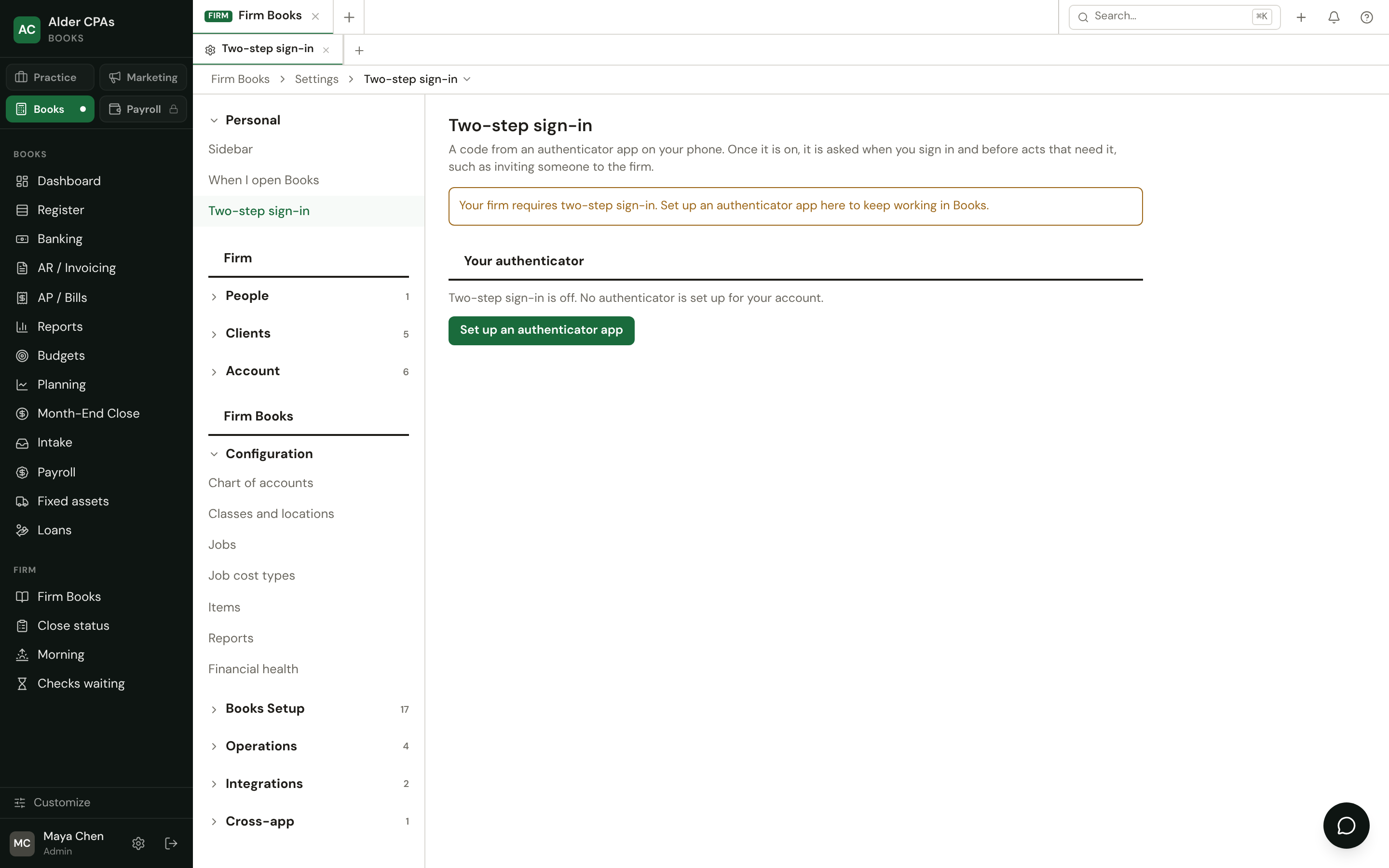 A member at a firm that requires two-step sign-in, sent to set it up
If someone removes their only authenticator while the firm requires two-step sign-in, the same question warns them: Your firm requires two-step sign-in, so you’ll be asked to set it up again before Books opens anything else.
Tips
- Set it up before you invite your team. Inviting and changing roles are the acts that check for a code, and a code entered at sign-in covers them all.
- One code per sign-in. You won't be asked again until you sign in again.