
An Import Stopped Partway
Find the imports you started and did not finish, see where each one stopped, pick it up again without losing what came in, or discard it.
On this page
An import can be left unfinished because you stopped partway (closed the page, ran out of time, were waiting on a file from the client), or a QuickBooks Online pull can stop because Books could not finish reading the company file.
A file import never stops while its files are read: it waits on its files step for what is missing. Either way, nothing already brought in is lost, and nothing reaches the ledger until you post it. This article shows how to find the import, see where it stopped, and carry on, start over or throw it away.
Trying again never starts over. Try again asks only for the parts that did not finish; what came in already is kept. Start over only when the product or the start date was wrong.
Find the imports you didn't finish
Imports that created their own client
Import books opens on Pick up where you stopped when your firm has unfinished imports, with a count such as 3 unfinished. The list includes imports the review already named, until they are posted.
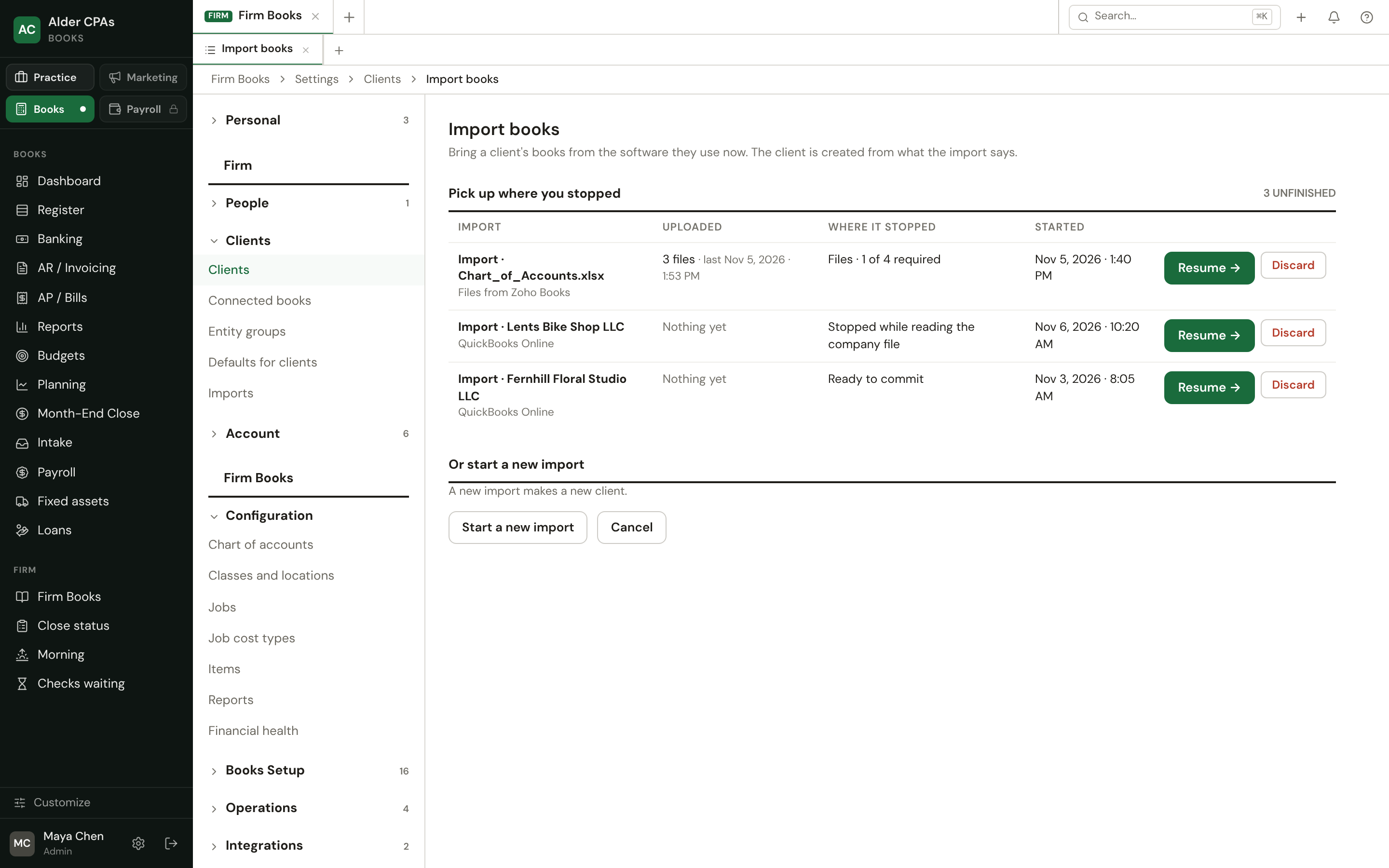 Pick up where you stopped, with three unfinished imports
| Column | What it shows |
|---|---|
| Import | The company name from QuickBooks Online, or the first file uploaded, and below it where the import comes from (QuickBooks Online, or Files from Zoho Books and so on). |
| Uploaded | Nothing yet, the one file with its row count and time, or how many files and when the last one came in. |
| Where it stopped | The step it is waiting on (see below). |
| Started | When the import was started. |
Where it stopped reads:
- Files · 1 of 4 required — a file import still waiting on required files (the chart of accounts, the trial balance, and the open invoices and bills).
- Review — every required file is in; open it to see what is left.
- Ready to commit — the review is finished and the import is waiting to be posted.
- Reading the company file — a QuickBooks Online pull is under way.
- Stopped while reading the company file — a QuickBooks Online import that stopped, at whatever step. Open it to see where and why.
- Connect — a QuickBooks Online import that has not connected yet.
Click Resume → to open the import at the step where it stopped. To begin a different client instead, click Start a new import; a new import makes a new client.
Every client's import
Settings → Firm → Clients → Imports shows every client's import, including clients you added before importing. A stopped import has a Stopped badge, the list that stopped in red (for example Open invoices 14 read · stopped), and the line This import stopped and is waiting to be picked up again. Open it to see what happened and try again; nothing already brought in is lost. Each stopped import counts in Need attention at the top.
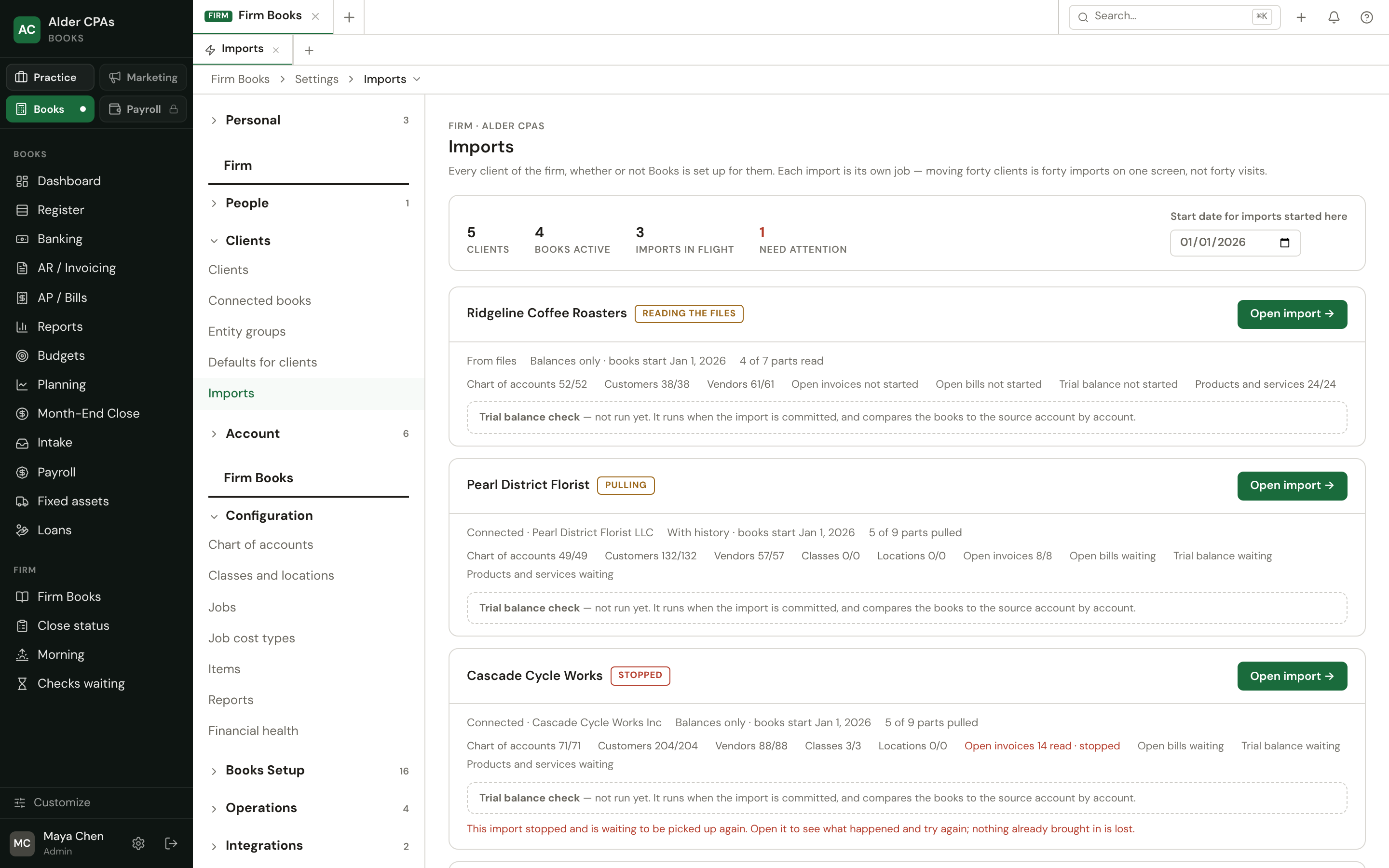 Settings › Imports, with Cascade Cycle Works stopped partway through its open invoices
Click Open import → on the row.
Pick up a QuickBooks Online pull that stopped
When a pull stops, the import page says The import stopped, where it stopped, what happened, and the one thing to do.
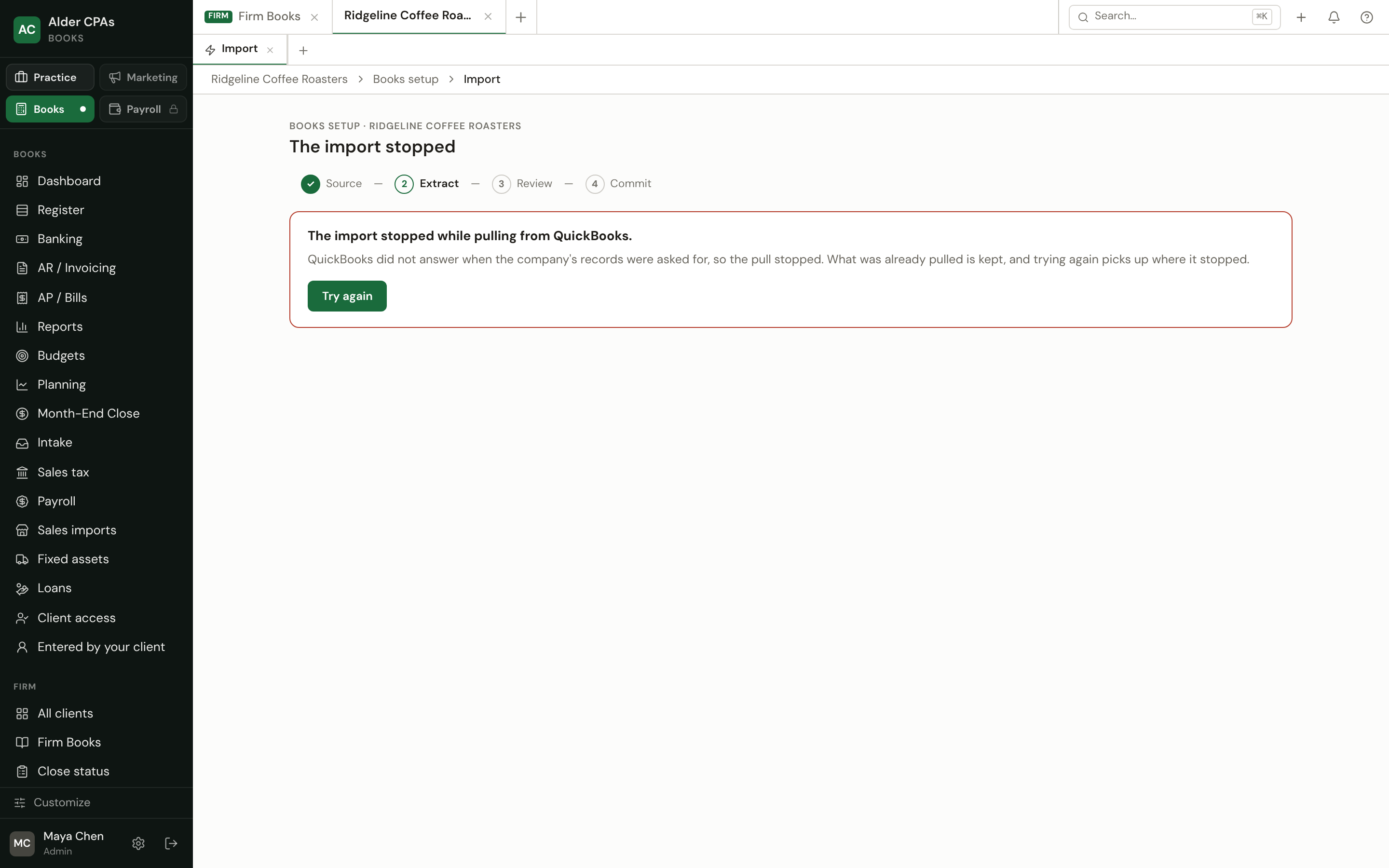 The import stopped while pulling from QuickBooks, with Try again
| What the page says | What to do |
|---|---|
| QuickBooks did not answer when the company's records were asked for, so the pull stopped. What was already pulled is kept, and trying again picks up where it stopped. | Click Try again. |
| The import stopped before it finished. What was already pulled is kept, and trying again picks up where it stopped. | Click Try again. |
| The connection to QuickBooks was removed or no longer works. Reconnect to continue; nothing already pulled is lost. | Click Reconnect QuickBooks and sign in to QuickBooks again. |
| QuickBooks did not accept the saved sign-in. Reconnect to continue; nothing already pulled is lost. | Click Reconnect QuickBooks. |
The heading line names the stage: The import stopped just after connecting to QuickBooks. or …while pulling from QuickBooks.
While a pull is running, the page reads Pulling from QuickBooks…. Right after you connect, a line under it such as 3 of 9 parts done · 2 min. shows how far it has got, and if the pull has not finished after five minutes the line says so, for example 3 of 9 parts done. The pull has not finished after 6 min. Keep the page open while the books come across.
A pull that was asked for but is not moving says This import is waiting to be pulled. If it does not move, start it again — nothing already pulled is lost. and offers Continue pulling or Start pulling.
Pick up a file import
A file import never stops while its files are read; it waits for you. Resume → opens it on the step it is waiting on, with the files you already uploaded still read in. Upload what is missing and carry on.
If a file could not be read in full, the import stays on its files step and lists the lines it could not read. Fix the file and replace it, or click Leave this line out (or Leave these 3 lines out) to go on without them; the lines stay on the file's record with who left them out.
Can I import again without losing what came in?
Yes, on the same import. Try again and Continue pulling ask only for what did not finish. If a list changed in QuickBooks Online after it came in, open that list's tab in the review and click Bring this list in again.
That asks for the list again; the page returns to the pull, which says This import is waiting to be pulled…, and you click Continue pulling. Your decisions on anything that has not changed are kept.
To bring a finished pull in again as a whole, click Extract in the steps across the top of the review. The finished pull offers Re-pull, which asks QuickBooks for every part again and keeps your review decisions, and Back to the review. It is offered while the review still has something to decide.
After you click Continue to commit, or if the pull came across with nothing to decide, Extract opens the review; bring a changed list in again from its tab.
For a file import, export the changed list again and click Replace file on its row before you click Add these lists to Books. From the matches, Read this file again on a list's tab takes you back to Your lists first at that list's file, with Choose the chart of accounts file again to read it in. Your decisions on anything that hasn't changed are kept. (naming that list), where you click Replace file.
Once the lists are in Books, a list file is not read again: Your lists are already in Books, so the Chart of accounts file is not read again. Add a missing entry where the import stops instead. The list tabs under Review the matches, and in the review, then offer no Read this file again and say Your lists are already in Books, so this file is not read again. Add a missing entry where the import stops instead.
A balance file can still be read again after the lists are in. On the review's Trial balance, Open invoices or Open bills tab, click Read this file again. Books takes you back to its files, at that file. Click Replace file, then Check the tie-out to return to the review.
A second, separate import of the same client is refused while one is in progress: This client already has an import in progress. Finish or abandon it before starting another.
Throw an unfinished import away
Discard an import that created its own client
Click Discard on its row in Pick up where you stopped (or, for a file import whose lists are not in Books yet, Discard this import on its files step).
The prompt says what happens, for example The client “Import in progress” moves to Recently deleted and can be restored from there until Dec 8, 2026. What this import holds is removed now and does not come back with the client; the history keeps a full record of it: It lists every file uploaded, with its rows and when, and which steps were done, for example Steps done: Files, 1 of 4 required. The review decisions made so far go with it. Nothing was committed, so nothing is on any books. A record of what was discarded, and who discarded it, is kept.
For a QuickBooks Online import that is still connected, it also says Its connection to the accounting system it came from is ended, and the sign-in given for it is revoked there.
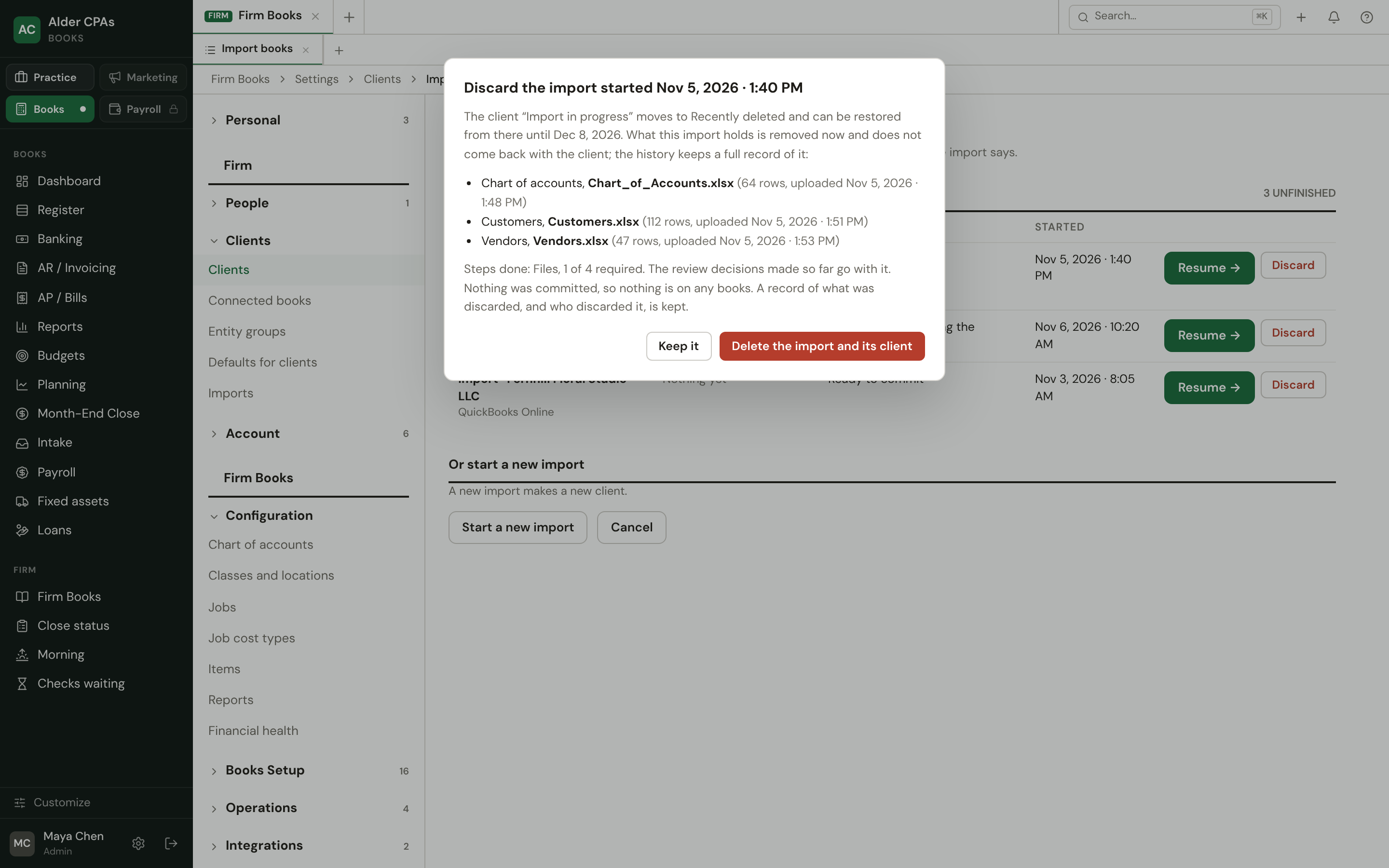 Discard the import started Nov 5, 2026, listing three uploaded files
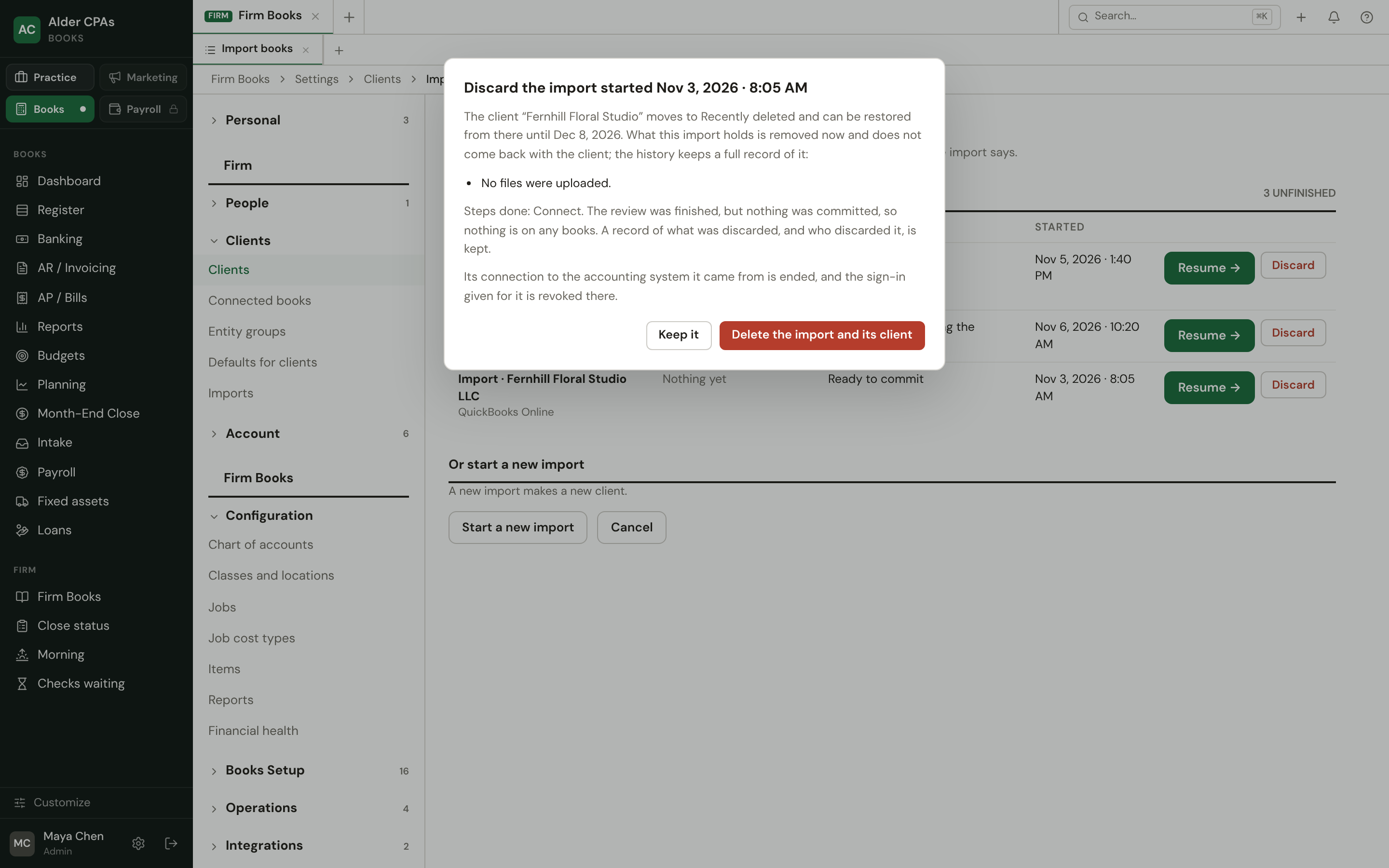 Discard a QuickBooks Online import whose review was finished: the prompt says its connection to QuickBooks is ended
Click Delete the import and its client to discard it, or Keep it.
Discarding moves the client to Recently deleted, where it can be restored for 30 days. The import itself (its files and review decisions) is removed at once; a record of it, and of who discarded it, is kept. If the QuickBooks Online connection is still connected, it is ended and its sign-in revoked.
Abandon or undo an import into a client you already have
-
Abandon this import stops the import for good, before anything has been posted. What it read, and the review decisions not yet written, are removed. You can give a reason; it is kept with the record.
If its lists are already in Books, abandoning is refused; use Undo this import. Only when a QuickBooks Online commit stopped before posting do the accounts, customers and vendors it already wrote stay on the books, and a new import matches them instead of making a second copy.
-
Undo this import removes everything an import wrote, once its lists are in Books, even after the import is finished, until the client has postings of its own. Give a reason, click Show what this deletes, then Delete it all.
Why can't I discard or undo it?
- This import has already written to these books, so it is not discarded. Open it and undo the import to remove what it wrote. — Something from it is already in Books: its lists, a commit that started, or any transaction on the client. Open it and use Undo this import.
- This import's lists are already in Books. Undo import takes them back, with a record of what it removed; abandoning would leave them behind. — Use Undo this import instead of abandoning.
- Abandon this import is off: This import has already posted 12 transactions to these books, so it cannot be abandoned. Undo it below to remove everything it wrote, or try the records that failed again to finish it. — Use Undo this import, or finish the commit.
- … is a named client, not an unfinished import. Archive or delete it from the client's own settings. — The client has a name of its own and is not an unfinished import's client.
- This import's client is already used by …, so it is not discarded. Remove that first, or name the client and keep it. — Something else in Books points at the client.
- This is your firm's own books, which are never discarded. — Your firm's own books can't be discarded.
- Nothing from this import has been written to the books yet (…). Abandon it instead. — Use Abandon this import.
- This client has 3 postings of its own that this import did not make, so the import can no longer be undone. Void the imported entries you need to change instead. — The books hold posted entries the import did not write, whenever they are dated. Correct individual entries instead.
- This import has entries in a period locked for good (…), so it cannot be undone. Void the imported entries you need to change instead. — Correct individual entries instead.
- This import has entries in a closed period (…). Only an owner or admin can undo it while that period is closed, giving a reason; or reopen the period from Close first. — Ask an owner or admin, or reopen the period.
- 1 reconciliation has cleared entries this import posted (…). Undo the reconciliation first, then undo the import. — Undo that reconciliation, then undo the import.
- 2 bank lines are matched to entries this import posted. Unmatch them in Banking first, then undo the import. — Unmatch them in Banking, then try again.
- 1 imported invoice has been sent to the customer, so the import can no longer be undone. Void the imported invoices you need to change instead. — The customer has seen it, so fix individual invoices instead.
- Some of this import’s invoices are still used by a bank deposit, so the undo stopped there. Nothing in that step was removed; what went before stays removed and recorded. — Something made after the import uses part of it. Remove or change that first, then press Delete it all again to carry on.
Related: Bring Books Over From QuickBooks, Xero and Other Systems.