
Bring Books Over From QuickBooks, Xero and Other Systems
Move a client's chart of accounts, customers, vendors, opening balances and open invoices and bills into Books from QuickBooks Online, QuickBooks Desktop, Xero, Zoho Books, FreshBooks, Wave, Sage, NetSuite or any other accounting product.
On this page
When a client already keeps books somewhere else, you don't have to type them in. An import brings over the client's chart of accounts, customers, vendors and products and services (and classes and locations, where they can be read), then its balances on the day its books start in Books, with every unpaid invoice and bill.
You can also bring the fiscal year before the start date in month by month, so this year's reports have something to compare against.
Every product comes in by file: you export a few standard reports and lists from the old system and upload them. QuickBooks Online can also connect directly, so Books reads the company file for you.
Nothing reaches the ledger until you post it. Reading files in, and pulling from QuickBooks Online, only fills the import.
You review every match first. The opening balances, the open invoices and bills, and last year if you bring it, post when you press the commit button on the last step.
In a file import the lists (accounts, customers, vendors, products and services) go into Books earlier, at the Lists step, when you click Add these lists to Books, so that every balance lands on something you have already confirmed. A QuickBooks Online connection has no separate lists step.
What an import brings over
| Brought over | Where it comes from |
|---|---|
| Chart of accounts | The account list. Required: nothing can be matched without it. |
| Customers, vendors | Their contact lists. Optional. |
| Products and services | The item list. Optional. |
| Classes and locations | Optional. They come in where Books has a ready-made layout for that list from your product, or when you upload the list yourself and match its columns. Xero, for example, has no ready-made layout for either. |
| Opening balances | A trial balance as of the day before your books start. Required. |
| Open invoices and open bills | The A/R and A/P aging detail reports on that same day, one row per unpaid invoice or bill at its open balance. Required. |
| Last year, by month (optional) | A trial balance at each month end of the fiscal year leading up to your start date. |
Books also checks the files against each other before you post. The aging reports are compared with the trial balance's receivable and payable accounts (except on a cash-basis trial balance, which has neither), and after the commit the books are compared with the source account by account.
Start an import
For a new client
Use this when the client is not in Books yet. The import creates the client for you.
- Go to Settings → Firm → Clients → Clients and click Import books.
- Under Which product are you leaving?, click the product the books are in today. Each card says how it comes in: By file, and for QuickBooks Online also Connect. Click a badge to choose that way in.
- Check The books start on. Any day works. The line under it says what it means, for example Any day. Balances are read as of the day before (12/31/2025); everything from 01/01/2026 on is entered in Books.
- Choose the Entity type. No export states it, so Books asks here.
- Click Continue with Xero (the button names the product you chose), or Connect QuickBooks Online → to connect.
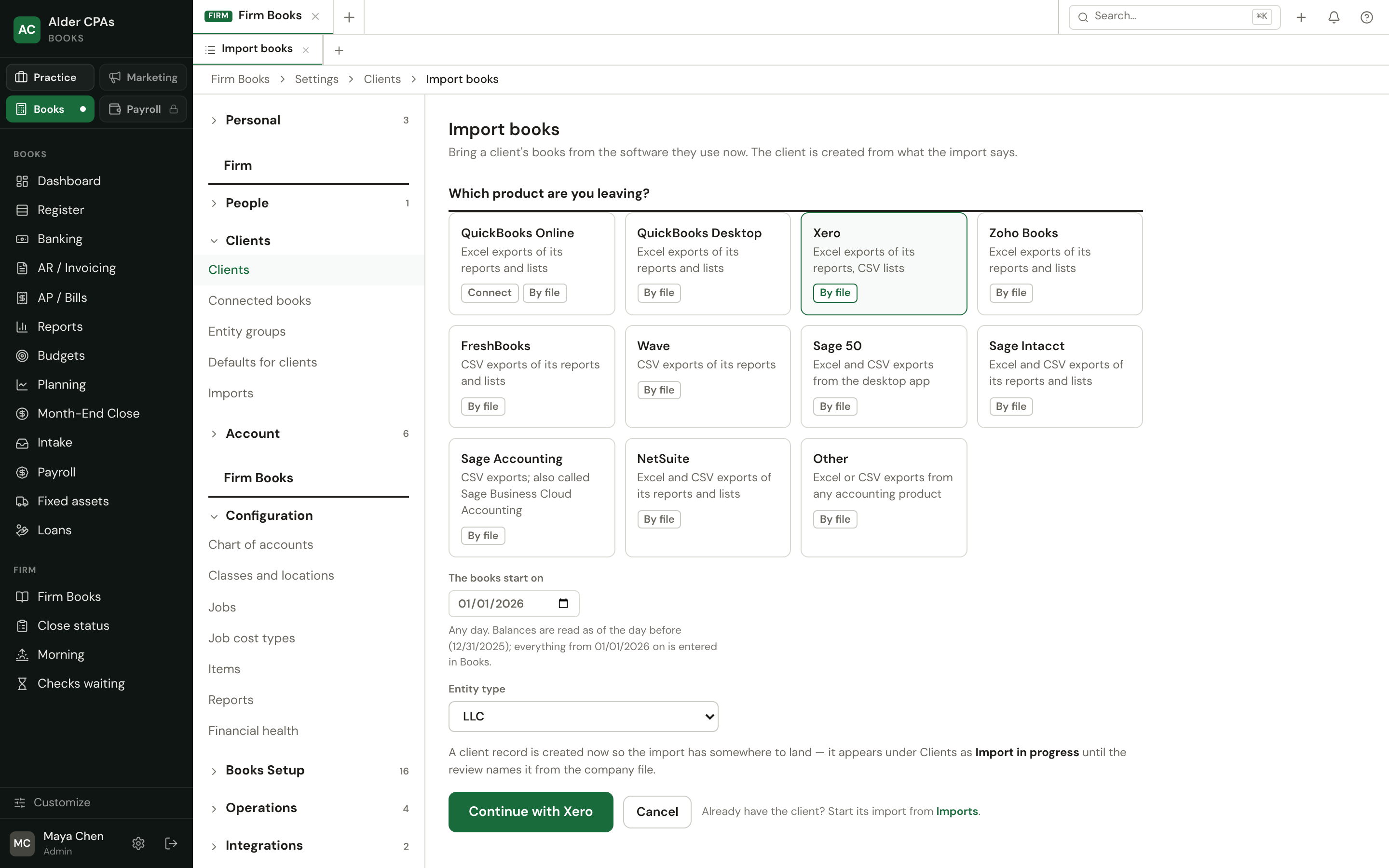 Import books with Xero chosen, the books starting Jan 1, 2026 and LLC as the entity type
Books creates the client right away so the import has somewhere to land. It appears under Clients as Import in progress until the review names it from the company file.
If your firm named a product when it signed up, the page opens with that product already chosen. You can pick another.
For a client you already have
-
Books not set up yet: open the client's Books setup, choose Moving from another system, set The books start on, and click Continue. The import opens on its first screen with that date filled in, under Start date — your books open here. Choose the product and entity type and continue.
-
From Settings → Firm → Clients → Imports: set Start date for imports started here once at the top. On a client whose books are not set up, Import existing books opens its Books setup with Moving from another system chosen and that date filled in; click Continue.
On a client whose books are already set up, Import into these books starts the import straight into those books. If they already carry entries, the row says how many, and the commit step asks you to confirm merging into them. The import's first screen shows that date under Start date — your books open here.
To start such an import from a different day, change Start date — your books open here before you continue. The screen says what will happen, for example This import starts on 07/01/2026. Starting now opens it again from 04/01/2026.
When you continue, the import starts again from the new day. The same goes for a QuickBooks Online import you come back to before connecting. If Books can't start it again, the reason shows at the top of the page.
One active import per client. Finish or start over the one in progress before beginning another. The product and the start date are fixed once the first file is read in. Until you continue past the import's first screen, changing the start date there starts it again from the new day. After that, to change either, start the import over.
Bring it in by file
A file import walks one row of steps across the top of the screen: Product · What to bring · Lists · Balances and agings · History · Tie-out · Review and post. History shows only when you bring last year. A QuickBooks Desktop import brings its history on the commit step instead (see Bring QuickBooks Desktop history in, below), so its row has no History step.
Choose what to bring
The first question is What do you want to bring from Xero? (it names your product). You can change the answer until the first balance file is read in.
-
Balances only — your balances open the books on the start date, from a trial balance as of the day before, with your open invoices and bills. Last year is not in Books, so reports start on the start date.
-
Balances + history — the fiscal year leading up to your start date comes in month by month, from its first day through the day before your books start, from a trial balance at each month end, so you can compare this year with last. With a Jan 1 start, that is all of last year.
Your start-date balances are where that year ends, and the trial balance on the day before the start is checked against it, not posted a second time. If the client has no year end on record, Books asks for it here; the year starts the day after it.
Each choice shows how many reports it needs. The line beside Continue to your lists repeats what you chose, for example Balances only: the books open on 01/01/2026.
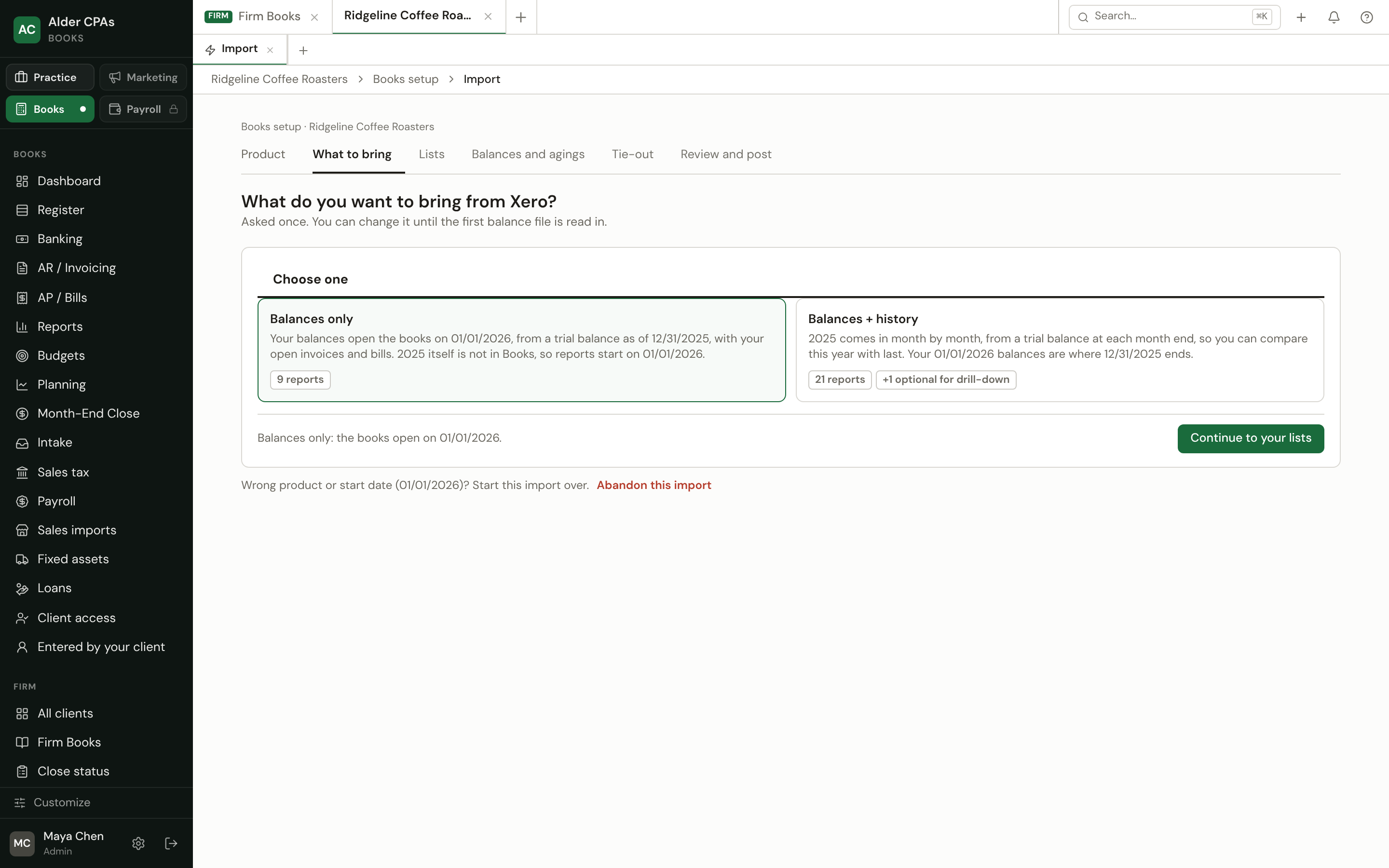 What do you want to bring from Xero?, with Balances only chosen
Upload your lists first
Your lists first asks for the account list and the other lists before any balance file. Each row names the report, where to find it in your product (for Xero, Accounting → Chart of accounts → Export), and the file format. Click Guide for the full steps, then Upload file.
Once a file is read, its row says how many lines came in, for example Read · 52 lines, and offers Replace file. An optional list you uploaded can also be taken back with Remove this file, and an optional list you don't use can be left out with Skip this report.
Books matches each file's columns for you, and you confirm every match at review. If a file has lines Books could not read, the row lists them by line number; fix the file and replace it, or click Leave this line out (or Leave these 3 lines out) to go on without them. The lines stay on the file's record with who left them out. When every list is in, or skipped:
- Click Review the matches to check how each account, customer and vendor was matched, and decide anything Books could not.
- Click Add these lists to Books.
If a list changes in the old system before you add the lists, export it again and click Replace file on its row. You can also start from the matches: on a list's tab under Review the matches, click Read this file again.
Books takes you back to Your lists first, at that list's file, and says Choose the chart of accounts file again to read it in. Your decisions on anything that hasn't changed are kept. Click Replace file and choose the new export.
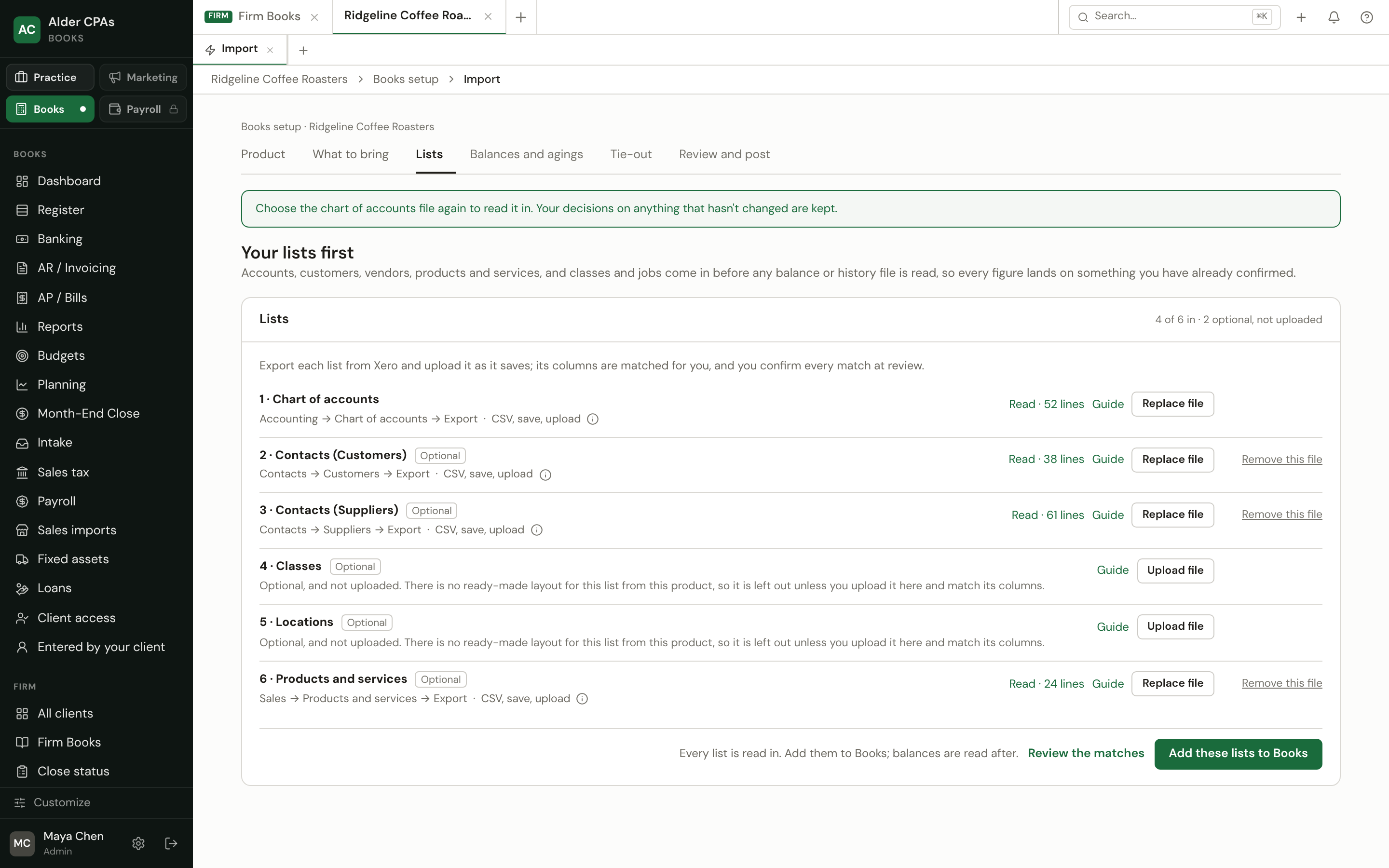 Your lists first after Read this file again on the Chart of accounts tab, with the notice at the top
Once the lists are in Books, a list file is not read again. Uploading one is refused with Your lists are already in Books, so the Chart of accounts file is not read again. Add a missing entry where the import stops instead.
On the list tabs under Review the matches, and in the review, there is no Read this file again; the same place reads Your lists are already in Books, so this file is not read again. Add a missing entry where the import stops instead.
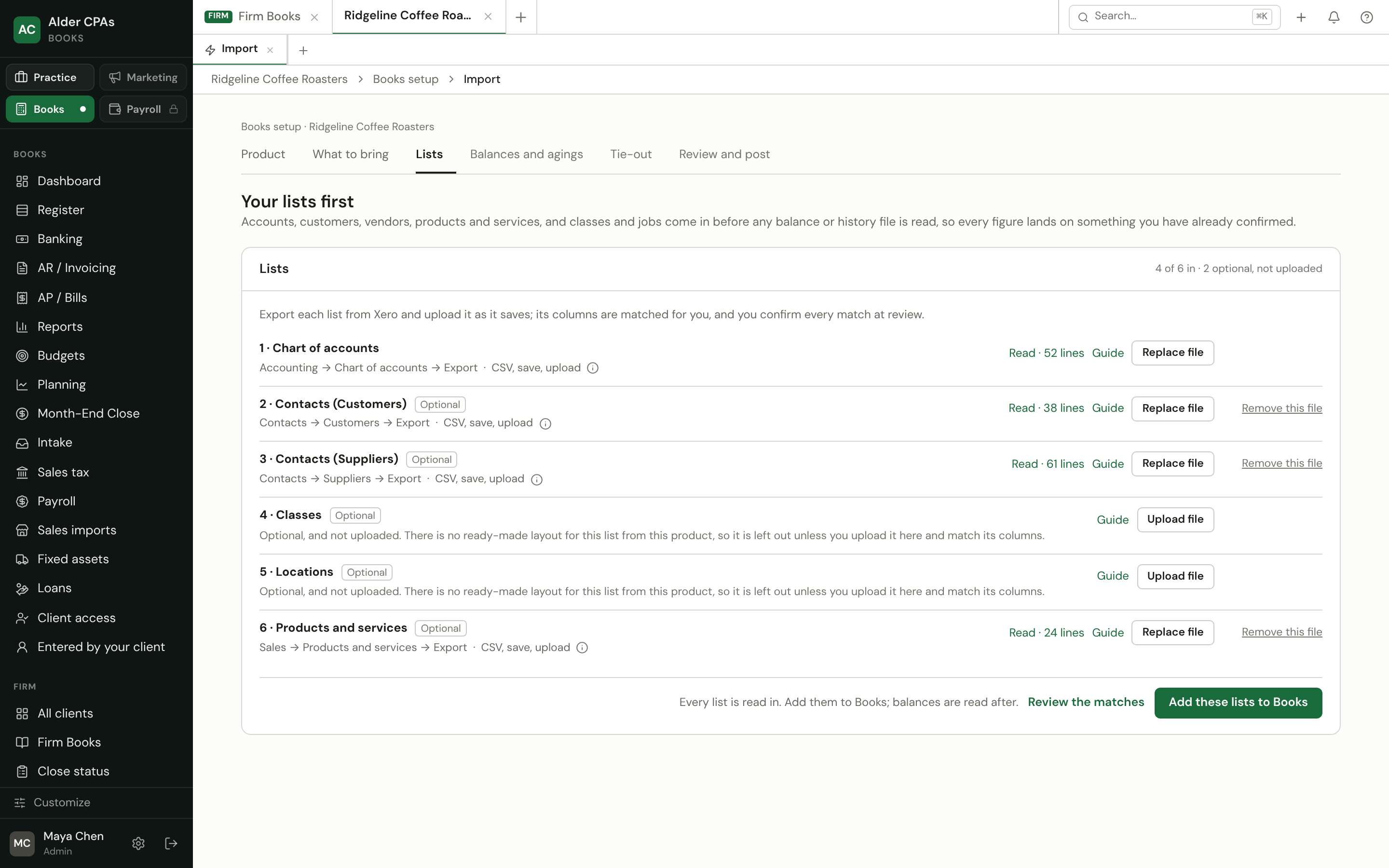 Your lists first, with the chart of accounts, customers, suppliers and products and services read in
If an entry could not be added, the card says how many and why, with Review them and Try them again (Review it and Try it again for one). When the entries that could not go in are all on one list, Review them opens them.
When they are on more than one list, open them from Review the matches instead: it opens on the entries that need a decision or could not go in, and you move between the list tabs. Balances are read only after every list is in.
Upload balances and agings
Next, upload the trial balance and the A/R and A/P aging detail, each as of the day before your books start. The guide for each says how to set the report's date and basis in your product. Books checks the aging reports against the trial balance's receivable and payable accounts.
When they disagree, the step says so and gives both figures, for example The A/R aging total and the trial balance's A/R control balance disagree. Re-export both as of the same date, or approve the difference as an opening adjustment on the review screen. The trial balance says $18,420.00; the aging report comes to $17,960.00.
The check does not hold the review: once every report the import needs is in, Check the tie-out is on.
Upload corrected files first, or approve the difference with Approve as an opening adjustment on Commit & verify. A cash-basis trial balance has no receivable or payable, so there is no check: the step says so, and the open invoices and bills come in as documents. With Balances + history, the History step then asks for the month-end trial balances.
Review and post
Tie-out compares what the files say with what Books read in. Then review each tab. If a balance file was wrong, open its tab (Trial balance, Open invoices or Open bills) and click Read this file again. Books takes you back to its files, at that file: click Replace file, choose the corrected export, then click Check the tie-out to return to the review.
Click Continue to commit, and on Commit & verify post the import. For books that are not set up yet, the button reads Finish: post the import and turn Books on, and the same page asks for the business details and periods that setup would otherwise ask. For books already set up, it reads Commit — write these books.
Bring QuickBooks Desktop history in
QuickBooks Desktop has no connection to read from, so its history comes in from four reports you run in QuickBooks Desktop. You add them on Commit & verify, in the History card above the commit button. The card shows each report's menu path and dates for this import, so you don't have to work any of them out.
The history is the current fiscal year up to the day before your books start, plus the full fiscal year before it. When your books start on the first day of a fiscal year (Jan 1 for a December 31 year end), the current year has no days before the start, so the history is simply the full year before it.
Ridgeline Coffee Roasters' year ends December 31 and its books start Jan 1, 2026, so its history is Jan 1, 2025 through Dec 31, 2025, opening from the trial balance on Dec 31, 2024. Had its books started Jul 1, 2026, the history would run from Jan 1, 2025 through Jun 30, 2026, still opening from Dec 31, 2024.
The card states the dates for your import, for example This client's year ends December 31. The history runs from 01/01/2025 to 12/31/2025, the day before these books start, starting from the balances at 12/31/2024. If the client has no year end on record, the card asks When does this client's fiscal year end? first, or, when the same page asks for the business details, says Confirm the year end in The business below. Nothing comes in until the year end is saved.
Run the four reports
Run each report in QuickBooks Desktop with the dates below, and export it to Excel (Excel › Create New Worksheet). These are Ridgeline's dates (books starting Jan 1, 2026); the card shows the same steps with your dates filled in.
- Trial Balance: Reports › Accountant & Taxes › Trial Balance. Set From and To both to 12/31/2024. Excel › Create New Worksheet. This is the day before the history starts, and the history opens from it.
- General Ledger: Reports › Accountant & Taxes › General Ledger. Dates: From 01/01/2025 To 12/31/2025. Excel › Create New Worksheet. Account numbers are not needed, and an added Account column is fine.
- Profit & Loss by month: Reports › Company & Financial › Profit & Loss Standard. Dates: From 01/01/2025 To 12/31/2025. Columns: Month. Excel › Create New Worksheet.
- Balance Sheet by month: Reports › Company & Financial › Balance Sheet Standard. Dates: From 01/01/2025 To 12/31/2025. Columns: Month. Excel › Create New Worksheet.
The last three use the same dates: from the history's first day to the day before your books start.
When the history crosses a fiscal year end (books starting Jul 1, 2026, say), the card asks for the General Ledger once per fiscal year, each with its own dates, because one run across a year end leaves out the earlier year's income and expense lines. Choose all of those files together on the General Ledger row.
Check the history, then bring it in
-
On the History card, click Choose file on each report's row (Choose file or files on the General Ledger's) and pick its export. The row shows the file's name, and the button becomes Replace file (Replace files).
-
Click Check the history. It runs every check on the history's transactions and brings nothing in. When the reports pass, the card says what would come in, for example Ready to bring in: 1,284 transactions (3,960 lines) from 01/01/2025 to 12/31/2025, opening balances for 41 accounts at 12/31/2024, and 12 months of statements to check them against, followed by the invoices, bills and payments the history brings.
Notes may follow on what Books decided. QuickBooks Desktop's trial balance still carries that year's income and expense, for example, so Books closes them into Retained Earnings for the opening and says so.
-
Click Bring in the history. Check the history and Bring in the history stay off until all four reports are chosen. After that, Bring in the history stays off until you check, and says Press Check the history first. It brings nothing in. Choosing a different file clears the check, so after a Replace file, click Check the history again.
Bringing the history in posts nothing yet: it posts with the rest of the import when you press the commit button. Until the history is in, the commit is held with a reason such as Bring in the history from 01/01/2025 to 12/31/2025 above first, or choose Start from balances only. Start from balances only opens the books from the trial balance without the history.
Two more things can come up before the commit:
- Payments to confirm. QuickBooks Desktop's reports don't say which invoice or bill each payment paid, so Books matches them and lists the matches on the History card. The commit waits until you confirm them there.
- Invoices, bills and payments not in yet. If the history's transactions came in but its invoices, bills and payments did not, the card says so, because customer and vendor balances would not match the aging without them. Click Bring in the invoices, bills and payments.
If Books can't read a report
Books matches every account in the reports to the account list you brought in at the Lists step. When a report names an account that isn't on that list, the check stops and the message at the top of the History card names the row in the exported file and, for most messages, the transaction (type, number and date) and the heading or cell:
| What you see | What it means |
|---|---|
| General Ledger line 214 (Check 1042 03/14/2025): it sits under "Roaster Maintenance", which is not an account in the chart of accounts | The General Ledger prints each account as a heading with its transactions under it. The heading above that line isn't on your account list, so Books won't guess where its transactions go. |
| General Ledger line 214 (Check 1042 03/14/2025): its Account cell "Roaster Maintenance" is not an account | Your General Ledger has an Account column, and that line's Account cell names an account that isn't on your account list. |
| General Ledger line 214 posts to "6150 · Roaster Maintenance", which is not in the chart of accounts | The line's account is printed with an account number, and that numbered account isn't on your account list. |
| General Ledger line 6 (Deposit 3318 01/02/2025): a line before any account heading | The line sits above every account heading in the file, so it has no account. |
The Trial Balance and the two by-month reports are checked against the same list. When one of them names a numbered account that isn't on it, the message names the report and the account.
Compare the name in the message with your account list. The usual causes:
-
The account was renamed or added in QuickBooks after you exported the account list. The reports print its name today; the list has the old name, or none.
-
A sub-account. Its name on the account list is written Parent:Child, for example Equipment:Roasting Equipment, while the reports print only Roasting Equipment, indented under Equipment. Books joins the two using the heading above it.
If the message names a sub-account, check that it sits under the same parent in the report as on the list. If your General Ledger has an Account column, the cell itself must read the way the list does, Equipment:Roasting Equipment included.
-
Account numbers turned on or off in QuickBooks between exports. With account numbers on, QuickBooks Desktop prints 6150 · Roaster Maintenance; with them off, Roaster Maintenance. The reports have to print accounts the way the account list does.
When the report is the one that's off, run it again, choose it with Replace file, and click Check the history.
Connect QuickBooks Online
On the QuickBooks Online card, click Connect, then Connect QuickBooks Online →, and sign in to QuickBooks. When you come back, the pull starts on its own.
The page shows Pulling from QuickBooks… and each list with its counts as it comes in (for example 52 fetched · 52 staged · 0 errors ✓). Right after you connect, a line such as 3 of 9 parts done · 2 min. also shows how far it has got. Keep the page open while the books come across.
If one list changed in QuickBooks after it came in, open that list's tab in the review and click Bring this list in again. The page returns to the pull, which says This import is waiting to be pulled. If it does not move, start it again — nothing already pulled is lost. Click Continue pulling. Your decisions on anything that has not changed are kept.
If more than one list changed, bring the whole pull in again. In the steps across the top of the review (Source · Extract · Review · Commit), click Extract.
The finished pull shows every list with its counts and says Everything has come across. Bring it in again only if the books changed in QuickBooks since; your review decisions are kept. Click Re-pull to ask QuickBooks for every part again, or Back to the review to leave it as it is.
Re-pull is there while the review still has something for you to decide. Once you click Continue to commit, or if the pull came across with nothing left to decide, Extract opens the review instead; to bring a changed list in again then, use Bring this list in again on its tab.
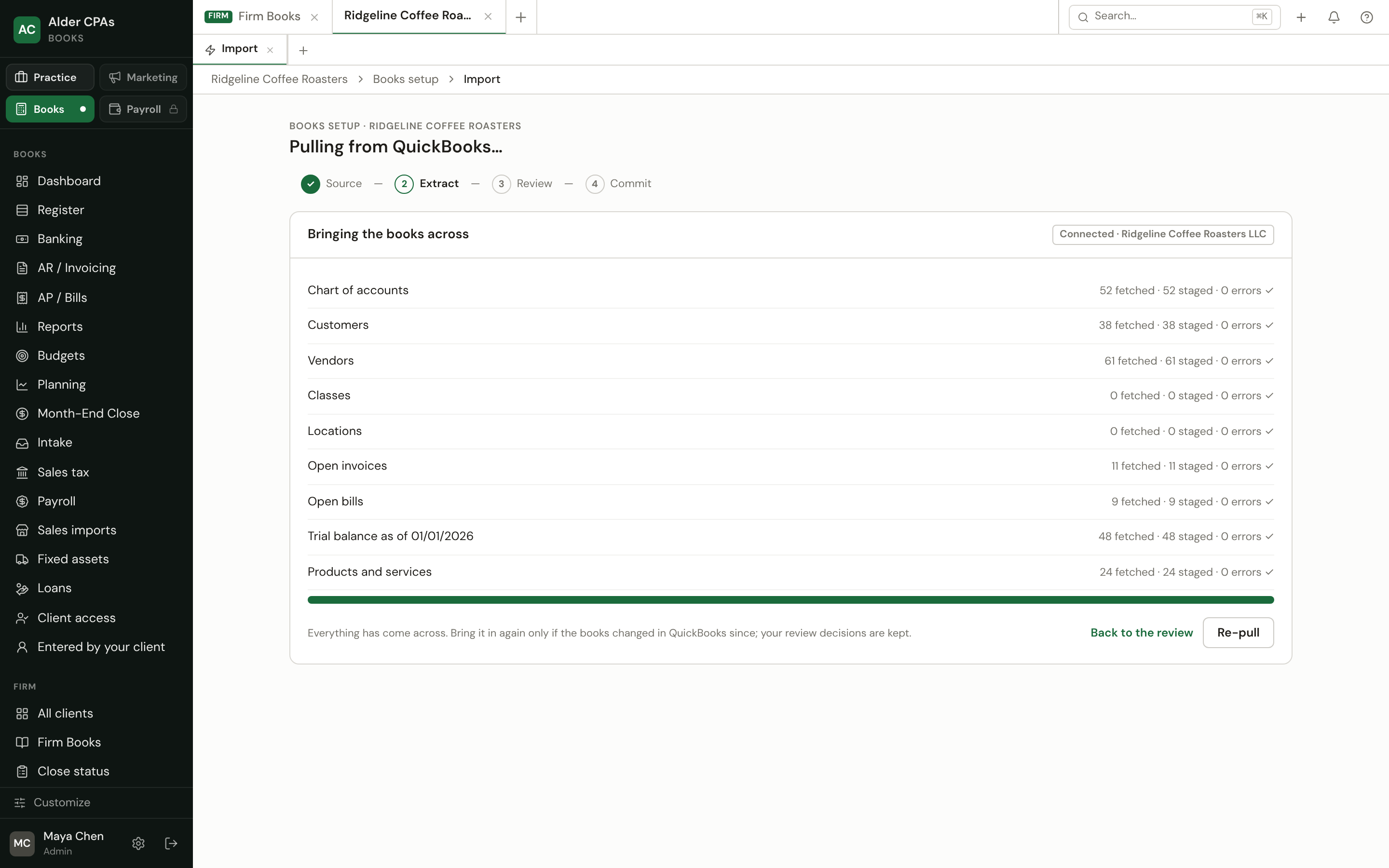 A finished QuickBooks Online pull, opened from the review's steps, with Re-pull and Back to the review
If QuickBooks connects but Books could not record whether the books are on cash or accrual, the page says so: reports open on accrual, and you can set the basis in the client's Settings › Accounting.
Watch every import from one screen
Settings → Firm → Clients → Imports lists every client of the firm, whether or not Books is set up for them. The top shows Clients, Books active, Imports in flight and Need attention, which counts each stopped import as well as items waiting on a decision.
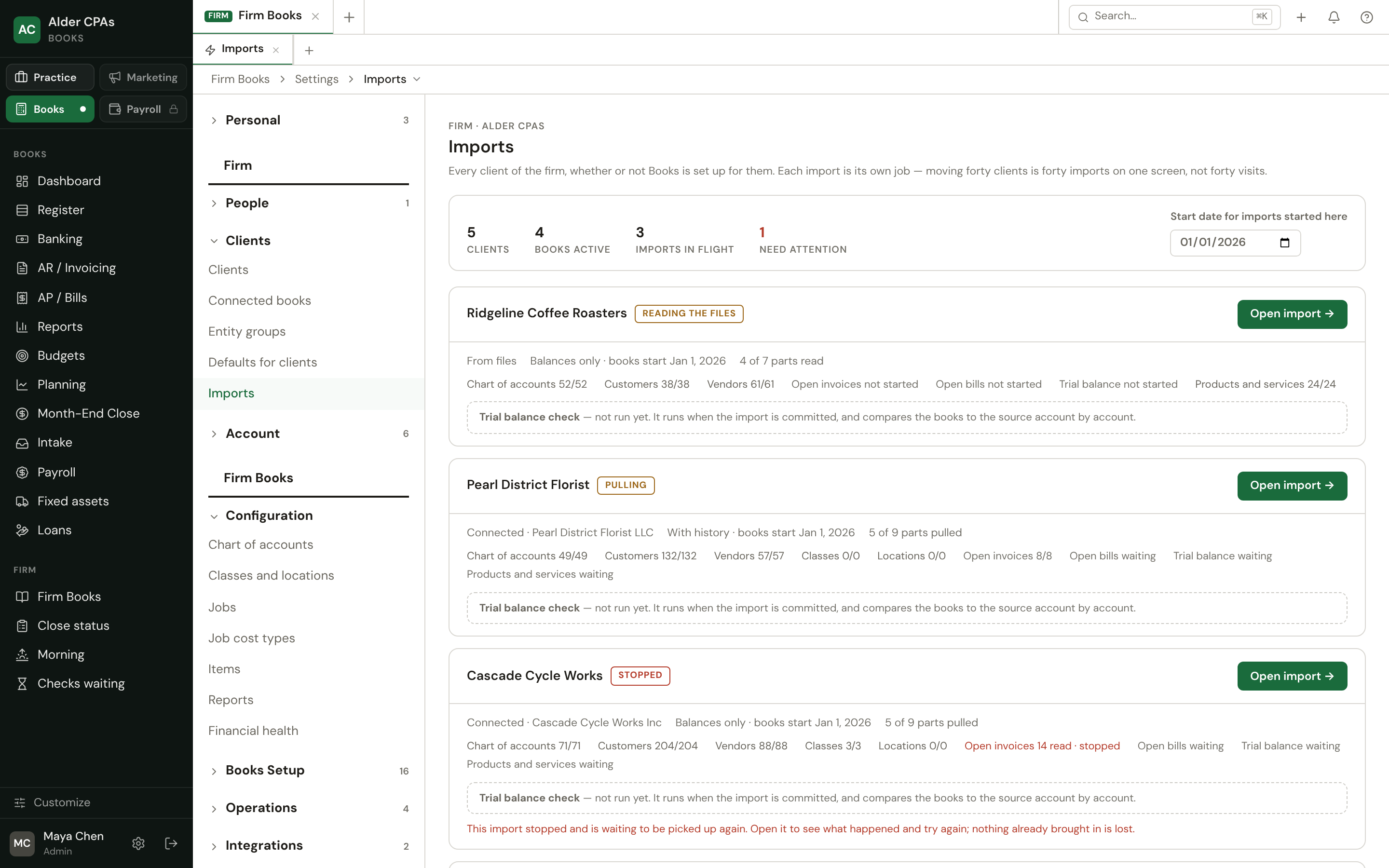 Settings › Imports, with Ridgeline's file import being read, a QuickBooks Online pull with history, and a stopped import counted in Need attention
Each client with an import shows its state (Reading the files for a file import, Pulling for a QuickBooks Online connection, Reviewed — ready to commit, Stopped and so on), where the books come from (From files, or Connected · and the company name), Balances only or With history, the day its books start (for example books start Jan 1, 2026), how many parts have been read or pulled, and Open import →.
A finished import stays on its row, for example Imported from QuickBooks Desktop on Oct 14, 2026 · books start Oct 1, 2026.
Who can import
- On a client's import screens you need the Import books from another accounting system permission for that client. Without it the screens are read-only and say You need the "Import books from another accounting system" permission for this. Ask an admin to grant it.
- Import books creates a client, so it needs an owner, admin or staff role. Others see Adding and editing clients is an owner, admin or staff action. Your role is read-only.
Why can't I continue?
On Import books, the first three reasons below show under the grayed-out continue button (Continue before a product is chosen; after that it names your choice, such as Continue with Xero or Connect QuickBooks Online →), one at a time.
| What you see | What to do |
|---|---|
| Choose the product the books are in today. | Click a product card. |
| Choose the entity type. | Pick one under Entity type. |
| Choose the day the books start on. | Enter a date under The books start on. |
| This client already has an import in progress. Finish or abandon it before starting another. | Open the import in progress from Settings → Firm → Clients → Imports, and finish it or start it over. |
| Add these lists to Books is off, and the footer reads, for example, Still needed: Chart of accounts. or Upload or skip: Customers. | Upload the remaining lists, or click Skip this report on an optional list you don't use. |
| The import stopped, or you left partway | See An Import Stopped Partway. |
Start over or undo
-
Before any list is in Books: Abandon this import (under What to bring, beside Wrong product or start date…? Start this import over.) stops it for good. What it read from your files is removed; nothing has been posted. Once the lists are in Books, abandoning is refused and Undo this import takes its place.
-
For an import that created its own client: Discard on its row in Pick up where you stopped (or Discard this import on the import's files step, before its lists are in Books) moves the client to Recently deleted, where it can be restored for 30 days. The import itself (its files and review decisions) is removed at once; a record of it is kept.
-
Once its lists are in Books, even after the import is finished: Undo this import removes everything the import wrote, as if it had never run, so the import can be started again. It stays possible until the client has postings of its own. Say why, click Show what this deletes to see exactly what goes, then Delete it all. A full copy of what was removed is kept with your reason. Anything something else still uses is kept, and named when the undo finishes.
Undo is refused if the books hold any posted entry the import did not write, including ones they carried before it; and if an import entry falls in a month locked for good. If an import entry falls in a closed month, only an owner or admin can undo it, giving a reason, or reopen the month from Close first, then undo the import.
Once the books are in use, undo also stops at what depends on the import, and says what to do first: undo a reconciliation that cleared imported entries, unmatch bank lines matched to them, or, when an imported invoice has been sent to the customer, void the invoices you need to change instead. When undo is refused for good, void an imported invoice, bill or payment you need to change, like anything else posted, and correct opening balances with a dated adjusting journal entry.
If your firm also uses Practice
With Practice, new clients are added in Practice and appear in Books the moment they exist, so Import books points you there. You then start the import from the client's own Books setup.
While you review customers and vendors, Books also looks for each one among your firm's Practice contacts. Where one matches, the Suggestion column offers Link to that contact, with Link and Don't link. Link connects the customer or vendor to that contact. A declined link is not suggested again.
Tips
- Pick the start date before you export anything. Every balance report is run as of the day before it.
- Related: Add a Client and Turn On Books and Set Up a Client's Books.