
Reconcile an Account
Tick off your books against a bank or credit card statement until the difference is $0.00, find what is keeping it from balancing, and keep a finished workpaper for every month.
On this page
Reconciling proves that the books and the bank agree. You enter the statement's date and ending balance, tick every line in the register that appears on the statement, and finish when the difference is $0.00. Each finished reconciliation is kept as a workpaper you can export, and the next month starts from where it ended.
The beginning balance is never typed. It is the ending balance of the last finished reconciliation of the account (or the account's opening balance, the first time), and it is locked. If it does not match your statement's opening balance, the problem is in an earlier period, not something to correct here.
You can reconcile bank accounts, credit cards and client trust accounts. Reconciling works on every plan, with or without a connected bank.
Understand the Reconcile page
The page shows one account at a time. Pick it with Account to reconcile at the top right. From an account's register, the Reconcile button opens this page on that account.
Under the title, Last reconciled through 09/30/2026 · ending $52,388.61 tells you where the account stands. Below it is every reconciliation of the account, newest first:
- Statement date and Statement balance: the statement's date and ending balance.
- Difference: $0.00 on a finished reconciliation. On one still open, it is the difference so far, for example $2,850.00 so far.
- Completed: when it was finished.
- Status: Open, Done, Undone or Void, or No longer ties (see When a finished reconciliation no longer ties).
- Actions: Continue on an open reconciliation, and Report (its workpaper) on every other one. A finished one also has Changes since finished, Reopen, Undo and Void; those three work only on the newest finished reconciliation, and only while no later one is open.
Use Search date, status or reason, or the Status, Statement date and Statement balance filters, to find one.
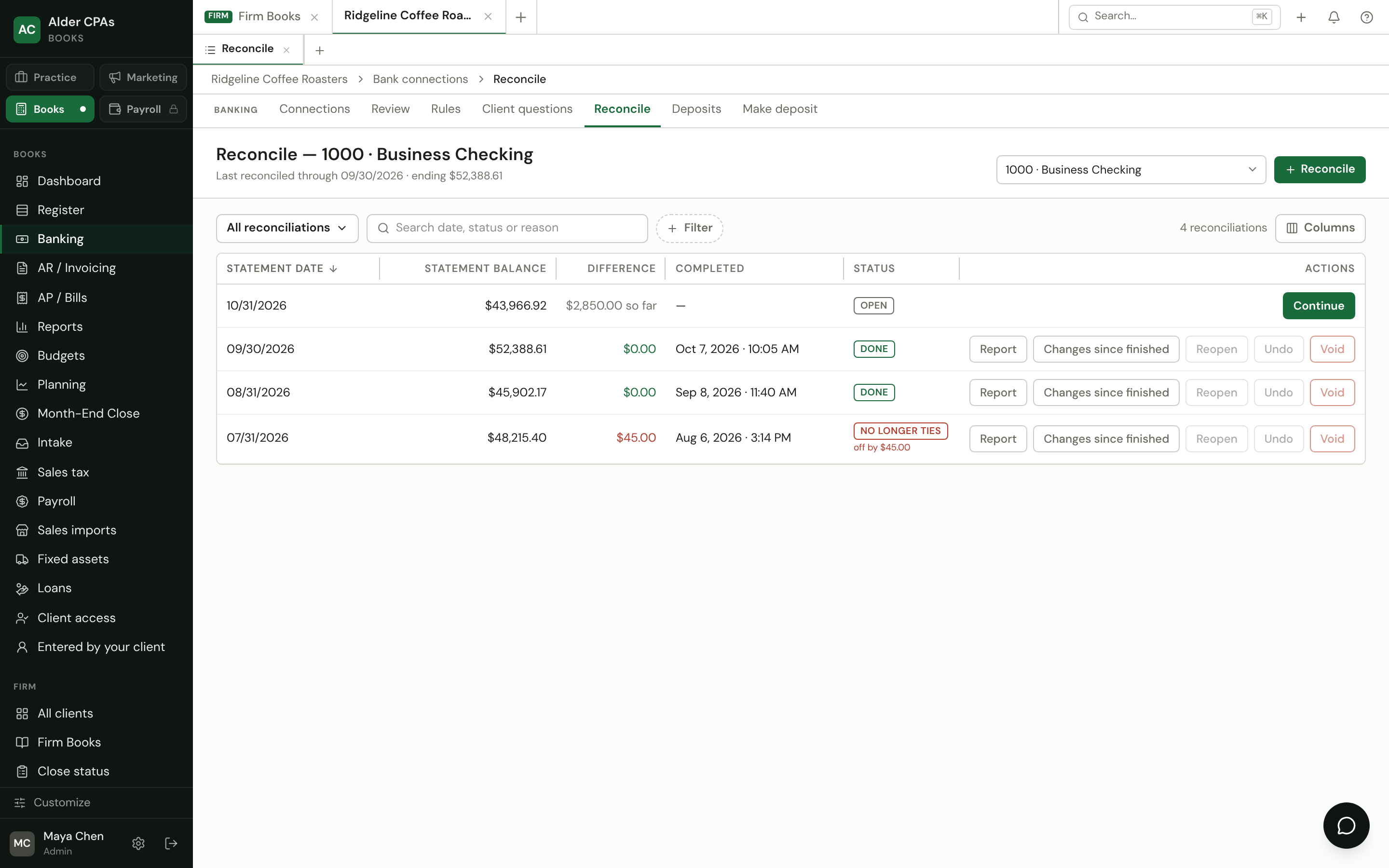 The Reconcile page for 1000 Business Checking, with October open and three finished months
Which accounts still need reconciling?
- On the Reconcile page, the line under the title shows how far the account is reconciled. Switch accounts with Account to reconcile. An account never reconciled reads Not reconciled yet.
- On an account's page, the Snapshot card shows Last reconciled (Through 09/30/2026, or Never), and the Reconciliation history tab lists every reconciliation of that account.
- For the whole firm, turn on the Oldest unreconciled column under Columns on Close status. It shows current for a client that is up to date, or the oldest month not yet covered, such as Aug 2026. Hover it to see how many accounts are behind and which one is the oldest, or which account has never been reconciled. Click it to open that client's Reconcile page.
- At month-end, the Statements received card on the month's close lists each bank and card account with its statement for the month. An account reconciled in that month without a kept upload shows Reconciled through and the date.
To make sure an account is never skipped, turn on Require reconciliation before close in the account's settings. A month then can't be locked until that account is reconciled through the month's last day.
Start a reconciliation
- On the Reconcile page, choose the account and click Reconcile.
- Check the Statement date. If you uploaded a statement for this account that carries an ending balance and is dated after the last finished reconciliation, Books offers the end date of the earliest such statement and says From the statement you uploaded. Change it if you are reconciling a different one.
- Check the Beginning balance. It is locked, and the line under it says where it came from.
- Enter the Statement ending balance from your statement. If you uploaded a statement or bank file whose period ends on exactly that date, the figure is filled in for you and labeled: Pre-filled from the statement you uploaded (Ridgeline-checking-4410-Oct-2026.pdf) for the period ending 10/31/2026. Edit if your statement says otherwise.
- Click Start reconciling.
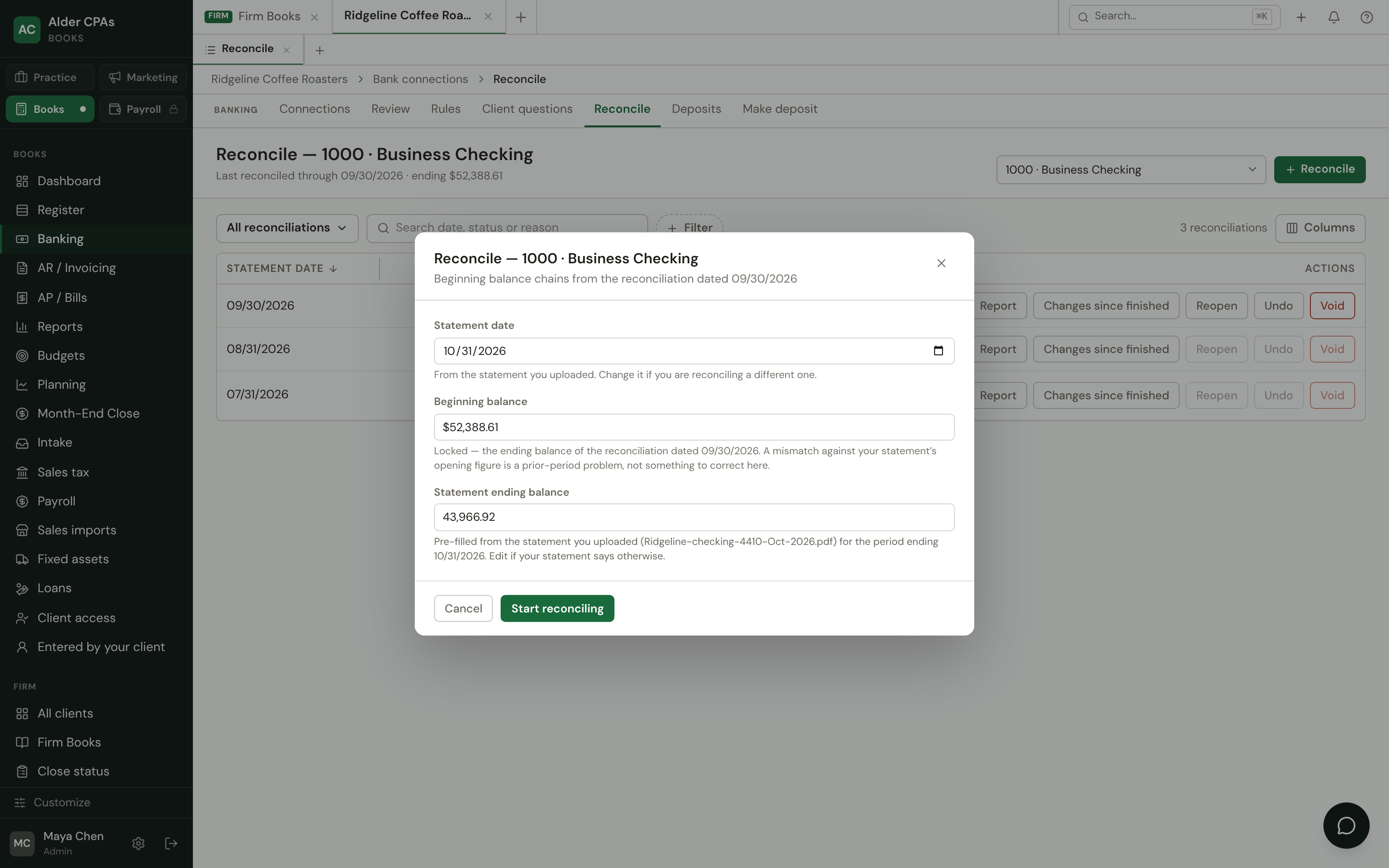 Starting the October reconciliation, with the beginning balance chained from September and the ending balance taken from the uploaded statement
For a credit card, the fields read Beginning amount owed and Amount owed on statement. Type the amount owed as the statement prints it, as a positive number.
If an open reconciliation already exists for that statement date, Books takes you back to it instead of starting a second one. Start with your earliest statement, so each month's balance carries into the next.
Tick off the statement
The reconciliation opens with two lists side by side: Payments / Checks on the left and Deposits / Credits on the right (on a credit card, Charges / Cash advances and Payments / Credits).
Each list shows every line in the register on or before the statement date that no finished reconciliation has cleared yet, including older items still outstanding from last month. Lines held by another open reconciliation of the account, and the account's opening-balance lines, are not listed.
Tick each line that appears on the statement. Every tick is saved the moment you make it, so you can click Leave at any time and come back with Continue.
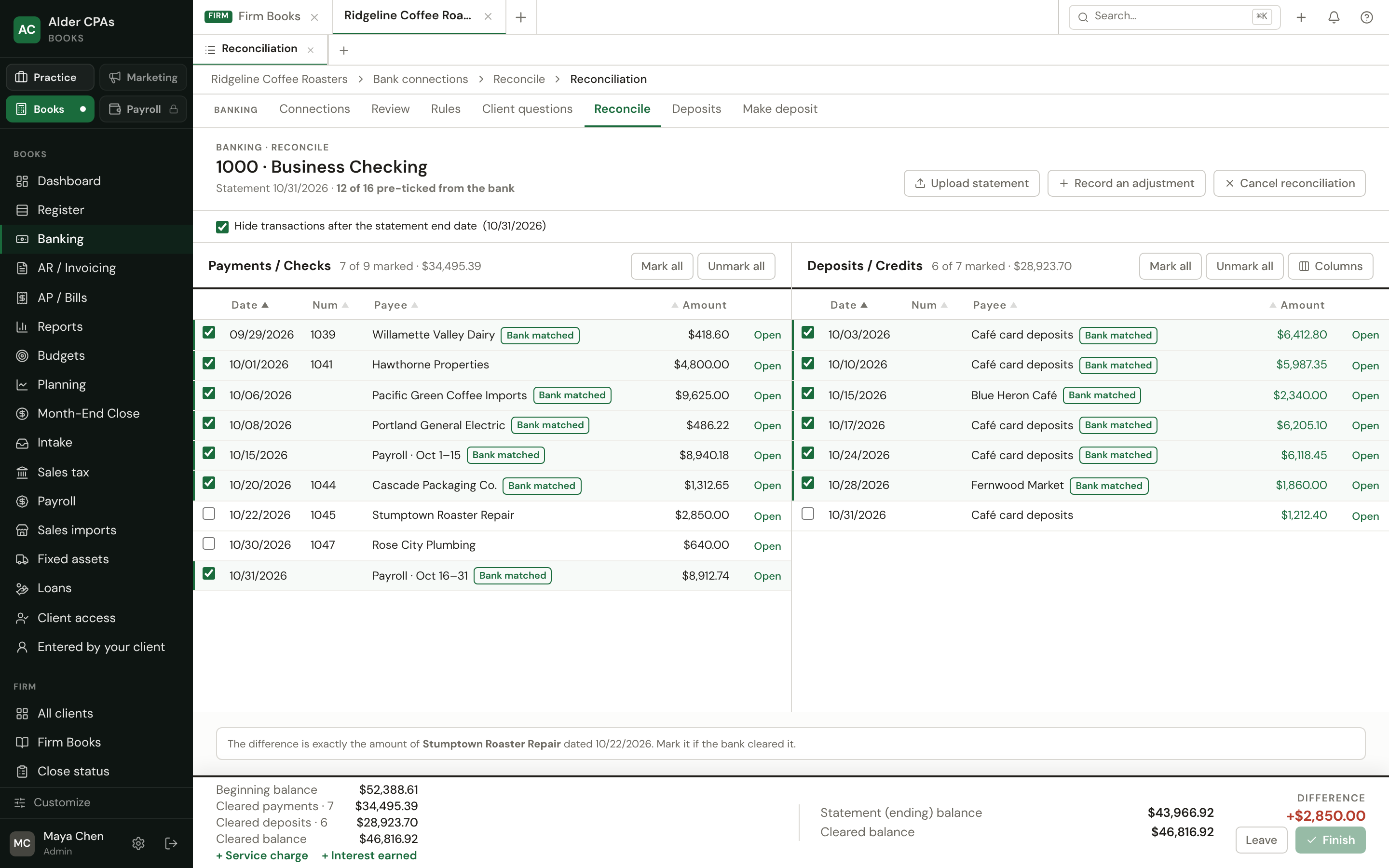 The October reconciliation, off by $2,850.00, with Books naming the check that explains it
-
Lines the bank already showed are ticked for you. When the account is linked in Banking, a line matched or posted from a bank line dated on or before the statement date arrives ticked and tagged Bank matched.
The header counts them, for example 12 of 16 pre-ticked from the bank. Lines matched after you start are ticked as they arrive, when both the bank line and the entry are dated on or before the statement date, except a line anyone on your team unticked.
-
Each list has its own count and total, for example 7 of 9 marked · $34,495.39, and its own Mark all and Unmark all.
-
Amounts in the lists have no sign. The list tells you the direction. Deposits show in green.
-
Lines dated after the statement are hidden. Clear Hide transactions after the statement end date to see them. They show in gray and can't be ticked; they belong to the next reconciliation.
-
Open a line to check or fix it. Click a row (or its Open link) to open the entry right over the reconciliation, without leaving it. If you change an amount or account, the line keeps its tick.
-
Choose your columns. Columns, on the deposits list's header, sets both lists at once. Num shows by default, Memo is there to turn on, and Date, Payee and Amount are always shown. Click Date, Num, Payee or Amount to sort.
Read the summary bar
The bar along the bottom stays on screen while you scroll:
| Figure | What it is |
|---|---|
| Beginning balance | The locked starting balance. |
| Cleared payments · 7 and Cleared deposits · 6 | The ticked lines on each side, with their count. |
| Cleared balance | Beginning balance + cleared deposits − cleared payments. |
| Statement (ending) balance | The figure from your statement. |
| DIFFERENCE | Cleared balance − statement ending balance. |
The difference always carries its direction. On a bank account, +$2,850.00 means your ticked lines leave more in the account than the statement shows, and ($2,850.00) means less. On a credit card, + means the books show less owed than the statement. At $0.00 it turns green, and you can finish (see Finish).
In the example, $52,388.61 + $28,923.70 − $34,495.39 = $46,816.92 cleared, against a statement balance of $43,966.92: a difference of +$2,850.00.
Why won't my reconciliation balance?
Look under the lists first. When the difference can be explained by one line, Books says which:
- The difference is exactly the amount of Stumptown Roaster Repair dated 10/22/2026. Mark it if the bank cleared it. One unticked line would make the difference zero.
- The difference is exactly the amount of … which is marked. If it is not on this statement, unmark it. One ticked line may not belong on this statement.
- The difference is exactly the amount of a bank line still waiting in review: … The bank has a line the books don't have yet. Click Review it, post it from the Review queue, then tick it here.
Books only names a line when exactly one line matches the difference. It never guesses at a "closest" match. If no note appears, work through these checks:
- Compare the counts. Each list's of … marked count should match the number of items on that side of your statement.
- Check the ending balance you entered against the statement. To change it, click Edit details (see Fix the statement date or ending balance), or upload the statement (below), which uses the ending balance printed on the file when it carries one.
- Look for lines still in review. Lines waiting in the Review queue aren't in the books yet, so they can't be ticked.
- Look for amounts entered wrong. Click the row, fix the entry, and save. The line stays ticked and the figures update.
- Check fees and interest printed on the statement but not yet in the books (see Record fees and interest).
- Check the beginning balance. If it doesn't match the statement's opening balance, an earlier month changed after it was finished. See When a finished reconciliation no longer ties.
On an account's first reconciliation, a missing opening balance is named for you. If the statement opens at a figure the books don't have, Books says so, for example This statement opens at $41,870.00; these books open 1000 · Business Checking at $0.00. The $41,870.00 between them is the account's opening balance, missing from the books, not an adjustment. It has to be entered as the opening balance for this reconciliation to tie.
Click Enter the opening balance, check the entry it shows, then Post the opening balance. Then cancel this reconciliation and start it again, so it begins from the opening balance. Record an adjustment is turned off until the opening balance is entered.
Ticking a line that won't tick
A line dated after the statement can't be ticked. Hover its box for the reason, for example Dated 11/03/2026, after the 10/31/2026 statement. It belongs to the next reconciliation.
If you untick a line tagged Bank matched, Books notes it above the lists and names where the match came from, for example You unmarked Pacific Green Coffee Imports dated 10/06/2026, which the uploaded statement matched for this statement. (or the bank connection).
Unticking says the bank did not clear it by the statement date. If the match itself is wrong, undo it in the review queue, which the note links to. Mark it again puts the tick back.
Upload the statement to tick it for you
Instead of ticking line by line, you can let the statement do it.
- Click Upload statement at the top of the reconciliation.
- Drop the file in, or choose it: PDF, CSV, OFX, QFX or QBO.
- Read the result before applying it, for example 14 of 15 statement lines match the books; 14 will be marked cleared. 1 is not in the books. If the file carries an ending balance different from the one you entered, it says so: the old figure becomes the file's.
- Click Apply.
A statement line matches a line in the books with the same amount, dated within 5 days of it. When both carry a check number, the numbers must agree instead, and the dates can be up to 90 days apart. A match dated after the statement date in the books stays unticked. Nothing is posted.
Lines on the statement that matched nothing are listed under On the statement, not in the books. On a bank account, Add opens Record an adjustment filled in from the statement line, and you choose the account. Ignore hides the line for this visit only.
To upload a statement for the Review queue instead, see Upload a bank statement.
Record fees and interest
A statement often carries a fee or interest the books don't have yet. There are two ways to add them.
At the bottom left of the summary bar, click + Service charge or + Interest earned (on a credit card, + Fees charged or + Interest charged). Each adds a row with a date (on or before the statement date), an account and an amount. Type the amount without a sign; the row sets the direction.
On a bank account, a service charge is always money out of the account and interest earned is always money in. On a credit card, fees charged and interest charged both raise what is owed. Each row posts a journal entry to the account you name when you click Finish. If the finish is refused, nothing posts and the rows stay on screen so you can correct them. Leave does not keep rows that haven't posted.
For anything else, click Record an adjustment:
- Set the Date, on or before the statement date.
- Choose the Account the money belongs to, such as 6700 · Bank & Card Fees.
- Choose Money out of the account or Money into the account, and enter the Amount. On a credit card, a charge such as a fee is money out of the account: it raises what is owed.
- Add a Class, Location or Job if the client uses them.
- Write the Reason, at least 5 characters (10 if the date falls in a tax year whose return has been filed).
- Click the button, which names what it will do, for example Post $18.00 to 6700 · Bank & Card Fees.
The entry posts to the register right away and arrives already ticked in this reconciliation, so the difference changes by its amount as soon as it posts. Untick it if it doesn't belong on this statement.
There is no "reconciliation discrepancy" account. Neither way of adding an entry has a field for the difference or a default account: you name the account the money really belongs to. Posting exactly the outstanding difference to a suspense account is refused as a plug.
Finish
When the difference is $0.00, click Finish. Until then, hover Finish to see why it is off: Finish when the difference is $0.00.
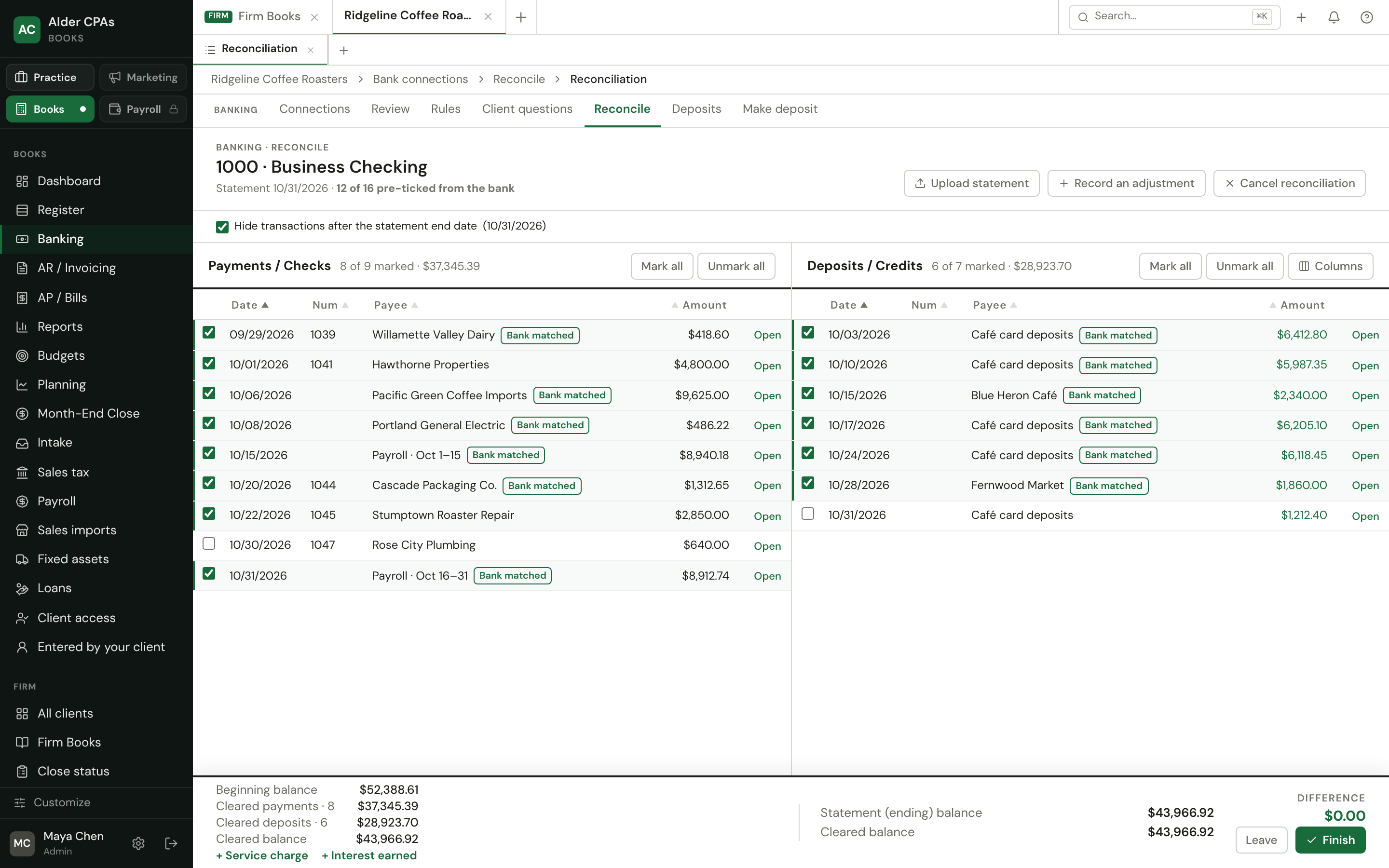 October tied: the difference is $0.00 and Finish is on
Finishing:
- checks the figures again from the books, so a line someone changed a moment ago can't slip through;
- marks every ticked line as reconciled, so later reconciliations don't list it again;
- stores the workpaper as it stands at that moment;
- takes you back to the Reconcile page, where the statement's ending balance becomes the next month's beginning balance.
An entry and its void dated on or before the statement date cancel out, so they aren't listed to tick. Voided pairs under the lists shows them, and they are reconciled together when you finish.
Fix the statement date or ending balance
Typed the wrong date or balance? You don't have to start over. On a reconciliation in progress, click Edit details, at the top beside Cancel reconciliation.
- Change the Statement date, the Statement ending balance (on a credit card, Amount owed on statement), or both. The Beginning balance is locked: it is the ending balance of the last finished reconciliation, or the account's opening balance, for the date you choose.
- Add a reason under Why are you changing it? if you like. It is recorded in the audit log with your name and the time.
- Click Save. Your ticked items are kept.
When the change does more than replace the figures, Books asks first, Save the new details?, and lists what will happen: for example, 2 checked items are dated after the new statement date and will be unchecked. or a beginning balance that changes with the new date. It names each line it ticks or unticks. Click the button that says the consequence (such as Save and uncheck 2 items), or Back to the details. Nothing is posted.
Edit details is refused, with the reason, when the reconciliation was finished and then reopened (its figures are the finished statement's), when the month is hard-locked, when the new date is not after the account's last finished reconciliation, when another reconciliation of the account already has that date, and when an adjustment posted during this reconciliation is dated after the new statement date.
Cancel a reconciliation
If you started on the wrong statement altogether, click Cancel reconciliation. The window says what will happen: how many ticked items go back to uncleared, and that the reconciliation is removed so the same statement date can be started again. Add a reason if you like, then click Cancel the reconciliation, or Keep working on it to go back.
Canceling doesn't touch the ledger: no entry is posted, reversed or removed. The canceled reconciliation doesn't stay on the Reconcile page; what it held is kept in the audit log.
Read the finished workpaper
Click Report on a finished reconciliation to open its workpaper.
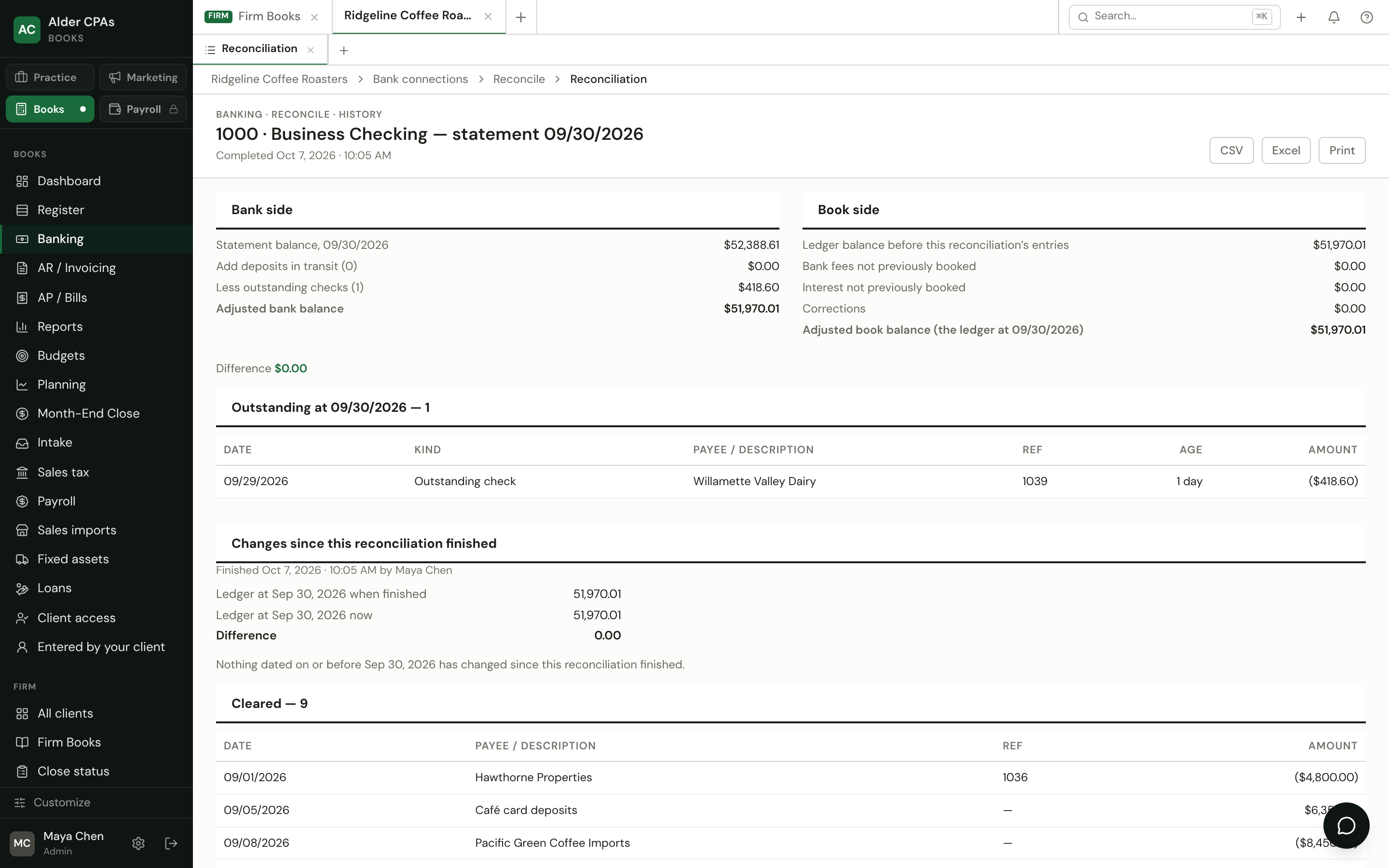 The September workpaper: both sides agree, with one check outstanding
- Bank side: the statement balance, plus deposits in transit, less outstanding checks, gives the Adjusted bank balance.
- Book side: the ledger before this reconciliation's entries, plus or minus the bank fees, interest and corrections booked through it, gives the Adjusted book balance, which is the ledger at the statement date.
- Difference: the gap between the two sides, $0.00 on a finished reconciliation.
- Outstanding at 09/30/2026: what had not cleared at the statement date, each with its kind (Outstanding check or Deposit in transit) and age. An item over 90 days old is marked Stale.
- Booked through this reconciliation: the fees, interest and corrections posted during it, when there are any.
- Cleared: every line this reconciliation cleared.
The outstanding list is the one stored when the reconciliation was finished. Clearing a September check in October doesn't rewrite September's workpaper.
CSV and Excel download the workpaper with both sides and every item. Print prints it, or saves it as a PDF from the print window.
When a finished reconciliation no longer ties
If a line a finished reconciliation cleared is changed later, the reconciliation stops agreeing with its statement. Books doesn't hide that: its status on the Reconcile page changes from Done to No longer ties, with the amount (off by $45.00), and the Difference column shows that amount in red.
Open it with Report. The workpaper says No longer ties: off by $45.00. A line this reconciliation cleared has changed since it was finished. Reopen it to correct it, and finish it again. Reopen works on the newest finished reconciliation, and only while no later one is finished or in progress: undo or void the later finished ones first, newest first, and cancel one that is still in progress.
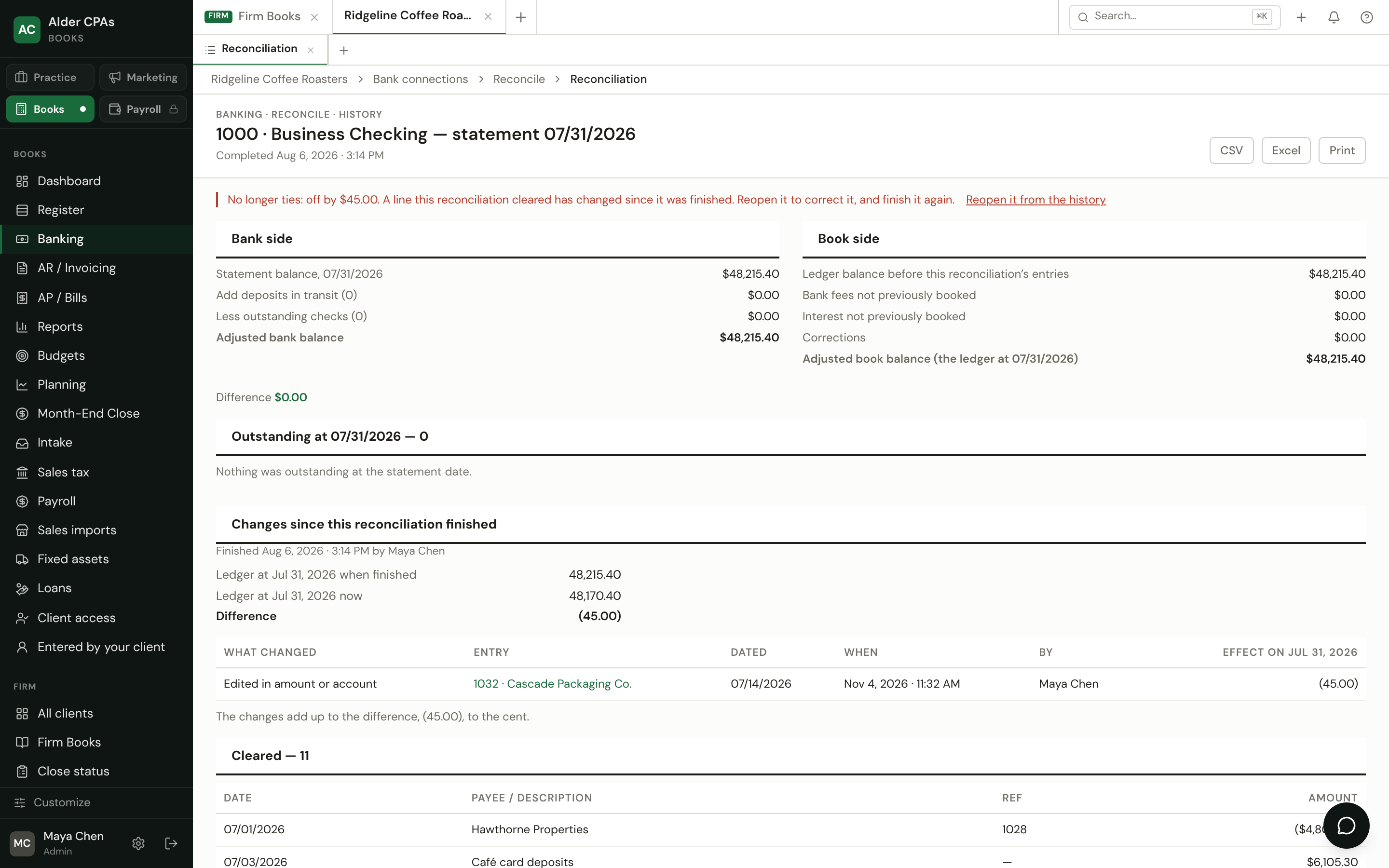 July no longer ties: a reconciled check was edited in November
Changes since this reconciliation finished (also one click away with Changes since finished on the Reconcile page) shows exactly what moved:
- the ledger at the statement date when it was finished, and now, and the Difference;
- one row per change: What changed (Voided, Voided a reconciled entry, Edited in amount or account or Added after the finish), the Entry, when it is Dated, When it was changed and By whom, and its Effect on the statement date;
- a closing line that checks the changes against the difference, such as The changes add up to the difference, (45.00), to the cent., or says how much no listed change accounts for.
Correct the entry where it was changed, or reopen the reconciliation and take the change into it (Reopen works on the newest finished reconciliation: undo or void later finished ones first, newest first, and cancel one still in progress). When you start the next month, the start window also tells you if the month it chains from has moved.
Why can't I …
-
… start a reconciliation? Start reconciling stays off until there is a statement date and an ending balance, and the window says which is missing beside the button: Enter the statement date. or Enter the ending balance from your statement. (on a credit card, Enter the amount owed from your statement.). A balance of 0.00 counts, if you type it.
A statement date that already has a finished, undone or voided reconciliation on this account can't be started again. For a finished one, Books says This account already has a completed reconciliation for the statement dated 10/31/2026. Each statement date is reconciled once — choose the next statement's date, or open that reconciliation from the history.
To correct it, reopen it from the Reconcile page if it is the account's latest finished one (see Undo or redo a reconciliation).
For an undone or voided one, the sentence ends choose the next statement's date. Its report stays in the history. An undone or voided reconciliation can't be opened again; only its Report can be read.
A month that is hard-locked can't be started either: The period containing Oct 31, 2026 is hard-locked, so a reconciliation cannot be started for that date.
-
… tick, finish or cancel? You need the Reconcile permission for the client. Without it, the buttons are turned off and the page says what is missing.
-
… finish when the difference is $0.00?
- 10/31/2026 is in a hard-locked period, so this reconciliation cannot be finished. The month is hard-locked.
- Name the account and the amount for the service charge before finishing. A fee or interest row is half filled in. The sentence names the row: service charge or interest earned on a bank account, fees charged or interest charged on a credit card. Complete it, or remove it with its ×.
- The cleared items balance, but the statement side and the ledger side of the workpaper do not. Something on or before the statement date was changed under an earlier reconciliation — find it before finishing. An earlier month moved after it was finished. Books names what changed and links to it.
-
… cancel a reconciliation? The cancel window tells you why, and Cancel the reconciliation stays off. Canceling is refused:
- when the reconciliation was finished and reopened: This reconciliation was finished and then reopened, so it is the record of a finished statement and cannot be canceled. Finish it again, then undo or void it.
- when an adjustment was posted during it: An adjustment entry of $18.00 was posted during this reconciliation, so it cannot be canceled. Void that entry first, or finish the reconciliation.
- when its month is hard-locked: The period containing Oct 31, 2026 is locked, so this reconciliation cannot be canceled. Unlock the period first.
-
… reconcile this account? Only bank, credit card and trust accounts are reconciled. On any other account, the Reconcile button in its register is turned off, and hovering it says Reconciling compares a statement to this register, so it applies to bank, credit card and trust accounts.
-
… Reopen, Undo or Void? Hover the button for the reason. These belong to Undo or redo a reconciliation.
If you also use Practice
When a difference won't close today, hand it to someone without losing track of it.
- Create task, beside Finish, appears while the difference isn't zero. The title is filled in for you, such as Resolve the reconciliation difference — statement dated 10/31/2026, and the task keeps a live link back to the reconciliation.
- On the task in Practice, the link shows where the reconciliation stands, Rec · in progress or Rec · finished (with the day it was finished, when the client or firm has a time zone set), and offers Open in Books to go straight to it.
Shortcuts and tips
The two lists are built to be worked from the keyboard, one key per line.
| Key | What it does |
|---|---|
| Tab | Moves into a list and on to the next control. It doesn't step through every line. |
| ↑ / ↓ | Moves to the line above or below. |
| Space | Ticks or unticks the line. The list doesn't jump. |
| Enter | Opens the line's entry over the reconciliation. |
Amount boxes do math. In Statement ending balance, an adjustment's Amount, or a fee or interest row, type a sum such as 18+4.50 or 3x6. When you press Enter or leave the box, it settles to the result, to the cent. Use + and -, *, x or × to multiply, and / or ÷ to divide; parentheses group. A leading =, $, commas and spaces are ignored. A sum that can't be worked out stays as you typed it, outlined in red, with the reason.
More details worth knowing:
-
Your column choice is remembered in your browser, for both lists. Reset to default in Columns puts it back.
-
The difference appears once, with its sign, so you can see whether the books are over or short.
-
Leaving loses nothing. Ticks are saved as you make them; only fee and interest rows that haven't posted are dropped.
-
Ending balances are labeled. A filled-in ending balance says it came from your upload, so you can tell it from one you typed.
-
On clients on Premium, Books also reviews the reconciliation while it is open, before you finish it, and lists anything worth a second look under the lists: a Possible duplicate, an entry Coded unlike before, a recurring payment Expected, not here, or a Low confidence category, each with its reason.
Fix opens the entry (or the Review queue); Accept… keeps it as it is, with your reason. Open flags don't stop Finish, but they stop the month from closing.
Recommended monthly routine
- Empty the Review queue for the month first. Lines still in review aren't in the books, so the reconciliation can't tie until they are.
- Upload the month's statement, so the statement date and ending balance fill themselves in.
- Start the reconciliation and check that the beginning balance matches the statement's opening balance.
- Click Upload statement in the reconciliation, or tick what the bank didn't pre-tick.
- If the difference isn't zero, read the note under the lists before hunting by hand.
- Add service charges and interest from the statement, then Finish.
- Export the workpaper for your files, and check the Reconcile page for No longer ties before you lock the month.