
Reviewing Bank Transactions
Categorize, match, exclude and ask about the bank lines waiting in your Review queue, and set up rules so the next ones take care of themselves.
On this page
Every line that comes in from a connected bank, an uploaded statement or a bank file waits in the Review queue once its bank account is linked to an account in your chart. Review is where you decide what each line is: an expense to categorize, a payment that is already on the books, a transfer, something personal to leave out, or a question for your client.
Bank lines never touch the ledger until you post them. Suggestions, matches and rules only propose. An entry is written when you click Add or Post, or confirm a transfer, and it is dated on the day the bank reported the line. Match writes nothing new: it links the line to an entry already on the books. The one exception is automation you turn on yourself, described in Let a rule post on its own.
Understand the Review queue
The queue lists every line still waiting, newest first, with a count under the title: for example, 9 transactions to review · 1 pending (not yet postable). Lines suggested to a balance-sheet account are grouped at the bottom under Held for review, and you post each of those yourself.
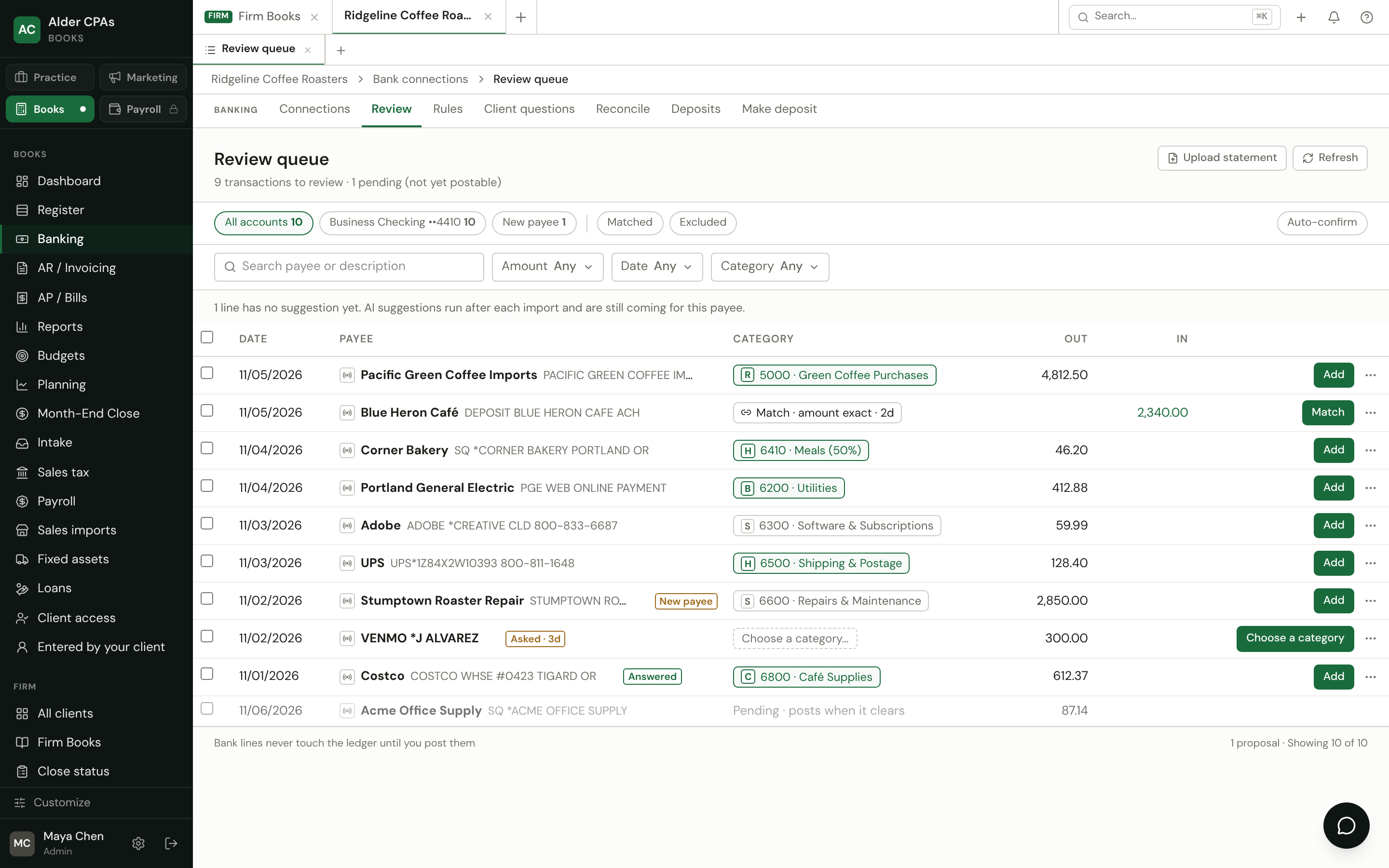 The Review queue for Ridgeline Coffee Roasters, with suggestions, a proposed match and a client answer
Each row has the same columns:
- A checkbox, to select the line (see Work through several lines at once).
- Date — the day the bank posted the line.
- Payee — the payee in bold, then the bank's own description and memo in gray. The small icon before it shows how the line arrived and on which account, and short markers after it point out anything worth a second look (see Markers on a line).
- Category — what Books thinks the line is. This is the decision you are making.
- Out and In — the amount. When every line in view is on a credit card, these read Charges and Payments.
- The last column holds the line's main button and a ⋯ menu with everything else.
Filter the queue
The row of pills above the table narrows the queue:
- All accounts, or one pill per bank account (for example, Business Checking ••4410), each with its count.
- A flag pill, when any line is flagged for unusual activity: a new payee, a possible duplicate, an unusual or round amount, or weekend activity. It is named after the flag when every flagged line has the same one (for example, New payee), and reads Flagged otherwise.
- Entered by the client — lines your client categorized themselves, when there are any.
- Matched and Excluded — lines you matched or excluded, so you can undo them.
Use Search payee or description to find a line by any part of its text (at least two characters). The Amount, Date and Category filters narrow it further; for example, Category → No suggestion shows the lines that carry no suggested category.
What the Category column tells you
The Category column shows one thing per line. The most common:
| What you see | What it means |
|---|---|
| Match · amount exact · 2d | An entry already on the books has the same amount, two days apart — usually an invoice payment, a bill payment or a check you wrote. |
| Proposed as a transfer | The other half of this line is on another of the client's accounts. |
| Payment from … · 1 open invoice (or Payment to …) | The payee is a customer or vendor with something open. See the warning under Match a line. |
| A chip marked C | Your client answered a question about this line, and the choice they picked is tied to an account. |
| A chip marked R, H, B or S | A suggested category. Hover the letter to see why. |
| Choose a category… | Nothing suggested this line. Clicking it opens the line blank. |
| Pending · posts when it clears | The bank has not settled the line yet. |
The letter on a suggestion tells you where it came from:
- R — Rule. One of the client's bank rules matched. The reason begins From the rule "Pacific Green".
- H — History. This payee has been posted to this account at least twice before, in the same direction. The reason begins Posted to this account 9 times before.
- B — Bank category. The bank labeled the line, and Books mapped that label to an account. When money comes in under a label that normally means spending, the chip proposes the same expense account and adds refund?.
- S — Suggested. Books read the line and made an educated guess, with its confidence: Suggested: a monthly design-software subscription · confidence 82%. These are offered on clients on Premium when AI suggestions are on for your firm (Settings → AI).
A match always beats a suggestion. If a line looks like a payment that is already on the books, Books proposes the match and shows no category. Posting it as an expense would count the money twice.
Post a line
Post a suggestion in one click
When the Category column already shows the right account, click Add. The line posts immediately and leaves the queue, and a notice confirms it — Posted Corner Bakery to 6410 · Meals (50%). — with Undo and Open the entry.
Undo reverses the entry and puts the line back in review.
Change the category, or add details
- Click the category chip (or Choose a category…). The line opens in an editor below the row.
- Pick the Category. Start typing a name or number; if the account does not exist yet, choose Add "…" as a new account at the bottom of the list.
- Check the Payee (filled in from the bank line) and add a Memo if you like. The memo starts with the memo the bank sent, if any. Class, Location, Job and Billable to appear when the client uses them.
- Check the preview line under the fields. It shows the exact entry that will post, such as Posts: DR 6600 Repairs & Maintenance $2,850.00 · CR Business Checking $2,850.00.
- Click Post.
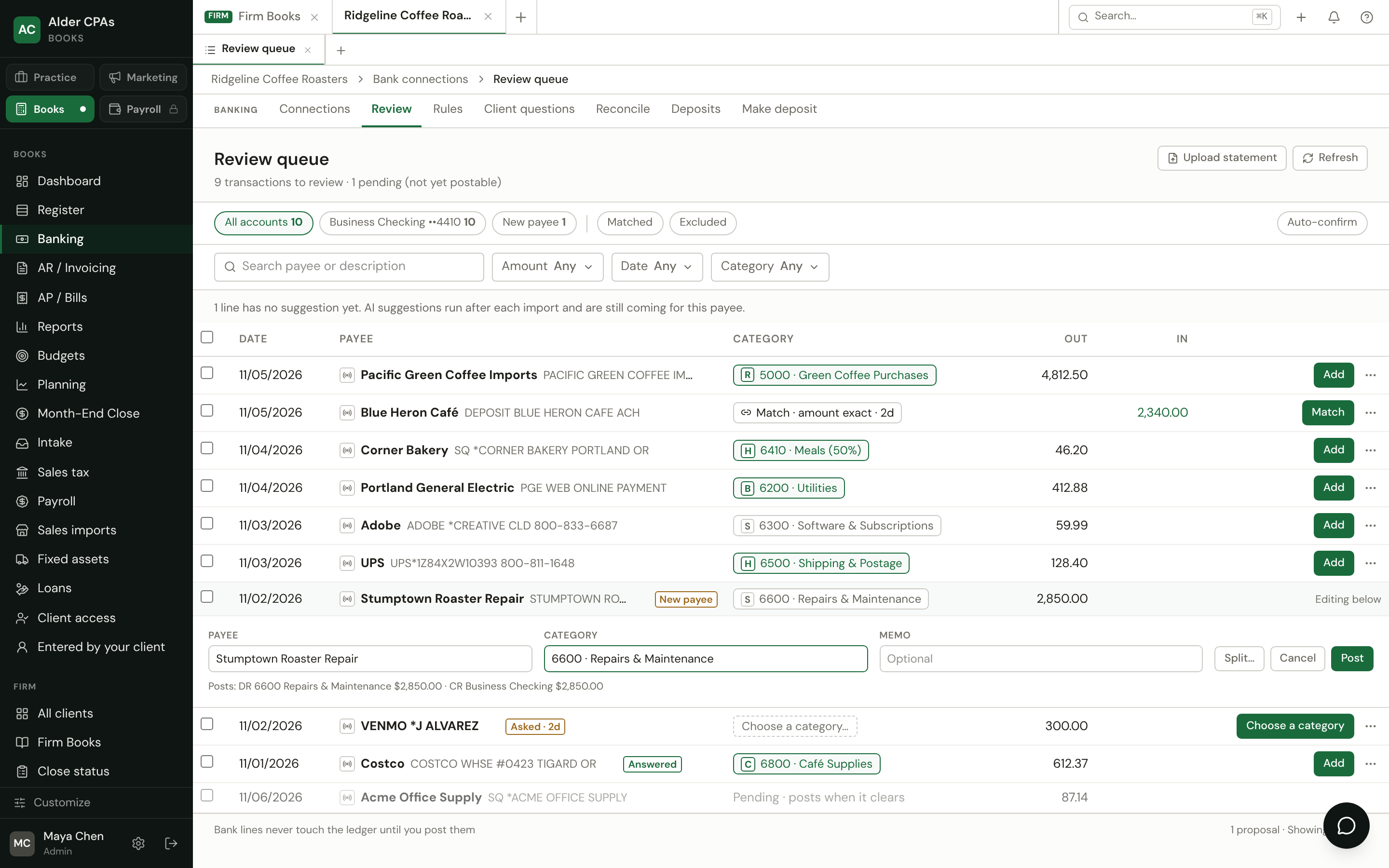 Editing a bank line before posting, with the entry preview
As you fill in the line, Books checks it. If something would stop the entry, the reason shows in red under the fields in place of the preview, and Post turns off until you fix it.
Split a line across accounts
Click Split… in the editor to divide one bank line between several accounts — for example, a warehouse-store run that was part café supplies and part owner draw. With two lines, typing an amount in one fills the other with the rest, unless you already typed an amount there yourself. The split must add up to the bank line exactly: until it does, the split shows what is Remaining or Over by, and Post stays off.
Match a line to something already on the books
When a customer pays an invoice or you pay a bill, the money is usually recorded before it reaches the bank. The bank line should match that entry, not create a second one.
- When Books finds one, the Category column shows Match · … and the main button reads Match. Click it to confirm. No journal entry is created: the line is linked to the entry that is already there, and that entry is marked cleared.
- To pick the entry yourself, open ⋯ → Match to a transaction… (or Match to a different transaction… when a match is already proposed). The Match bank line window lists entries on the same account for the same amount near that date, with the evidence for each (Amount, Check no., Same day or N days). Click Widen to look further out, up to 30 days.
A deposit from a customer with open invoices is not income yet. When the payee is a customer or vendor with something open, Books offers no category. The main button becomes Receive payment or Pay bill instead (or Open invoice / Open bill when the only document is an unsent draft), because the invoice or bill already recorded the income or expense — adding the line as a new one would count it twice. Use ⋯ → Categorize instead… only if the money really is something else.
Transfers between two accounts
When money leaves one of the client's accounts and arrives in another, both lines are paired and shown as a Transfer card above the table. Confirm posts one entry that covers both lines. If they are not really a transfer, open Review → Not a transfer; both lines stay in the queue as ordinary lines, and that pair is not proposed again.
Exclude a line
Some lines should never reach the books: a personal charge on a business card, or a line the bank sent twice.
- Open ⋯ → Exclude….
- Answer Why is this not going in the books?: Personal — not a business expense, Duplicate of another line, or Other… with a few words.
- Click Exclude.
Excluded lines move under the Excluded pill. Click Restore to queue there to bring one back.
Work through several lines at once
Tick the box at the start of each row to select it. Shift+click selects a range, the box in the header selects every line shown, and Esc clears the selection. A bar appears at the bottom with the count and the total out and in.
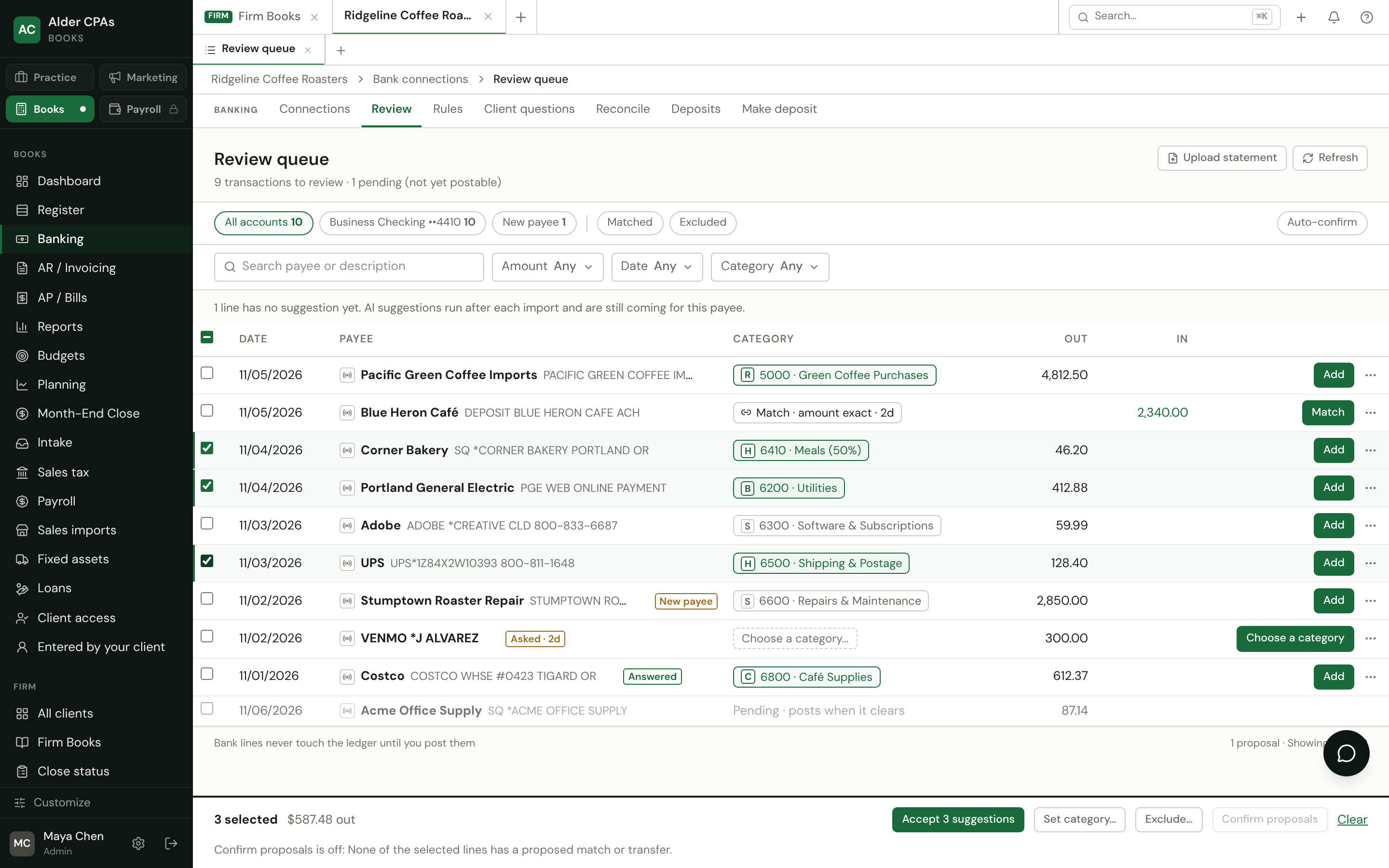 Three lines selected, with the bulk action bar
- Accept N suggestions posts every selected line that carries a suggestion.
- Set category… posts the selected lines to one account you choose.
- Exclude… asks for one reason and applies it to every selected line.
- Confirm proposals confirms the proposed matches and transfers among the selection.
Pending lines and lines with a proposed match are left for you to handle (a pending line can still be excluded). Every line is checked first, one at a time, and a line Books would refuse is never posted. The result says what happened, for example 3 posted · $587.48 out, followed by what is left and why, such as 1 left in review: 1 needs a category. The lines left over stay selected, so you can deal with them next.
Ask your client about a line
When only the client knows what a charge was, ask them from the line itself instead of writing an email.
- Open ⋯ → Ask client…. The window shows the line at the top: payee, date, bank account and amount.
- Choose who it goes To. Only the client's contacts with an email address are listed.
- Set Answer by (a week from today, unless you change it).
- Check the Message, the short note that opens the email, and write the Question itself. Both start with suggested wording you can change.
- Choose how the client can answer:
- Pick an account — you write up to six Choices in plain words and pick, beside each, the account it posts to (or Not business). The client sees your words, never the accounts behind them.
- Yes or no, Written answer, or Send a file (for a receipt or invoice).
- Read the sentence beside the buttons, which says who will be asked and how, and click Send question.
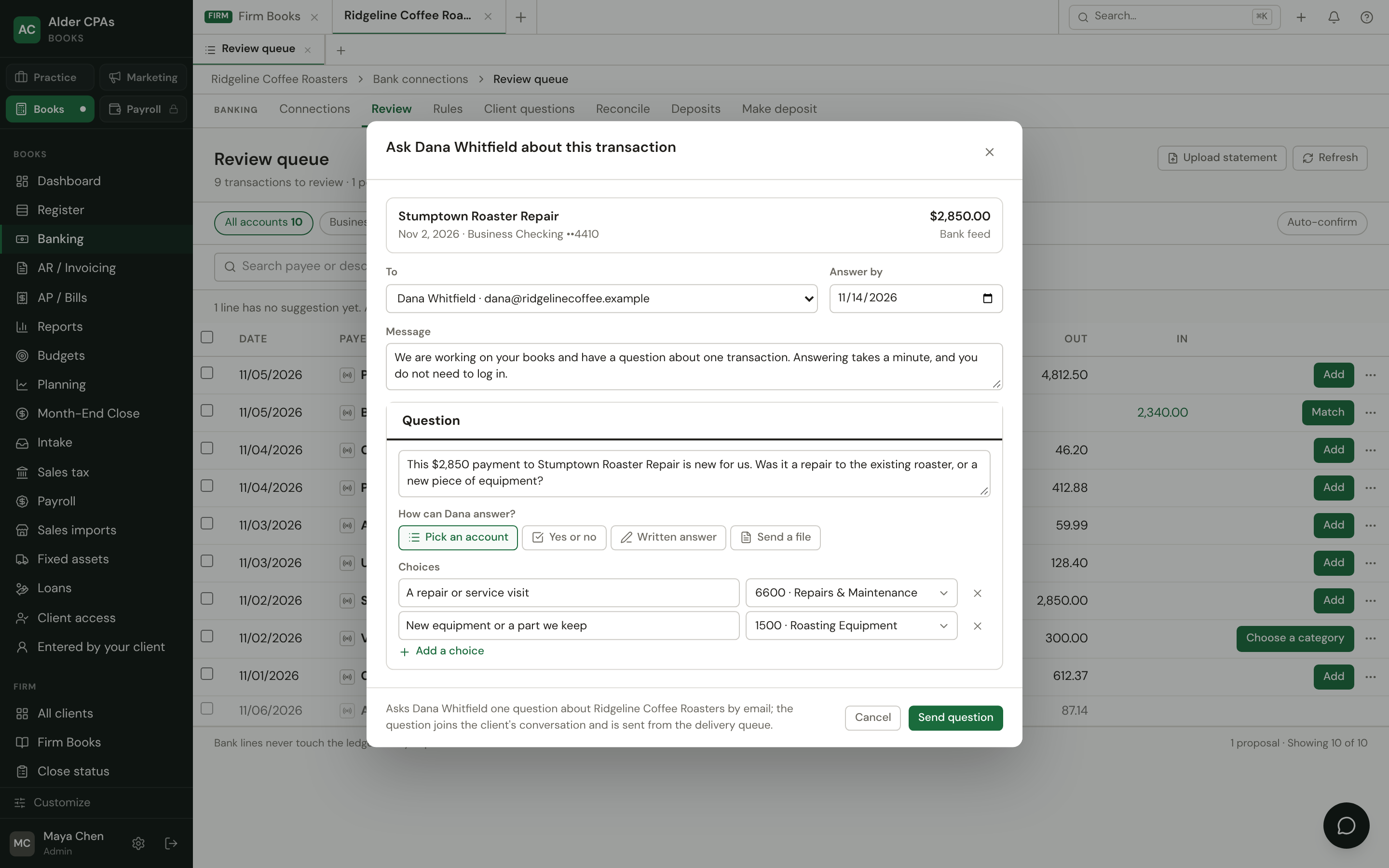 Asking the client about a transaction
What your client sees
Your client gets an email from your firm with the subject Alder CPAs: A question about a transaction. Your Message opens the email, and its Answer the questions button opens the question on your firm's client portal. No sign-in and no portal account are needed: the link itself is the key. The page fits a phone screen.
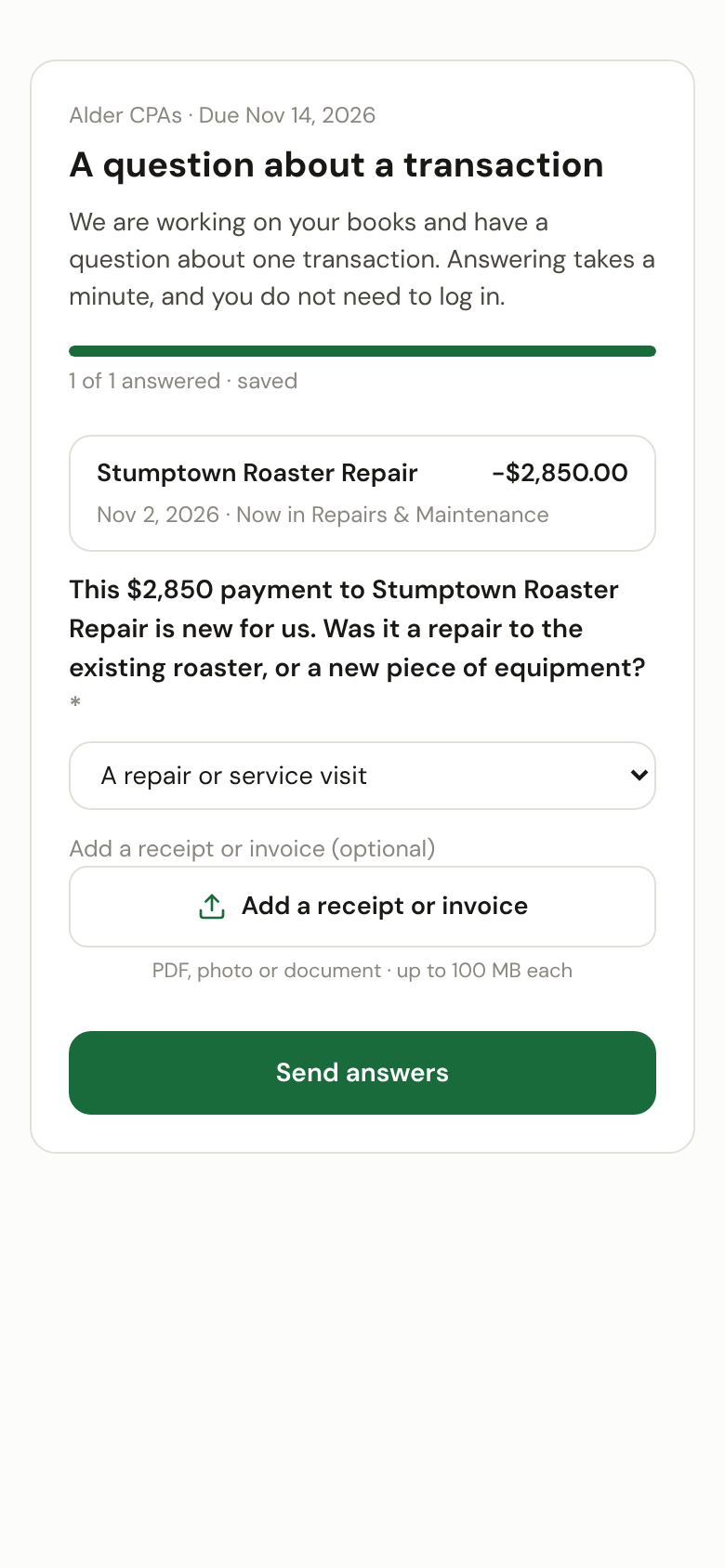 The client's answer page on a phone, with the Stumptown Roaster Repair question answered
- At the top: your firm's name and the Answer by date (Due Nov 14, 2026), the title A question about a transaction, your message, and a progress bar (1 of 1 answered · saved).
- A card for the transaction: the payee, the amount (money out shows with a minus sign, as -$2,850.00), and the date. If the line already has a category in Books — the account it posted to, or the one Books suggests — the card adds Now in and that account's name, such as Now in Repairs & Maintenance. The account number never shows.
- Your question, and the way to answer you chose:
- Pick an account — a drop-down of your choices, in your words, plus Something else — I’ll explain, which opens an In your own words box.
- Yes or no — Yes and No buttons.
- Written answer — a text box.
- Send a file — a place to upload the file (on a computer it reads Drop the file here, or choose a file).
- Under every question except Send a file: Add a receipt or invoice (optional). A PDF, photo or document, up to 100 MB.
Each pick is saved as soon as the client makes it, and typed words are saved when they leave the box, so they can stop and come back to the same link. Send answers sends everything to you. If an answer is missing, the page says A few questions still need an answer — they're marked below. Once the answers are sent, the page reads Thank you — your answers are with Alder CPAs., and they can't be changed from the link.
A link works for 45 days. After that it opens a page that says This link is no longer available, and Re-send (below) sends a fresh one.
When the answer comes back
Back in the queue, the line shows Asked · 2d while you wait, and Answered when the reply arrives. Hover it to read the answer, quoted word for word: The link sent to Dana Whitfield was answered 11/07/2026: “A repair or service visit”. (An answer given while the client was signed in reads Dana Whitfield answered 11/07/2026, signed in: …) If the client picked a choice you tied to an account, the Category column switches to that account with a C chip, and Add posts it.
Nothing posts on its own: you still decide. If the answer arrives after you already handled the line, the hover says so — This arrived after the line was already handled — it is a note on the record, not something to post again. — and the Category column is left as it was.
Banking → Client questions lists every question for the client with its status — Going out while the email is on its way, then Waiting · 2d (amber once it has waited 7 days), Answered or Withdrawn. From there you can Re-send a waiting question (a reminder with a fresh link) or Withdraw it.
A line takes one question at a time. While a question about it is open, Ask client… stays in the ⋯ menu but is turned off, and says so: re-send the open question from Client questions instead of asking twice.
If the client has no contact with an email address, the To list reads No contact with an email address, and the Add a contact link under it opens the client's page under Settings → Clients, where its Contacts are kept.
On your firm's own books there is no client to ask, so Ask client… does not appear. A client who signs in to their own books sees the option but cannot use it; questions are always sent by the firm.
Teach Books with a rule
If the same payee always goes to the same account, make a rule so the next one arrives with its category already chosen.
- On a line from that payee, open ⋯ → Create rule from this….
- The New rule window opens with the rule named after the payee, Payee contains that payee under When all of these match, and the category already chosen: the account you posted this line to, if you already did, or otherwise the line's suggestion. Add conditions on Memo, Amount or Direction if you need to narrow it, and exceptions under Except when any of these match.
- Under Then, choose One account. You can also rewrite the payee and memo, and set a class, location or job when the client uses them.
- Click Test against history to see which past lines it would have caught.
- Click Save rule.
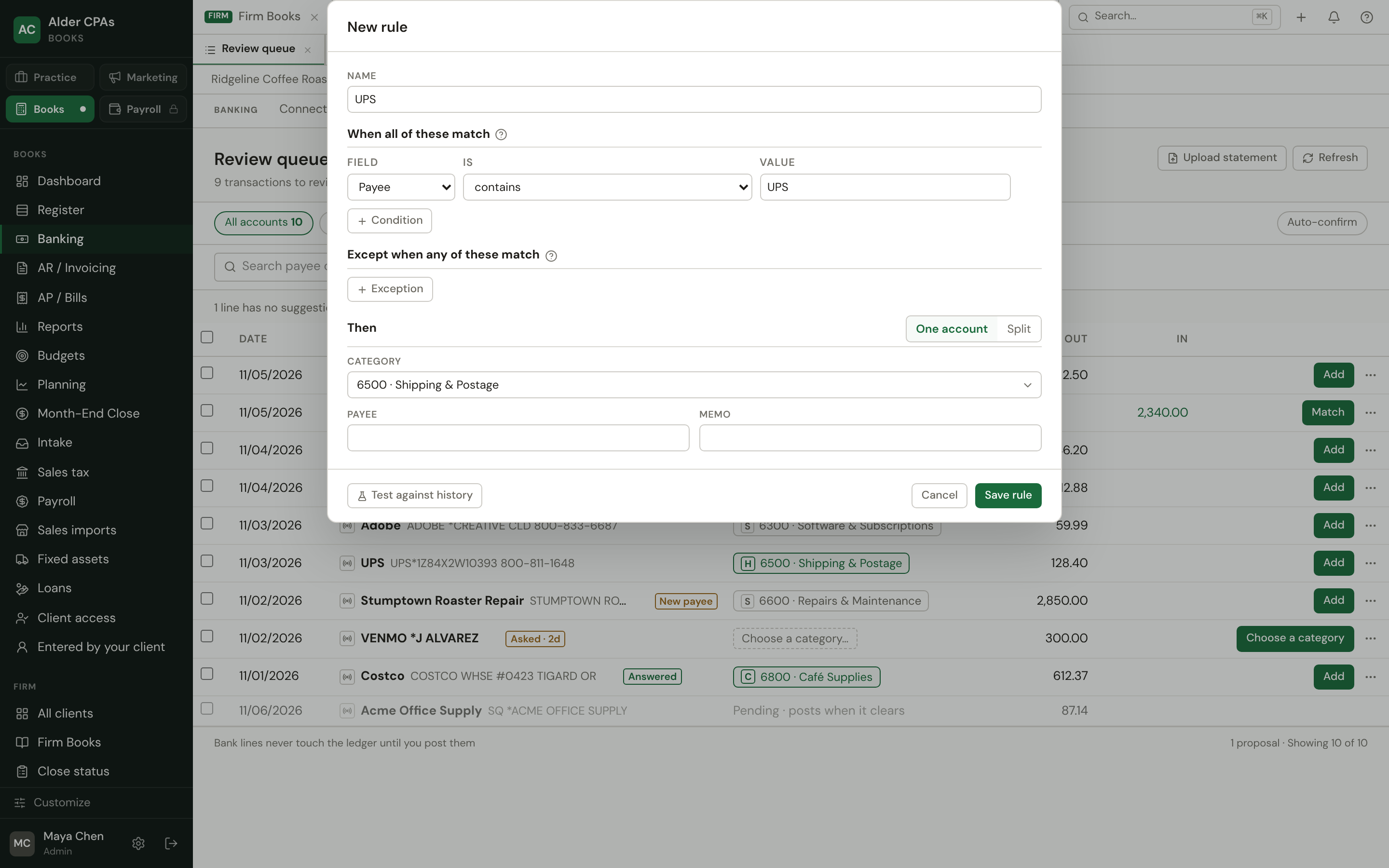 Creating a rule from a bank line
The new rule runs last, after the client's existing rules. Saving runs the rules again over the lines already waiting, and the notice says how many of them now carry a rule's suggestion. Rules only suggest; their lines still wait for you.
Let a rule post on its own
On clients on Premium, a rule can earn the right to post by itself. People confirm its suggestions, Books counts the clean ones, and once the rule has earned enough, Banking → Rules offers to let it post on its own.
Turn it on, and matching lines post as they arrive. They are listed on the Banking page under Bank automation · last 7 days, where each can be undone in one click. How a rule earns that trust, and what Books always holds back for a person, is in How rules and matches earn automatic posting.
Lines suggested to a balance-sheet account, or dated in a closed period, never post on their own. Suggestions marked S never post on their own, however often they are right.
Matches can earn the same trust, per bank account: after enough clean confirmations, Auto-confirm offers to confirm exact single matches for you. Near amounts, several candidates and transfers always wait for a person. A line matched this way shows Auto under the Matched pill, with Unmatch beside it.
Markers on a line
Short markers after the payee point out things worth a second look. Hover any of them for the full sentence.
| Marker | Meaning |
|---|---|
| New payee | A large amount to or from a payee this client has no history with. |
| Odd $ | Much larger or smaller than this payee's usual amount. |
| Dup | Looks like a line already on the books. Open ⋯ → View match to compare, then Not a duplicate or Exclude as duplicate. |
| Round · Wknd | A large round amount, or a date on a weekend for a business that rarely has one. |
| On file | The same line came in twice. The copy was set aside, not hidden — restore it if these really are two separate charges. |
| In books | The same amount is already in the register near this date. Confirming the match posts nothing new. |
| Check p2 | Read from an uploaded statement with low confidence. Check the amount and date against that page of the statement before posting. |
| Asked · 2d · Answered | A question to the client about this line. |
| Not auto | A rule would have posted this line on its own but did not. Hover for the reason. |
Why can't I post this line yet?
- It says "Pending · posts when it clears." The bank has not settled the charge. It can't be posted or matched until it clears. To leave it out instead, tick it and use Exclude… in the selection bar.
- The date is in a closed or locked month. The message says which, and what to do: an admin can post into a closed month with an override, and a locked month has to be posted to an open period instead.
- The split doesn't add up. The message names both totals, such as The split adds up to $500.00, but the bank line is $612.37.
- The category is not allowed. Some accounts are kept by another part of Books — receivables, payables, inventory — and can't be chosen directly. Record the invoice, bill or stock first, then match the line to it.
- The account isn't linked yet. A bank account has to be linked to an account in the chart before its lines can post. Do this from Banking.
- The date is in a fiscal year that has ended. This is a confirmation, not a block: Books asks before changing figures that may already have been reported or filed.
- You don't have permission. Reviewing bank lines needs both viewing and posting access for the client. The screen says what is missing.
Fix or undo something you posted
- Right after posting, use Undo in the notice.
- Later, open the entry in the register and click Edit. The entry is changed in place on its own date and keeps a history of what it said before. The bank side — amount, date and bank account — always stays as the bank reported it.
- To start over, Void the entry in the register and give a short reason. The bank line returns to the Review queue, unmatched, and the bank balance doesn't move. Voiding needs void permission, and a closed month refuses it with its reason.
- A match can be undone from the Matched pill with Unmatch. A confirmed transfer is listed there under Confirmed transfers: click Undo, then Undo transfer.
A line that is part of a completed reconciliation can't be voided or unmatched until that reconciliation is undone.
If you also use Practice
Every question you ask from the Review queue is a Practice question underneath. It goes out exactly the way a question sent from Practice does, with the same email and the same link, so it works the same whether or not your firm has Practice. With Practice, your whole team sees the rest of the conversation:
- One thread per client. When the client's portal is on, the question is posted to the client's Communications tab in Practice as a portal message from you, carrying your Message. It sits beside the client's emails and portal messages, so whoever picks up the client next can see what was asked and when. When the client sends their answers, they are added to the same conversation.
- The transaction comes with it. The message carries a card with the payee, the date, the bank account and the amount. Open in Books on the card takes you straight to the client's Review queue.
- Questions on the client's page. The Questions card on the client's Overview lists the client's latest requests, including the ones asked from Books, each marked Waiting, Answered or Canceled, with the answers so far. Open one to reply in its own thread. While it is waiting, you can also Copy link for a fresh link you can send another way, or Withdraw this request.
- Reminders that stop themselves. Questions you send from Practice (Ask on the Questions card) can remind the client Every N days (up to a number of times you choose) or On set days after sending. Reminders stop when every question is answered, and each one carries a fresh link.
- Your client portal. A client who signs in to your portal sees 1 question to answer on their home page and can answer it there, signed in.
- Contacts in one place. The Add a contact link in the Ask window opens the client's page in Practice instead, where contacts are kept for every product.
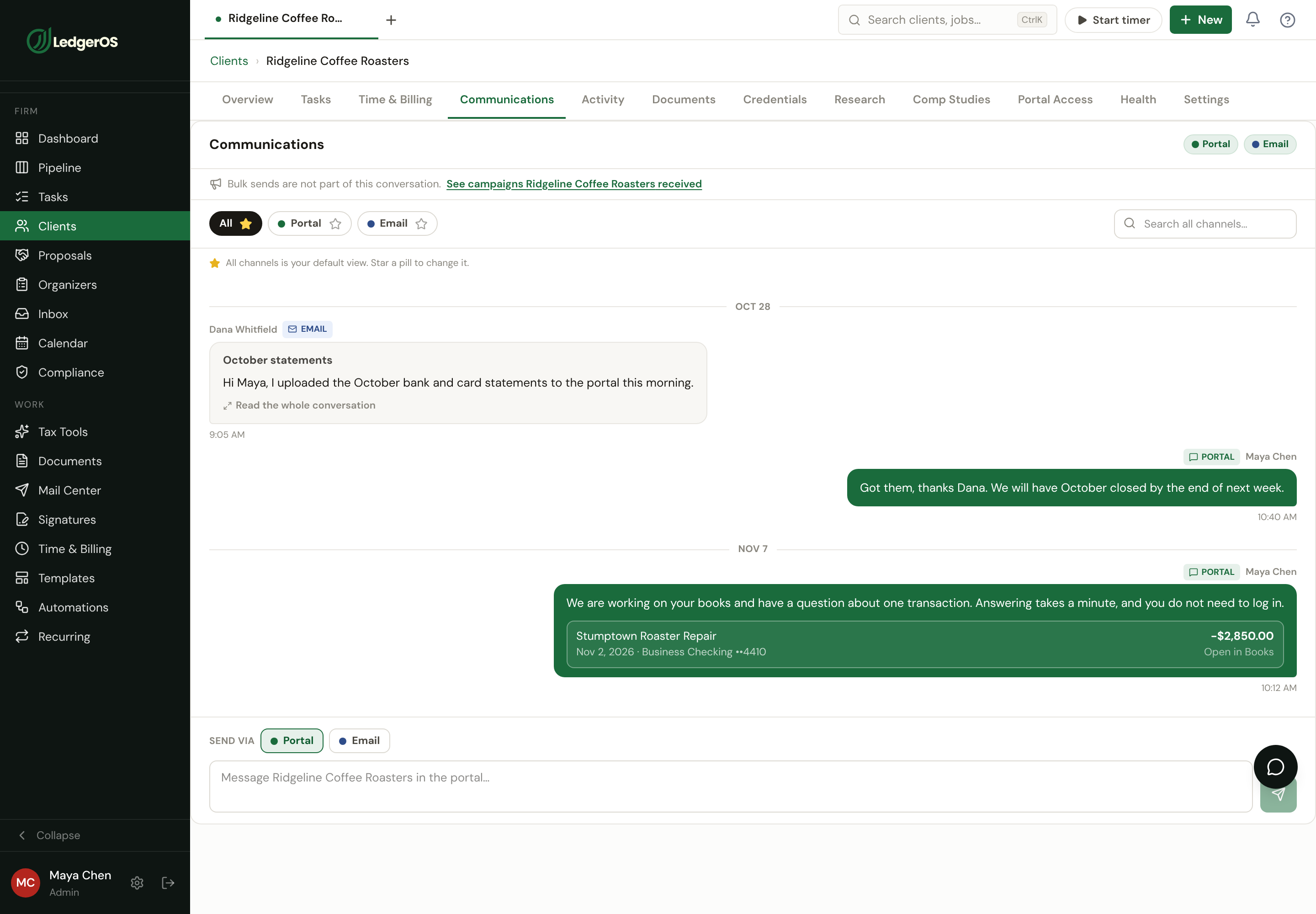 The question in Ridgeline Coffee Roasters' thread in Practice, with its transaction card
Shortcuts and tips
The Review queue is built to be worked from the keyboard.
| Key | Where | What it does |
|---|---|---|
| Space | A row's checkbox | Selects or clears that line. |
| Shift+click | A row's checkbox | Selects every line between this box and the last one you ticked or cleared. If that last box was cleared, Shift+click clears the whole range instead. |
| Esc | Anywhere, with lines selected | Clears the selection. An open window or menu takes the Esc first, so press it again. |
| Enter | Search payee or description | Searches right away. Without it, the search runs a moment after you stop typing. A search needs at least two characters. |
| Esc | Search payee or description | Clears the search. |
| ↑ / ↓ | The Category list | Moves through the accounts. |
| Enter | The Category list | Picks the highlighted account. On Add "…" as a new account, it opens a window to create that account, starting from what you typed. |
| Esc | The Category list | Closes the list and clears what you typed. |
| Enter | Any amount box | Works out a sum (see below). |
Every amount box does math. In a split amount or the Amount filter, type a sum such as 1200+450, (125+50)/2 or 3x42.50. When you press Enter or leave the box, it settles to the result, to the cent: 1650.00. Use + and -, *, x or × to multiply, and / or ÷ to divide; parentheses group. A leading = (the spreadsheet habit), $, commas and spaces are ignored. A sum that can't be worked out stays as you typed it, outlined in red, with the reason — Can’t divide by zero. or A parenthesis is not closed.
More details worth knowing:
- Search reads more than the payee. It matches the payee, the bank's own description and the memo.
- The Amount filter ignores direction unless you ask. Choose Exactly or Between, then Both, Money out or Money in. The Date filter has This month, Last month and Last 90 days one click away.
- A filtered queue is a link. Search and filters are kept in the page address, so you can bookmark a view such as "no suggestion, last 90 days" or send it to a colleague.
- Filtering never hides a selected line silently. If a filter hides lines you had selected, they are unselected, and Books says how many: 2 selected lines are no longer shown and were unselected.
- Splits fill themselves. With two split lines, typing an amount (or a sum) in one fills the other with the rest, unless you typed an amount there yourself.
- Every post can be taken back. Undo in the notice reverses the entry and puts the line back in review, and later edits keep a history (see Fix or undo something you posted).
Recommended review routine
- To bring in the newest lines, use Sync now on the Banking page. Then click Refresh in the Review queue to run your rules and matching over what is waiting.
- Confirm the proposed matches and transfers first. A match posts nothing new, and a transfer posts one entry for both lines.
- Filter to Category → Has a suggestion, select the lines you agree with, and click Accept N suggestions.
- Work the flagged lines one at a time, using the flag pill after the account pills.
- For anything only the client can explain, use Ask client… rather than guessing a category.
- Whenever you correct the same payee twice, make a rule.
- Empty the queue before you reconcile the month. Lines still in review are not in the books, so the reconciliation will not tie until they are.