
Accounting Settings for a Client
How a client's Settings are organized, what Industry, Accounting, Account mapping, Tips, Terminology, Reports and Financial health control, and why a setting can be locked.
On this page
Every client's books have their own Settings. This is where you decide how those books are kept: the basis reports open on, which accounts invoices, bills and payments post to, whether customers can leave a tip, the words the screens use, and how the Statement of Cash Flows is grouped.
This article covers the pages that shape the books themselves. Most of them change what other screens do, so each section below says what changes downstream.
Settings save as you change them. There is no Save button, except on Terminology (the closing password also has its own short form). Each change shows one Saved notice. If Books refuses a change, the reason appears and the control goes back to the value that is actually stored, so a setting never shows something that was not saved.
Understand the Settings section
Settings opens on Chart of accounts, the first page of the Configuration group. The rail on the left lists every page for this client's books, in groups:
Personal
Your own preferences, the same in every client: Sidebar, When I open Books, Two-step sign-in.
Configuration
The structure of the books: Chart of accounts, Classes and locations, Jobs, Job cost types, Items, Reports, Financial health.
Books Setup
How these books behave: Industry, Accounting, Account mapping, Numbering, Invoice fields, Billable expenses, Payments, Client access, Reminders and late fees, Tips, Terminology, Business details, Check mailing, Check signing, Check printing, Client upload link, Expenses.
Operations
Periods, Close checklist, Audit log, Integrity alerts, Export.
Integrations
Bank feeds.
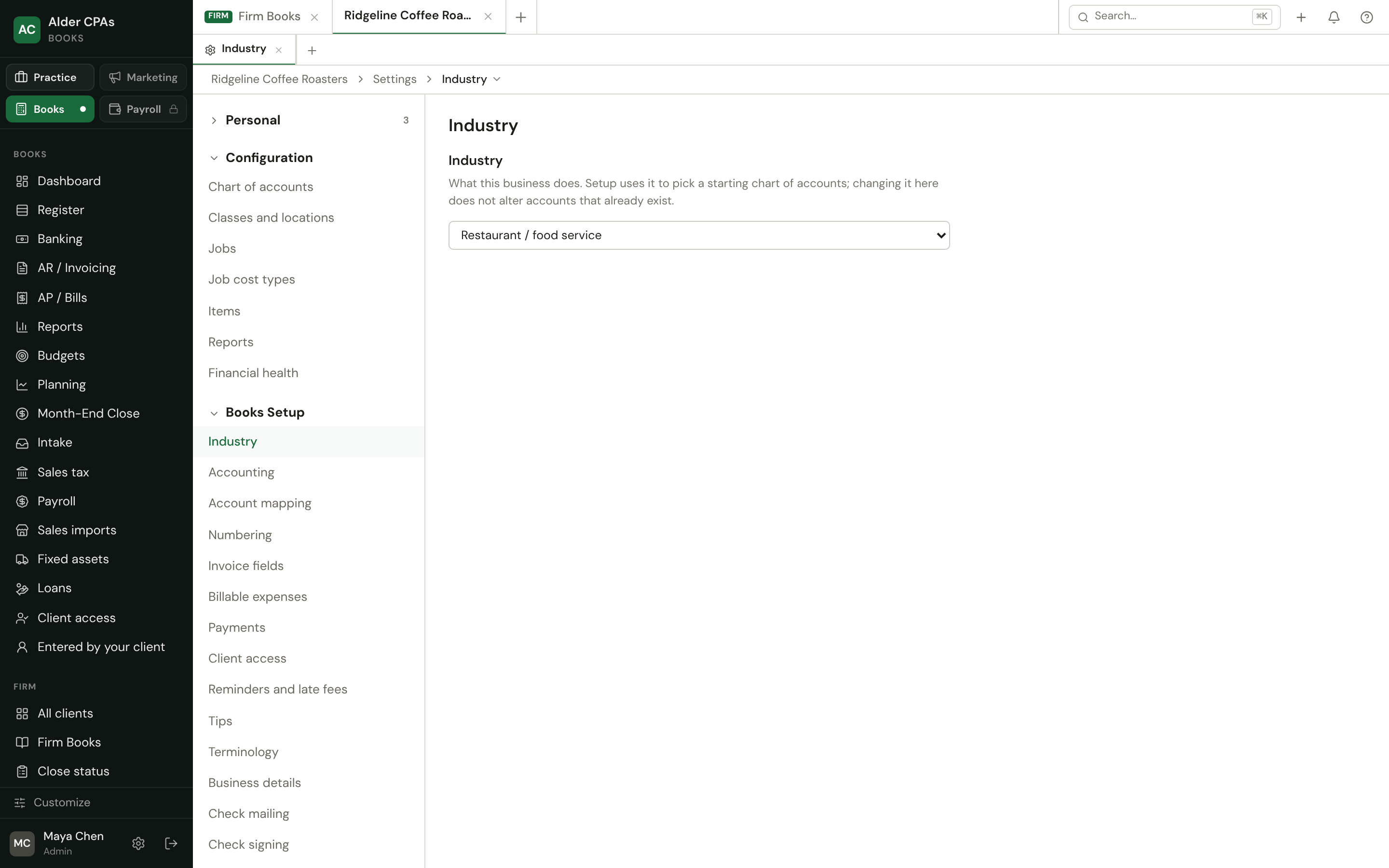 Settings for Ridgeline Coffee Roasters, open on Industry, with the rail of groups on the left
Every group head opens and closes. A closed group shows how many pages it holds. The group with the page you are on opens when you arrive. Books remembers which groups you keep open, in this browser only.
Pages about the whole firm (your team, billing, sales tax rates, AI and the like) are not in a client's rail. They are in your firm's Settings. The chart of accounts, classes, jobs and items have their own articles: Your Chart of Accounts and Classes, Locations, Jobs and Items. Periods and locking are in Closing and locking periods.
Firm defaults and this client's own settings
Some settings are set once for the whole firm and followed by every client until a client gets its own value. Next to most of those settings you see one of two markers:
- Firm default — this client follows the firm's choice. When the firm changes it, this client changes too.
- This client’s own — someone changed it for this client. Beside it, Use firm default (Accrual) puts the client back on the firm's value and names that value.
Changing a setting that says Firm default makes it this client's own. Most of the firm's values are set in your firm's Settings under Defaults for clients. The firm's report footer is set on the firm's own Reports settings page, and the firm's earlier-fiscal-year warning on the firm's own Accounting page.
Industry
Industry says what the business does: General business, Professional services, Contractor / trades, Retail, Restaurant / food service, and so on, or Not stated — use the general chart.
Setup uses the industry to pick a starting chart of accounts. Changing it later does not add, remove or rename any account that already exists. Pick from the list; the change saves on its own.
Accounting
Accounting holds five things about how these books are kept.
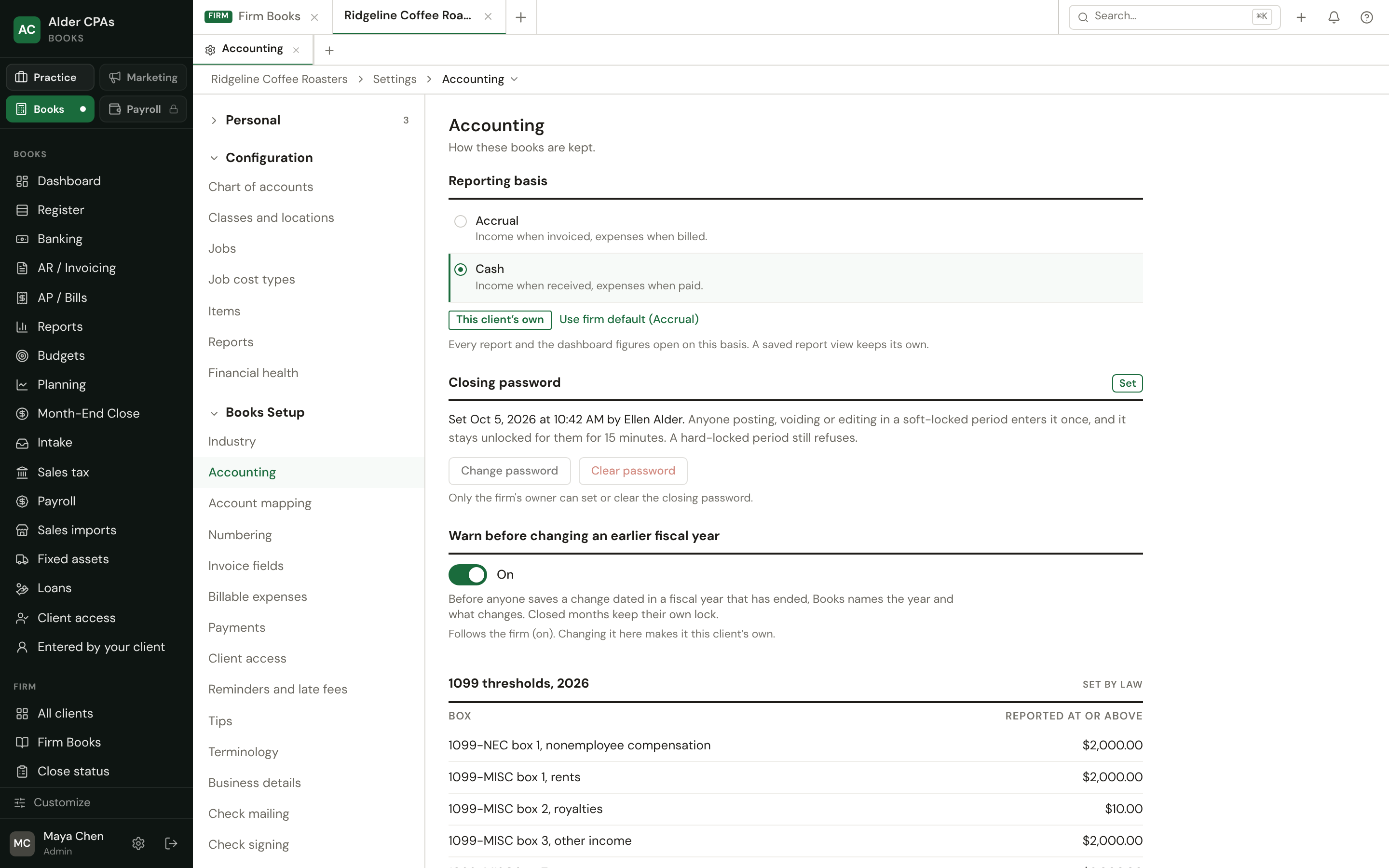 The Accounting page: Ridgeline Coffee Roasters reports on the cash basis, its own choice, and a closing password is set
Books start date
Books start date shows the first day of these books, with Nothing can be dated before Mar 1, 2026. under it. No entry, bill, invoice or other document can be dated before it.
To change it, click Change, pick a New start date, and read what Books says the change does before you confirm. As soon as you pick a date, Books checks it and shows either what will happen or why the books can't start then. The confirm button names the date, such as Start on Feb 1, 2026; nothing changes until you click it.
- An earlier date is allowed, unless opening balances are already posted. Everything between the new start and the opening balances would land before them, so Books asks you to change the opening balances' date first, or void them and enter them again for the new start.
- A later date is refused while anything sits before it: a posted entry, a finished reconciliation, or a closed month. The message counts each and names the latest date the books can start on.
- Books brought in by an import keep the import's start date. To start on another day, undo the import on its page and import again from the day you want. While an import is still in progress, change the date from the import with Start again.
Change needs the permission to change this client's settings. Books that aren't set up yet have no start date to change: the section says so and links to setup.
Reporting basis
Choose Accrual (Income when invoiced, expenses when billed.) or Cash (Income when received, expenses when paid.).
What changes: every report and the dashboard figures for this client open on this basis. It is a starting point, not a lock. Every report still has its own basis switch, and a saved report view keeps the basis it was saved with. The Profitability part of the client's Financial health grade is also scored on this basis (see Financial health).
The basis is one of the firm defaults, so it shows Firm default or This client’s own.
Closing password
A closing password guards soft-locked periods. Only people with the "Lock a period" permission can post, void or edit in a soft-locked period, and with a password set they also enter it once; it then stays unlocked for them for 15 minutes. A hard-locked period still refuses, password or not. Without a password, a soft-locked period takes posts from anyone with the "Lock a period" permission.
The page shows Set or Not set, and who set it and when, such as Set Oct 5, 2026 at 10:42 AM by Ellen Alder.
- Set a password or Change password opens a short form. Type the password, then Type it again. It must be 8 to 128 characters. A new password ends every unlock running under the old one.
- Clear password asks first, in a window titled Clear the closing password? It names what opens up, for example Soft-locked periods (Sep 2026 and Oct 2026) will take posts from anyone with the "Lock a period" permission, with no password., says how many people's unlocks end, and notes that the change is recorded in the audit log. Click Clear it, or Keep the password to leave it.
Only the firm's owner can set, change or clear the password. For everyone else both buttons are off, with Only the firm's owner can set or clear the closing password. under them.
Warn before changing an earlier fiscal year
When this is On, before anyone saves a change dated in a fiscal year that has ended, adds an entry dated in one, or moves an entry into or out of one, Books asks first.
The prompt names the year and what changes, for example Change an entry in fiscal year 2025? with Fiscal year 2025 (Jan 1, 2025 – Dec 31, 2025) has ended. Saving changes that year's figures: its balance sheet, its profit and loss, and anything already reported or filed for it, such as a tax return., and the button reads Save to fiscal year 2025.
Voids and reversals are never held up by it. It is a warning, not a lock: closed months keep their own lock.
This setting follows the firm unless you change it. The line under the switch says which: Follows the firm (on). Changing it here makes it this client’s own., or This client’s own (off). with Use firm default (on) beside it.
1099 thresholds
1099 thresholds, 2026 lists, box by box, the amount at or above which a payment is reported: for example 1099-NEC box 1, nonemployee compensation and 1099-MISC box 2, royalties. These figures are Set by law for each year, so they can't be changed. When Books totals a vendor's 1099 payments, it compares them with the threshold for that vendor's 1099 box.
Account mapping
Account mapping names the accounts that invoices, bills, payments and their side effects post to. Pick an account in each row; the change saves at once and is recorded in the audit log. A new mapping affects future postings only. It never rewrites a transaction that is already posted.
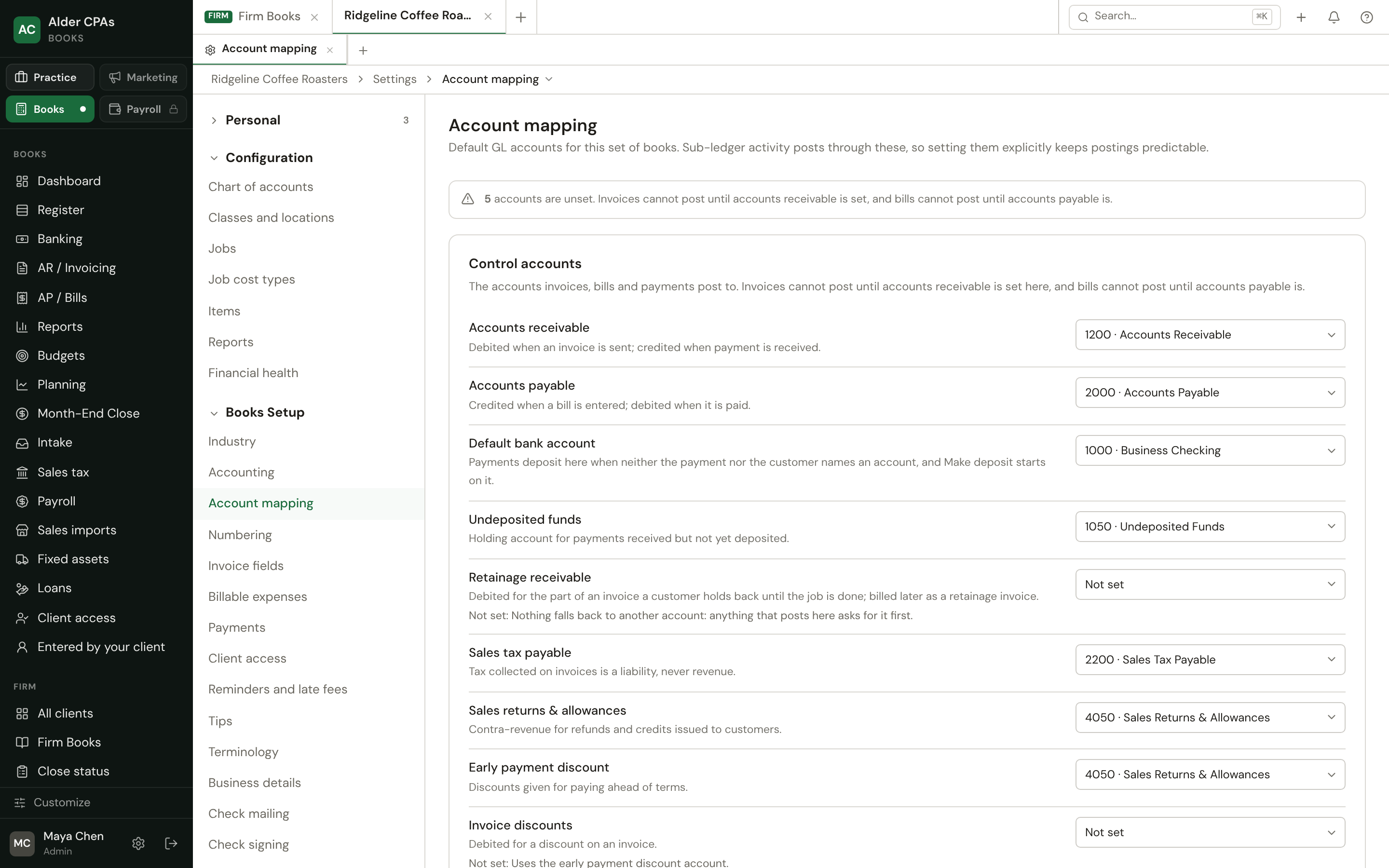 Account mapping for Ridgeline Coffee Roasters, with five rows still unset
The rows come in groups:
| Group | Rows | What depends on them |
|---|---|---|
| Control accounts | Accounts receivable, Accounts payable, Default bank account, Undeposited funds, Retainage receivable, Sales tax payable, Sales returns & allowances, Early payment discount, Invoice discounts, Default expense | Invoices can't post until Accounts receivable is set, and bills can't post until Accounts payable is. |
| Revenue mapping | Default revenue | The income account for any invoice line that names none of its own. With nothing set, the invoice is refused rather than posted to a guess. |
| Write-offs | Default write-off | Where a written-off balance posts. |
| Online payments | Processing fees, Surcharge income, Tips received, Client payments billed outside Books | An online payment whose fee or surcharge has no account here is refused rather than posted somewhere else. Tips can't be turned on until Tips received is set. |
| Bad debt | Bad-debt expense, Allowance for doubtful accounts | Writing off an invoice charges the allowance when one is mapped, and bad-debt expense otherwise. |
Each row tells you what happens while it is empty, under Not set:. Some rows fall back to another: Not set: Payments deposit to Undeposited Funds. under Default bank account, or Not set: Uses the early payment discount account. under Invoice discounts.
Rows with no fallback say Nothing falls back to another account: anything that posts here asks for it first. A note at the top counts the empty rows, such as 5 accounts are unset.
Each picker offers only the accounts that row can use. Accounts receivable, for instance, lists only receivable and other current asset accounts. If a mapped account is later archived or retyped, the row says The mapped account is archived or no longer a valid type — pick another.
Tips
Tips decides whether customers can add a tip when they pay an invoice online, and where tips are recorded.
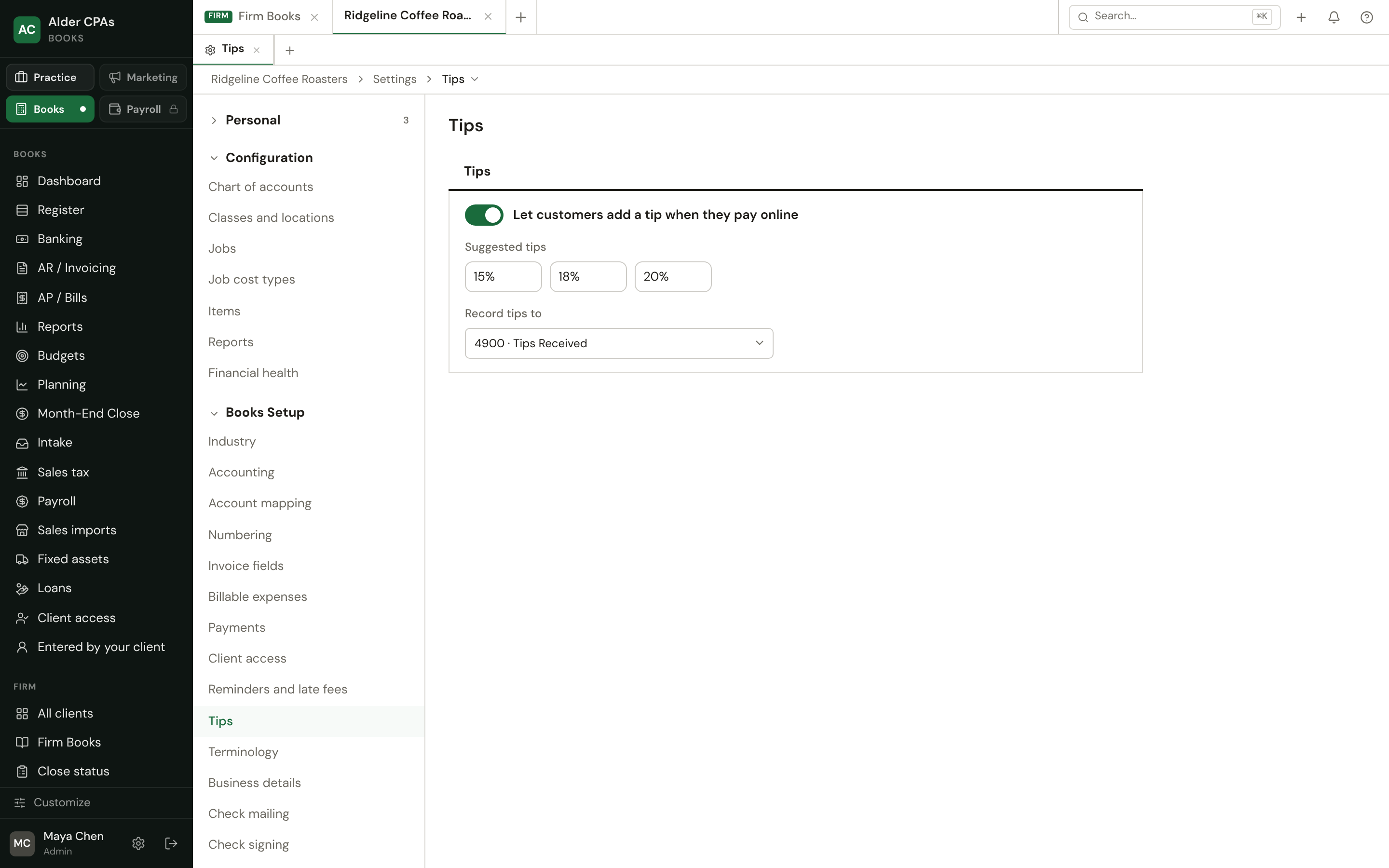 Tips turned on for Ridgeline Coffee Roasters, suggesting 15%, 18% and 20%, recorded to 4900 Tips Received
- Under Record tips to, choose an income account. This is the same setting as Tips received on Account mapping.
- Turn on Let customers add a tip when they pay online.
- Under Suggested tips, type one to three different percentages, each up to 100%. Until you change them they are 15%, 18% and 20%.
What changes: the tip choice appears on the invoice's pay page, under the payment amount. The customer picks No tip (where it starts), one of your suggestions, worked out as a percentage of the payment, or Custom for an amount of their own. A tip is recorded with the payment, to the account you chose. It never changes the invoice.
Terminology
Terminology lets this client's books use their own words for seven things: Customer, Vendor, Estimate, Job, Class, Location and Item. A café might call its jobs Events and its items Products.
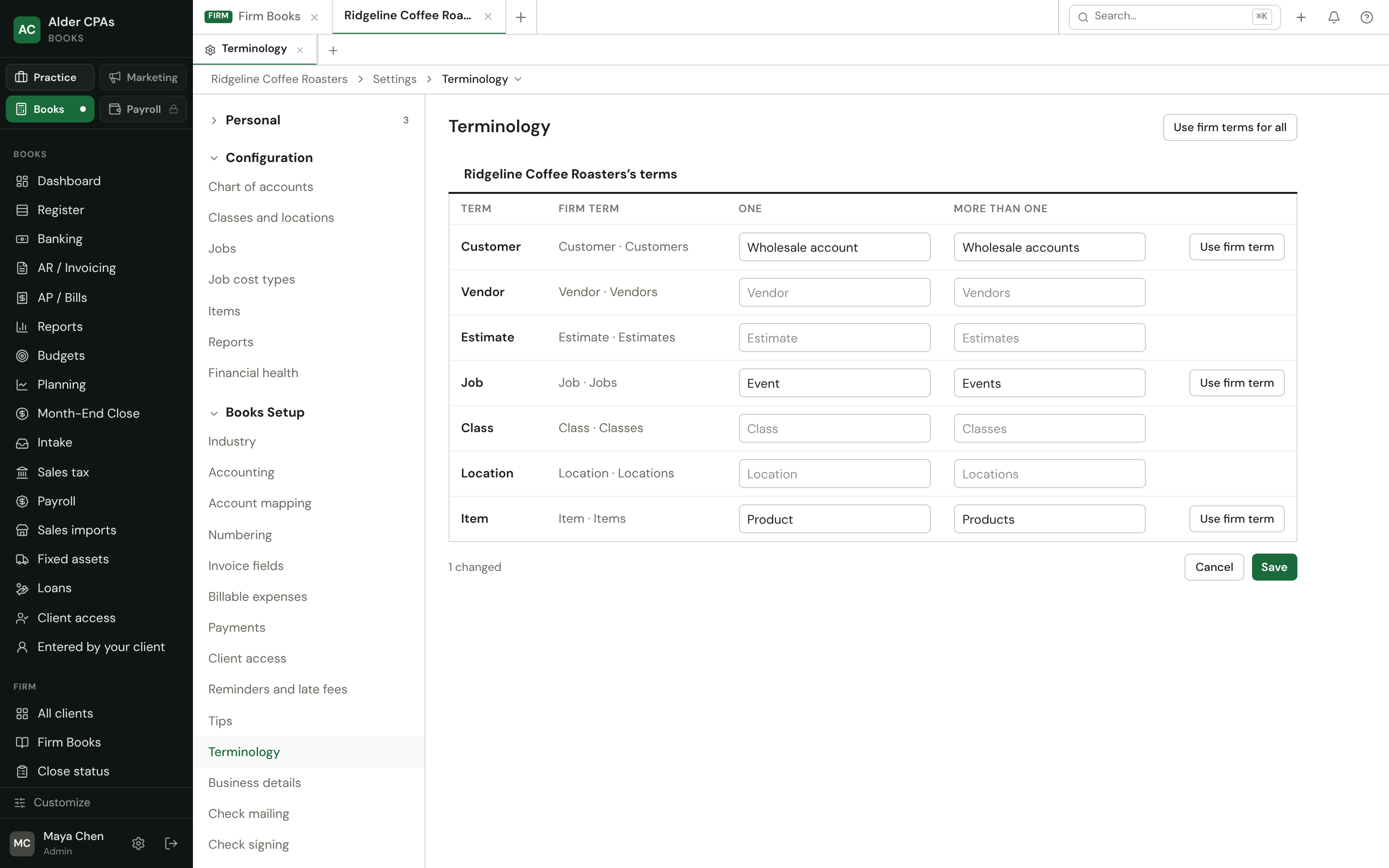 Ridgeline Coffee Roasters uses Event and Product, and is about to call its customers Wholesale accounts
Each row shows the Firm term it falls back to, then the word for One and More than one. An empty field shows the word in use in gray.
- Type both the singular and the plural.
- Click Save. The count beside it, such as 1 changed, tells you how much you are about to save. Cancel throws your edits away.
Unlike other settings pages, Terminology saves the whole table at once. That way you can swap two words between rows without one of them being refused halfway.
What changes: in this client's books, screen labels that use one of these words (the sidebar, lists, forms, reports and documents) show the client's word instead, wherever the default word stands on its own.
New customer becomes New wholesale account: a label that starts its word in lowercase keeps it lowercase. Settings keeps its own page names: the Settings rail and the breadcrumb's list of Settings pages still say Jobs and Items. Other clients are not affected.
To go back:
- Use firm term on a row empties it. Click Save to keep that.
- Use firm terms for all drops every word this client set, at once.
Reports
Reports holds two things that change how this client's statements print.
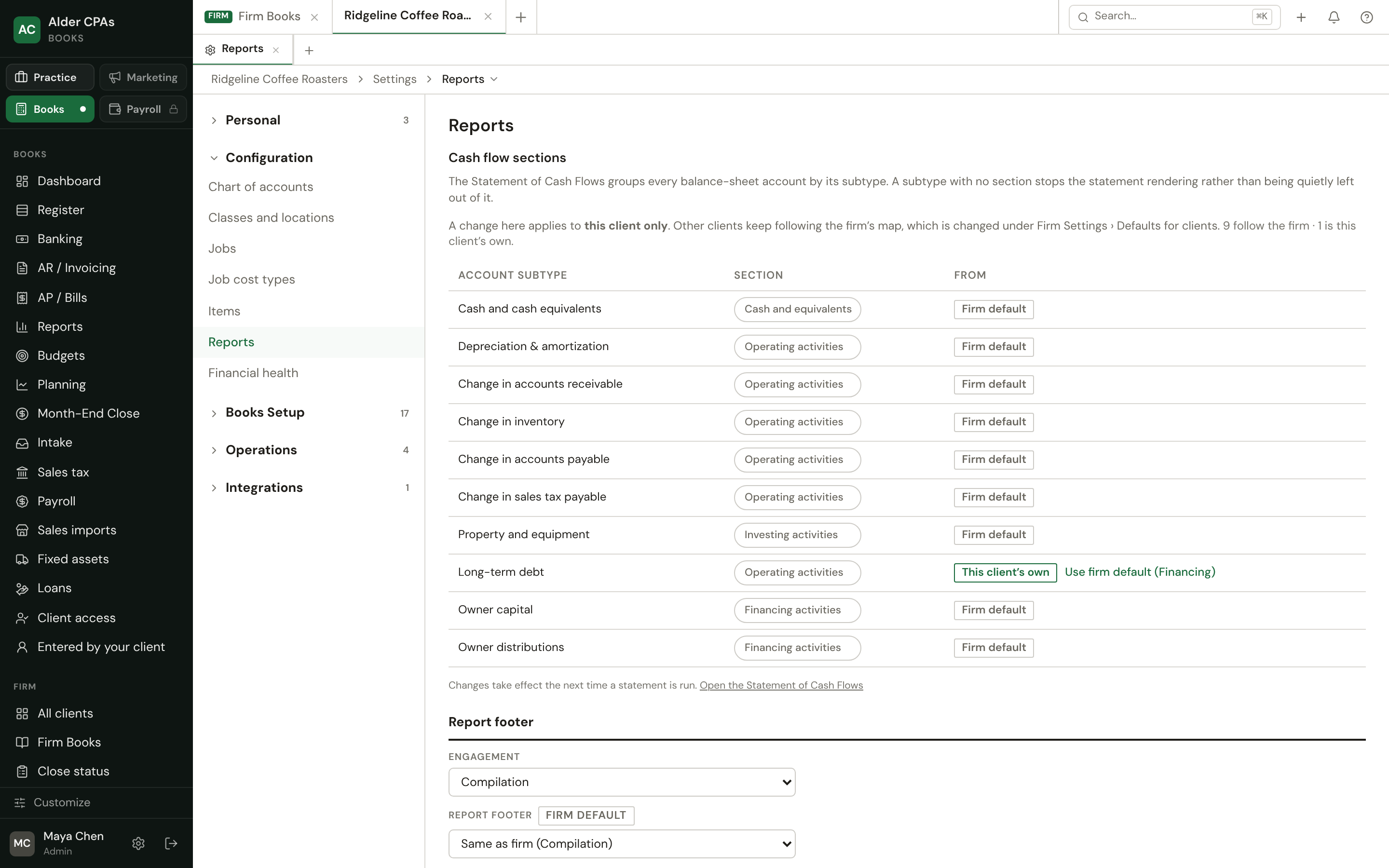 Cash flow sections, with Long-term debt moved to Operating for this client only, and the report footer
Cash flow sections
The Statement of Cash Flows groups every balance-sheet account by its subtype. For each subtype, choose its Section: Cash and equivalents, Operating activities, Investing activities or Financing activities. Changes take effect the next time a statement is run.
A change here applies to this client only. The From column shows Firm default or This client’s own. When you move a row that was following the firm, the notice says so: Saved. Long-term debt is now Operating for this client only. The firm's own map is changed in your firm's Settings under Defaults for clients.
Report footer
- Engagement — None, Preparation or Compilation.
- Report footer — Same as firm (Compilation), None, Preparation, Compilation or Custom text.
A Preparation engagement fixes the footer to the Preparation legend, No assurance is provided on these financial statements., on every report for this client. The footer choice then shows Engagement and can't be changed. The Compilation footer prints See accountant’s compilation report.
Custom text is up to 200 characters. Insert firm name places {firm} in the text, which prints as your firm's name. The text saves when you leave the field.
A month-end pack can carry a footer of its own, which prints in place of this one unless the engagement is Preparation. Until it fits, Books holds it and says why, for example The footer is 212 characters; the limit is 200. The footer is saved once it is fixed.
Financial health
Financial health shows the bands behind every client's Financial health grade: liquidity, profitability, A/R days, A/P days and leverage, each scored out of 25, and the letter grades.
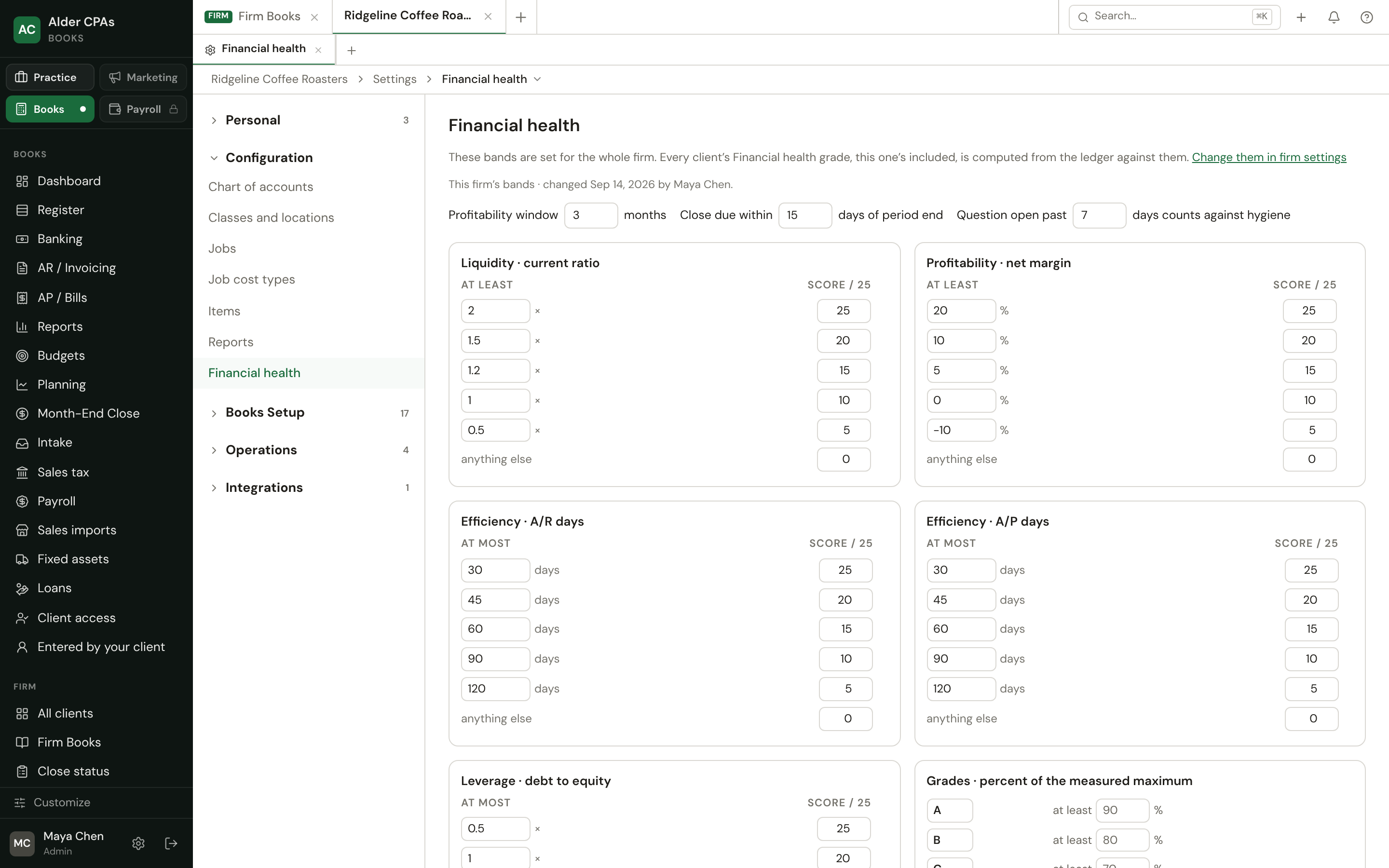 Financial health bands, set for the whole firm and shown read-only inside a client
These bands belong to the whole firm, so inside a client they are read-only. The page says so — These bands are set for the whole firm. Every client’s Financial health grade, this one’s included, is computed from the ledger against them. — and links to Change them in firm settings. Changing them there takes the "Settings — Firm" permission and changes every client's grade.
Profitability is scored on each client's default basis. Liquidity, A/R and A/P days, and leverage are always scored on the accrual basis.
Where do I change this client's details?
It depends on the detail:
| Detail | Where |
|---|---|
| Industry | Settings → Industry (above). |
| Display name, entity type, legal name, contact first and last name | In your firm's Settings, under Clients: open the client's row menu and choose Edit client. See Add a client and turn on Books. |
| The name, address and phone printed on invoices and statements | Settings → Business details. See Invoice numbering, fields and business details. |
| Fiscal year end | Chosen when the books are set up. See Set up a client's books. |
If your firm also uses Practice, the client's name, entity type, contacts and year end are kept there instead (see below).
Why can't I change this setting?
-
You don't have the permission. Most of these pages need the "Books settings and account mappings" permission for this client. Without it, the controls are off and most pages say You need the "Books settings and account mappings" permission for this. Ask an admin to grant it.
On the reporting basis it adds why: The reporting basis decides what every report for this client opens on, so it is not a per-user preference. Ask an admin to give you that permission.
-
Only the owner can do it. The closing password: Only the firm's owner can set or clear the closing password.
-
It belongs to the whole firm. Financial health bands are read-only inside a client. Use Change them in firm settings.
-
The engagement fixes it. A Preparation engagement fixes the report footer. Change the Engagement first.
-
It is set by law. The 1099 thresholds can't be changed.
-
Something has to be set first. The tips switch is off until an account is chosen: Choose the account tips are recorded to first.
If a message elsewhere in Books says tips are off, or that no account is chosen for tips, and points you to Settings › Payments, make the change on Settings › Tips instead. An account-mapping picker with nothing to offer reads No eligible accounts. Add a suitable account to the chart first.
-
A word is already taken. Terminology refuses a word another row already uses, such as "Event" is already the word for jobs., a row with only one of its two words, Give both the singular and the plural for Customer, or leave both blank., and a word over 40 characters, A term is 40 characters or fewer.
-
Nothing to undo. Use firm terms for all is off when the client has set no words of its own: Ridgeline Coffee Roasters already uses the firm’s terms. Save is off with Nothing has changed.
-
Your access is still being checked, or the check failed. The controls read Checking your access…, or Your access could not be checked. Reload to try again.
-
You are signed in as the client. People from the client who sign in to their own books don't see these pages. Settings offers them only Payments, and only if they are allowed to connect payments.
Shortcuts and tips
| Where | Key or trick | What it does |
|---|---|---|
| Anywhere in Settings | The last breadcrumb (for example Accounting ⌄) | Opens a list of every Settings page in the client's books, grouped like the rail. Type to filter it, ↑/↓ to move, Enter to open a page, Esc to close. |
| Account pickers (Account mapping, Tips) | Type a number or part of a name | Narrows the list as you type. ↑/↓ and Enter pick, Esc closes. |
| Suggested tips | Enter, or leave the field | Saves. Type 18, 18% or 17.5: whole numbers or one decimal. Leave a box empty to suggest fewer than three. |
| Custom footer text | Insert firm name | Inserts {firm} where the cursor is. It prints as your firm's name, so the footer stays right if the name changes. |
| Settings rail | Click a group head | Opens or closes the group. Books remembers the groups you keep open, in this browser. |
| A firm default you changed | Use firm default (…) | Puts this one setting back on the firm's value, naming that value first. |
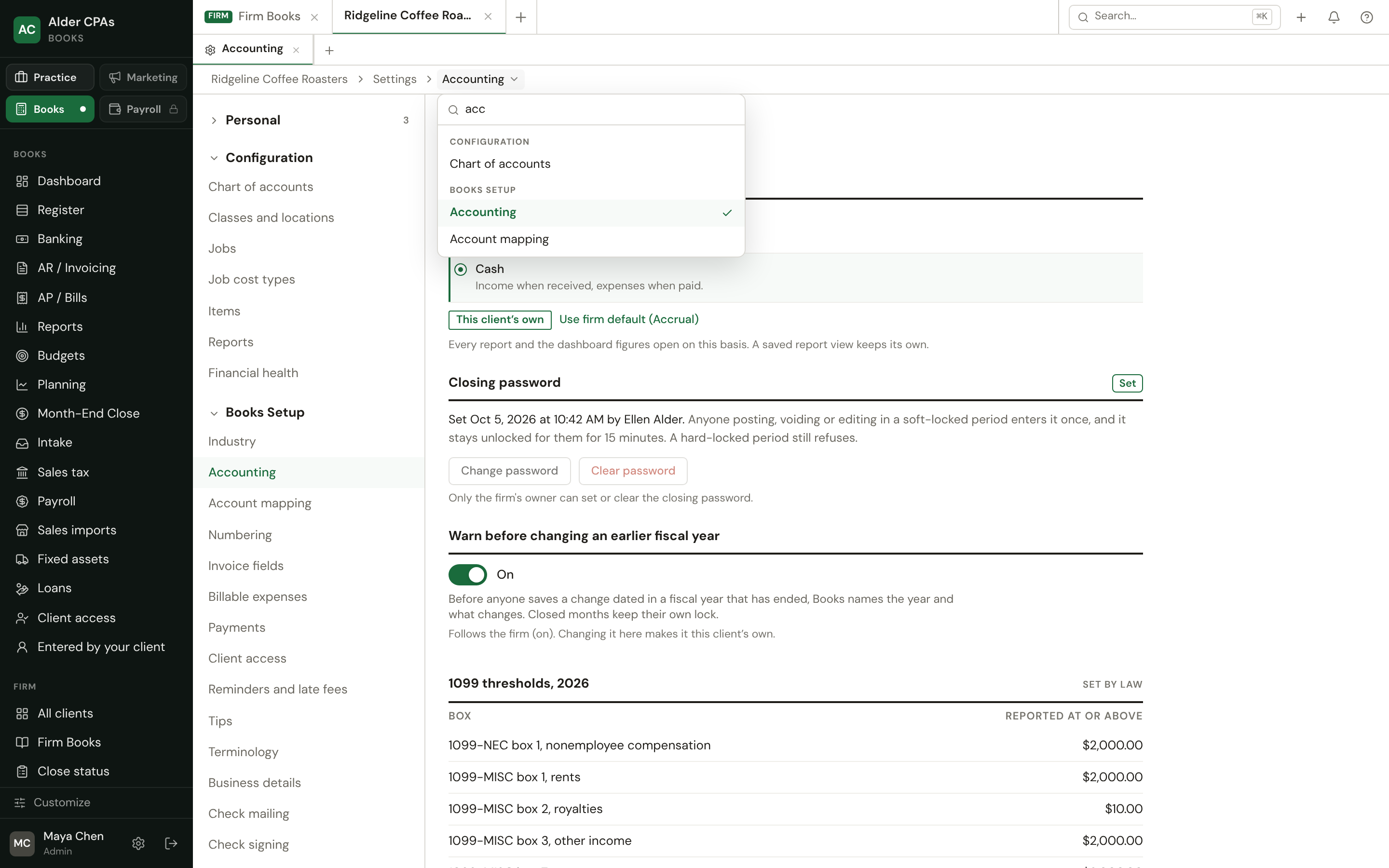 The breadcrumb's page list, filtered to "acc"
An old bookmark to a Settings page that has moved still works: it takes you to the page's new place.
If you also use Practice
When your firm also runs Practice, a client's details live in one place for both apps:
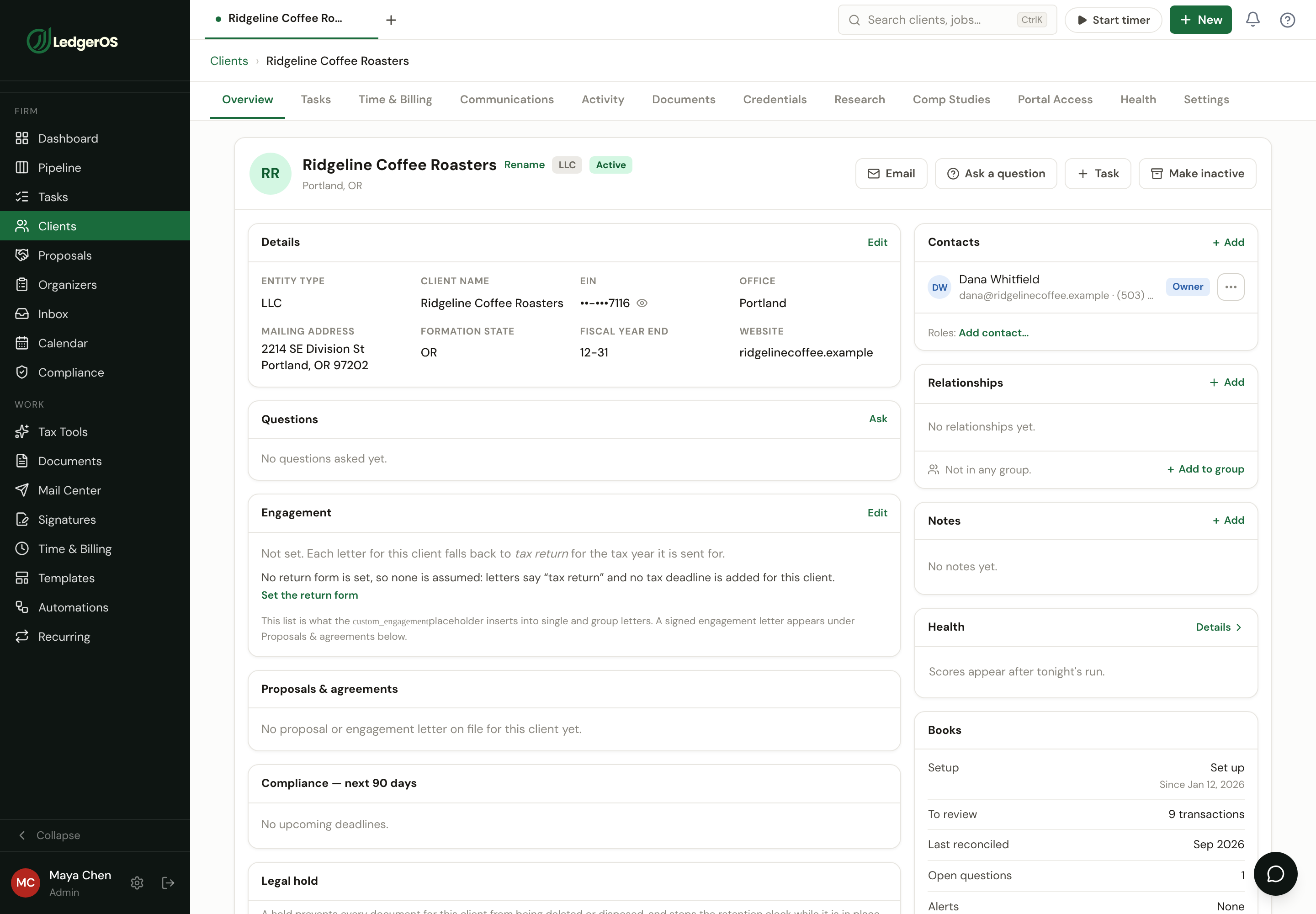 Ridgeline Coffee Roasters' client page in Practice: the Details card shows its entity type, client name, EIN, office, mailing address, formation state, fiscal year end and website, with Dana Whitfield on the Contacts card beside it
- Name, entity type, contacts and archived state are edited in Practice. In Books, your firm's Settings › Clients says Practice is on: clients are added, renamed and archived there. with a link, Open clients in Practice →. The client's Books plan (Premium or Free) is still set in Books, from the menu on the client's row in that list.
- The client's Details card in Practice holds the rest: EIN, office and mailing address, and for a business its formation state, Fiscal year end and website. Click Edit, change what you need, and Save.
- The year end is protected. If the client's books have posted entries in locked months, Practice refuses to move the year end and says so: This client's books have posted entries in 3 locked months (latest Sep 2026), so its year end can't move. Reopen those months in Books first.
- Firm-wide Practice settings are one click away. A client's Settings rail ends with a Cross-app group holding Firm-wide settings →, which opens your firm's settings in Practice in a new tab.
Recommended setup for a new client
- If the client's books are not set up yet, pick the Industry first, so the starting chart fits the business.
- On Accounting, check the Reporting basis matches how the client files.
- On Account mapping, set Accounts receivable and Accounts payable before the first invoice or bill, then work down the rows that say Not set.
- If the client takes payments online, decide on Tips.
- If the client uses other words for customers, jobs or items, set them on Terminology, so every screen speaks their language.
- On Reports, choose the Engagement. The footer follows from it.