
Connect a Bank or Card Account
The quick first-time path for a client's bank or credit card: connect it, map each account to the chart, let the first import run, and what to do next.
On this page
Connecting a client's bank or credit card brings its transactions into Books, so you categorize and match them instead of typing them in. It takes a few minutes: you sign in to the bank once, tell Books which account in the chart each bank account belongs to, and the first import starts with the last 90 days. This article is the short version.
For everything the Bank connections page does, see Bank Connections: Syncing, Reconnecting, Missing Transactions.
Nothing reaches the books until you map the account. Books holds a new account's transactions until you pick the account in the chart they belong to. Once mapped, they wait in Review for you. They post only when you post them, or when automation you turned on does.
Before you start
You need three things. Books checks each one and tells you which is missing.
| You need | Why | If it's missing |
|---|---|---|
| Your firm's one-time bank connection setup, approved | Every firm is set up and approved once before any client can connect a bank. | Banking shows the setup step in place of Connect a bank, such as Set up bank connections. Your firm's owner or an admin finishes it once. |
| Premium for this client | Live bank connections are part of Premium, per client. | Banking shows Bank feeds are a premium feature, with what works on the free plan (uploading a statement, pasting from a spreadsheet). Someone who may change the client's plan (owners and admins, by default) can turn on Premium there. |
| The Connect and sync bank feeds permission | Connecting, reconnecting, syncing, mapping and unlinking all need it. Owners always have it; admins have it by default. | Connect a bank is off, and a line across the top of Banking says: You need the "Connect and sync bank feeds" permission for this. Ask an admin to grant it. |
A client with no bank yet shows No banks connected, with a Connect a bank button in the middle of the page and another at the top right.
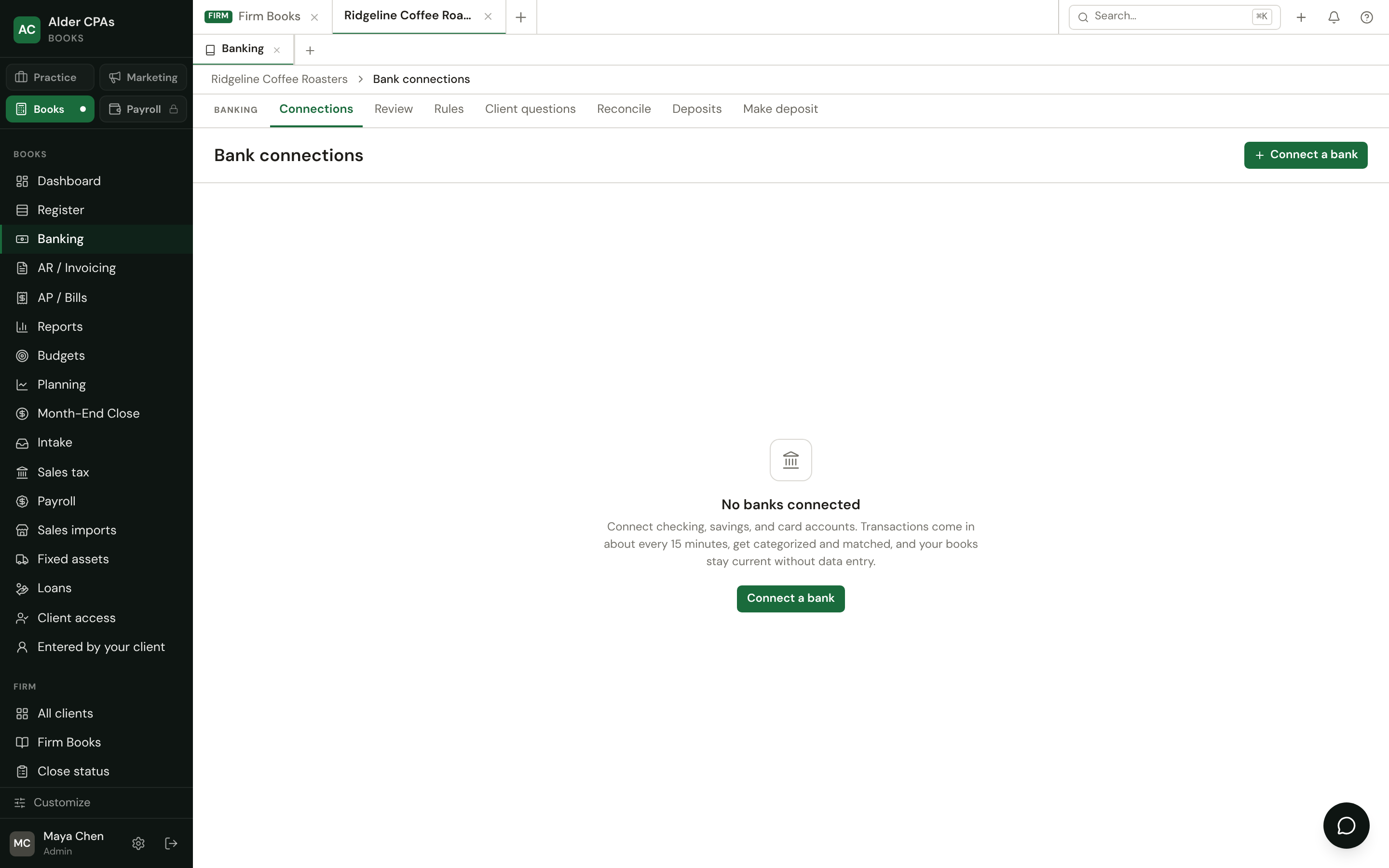 Ridgeline Coffee Roasters before any bank is connected
Connect the bank
-
Open the client, then Banking. Click Connect a bank.
-
If your firm hasn't accepted the current Bank connection terms (for example, they changed since your firm last accepted them), Books shows them before the bank's window opens.
An owner or admin checks I agree to the bank connection terms on behalf of my firm, and I am authorized to accept them. and clicks Accept and continue. Anyone else is told that only an owner or admin can accept them, and who, when Books knows.
-
The bank's sign-in window opens. Find the bank, sign in, and choose the accounts to share: checking, savings and credit cards.
-
Books confirms what it connected, for example: Rose City Community Bank connected — 2 accounts. Account types Books doesn't follow are skipped, and the message says how many.
-
The first import starts right away. Under the page header, a line headed with the bank's name says what it is doing: Syncing now while it runs, then what came in. A bank sends the newest activity first and the rest of its history afterward, so while the rest is still arriving the line reads Connected at 9:45 AM with activity back to Oct 2, 2026 is in (41 new feed lines); the rest of the 90 days is still arriving and will sync on its own., and Synced once the whole history is in. It can also read Sync failed with the bank's reason, or Not started with why Books didn't try. Click Dismiss to put the line away.
If your bank signs you in on its own website, it sends you back to Books on a page titled Connecting your bank. Books finishes the connection there and says so, for example Rose City Community Bank is connected: 2 accounts.
It starts the first import on that page too, and shows the same line under it. Click Back to Banking to map the accounts.
Closing the bank's window before you finish is fine. Nothing is connected, and you can start again.
Map each account
Map accounts opens by itself after you connect on Banking. (If the bank sent you to its website and back, click Map on each new row instead.)
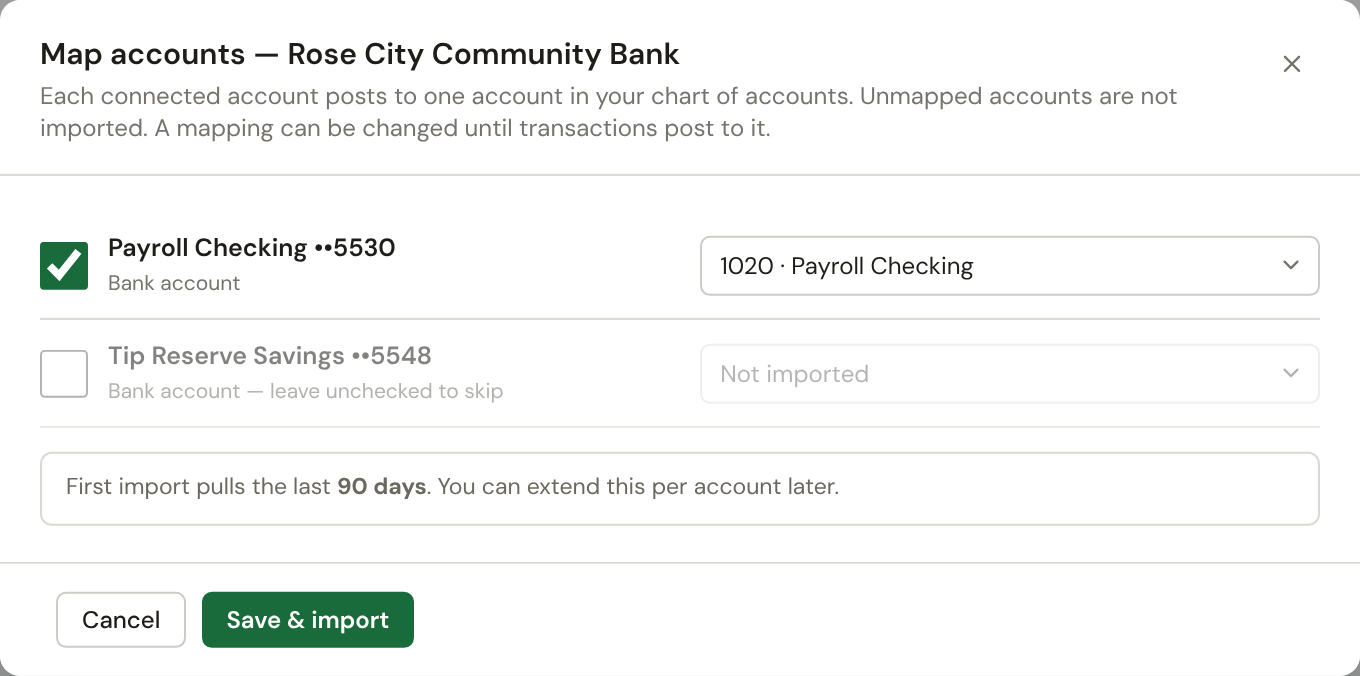 Map accounts for Rose City Community Bank: Payroll Checking goes to 1020 · Payroll Checking, and Tip Reserve Savings is left unchecked
- Check the box beside each account you keep books for. Leave the others unchecked; their row reads — leave unchecked to skip, and nothing from them reaches Review.
- For each checked account, pick the account in the chart it posts to. Type a number or part of the name to narrow the list, and use ↓, ↑ and Enter to pick. Only bank accounts are offered for checking and savings, and only credit card accounts for a card.
- The account isn't in the chart yet? Choose + New account… at the bottom of the list. Books fills in the name from the bank, the type and the next free number; click Create and map.
- Click Save & import. It stays off until every checked account has an account picked.
A mapping can be changed until transactions post to it. After that it is locked, so the account's history stays where it was posted.
The first import
The first import brings in the last 90 days for each account. It runs while you map: Books holds each account's lines until it is mapped, so you don't need to sync again afterward. The lines it was holding appear in Review as soon as you save, and the account's figures fill in on the Banking page without a reload.
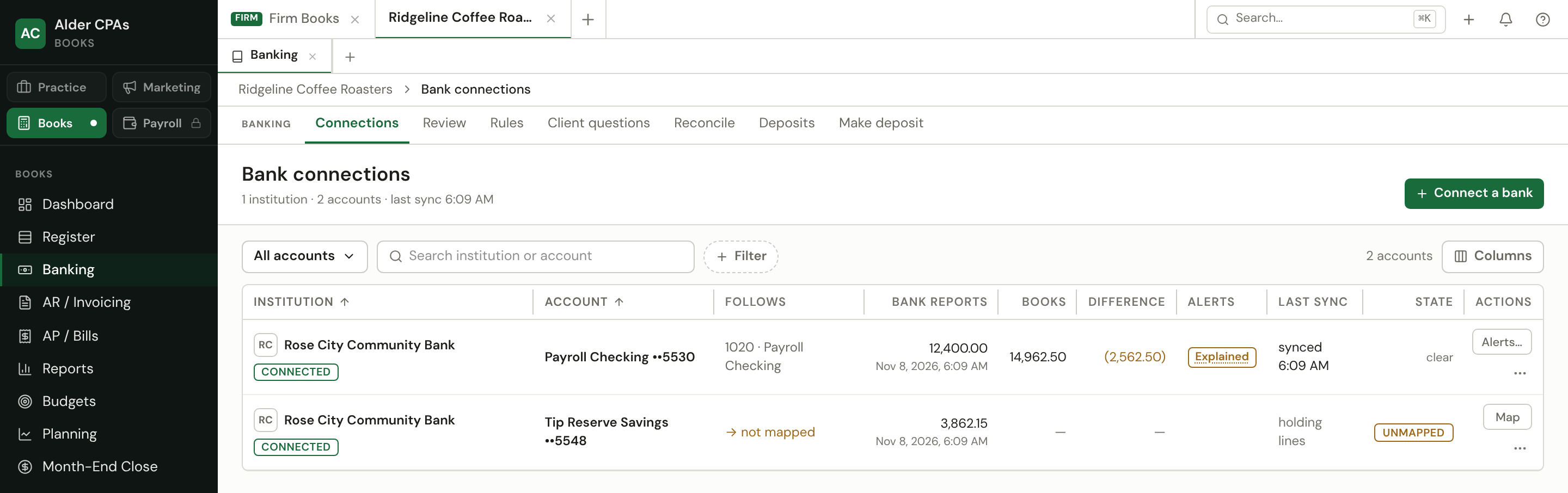 Ridgeline Coffee Roasters right after Save & import: Payroll Checking is mapped, and its (2,562.50) difference is amber with an Explained chip; Tip Reserve Savings was left unmapped
Each mapped account now shows three figures:
- Bank reports — the balance the bank reported, and when.
- Books — the account's balance in the books on that same day, the client's own calendar day (the date Bank reports shows).
- Difference — the bank's balance less the books'. A dash means they agree.
Right after a first import the difference is often amber, with an Explained chip beside it: the gap is made up of things Books can name. Hover the chip to read them. Books counts each one once, in two groups:
- Bank lines the books don't have yet — the new lines waiting in Review (or pending at the bank). A line Books has proposed as the match for an entry already in the books isn't counted, because that entry is already in the Books figure. A line flagged as a possible duplicate still counts here until you decide on it, and the chip names it (…totaling (2,562.50), including 1 flagged as a possible duplicate…) and ends with Check the line flagged as a possible duplicate.
- Entries in the books the bank doesn't show yet — such as a check that hasn't cleared or a deposit in transit, dated on or after the account's first bank line.
For Payroll Checking above, the chip reads: 41 bank lines the books do not have yet, totaling (2,562.50), explain the difference. Each clears when it is posted or matched, or when the bank shows it. As you work through Review, the difference shrinks to a dash.
If the chip also names entries matched by amount to a bank line marked as a duplicate, it ends with Check it. (or Check them.). Those entries are counted in neither group: a bank line set aside as a duplicate stands for each one only because the amount and date fit.
Find them in the account's register and make sure each one really is on the bank. When those entries are the only thing to explain, the chip reads Check matches instead of Explained, with the same sentence.
An account you skipped shows → not mapped, holding lines and Unmapped; click Map whenever you want to bring it in.
After that, Books checks the bank for new transactions about every 15 minutes. When the bank reports new activity, that connection is checked first in the next pass.
How far back do transactions come in?
90 days, to start. You can extend each account's history later, from its page or from Settings → Bank feeds; see Bring in older history.
What to do next
- Work the Review queue. Every new line waits there for you to categorize it, match it to something already in the books, or mark it a transfer. See Reviewing Bank Transactions.
- Add rules for the regulars (the coffee bean supplier, the rent, the card processor) so the next ones categorize themselves. See Bank Rules: Creating, Ordering and Testing Them.
- Reconcile once you've posted a month. See Reconcile an Account.
- Keep an eye on the connection. If a bank stops syncing, a red banner says so across the top of Banking and Review. See Reconnect a bank.
Why can't I connect a bank?
- The page says Set up bank connections. Your firm hasn't finished its one-time setup. Your firm's owner or an admin finishes it once, from Set up bank connections. Until then, you can upload a bank statement (the page links to it).
- The page says Bank connections are not ready yet. Your firm's setup has been sent but isn't approved yet. The page says why, for example: Live bank feeds start once your firm's approval comes through. Statement uploads work now. An owner or admin sees the next step, such as See approval status; for anyone else it is off, with Your firm’s owner or an admin can do this.
- The terms dialog says only an owner or admin can accept. For example: Your firm has not accepted the bank connection terms yet. Only an owner or admin of your firm can accept them. When Books knows who that is, the message names them (…can accept them: ask followed by the name). Ask that person to connect the bank, or to accept the terms.
- The page shows Bank feeds are a premium feature. This client isn't on Premium.
- Map accounts has nothing to pick. The chart has no account of the right kind yet. For a bank account the row says This client has no bank account in its chart of accounts yet. Add one in the chart of accounts, then map this account. Use + New account… instead, or add one in the chart of accounts first.
- Save & import refuses with Payroll Checking is already receiving another bank feed. Each account in the chart takes one bank feed. Pick a different account, or create a new one.
Tips
- Connect every account at a bank in one go. One sign-in covers all the accounts you share, and you map them together.
- Leave personal accounts unchecked. If the owner banks personally at the same place, skip those accounts in Map accounts.
- Hover Explained before you start reviewing. It tells you how many lines are waiting and whether anything in the books hasn't reached the bank yet, so you know what the Difference should come down to.