
Make the Sidebar Your Own
Reorder the rows in your Books sidebar, hide the ones you never use, pin the ones you always want, and put it all back with one click.
On this page
The sidebar on the left is how you move around Books. You can put its rows in the order you work, switch off the ones you never open, and pin a feature so it stays in view even for a client that doesn't use it. The arrangement is yours alone: your teammates keep theirs.
Your sidebar is personal, and it follows you. It is saved to your account for this firm, so it looks the same on any computer you sign in from, inside every client and in your firm's own view. Nobody else sees your changes, and if you belong to more than one firm, each firm keeps its own arrangement.
Understand the sidebar editor
The editor lists every row of the groups your sidebar shows, including rows that appear only in some situations (their gray note says when), grouped the way the sidebar is: Books, and Firm for an accounting firm. The count beside each group says how many rows it holds, for example 20 rows. Each row has, from left to right:
- A grip, to move the row up or down.
- The row's icon and name, and under the name, a gray note when there is something to know about it (see the table below).
- A pin, on the rows that show only when a client uses that feature.
- A switch: on shows the row, off hides it.
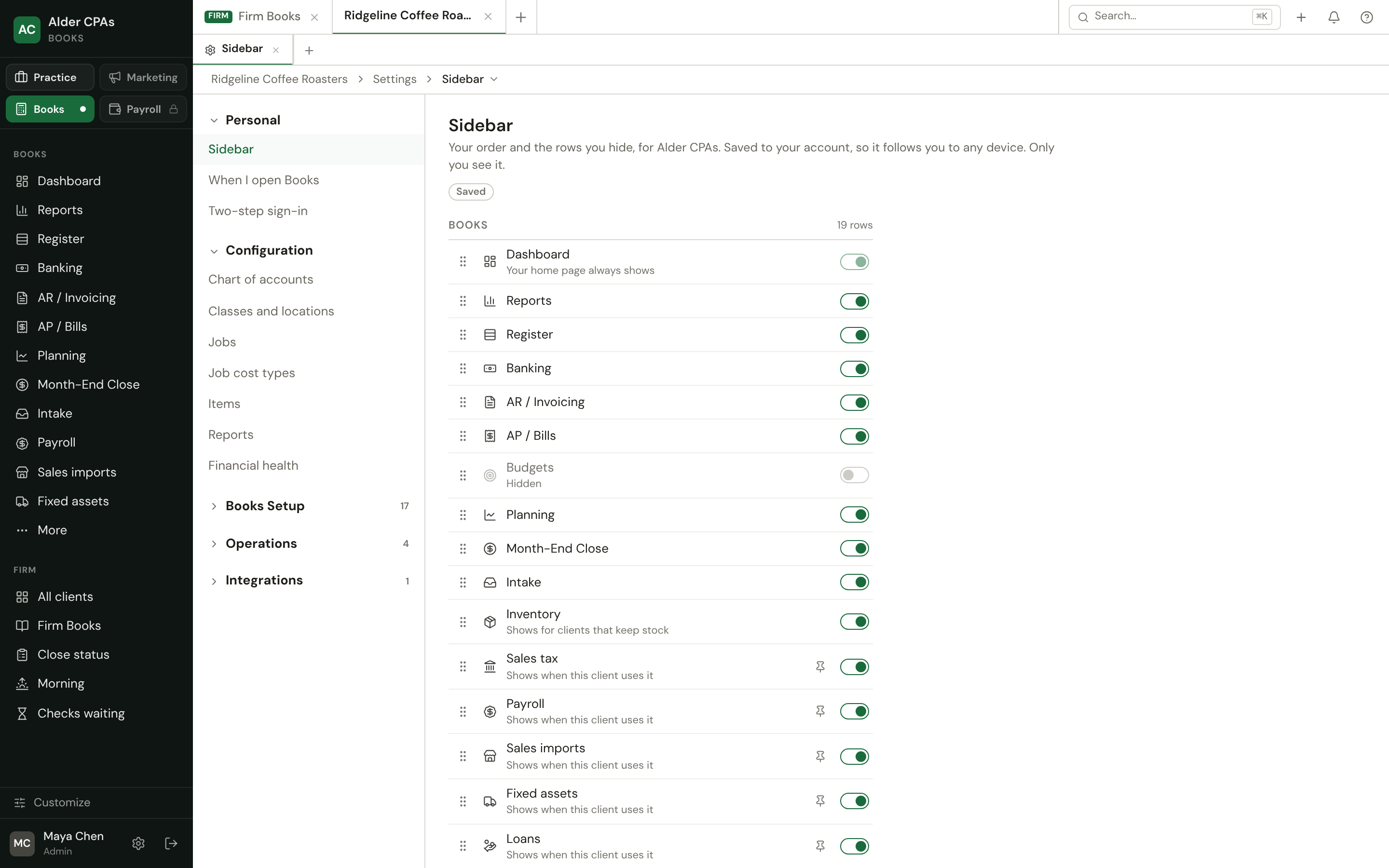 Settings → Personal → Sidebar, with Reports moved up and Budgets hidden
The badge above the list tells you where you stand: Default (you are on the standard sidebar), Saved, or Unsaved changes.
The gray notes tell you why a row is sometimes missing from the sidebar even though its switch is on:
Your home page always shows
Dashboard. It can be moved but never hidden.
Shows when this client uses it
Sales tax, Payroll, Sales imports, Fixed assets, Loans, Client access and Entered by your client appear only for a client that uses them. You can pin these. Client access also needs permission to change the client's settings. When you open the editor from your firm view, the note reads Shows in a client that uses it.
Shows for clients that keep stock
Inventory appears inside a client that has at least one stock item and, in your firm view, when your firm's own books have one.
Shows inside a client
All clients appears when you are inside a client's books.
Shows where you can change settings
Chart of accounts appears beside Register for people who can change the books' settings.
Shows while something waits
Waiting for your approval appears only while something is waiting for you.
Pinned: shows even when this client does not use it
You pinned this row (see below).
· not in the firm view
Added to the note when you open the editor from your firm view, for example Shows inside a client · not in the firm view. It goes on the rows that need a client: Waiting for your approval, Client access, Entered by your client and All clients. If your firm doesn't keep its own books in Books, Chart of accounts, Inventory, Sales tax and Sales imports carry it too.
Hidden
You switched this row off. A row that carries one of the notes above keeps it after Hidden, for example Hidden · Shows when this client uses it.
If you keep your own books rather than a client's, the notes speak about your books instead, for example Shows when your books use it and Shows when you keep stock.
A row marked New has arrived in Books since you last saved, and has been placed after the row that comes before it in the standard order.
Open the editor
There are two ways in, and both edit the same arrangement:
- Customize, at the foot of the sidebar above your name (also on the menu under your name, as Customize sidebar), opens the editor in a panel right beside the sidebar.
- Settings → Personal → Sidebar opens it as a page.
Either way, the sidebar itself is the preview. Every change you make shows in the real sidebar straight away, before you save.
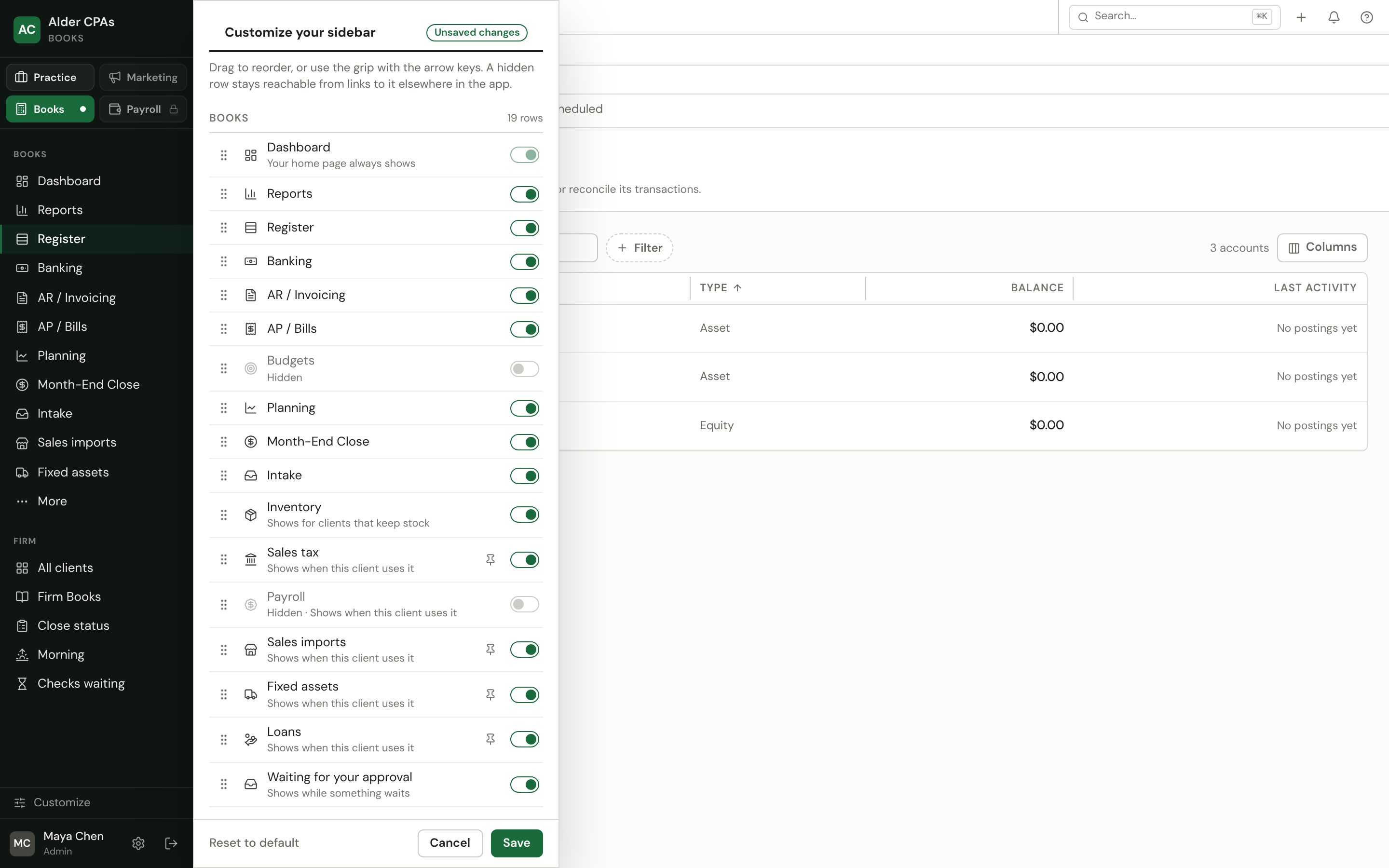 The Customize panel beside the sidebar, with Payroll just switched off and reading Hidden · Shows when this client uses it
Hide a row
- Open the editor.
- Click the row's switch to turn it off. The row turns gray, disappears from the sidebar beside you, and its note now starts with Hidden.
- Click Save. Books confirms with Saved.
To bring a row back, turn its switch on again and click Save.
Hiding a row only takes it out of your sidebar. The page is still there: a link or a bookmark to it still opens it, and your teammates still see it in their sidebars. The list under + that opens a new window follows your sidebar too, so a hidden row is left out of it as well.
If you hide every row in a group, the group's heading goes with them.
Move a row
Rows move within their own group: a Books row stays among the Books rows.
- With the mouse, drag the row by its grip. A green line shows where it will land.
- With the keyboard, see Shortcuts below.
Click Save when the order is right.
Pin a feature so it always shows
Books keeps the sidebar to the everyday work. Rows like Payroll, Fixed assets or Loans show only for a client that uses them, and the rest wait under More, the last row of the Books group.
If you want one of them in the sidebar for every client, whether or not that client uses it, click its pin in the editor and save. Its note changes to Pinned: shows even when this client does not use it. Click the pin again to go back to showing it only when it is used.
A hidden row has no pin: switching a row off wins over pinning it.
The More row
More lists the features this client doesn't use yet, each with a line on what it is for, and opens any of them. The list starts with These books do not use these yet. Each shows in the sidebar once they do. When a client starts using a feature, or you pin it, it leaves More and takes its place in the sidebar. When nothing is left to list, there is no More row.
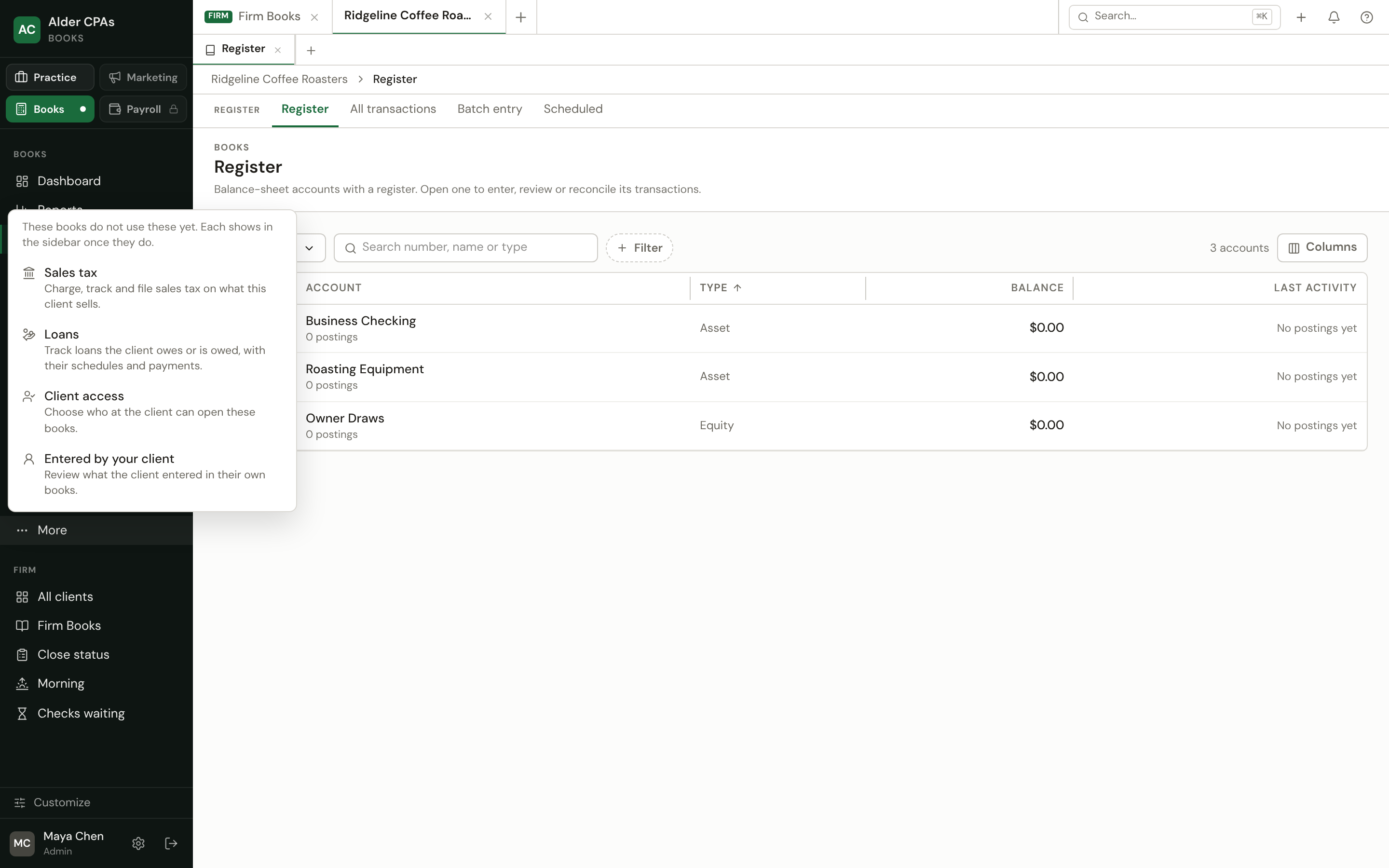 The More row inside Ridgeline Coffee Roasters, listing Sales tax, Loans, Client access and Entered by your client
Save, discard or cancel
Nothing is saved until you click Save.
- On the Settings page, Discard throws away your unsaved changes and puts the list back as it was saved.
- In the Customize panel, Cancel (or Close when nothing has changed) shuts the panel and drops any unsaved changes. Pressing Esc or clicking outside the panel closes it too.
- Leaving the page drops unsaved changes as well, and the sidebar goes back to your saved arrangement.
Save stays off until you change something, and says why under the button: Nothing has changed since your last save. on the Settings page, Nothing has changed yet. in the panel.
Put your sidebar back to the standard order
- Open the editor and click Reset to default.
- Books asks Reset your sidebar? and lists exactly what will change: the hidden rows that will show again and the rows that will move back. For example, 1 hidden row shows again: Budgets and Reports moves back to its standard place.
- Click Reset sidebar, or Keep mine to leave everything as it is.
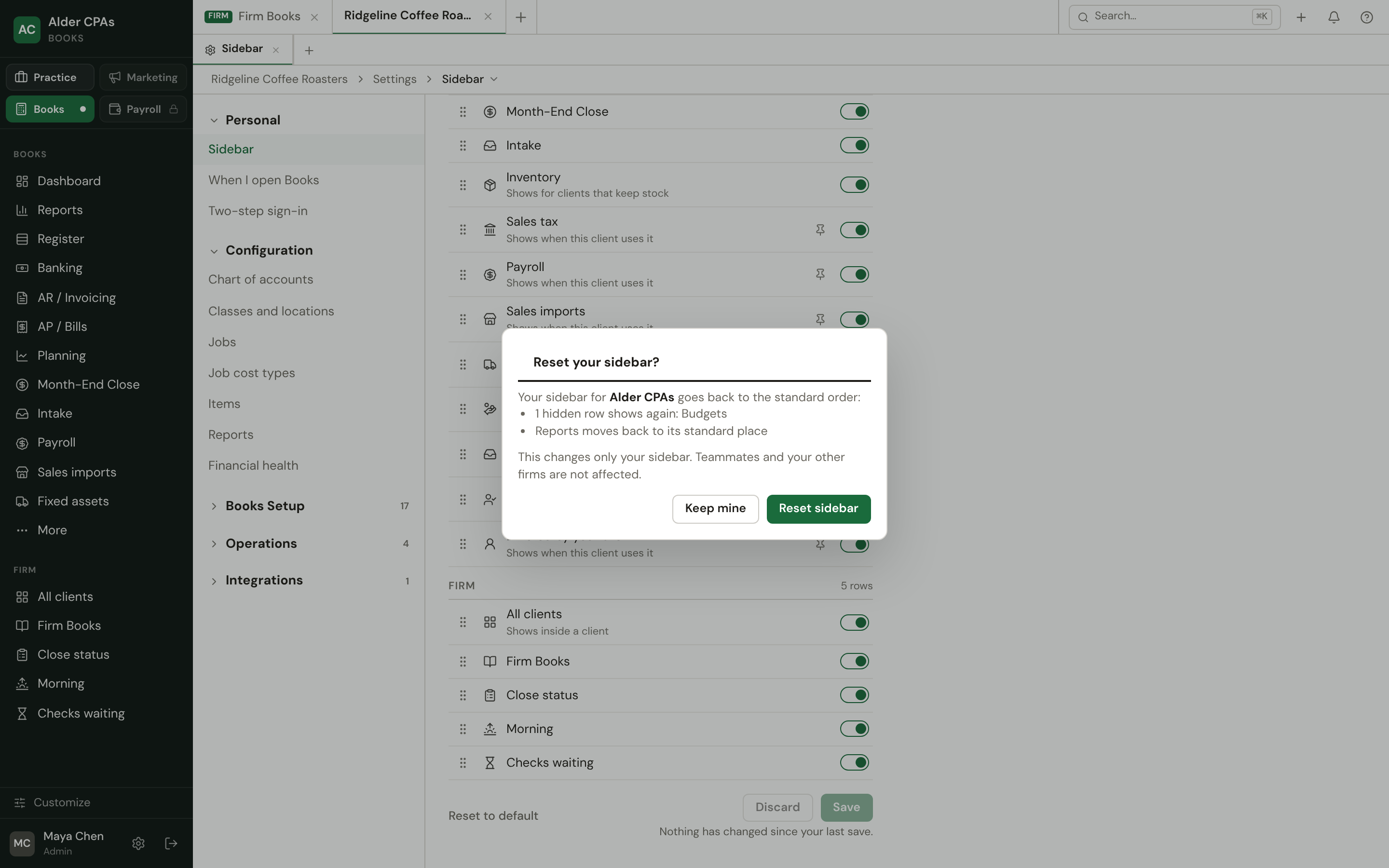 The Reset your sidebar? confirmation, listing what goes back
The reset deletes your saved arrangement for this firm, and Books confirms with Your sidebar is back to the standard order. As the dialog says: This changes only your sidebar. Teammates and your other firms are not affected.
Reset to default is off when you have no saved arrangement. The editor then says You are using the standard sidebar.
Does my sidebar change for my teammates?
No. Each person's arrangement is saved separately, and only that person sees it. Hiding a row in your sidebar doesn't hide the page from anyone, and it doesn't change what anyone is allowed to do. Which rows a person can see in the first place still depends on their access and on what each client uses: you can arrange the rows you are shown, but customizing never adds a row you otherwise wouldn't have.
Why can't I change my sidebar?
- The switch on Dashboard is grayed out and stays on. Dashboard is your home page and always shows. You can still move it.
- Your saved sidebar could not be read, so you are seeing the standard one. Books couldn't load your arrangement. Nothing was changed, and Save stays off so you don't save over an arrangement Books never saw. Click Try again.
- Your session has ended. You were signed out. Sign in again, then make your change.
- Your sidebar was not saved., or a sentence saying why if Books refused the save. Your changes are still in the editor, so you can click Save again. A reset that fails says Your sidebar was not reset.
- There is no Customize row. People who sign in to a client's books as the client don't get one.
Shortcuts
The editor works fully from the keyboard.
| Key | Where | What it does |
|---|---|---|
| Tab | The editor | Moves between the grips, pins and switches. |
| Space or Enter | A grip | Picks the row up. Press it again to drop the row where it is. |
| ↑ / ↓ | A grip, with the row picked up | Moves the row up or down within its group. |
| Esc | A grip, with the row picked up | Puts the row back where it was. It doesn't close the panel. |
| Space or Enter | A switch or a pin | Turns it on or off. |
Moving focus away from a picked-up row drops it where it is. A screen reader announces each step: which row you picked up, its position in its group, each move, and where you dropped it.
Tips
- Arrange it once, anywhere. The arrangement is the same inside every client and in your firm view, so you can set it up from whichever screen you are on.
- Pin what you check every day. If you look at Fixed assets for most clients, pin it rather than reaching for More each time.
- Changed your mind? Until you save, Discard or Cancel undoes everything. After you save, Reset to default goes all the way back, and the dialog tells you exactly what will change before it does.