
Find Your Way Around: Tabs, Search, the Dashboard and When Books Opens
Work in several clients at once with client tabs and page tabs, find anything across every client with search, move sideways with the breadcrumb, and choose what Books opens with when you sign in.
On this page
Books is built for working in many sets of books at once. Each client you open gets a tab, each page you open inside it gets a tab of its own, and Books remembers all of them. Search reaches every client you can see from one box, and you choose what Books opens with each time you sign in.
There are two rows of tabs. The top row is whose books: Firm Books and one tab per client. The row under it is which pages you have open in those books. Each client keeps its own pages, so switching clients puts you back exactly where you were in each one.
Understand the screen
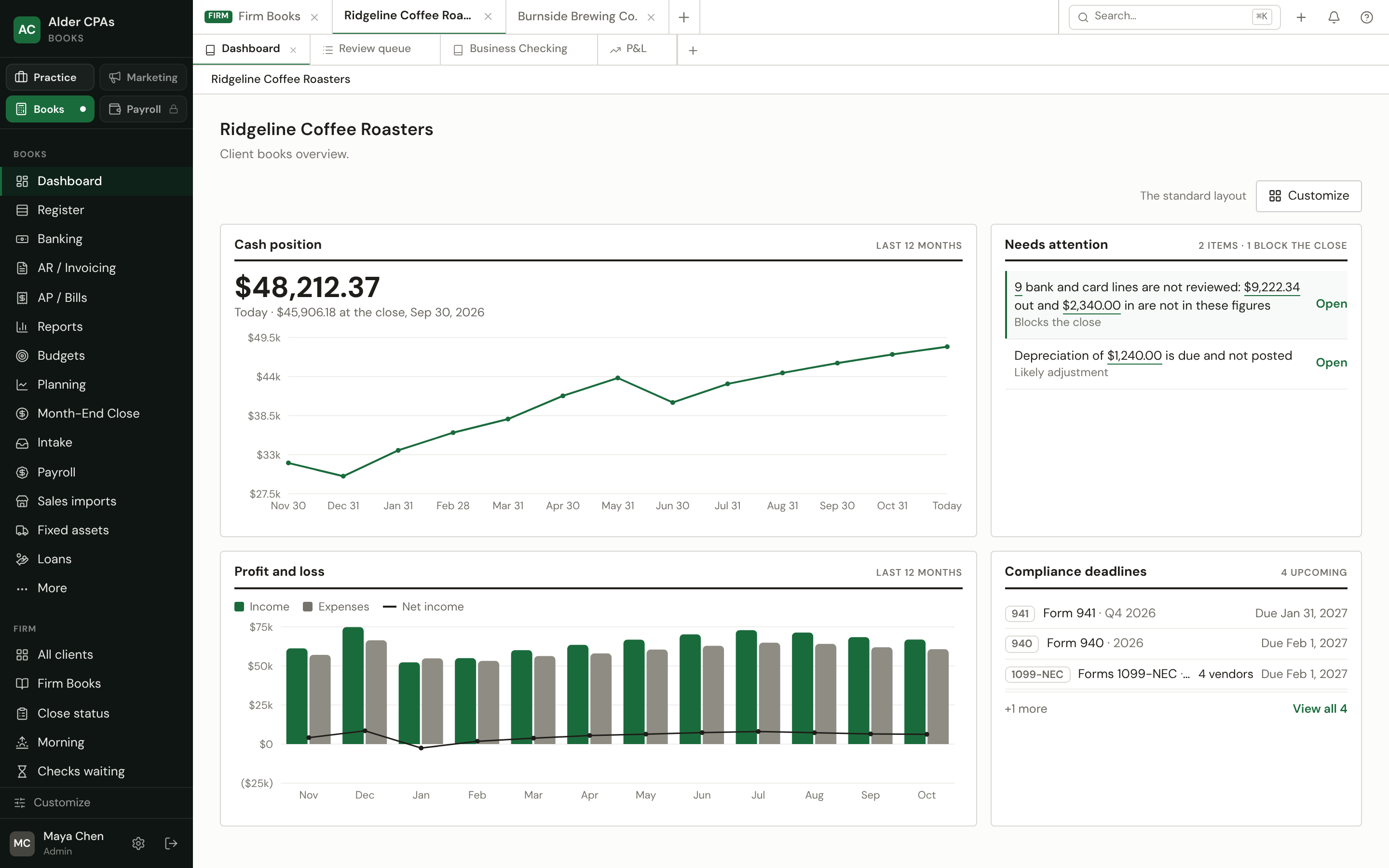 Firm Books and two clients open in the top row, and four pages open for Ridgeline Coffee Roasters in the row below
From the top:
- The client tabs. Firm Books (marked FIRM) holds the firm dashboard and your firm's own books; every other tab is a client, such as Ridgeline Coffee Roasters. The underlined tab is the one you're in. + after the last tab opens another client.
- The controls at the right: Search… with its shortcut ⌘K, + for Quick add, the bell, and ? for help.
- The page tabs for the client you're in: Dashboard, Review queue, Business Checking, P&L. + after the last one opens another page.
- The breadcrumb: where this page sits, such as Ridgeline Coffee Roasters › Settings › When I open Books.
- The sidebar: the pages of these books. See Welcome to Books for what each row is.
Work with client tabs
Open a client
- Click + after the last client tab. A list of your clients opens, with a search box: Search clients…
- Type part of a name, or of the entity type (S-Corp, LLC). Every word you type must match.
- Click the client, or use ↑/↓ and Enter.
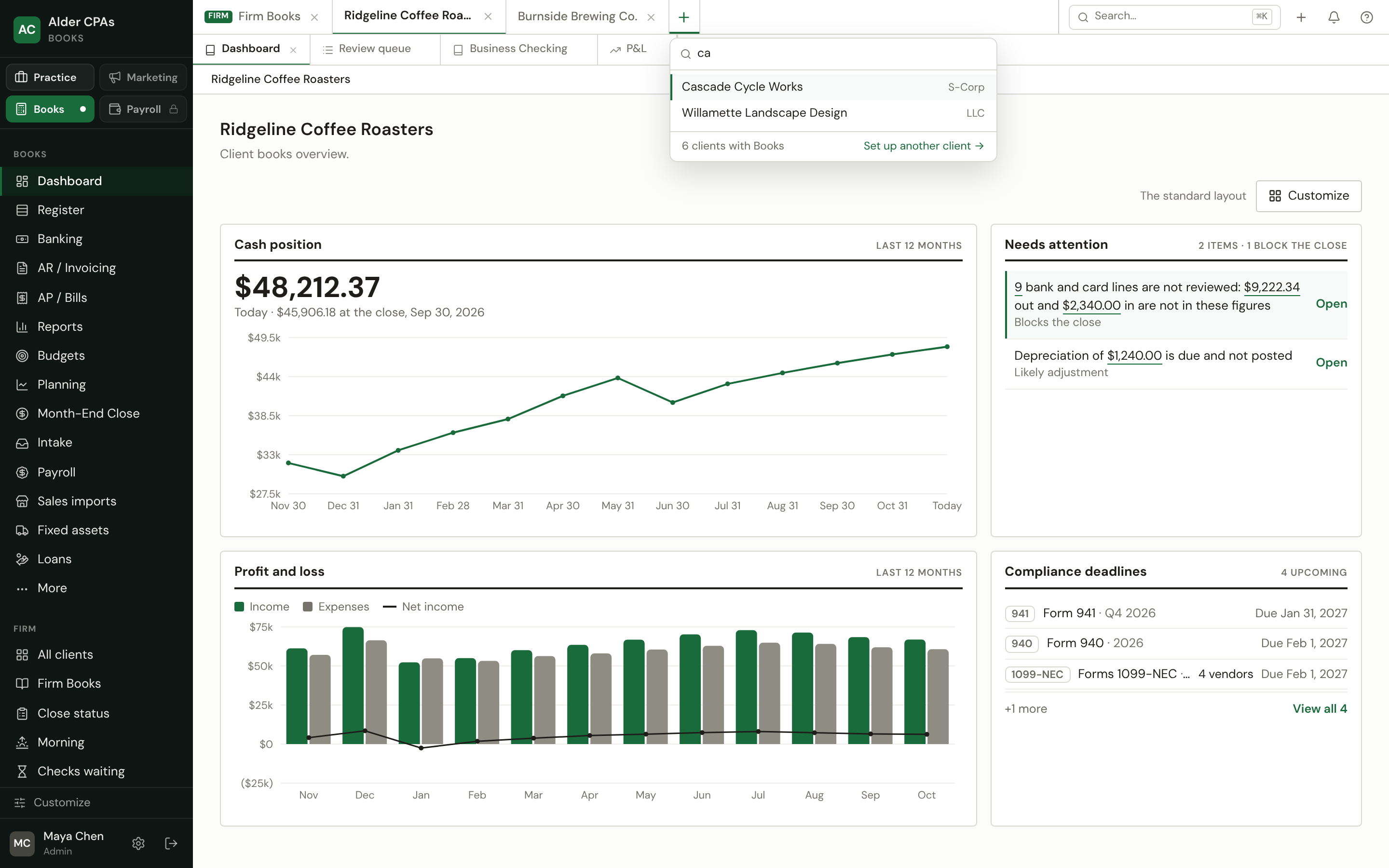 Opening a client from + in the client tabs, with "ca" typed
The list shows only clients whose Books is on, active and not archived. Beside each is its entity type, or Open if it already has a tab: choosing it then switches to that tab rather than opening a second one.
At the bottom, the list counts your clients with Books (for example 6 clients with Books; Firm Books and the sample company aren't counted), and Set up another client → takes you to Settings → Clients. When Firm Books isn't open, it is offered at the top, above the search box.
Switch and close
- Click a tab to switch to it. You land on the page you were last on in that client.
- Click a tab's × to close it. Every tab closes, Firm Books included. Closing the tab you're in takes you to the client tab before it (or the one after it, when it was the first), on the page you were last on there. Close them all and the page says Nothing is open, with Open a company to start again.
Work with page tabs
Inside a client, every page you open on purpose gets a tab in the second row.
- Clicking a sidebar row or a link changes the page in the tab you're on, the way a link does in a browser tab. The tab's name follows: in the screenshots further down, the Dashboard tab became When I open Books when the setting was opened from it.
- + at the end of the row opens a new tab. The list it shows is the sidebar's own pages, in the same groups. Type to narrow it; typing also finds reports and settings pages by name (aging finds A/R Aging and A/P Aging). The last five pages you closed are listed first under Recently closed. Enter opens the top match (a recently closed page first).
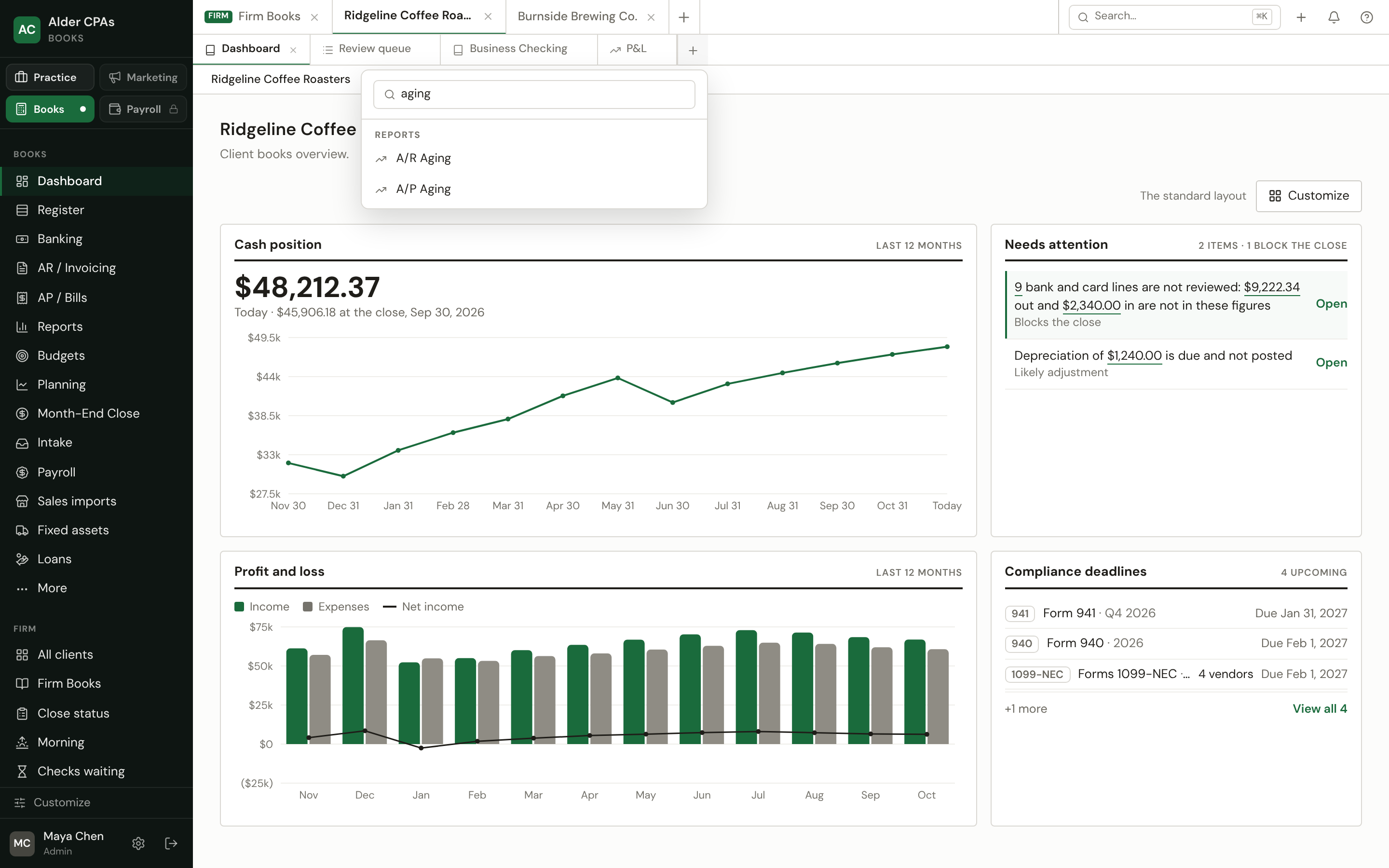 Opening a page in a new tab, with "aging" typed
- Close a page tab with its ×, or click it with the middle mouse button. Closing a tab you aren't on leaves your page as it is. Closing the one you're on takes you to the page tab before it, or to the next one when it was the first. Closing a client's last page tab closes the client's tab too, and you move to the client tab beside it, as above.
- Tabs that don't fit on the row are gathered into a +3 ▾ menu at its end. The page you're on is always shown on the row.
- Each client holds up to 12 page tabs. Opening a 13th closes the one opened longest ago, never the one you're on.
Find anything with search
Click Search… or press ⌘K (Ctrl+K on Windows). The shortcut works from anywhere, even while you're typing in a field, and pressing it again closes search.
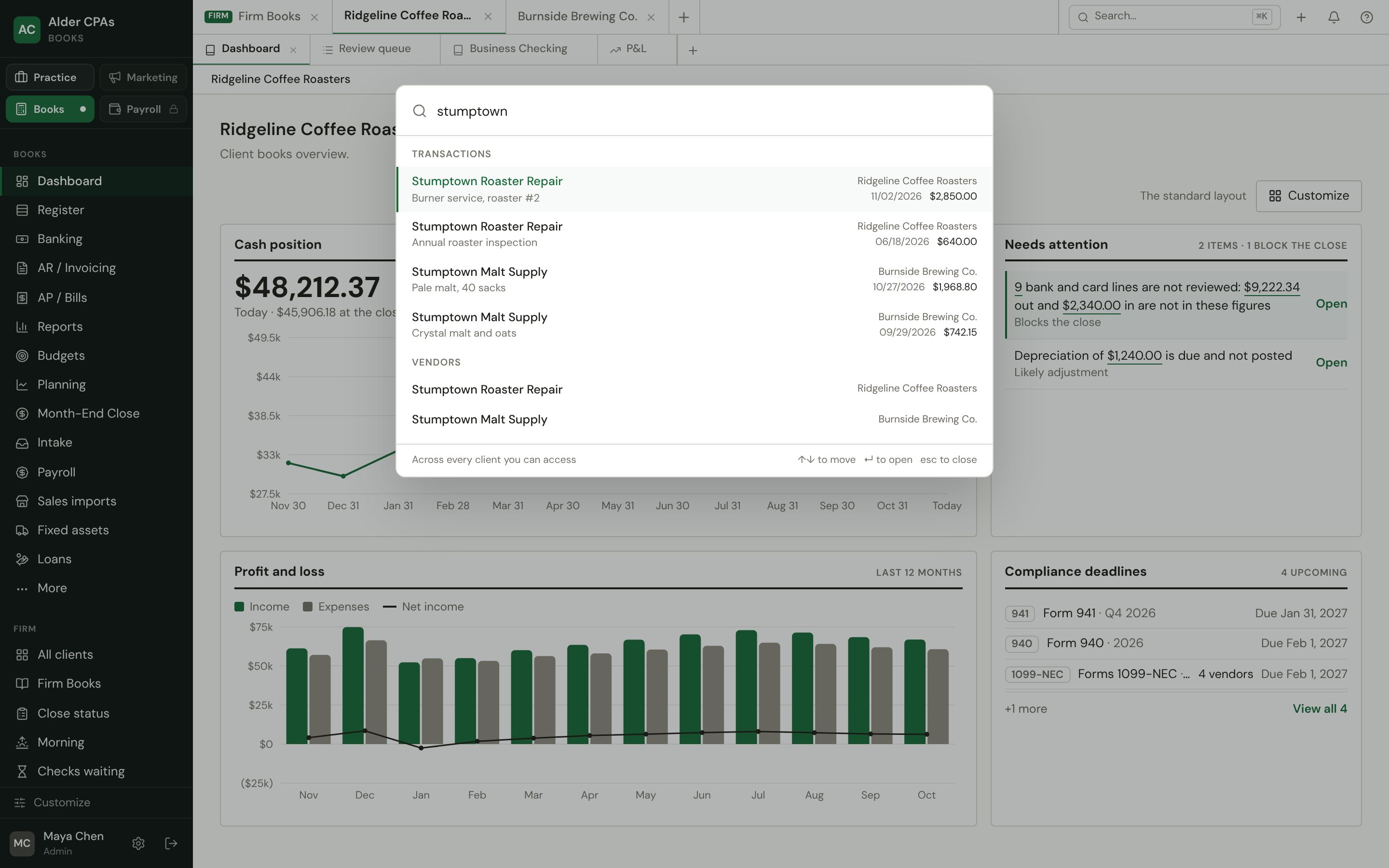 Searching for "stumptown" across every client
Type at least two characters. Search looks across every client you have access to, and every result names the client it belongs to:
| Group | What it matches |
|---|---|
| Clients | The client's name or entity type. Up to six clients. |
| Transactions | Payee, memo, reference or number, or an exact amount: 2850, 2,850.00 and $2,850 all find $2,850.00. |
| Accounts | The account's name, or the start of its number. |
| Customers · Vendors | Name, company name or email. |
| Invoices | Invoice number, memo or PO number, or an exact total. |
Spelling doesn't have to be exact for names and memos: close matches are found too. Each group shows up to 8 results; when there are more, its heading says so, for example showing 8 of 23. Use ↑/↓ to move, Enter to open, Esc to close.
Opening a result takes you into that client, in its tab:
- A transaction opens the register it is in, with the transaction picked out.
- An account opens its register.
- A customer, vendor or invoice opens its page.
- A client opens its dashboard.
Search finds records, not pages. To open a page, use the sidebar or + in the page tabs, which finds pages, reports and settings by name.
Move sideways with the breadcrumb
The breadcrumb under the tabs shows where the page sits. Click any earlier step to go up to it.
When the last step has a ▾, it is a switcher: click it to jump to a sibling of this page without going back up. What it lists depends on the page:
- On an account's register, the other accounts that have a register, grouped by type.
- On a report, the other reports.
- On a customer or vendor, the others.
- In Settings, the other settings pages.
Type to narrow the list, use ↑/↓ and Enter, or click. The page you're on is marked with a check.
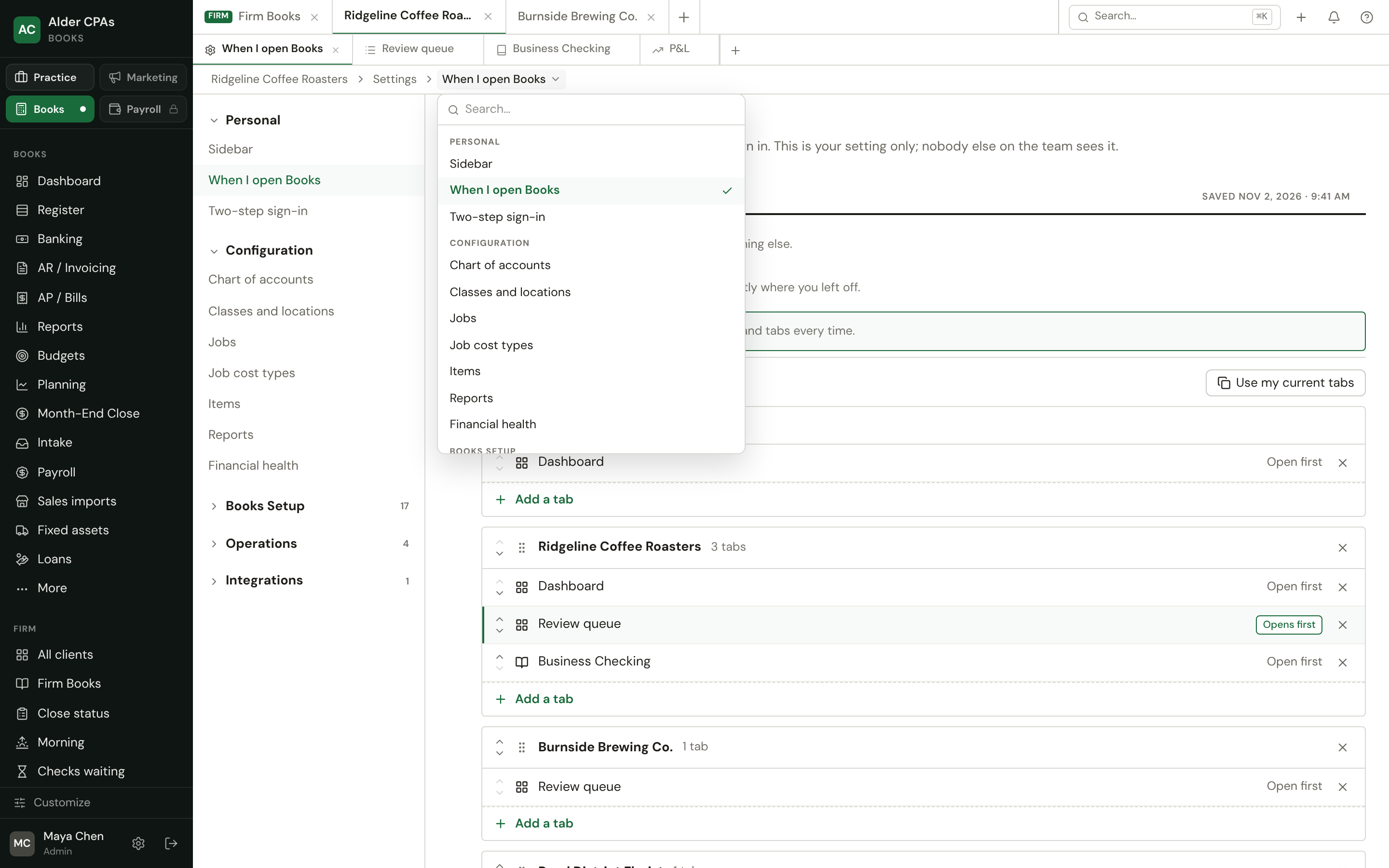 The breadcrumb's switcher open on the When I open Books page
Choose what Books opens with
When I open Books decides what you see each time you sign in. It is your setting only; nobody else on the team sees it.
- Open Settings → Personal → When I open Books (or your name at the bottom of the sidebar → When I open Books).
- Under Open with, choose one:
- My dashboard — Open the dashboard and nothing else. This is what Books does until you choose. For a firm, your dashboard is the firm dashboard, with every client's status at a glance.
- The tabs I had open last time — Resume exactly where you left off. Under it, Books says what that is right now (for example 3 companies and 6 tabs), with Make these my default tabs.
- My default tabs — Open the same companies and tabs every time. Build the list below it (see the next section).
- Click Save. Discard undoes your changes; the line beside the buttons says Unsaved changes until you save.
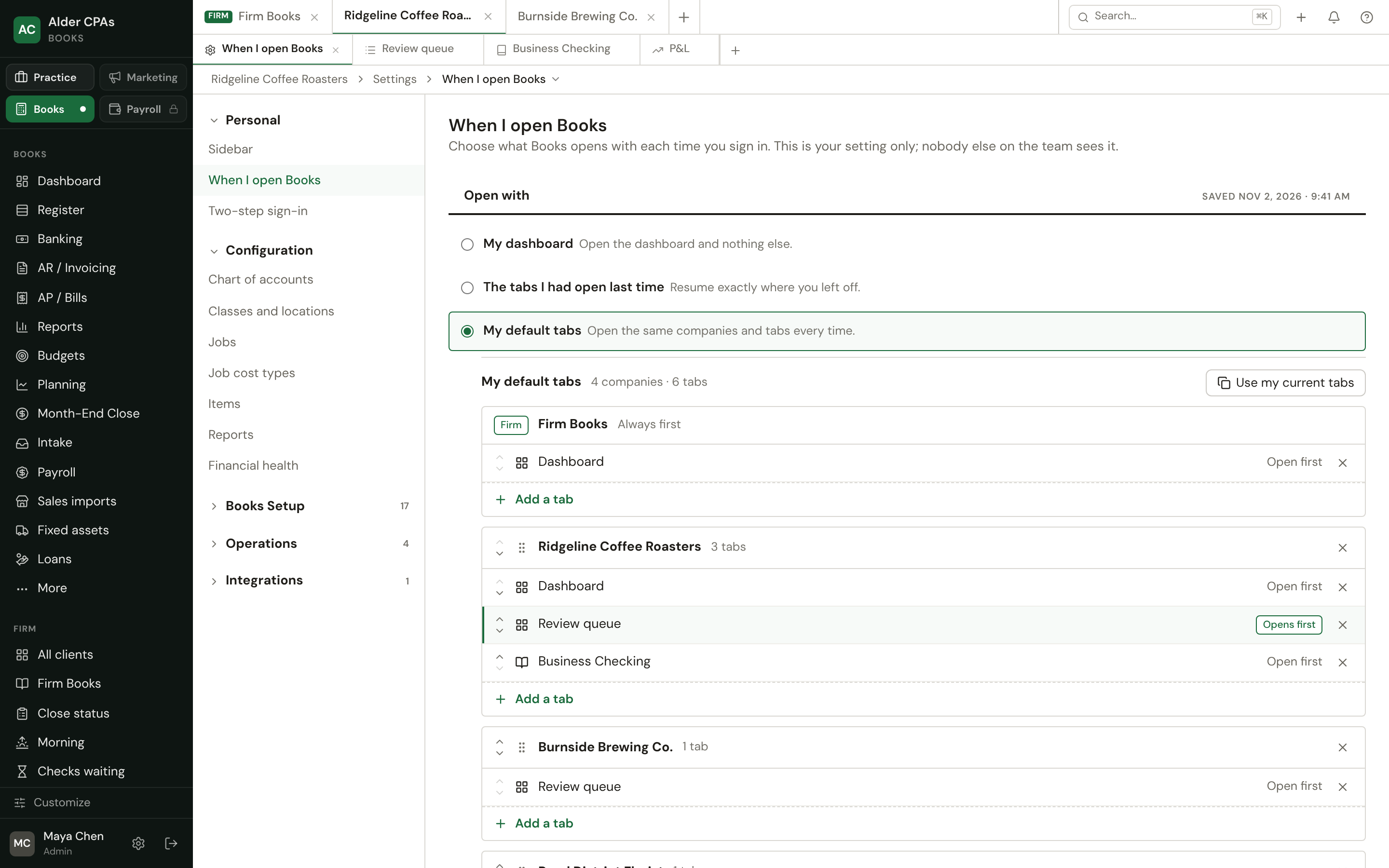 When I open Books, set to My default tabs
The setting applies once per sign-in. It decides what you see when you sign in and open Books. After that, Books never rearranges your tabs: opening a bookmark or reloading a page leaves them as they are.
Build your default tabs
Under My default tabs, each company is a box with its tabs, and the count at the top says how many (4 companies · 6 tabs).
- Firm Books is always the first company (Always first).
- Add a company opens a searchable list of your clients. Only clients you can open today are offered, and each company can appear once.
- Add a tab in a company's box opens the same page list as + in the page tabs. Choosing Register asks Register · which account?: pick an account to open its register, or The account list.
- Reorder companies and tabs with the up and down arrows, or by dragging. Firm Books stays first.
- Opens first marks the tab Books shows when it opens. Click Open first on any other tab Books can open to choose it.
- Remove a tab or a company with its ×.
- Use my current tabs fills the list from the tabs you have open now. If you already have default tabs, Books asks first — Replace your default tabs with the ones open now? — and tells you the counts on each side. Only pages, accounts, customers and vendors can be default tabs; a tab open on anything else (an invoice or a bill, for example) is named and left out.
Limits: up to 25 companies, and up to 12 tabs in each. With no tabs in the list, Books opens your dashboard: No default tabs yet. Until you add some, Books opens your dashboard.
As you build the list, Books checks each company and tab against what you can open today and says so in red on any it would leave out, before you save.
Go back to opening your dashboard
Choose My dashboard and click Save. The tabs you had open are not lost: the first time Books opens on your dashboard, a note under the tabs offers them back — You had 3 companies and 6 tabs open last time. Reopen them. The note appears only when last time held more than one company, or more than one tab in one company.
Why didn't one of my default tabs open?
When Books opens your default tabs and leaves one out, a note under the tabs says which and why, with Edit my default tabs. Close it with ×; it doesn't come back until a later sign-in leaves something new to say.
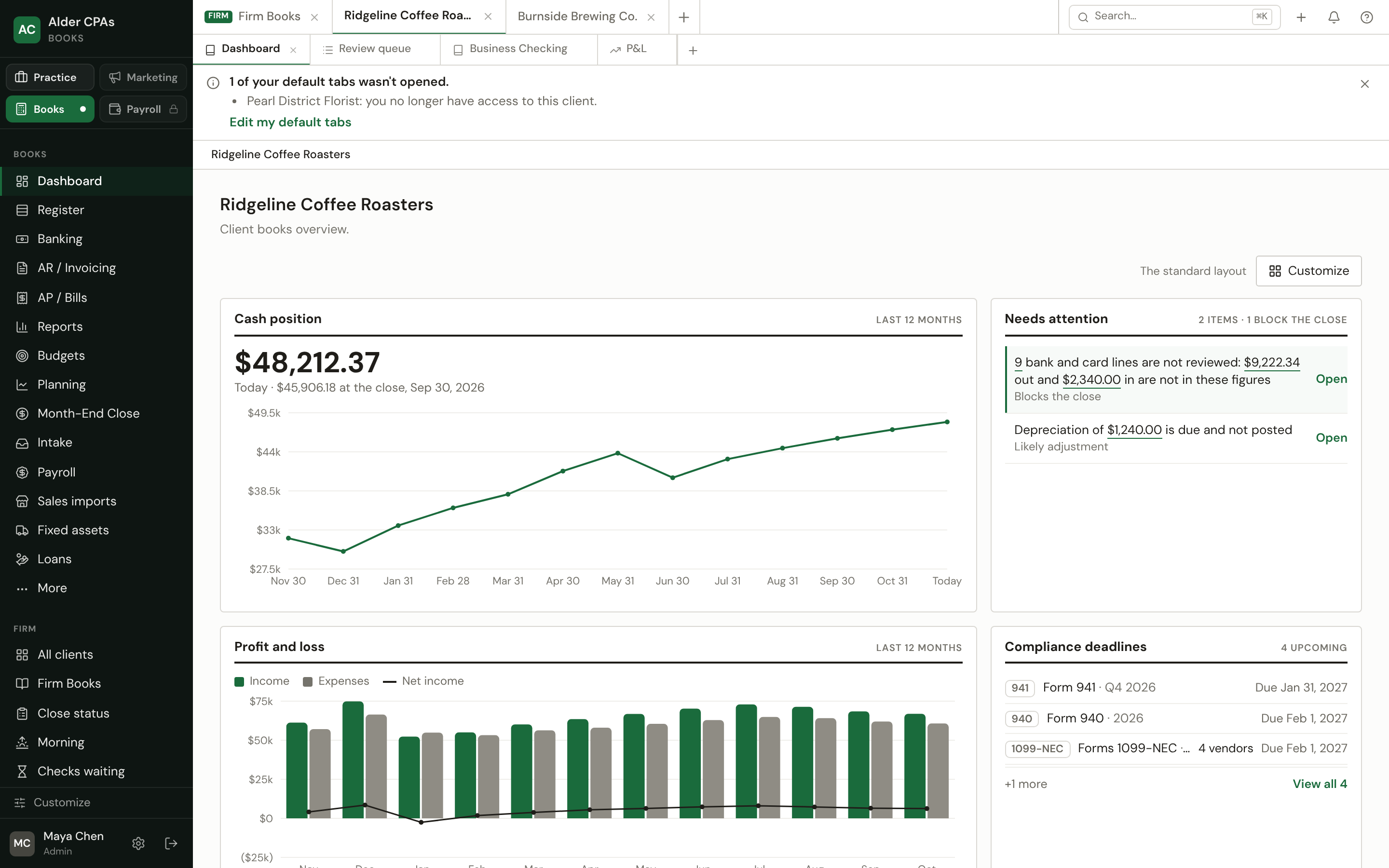 The note Books leaves when a default tab could not open
The reasons, as Books gives them:
| Reason | What to do |
|---|---|
| This client is no longer one of your firm's clients. | The client was archived or removed. Take it out of your default tabs. |
| You no longer have access to this client. | Ask whoever manages your team's roles, or take it out. |
| Books is turned off for this client. | Books has to be on for the client again before it can open. |
| Your role doesn't include this page. | Your role doesn't allow that page for that client. |
| What this tab opened was archived or removed. | The account, customer or vendor the tab opened is no longer active. Choose another. |
| This page no longer exists in Books. | Replace it with the page you want. |
The same reasons show in red on the When I open Books page, beside each company or tab they affect, ending It will be left out when Books opens.
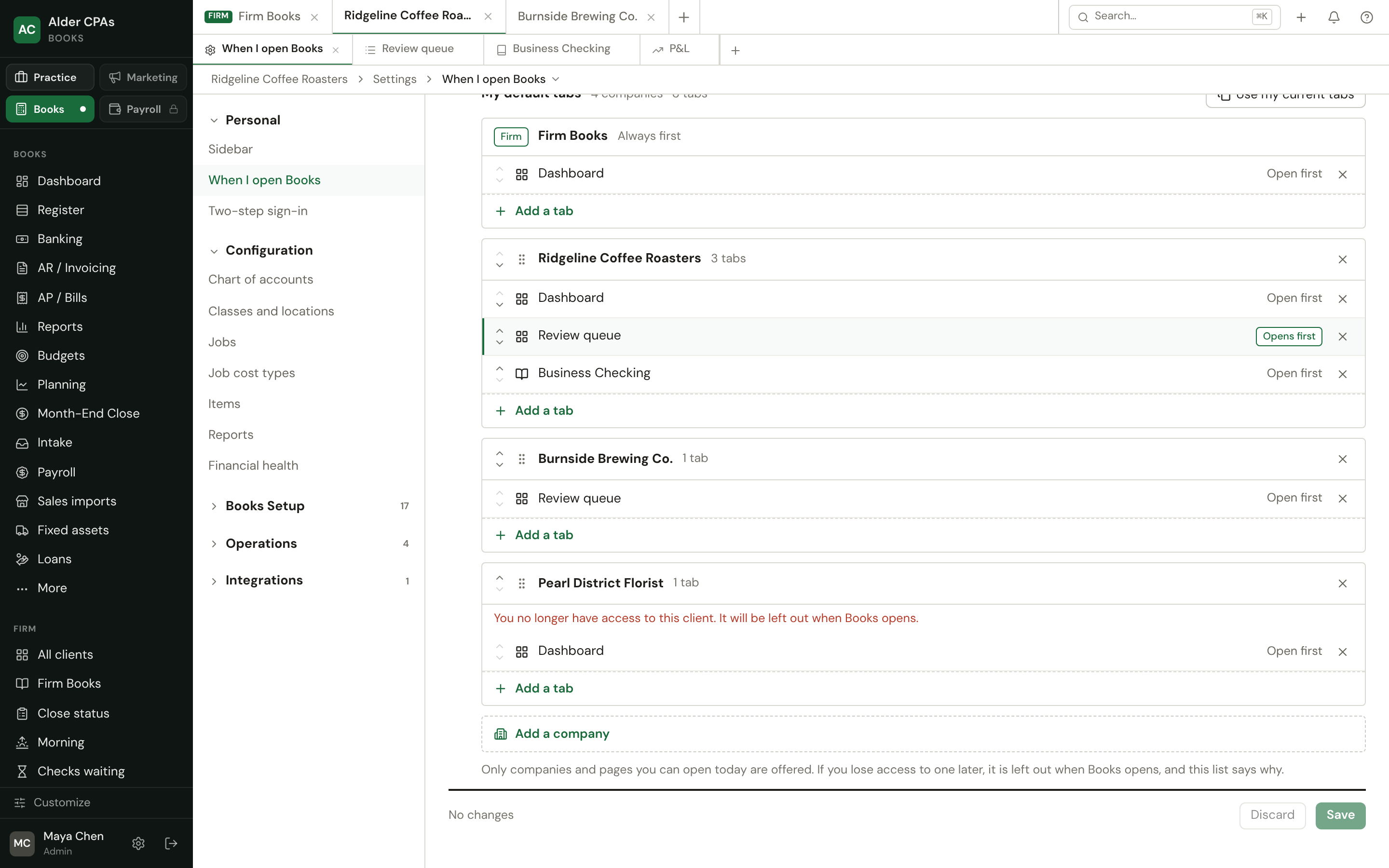 A company Books will leave out, with the reason, on the When I open Books page
A tab can also seem not to open because the setting wasn't applied at all: it applies only once per sign-in, when you open Books itself. If you come back to Books later in the same sign-in and a tab you had open is no longer there, the note says 1 of the tabs you had open isn't available anymore. and why.
If Books can't check your setting, it opens the way it did before, and the setting page says why it couldn't read it, with a way to try again.
Shortcuts and tips
| Key | Where | What it does |
|---|---|---|
| ⌘K / Ctrl+K | Anywhere | Opens search, or closes it. Works even while you're typing in a field. |
| Q | Anywhere you aren't typing | Opens Quick add. Inside it, press the letter shown beside an action to start it, or type to search the actions. |
| ↑ / ↓, Enter | Search, the client list under +, the breadcrumb's switcher | Move through the list and open the highlighted row. |
| Enter | The search box under + in the page tabs | Opens the top match (a recently closed page first). |
| Esc | Any open list or search | Closes it. |
| Middle click | A page tab | Closes it. |
| Alt+Shift+C (⌥⇧C on a Mac) | Anywhere you aren't typing | Opens the client list under +, to open a client in a new tab. |
| Alt+Shift+X (⌥⇧X) | Anywhere you aren't typing | Closes the client tab you're in. |
| Alt+Shift+, / Alt+Shift+. | Anywhere you aren't typing | Moves to the previous or next client tab. |
| Alt+Shift+N (⌥⇧N) | Anywhere you aren't typing | Opens a new page tab at the home page of the client you're in. |
| Alt+Shift+W (⌥⇧W) | Anywhere you aren't typing | Closes the page tab you're on. |
| Alt+Shift+R (⌥⇧R) | Anywhere you aren't typing | Reopens the page tab you last closed in the client you're in, and takes you to it. |
| Alt+Shift+[ / Alt+Shift+] | Anywhere you aren't typing | Moves to the previous or next page tab. |
| Alt+Shift+1 to Alt+Shift+9 | Anywhere you aren't typing | Goes to the first to ninth page tab of the client you're in. |
The tab shortcuts all use Alt+Shift (Option+Shift on a Mac), so they never collide with your browser's own tab keys. Hover over + after the client tabs to see its shortcut.
More details worth knowing:
- Your tabs follow you. Books saves your open tabs to your account as you work, so The tabs I had open last time brings them back the next time you sign in.
- A client's name in the breadcrumb is a link to its dashboard from any page.
- Search only ever shows clients you have access to. A client you don't have access to is never in the results.
- One client, one tab. Opening a client that already has a tab, from +, search or a link, always switches to that tab.
If your firm also uses Practice
- Search covers Practice too. The footer reads Across every client you can access, in Books and Practice, and Practice's matches follow Books' results under In Practice · Clients, In Practice · Tasks and In Practice · Documents. They open in Practice, in a new browser tab. If Practice can't be searched, it says so under its own heading, and Books' results are still complete.
- Coming over from Practice. When you open Books from a client in Practice, Books opens that client, in its tab if it already has one, rather than your startup choice. When I open Books reads Choose what Books opens with each time you sign in or come over from Practice.