
Welcome to Books: Firm Books, Client Books and How They Fit Together
What Books is, how your firm's own books sit beside every client's, what the firm and client dashboards show, and where to go next.
On this page
Books is where your firm keeps the books: a full set of books for every client you work for, and one more set for your own firm. Each set has its own chart of accounts, register, bank feeds, invoices and bills, reports and month-end close. The dashboards tie them together, so you can see which clients need you before you open any of them.
Every set of books is separate. A client's entries, accounts and reports never mix with another client's or with your firm's. You work in one set at a time, in its own tab, and the name in the tab and at the start of the breadcrumb always tells you whose books you are in.
Firm books and client books
Across the top of Books is a row of tabs, one per set of books you have open.
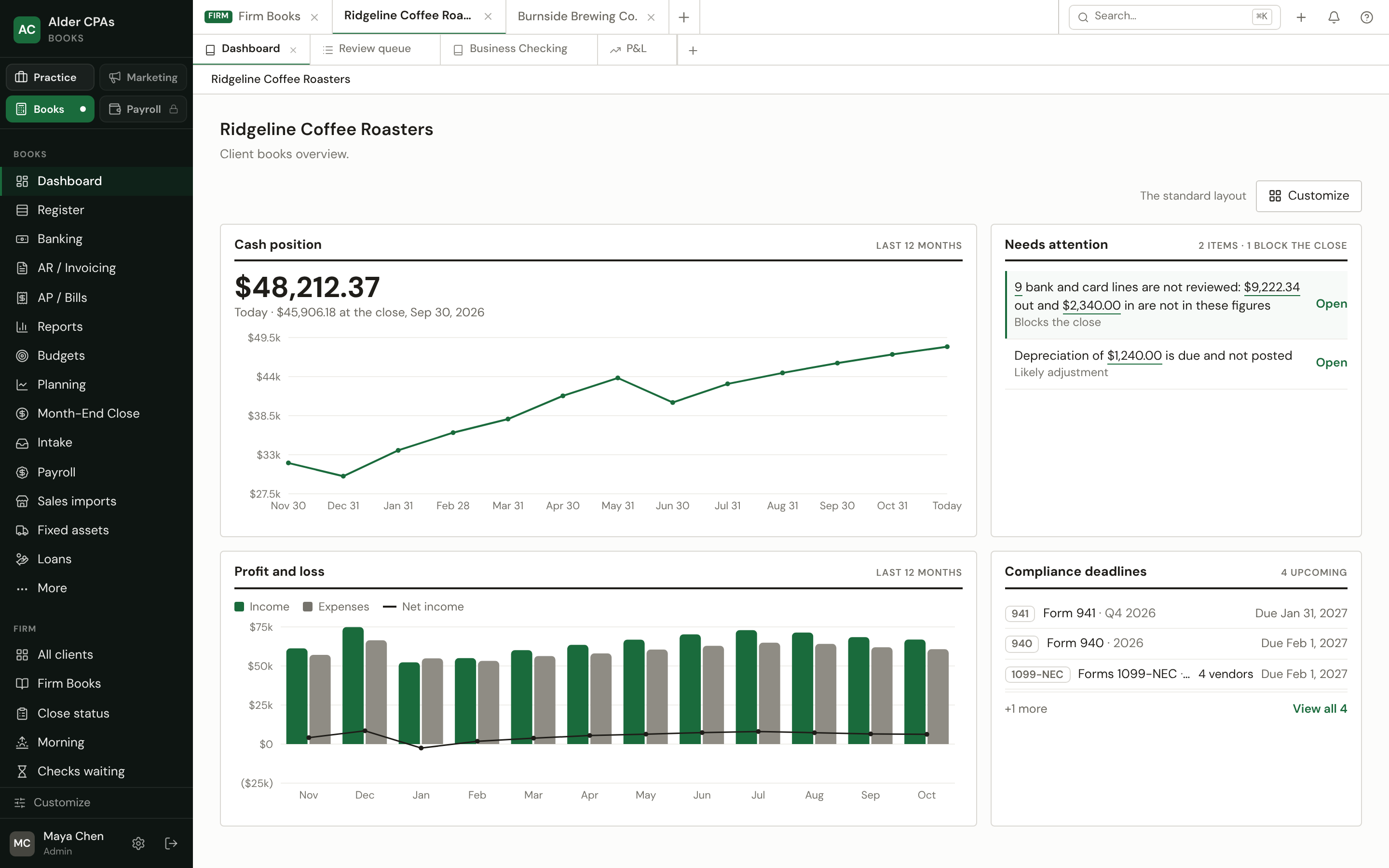 Ridgeline Coffee Roasters' dashboard, open in its own tab beside Firm Books and Burnside Brewing Co.
- Firm Books is the tab marked FIRM. It holds two things:
- The firm dashboard, the Dashboard row in its sidebar: every client's state at a glance.
- Your firm's own books. The sidebar rows under Books (Register, Banking, AR / Invoicing and the rest) work on your firm's own books here, and Firm Books under Firm opens their dashboard. It is the same dashboard a client gets.
- A client tab, such as Ridgeline Coffee Roasters, holds that client's books and nothing else. Its Dashboard is the client dashboard.
The sidebar rows sit in the same order in every tab, so a feature is always in the same place whichever books you are in:
| Under Books | What it's for |
|---|---|
| Dashboard | This client's dashboard, or the firm dashboard in Firm Books. |
| Register | The accounts and the entries in each one. |
| Chart of accounts | The list of accounts itself, where you add and change them. Shown to people who can change the books' settings. |
| Banking | Bank connections, the Review queue, rules and reconciliations. |
| AR / Invoicing · AP / Bills | What customers owe the books' owner, and what it owes vendors. |
| Reports | Financial statements and every other report. |
| Budgets · Planning | Budgets to compare against, and the cash forecast. |
| Month-End Close | The close, month by month. |
| Intake | Documents waiting to be dealt with. The number beside it counts them. |
Rows such as Payroll, Sales imports, Fixed assets and Loans appear for a client once that client uses them; the ones it doesn't use are listed under More.
Under Firm: Firm Books, Close status across your clients, Morning (what the overnight run left for a person) and Checks waiting (checks waiting on an owner). You can rearrange all of this: see Make the Sidebar Your Own.
The client dashboard at a glance
Open a client and its dashboard comes first: the client's name, then a board of cards. A new client dashboard starts with four:
Cash position
Cash in the client's bank accounts today, as the books have it, in large type. Under it, Today · $45,906.18 at the close, Sep 30, 2026: the same figure on the last day of the last closed month (or no period has been closed yet). The line below charts cash at each month end, and today.
Needs attention
What stands in the way of closing the last whole month, and what to look at. Each item says what it is (Blocks the close or Likely adjustment), and most have Open, which takes you to where you fix it. Proposals waiting for a person's approval and uploaded bills waiting in the bill inbox are listed here too.
Profit and loss
Income and expenses as bars for each month, with net income as a line.
Compliance deadlines
The filings coming due for this client, soonest first, with the Books figures beside each one where Books has them, such as how many vendors are at the 1099 threshold.
The small words at the right of each card's title say what it is showing: LAST 12 MONTHS, 2 ITEMS · 1 BLOCKS THE CLOSE, 4 UPCOMING. A list card shows its first few rows; View all opens the rest.
A card that can't read its figures says so. It shows the reason and Retry instead of a blank or a zero, so a card with nothing to show and a card that failed never look alike.
The firm dashboard at a glance
The firm dashboard is your morning view across every client.
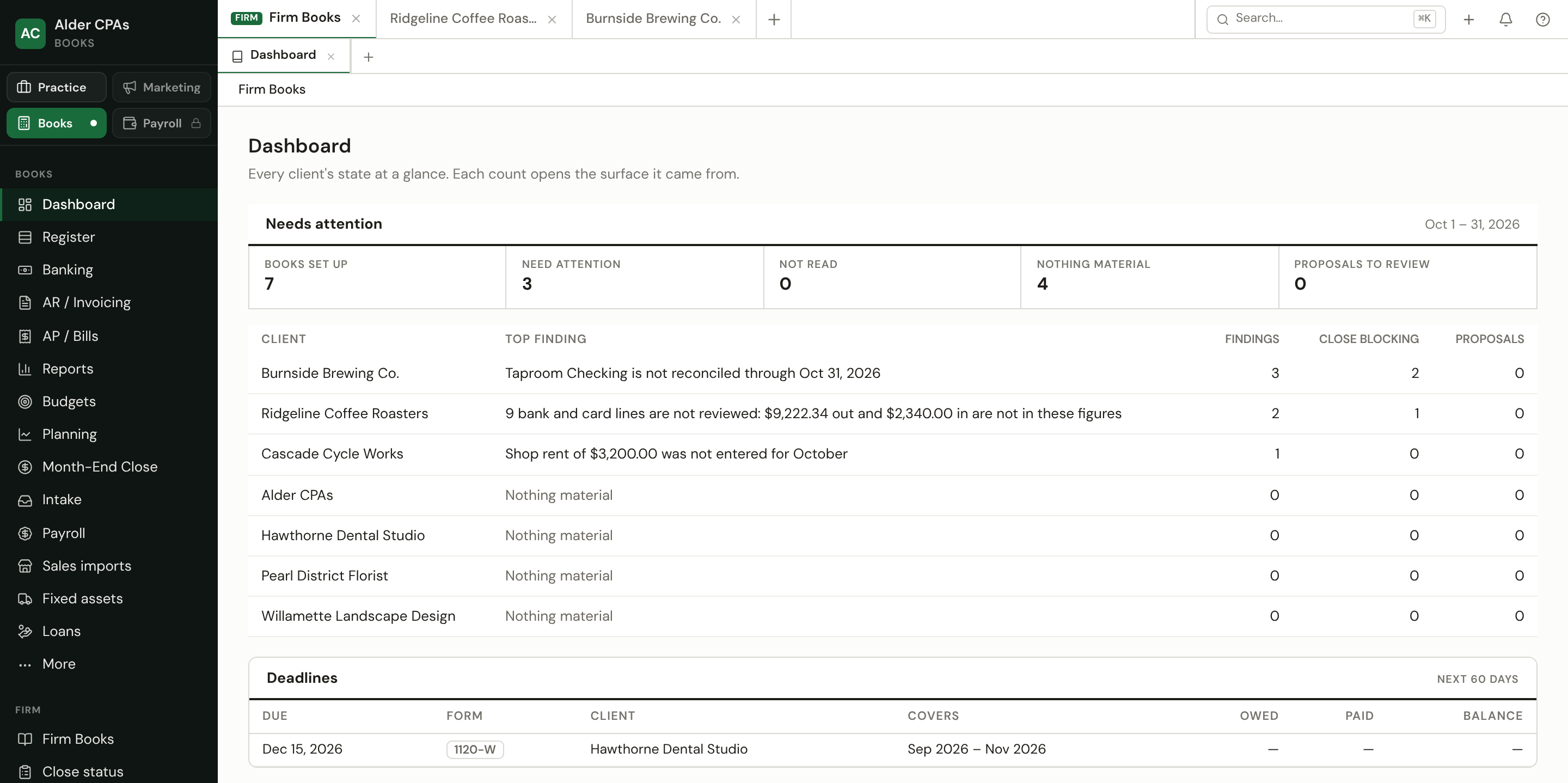 The firm dashboard: Needs attention for October across seven sets of books, and the deadlines coming up
-
Needs attention reads every client's last whole month, here Oct 1 – 31, 2026. The figures across the top count the books: Books set up, Need attention, Not read, Nothing material and Proposals to review.
Under them, one row per client: its Top finding, how many Findings, how many are Close blocking, and its Proposals. Your firm's own books are a row like any other. Click a client's name to open its dashboard.
-
Deadlines lists the filings due in the NEXT 60 DAYS across your clients, with what is Owed, Paid and the Balance where Books knows them.
-
Below them is a grid of cards for the firm, such as Close status, Feed health, Reconciliations not current and Scheduled reports. Edit layout above the grid changes which cards it shows.
Until your firm has its first client, the title reads Welcome and your first name (Welcome, Maya) in place of Dashboard. People who can change the firm's settings (owners and admins by default) also see the steps to get the firm set up.
What should I do next?
Start with Needs attention: on the firm dashboard to choose a client, then on that client's dashboard to see what to fix. Work the items marked Blocks the close first.
Bank lines waiting in the Review queue are often one of them (9 bank and card lines are not reviewed: $9,222.34 out and $2,340.00 in are not in these figures): when the money they hold is material, the item reads Blocks the close; otherwise Likely adjustment. Open takes you to the Review queue. See Reviewing Bank Transactions.
Why is this number different from my bank?
Cash position is the cash in the client's books, not the balance the bank shows. It adds up the balances of the client's bank accounts in the chart of accounts as of today. The two differ when:
- Bank lines are still waiting in the Review queue. Most have no entry in the books yet (a line that already matches an entry is in the figures). For the last whole month, Needs attention says how much is waiting, out and in.
- Checks and deposits are in the books but haven't reached the bank yet. A check you wrote yesterday is out of the books today and out of the bank only when it clears.
- A client trust account is held apart. Money in an account marked as client trust is not counted, and the card says so: $12,400.00 in client trust, not included.
To prove the books and the bank agree at a month end, reconcile the account: see Reconcile an Account. The figure at the close is the books' cash on the last day of the last closed month.
Change what the dashboard shows
The client dashboard is edited in place.
- On any client's dashboard, click Customize. A bar appears: Customizing this dashboard. Drag any card by its title bar. The gear holds its settings. Nothing changes until you save.
- Arrange the cards:
- Move a card by dragging its title bar.
- Resize it with Small or Wide on its title bar, where the card offers both.
- Remove it with the ×. It goes back to the tray. Every card can be removed, Compliance deadlines included, and a card you remove and save stays off your dashboard.
- Add a card from Add a card: above the board, such as Owed to you, You owe, Close, What changed, Runway, Bills due soon or Bank feeds. It is added at the end.
- Change a card's settings with its gear (see below). Restore this card’s defaults puts that card's settings back to their defaults.
- Click Save. Cancel puts the dashboard back as it was.
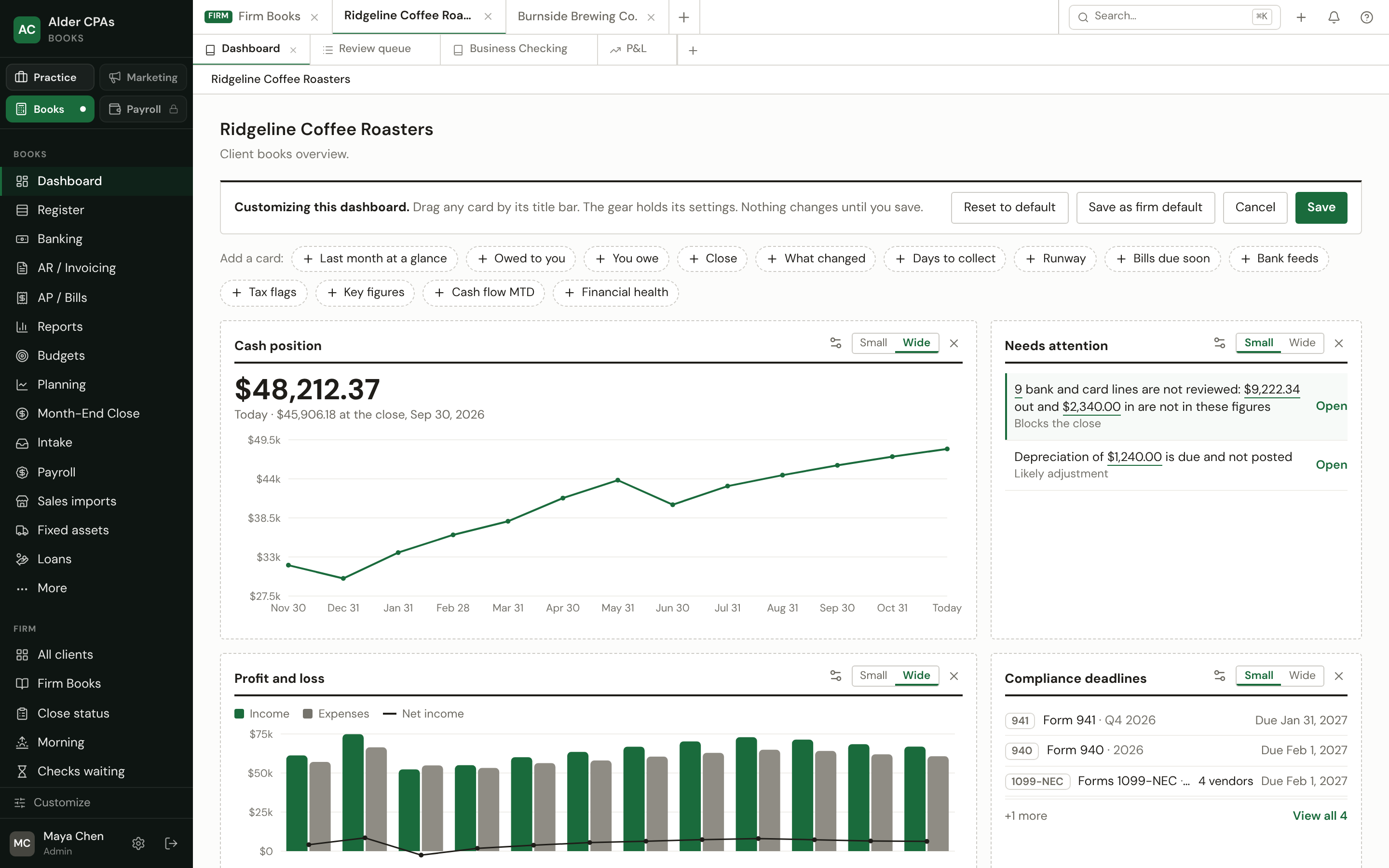 Customizing Ridgeline's dashboard, with the tray of cards to add and the tools on each card
What each card's gear offers:
| Card | Settings |
|---|---|
| Cash position · Profit and loss | Period: Last 3 months, Last 6 months, Last 12 months (the default), Year to date or Last fiscal year. Compare to: Nothing (the default), Prior period or Prior year. |
| Needs attention | Show 3, 5 (the default), 10 or All. |
| Compliance deadlines | Show 3 (the default), 5, 10 or All. |
All shows up to 10 on the card, then View all.
Your dashboard is yours, and it is the same for every client. What you save is your own arrangement, used on every client dashboard you open (and on your firm's own books). Nobody else on the team sees your changes. The words beside Customize say which arrangement you are looking at: Your layout, Your firm’s default layout or The standard layout.
-
Reset to default puts back the four standard cards (Cash position, Needs attention, Profit and loss and Compliance deadlines) in their standard order and sizes.
It first tells you exactly what it will undo, for example Reset puts back the 4 default cards in their default order and sizes: it puts back 1 card you removed, takes off 1 card you added. Nothing is saved until you press Save. Click Reset, then Save to keep it.
-
Save as firm default (shown to people who can change the firm's settings) makes your arrangement the starting point for everyone on the team who hasn't arranged their own: Saved as your firm’s default for everyone who has not arranged their own.
Arranged your dashboard a while ago? If the arrangement you see (yours, or your firm's default) was saved before Compliance deadlines could be one of the cards, Books shows a Deadlines card above your board so you don't lose sight of what is coming due. It stays there until you next save your dashboard: add Compliance deadlines from Add a card: if you want to keep it, or save without it and it is gone.
You can also customize from the keyboard: Tab to a card's title bar, press Space or Enter to pick it up, use the arrow keys to move it one place at a time, and press Space again to drop it. Esc puts it back where it was.
The firm dashboard's grid has its own editor: Edit layout above the grid. There you move cards up and down, set each one's width from 1 to 3 columns, change its settings or remove it, and every change is saved as you make it.
Why can't I see a card's figures?
- Cash position says it needs permission. Cash on the dashboard is shown only to people whose role lets them view financial reports for that client: Cash on the dashboard needs permission to view financial reports. Ask whoever manages your team's roles.
- Cash position says no bank account is set up. No bank account is set up in these books yet, so there is no cash to show. Add the client's bank account first: see Connect a Bank or Card Account.
- The dashboard says Books isn't set up for this client yet. The client's books haven't been started. Set up the books walks you through it: see Set Up a Client's Books.
- Save on Customize says Not saved. The board stays as you left it and the reason follows Not saved:. Nothing was changed; fix what it names and save again.
Where to go next
- Add a Client and Turn On Books
- Set Up a Client's Books, or Bring Books Over from Another System if the client is moving from QuickBooks, Xero or another product
- Connect a Bank or Card Account
- Find Your Way Around: Tabs, Search, the Dashboard and When Books Opens
- Make the Sidebar Your Own
If your firm also uses Practice
With Practice on, the dashboards change in three ways:
- Deadlines live on the Practice compliance calendar. The firm dashboard drops its Deadlines card, and if you add the Compliance deadlines card to a client's dashboard, it says This firm has Practice, so this client’s deadlines are on the Practice compliance calendar. No Deadlines card is added above an older arrangement.
- A fuller starting dashboard. Besides Cash position, Needs attention and Profit and loss, a client dashboard starts with Last month at a glance, Owed to you, You owe, Close, What changed and Days to collect, and Reset to default puts those nine back.
- My work on the firm dashboard says Your assigned close tasks and their due dates are in Practice. and links to them: Open My work in Practice →.