
Set Up Bank Connections for Your Firm
The one-time setup your firm finishes before any client can connect a bank: your firm's details, a logo, where clients get help, the bank connection terms, and what happens after you submit.
On this page
Before any client of yours can connect a bank, your firm is approved for bank connections once. You fill in one short form: your firm's details, how your clients will see you while they connect a bank, and where they can get help. Then you accept the bank connection terms and submit it for approval. It takes a few minutes. After approval, every client of yours can connect banks, and nobody fills this in again.
Only your firm's owner or an admin can fill in and submit the setup (it needs the Settings — Firm permission). Everyone else at the firm can see where it stands, and Banking tells them who to ask. You can upload bank statements while you wait.
Why does my firm need approval?
Live bank connections run through a bank connection partner that registers each firm once, under the firm's own name, before that firm's clients can link a bank. The display name, logo and help details you enter here are what your clients see while they connect a bank, so the connection is presented as your firm's.
Where to start
Any of these opens the same form:
- On a client's Banking page, before setup is finished, the page shows Set up bank connections with a button of the same name.
- Settings → Bank feeds (in your firm's settings, under Integrations) shows a Bank connections card with a Not started badge and a Set up bank connections button.
- A new firm's Get started list includes Set up bank connections, with a Set up button.
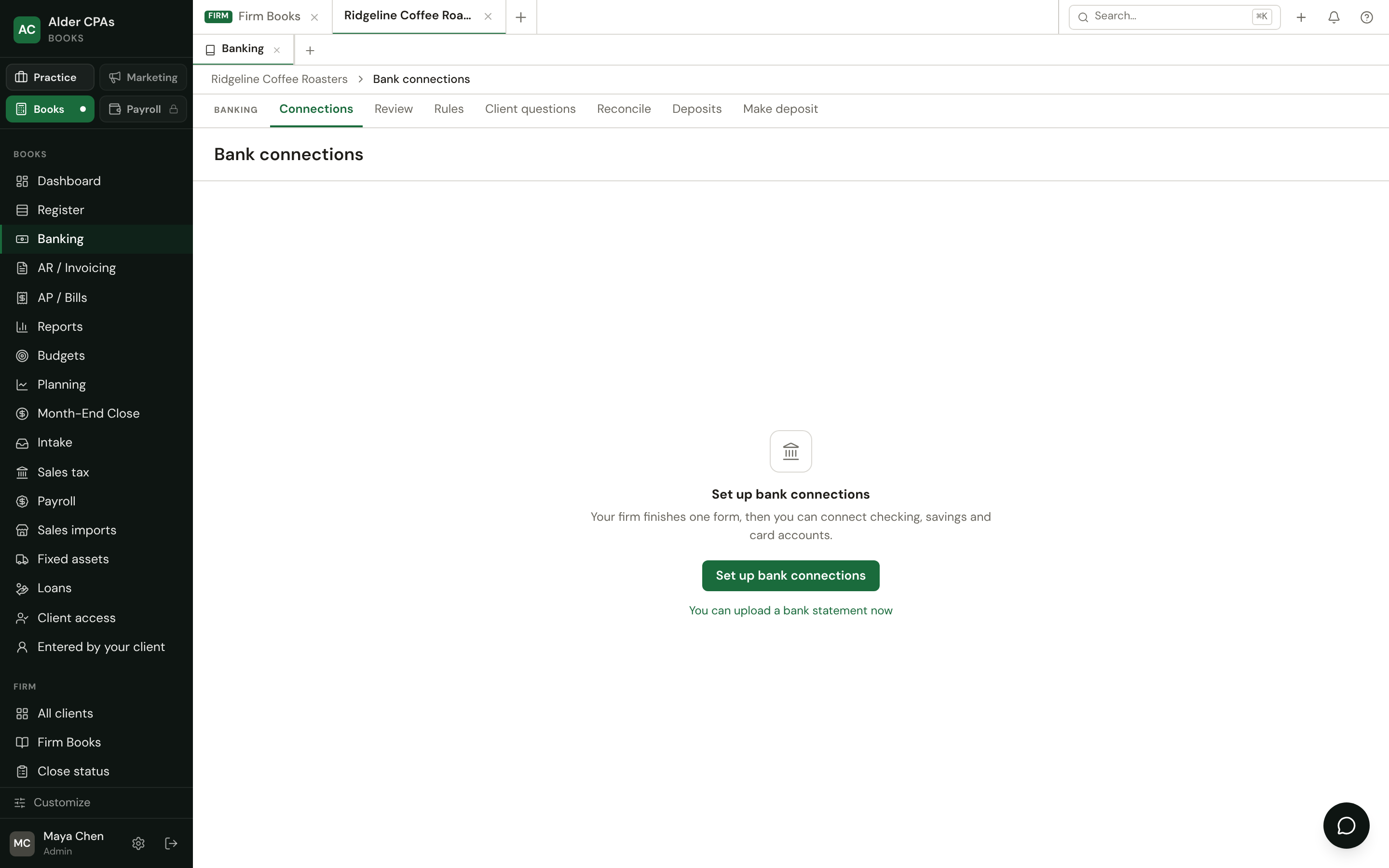 A client's Banking page while the firm's setup isn't finished
On a client's Banking page, someone who isn't an owner or admin sees the button turned off, with Your firm’s owner or an admin sets up bank connections. under it; on Bank feeds the card says Your firm's owner or an admin can do this.
Fill in the setup
The form has three steps: 1 · Your firm’s details, 2 · Terms and 3 · Review and submit. Every field saves when you leave it (or press Enter), and Saved confirms it, so you can stop and come back.
A field can also save while you pause in it, but a pause never costs you your place: the field keeps your cursor and everything you typed, and the rest saves when you leave it. A ZIP code, email or phone number saves on a pause only once it looks complete.
Step 1 · Your firm's details
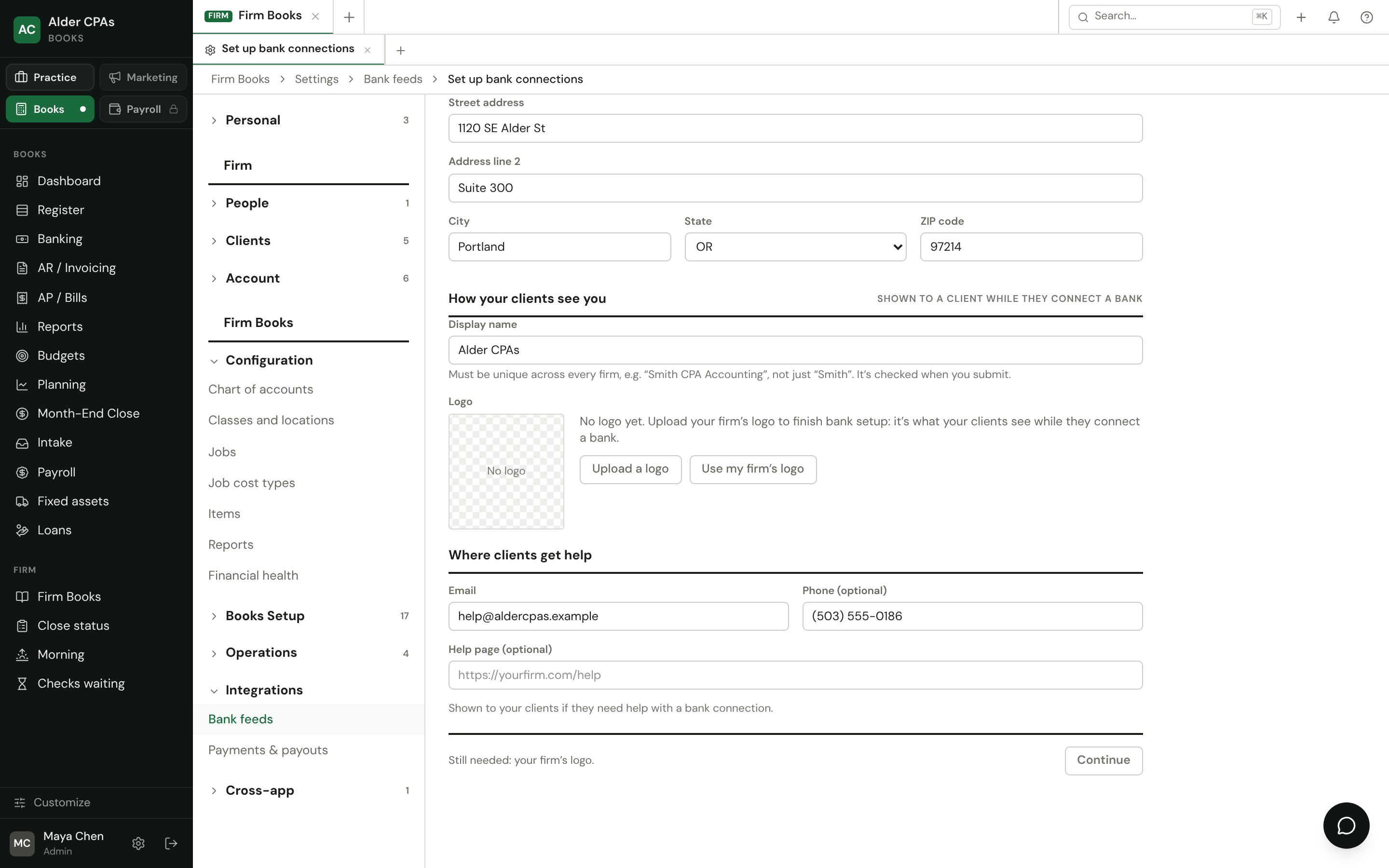 Step 1, with the details filled in and the logo still to upload
Your firm — Legal name, Website, Street address, Address line 2, City, State and ZIP code. These are your firm's details, the same ones on Firm details (the Also on Firm details link goes there); change them in either place.
If you leave Legal name empty, your firm's name is used. Website and the full mailing address (Street address, City, State, ZIP code) are required; Address line 2 is optional.
How your clients see you — shown to a client while they connect a bank:
-
Display name. It starts as your firm's name. It Must be unique across every firm, e.g. “Smith CPA Accounting”, not just “Smith”. It’s checked when you submit. Up to 100 characters.
-
Logo. Required. Click Upload a logo and pick a PNG, JPG, SVG or WebP file of any size up to 20 MB, or click Use my firm’s logo to use the logo your firm already has in LedgerOS.
Books fits it inside a 1024 × 1024 square with clear space around it, never stretched or cropped, and shows you exactly what will be sent. A logo smaller than 512 pixels on its longer side works, but Books warns that it may look soft when enlarged.
Where clients get help — Shown to your clients if they need help with a bank connection.
- Email (required), for example help@aldercpas.example.
- Phone (optional), with at least 10 digits.
- Help page (optional), a web address. If you leave off https://, Books adds it.
Click Continue. It stays off until step 1 is complete, and the line beside it says what's left, for example Still needed: your firm’s logo.
Step 2 · Terms
An owner or admin reads and accepts the bank connection terms for the firm. Click Read and accept, read them, check I agree to the bank connection terms on behalf of my firm, and I am authorized to accept them., and click Accept and continue.
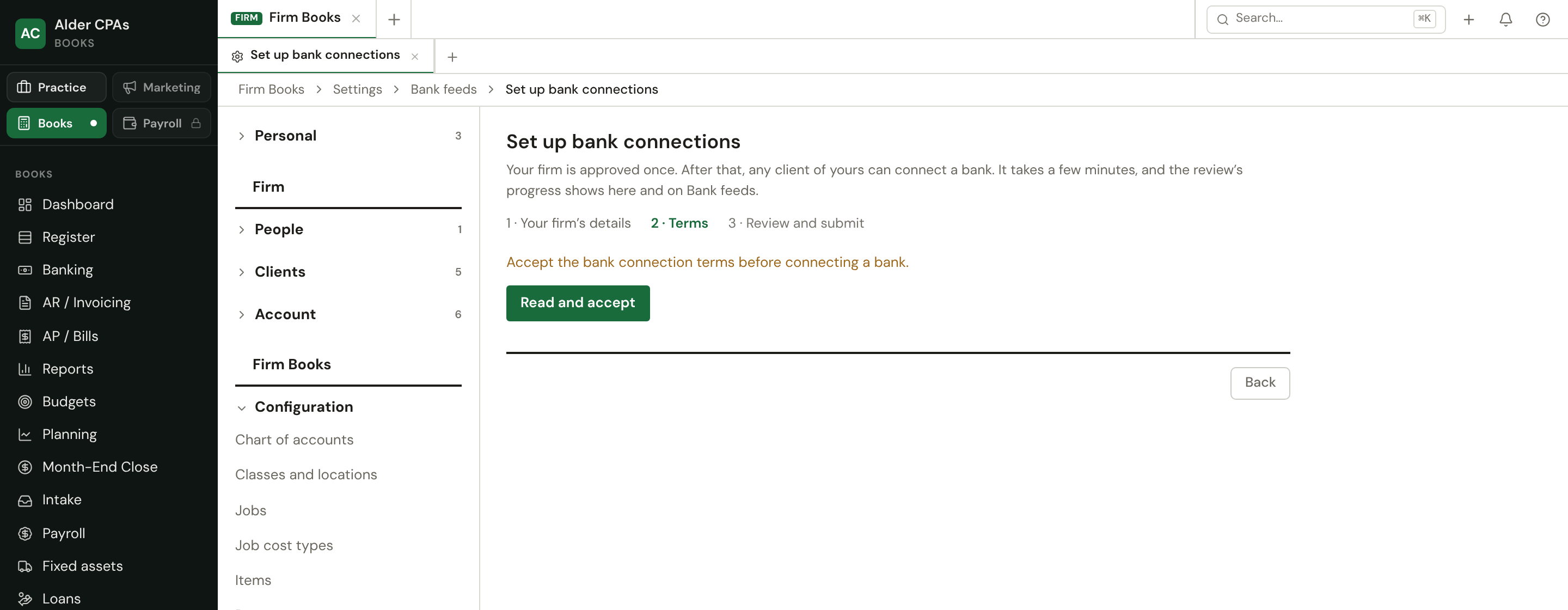 Step 2: the bank connection terms waiting to be accepted
If your firm already accepted the current version (for example, when someone connected a bank earlier), this step says who accepted it and when, and you click Continue.
Step 3 · Review and submit
What we’ll send for approval lists everything in one place: Legal name, Website, Mailing address, Display name, Logo, Where clients get help and Terms. Click Edit details to go back and change something.
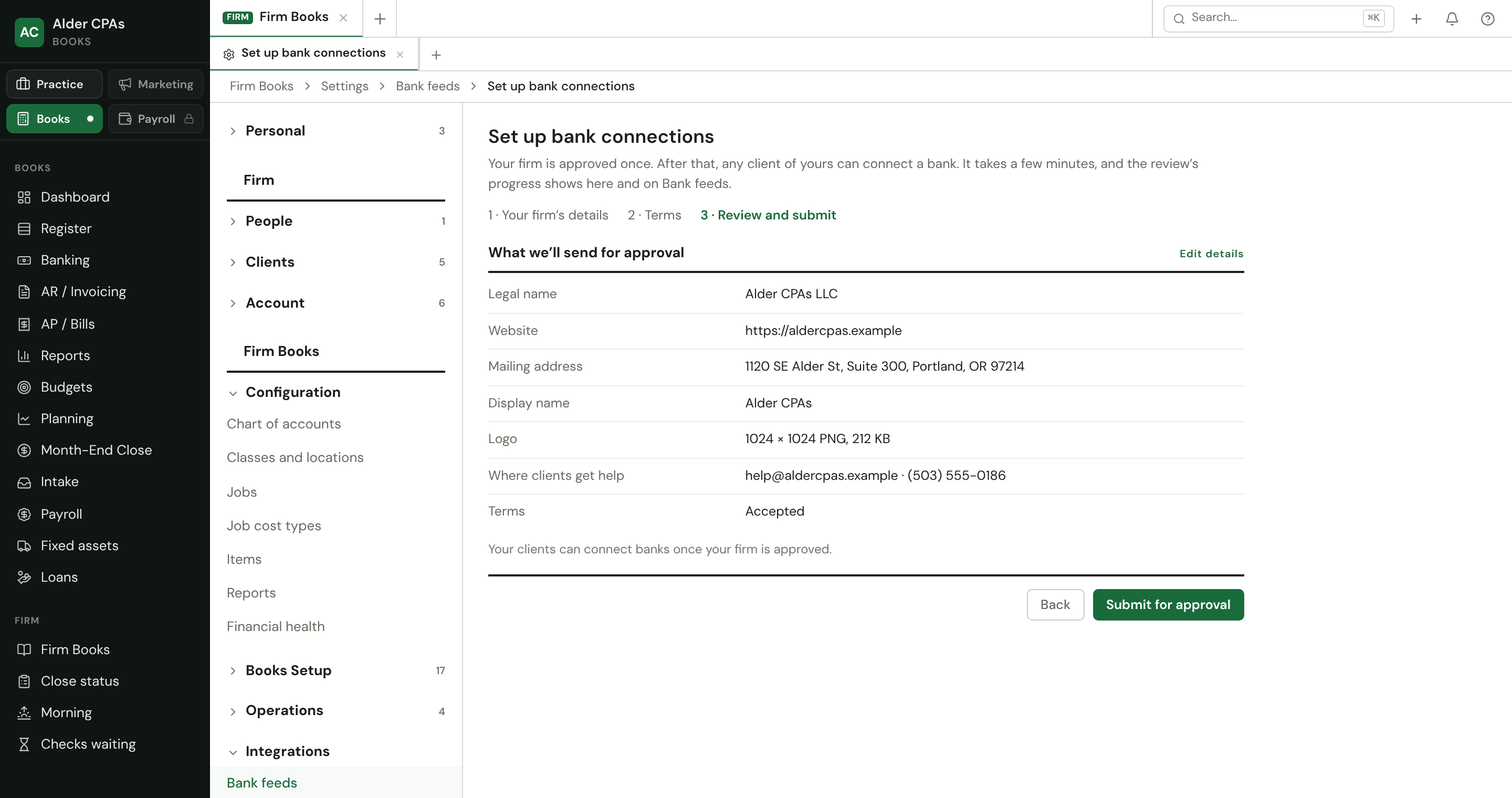 Step 3: everything ready to submit
Books runs the same checks it will run when you submit, before you click anything. If something is missing, Submit for approval is off and the line beside it says what, for example Still needed: the bank connection terms. If another firm already uses your display name, it says Another firm already uses that display name. Go back and choose a different one.
When it's ready, click Submit for approval. Books takes you to Settings → Bank feeds, where the Bank connections card shows where the approval stands.
What happens after I submit?
The Bank connections card on Settings → Bank feeds follows the approval. Its badge:
| Badge | What it means | What you do |
|---|---|---|
| Queued | Submitted, and about to be sent for review. | Nothing. It is sent for review shortly; there’s nothing more for you to do. |
| Under review | Sent for review. Review usually takes 1–2 business days. | Nothing. This page updates by itself when it’s decided. |
| Needs information | The review asked for more. The card lists what, such as A display name or Your firm’s logo; when it lists nothing, LedgerOS is following up with you by email. | If the card offers Update details and resend, click it, fix what it lists, and click Resend for approval on the last step. Otherwise LedgerOS follows up with you. |
| Approved | Any client of yours can now connect a bank on Banking. | Connect your first bank: see Connect a Bank or Card Account. |
| Not approved | The review was declined. This usually means your firm already has its own agreement with our bank connection partner. | Nothing yet. LedgerOS follows up with you by email. |
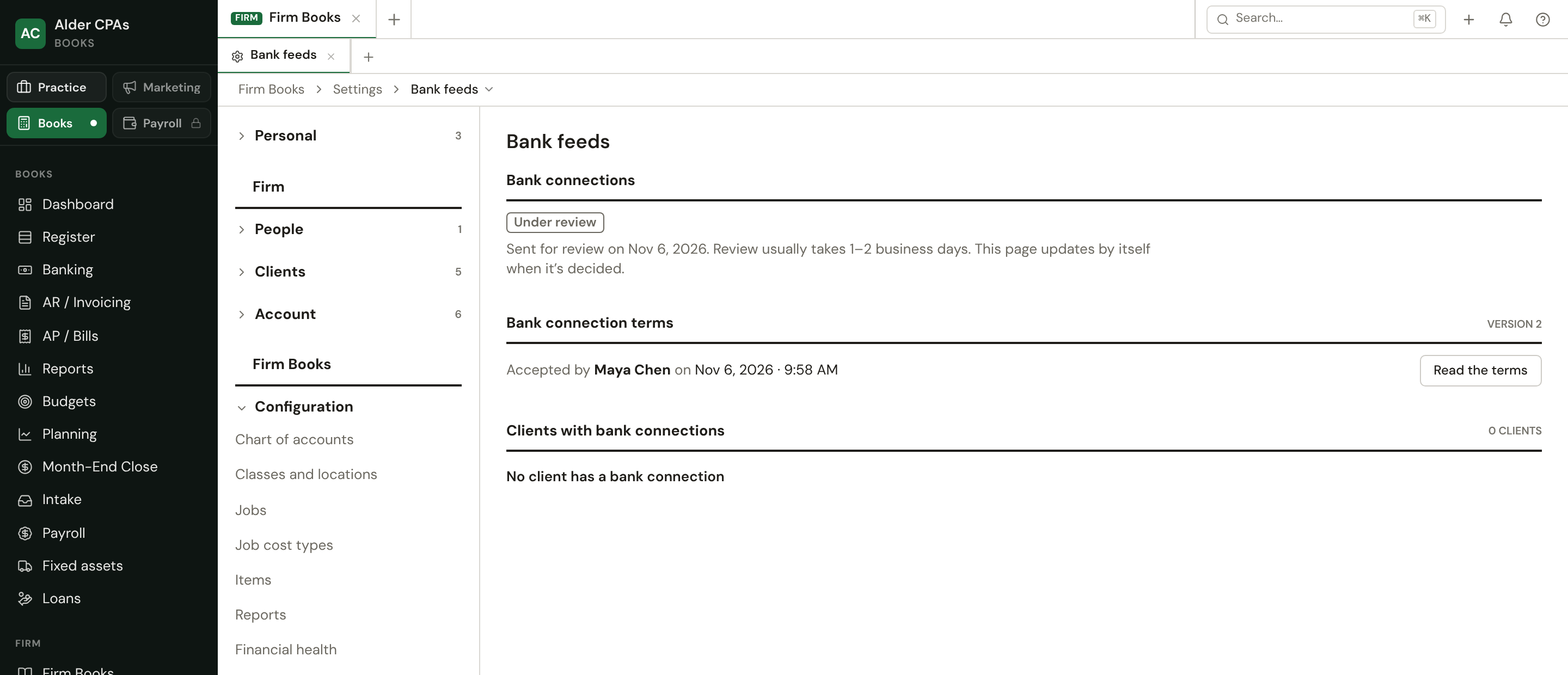 Settings → Bank feeds while the setup is under review
Once approved, the card adds: Most banks are ready within a day; a few large brokerages can take several weeks.
While you wait, a client's Banking page says so in place of Connect a bank, for example Live bank feeds start once your firm's approval comes through. Statement uploads work now., with See approval status for an owner or admin. You can upload bank statements for any client in the meantime; see Upload a Bank Statement or Bank File.
When the terms change
If a newer version of the bank connection terms is published after you're approved, the card's badge reads Terms to accept: The bank connection terms changed. Existing connections keep working, but no new bank can be connected until an owner or admin accepts the new version. Click Review and accept the new terms.
Connections you already have keep syncing, and reconnecting one never asks for the terms. The terms are also on Settings → Bank feeds under Bank connection terms, with who accepted them and when, and Read the terms for an owner or admin.
Why can't I…
-
…change anything on the form? You're not the firm's owner or an admin. The fields are read-only, and the page says Your firm's owner or an admin can do this. Someone signed in with support access reads Support access can read this but not change it.
-
…click Continue? Step 1 isn't complete. The line beside Continue names what's missing.
-
…submit? The line beside Submit for approval names what's missing, or that another firm has the display name.
-
…save a field? Books checks each one as it saves. If it can't take what you typed, nothing is saved: your text stays in the box, outlined in red, with what Books needs under it, and the message goes away as soon as you type there again.
For example: The support email must be an email address, like name@yourfirm.com., The phone number must have at least 10 digits, like (512) 555-0142., The website must be a web address, like https://yourfirm.com. or The ZIP code must be 5 digits, or ZIP+4 like 78701-1234. The Help page must be a web address, such as
aldercpas.example/help; anything else shows The help page must be a web address, like https://yourfirm.com/help. -
…upload my logo? Books says why: That file is larger than 20 MB. Upload a smaller copy of your logo., That image is too large to process. Upload a smaller copy of your logo., That kind of image can’t be used. Upload a PNG, JPG, SVG or WebP., That file isn’t an image we can read. Upload a PNG, JPG, SVG or WebP., or, for Use my firm’s logo, Your firm has no logo to use yet. Upload one instead.
-
…edit the form after submitting? Once it's submitted, the page says who submitted it and links to See its progress on Bank feeds. If the review needs something from you, the card on Bank feeds offers Update details and resend.