
Bank Rules: Creating, Ordering and Testing Them
Write rules that categorize a client's bank lines for you, put them in the order they should run, and test each one against past lines before you save it.
On this page
A bank rule tells Books what a bank line is before anyone opens it: every charge from Pacific Green goes to Green Coffee Purchases, a Costco run splits between café supplies and packaging, the rent is the rent. The Rules page is where a client's rules live. You create and edit them here, set the order they run in, pause the ones you don't need, and test any rule against the client's past bank lines before you trust it.
Rules suggest; you post. A rule fills in the Category on matching lines in the Review queue, marked R. Nothing reaches the books until someone clicks Add or accepts the suggestion. The only exception is a rule that has earned automatic posting and that you turned on yourself, described in How rules and matches earn automatic posting.
Understand the Rules page
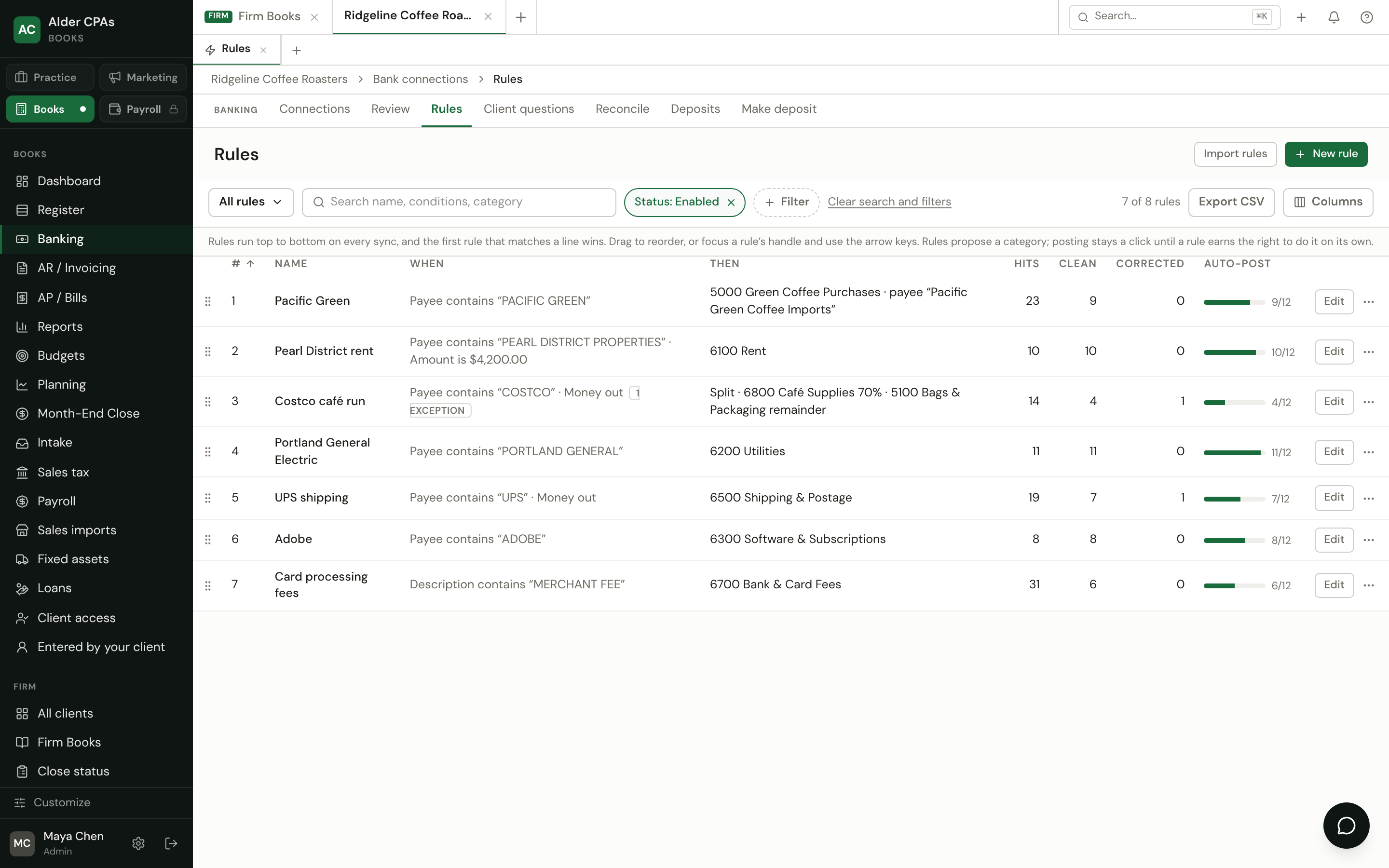 The Rules page for Ridgeline Coffee Roasters, in run order
The list is in the order Books runs the rules, top to bottom. Each row shows:
- # — the rule's place in the run. Rule 1 is tried first.
- Name — the name you gave it. A paused rule shows a Paused badge and is drawn faded.
- When — its conditions in words, joined by a dot, such as Payee contains "COSTCO" · Money out. A 1 exception badge (or 2 exceptions, and so on) means the rule also has exceptions.
- Then — what it assigns: an account, such as 6100 Rent; a split, such as Split · 6800 Café Supplies 70% · 5100 Bags & Packaging remainder; or Loan payment. When the rule also renames the payee, that follows: · payee "Pacific Green Coffee Imports".
- Hits — how many times the rule has suggested a category for a line. Running the rules again over a line that already carries this rule's suggestion doesn't count again.
- Clean — how many times in a row someone posted the rule's suggestion unchanged. A correction, an undone automatic post, or an edit to what the rule does sets it back to 0.
- Corrected — how many times someone changed the rule's suggestion or undid one of its automatic posts.
- Last match — hidden until you turn it on under Columns: the date the rule last caught a line, shown in the client's time zone (or the firm's, if the client has none set), or Never.
- Auto-post — how close the rule is to earning automatic posting. That column belongs to How rules and matches earn automatic posting.
The last column holds Edit and a ⋯ menu.
Above the list:
- Search name, conditions, category finds a rule by its name, its When text or its Then text.
- Status: Enabled is on when the page opens, so you see the rules that run. Click its × to see paused rules too, or use + Filter for Status (Enabled, Paused) and Auto-post. Clear search and filters puts everything back. The count beside it tells you how many are shown, for example 7 of 8 rules.
- Export CSV downloads every rule the search and filters keep, in the columns shown, and Columns chooses which columns show.
How Books decides which rule applies
Every time the rules run, Books takes each line waiting in review and tries the client's rules in order:
- A paused rule is skipped.
- A rule applies when every condition under When all of these match is true for the line.
- If the line also matches any of the rule's exceptions, the rule is passed over, and Books tries the next rule in the list.
- The first rule that applies wins. Rules further down are not tried, even if they would match too.
A rule's suggestion comes before a suggestion from the payee's history, the bank's category or Books' own reading of the line. A line with no matching rule can still get a suggestion from the payee's history, from the bank's own category, or from Books' own reading of the line; see What the Category column tells you.
The rules run:
- when new lines arrive from the bank or an uploaded statement;
- when you save, pause, resume, reorder or delete rules, or import them, on this page;
- when the Review page opens or comes back into view, and when you click Refresh there, if you have the Bank rules and auto-post permission.
Create a rule
- Click New rule.
- Give it a Name. Name it after the payee or the purpose, so you can find it again: "Stumptown Roaster Repair", "Costco café run".
- Under When all of these match, set the first condition: a Field, what it Is, and a Value. Click + Condition to add another; all of them must match.
- If the rule should leave some lines alone, click + Exception under Except when any of these match and describe them.
- Under Then, choose One account and pick the Category, choose Split (see Split one line across accounts), or choose Loan payment (see Send matching lines to a loan).
- Click Test against history to see which past lines it would have caught (see Test a rule before you save it).
- Click Save rule.
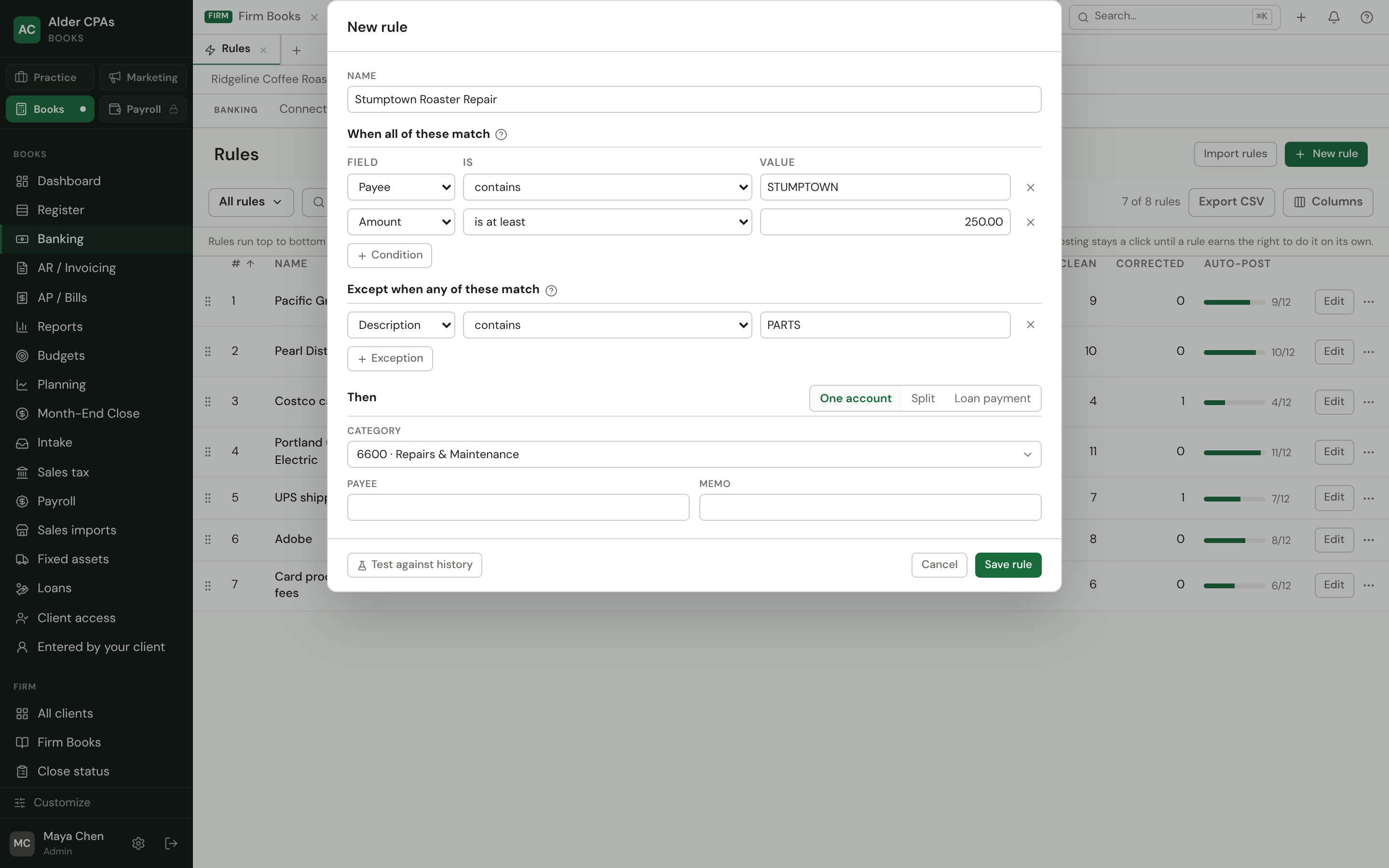 A new rule with two conditions, an exception and one category
Saving also runs the rules over the lines already waiting in review, as suggestions, and the notice says what that run did: Rule created. It runs last, after the rules already in the list. Ran the bank rules over 9 lines waiting in review: 4 now carry a rule's proposal. Nothing was posted. That count is for all the client's rules, not only the new one.
When no lines are waiting, the notice stops after the first two sentences. Move the rule up if it should come before an existing one (see Change the order rules run in).
The quickest way to make a rule is from a bank line: on the Review page, open the line's ⋯ menu and choose Create rule from this…. The rule starts with the payee written exactly the way Books reads it, and with a category already chosen when the line has one. See Teach Books with a rule.
Conditions
| Field | Is | Matches |
|---|---|---|
| Payee | contains, equals, starts with | The payee name Books cleans up from the bank's text, such as PACIFIC GREEN COFFEE IMPORTS. |
| Description | contains, equals, starts with | The bank's own description of the line, exactly as the bank sent it. |
| Amount | is at most, equals, is at least, is between | The line's amount, without its sign. |
| Direction | money out, money in | Whether the money left or arrived. |
A few things worth knowing:
- Capitals don't matter.
Stumptown,STUMPTOWNandstumptownmatch the same lines. - Amounts have no sign. Amount is at most 1,000.00 matches a $600 charge and a $600 deposit alike. Add Direction when the rule should apply only to money out or only to money in.
- Conditions are joined with "and". For "this payee or that payee", make two rules.
- A new rule starts with Payee contains. Each row you add with + Condition starts as Amount is at most, and each + Exception row as Description contains; change the Field to change it. Each rule takes up to 10 conditions and up to 10 exceptions.
- When you're unsure how Books spells a payee, start the rule from a bank line with Create rule from this…, or check it with Test against history before saving.
Exceptions
An exception carves lines out of a rule. "Costco, money out" should split between café supplies and packaging, but not when it is Costco gas: add the exception Description contains GAS. A line that matches any exception is left for the next rule in the order, and if none applies, for the other kinds of suggestion.
Rename the payee, or set a memo
Under the category, Payee and Memo are optional fields on the rule. Fill in Payee to replace the bank's payee text with a clean name, such as "Pacific Green Coffee Imports", and Memo to give every entry the same memo. When you post the rule's suggestion with Add, with Accept N suggestions, or by automatic posting, the entry gets the rule's payee and memo.
When you open a line the rule categorized to change it before posting, the editor starts with the rule's payee and memo too; what you leave there is what posts. Leave one blank on the rule and that part posts the way it would without the rule. Class, Location and Job appear here too when the client uses them.
Split one line across accounts
Choose Split under Then to send parts of every matching line to different accounts. Each split line has an Account, and By:
- Percent — a share of the bank line, more than 0 and less than 100.
- Fixed — the same amount every time.
- Remainder — whatever is left. Every split has exactly one remainder line, which is what makes the split always add up to the bank line, to the cent.
The rule starts with a Percent line and a Remainder line. Click + Split line to add more, up to 10 in all.
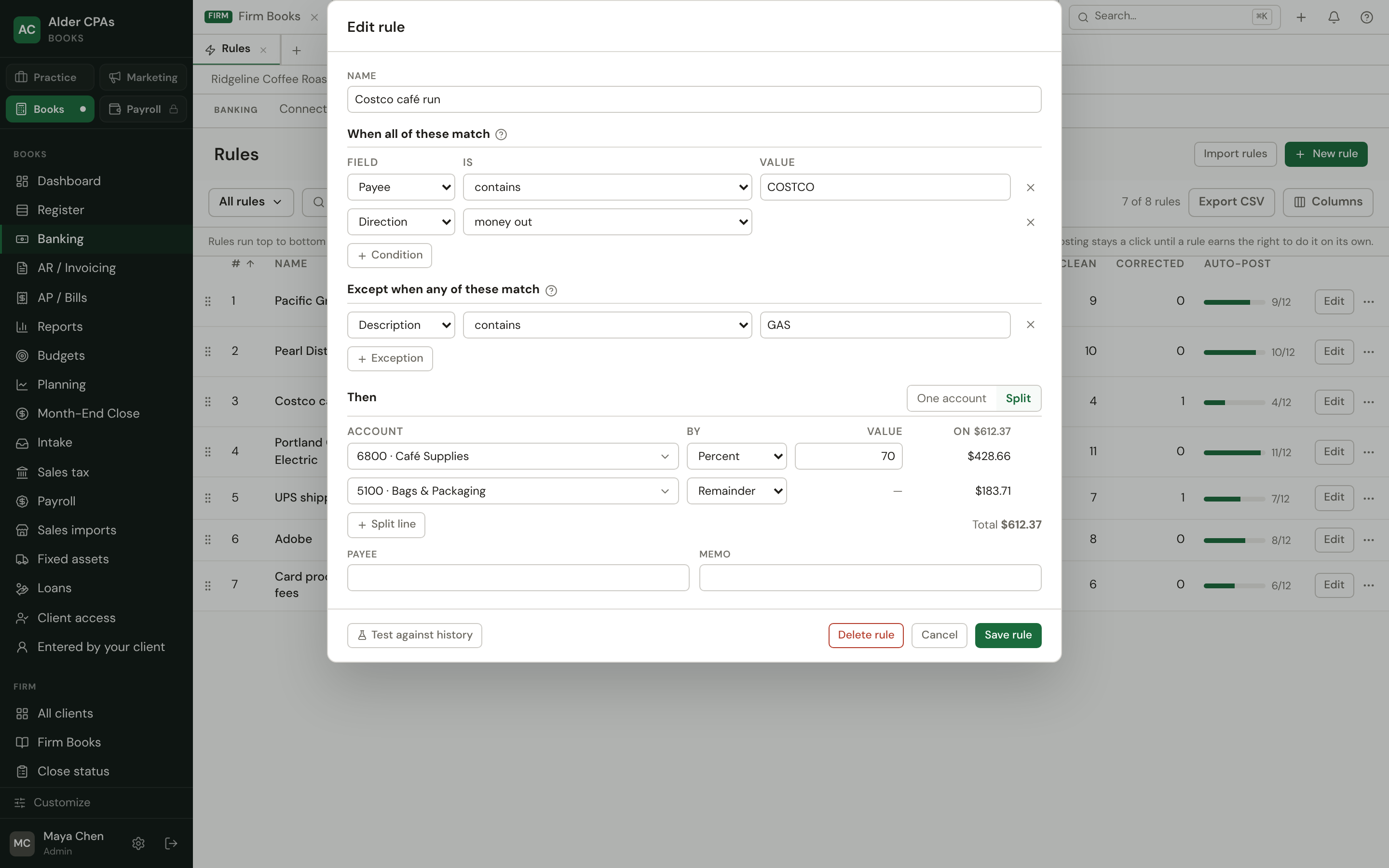 A split rule, with its split worked out on the newest matching line
While you build the split, Books works it out on the newest line the rule would catch in the last 90 days, and shows it in the On $612.37 column with the Total underneath. 70% of $612.37 is $428.66 to Café Supplies, and the remainder, $183.71, goes to Bags & Packaging.
Percent shares are rounded to the cent, and the remainder takes the rest. If nothing in the last 90 days matches yet, it says Nothing in the last 90 days matches, so there is no line to show the split on.
Until the split is complete, a sentence under the lines says what is missing, and Save rule stays off:
- A split needs at least two lines.
- Choose an account on every split line.
- A split needs exactly one remainder line.
- A split percent is more than 0 and less than 100.
- A fixed split amount is more than zero.
- The split percents add up to 110%, which leaves nothing for the remainder line.
Each account can appear on only one split line. Using one twice is refused when you save: Café Supplies appears on two split lines; use one line per account.
If a split's fixed amounts, together with its percent shares, use up the whole line or more (a $50 fixed part on a $30 charge), the rule suggests nothing for that line, and you categorize it yourself.
How a split rule's suggestion posts
On the Review page, a line a split rule caught shows Split · 2 accounts in the Category column. Add posts the whole split, not the whole amount to one account, and the notice says so: Posted Costco to 2 accounts, as Costco café run splits it. Selecting lines and clicking Accept N suggestions posts each split line the same way, and opening the line shows the split in the editor, ready to change before you post.
Send matching lines to a loan
When a bank line is a payment on one of the client's loans, choose Loan payment under Then on a new rule. Every line the rule catches is then proposed as a payment on that loan, and opening the line on the Review page shows that loan's payment split, ready to confirm, instead of a single category.
- Click New rule, name it, and set the conditions, for example Payee contains the lender's name.
- Under Then, click Loan payment.
- In Loan, choose the loan. The list holds only the client's active loans; a loan still in draft or already closed isn't offered.
- Click Save rule.
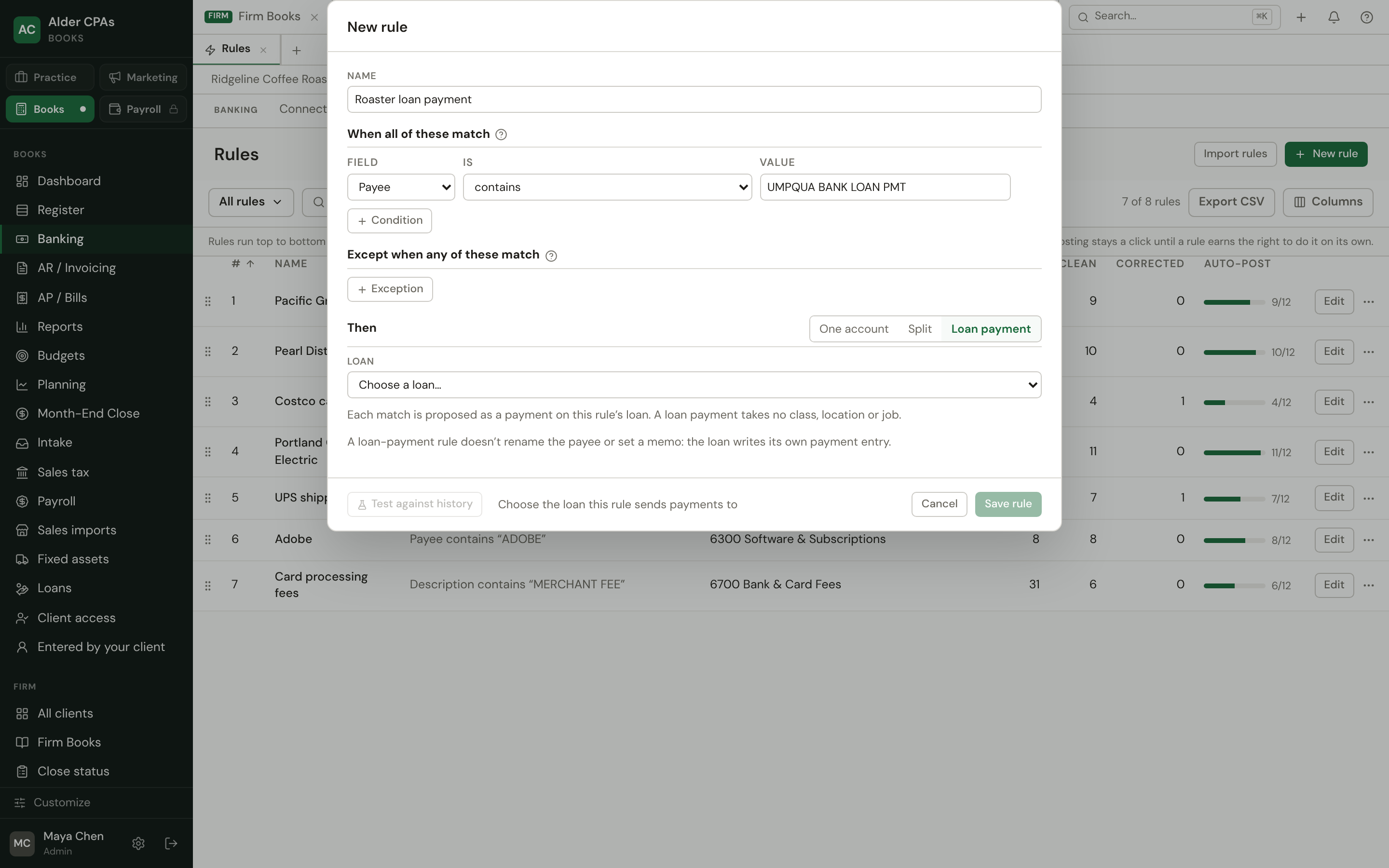 A new loan-payment rule, waiting for its loan
Until a loan is chosen, Save rule stays off and says Choose the loan this rule sends payments to. If the client has no active loan, it says This client has no active loan to send payments to. Set one up on the Loans page first.
If Books can't read the client's loans, for example because you can't see them or the client's plan doesn't include loans, the Loan box is turned off and the sentence beside Save rule gives the reason.
A loan-payment rule has no Payee or Memo fields, and Books says why: A loan-payment rule doesn’t rename the payee or set a memo: the loan writes its own payment entry. It takes no class, location or job either: Each match is proposed as a payment on this rule’s loan. A loan payment takes no class, location or job.
Once a loan is chosen, Test against history shows which past lines the rule would catch. For a loan-payment rule, Would be reads A loan payment, split by the loan’s schedule on each caught line, and a note above the lines says why the test stops there: Test shows which lines this rule would catch. It doesn’t preview what a loan payment books: the loan’s schedule splits each payment into principal and interest when it posts. Was still shows how each past payment was booked.
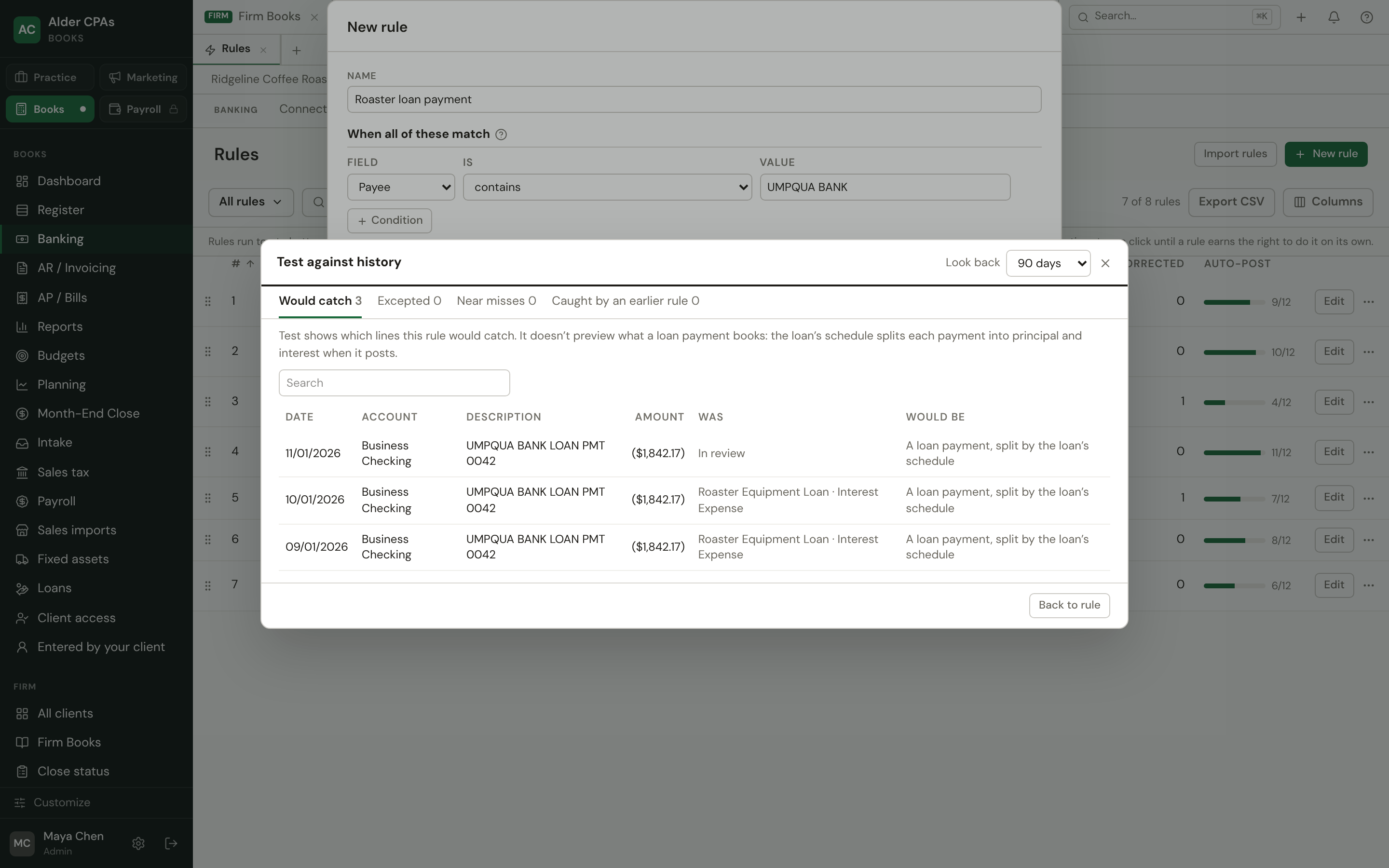 Testing a loan-payment rule: three Umpqua Bank payments caught, each shown as a loan payment
Test a rule before you save it
Test against history runs the rule you are building over the client's past bank lines and shows what it would have done. Nothing is saved or posted by a test. The button turns on as soon as the rule could be saved.
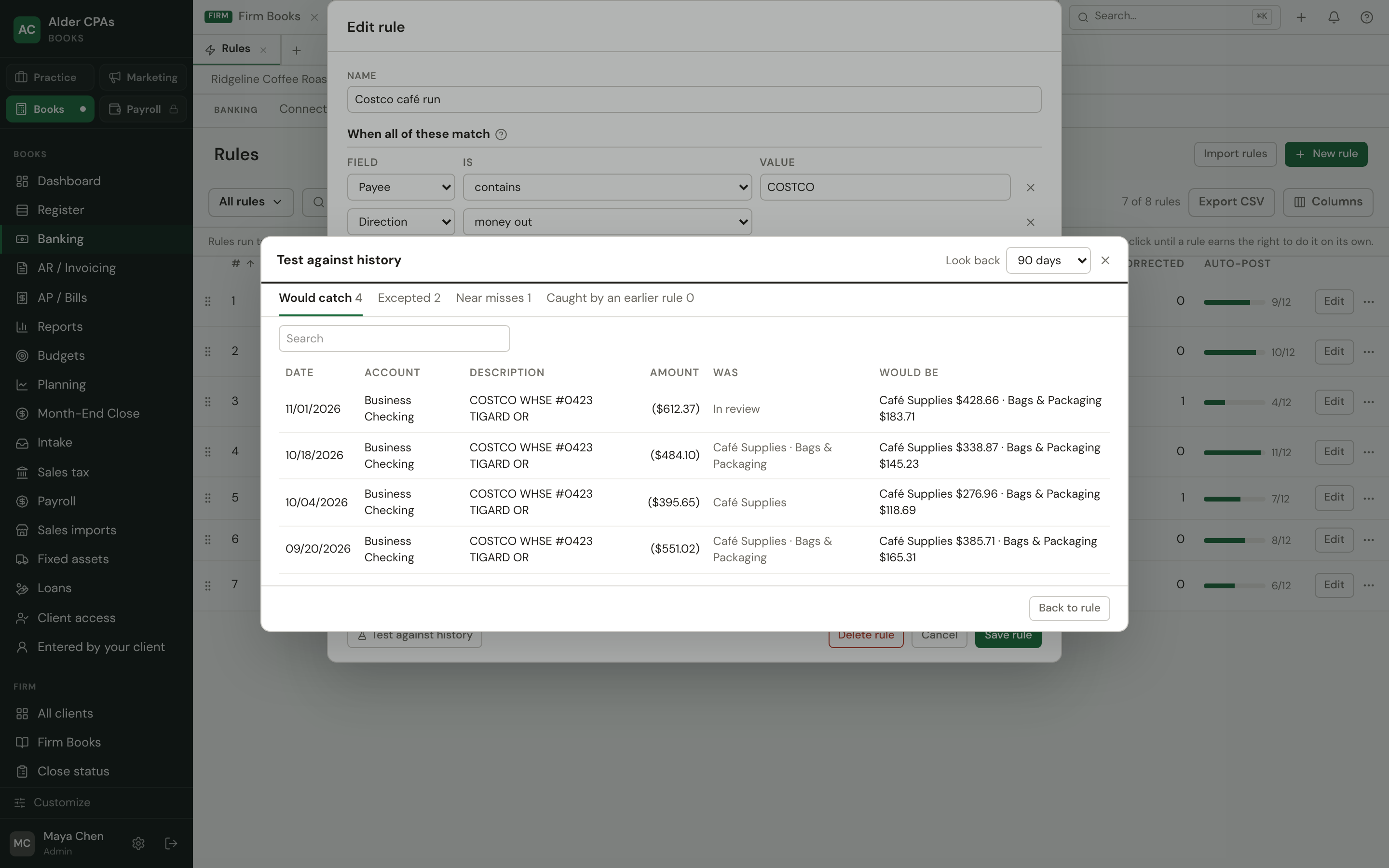 Testing the Costco rule against the last 90 days
- Look back chooses how far: 30 days, 90 days (the default), 180 days or 365 days.
- The tabs sort the lines, each with its count. The counts cover up to 200 lines in all.
-
Would catch — lines the rule would take. For a one-account or split rule, Would be shows exactly how each would post, split included. For a loan-payment rule it reads A loan payment, split by the loan’s schedule (see Send matching lines to a loan).
Was shows what the line is now: the accounts it went to, In review, or Excluded. A line whose fixed amounts, together with its percent shares, use up the whole line or more reads The fixed amounts are more than this line.
-
Excepted — lines the rule matches but one of its exceptions sets aside, with the Exception that did it.
-
Near misses — lines that pass the first condition but fail a later one. Fails names the condition, such as Money out for a Costco refund. Near misses are the place to look when a rule is narrower than you meant.
-
Caught by an earlier rule — lines another rule takes first, with that Earlier rule's name. For a new rule, every enabled rule counts as earlier, because a new rule runs last. For a saved rule, only the rules above it count.
-
- Search narrows the lines by description or bank account.
Pending lines are left out. Click Back to rule to return to the rule, change it, and test again.
Change the order rules run in
Because the first rule that applies wins, put narrow rules above broad ones. A "Costco gas" rule has to sit above a general "Costco" rule, or the general one takes every Costco line first.
- Drag a rule by its handle (the dotted grip at the start of the row) and drop it where it should run. Dragged down, it lands below the row you drop it on; dragged up, above it.
- With the keyboard, Tab to a rule's handle and press ↑ or ↓ to move it one place.
Books saves the new order at once and runs the rules over the lines waiting in review in the new order: Order saved. Rules run top to bottom and the first match wins. Ran the bank rules over 9 lines waiting in review: 3 now carry a rule's proposal. Nothing was posted. The # column renumbers to match.
When a search or the Status filter hides some rules, moving a rule passes over the hidden ones, and they keep their places. With the keyboard, ↑ and ↓ move the rule past the next rule you can see.
You can only reorder while the list is in run order. Sort it by Hits or Name and the handles turn off, with the reason: Reordering works in priority order. The list is sorted by Hits (descending), so a row's place here is not its place in the run. Click Sort by # to go back.
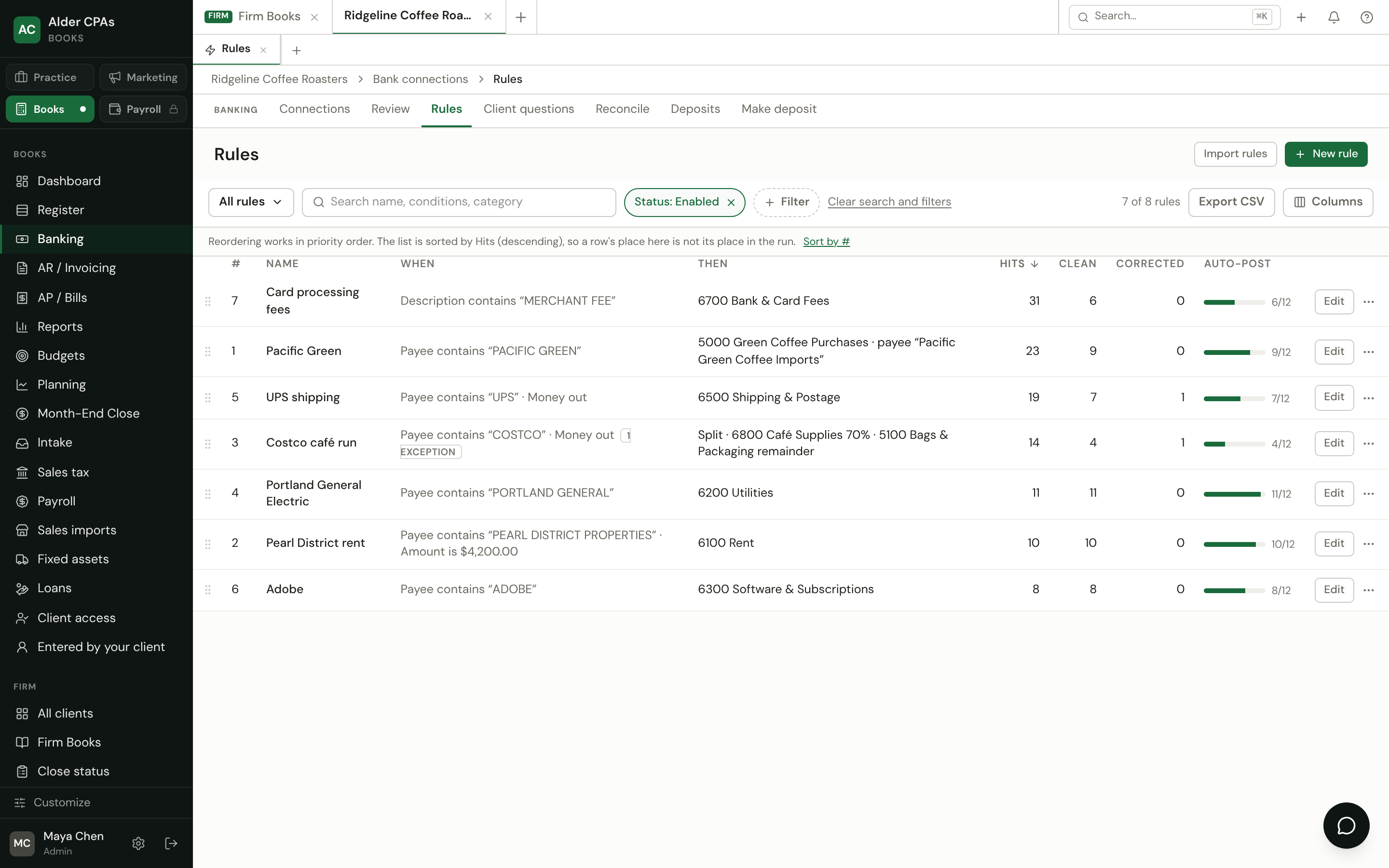 Sorted by Hits, the handles are off until the list is back in run order
Moving, pausing or deleting a rule changes which rule suggests a category for a line. For what it means for automatic posting, including split rules, which earn it too, see How rules and matches earn automatic posting.
Edit a rule
Click Edit on the row to open the Edit rule window, change what you need, and test it with Test against history. When you click Save rule, the notice tells you what the change did:
- Rule saved. Its counters are untouched. — you changed only the name.
- Rule saved. What it does changed, so the earned streak restarted from zero. — you changed a condition, an exception, or anything under Then, including Payee, Memo, Class, Location and Job.
- Rule saved. Because what it does changed, its earned streak restarted and automatic posting is off again. — the same, on a rule that was posting on its own.
Saving runs the rules over the lines waiting in review again, as it does for a new rule, and when lines are waiting the notice ends with the same Ran the bank rules over … sentence.
A loan-payment rule shows Loan payment in the list. Its Edit rule window has no Then choice: it stays a loan-payment rule on the same loan, and you change its conditions and exceptions. An account or split rule can't be turned into a loan-payment rule, or the other way around; make a new rule instead and delete the old one.
Pause or delete a rule
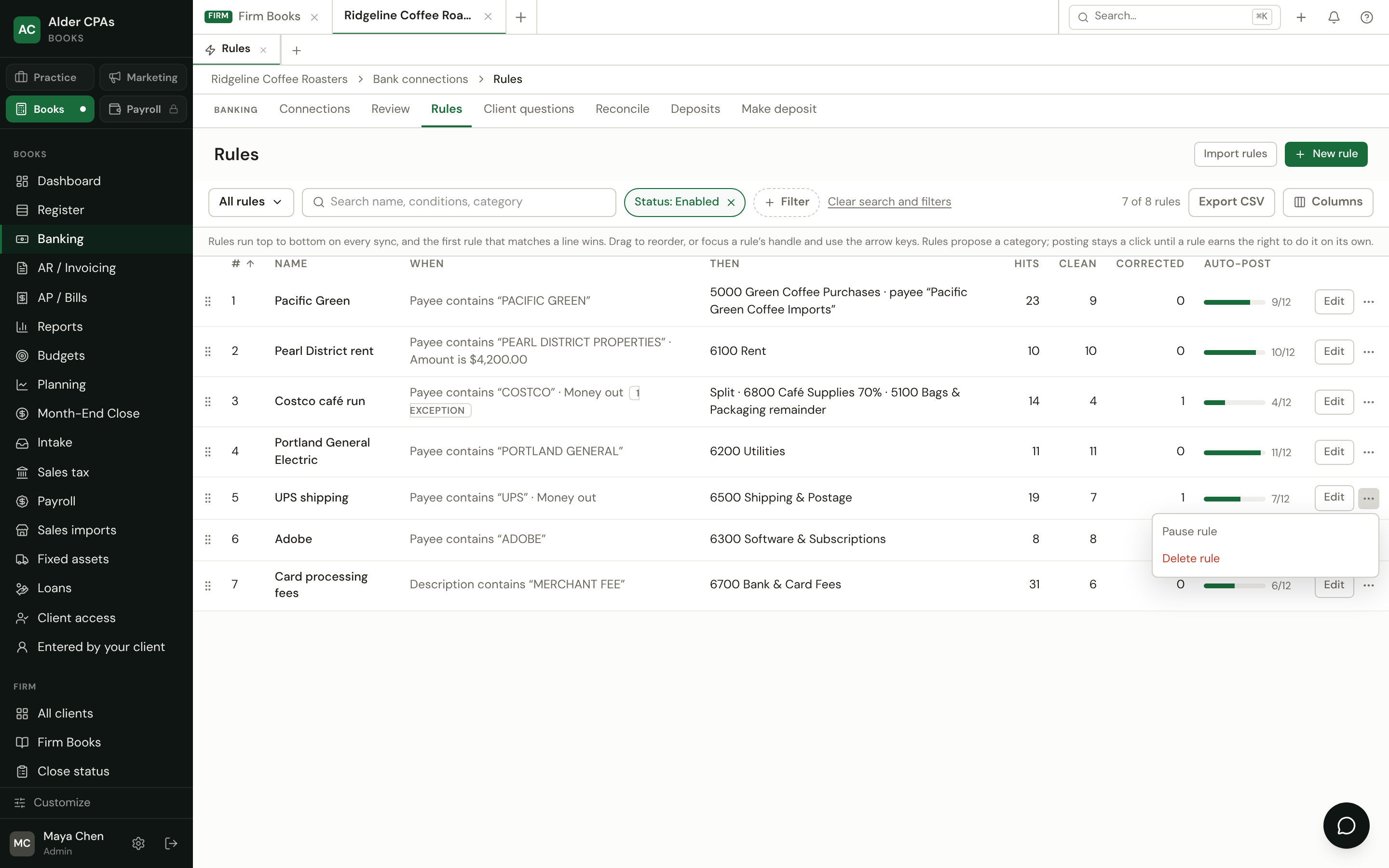 A rule's menu, with Pause rule and Delete rule
-
Pause rule, in the row's ⋯ menu, stops a rule without losing it. A paused rule is skipped when the rules run, and pausing or resuming runs the rules over the lines waiting in review straight away; the notice says so: Rule paused. It keeps its place in the order and its counters are untouched. Ran the bank rules over 9 lines waiting in review: 3 now carry a rule's proposal. Nothing was posted.
To bring it back, show paused rules (click the × on Status: Enabled) and choose Resume rule.
-
Delete rule, in the same menu or at the bottom of the Edit rule window, removes the rule for good. Books asks first, in a Delete this rule? window: “UPS shipping” stops proposing anything. Every transaction it has already posted stays exactly as it is — deleting a rule never touches the ledger. Those transactions only stop showing which rule booked them. Click Delete rule to confirm.
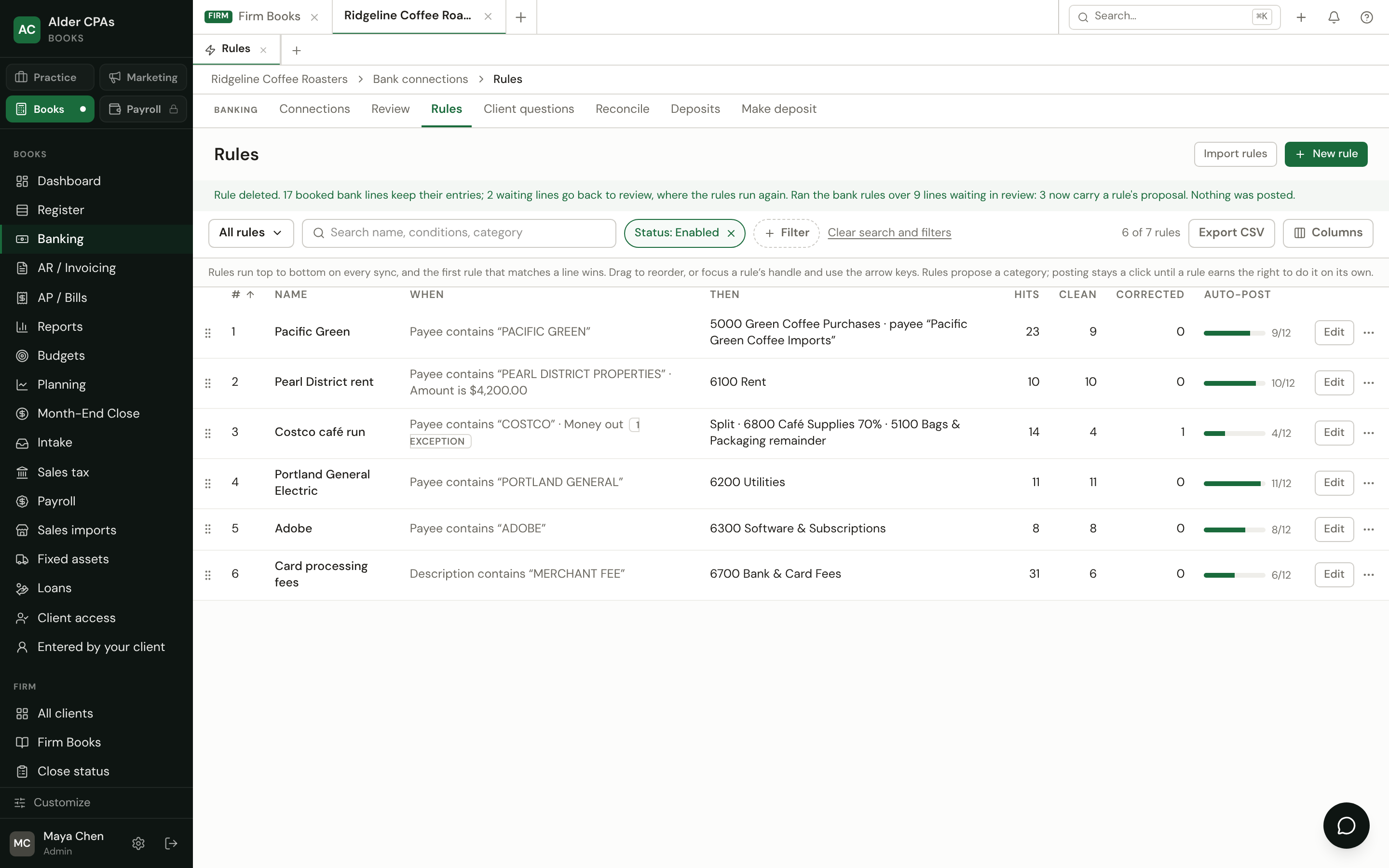 The notice after deleting the UPS shipping rule
The notice says what happened to the lines the rule had touched, then runs the rules over the lines waiting in review, from the row menu and from the Edit rule window alike:
Rule deleted. 17 booked bank lines keep their entries; 2 waiting lines go back to review, where the rules run again. Ran the bank rules over 9 lines waiting in review: 3 now carry a rule's proposal. Nothing was posted.
- Booked bank lines are lines already posted or matched with the rule's help. They keep their entries exactly as they are; they only stop showing which rule booked them. With one line, it reads 1 booked bank line keeps its entry.
- Waiting lines are lines in review that carried the rule's suggestion. They lose that suggestion, and the rules run over them again, so another rule, the payee's history or the bank's category can suggest something instead. With one line, it reads 1 waiting line goes back to review.
A count of zero is left out, and a rule that never touched a line gets just Rule deleted., followed by the run of the rules when lines are waiting.
Deleting a rule never changes the books. Every line it already posted stays exactly as it is.
If you might want a rule again, pause it rather than delete it. A paused rule keeps its counts.
Bring rules in from QuickBooks Online
If the client kept their books in QuickBooks Online, you can bring their bank rules over instead of retyping them.
- In QuickBooks Online, export the bank rules from its Rules page. It gives you an .xls file.
- On the Books Rules page, click Import rules and choose that file.
- Books reads the file and shows, rule by rule, what each will become, before anything is added.
- Click Add N rules.
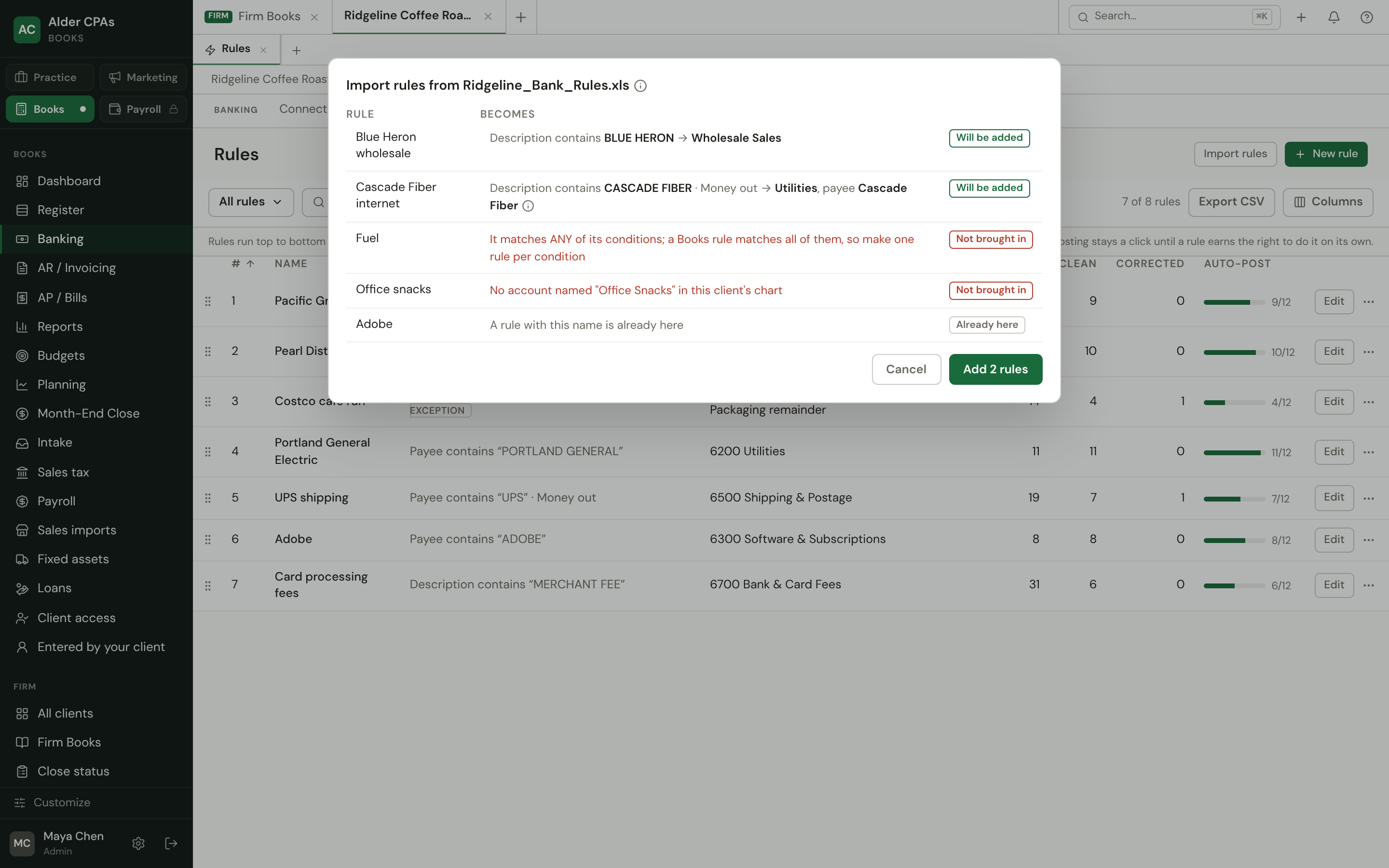 The import preview: two rules to add, two left out with the reason, one already here
Each rule in the preview is tagged:
- Will be added — with the rule as Books will hold it, for example Description contains BLUE HERON → Wholesale Sales. An ⓘ beside it carries a note, such as when the rule added its matches on its own in QuickBooks Online: in Books, a rule has to earn that.
- Not brought in — with the reason, in red. For example, It matches ANY of its conditions; a Books rule matches all of them, so make one rule per condition, or No account named "Office Snacks" in this client's chart.
- Already here — A rule with this name is already here. It is left alone.
Books brings in only what it can do exactly as QuickBooks Online did:
- Text conditions come in as Description contains, and a money-out condition as Direction money out. A rule with any other kind of condition, including a money-in condition, is not brought in, and the preview shows the reason.
- The category is found by its name in the client's chart. If no account has that name, or two do, the rule is left out with the reason, and you can add it by hand.
- A payee the rule set comes in as the rule's payee.
- At most 500 rules come in at a time. A larger file is refused whole: The rules file has 612 rules; at most 500 come in at a time. Split the file and bring it in parts.
Imported rules join the end of the order, and Books runs the rules over the lines waiting in review. The notice sums up both: 2 rules added: Blue Heron wholesale, Cascade Fiber internet. 2 not brought in; 1 already here. Ran the bank rules over 9 lines waiting in review: 5 now carry a rule's proposal. Nothing was posted.
As with a saved rule, that count is for all the client's rules, and the last part is left out when no lines are waiting.
If the file isn't an .xls file, Books says so before anything happens: This is not a rules export. Export the rules from QuickBooks Online's Rules page and upload the .xls it gives. An .xls without the export's columns gets This file does not have the rules export's columns (Rule Name, Rule Conditions, Rule Outputs). Export the rules again from QuickBooks Online's Rules page.
When nothing in the file can be added, Add rules stays off and says why: Nothing in this file can be added: every rule is either not brought in or already here. Clicking Add twice never adds the rules twice.
Apply a rule to entries already in the register
Rules work on lines as they come in, but you can also use one to clean up entries already in the books. In the register, select the entries and click Apply rule in the bar that appears. In the Apply a rule to N lines window, Choose a rule.
The Preview lists every selected entry with what will happen: Will change, Will change with your reason (an entry in a closed month, once someone who can close the books gives the reason; anyone else sees <Month> is closed), Doesn't match condition 2, Matches exception 1, Already on this account, or Not one bank line and one category. Click Apply to N lines; the entries that don't fit are left alone and listed.
Only one-account rules can be applied this way. Split and loan rules are listed but turned off: Split and loan rules can be applied from the bank feed only.
Why didn't my rule apply?
Work down this list. Test against history answers most of these in one look.
- The line isn't waiting in review. Rules suggest only for lines waiting on the Review page. A line already posted, matched or excluded is left alone, and so is a pending line until it clears.
- The line is a match or a transfer. When a line looks like a payment already on the books, or one half of a transfer, Books proposes that instead. A match always comes before a category.
- The payee is a customer or vendor with something open. A deposit from a customer with open invoices, or a payment to a vendor with open bills, gets no category from any rule. Books offers Receive payment or Pay bill instead, so the income or expense is not counted twice. In the same way, a deposit Books reads as a day's sales settlement is offered Match a sales deposit… instead of a category.
- The rule hasn't run on that line yet. Refresh on the Review page runs your rules over the lines waiting there, if you have the Bank rules and auto-post permission.
- An earlier rule took the line. The first rule that applies wins. Look at the Caught by an earlier rule tab, then move your rule up or narrow the earlier one.
- One condition doesn't match. Look at Near misses: Fails names the condition. Common causes: the payee is spelled differently in Books' cleaned-up name (start the rule from the line with Create rule from this…), the amount is just outside the range, or the rule says money out and the line is a refund.
- An exception set it aside. Look at the Excepted tab.
- The rule is paused. Click the × on Status: Enabled to show paused rules, and choose Resume rule from the ⋯ menu.
- The rule's loan isn't active any more. A loan-payment rule whose loan has been closed suggests nothing at all for the lines it catches, not even the next rule's category. Make a new rule for an active loan and delete the old one.
- The rule's category is no longer available. If the account was archived after you made the rule, the Then column reads a category that is no longer available, and the rule suggests nothing at all, not even the next rule's category. Edit the rule and pick an active account.
- The split doesn't fit the line. A split whose fixed amounts, together with its percent shares, use up the whole line suggests nothing. Would be in the test reads The fixed amounts are more than this line.
- The bank account isn't linked to the chart. Lines on an unlinked account wait without suggestions. Link it from Banking.
Why can't I save this rule?
Save rule stays off until the rule is mostly complete, and the reason shows beside the buttons:
-
Name the rule first
-
Every text condition needs some text to match
-
An amount is not an amount — fix the highlighted field — an amount box holds text that isn't an amount, such as letters. That can be an Amount condition or exception, or a Fixed split line. Type an amount in its place.
The sentence also goes away when that box does: when you change the row's Field, remove the row, change is between to another choice (for its second amount), change the split line from Fixed, or change Then from Split.
-
Every amount condition needs an amount — an Amount condition or exception with its box empty. is between needs both amounts.
-
Choose the category this rule assigns
-
Choose the loan this rule sends payments to, on a loan-payment rule.
-
One of the split sentences listed under Split one line across accounts.
When you click Save rule, Books checks the rule again. It can still refuse, and when it does, the reason shows in red inside the rule window, just above the buttons (a class, location or job refusal shows under that field instead). The window stays open with everything you entered, so you can fix the rule and save again:
- The upper amount is below the lower one. — on is between, the second amount has to be the larger.
- Café Supplies appears on two split lines; use one line per account.
- Category Repairs & Maintenance is archived. — the account was archived after you picked it; choose another.
- You need the "Bank rules and auto-post" permission for this. Ask an admin to grant it. — creating, changing, testing, reordering, pausing, deleting and importing rules all need that permission for the client.
Delete rule at the bottom of the Edit rule window works the same way: if Books refuses the delete, the reason shows in the window, and the rule is still there.
If you can see the client's banking but don't have that permission, you still see the list and can search and export it, but New rule, Import rules, Edit, the drag handles and the ⋯ menu's actions are turned off. The buttons show that sentence when you point at them, and in the ⋯ menu, pointing at a turned-off action shows it beside the menu. Ask an admin to grant the permission.
The categories offered are the client's active accounts, without the ones another part of Books keeps up to date, such as receivables and payables.
Why didn't my new order save?
If someone else added or deleted one of the client's rules while you had the page open, Books refuses the new order and puts the list back as it was, with the reason, for example The rules changed after this list was loaded (8 rules now, 9 in the new order). Reload the page and put them in order again. Reload the page to see the current rules, then move yours again.
Fix or undo
- A rule that suggested the wrong account: edit the rule, test it, and save. Saving runs the rules over the lines waiting in review. Lines already posted stay as they are; change them in the register.
- A rule that ran in the wrong order: move it.
- A rule you don't want right now: pause it. It keeps its place and its counts.
- A rule you don't want at all: delete it. Nothing already posted changes.
Shortcuts and tips
| Key | Where | What it does |
|---|---|---|
| Tab, then ↑ / ↓ | A rule's handle | Moves the rule up or down one place, and saves the order. |
| Shift+click | A column heading | Adds a second sort, such as Hits and then Name. Reordering stays off until you sort by # again. |
| Enter | An amount box | Works out a sum (below). |
Amount boxes do math. In an amount condition or a Fixed split amount, type a sum such as 4200/2 or 125+37.50. When you press Enter or leave the box, it settles to the result, to the cent. Use + and -, *, x or × to multiply, and / or ÷ to divide; parentheses group. A leading =, $, commas and spaces are ignored.
More details worth knowing:
-
Narrow rules go first. Put "Costco gas" above "Costco", and "Pearl District rent, exactly $4,200.00" above anything else from that landlord.
-
Use an exception before a second rule. One rule with Except when any of these match is easier to keep in order than two rules that have to stay in the right sequence.
-
Pausing is free; deleting is final. A paused rule keeps its place in the order and its counts.
-
The test uses the real matching. Test against history uses the same matching Books uses on new lines, and the same split arithmetic for split rules. For a loan-payment rule it shows which lines the rule catches, not the principal and interest; the loan's schedule works those out when a payment posts.
It looks at past lines whether posted, waiting or excluded (pending lines are left out), so it doesn't show the reasons a waiting line can still get no suggestion: an open invoice or bill, a proposed match, or an unlinked account. A rule whose category was archived can't be tested at all: Test says Category … is archived.
-
Rules are on every plan. Automatic posting needs Premium (see How rules and matches earn automatic posting), and a loan-payment rule needs a loan, which the client's plan has to include.
-
Bank connections bring the lines in that rules work on; see Bank connections.