
Deposits, Card Payouts and Making a Deposit
Post the deposit for each card payout so its gross, fees and net land in the books, match a payout that arrived as one sum, and group checks and cash from Undeposited Funds into one deposit that matches the bank.
On this page
Money your client receives usually reaches the bank in batches. Card payments arrive as payouts: one deposit that covers several payments, less the processing fees. Checks and cash wait in Undeposited Funds until someone takes them to the bank together. The Deposits page is where you turn both into the one entry the bank statement shows, so the bank line matches it in a single click.
A deposit is one entry for the whole batch, so it matches the bank line exactly. A card payout posts its net to the bank, its payments out of Undeposited Funds, and its fees to processing fees. A deposit you make from Undeposited Funds posts its total to the bank. In both cases the bank statement shows one amount, and the Review queue matches only on the exact amount.
Understand the Deposits page
The page has two lists.
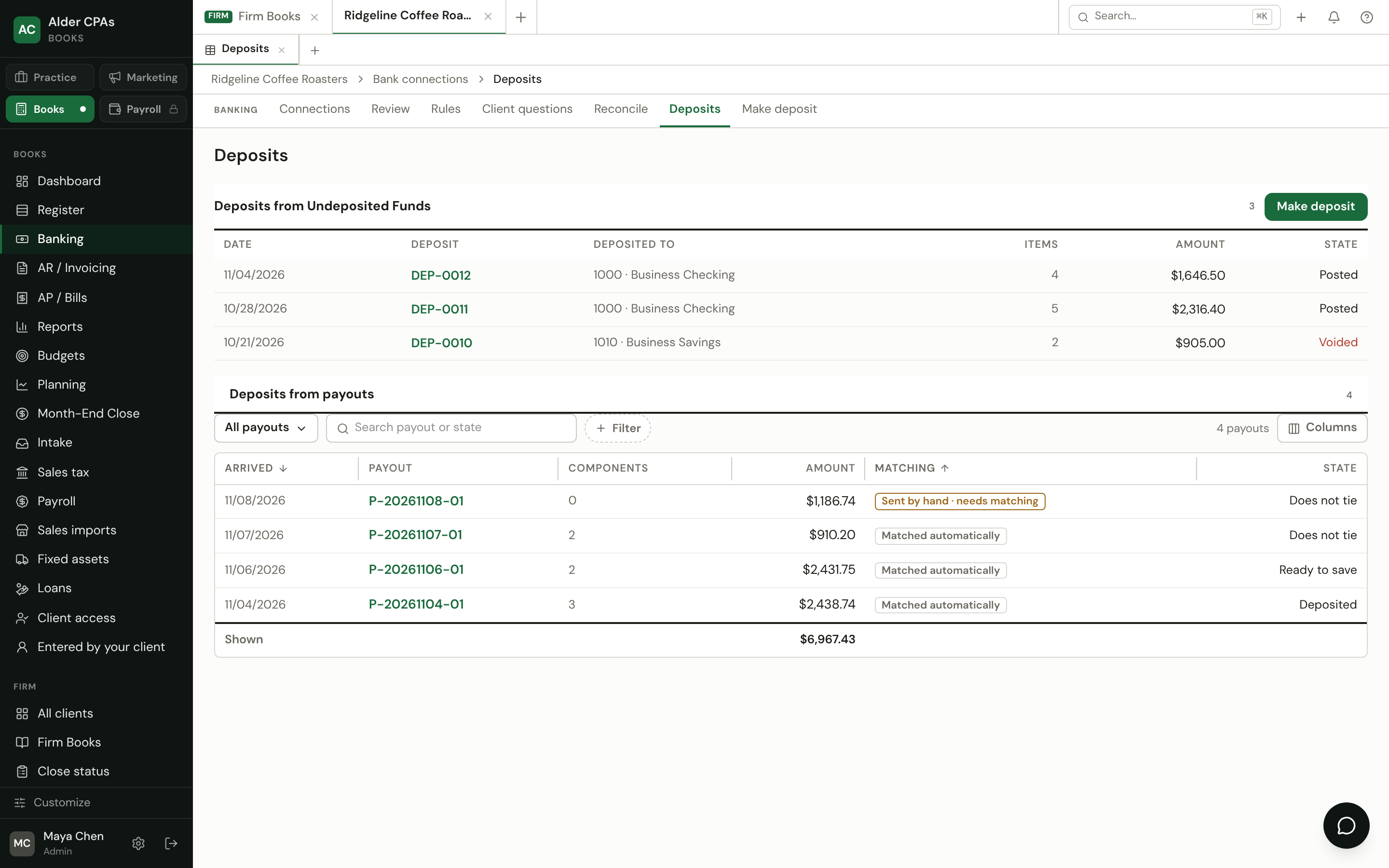 The Deposits page for Ridgeline Coffee Roasters, with three deposits from Undeposited Funds and four card payouts
Deposits from Undeposited Funds, at the top, lists the deposits made with Make deposit, newest first: Date, Deposit (its number, such as DEP-0012), Deposited to, Items, Amount and State (Posted or Voided). The Make deposit button is beside the title.
Deposits from payouts lists the client's payouts, card and bank, with these columns:
- Arrived — the day the payout reached the bank.
- Payout — the payout's reference. Click it to open the payout.
- Components — how many payments, refunds and fees make it up.
- Amount — the payout's net, the figure on the bank statement.
- Matching — how its payments were matched: Matched automatically, Sent by hand · needs matching or Matched by the firm.
- State — where its deposit stands:
| State | What it means |
|---|---|
| Ready to save | The payout ties to its payments. Open it and save the deposit. |
| Does not tie | Something stops the deposit. Open the payout to read why. |
| Deposited | The deposit is posted. |
| Did not reach the bank | The bank returned the payout, so there is nothing to deposit. Hover the state for the reason. |
| Returned after deposit — reverse it | The bank returned a payout whose deposit was already posted. Void that deposit. |
A payout sent by hand that has not been matched yet is listed for every client holding a payment it could carry, since Books can't tell yet whose it is. Payouts that need matching sort to the top, then the newest. Use Search payout or state to find one, or Filter by State, Matching, Arrived or Amount. The Shown row totals the amounts in view.
Post the deposit for a card payout
- On Deposits, click a payout marked Ready to save.
- Check the figures. This deposit shows the payments in the payout (Payments selected · 2, $2,505.00), the Processing fees ($73.25) and the Deposit to bank ($2,431.75). Payout reported shows what arrived and the Difference.
- Under Deposited into, choose the bank account the payout landed in.
- Click Post deposit, at the top of the page. The button reads Deposit posted once it is done.
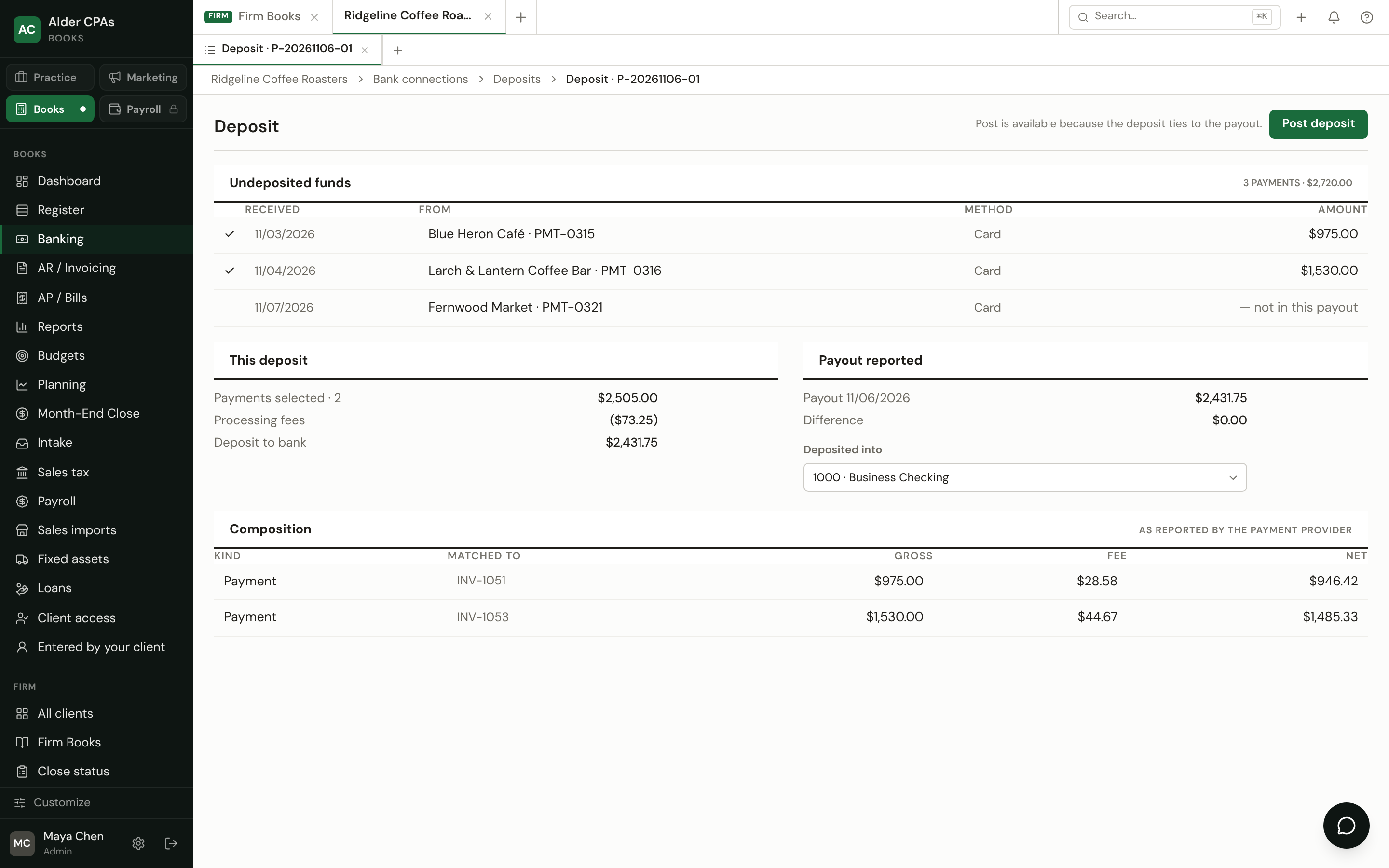 A card payout that ties: $2,505.00 of payments, $73.25 in fees, $2,431.75 to the bank
The sentence beside the button says why it is on or off. When everything is in place it reads Post is available because the deposit ties to the payout.
The page shows the payout three ways:
- Undeposited funds lists this client's online payments waiting in Undeposited Funds, with a check mark beside the ones in this payout. A payment marked — not in this payout is waiting for a later payout. Its row is there so you can see that nothing is missing.
- Composition lists what the payout is made of: Kind (Payment, Refund, Dispute, Adjustment, Fee, Payout fee, Client payment billed outside Books or Client payment from the firm's billing), what each is Matched to (usually the invoice), and its Gross, Fee and Net. The label beside Composition says whether the list came from the card processor (As reported by the payment provider) or from your firm (Grouped by the firm).
- This deposit and Payout reported side by side.
This deposit puts every line of the payout in exactly one figure, so the column adds up to the deposit:
| Line | What it holds |
|---|---|
| Payments selected | The payments in Undeposited Funds that this payout clears. A client payment from the firm's billing is cleared too, but it is counted under Other lines in this payout. |
| Voided in Books | Charges whose payment was voided in Books. They are not in Undeposited Funds, but the charge was paid out, so they are in the fees and the deposit. |
| Not in Undeposited Funds | Any other charge whose payment is not in Undeposited Funds: not posted yet, or not matched to a payment yet. |
| Other lines in this payout | Refunds, disputes, adjustments, client payments billed outside Books, and client payments from the firm's billing. |
| Processing fees | Every fee in the payout, taken off. |
| Not accounted for above | Whatever is left over, for example a payment whose amount differs from its charge. Shown only when it isn't $0.00 and every fee is reported. |
| Deposit to bank | The payout's net, the figure on the bank statement. |
A line with nothing in it isn't shown, so a payout that ties usually shows only Payments selected, Processing fees and Deposit to bank.
What the deposit posts
Saving writes one entry for the whole payout:
- Debit the bank account you chose, for the net.
- Credit Undeposited Funds for the payout's lines at their gross (payments, less any refunds, disputes or adjustments in it). Client payments billed outside Books go to their own account instead. A payment whose fee was already recorded when the payment was recorded clears Undeposited Funds net of that fee instead, so the fee is never counted twice.
- Debit processing fees, one line for each line of the payout that carries a fee (payments, and refunds or payout fees too), named after its invoice where there is one (for example, Processing fee · INV-1051) and tagged with the customer. When the invoice's lines carry jobs, the fee is split across those jobs.
The entry is dated the day the payout arrived. If that day is in a closed period, it posts on the first open day after it, never earlier, and the page says so right after it posts: Payout dated Oct 31, 2026, but that period is closed. This deposit posts … followed by the day it used.
If every period from the payout's date onward is closed, Books doesn't post it and says Every period from Oct 31, 2026 onward is closed, so this deposit has nowhere to post. Reopen the period that holds Oct 31, 2026, or a later one, on Month-end close, then post the deposit.
The tie is checked, not just the arithmetic. A payout can show a Difference of $0.00 and still be blocked: for example, when one of its charges has no payment in Books, or a payment in it was voided. Post deposit waits for the full check, and Books makes the same check again when you post.
Why doesn't this deposit match?
There are two places a deposit can fail to match: the payout won't tie to its payments, or the posted deposit won't meet its bank line.
The payout does not tie
Open the payout. The reason is written beside Post deposit at the top of the page, in Books' own words, and the button stays off until it is resolved. The reasons you can meet:
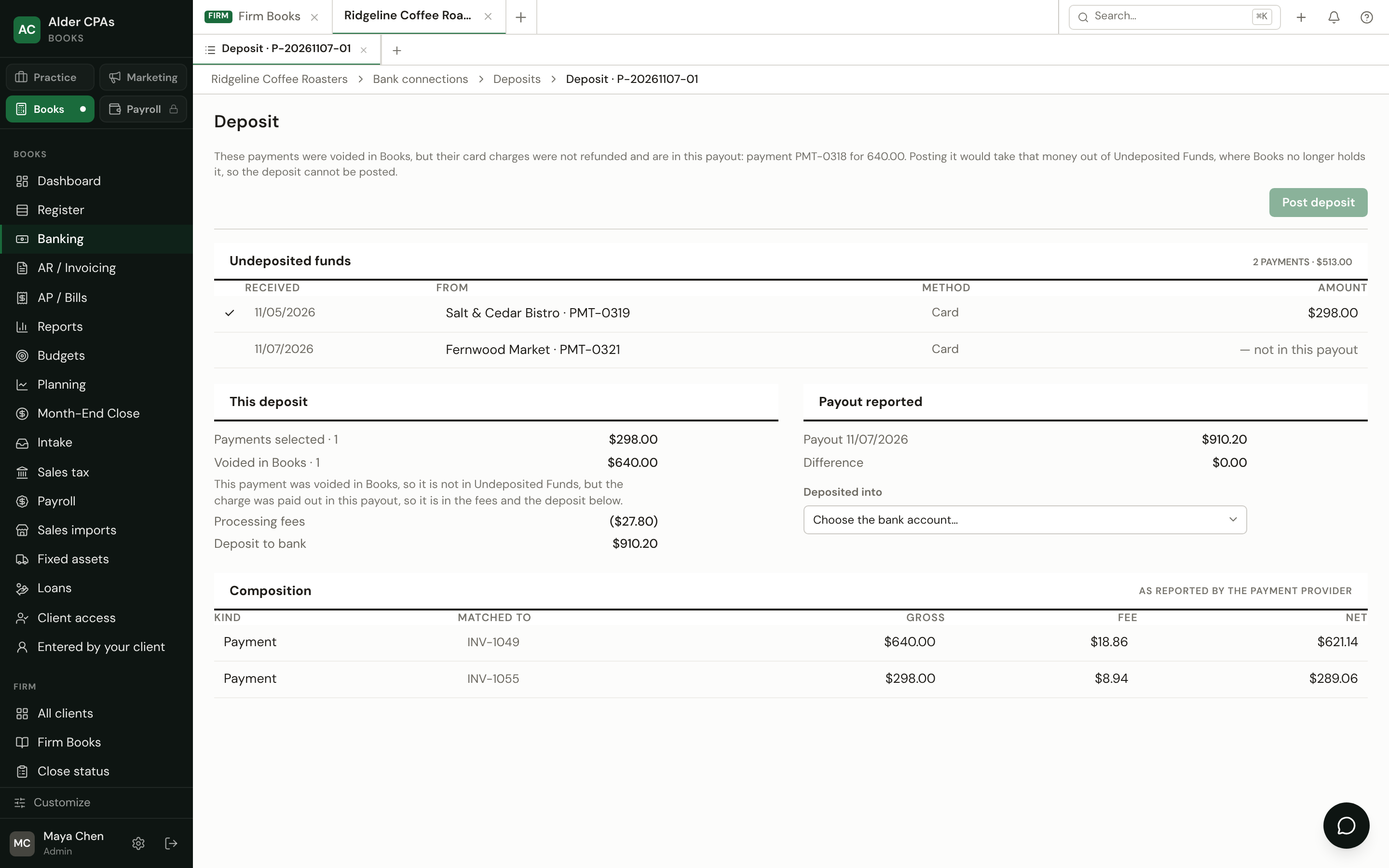 A payout that holds a payment voided in Books: $298.00 selected, $640.00 voided in Books, $27.80 in fees, $910.20 to the bank
-
A payment in it was voided in Books. These payments were voided in Books, but their card charges were not refunded and are in this payout: payment PMT-0318 for 640.00. Posting it would take that money out of Undeposited Funds, where Books no longer holds it, so the deposit cannot be posted. Voiding the payment already took its money back out of Undeposited Funds, so posting the deposit would take it out a second time.
This deposit shows it on its own line, Voided in Books, so the figures still add up ($298.00 + $640.00 − $27.80 = $910.20). The card charge itself was not refunded, so check why the payment was voided in Books: Books will not post this payout's deposit while it holds that payment.
-
A charge has no payment in Books yet. Not every charge in this payout has a payment in Books yet: a charge for 289.06. It usually means the payment notification has not arrived yet. Wait for the payment to be recorded, then come back.
-
A payment is marked as part of the payout, but the card processor didn't list it. These payments are marked as part of this payout but the payment service did not report them: PMT-0319 for 298.00.
-
A fee was not reported. The payment service did not report the processing fee for a charge (298.00 gross). The deposit cannot be posted until the fee is known; it is not assumed to be zero. Books never guesses a fee as $0.00. In the composition, the fee reads Not reported, and the fee total reads Not reported for 1 of 3 lines.
-
The payout's list hasn't arrived yet. The payout's composition has not been retrieved yet.
-
An earlier payout comes first. When a payout nets against an earlier one that has not been deposited, the reason ends Post that payout's deposit first; this one cannot be posted before it. Deposit the earlier payout, then this one.
-
Money already deposited is in this payout again. When a payout carries money an earlier, deposited payout already brought in, the reason names that payout's date and ends so it cannot be posted until the two agree.
-
The figures disagree. The components add up to 2,431.75 but the payout reports 2,430.75, a difference of 1.00.
-
The payout was sent by hand. It arrived as one sum with no list of its payments. See the next section.
-
The bank returned the payout. It shows Did not reach the bank, with the reason, and there is nothing to deposit.
-
No bank account is chosen. Choose the bank account this payout was deposited into. If the client has none, the page says This client has no bank account in its chart of accounts. Add the account the payout landed in, then come back to save the deposit.
The deposit won't meet its bank line
When the bank line arrives in the Review queue, Books looks for an entry on the same bank account for exactly the same amount, within a few days of the bank's date (three days unless the bank account is set otherwise). A posted deposit is listed as Deposit in the Match bank line window. If it is not offered:
- The amounts differ. A bank deposit of three checks shows as one line. Group those checks into one deposit with Make deposit, rather than leaving three separate payments, so the deposit total equals the bank line. Near amounts are never proposed.
- The dates are too far apart. Click Widen in the Match bank line window: each click looks 7 days further, up to 30, and then the button reads Reset.
- The deposit is already matched to another bank line, or a finished reconciliation cleared it. Neither is offered again.
- The deposit went to a different bank account than the line. Void it and make it again on the right account.
- The deposit is not posted yet. A payout marked Ready to save has no entry until you save it.
How do I match a payout by hand?
Some payouts arrive as one sum with no list of the payments in them. These show Sent by hand · needs matching in the list. You tell Books which payments the payout carried.
- Open the payout from Deposits. The top shows the Payout net, How it was sent (Sent by hand), the Matching state, and Deposit Not posted.
- Under Match its payments, Books lists the client's payments from the same card processor, card or bank, that are not yet in any payout and were received, and had reached the available balance, by the day the payout was sent.
- If exactly one set of those payments adds up to the payout to the cent, it is already ticked and Matching reads Match proposed. Otherwise it reads 2 possible matches (or more), or No match found (also when too many payments are waiting to try every set), and you tick the payments yourself. It reads Can't match when the payments you picked can't have their fees split (see below).
- Watch the figures under the table: Selected, net, Payout net and Difference. Confirm match turns on when Books has checked your selection and agrees with it.
- Click Confirm match. The payout now reads Matched by the firm, with its composition, and a Tie of Tied or Not tied.
- Choose Deposited into and click Post deposit.
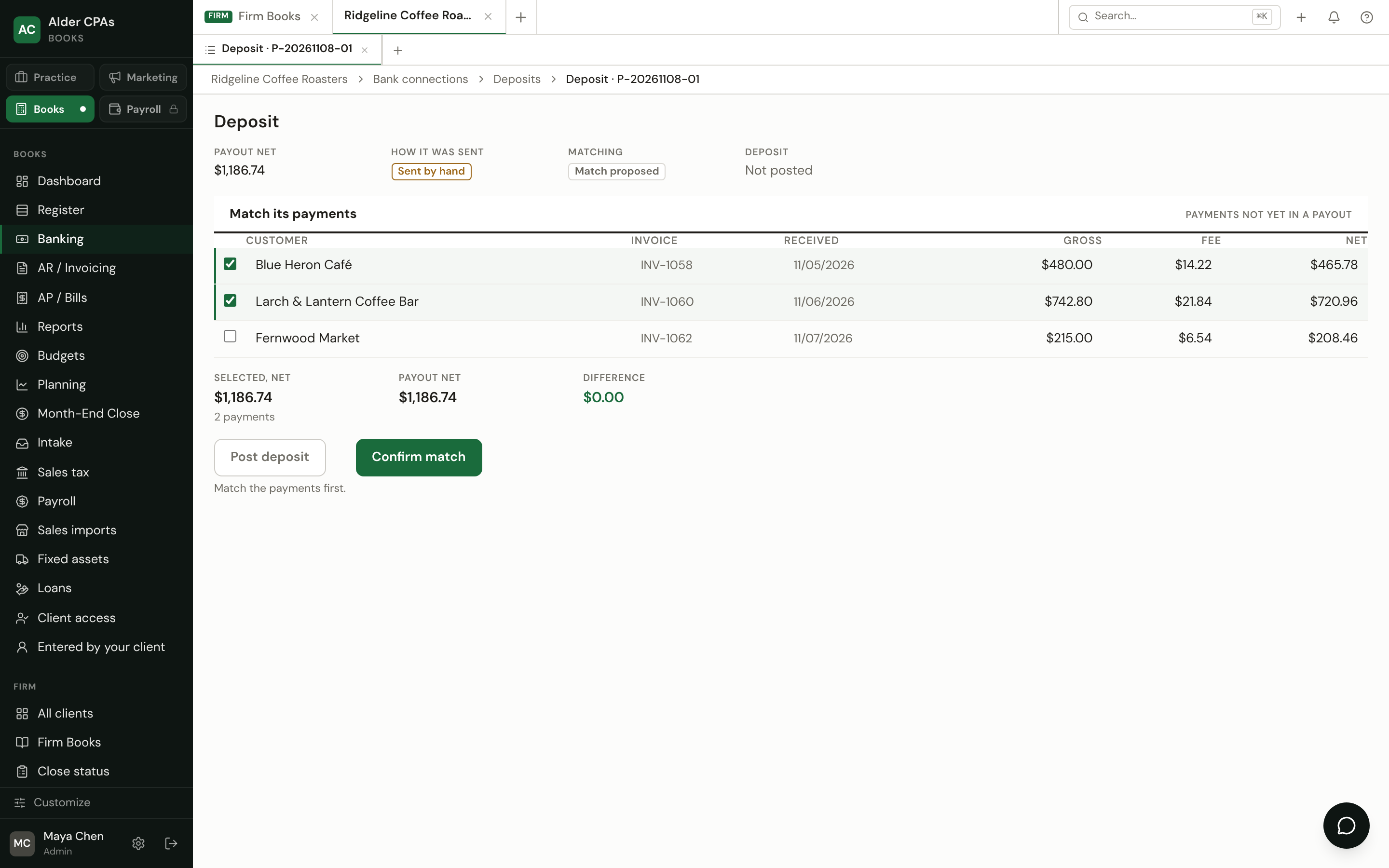 A payout sent by hand: Books proposes the two payments that add up to $1,186.74
Post deposit stays off before the match, with Match the payments first. Books checks the selection again each time you tick or untick a payment, and the reason Confirm match is off is written under it. For example, ticking all three payments above reads The selected payments add up to 1,395.20 net, but the payout is 1,186.74. Select the payments that add up to the payout.
Details worth knowing:
-
Fees come from each payment's own record. When you match one payment that has no recorded fee, its fee is taken as its gross less the payout.
When you select two or more payments and any of them has no recorded fee, the fees can't be split, so the figures switch to Selected, gross and Fees in all, and Books says The processing fees of these payments were not recorded, so the 23.40 in fees cannot be split between them. Match one payment at a time, or ask for these fees to be recorded.
-
A payment can be in only one payout. Picking one already in another payout is refused, naming it.
-
Hover Matched by the firm to see who matched it and when, such as Matched by Maya Chen, Nov 8, 2026 3:12 PM.
-
Change match removes the match while the deposit is not posted. Nothing has posted, so nothing is reversed, and the payout goes back to needing a match. After the deposit posts, void the deposit instead.
-
If no payment fits, the list reads No payments for these books are waiting outside a payout. Record the payment first, then match it here.
How do I group payments into one deposit?
Use Make deposit for checks, cash and other money that waits in Undeposited Funds until it goes to the bank together.
- Go to Banking → Make deposit, or click Make deposit on the Deposits page.
- Check Deposit to. It starts on the client's Default bank account (or their only bank account).
- Set the Deposit date (today, or the day the client's books start if that is later) and add a Memo if you like.
- Under Undeposited items, tick each payment that went to the bank in this deposit. The pills above the list (All methods, Check, Cash, ACH, Wire, Other) narrow it, and the box in the header ticks every item shown.
- To add money that is not a recorded payment, such as a refund or interest, click + Add a line under Other funds in this deposit and fill in Account, Received from, Memo and Amount.
- If you kept some cash back, click + Add cash back and choose where it goes (Cash back goes to), with a memo and amount.
- Check the strip at the bottom: Items, Other funds, Cash back and the Deposit total. The total is the amount the bank statement will show.
- Click Save deposit of $2,079.00. The deposit's own page opens.
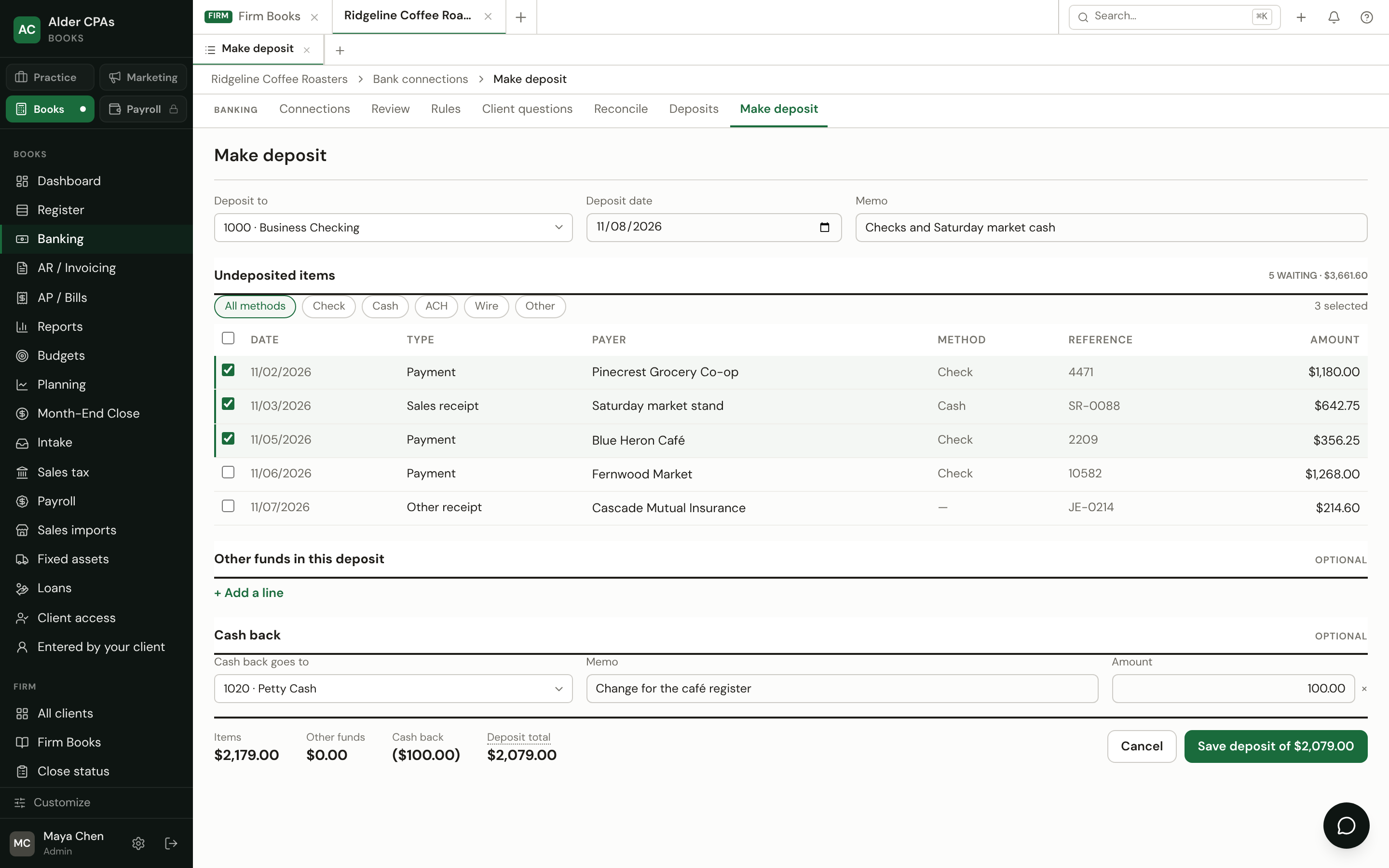 Making a deposit: three items, $100.00 cash back to Petty Cash, $2,079.00 to the bank
What waits in Undeposited Funds: invoice payments and sales receipts recorded into Undeposited Funds, and journal entries that put money there, each listed once with its Date, Type (Payment, Sales receipt or Other receipt), Payer, Method, Reference and Amount.
Payments taken online, by card or bank, are not listed. They reach the bank in a payout and are deposited from the payout, as described above.
What it posts: one entry. The bank account is debited for the deposit total, each cash-back account is debited for its amount, Undeposited Funds is credited for each item, and each other-funds line is credited to its account. Deposits are numbered in order for each client: DEP-0012, DEP-0013 and so on.
The total is Books' own figure, not the screen's sum. As you tick items and add lines, Books checks the whole deposit the way it will when you save it, and the Save deposit of … button shows Books' answer; the strip shows it as soon as Books has checked the deposit. If something would be refused, the reason appears above the strip before you click anything.
From anywhere: Bank Deposit
Press Q (when you are not typing in a field) to open Quick add, then D for Bank Deposit. The quick Bank deposit window is the same deposit in a compact form: choose the bank account, date and memo, tick the payments, add other funds. Open full form takes everything you entered to the Make deposit page.
On Money In → Payments, a line under the header shows what is waiting in Undeposited Funds (for example, $3,661.60 · 5 items), with its own Make deposit button.
Fix or undo a deposit
Deposits are voided, never deleted. The record of what happened stays, and so does the reason you give.
Void a deposit you made from Undeposited Funds
- Open the deposit from Deposits from Undeposited Funds.
- Click Void deposit.
- Under Why (kept with the record), say why, in at least 10 characters.
- Read what voiding does. Books shows the exact consequence before you confirm.
- Click Void the $1,646.50 deposit, or Keep it.
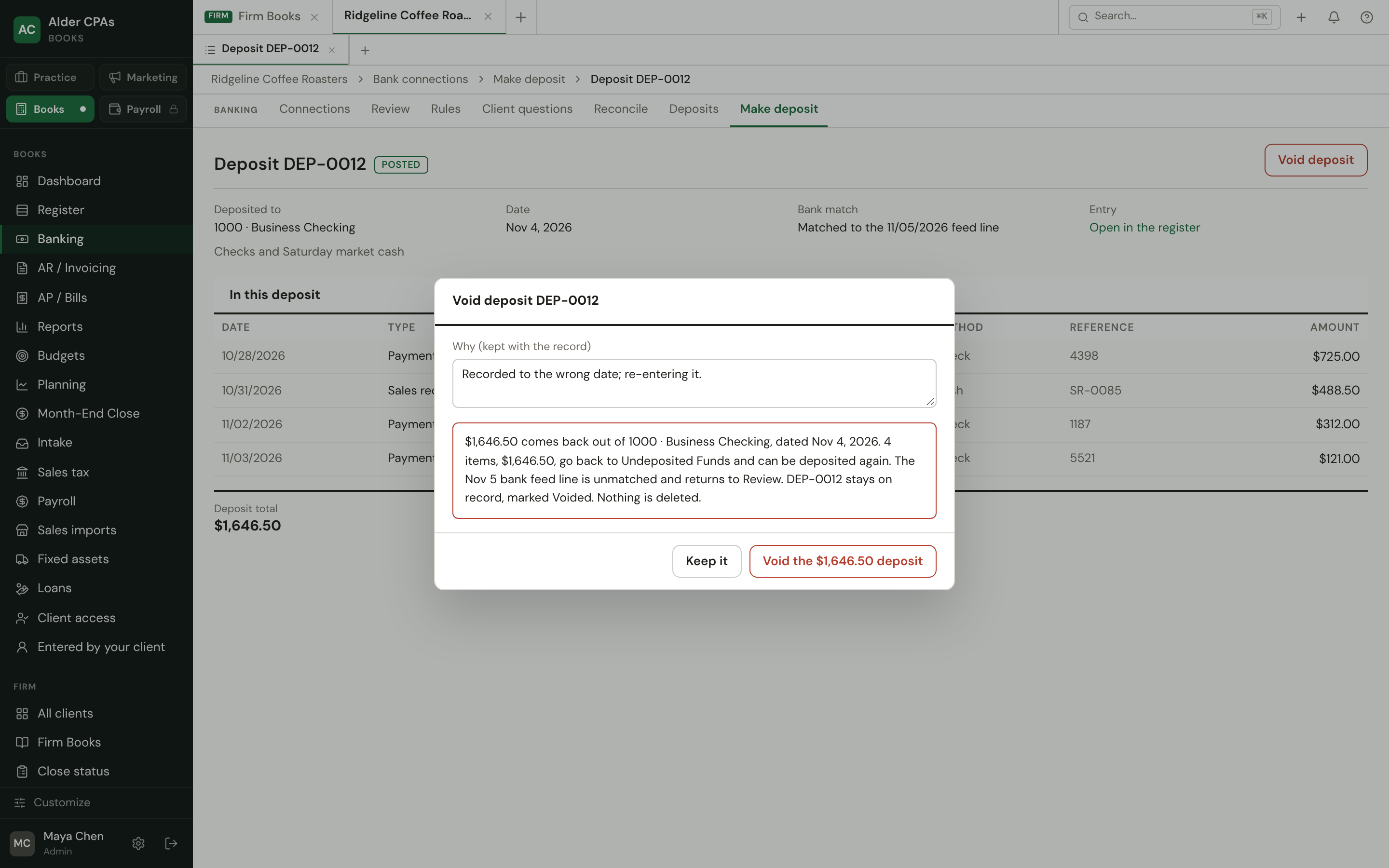 Voiding DEP-0012, with what it does spelled out before you confirm
The consequence reads like this: $1,646.50 comes back out of 1000 · Business Checking, dated Nov 4, 2026. 4 items, $1,646.50, go back to Undeposited Funds and can be deposited again. The Nov 5 bank feed line is unmatched and returns to Review. DEP-0012 stays on record, marked Voided. Nothing is deleted.
The reversal is dated on the deposit's own date when that period is open, and on today otherwise. The deposit's page then shows Voided, the date, who voided it and the reason, with Open the reversal entry.
The deposit's page also shows Bank match (Matched to the 11/05/2026 feed line, or Not matched yet) and Open in the register for its entry.
Void a payout's deposit
A payout's deposit is kept by the payout, so it can't be edited in the register. On the payout's page, click Void deposit.
The window Void this payout's deposit works the same way: a reason of at least 10 characters, then the consequence, such as $2,438.74 comes back out of 1000 · Business Checking, dated Nov 4, 2026. The payout's payments go back to Undeposited Funds and its fees are reversed, so it can be deposited again. Both entries stay on record. Nothing is deleted. Click Void the $2,438.74 deposit.
The payout then reads as not deposited, and you can post its deposit again. It posts as a new entry.
Why can't I save or void this deposit?
On Make deposit, the sentence under Save deposit names the first thing missing:
- Choose the bank account this deposit goes to.
- Tick at least one payment, or add the funds this deposit holds.
- The other-funds line needs an account, or remove it. (or needs an amount above $0.00). With several lines, it names which one: The second other-funds line…
- Cash back needs the account it goes to, or remove it. A cash-back line can't go to the account the deposit goes to, and an other-funds line can't use Undeposited Funds: tick the payment in the list instead.
- A closed month. The reason is shown at Deposit date, for example October 2026 is closed, so this deposit can’t be saved on Oct 31, 2026. An owner or admin can reopen it, or date it in an open month. An owner or admin who may post into a closed month sees a box for the reason instead and can save with it. A month locked for good always refuses.
- An item was deposited meanwhile. If someone else deposited one of your ticked items first, saving says so, for example Pinecrest Grocery Co-op's $1,180.00 (4471) is already in deposit DEP-0013 from Nov 8, 2026. Untick it, or void that deposit first. The list reloads without it.
- A total of $0.00 or less. A deposit must be more than $0.00. Take less cash back, or add items.
When the client's books are not set up for deposits, the page says so with the one place to fix it: No bank account to deposit to (Open the chart of accounts) or No Undeposited Funds account (Open account mapping).
On a payout, see Why doesn't this deposit match?. A payout's deposit also can't post until its accounts are set for the client: accounts receivable, Undeposited funds and Processing fees, in Settings → Account mapping.
When one of them is missing or can't be used, Post deposit answers with a sentence that names it and the fix, such as No Undeposited Funds account is mapped for this client. Set one in Settings → Account mapping. A payout that holds client payments billed outside Books also needs an account for them: This payout includes 2 client payments the firm billed outside Books, $120.00 in all. Map an account for client payments billed outside Books in Settings → Account mapping, then post the deposit.
Voiding can be refused for these reasons:
- A finished reconciliation cleared it. Void deposit is off, on a deposit you made and on a payout's deposit alike, with A finished reconciliation cleared this deposit. An owner or admin must reopen that reconciliation before it can be voided. See Reconcile an account.
- A later payout depends on it. The deposit of payout P-20261108-01 counts on this one, so void that deposit first.
Permissions: saving a deposit, matching a payout and posting its deposit need permission to apply payments for the client. Voiding needs permission to void. Make deposit is for your firm: a client who signs in to their own books can't open it, and their Deposits page shows no Make deposit button and no link into a made deposit.
If your firm also uses Practice
When your firm bills its own clients from Practice and they pay by card, those payments arrive in payouts on your firm's own books, and the Deposits page handles them the same way. You bill in Practice; the money lands, ties and posts in Books, with nothing keyed twice.
-
Paid invoices that Books has recorded clear Undeposited Funds like any other payment, and their fees post with them. In the composition they show as Client payment from the firm's billing, marked Billed in Practice · its receipt is in Undeposited Funds.
-
A payment Books has not recorded yet shows in the payout's composition as Client payment billed outside Books, marked Billed outside Books · posts to the clearing account. Its amount posts to the Client payments billed outside Books account you choose in Settings → Account mapping, so the deposit still ties.
-
It settles itself when Books catches up. When Books later records that payment from Practice, the clearing account empties. If the payout's deposit is not posted yet, the line becomes Client payment from the firm's billing, marked Billed in Practice · its receipt is in Undeposited Funds, and the deposit clears it from there.
If the deposit is already posted, Books posts one entry that moves the amount from the clearing account into Undeposited Funds. Neither account stays overstated.
-
A refund or voided payment in Practice goes back through Undeposited Funds when a card payout recorded in these books will take it back out. A payment that bounced, and any other reversal, waits for you under Needs a person on Settings → Billing from Practice, with A payment came back. Which account the money left from is yours to say. Nothing is guessed.
Resolve "A payment came back"
- Go to Settings → Billing from Practice and find the item under Needs a person.
- Choose one:
- Post against an account: pick The account the money left from (a bank or other current asset account on your firm's books). Accounts receivable goes back up by the amount, and the account you choose goes down by it. Undeposited Funds is not touched.
- Record it by hand instead: Books will not post Payment or credit ($180.00). Record it in these books by hand.
- Say why. The reason is kept with the item for the next person who reads it, and the button stays off until you write one (and, for Post against an account, until you choose the account).
- Confirm. The item leaves Needs a person. If Books still can't post it against the account you chose, it stays, and the reason is shown on its row.
Resolving it needs permission to change these books.
Shortcuts and tips
| Key | Where | What it does |
|---|---|---|
| Q | Anywhere, when not typing in a field | Opens Quick add. |
| D | Quick add | Opens Bank Deposit. |
| Enter | Any amount box | Works out a sum (see below). |
Amount boxes do math. In an other-funds Amount or the cash-back Amount, type a sum such as 75+25 or 3x42.50. When you press Enter or leave the box, it settles to the result, to the cent: 100.00. Use +, -, *, x or ×, / or ÷, and parentheses. A leading =, $, commas and spaces are ignored.
More details worth knowing:
- Every void says what it will do before you confirm. The amount leaving the bank, the items returning to Undeposited Funds and the bank line returning to Review are spelled out from Books' own check, not a generic warning.
- A fee that was never reported is never $0.00. Books shows Not reported and holds the deposit rather than posting a fee it doesn't know.
- The quick form and the full page are one form. Open full form in Bank deposit keeps the bank account, date, memo, ticked payments and lines, in the page address, so a reload keeps them too.
- Received from offers the client's customers, then vendors. A name that is neither is added as a new vendor.
- Online card payments wait for their payout. Make deposit never lists a payment taken online, by card or bank, so it can't be deposited twice.
Recommended routine
- When a payout shows on the bank statement, open Deposits and post the deposits marked Ready to save.
- Match any payout marked Sent by hand · needs matching, then post its deposit.
- After a bank run, use Make deposit with exactly the checks and cash on the deposit slip, so the total equals the bank line.
- In the Review queue, match each bank deposit line to its deposit. Nothing new is posted.
- Before you reconcile, check that Deposits from payouts has nothing left in Ready to save or Does not tie.