
Upload a Bank Statement or Bank File
Bring bank lines into Books without a live connection, from a PDF statement or a CSV, OFX, QFX or QBO file, and check them before they reach the Review queue.
On this page
Not every account can be connected, and not every client wants it connected. You can still bring its transactions into Books: upload the statement your bank sends you, as a PDF or a picture, or the file your bank's website offers under "Download" (CSV, OFX, QFX or QBO).
Books reads the file, shows you what it found and how its balances check against the books, and sends the lines to the Review queue only when you say so. From there they are categorized, matched and posted exactly like lines from a connected bank.
Uploading never posts anything. Books reads the file and shows you a preview. No lines are saved until you click Send N lines to Review, and even then they only wait in the Review queue for you to add, match or exclude. A PDF or picture is filed in the client's documents, and counts toward the daily reading limit, when Books reads it. A year of statements uploaded by mistake moves no money.
You can also start an upload from:
- the empty Review queue, with Upload a statement;
- the Banking page, where an account fed by uploads has Upload a statement on its row and in its ⋯ menu;
- that account's own page, beside its Statement uploads badge;
- the Banking page before your firm has set up bank connections, with You can upload a bank statement now.
What you can upload
| File | Extensions | How Books reads it | Plan |
|---|---|---|---|
| A statement as a PDF or a picture | .pdf, .png, .jpg, .jpeg, .webp, .heic | Read for you, then held for you to check | Premium. Counts toward your workspace's daily reading limit. |
| A bank file downloaded from your bank | .csv, .tsv, .txt, .ofx, .qfx, .qbo | Read straight through, row by row | Every plan. Never counts toward the daily limit. |
A file can be up to 25 MB. If a statement is larger, upload it one period at a time, or use your bank's CSV or OFX download instead.
Which should you use? When your bank offers a download, a bank file is the better choice: it is free on every plan, its figures are taken from the bank's own columns rather than read off a page (Books shows you which column it took for what, so you can correct it), and an OFX, QFX or QBO file usually carries the bank's own ID for each transaction, so overlapping downloads add nothing twice. Use the PDF when it is all you have, for example an old month or a bank with no download.
Upload a bank file
- Open Banking → Review and click Upload statement.
- Under Account this statement is for, choose the bank or credit card account the file belongs to. The list shows the client's bank and credit card accounts from the chart, such as 1000 · Business Checking.
- Drag the file onto the File box, or click it to choose one.
- Click Read the file.
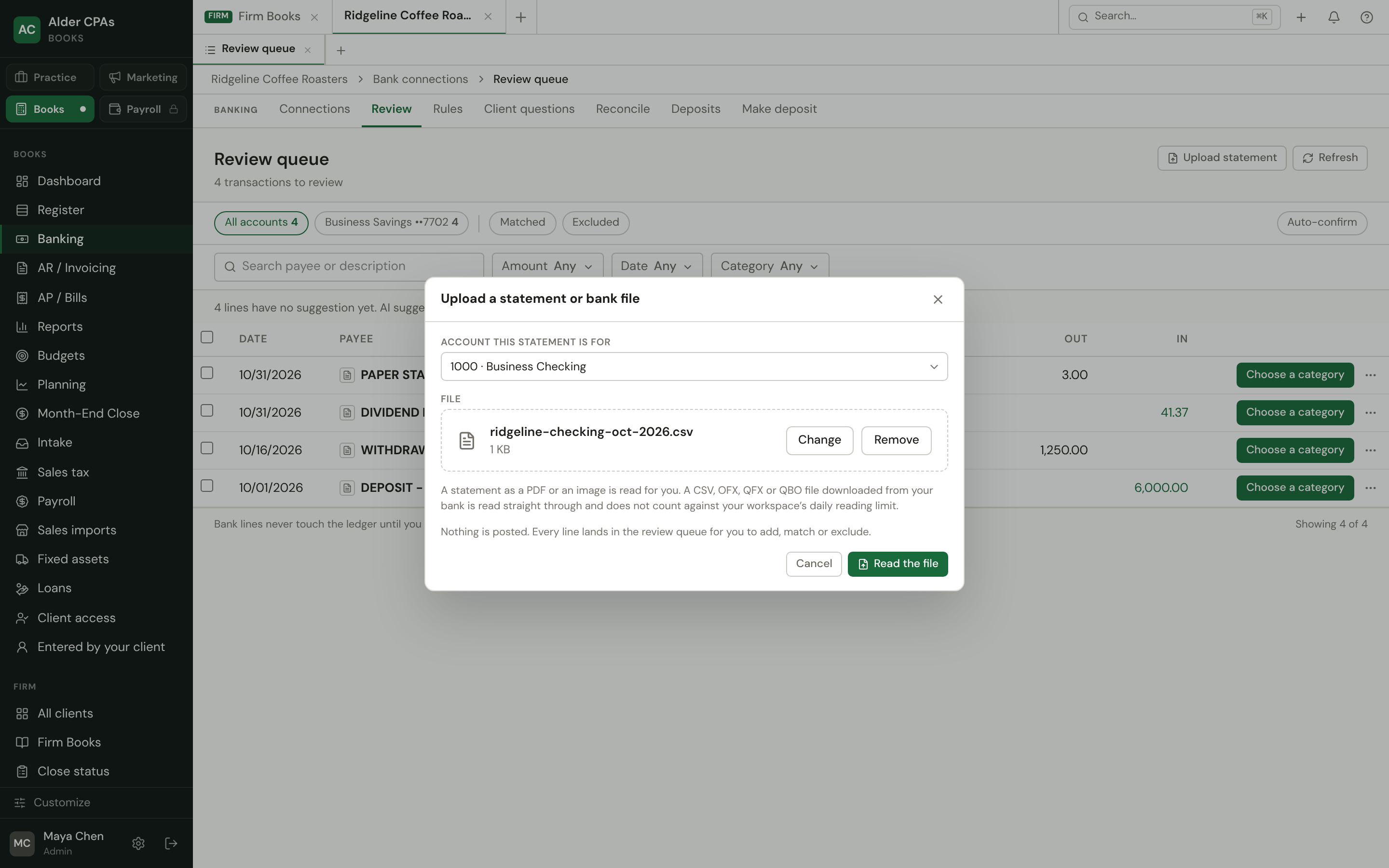 Choosing Business Checking and the October CSV in the upload window
Books reads the file and shows a preview. No lines have been saved yet.
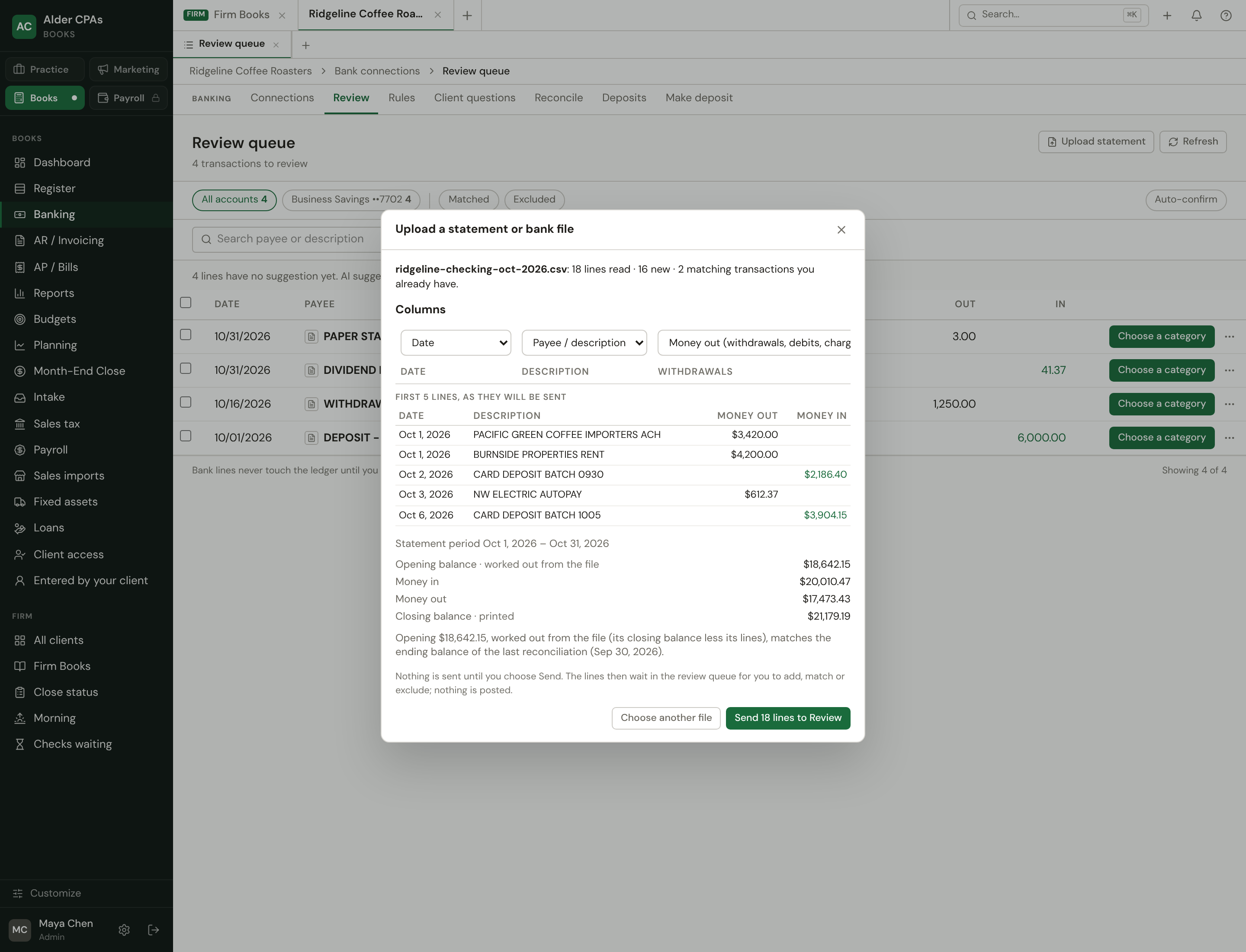 The preview of a CSV: its columns, its first five lines, its balances and the opening check
The preview tells you, from top to bottom:
-
What was read, for example ridgeline-checking-oct-2026.csv: 18 lines read · 16 new · 2 matching transactions you already have. Lines that look like ones already on file are counted too, as that look like lines already on file, which will be set aside.
Lines already in these books from an earlier upload are named by the file they came from, for example 4 lines are already in these books from ridgeline-checking-sep-2026.csv (Oct 2). They are not sent again.
-
Columns (CSV only): one drop-down per column, with the file's own heading under it. See Check the columns.
-
First 5 lines, as they will be sent (CSV only): date, description, Money out and Money in. On a credit card account these columns read Charges and Payments and credits.
-
Statement period and the balances. See How Books checks the balances.
- Check the preview, then click Send 18 lines to Review (the count is every line that will be saved, including matches and set-aside lines). Or click Choose another file to start over.
When the lines are saved, the window says what happened, for example Read 18 lines · 16 lines added to the queue · 2 matched to transactions you already have. Click Go to the queue to start reviewing, or Upload another for the next file. The Review queue behind the window refreshes with the new lines.
Check the columns
A CSV has no fixed layout, so Books works out which column is which and shows its answer. If a column was read wrongly, change its drop-down. The choices are:
| Choice | Use it for |
|---|---|
| Date | The transaction date. |
| Payee / description | Who was paid or who paid. This is what rules and history learn from. |
| Memo | A second description column the bank adds. |
| Check # / reference | A check number. Only a plain number is kept as a check number. |
| Amount (money out is negative) | One signed amount column. |
| Money out (withdrawals, debits, charges) | A column of money leaving the account. |
| Money in (deposits, credits, payments) | A column of money arriving. |
| Running balance (checked, never imported) | The balance after each line. It is never turned into a line. |
| Ignore | Anything else. |
Each choice except Ignore can be used by one column only: picking Date for a second column sets the first one back to Ignore. Every change reads the file again with your columns and refreshes the preview. It never sends anything.
Look at the Money out and Money in columns of the first five lines before you send. They show which side every line will land on.
Banks word their columns from their own point of view: a "Debit" column on a bank file is money out of the account, the opposite of a debit in your ledger, and Books reads it that way.
If the sample shows deposits as money out and the file has separate money-out and money-in columns, set those two columns to Money out and Money in and check the sample again. If the file has a single amount column, no column choice changes its sides: don't send it, and upload the PDF statement instead.
When the file does not state its period
Many CSV files list transactions without saying which period they cover. Books then asks: This file does not state its period. Check it: it is saved with the statement, so the close knows which month it covers.
The From and To dates start at the calendar month the lines fall in (or the first and last line's dates, when they span more than one month). The period must include every line in the file. A period the file states itself is always used as is.
Upload a PDF or a picture of a statement
- Click Upload statement, choose the account, and drop the PDF or picture on the File box.
- Click Read the file.
- Books first files the statement and checks it for viruses. While it waits, the window says Checking ridgeline-savings-oct-2026.pdf for viruses… It's read as soon as the check is clean. If you close this, upload the same file again later: the check already under way is picked up.
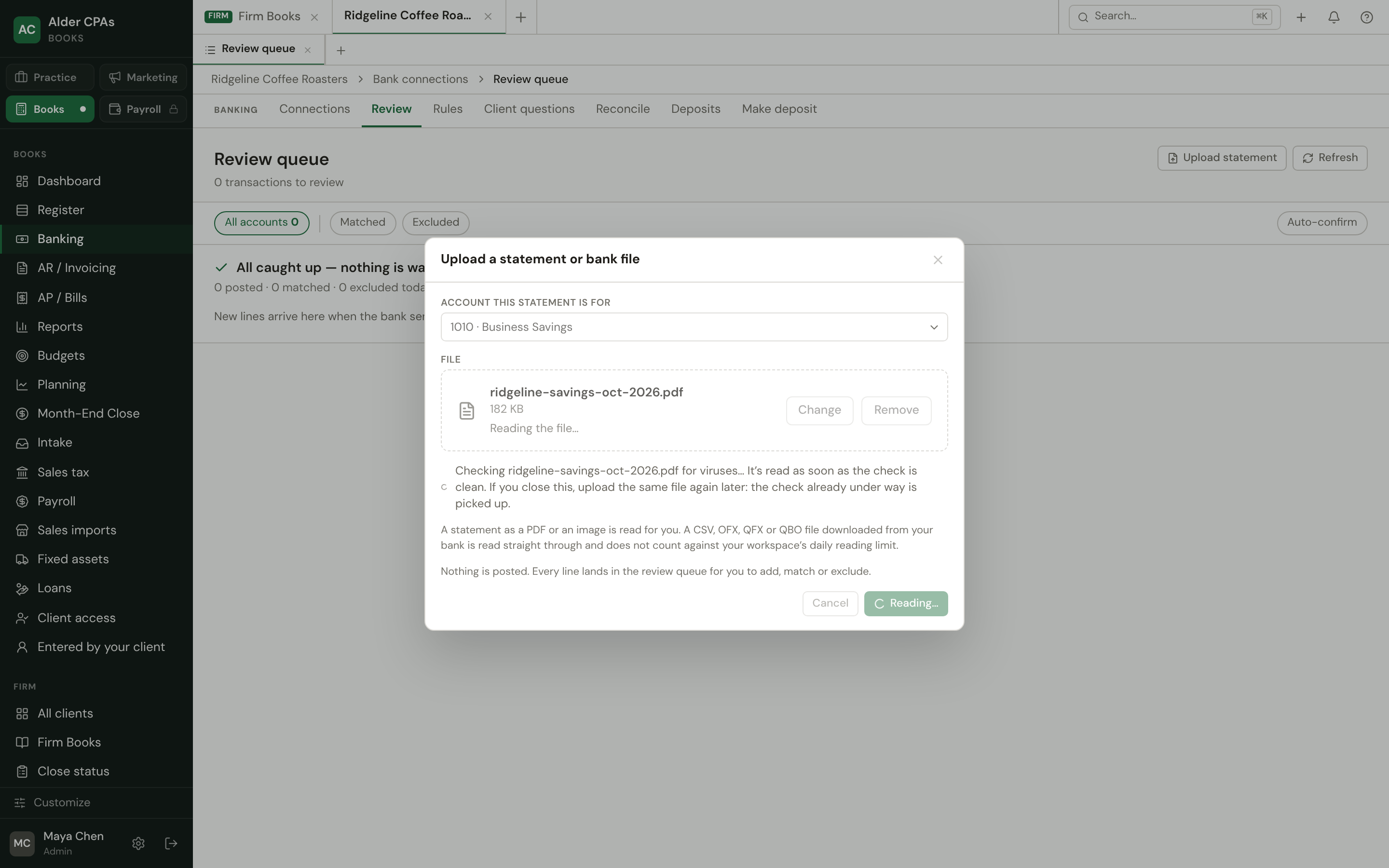 A PDF statement waiting for its virus check
- When the check is clean, Books reads it: Reading ridgeline-savings-oct-2026.pdf. A long statement can take a minute or two. The window stays open while it waits. If you leave the page, upload the same file to the same account again later: a read already under way, or one still held (next step), is picked up rather than read again. Once the 15-minute hold has lapsed, uploading again reads the file again.
- The preview shows what was read, the statement period and its balances, and Read once, and held for 15 minutes while you check it.
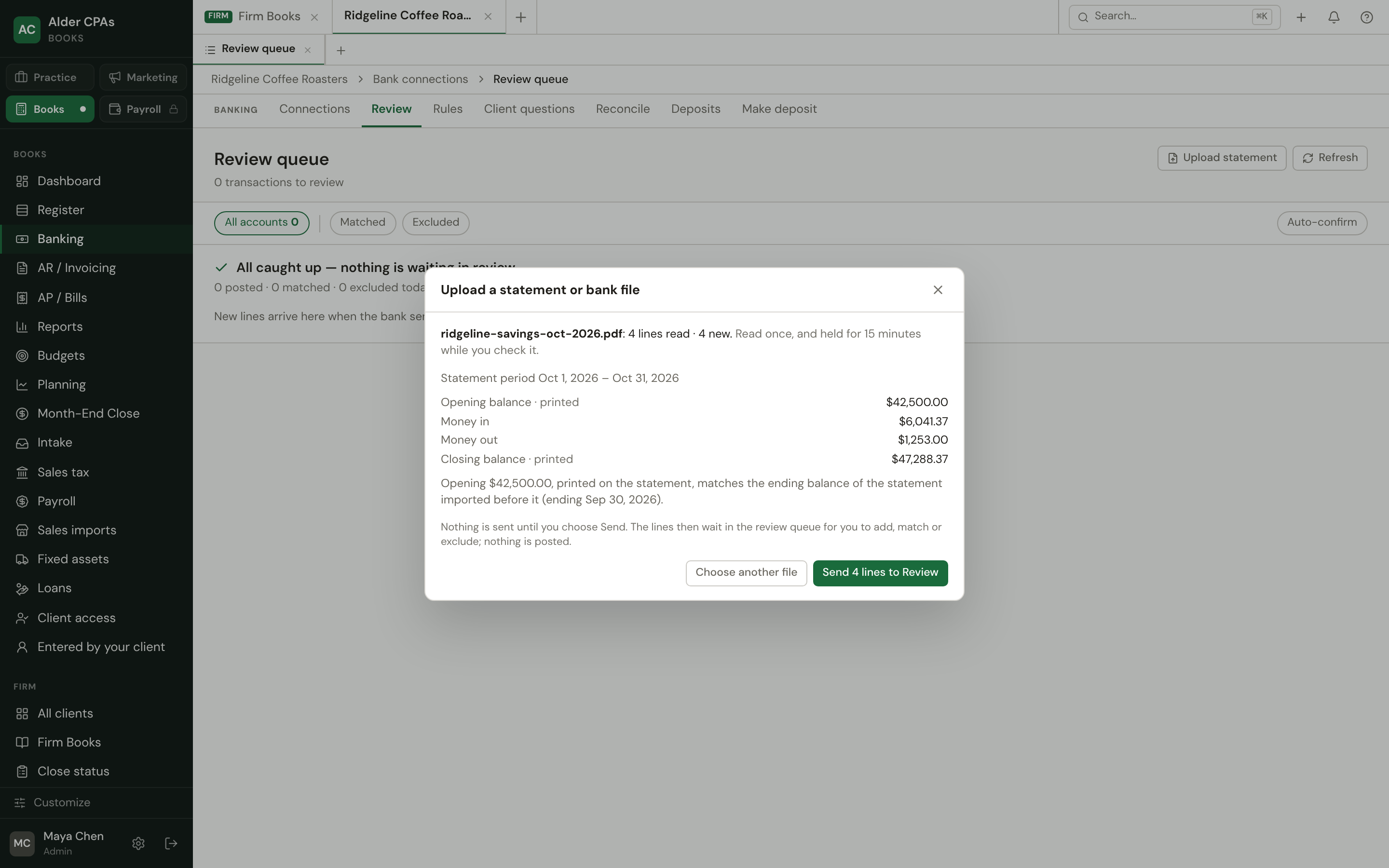 The preview of a PDF savings statement, read once and held for 15 minutes
- Click Send 4 lines to Review. Books saves the read it already made; it does not read the file again.
The 15 minutes matter. If you click Send after the hold has lapsed, Books says This statement was read more than 15 minutes ago. Upload it again to read it.
A line the reading could not date or price is left out and counted, as 1 row could not be read. Lines the reading was less than 70% sure of are counted as flagged to check and marked in the queue (see below).
How Books checks the balances
Every preview shows the statement's figures: Statement period, Opening balance, Money in, Money out and Closing balance (on a credit card account, Payments and credits and Charges). Each balance says where it came from:
- printed — the statement or file states it.
- worked out from the file — the file states a closing balance but no opening (as OFX, QFX and QBO files do), so Books works the opening out: the closing balance less every line.
- not stated — the file gives no such balance. On a PDF that prints no opening balance, the opening also shows not stated when some of its lines couldn't be read, because a missing line would move a worked-out figure.
Then Books checks the opening against what the account already knows: the ending balance of its last completed reconciliation or of the statement imported before this one, whichever is later. When they agree, you see a plain sentence such as Opening $18,642.15, worked out from the file (its closing balance less its lines), matches the ending balance of the last reconciliation (Sep 30, 2026).
When they don't, the sentence is outlined as a warning, before anything is saved: Opening $18,642.15, worked out from the file (its closing balance less its lines), is $250.00 more than the $18,392.15 ending balance of the last reconciliation (Sep 30, 2026). A statement in between may be missing, or part of this period may already be imported. You can still import it; the difference stays on record.
When the account has no reconciliation and no earlier statement, Books compares the opening with the balance the books already hold for the account on the day before the statement starts. A difference there usually means the account's opening balance hasn't been entered yet: That difference is an opening balance to enter, not something to adjust away.
The check is the point of a worked-out opening: on its own, a closing balance less its own lines always ties. Comparing it with the last balance you already accepted is what catches a missing month.
After you send, if the statement printed both balances and the lines read don't add up from one to the other, the window says These lines don't reach the statement's closing balance., shows both figures, and suggests checking each line against the statement in the Review queue. The lines are saved either way.
What happens to each line
Books sorts every line before it is saved, so uploading the same month twice, or a PDF and a CSV of the same month, does not double your queue.
| What Books finds | What happens | In the queue |
|---|---|---|
| Nothing like it | Saved to the Review queue. | An ordinary line. Hover the small icon before the payee to see how it arrived (Uploaded statement or Bank file) and on which account. |
| Exactly one transaction already in the register with the same amount on a nearby date | Saved with that transaction proposed as its match. (With more than one possible match, the line arrives as an ordinary line.) | In books. Confirming the match posts nothing new. |
| The same line from an earlier upload, in any format (same account, date and amount) | Not saved again. The preview names the file it is already in. | Nothing new. |
| The same line from the bank connection on this account | Saved but set aside as a duplicate, where you can still see it. | On file, under Excluded. Restore it if these really are two separate charges. |
| A line from a PDF the reading was less than 70% sure of | Saved, and flagged. | Check p2 (the page it was read from). |
When an OFX, QFX or QBO file carries the bank's own ID for a transaction, that ID decides first: two identical $4.50 coffees on the same day, with two bank IDs, stay two lines, and a later file that repeats them adds nothing.
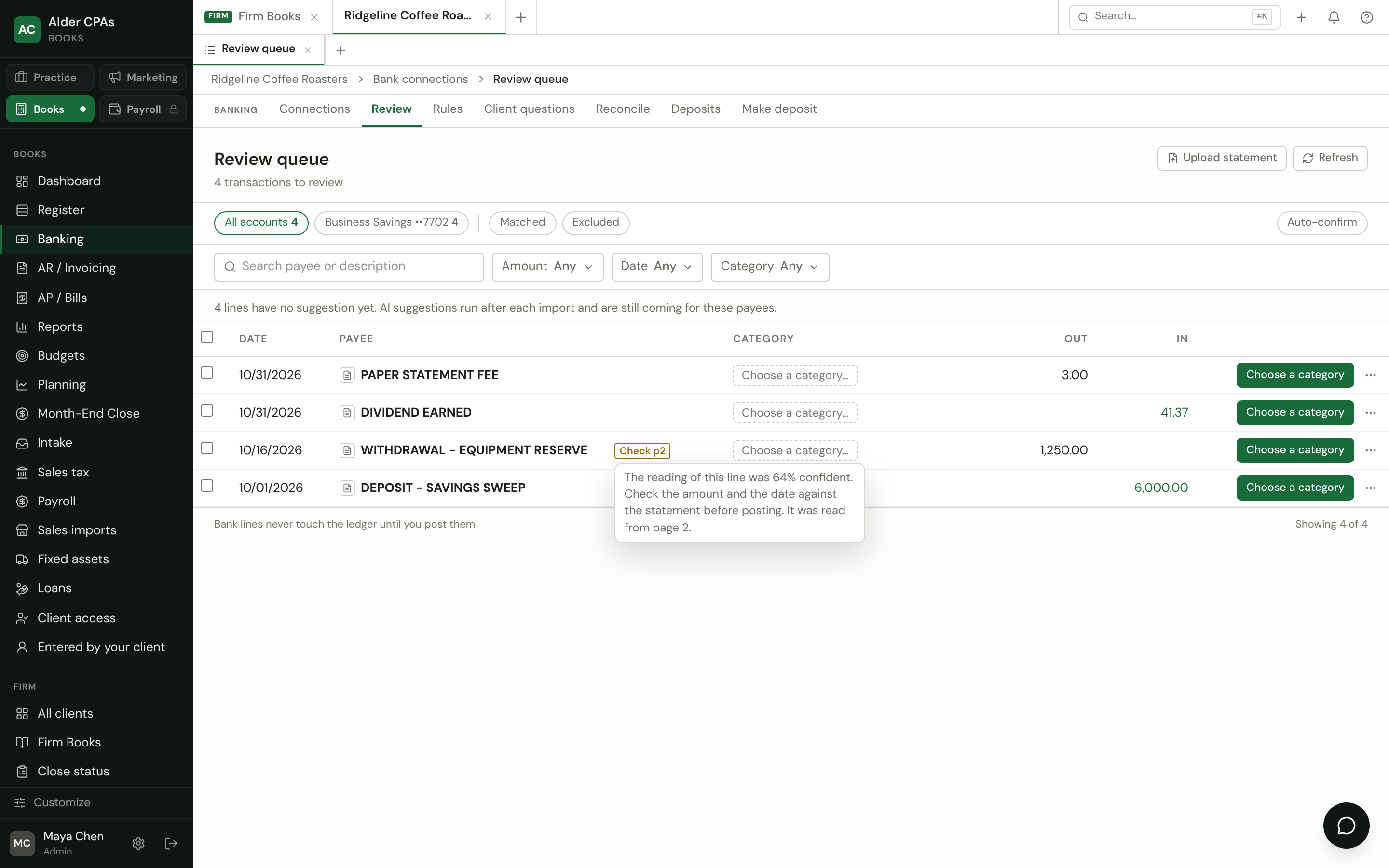 A low-confidence line from the savings statement, marked Check p2
Hover Check p2 to read The reading of this line was 64% confident. Check the amount and the date against the statement before posting. It was read from page 2.
After the lines are saved, Books runs the same work over them that it runs over lines from a connected bank: your bank rules, history and other suggestions, matching, transfer detection between the client's accounts, and the unusual-activity flags. Then you review them as described in Reviewing Bank Transactions.
Why is this transaction in review?
Every uploaded line waits in the Review queue until a person adds, matches or excludes it. Uploading only brings the lines in. A rule the client has trusted to post on its own can post an uploaded line later, on the same schedule as a connected bank's lines; nothing posts at the moment you upload.
Why can't I post this one yet?
An uploaded line follows the same rules as any other bank line. See Why can't I post this line yet? in Reviewing Bank Transactions. Two points are specific to uploads:
- A line marked Check p2 can be posted. The marker is a reminder to compare it with the statement first, not a block.
- Uploaded lines have settled, so they are never Pending.
Why can't I upload this file?
| You see | What to do |
|---|---|
| Read the file is off, with Choose the account this statement is for. or Choose a statement or bank file to read. | Pick the account, then the file. |
| This client has no bank or credit card accounts yet. Add one in the chart of accounts first. | Add the account in the Chart of Accounts, then upload. |
| Reading a PDF is a premium feature. CSV, OFX, QFX and QBO files from your bank work on every plan. | The file box accepts bank files only. Download a CSV, OFX, QFX or QBO file from your bank, or click Turn on Premium (it opens Settings → Billing). |
| That file is larger than 25 MB — upload the statement for a single period, or import a CSV or OFX file from your bank. | Split the statement, or use a bank file. |
| That file type cannot be read — … | Upload a PDF or picture, or a CSV, OFX, QFX or QBO file. |
| That file is empty. | Download the file again. |
| That account could not be found. Choose the account this statement is for. (a PDF or picture) | Close the window and choose the account again. |
| Couldn't read this file — upload the CSV, OFX, QFX or QBO download from your bank, or upload the statement as a PDF. | Books didn't recognize the file as a bank file. |
| This file has no transactions in it — check the date range you downloaded, then try again. | Download a wider date range. |
| With these columns, no row reads as a transaction. Choose which column is the date and which hold the amounts. | Fix the column drop-downs. |
| This file holds more than one account, and an upload goes to one account. … | Download each account on its own and upload each to its own account. |
| Nothing was imported: this file's own total doesn't match the transactions read from it, … | The bank's total row disagrees with the lines read. Download the file again, or upload the PDF. |
| The statement period must include every line on it; a line is dated outside it (10/31/2026). | Widen From or To. |
| Every line in this file is already in these books …, so there is nothing to send. | Nothing to do: the file was uploaded before. |
| This document did not pass its virus check, so it is held and will not be opened or read. Nothing was charged. … | Get a fresh copy of the statement, or use your bank's CSV or OFX download. |
| This document's virus check did not finish, so it is held until someone at the firm releases it with a reason. … | Once someone at your firm has released the document, upload the statement again; or upload a bank file instead. |
| The virus check on this statement is taking longer than usual, … or The statement is taking longer than it should to read. … | Upload the same file again later. The check or read already under way is picked up, and you are not charged twice. |
| This workspace has read its N statements for today. … (100 by default) | Your workspace has reached its daily reading limit. Upload a bank file now, or the PDF tomorrow. |
| AI reads is off for this firm (Settings → AI), so statements are not read automatically. … | PDF statements are read only while AI reads are on in Settings → AI. Bank files still work. |
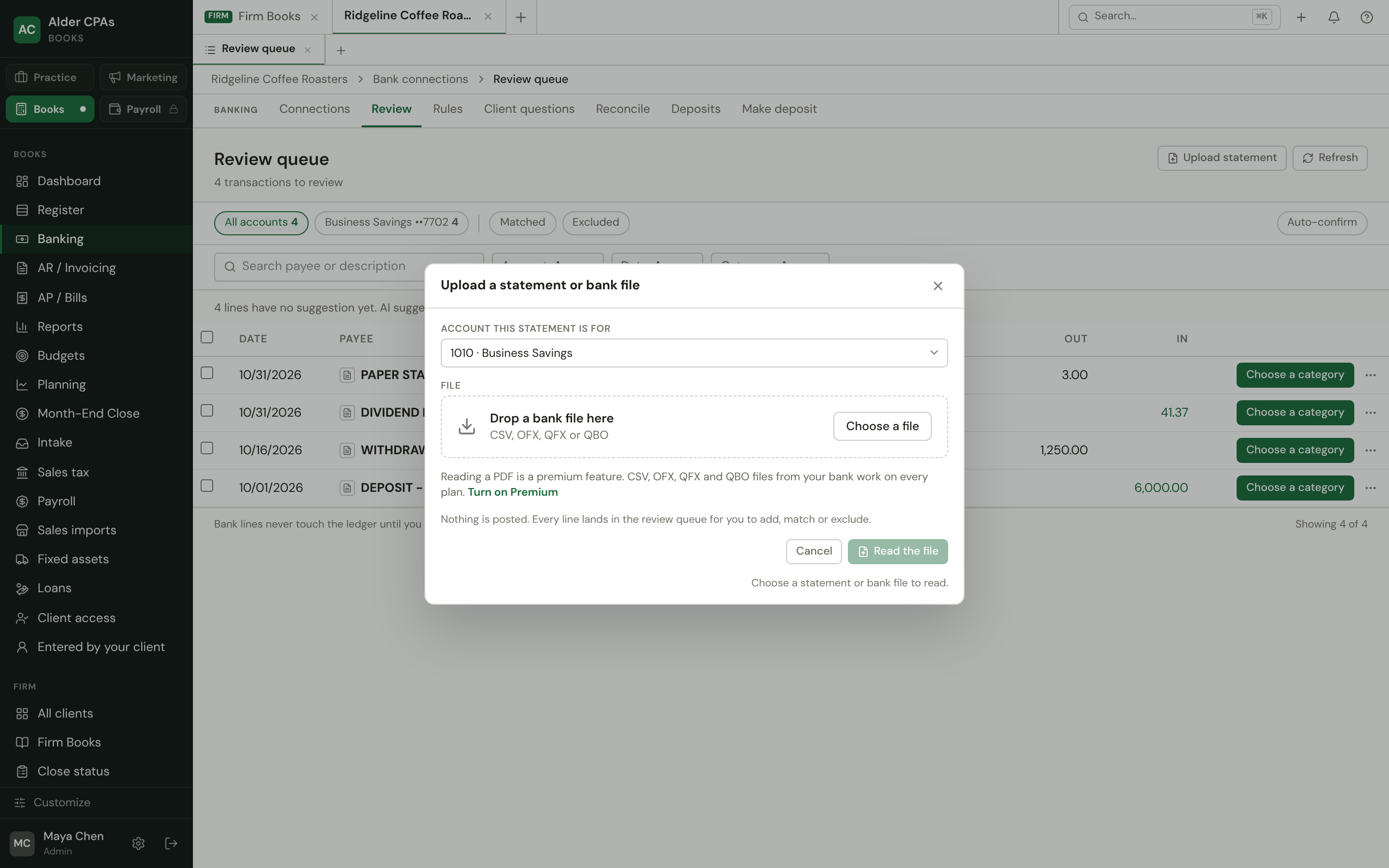 The upload window on a plan without PDF reading
Uploading needs permission to post in this client's books. Uploaded statements are listed only for people with Books access to that client.
Fix or undo an upload
- Before you send, no lines have been saved (a PDF or picture is already filed in the client's documents and counted toward the daily reading limit once Books reads it). Click Choose another file, change a column, or close the window.
- After you send, the lines are in the Review queue and nothing is posted. Exclude any you don't want with ⋯ → Exclude…, or select several and use Exclude… in the selection bar (see Reviewing Bank Transactions).
- Uploaded the same file twice? No harm done: the second time, Books finds every line already in the books and has nothing to send.
- To reconcile against a statement rather than bring its lines into Review, use Upload statement inside the reconciliation instead: see Reconcile an Account.
If you also use Practice
A PDF or picture statement you upload is filed in the client's documents in Practice with the client's statements, at the moment you upload it: in the folder your firm set to auto-file bank statements (or, failing that, card statements), or else in a Bank Statements folder, which Books makes if the client has none.
It is held, and can't be opened, until its virus check is clean. It is stored once and visible from both sides, so the statement your team reads from and the one Books read the lines from are the same file, sitting beside everything else the client has sent.
Shortcuts and tips
- Drag and drop. Drop the file straight onto the File box.
- Uploading onto a connected account is safe. The lines join the same queue as the account's connected lines, and any line the bank connection already brought in is set aside as On file. Use it to fill a month the connection missed.
- Bank exports with extra rows read fine. Books finds the table under the bank's heading rows (the bank name, the account, "From … Through …"), reads the period and the account's last four digits from them, and leaves total and balance rows under the table out of the lines.
- Dates and amounts in many forms. Dates like
10/31/2026,2026-10-31,Oct 31, 2026and spreadsheet date numbers all work. Whether04/05is April 5 or May 4 is decided from the file's own dates (any day over 12 settles it). Dates with no year take the current year. Amounts like$1,234.56,(1,234.56),-1234and1234-all work; the last three are money out in an amount column. - Rows Books could not read are never lost silently. The preview says how many and on which lines of the file, for example 2 rows could not be read (line 7, 12) and will not be imported. Open the file in a text editor to find them.
- The opening check catches a missing month. If it says a statement in between may be missing, look for the gap before you send.
Recommended routine for accounts without a connection
- Once a month, download the bank file for the month (or save the PDF statement) and upload it to its account.
- Read the opening check. If it doesn't tie, find the missing statement first.
- Check the first five lines' sides on a CSV, then send.
- Work the new lines in the Review queue, starting with the Check markers on a PDF.
- Reconcile the month against the same statement.