
Your Chart of Accounts
Add, organize, edit, merge, archive and delete the accounts every entry posts to, and see why Books protects the accounts it keeps for you.
On this page
The chart of accounts is the list of every account a client's books post to: the bank and card accounts, receivables and payables, equity, income and expenses. This is where you add accounts, arrange them under parents, rename and renumber them, merge duplicates and clear out the ones you no longer need. Every client has its own chart, and your firm's own books have one too.
Books decides how an account can go away by looking at what uses it. An account nothing has ever touched is deleted for good. An account with postings, or one that anything else still names (a bank rule, an item, a recurring entry, a reconciliation), is archived: it stops being offered when you choose an account, and its history and balance stay in the books and reports. The accounts Books keeps for you, marked System, can be neither deleted nor archived. See Archive or delete an account.
Understand the chart
The title shows three counts, for example 34 accounts · 31 with postings · 1 archived. Click the archived count to show the archived accounts.
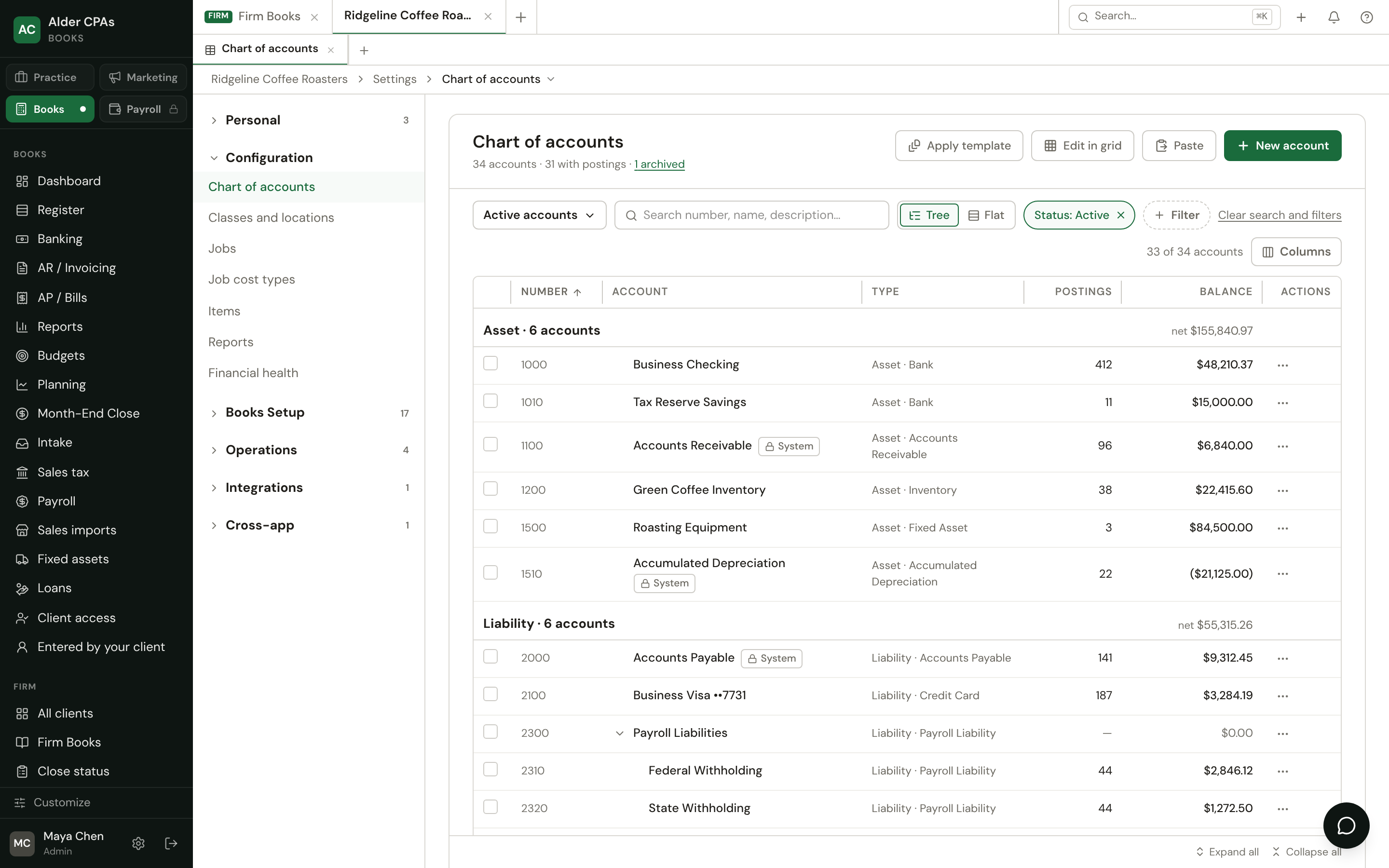 The chart of accounts for Ridgeline Coffee Roasters in the Tree layout, grouped by type
The list has these columns, in order:
- A checkbox, to select the account (see Change several accounts at once).
- Number and Account. An account Books keeps for you carries a System badge, and an archived one shows Archived beside its name in gray italics.
- Type, as type and subtype: Expense · Cost of Goods Sold, Liability · Credit Card.
- Postings — how many lines in the ledger use the account. A dash means none.
- Balance. Revenue and expense accounts show this fiscal year to date; every other account shows its balance as of today. Hover a balance to see which.
- Actions, the ⋯ menu for that account.
Description is also available, hidden until you turn it on with Columns. Click any row to open the account.
Tree and Flat
Tree groups the chart by type, in the order Asset, Liability, Equity, Revenue, Expense. Each group shows its count and its net in the Balance column, for example Asset · 6 accounts with net $155,840.97. The revenue and expense groups add this fiscal year. Sub-accounts sit indented under their parent; click the arrow beside a parent to open or close it, or use Expand all and Collapse all at the bottom.
Flat shows the same accounts as one plain list, sorted however you like. Both layouts share the same search, filters and columns, so switching keeps what you have narrowed down.
A contra account reads negative under its type. Accumulated Depreciation is shown as ($21,125.00) under Asset, so the group's net is the true book value: equipment less what has been depreciated.
Search, sort and filter
- Search number, name, description… matches as you type. It also matches the type and subtype, so typing credit card finds every credit card account. Esc clears it. In Tree, an account whose parent is filtered out moves up to the top of its group rather than disappearing.
- In Flat, click a column header to sort by it; click it again to reverse the order, and a third time to clear it. Shift+click another header to add it as a further sort (up to three). Tree always lists each group by account number.
- Filter adds a filter on Type, Subtype, Status (Active or Archived), Postings (With postings or No postings), Control (System-controlled or User-managed) or Balance. The chart opens filtered to Status: Active; click the × on that chip to see archived accounts too. Clear search and filters resets everything.
- Export CSV downloads every account the search and filters keep, with what you need to set the chart up again elsewhere: number, name, type, subtype, parent, description, whether it is active, contra or a system account, its postings and its balance (labeled as this fiscal year to date or as of today). The column headings are the ones Books' own import reads.
- Drag the edge of a column header to widen it, double-click the edge to reset it, or focus a header and press Alt+← or Alt+→ to change its width 16 pixels at a time. Widths are remembered for you.
Add an account
- Click New account. A panel opens on the right.
- Choose the Type, then the Subtype. Only the subtypes that belong to the type are offered, and Books starts on the ordinary one (Expense for an expense, Income for revenue, Owner Equity for equity) rather than the first in the list. Changing the type clears any parent you chose.
- Leave Parent at — None (top level) —, or choose a parent of the same type to make this a sub-account. A sub-account starts on its parent's subtype.
- Check the Number. Books suggests one (see below); type your own if you prefer.
- Enter the Name and, if you like, a Description.
- Leave Active and Show in Quick Add on unless you have a reason not to. Turn on Require reconciliation before close for a bank or card account you want reconciled every month (see The account page).
- Click Create account. A notice confirms it: Created 6801 · Cupping Supplies.
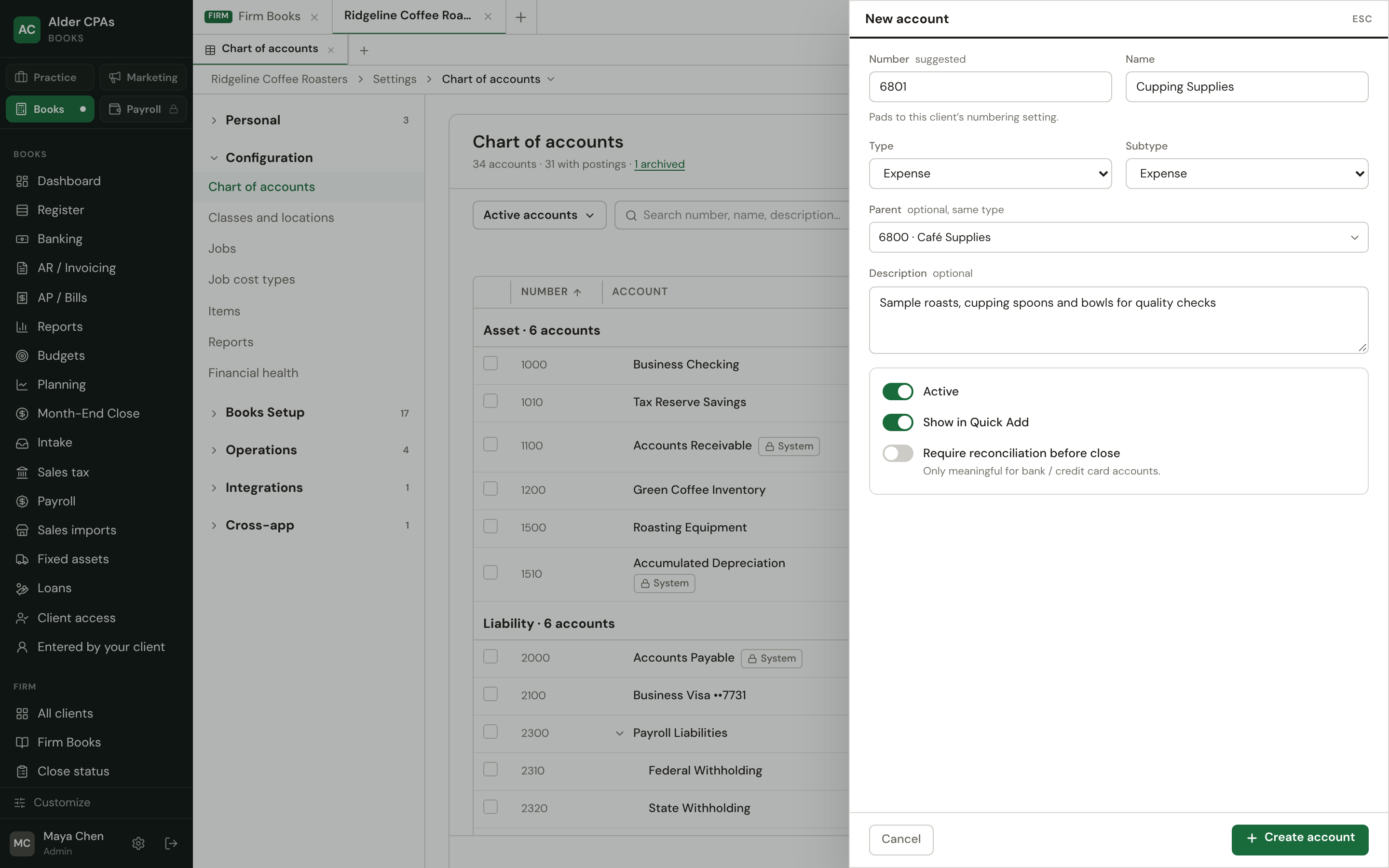 Adding Cupping Supplies as a sub-account of Café Supplies, with its number suggested
How Books picks the number. At the top level, it takes the highest number of that type and rounds up to the next ten: with 1510 the highest asset, a new asset is offered 1520.
Under a parent, it goes one past the parent's highest sub-account, or one past the parent itself when it has none: the first sub-account of 6800 is offered 6801. Either way it skips any number the chart already uses, whatever its type. The number is padded to the client's Numbering setting.
While you fill it in, Books checks the number when you leave the field. If it is taken, the field says so and names the next free number in that series. Until everything needed is filled in, the reason shows beside Create account: Enter a number., Enter a name. or Choose a number that is not already in use.
You can also add accounts from the places you use them: on an account's Sub-accounts tab (see Sub-accounts), and from the account list in the Review queue, which offers Add "…" as a new account when no account matches what you typed.
Account numbers and names
- A number may use letters, digits, periods, underscores and hyphens, and must be unique in the client's chart.
- Two active accounts under the same parent cannot share a name, and capitals don't make a name different. Books refuses the second and names the first: This company already has an account named "Rent" (6100 · Rent). Use that account, or give this one a name of its own. Archived accounts don't count.
Account types and subtypes
| Type | Subtypes |
|---|---|
| Asset | Bank · Accounts Receivable · Other Current Asset · Inventory · Fixed Asset · Accumulated Depreciation · Other Asset |
| Liability | Accounts Payable · Credit Card · Payroll Liability · Sales Tax Payable · Other Current Liability · Long-term Liability |
| Equity | Opening Balance Equity · Retained Earnings · Owner Equity · Owner Draws · Common Stock |
| Revenue | Income · Other Income · Sales of Product Income · Service Income · Sales Returns & Allowances · Sales Discounts |
| Expense | Cost of Goods Sold · Expense · Other Expense · Depreciation · Payroll Expense |
Choose the subtype with care: Bank and Credit Card accounts can be reconciled and fed by a bank connection, and the subtype locks once the account has postings. Accumulated Depreciation, Sales Discounts and Sales Returns & Allowances are contra accounts and are shown negative under their type.
Add many accounts at once
Apply a template
Apply template adds accounts from one of Books' ready-made charts to a client that already has one.
- Click Apply template. The Apply Additional Template window lists each template with what it would add, for example 58 accounts · 12 new · 46 already exist. One is marked Recommended for the client, and a template that doesn't suit the client's kind of business says Not typical for this entity.
- Choose a template and click Preview changes to see exactly which accounts will be added and which are left out, and why.
- Click Apply · add N accounts.
A template only adds. An account whose number is already in the chart is skipped, and so is one whose name matches an active account under another number, so applying a template never gives the client a second Retained Earnings. Existing accounts are never changed. A template already fully applied reads already applied · 0 new.
Paste from a spreadsheet
- Copy the rows from your spreadsheet, including the heading row if it has one.
- Click Paste and paste into the box. Books reads the rows as soon as you paste; if you type or edit rows in the box instead, click Read these rows.
- Check how each column was read. Books recognizes common headings such as Account Number, Account Name, Detail Type and Sub-account of; without headings it reads the columns in the order Number, Name, Type, Detail type, Parent account, Description. Number, Name and Type must each be mapped before Preview turns on.
- Click Preview. Each row is marked New, Exists, skipped or Fix; a row marked Fix says why.
- Click Add N accounts. The result reads, for example, Added 8 accounts · 2 skipped.
The Type column accepts asset or assets, liability or liabilities, equity, income or revenue, and expense or expenses. Every row needs a detail type, written as it appears in Books (Cost of Goods Sold, Credit Card). The parent can be named by its number.
A row whose number or name already exists is skipped, never overwritten. Rows that need a fix say why, for example Choose a detail type for Expense., Parent account "6400" matches no account. or "6100" appears twice in this paste. Only the rows that are ready are added.
Edit accounts in a grid
Edit in grid opens the accounts the list is showing right now, after your search and filters, as a spreadsheet you can edit in place: Number, Name, Type, Detail type, Parent, Description and Active.
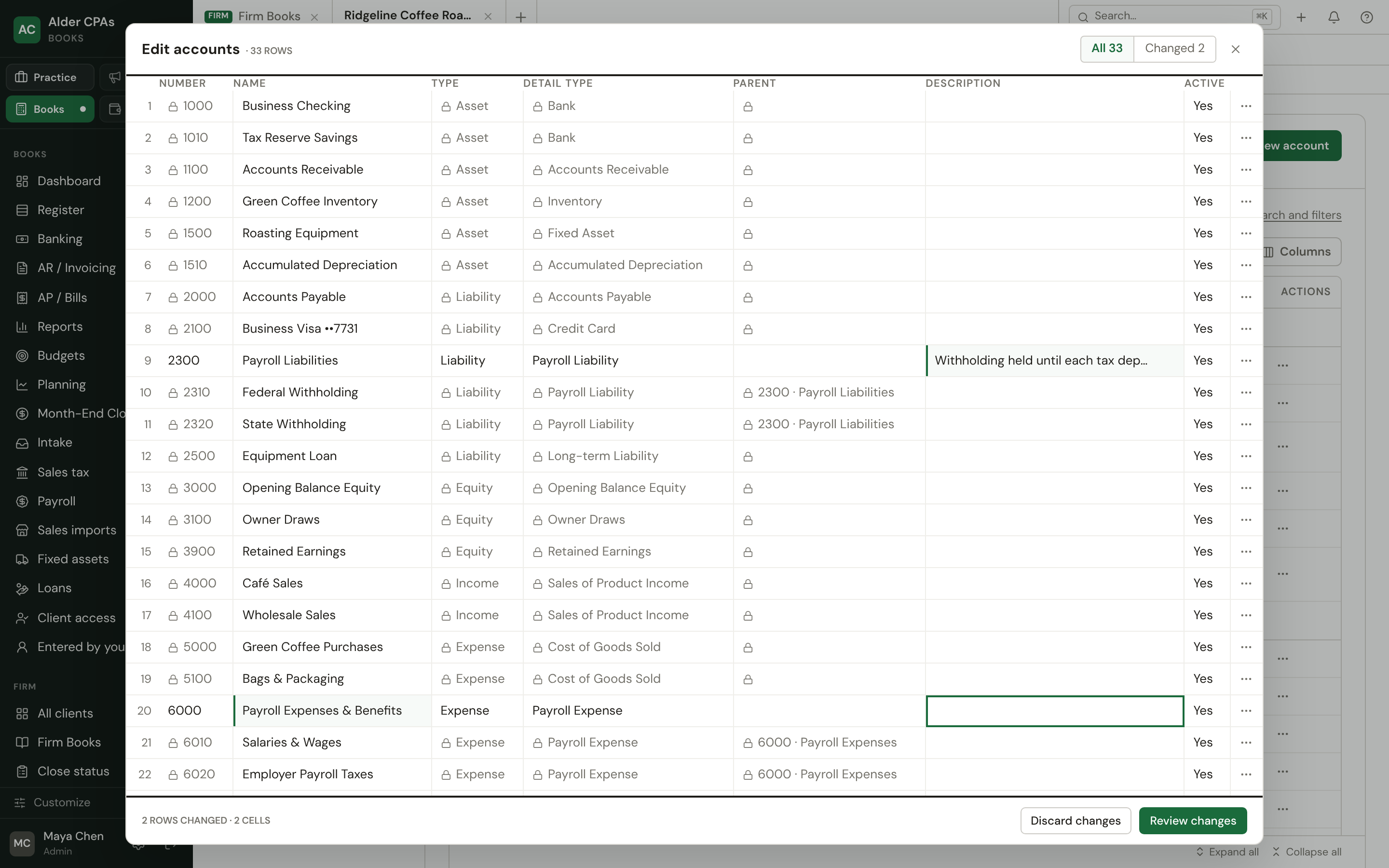 Editing accounts in the grid, with two changed cells and locked cells marked
- Move to a cell and type, or press Enter, to change it. Changed cells are tinted, and the footer counts them: 2 rows changed · 2 cells.
- Use Changed at the top to see only the rows you touched.
- Click Review changes. Books checks every changed row exactly as a real save would, without saving anything, and lists each change with Before, After and Ready or the reason it would be refused.
- Click Save N accounts. Rows Books refused stay in the grid with their reason; the others are saved.
A cell with a lock can't be edited. Hover it for the reason, for example 6010 has postings, so its number, type, detail type and parent can't change.
Closing the grid with ×, or pressing Esc when you are not editing a cell, throws away changes you have not saved, without asking. Use Review changes and Save first. Discard changes at the bottom clears your edits but keeps the grid open, and Ctrl+Z brings them back.
Grid keys
| Key | What it does |
|---|---|
| Arrow keys | Move between cells |
| Tab / Shift+Tab | Move right / left, wrapping to the next or previous row |
| Enter or F2 | Start editing the cell |
| Any character | Start editing a text cell, replacing what is there |
| Enter while editing | Keep the change and move down |
| Tab while editing | Keep the change and move right |
| Esc while editing | Cancel the change to that cell |
| Delete or Backspace | Clear the cell |
| Ctrl+Z (⌘+Z on a Mac) | Undo your last change |
| Ctrl+V (⌘+V) | Paste a block copied from a spreadsheet, starting at the selected cell |
Double-clicking a cell also starts editing it. A pasted block fills right and down from the selected cell; any locked cells in its path are left as they were, and a notice says how many.
Sub-accounts
A sub-account groups related postings under a parent, such as Federal Withholding and State Withholding under Payroll Liabilities. A sub-account must be the same type as its parent; it may use a different subtype.
- Add one with New account and a Parent, or open the parent, choose the Sub-accounts tab and click Add a new sub-account. Fill in Number (suggested), Name and Subtype, and click Add.
- Move accounts under a parent by selecting them in the list and clicking Reparent…, or by changing Parent account on the account page. Either way, only an account with no postings can move. To move them back to the top level, choose — None (top level) —.
An account's number, type, subtype and parent are fixed once it has postings. Books refuses the change with Cannot change this field once the account has postings. Plan the structure before you post, or create a new parent-and-child set and merge the old account into it. The one exception: an Other Current Asset account with postings shows Holds stock? Make it an Inventory account under its subtype. Use it when the account really holds stock: it changes the subtype to Inventory, leaving the account an Asset and its balance and every posted line as they were.
Archive or delete an account
The account's ⋯ menu offers the way out that fits it:
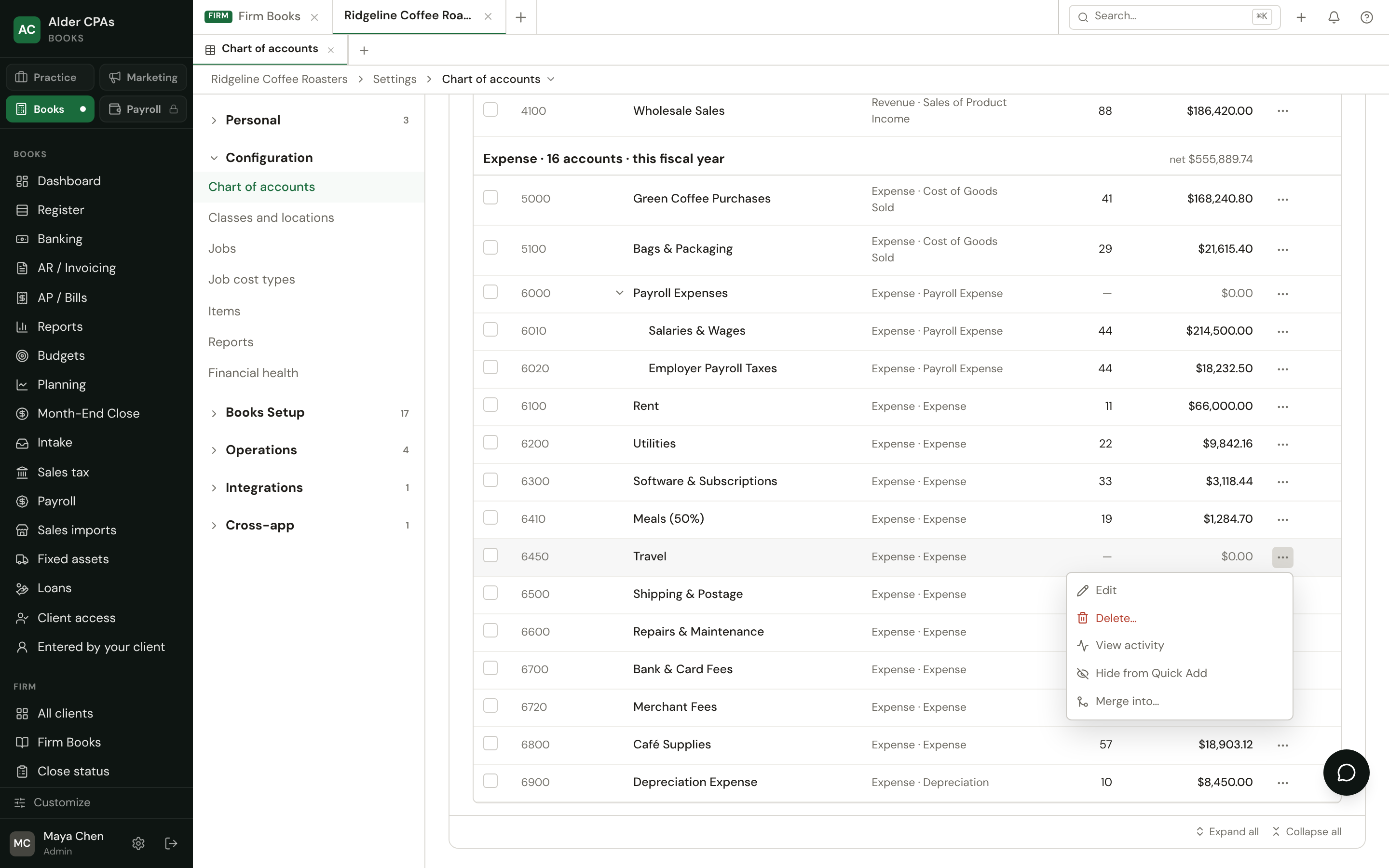 The row menu for an account nothing has posted to
| The account | The menu offers |
|---|---|
| Active, never posted to | Delete… |
| Active, with postings | Archive |
| Archived | Restore |
| Marked System | Archive, which Books refuses — see Accounts marked System |
Delete
Delete… asks Books first, at that moment, whether anything still names the account.
- If nothing does, the window reads Nothing in the books names it, so it is deleted for good. The deleted record is kept in full in the audit history. Click Delete account.
- If something does, the window turns into Archive 6450 Travel? and says what still names it, for example "6450 Travel" cannot be deleted: it has 1 bank rule. Click Archive account to archive it instead, or Cancel and remove what names it first.
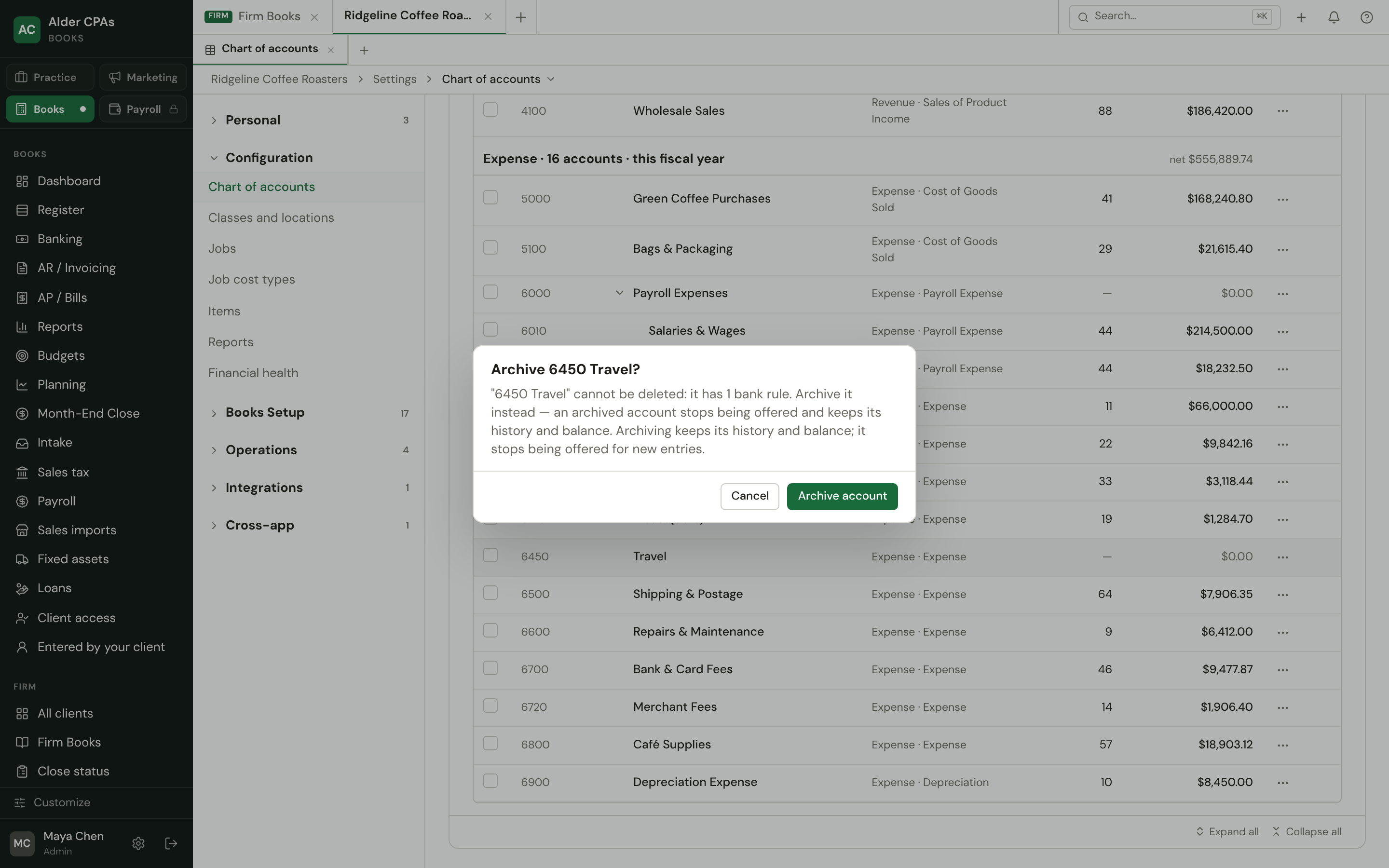 An unused account that a bank rule still names, offered Archive instead of Delete
What can keep an account from being deleted: lines in the ledger, sub-accounts, accounts merged into it, reconciliations, items that use it, customers or vendors that name it as a default, a bank or card account that posts to it, the client's account mapping in Settings, recurring entries, bank rules, saved reports, and any other record in the books that names it. The window names what it found.
On the account page, Delete or archive… opens the same window.
Archive
Archive takes effect at once, and the notice says what it did: Archived 6800 · Café Supplies, then It is no longer offered when you choose an account. Its 57 postings (balance $18,903.12) and its history stay in the books and reports. Click Undo in that notice to bring it straight back.
An archived account keeps its balance and every posting, and it still appears in reports. It just isn't offered when you pick an account for a new entry.
A parent with active sub-accounts can't be archived. Books opens Cannot archive · has children and lists them. Archive or move the sub-accounts first: select them in the list and use Archive N or Reparent… (see Change several accounts at once), or open the parent and work from its Sub-accounts tab.
Restore
Show the archived accounts (click the archived count in the title, or clear the Status: Active filter) and choose ⋯ → Restore. A sub-account whose parent is archived can't be restored until the parent is.
Merge two accounts
When a client has two accounts for the same thing — 6720 Merchant Fees and 6700 Bank & Card Fees, say — merge one into the other. Every line on the first account moves to the second, and the first is retired.
- On the account you want to get rid of, open ⋯ → Merge into… (or click Merge on its account page).
- Choose the Destination account. Only active accounts of the same type and subtype are offered, and never one marked System.
- Read the Permanent action box. It says how many lines and how much money will move, for example 14 transaction lines totaling $1,906.40 will be reassigned from 6720 Merchant Fees to 6700 Bank & Card Fees.
- Write a Reason of at least 10 characters. It is kept in the audit history. Until it is long enough the box counts down: Need 7 more characters.
- Click Merge · reassign 14 lines.
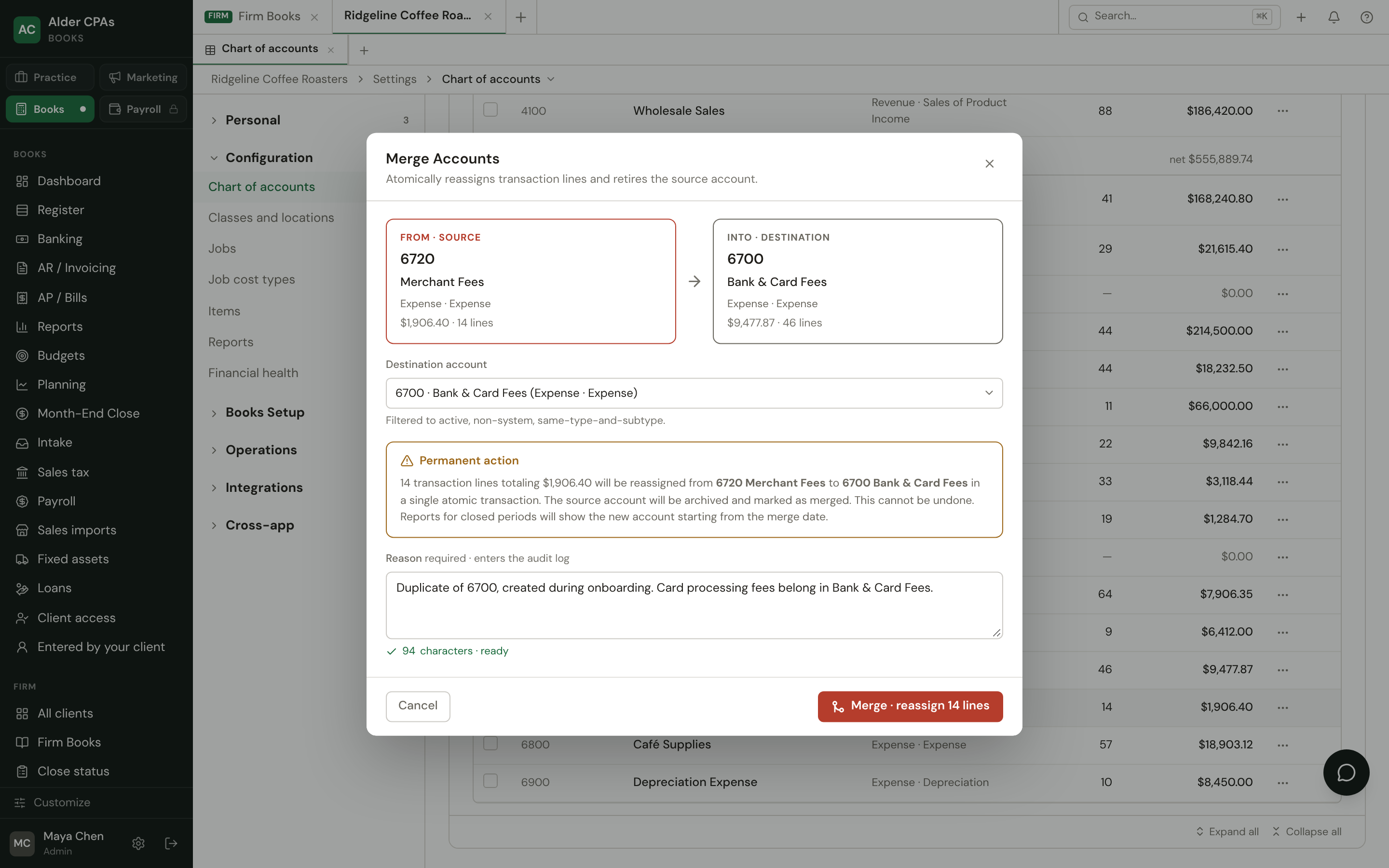 Merging Merchant Fees into Bank & Card Fees
The notice confirms it: Merged 6720 Merchant Fees into 6700 Bank & Card Fees · 14 lines reassigned. The merged account disappears from the chart.
A merge cannot be undone. If you are not sure, archive the account instead.
Who can merge. Merging needs the firm's Owner or Admin role and the Chart of accounts permission. Anyone who is not an Owner or Admin doesn't see Merge into… in the menu, and finds Merge on the account page turned off with the reason: Merging accounts is limited to firm owners and admins. An Owner or Admin without the permission sees both turned off, with the reason that names the permission.
When a merge is refused. Books moves only lines that a person could move by hand. It refuses the whole merge, and says why, when the account holds:
- lines that belong to an invoice, a bill or another document,
- lines that are part of a completed reconciliation, or
- lines in a closed month.
The message counts them: Merchant Fees cannot be merged: 2 lines are reconciled. Move the other lines with Recode in the register, or keep both accounts. An account with active sub-accounts can't be merged either: archive its sub-accounts, or move them under another account, first.
Accounts marked System
Some accounts are kept by another part of Books, which posts to them for you: Accounts Receivable (invoicing and customer payments), Accounts Payable (bills and bill payments), Opening Balance Equity (Books setup) and Retained Earnings (month-end close).
Some charts also mark fixed-asset accounts (Accumulated Depreciation, Depreciation) or a sales tax account as System. Which ones a client has depends on how its chart was set up. Hover the System badge to see which part of Books keeps the account: System account, kept by bills and bill payments. Books posts to it, so it can't be archived or merged.
A System account:
- can't be deleted, archived or merged (its menu still shows Archive, and Books refuses it: System-controlled accounts cannot be modified this way.),
- keeps its number, type, subtype and parent (the grid shows them locked: 2000 is system-controlled, so its number, type, detail type and parent can't change.),
- can still be renamed and given a description.
These accounts are protected because other features find them by what they are. If Accounts Payable could be archived or merged, every bill would lose the account it posts to.
The account page
Click an account in the list to open it. The header shows the number and name, Active or Inactive, the type and subtype, the currency and, for a bank or card account with a bank connection, its status (Bank feed · …). On the right are Merge (on active accounts that aren't System accounts), Delete or archive…, Cancel and Save changes.
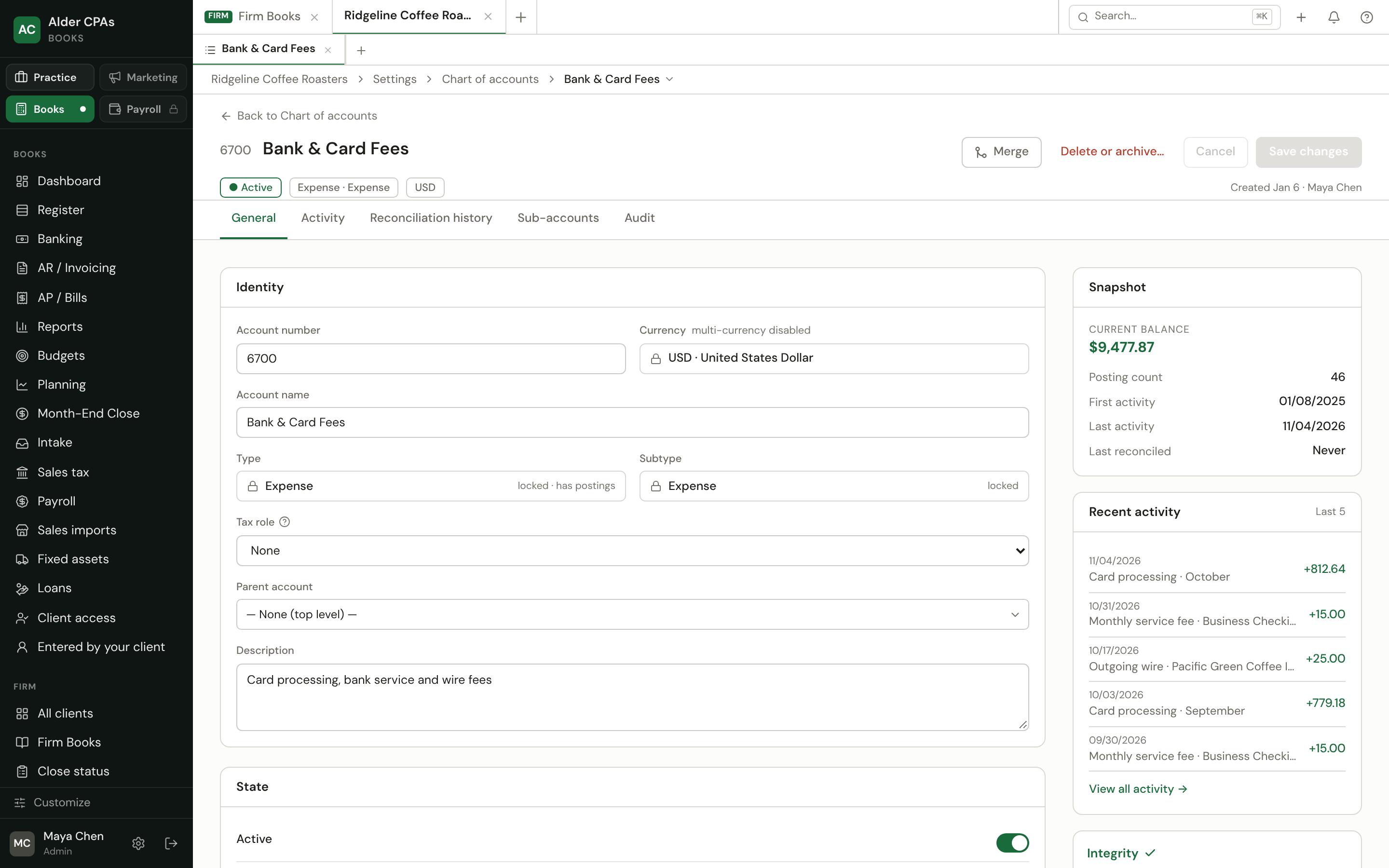 The account page for Bank & Card Fees
The General tab holds what you can change, saved together with Save changes (Account saved.):
-
Identity — Account number, Account name, Type, Subtype, Parent account and Description. Once the account has been posted to, Type shows a lock with locked · has postings and Subtype shows locked.
Account number and Parent account can't change after posting either, although their fields stay open: change them only on an account with no postings, or Save changes refuses with Cannot change this field once the account has postings. Currency is always US dollars.
-
Tax role — on Other Current Asset, Other Asset, Owner Equity, Owner Draws, Expense and Other Expense accounts that aren't System accounts. Choose Federal estimated tax for the account you record the client's federal estimated tax payments in, so they count toward its estimated-tax deadlines.
-
State:
- Active — turn it off and save to archive the account. Use the ⋯ menu's Archive instead for a parent account or a System account, so Books can check it first.
- Show in quick-add — off leaves the account out of the shorter account lists in the register's new-entry row, batch entry and the Review queue. A line that already uses it keeps it.
- Require reconciliation before close — a month can't be closed until this account has a completed reconciliation through the end of it.
- Client trust account — on bank accounts only. Marks money held for clients, which the dashboard keeps out of Cash on hand and shows beside it.
-
Classes and locations — the default class and location for lines on this account, and whether every line on it must have a class. Shown when the client uses classes or locations; see Classes, Locations, Jobs and Items.
-
Bank feed — on bank and card accounts, the connection that feeds it.
The cards on the right show the Snapshot (Current balance, Posting count, First activity, Last activity, Last reconciled), the last five postings under Recent activity, and Integrity, which says whether an integrity alert is open for the client's books.
The other tabs:
- Reconciliation history — every reconciliation of a bank, card or trust account, completed, undone or voided, with a Reconcile button. Other accounts say they aren't reconciled.
- Sub-accounts — the account's children, with Show archived and Add a new sub-account.
- Audit — the history of changes to the account: when, who, and what changed.
Change several accounts at once
Tick the box at the start of each row. A bar replaces the title with the count selected and these actions:
- Archive N and Restore N — each counts only the selected accounts it applies to, and a window lists them before anything happens. If Books refuses some, the result names them and why.
- Hide from Quick Add.
- Reparent… — moves the selected accounts under one New parent, or to — None (top level) —. The selection must all be one type; otherwise the window says Mixed types selected.
- Clear selection.
Why can't I…
- …delete this account? Something still uses it: postings, or a rule, item, recurring entry, reconciliation or setting that names it. The delete window says what. Archive it instead, or remove what names it first. A System account can't be deleted at all.
- …see Delete in the menu? The account has postings, so the menu offers Archive. Accounts with postings are never deleted, because the record of what happened has to survive. A System account never offers Delete.
- …archive this account? It has active sub-accounts (archive or move them first), or it is a System account.
- …change the number, type or parent? The account has postings, or it is a System account. Cannot change this field once the account has postings.
- …merge these two accounts? They must be the same type and subtype, both active, neither a System account, and you must be an Owner or Admin. Lines tied to documents, reconciliations or closed months block a merge; the message counts them.
- …make it a sub-account of that parent? The parent must be active and the same type. The chosen parent is invalid — it must be active, the same type, and from this client.
- …use this number? Another account, active or archived, already has it. That account number is already in use. Try another. The same message shows when the number has a character other than letters, digits, periods, underscores and hyphens.
- …make any change here? Changing the chart needs the Chart of accounts permission: You need the "Chart of accounts" permission for this. Ask an admin to grant it.
Fix or undo a change
- An archive: click Undo in the notice, or Restore the account later.
- A rename, renumber or other edit: change it back on the account page. The Audit tab records each change.
- A delete: a deleted account can't be brought back, but the audit history keeps everything it held. Add it again with New account.
- A merge: can't be undone. Move lines back by hand in the register if you need to; see Using the Register.
- A template or a paste: the accounts it added are ordinary accounts. Delete the ones nothing has used yet.
Shortcuts and tips
| Where | Key or action | What it does |
|---|---|---|
| Search box | Type | Narrows the chart as you type, by number, name, description, type or subtype |
| Search box | Esc | Clears the search |
| Column header | Click · Shift+click | Sorts by that column · adds it as a second sort |
| Column header edge | Drag · double-click | Resizes the column · puts it back to its usual width |
| Focused column header | Alt+← / Alt+→ | Narrows or widens the column by 16 pixels |
| Title | Click the archived count | Shows only the archived accounts |
| Any panel or window | Esc | Closes it. An account list open inside it closes first, so you don't lose what you typed |
| Archive notice | Undo | Restores the account you just archived |
| Edit in grid | See Grid keys | Spreadsheet keys, undo and paste |
- Set up the structure before you post. Numbers, types and parents lock once an account has postings.
- Merge duplicates, archive the retired. A merge combines history into one account; an archive keeps it separate but out of the way.
- Use Edit in grid for a cleanup. Search or filter the list down to the accounts you want (all expense accounts, say), open the grid, paste corrected names straight from a spreadsheet, and review before you save.
- Turn off Show in quick-add for accounts you rarely post to by hand, so the everyday lists stay short.