
Loans
Enter a loan's terms once, let Books split every payment into principal and interest, and keep the loan tied to the ledger and to the lender.
On this page
Loans is where you keep track of money the client owes, or is owed, on a schedule: an equipment note, a vehicle loan, a line of credit, a loan from a shareholder. You enter the terms once. Books builds the amortization schedule, fills in principal and interest each time a payment comes through the bank feed, and checks that the loan account in the ledger says what the schedule says.
The schedule and the ledger are checked against each other every time you open Loans. The table at the top of the Loans page compares each loan account's balance in the ledger with the balance the schedule says is owed. When they differ, the table says what explains it — an entry Books asks you to answer, payments due and not yet recorded — or that nothing on record does. A loan that reads Ties is right to the cent.
Loans is a Premium feature. On a client on the free plan, the page shows Loans are a premium feature and a Turn on Premium button instead of the list. Your firm's own books have Loans too, under Firm Books.
The Loans row shows in the sidebar once the client has a loan. Until then, find it under the sidebar's More row.
Understand the Loans page
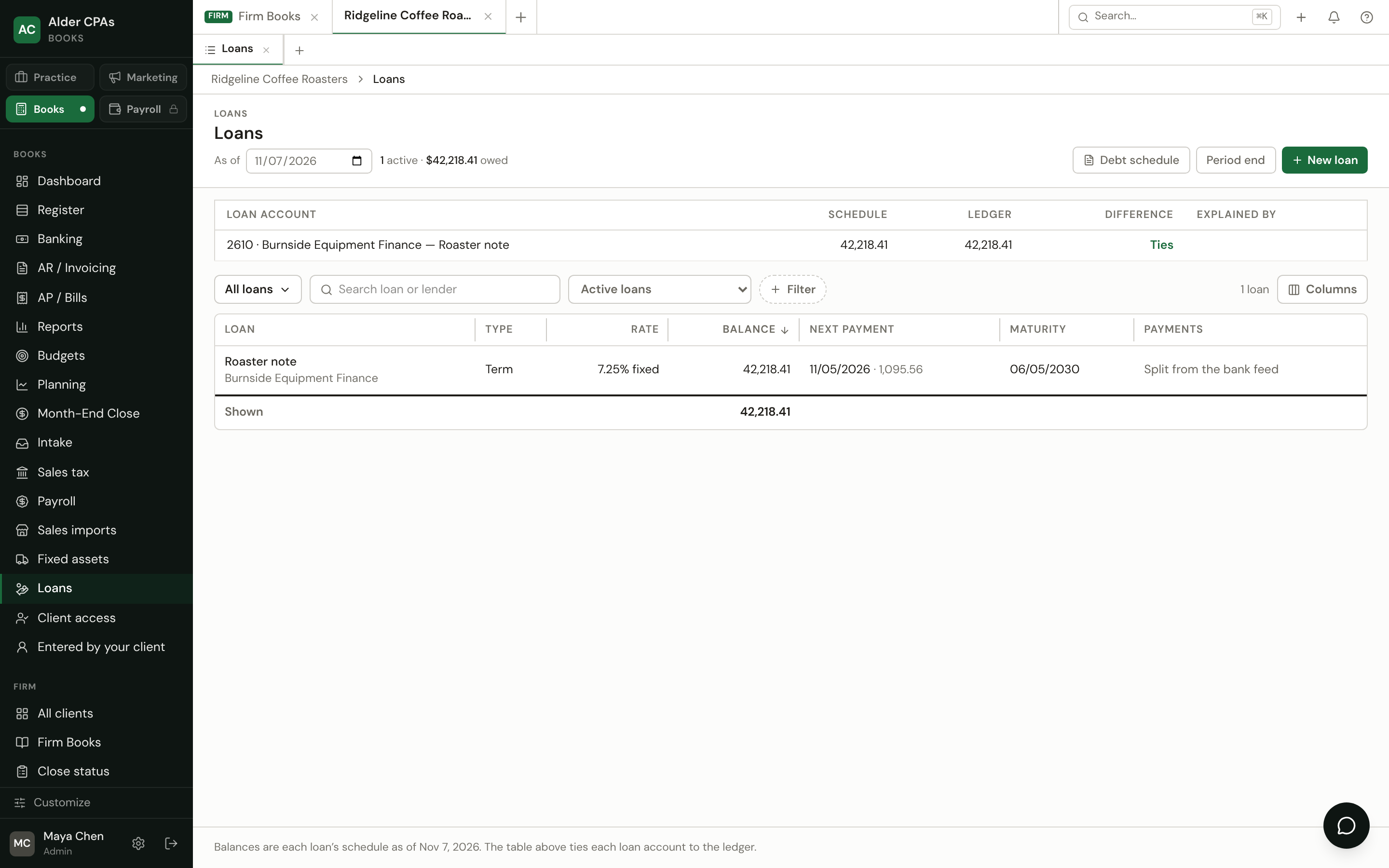 The Loans page for Ridgeline Coffee Roasters: the roaster note ties to the ledger to the cent
The header shows an As of date (today, unless you change it) and a summary such as 1 active · $42,218.41 owed. Change As of to see every balance on the page on another day — for example, the last day of a month you are closing.
The tie table comes first. It has one row per loan account:
- Loan account — the account in the chart the loan lives in. If several loans share one account, the row says Shared by 2 loans — ties as a group.
- Schedule — what the schedules say is owed on the As of date.
- Ledger — the account's balance in the books on the same date.
- Difference — Ties when they agree, or the amount they are off.
- Explained by — what accounts for a difference, such as Journal entry 10/20/2026, awaiting an answer or Nothing on record explains it.
The loan list comes next, one row per loan:
- Loan — the loan's name, the lender under it, and short markers such as 1 entry to answer.
- Type — Term or Line of credit.
- Rate — for example 7.25% fixed.
- Balance — the schedule's balance on the As of date.
- Next payment — the due date and the amount, such as 11/05/2026 · 1,095.56. A line of credit reads Interest on statement.
- Maturity — the last payment date.
- Payments — Split from the bank feed or Posted on the due date (see How payments are recorded).
Use Search loan or lender to find a loan, and the Active loans menu to switch to All loans, closed included. Filter narrows by Type, Payments or Maturity. The Shown row at the bottom totals the balances of the loans in view.
Above the table, Debt schedule opens the loan reports, Period end opens the month-end entries, and New loan starts a loan.
Set up a loan
Click New loan. The form works from top to bottom, and Books checks it as you go: the payment, the schedule and the entry that saving will post all appear before you save.
1. Say how the loan started
Under How did this loan start?, choose one:
- Money received — the lender paid cash into one of the client's accounts. Books records the deposit.
- Financed a purchase already in the books — the purchase is already entered, with the amount financed credited to a liability account. Pick that entry from the list. The purchase isn't posted again (the one entry saving may post is the move into the loan's own account, in step 3), and the principal and the start date come from the entry, locked.
- Brought over from another system — the loan is already part-way through its life. Enter what is owed today, by the lender's statement. It ties against the balance already in the account.
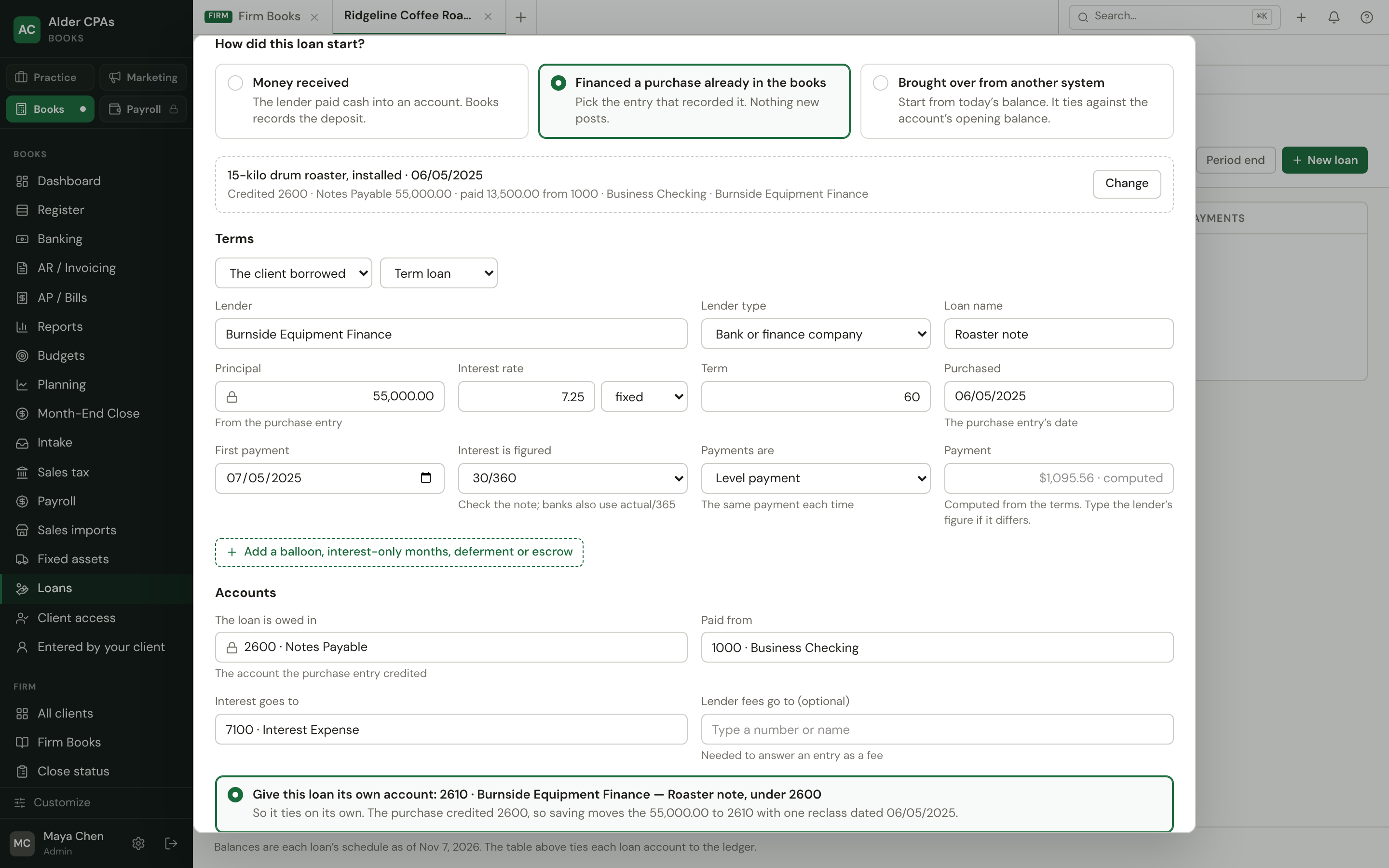 Setting up the roaster note from the purchase entry already in the books
Ridgeline Coffee Roasters bought a 15-kilo drum roaster on 06/05/2025 for $68,500.00: $13,500.00 down from Business Checking, and $55,000.00 financed by Burnside Equipment Finance and credited to 2600 · Notes Payable. Picking that entry fills the principal with 55,000.00 and the start date with 06/05/2025.
2. Enter the terms
| Field | What to enter |
|---|---|
| The client borrowed / The client lent | Whether the client owes the money or is owed it. A loan the client made can't finance a purchase. |
| Term loan / Line of credit | A line of credit has a Credit limit and no schedule; interest accrues on the daily balance. |
| Lender and Lender type | Bank or finance company, Shareholder, Officer, Related company or Someone else. A Shareholder loan is reported as a loan from (or to) shareholders in the debt schedule's For the return lines; every other type as a note. |
| Loan name | Something you'll recognize, such as Roaster note. |
| Principal | The amount borrowed. Brought over: what is owed today. |
| Interest rate | The annual rate, with fixed or variable. |
| Term | The number of monthly payments. |
| Started (Purchased, for a financed purchase) and First payment | The first payment has to fall after the start. |
| Interest is figured | 30/360, Actual/365 or Actual/360. Check the note — the hint under the field says the same. |
| Payments are | Level payment (the same payment each time) or Equal principal, interest on the balance (the payment falls as the balance does). |
| Payment | Leave it blank: Books works it out and shows it in the field, here $1,095.56 · computed. With equal principal, this field is Principal each payment. |
A loan brought over mid-life also asks for First interest from — the lender's last due date, so the first payment's interest runs from the right day.
Add a balloon, interest-only months, deferment or escrow opens four more fields: Balloon: amortize over (payments figured on a longer schedule, the rest due at the end), Interest-only payments, Deferred payments (with interest accrues), and Escrow with each payment with the account it goes to.
Type the lender's payment to check the terms. If the note states a payment, type it into Payment. Books keeps your figure and tells you how it compares — Matches the computed $1,095.56., or for example $0.32 more than the computed $1,095.56. A difference usually means a different day count or first-payment date. Clear the field to go back to the computed payment.
3. Choose the accounts
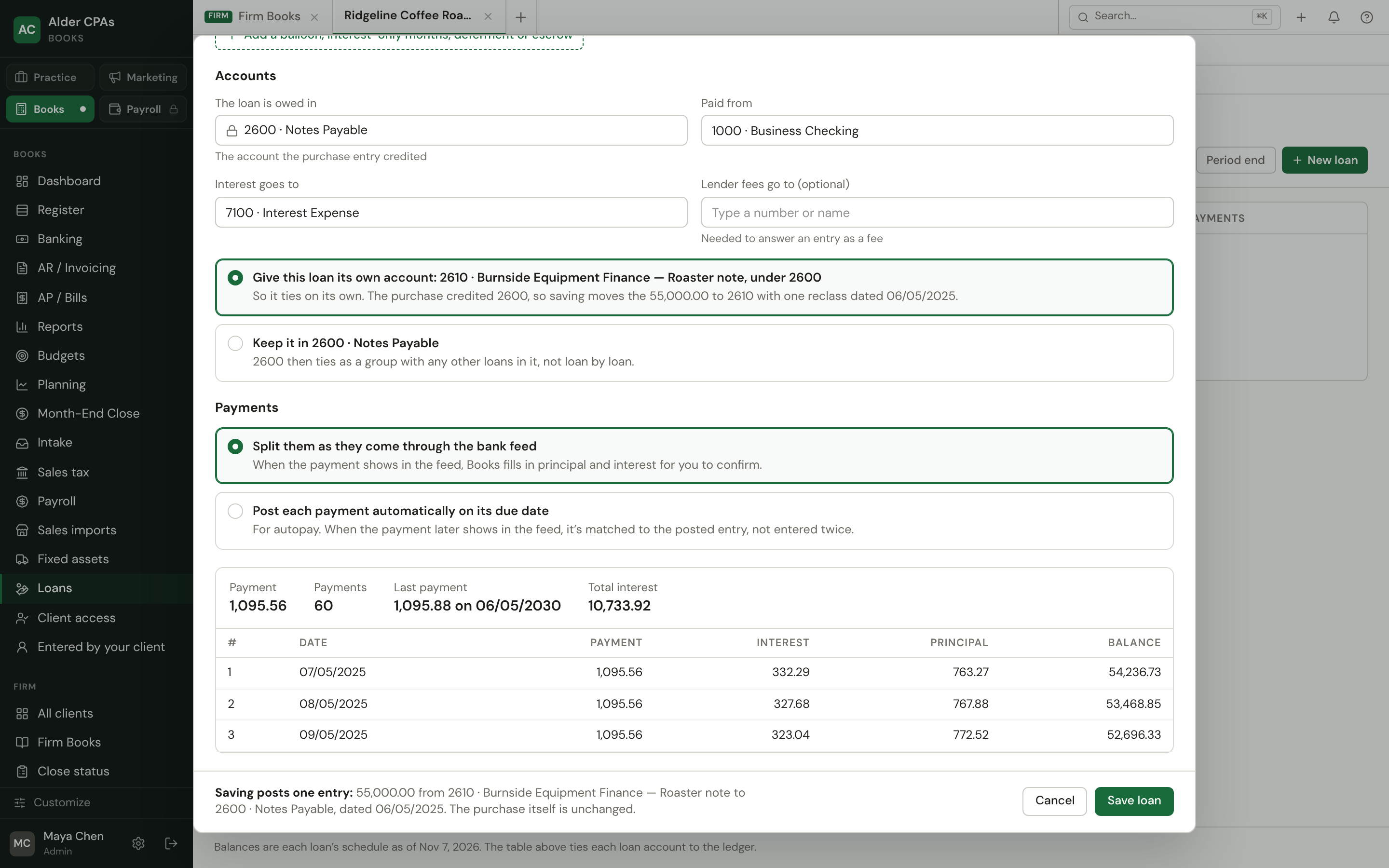 The accounts, the payment setting and the schedule preview, with the entry saving will post
- The loan is owed in — the liability account (for a financed purchase, the account the purchase credited, locked).
- Paid from — the bank account the payments come out of.
- Interest goes to — the interest expense account.
- Lender fees go to (optional) — an expense account. You need it later to answer an entry as a fee.
Then decide where the loan lives. Give this loan its own account creates a sub-account under the one you chose, numbered and named for you — here 2610 · Burnside Equipment Finance — Roaster note, under 2600 — so the loan ties on its own. For a financed purchase, saving moves the financed amount into the new account with one reclass on the purchase date.
For a loan brought over, saving moves nothing: the new account starts at $0.00, and the loan doesn't tie until the balance is moved into it. Keep it in 2600 · Notes Payable leaves it where it is; that account then ties as a group with any other loans in it.
If the loan, interest or fee account doesn't exist yet, type its name in that picker and choose Add "…" as a new account at the bottom of the list.
4. Choose how payments are recorded
Under Payments:
- Split them as they come through the bank feed — when the payment shows up in Review, Books fills in principal and interest for you to confirm.
- Post each payment automatically on its due date — for autopay. When the payment later shows in the feed, you confirm it as a match to the entry already posted, so it is not entered twice.
5. Check the preview and save
The box at the bottom shows the Payment, the number of Payments, the Last payment (here 1,095.88 on 06/05/2030) and the Total interest (10,733.92), with the first three rows of the schedule. The footer says exactly what saving posts — Saving posts one entry: 55,000.00 from 2610 · Burnside Equipment Finance — Roaster note to 2600 · Notes Payable, dated 06/05/2025. The purchase itself is unchanged.
Until the form is complete, Save loan stays off and the footer says what is missing, for example Add the interest rate, the number of payments first. Click Save loan and the loan opens.
Read a loan's schedule
Click a loan in the list to open it.
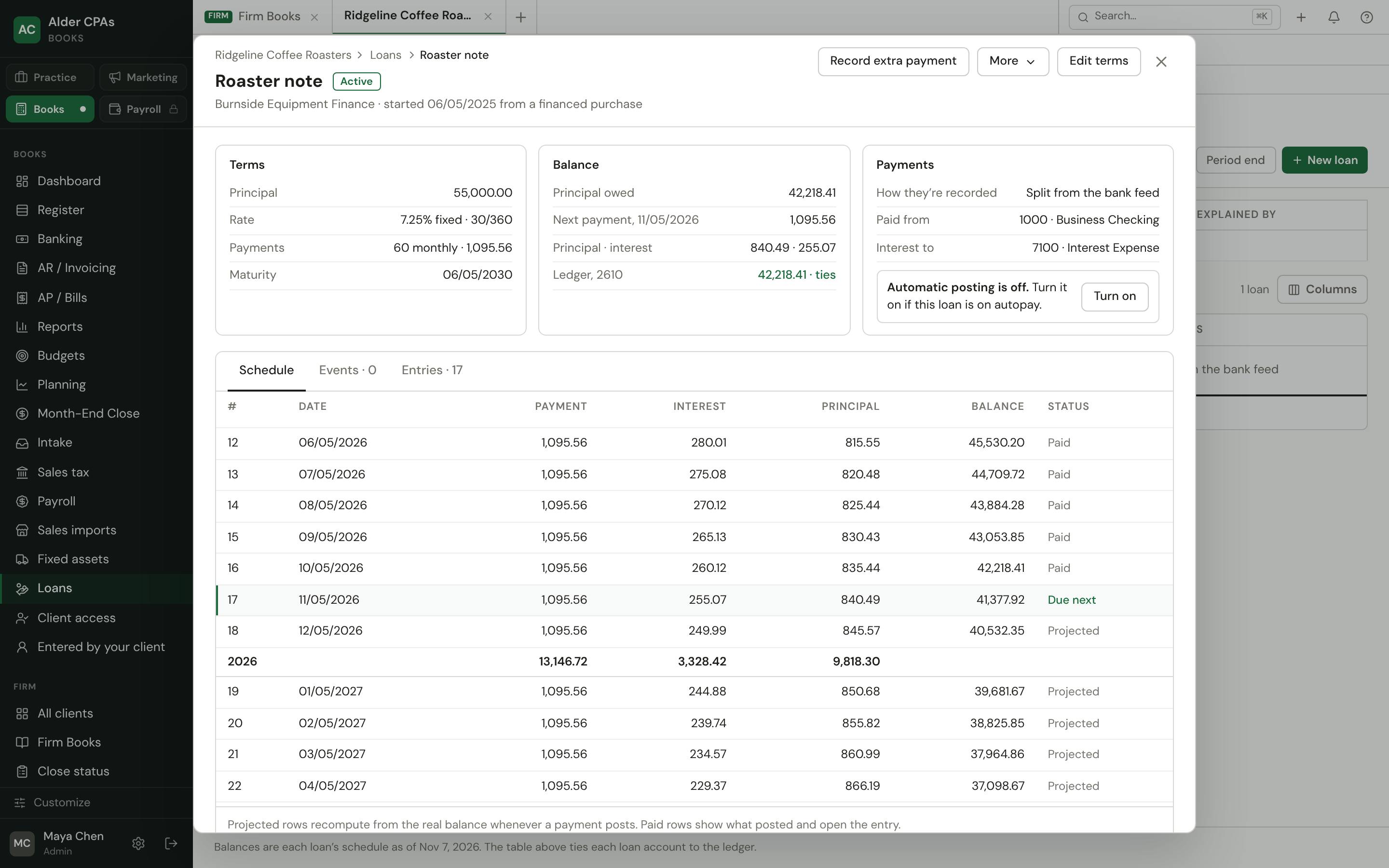 The roaster note: terms, balance and payments, with payment 17 due next
Three cards sit across the top:
- Terms — Principal, Rate (with the day count), Payments (here 60 monthly · 1,095.56) and Maturity.
- Balance — Principal owed, the next payment and its Principal · interest split, and the Ledger balance of the loan account with ties or the amount it is off.
- Payments — how they're recorded, Paid from, Interest to, and the automatic-posting switch.
The Schedule tab lists every payment: #, Date, Payment, Interest, Principal, Balance and Status — Paid, Due next (highlighted) or Projected — with a subtotal row after each calendar year and a Total at the bottom.
Click a paid row to see the entry it posted; the trail at the top takes you back. Events lists what has happened to the loan beyond its schedule, and Entries lists everything the loan has posted.
Projected rows are recomputed from the real balance whenever a payment posts, so a payment made late, early or short changes the rows after it.
Record payments from the bank feed
Most loan payments are recorded from Banking → Review. For how the Review queue works in general, see Reviewing Bank Transactions.
Split a payment into principal and interest
- Find the payment in the Review queue, here Burnside Equipment Finance for 1,095.56 on 11/05/2026.
- Open ⋯ → Split as a loan payment….
- Under Which loan is this payment for?, click the loan. Books offers the client's active loans that fit the line, each with its next payment amount. (If a rule already names the loan, the split opens straight away.)
- Check the split and click Confirm split.
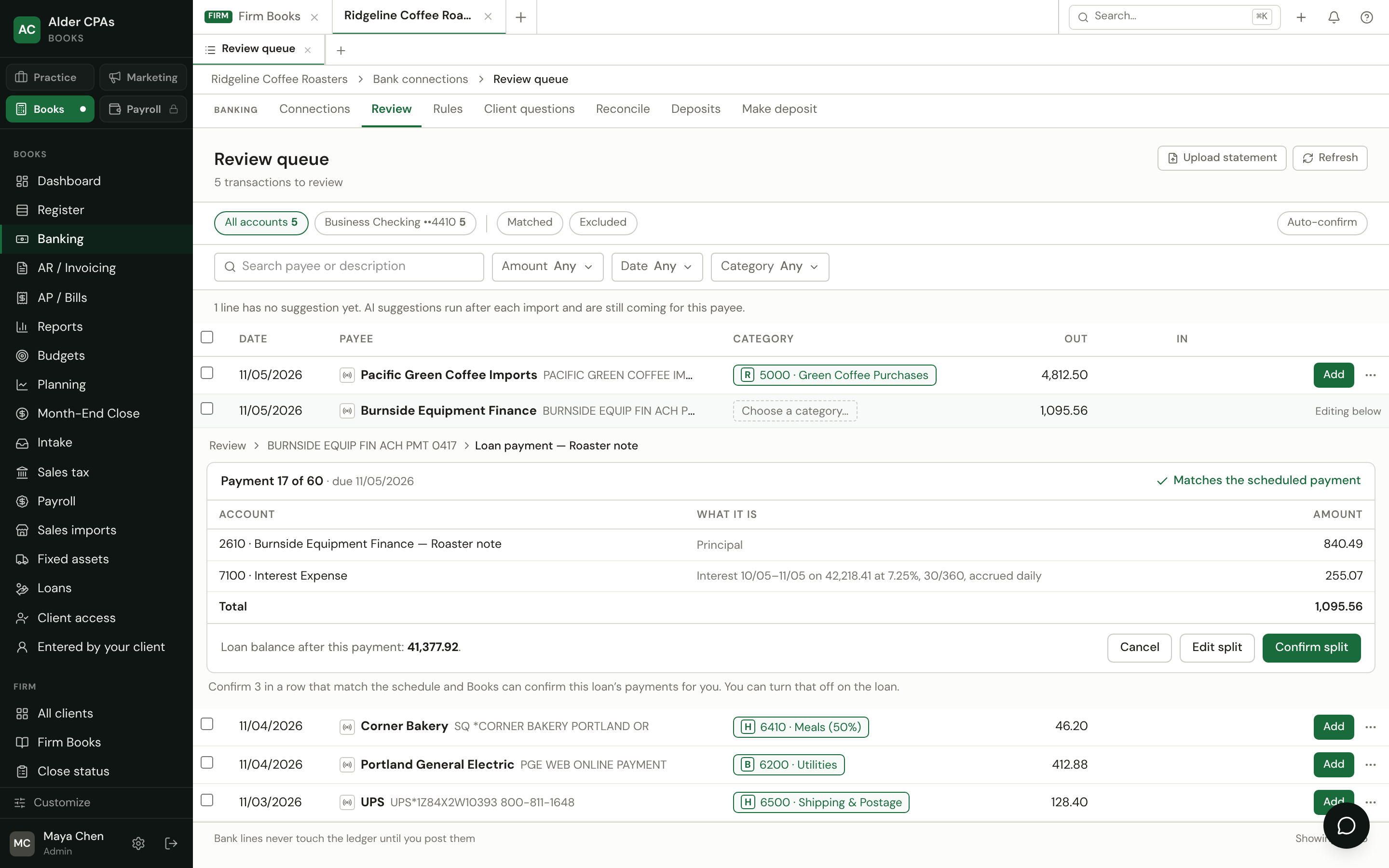 Payment 17 of 60, split from the bank line: 840.49 principal and 255.07 interest
The split names the payment (Payment 17 of 60 · due 11/05/2026), the line for each account, and the basis of the interest: Interest 10/05–11/05 on 42,218.41 at 7.25%, 30/360, accrued daily. Under the table you see the balance after the payment, here 41,377.92. Confirming posts the entry and matches the bank line to it, in one step. The notice reads Recorded as payment 17 of 60 on Roaster note.
When the bank line is a different amount from the schedule, the split says so — for example 25.00 more than the scheduled 1,095.56 — the difference goes to principal. A short payment pays interest first and the rest goes to principal; interest it does not cover carries to the next payment, and the split says how much.
Edit the split
If the lender's statement splits the payment differently, click Edit split, type the Principal and Interest, and confirm. They must add up to the bank line exactly; until they do, the split shows the gap, such as The split is 5.00 short of the 1,095.56 bank line. Use the schedule's split puts Books' figures back.
A payment that already posted automatically
On a loan set to post on its due date, the split reads Already posted automatically for 11/05/2026 — confirming matches the line to that entry, and the button is Confirm match. Nothing new posts.
How payments are recorded
The Payments card on the loan holds the automatic-posting switch. Automatic posting is off. Turn it on if this loan is on autopay. Click Turn on, and each payment posts on its due date. Click Turn off to go back to splitting payments from the bank feed.
The switch stays off, with its reason, for a loan that is not active (Only an active loan posts its payments.), for a line of credit, or when no Paid from account is chosen (Choose the account the payments come from first.).
When an automatic payment has not shown up in the bank feed after a while, the loan's row on the Loans page says so — for example, that the 1,095.56 payment posted for 11/05/2026 has not shown in the bank feed after 12 days — so you can find its bank line and match it.
Follow the lender's own account
If the bank connection also brings in the loan account at the lender, you can have that account follow the loan. On Banking, click Map beside the lender's loan account.
In Map accounts, tick the lender's loan account, then choose what it follows: the loan, or Create the loan from this account… to open New loan brought over from another system, with the lender's balance and as-of date filled in, and its rate and next due date where the lender reports them.
Once the lender's account follows a loan:
- Lines from it are marked Lender in the Review queue. They never post a second time.
- When the payment shows on both sides — the cash leaving checking and the lender recording it — the Category column reads Loan payment · Roaster note, with a Split marker you can hover for the principal and interest. Confirm posts the payment once and matches both lines.
- A lender line nothing in the books explains is marked Not in the books. Its Match… button offers Match to a loan entry… and Record as a payment… (or Record as a draw…).
- The loan's Balance card adds a Lender row, and a Lender reports card shows the lender's Balance, As of, Rate, Next due and Minimum payment. If the lender's rate differs from the terms, a Terms say 7.25% marker appears beside it; when the lender reports a new rate, Record a rate change… opens the rate change with the date and rate filled in. Nothing changes until you record it.
On a client on the free plan, a lender's loan account can still follow a ledger account and report its balance (Balance only), but it can't follow a loan.
Why doesn't the loan balance match the lender?
Start with the tie table on the Loans page. It tells you whether the ledger and the schedule agree, and if not, why. Then look for these:
- A payment hasn't been recorded yet. The schedule only lowers the balance for payments you have recorded. A payment that cleared the bank but is still in Review leaves Books one payment behind the lender. Record it from the Review queue. The loan schedule report marks it Due, not recorded.
- Someone posted to the loan account directly. An extra payment phoned in to the lender, entered as a journal entry or categorized straight to the loan account, is in the ledger but not in the schedule. Books flags it: One entry needs an answer. See Answer an entry the schedule doesn't explain.
- The lender's balance is from another day. The lender reports its balance as of a date. Payments posted after that date, and lender lines still waiting in Review, explain the gap; the Lender row lists them when you hover it.
- The payment was late, early or short. Interest runs to the day the payment was made, so a payment made off its due date splits differently from the original schedule — the same way the lender figures it.
- The terms don't match the note. A different day count (30/360 against Actual/365), first-payment date or rate gives a different split every month. Type the lender's payment into the loan's terms to check (see step 2 of Set up a loan), and use Edit terms to correct the rate or payment from the date it changed.
- Fees or escrow. A fee the lender added to the balance, or escrow collected with each payment, needs to be on the loan: record the fee from More → Record a lender fee, and set escrow with Edit terms → Change the escrow.
To tie the interest to the lender's year-end interest statement, use the Interest by year report.
Answer an entry the schedule doesn't explain
When an entry lands on a loan account and the schedule can't account for it, the Loans page shows an amber banner, the tie table shows the difference, and the loan gets a marker.
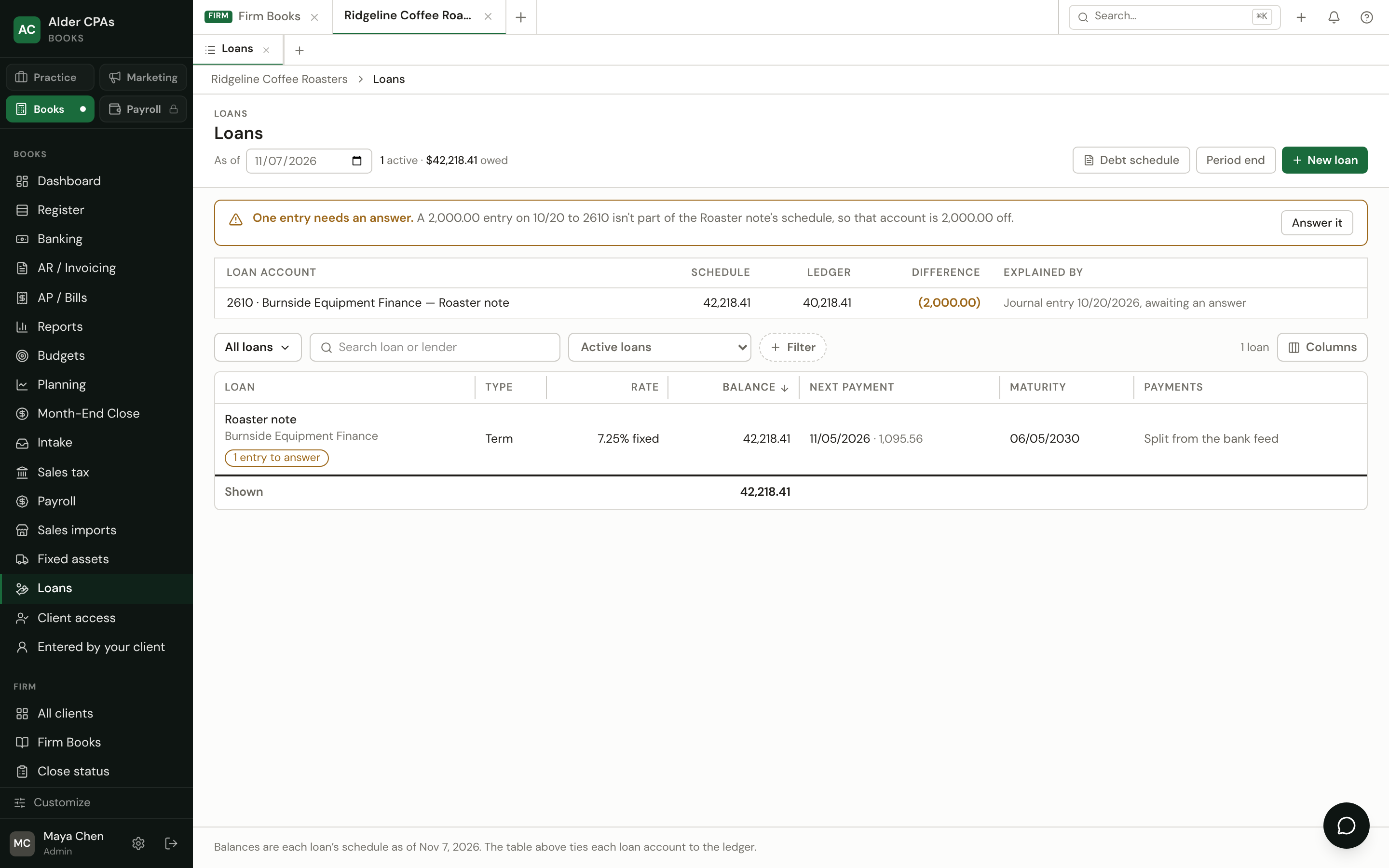 An extra $2,000.00 entered by journal entry puts 2610 off by 2,000.00
Here, Dana Whitfield paid an extra $2,000.00 toward the roaster by phone on 10/20/2026, and it was entered as a journal entry to the loan account. The banner reads One entry needs an answer. A 2,000.00 entry on 10/20 to 2610 isn't part of the Roaster note's schedule, so that account is 2,000.00 off. Click Answer it, or open the loan and click the link in its Balance card.
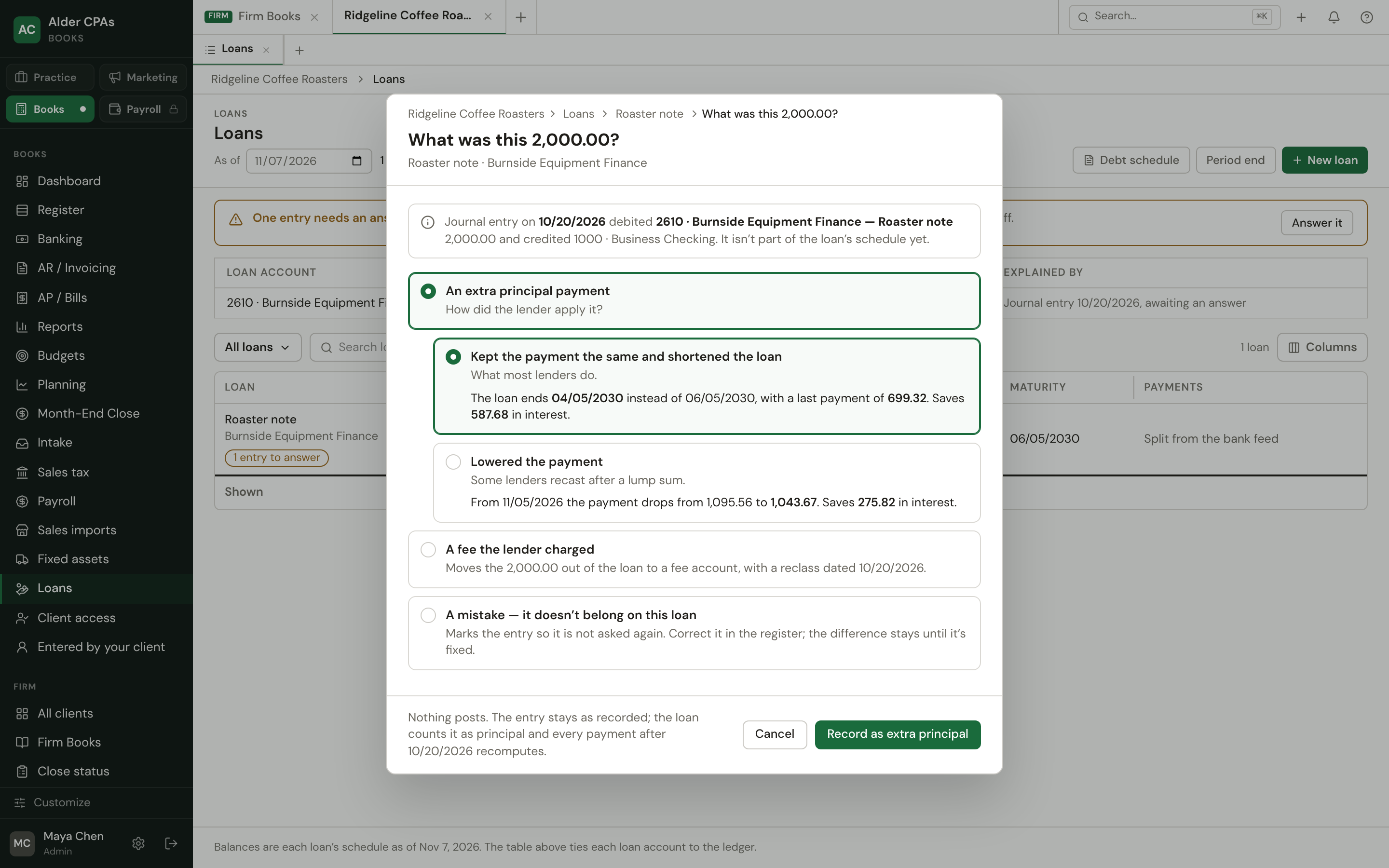 What was this 2,000.00? Each way the lender could have applied it shows what it does to the loan
The window opens with the entry described in full, and three answers. An extra principal payment shows its effect in figures for each way the lender could have applied it, before you choose:
- An extra principal payment, then how the lender applied it:
- Kept the payment the same and shortened the loan — The loan ends 04/05/2030 instead of 06/05/2030, with a last payment of 699.32. Saves 587.68 in interest.
- Lowered the payment — From 11/05/2026 the payment drops from 1,095.56 to 1,043.67. Saves 275.82 in interest.
- A fee the lender charged — moves the amount out of the loan to the loan's fee account, with a reclass on the entry's date.
- A mistake — it doesn't belong on this loan — marks the entry so it isn't asked again. Correct it in the register; the difference stays until it's fixed.
Click Record as extra principal, Record as a fee or Mark as a mistake. An extra principal answer posts nothing: the entry stays as recorded, and every payment after it recomputes.
To record an extra payment before it reaches the books, open the loan and click Record extra payment. Enter the Amount and Paid on date, choose how the lender applied it, and the same figures appear before you save. Saving posts the payment from the loan's Paid from account.
Change a loan: rate changes, fees, payoffs and refinancing
Open the loan. Edit terms offers Change the rate, Change the payment and Change the escrow. More offers Record a lender fee, Defer payments, Pay off the loan, Refinance and Record forgiveness (or Write off, on a loan the client made). A line of credit offers Record a draw, Record a payment and Record a lender fee instead.
Every one of them works the same way: enter the date it took effect and the details, and a What changes box shows the effect on the schedule before you save — the new payment, the new maturity, the interest saved.
- Change the rate — choose The payment is recomputed at the new rate (the term stays the same) or The payment stays the same (the term moves instead).
- Record a lender fee — Paid now, or Added to what is owed.
- Defer payments — pick the First payment skipped from the due dates not yet paid, how many are skipped, and whether interest keeps accruing.
- Pay off the loan — the principal owed, the interest to the date, and an optional Payoff fee.
- Refinance — enter the new loan's terms. The old loan is paid off and marked refinanced, and the new one starts at the amount Books works out, including any Fees financed or Cash out.
- Record forgiveness — what was owed goes to an other-income account you choose under Gain goes to.
The loan reports
Click Debt schedule on the Loans page, or find the four loan reports under Reports once the client has a loan. Tabs across the top of each report move between them, and each has an Export menu: CSV — the rows shown or Excel — the rows shown.
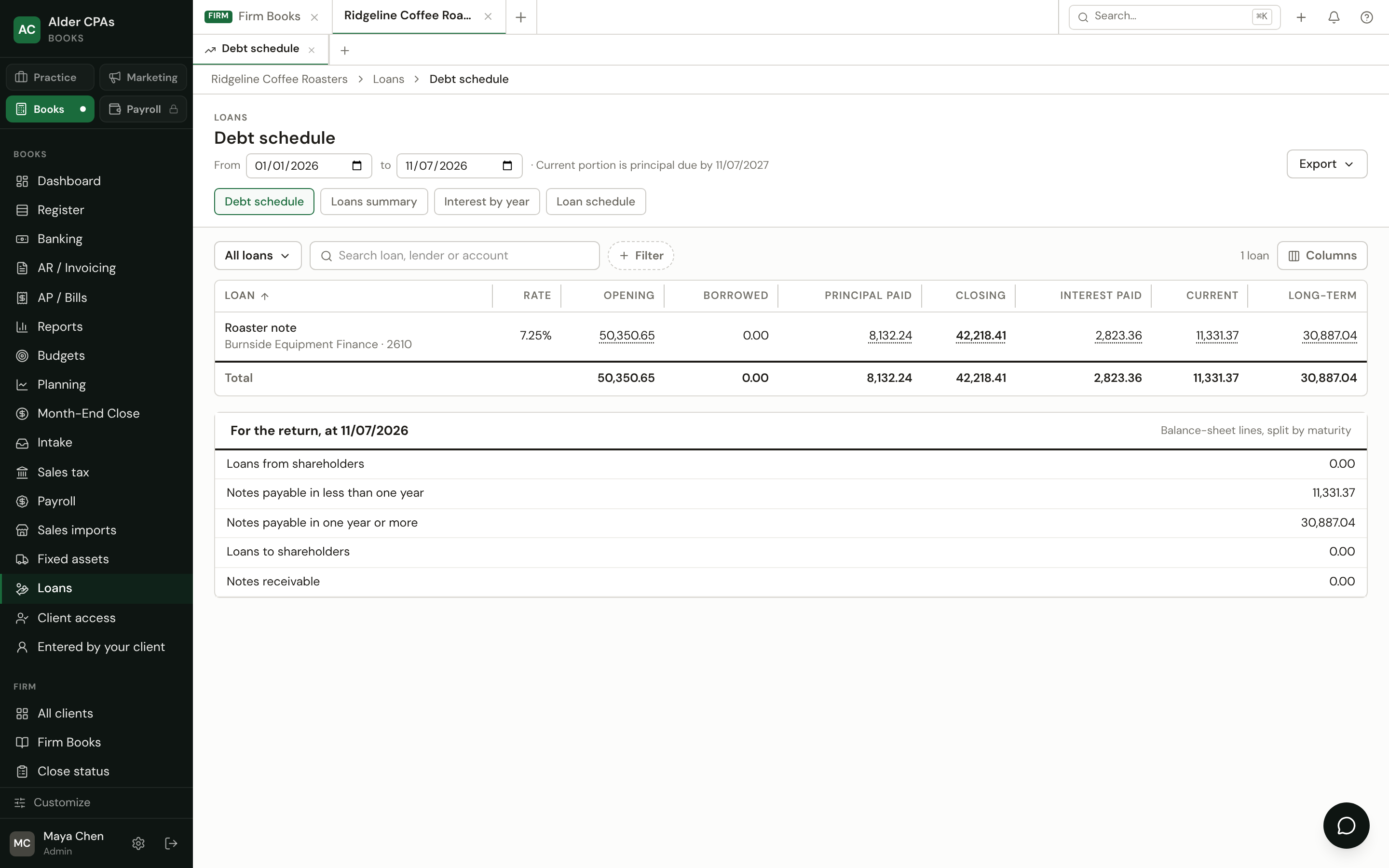 The debt schedule for 2026: opening, principal paid and closing, split into current and long-term
-
Debt schedule — for a From and to period: Opening, Borrowed, Principal paid, Closing, Interest paid, and the closing balance split into Current (principal due within 12 months of the end date) and Long-term. Each row foots across: 50,350.65 − 8,132.24 = 42,218.41.
Click any underlined figure to see the entries behind it. Below the table, For the return gives the balance-sheet lines at the period end: Loans from shareholders, Notes payable in less than one year, Notes payable in one year or more, Loans to shareholders and Notes receivable.
-
Loans summary — every loan as of a date: lender, balance, rate, next payment, due date, maturity and status.
-
Interest by year — interest paid or received per loan per year, three years by default. Use it to tie to the lender's year-end interest statement.
-
Loan schedule — one loan, the schedule as first written beside the schedule as it is now, with each payment's Status (Paid, Due, not recorded or Scheduled) and the entry number it posted. What changed it lists every event between the two.
When loans the client owes and loans it made are both in view, the totals read —; filter to one direction for a total.
Month-end: accrued interest and the current portion
Period end on the Loans page posts two optional month-end entries. Both are off until you turn them on:
- Accrue interest to the period end — interest owed but not yet paid, posted to an accrued-interest account you choose.
- Move the current portion to a current liability — the part of each loan due within the next year, moved to a current-portion account.
Choose the accounts, click Save settings, then pick the Period ending date and click Post the period end. Each entry is reversed the next day, so the next period starts clean. Posted period ends are listed below, and each can be voided with a reason.
Why can't I…
- …see Loans at all? The client is on the free plan. The page says Loans are a premium feature; click Turn on Premium, or ask whoever manages the firm's plan.
- …click New loan, or any button that changes a loan? Recording and changing loans needs the Record and change loans permission for the client; the reason shows under the button. Seeing loans needs See a client's loans.
- …save the loan? The footer says what is missing (Add the principal first.) or what Books refuses — for example, a first payment on or before the start date, or a payment that never pays off the principal.
- …find the loan when I split a bank line? Only active loans that fit the line are offered. If none does, the panel says No active loan takes a line like this one. Add the loan under Loans first.
- …date a payment before the last one? Payments are recorded in order, so a bank line dated before the last payment recorded on the loan is refused with both dates. Check you picked the right loan and the right line.
- …record a payment bigger than the balance? A payment larger than what pays the loan off is refused with the payoff amount; record it with More → Pay off the loan.
- …choose Financed a purchase…? The purchase entry has to credit a liability account (not accounts payable, a credit card, payroll or sales tax), with a line no other loan has claimed, and an entry in a closed period can't be picked. A loan the client made can't finance a purchase.
- …edit a loan payment in the register? Entries a loan posts belong to the loan. The register says Open the loan under Loans to change it.
- …archive the loan? Only a loan that is paid off, refinanced, forgiven or written off is archived. An active loan is archived once it is paid off, refinanced, forgiven or written off.
Fix or undo
- An event recorded by mistake — open the loan's Events tab and click Void on the event. Say why (ten characters at least); its entry is reversed, with the original kept beside it, and the schedule recomputes. Voiding a payoff, forgiveness or write-off reopens the loan, owing what it owed before. In a month closed with a closing password, voiding asks for it.
- An entry answered as extra principal or as a fee, by mistake — the answer is on the Events tab as an Extra principal payment, a Lender fee or a Fee added to principal. Void it there, with a reason: any reclass the answer posted is reversed, the schedule recomputes, and the entry goes back to waiting for an answer.
- A period end posted to the wrong month — void it from Period end, with a reason.
- A finished loan — More → Archive this loan takes it off the list. It still opens wherever it is named — its entries, the register, the reports. Reopen this loan brings it back.
Shortcuts and tips
| Where | Key or trick | What it does |
|---|---|---|
| Amount fields on the loan screens and the split (except Refinance's Fees financed and Cash out) | Type a sum: 500+600, 55000-13500, (125+50)/2, 12x3 | Works it out when you press Enter or leave the field, to the cent. A leading =, $ and commas are ignored. |
| The account pickers on New loan, Refinance, the loan's other events and Period end | Type a number or part of a name, then Enter | Picks the first account that matches. |
| The same pickers | Esc | Closes the list. |
| The loan, interest and fee account pickers on New loan | Type a name that isn't in the chart | Offers Add "…" as a new account, without leaving the form. |
| An open loan | Esc, or click outside it | Closes the loan. A form — New loan, an event, an answer — closes only with Cancel or the trail, so a stray click never loses your work. |
| List search boxes | Esc | Clears the search. |
| Column headers | Click, then Shift-click another | Sorts by one column, then adds a second sort. |
| A column header, with the keyboard focus on it | Alt+← / Alt+→ | Narrows or widens the column. |
| Payment field on New loan | Type the lender's figure | Books keeps it and tells you how far it is from the computed payment. |
A few things worth knowing:
- Every figure on a form is Books' own. The payment, the schedule, the effect of an answer or an event — each is worked out by the same checks that run when you save, so what you see before saving is what happens.
- Clicking twice never records twice. A double click on Save loan or Confirm split returns the loan or payment it already recorded.
- The loan account gets its next number for you. Give this loan its own account takes the first free number under the parent — 2610 under 2600, then 2620.
- Every dialog has a trail. The breadcrumb at the top of a loan, an answer or an event (Ridgeline Coffee Roasters › Loans › Roaster note › …) takes you back a step without losing your place.
A good monthly routine
- Record the month's loan payments from the Review queue as they come in.
- Open Loans with As of set to the last day of the month. Every row should read Ties.
- Answer any entry the banner names, rather than posting an adjustment to force the balance.
- If you report accrued interest or the current portion, post the Period end.
- At year end, run Interest by year and tie it to the lender's interest statement, and use Debt schedule for the year for the balance-sheet lines on the return.