
Import Payroll and Map It to Accounts
Bring a payroll provider's register into Books, map each pay item to the client's accounts once, post one balanced entry per run, and clear the bank side as the money leaves.
On this page
Your client's payroll provider already worked out every paycheck, tax and deduction. Payroll is where you bring that register into the books. Books reads the file, checks that its figures add up to the cent, puts every line on the account you mapped it to, and posts one balanced entry per pay run. It then tracks the net pay, the paper checks and the payroll taxes as they clear the bank.
Books records what the provider computed. It does not run payroll, calculate taxes or file payroll returns.
Importing a payroll does not post it. Import checks the file and saves the run, then opens it. Nothing reaches the ledger until you click Post entry on that run. A run waiting for you shows Ready to post or Needs review in the Imported runs list.
Understand the Payroll page
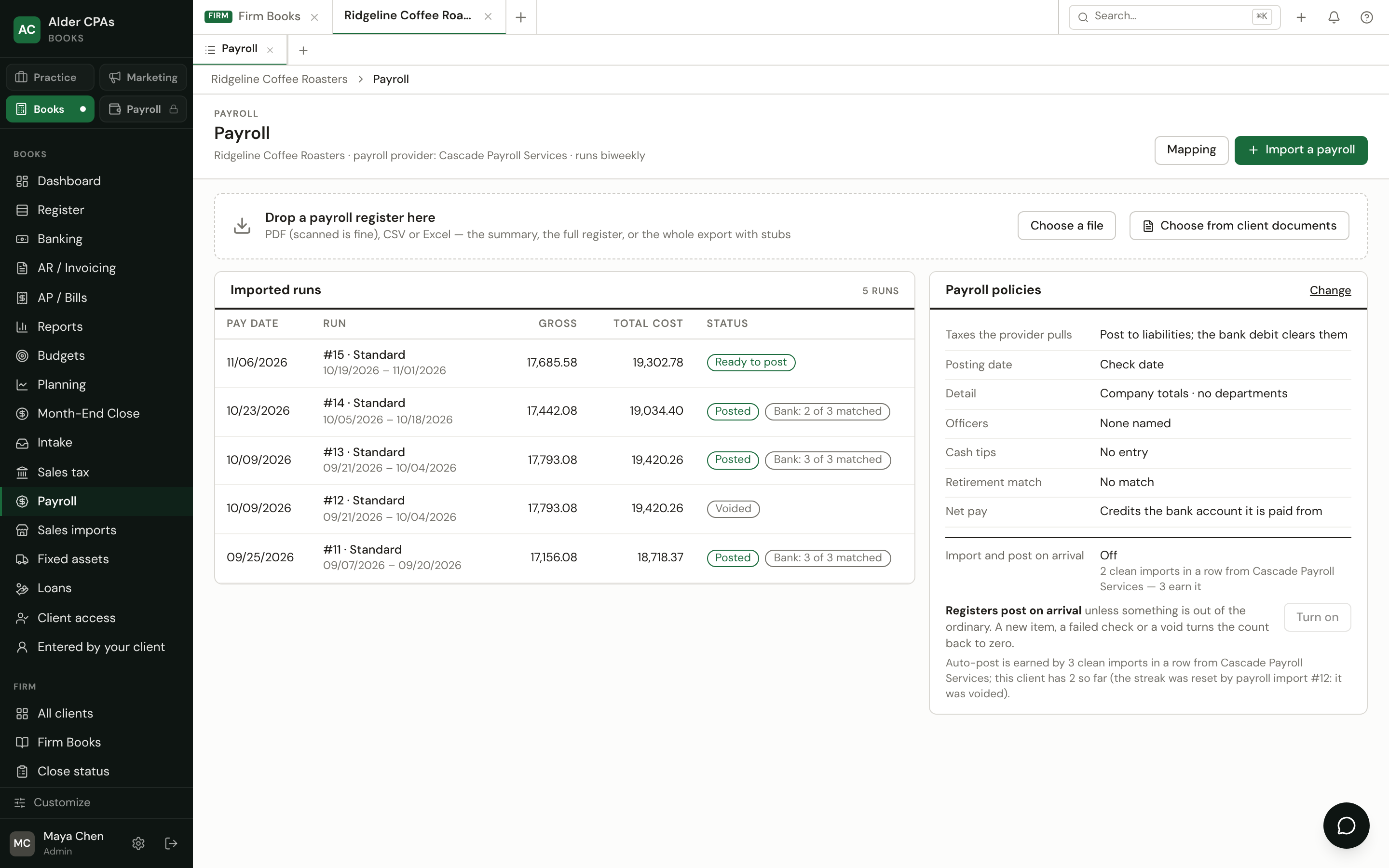 The Payroll page for Ridgeline Coffee Roasters, with five imported runs and the client's payroll policies
Under the title, Books names the client, the payroll provider of the latest run and, once it can tell from two standard runs, how often the client pays (runs weekly, runs biweekly, runs semimonthly or runs monthly).
At the top right are Mapping, which opens the client's saved payroll mapping, and Import a payroll. Below them is the drop zone, Drop a payroll register here.
The Imported runs card lists every run, newest pay date first:
- Pay date — the check date of the run.
- Run — the import number and run type (Standard, Bonus, Off-cycle or Adjustment), with the pay period under it.
- Gross and Total cost — gross pay, and gross pay plus the employer's taxes and contributions.
- Status — one of:
| Status | What it means |
|---|---|
| Ready to post | Imported and checked. Nothing holds it. Open it and post it. |
| Needs review | Imported, but something out of the ordinary holds it. The reasons are listed under the status. |
| Posted | The entry is on the books. A second chip such as Bank: 2 of 3 matched counts how many of the run's bank withdrawals have been matched so far. |
| Voided | The entry was reversed. The run stays as the record. |
Click any row, or tab to it and press Enter, to open the run.
The Payroll policies card on the right shows how this client's runs post. See Set the client's payroll policies.
What you can import
Drop the register the provider produced. The drop zone accepts:
- CSV or Excel export from your payroll provider — the summary or the full register. This works on every plan. Files ending in .csv, .tsv, .txt or .xlsx are read.
- PDF (scanned is fine) — on clients on Premium. A PDF can be the summary, the full register, or the whole export with check stubs. If the client is not on Premium, the drop zone says Reading PDF or scanned registers is part of Premium before you drop anything, and a PDF dropped anyway is turned away before it is read, with Upload the CSV export instead.
A file Books cannot use is refused with its name, for example Payroll notes.docx is not a payroll register file. Drop the CSV or Excel export. (On Premium the sentence asks for a PDF, CSV or Excel export.)
Books reads the layout of a spreadsheet from its contents. It handles one row per employee, one row per pay item, one row per shift or visit, and a summary of company totals. When its first reading of the rows does not add up, it asks one question: What is one row of this file?
A file that holds more than one run, or more than one company, is listed run by run (This file holds 2 runs). Each company is assigned to a client or skipped (the choice is saved for the firm, so the next file assigns itself), and each run becomes its own payroll import when you click Import 2 runs.
Import a payroll
- Click Import a payroll, or drop the file on the Payroll page.
- Books saves the file to the client's documents and reads it. The file line shows what it found, for example 9 employees · pay period 10/19/2026 – 11/01/2026 · paid 11/06/2026.
- Answer any plain question Books asks. It asks only what the file does not say:
- What is the check date? — when the file prints none. The entry is dated by it.
- Is Tips counted in gross pay?
- How did employees get Tips? — Paid on the paycheck or Employee already kept it in cash.
- Who is State Tax owed to? — with a one-click button for the client's own state.
- The employer retirement match, marked Asked once, the first time a run takes a retirement deferral (a 401(k), for example) and the client has never said how its match is booked. The answer is saved to the client's payroll policies.
- Check The entry it will post. Each line shows its account, the items it carries and their amounts. Under each account is a one-word mark: remembered (from the client's saved mapping), suggested (matched in the client's chart by name and type), or new (an account you just created here).
- Fix any line that still needs an account. Pick one in its box, or, when Books recommends a new account (for example Health Insurance Payable: new account 2150), click Create it. Choose another lets you pick a different one instead.
- Read the sentence beside the button. When it says Everything adds up, and every line has its account., click Import.
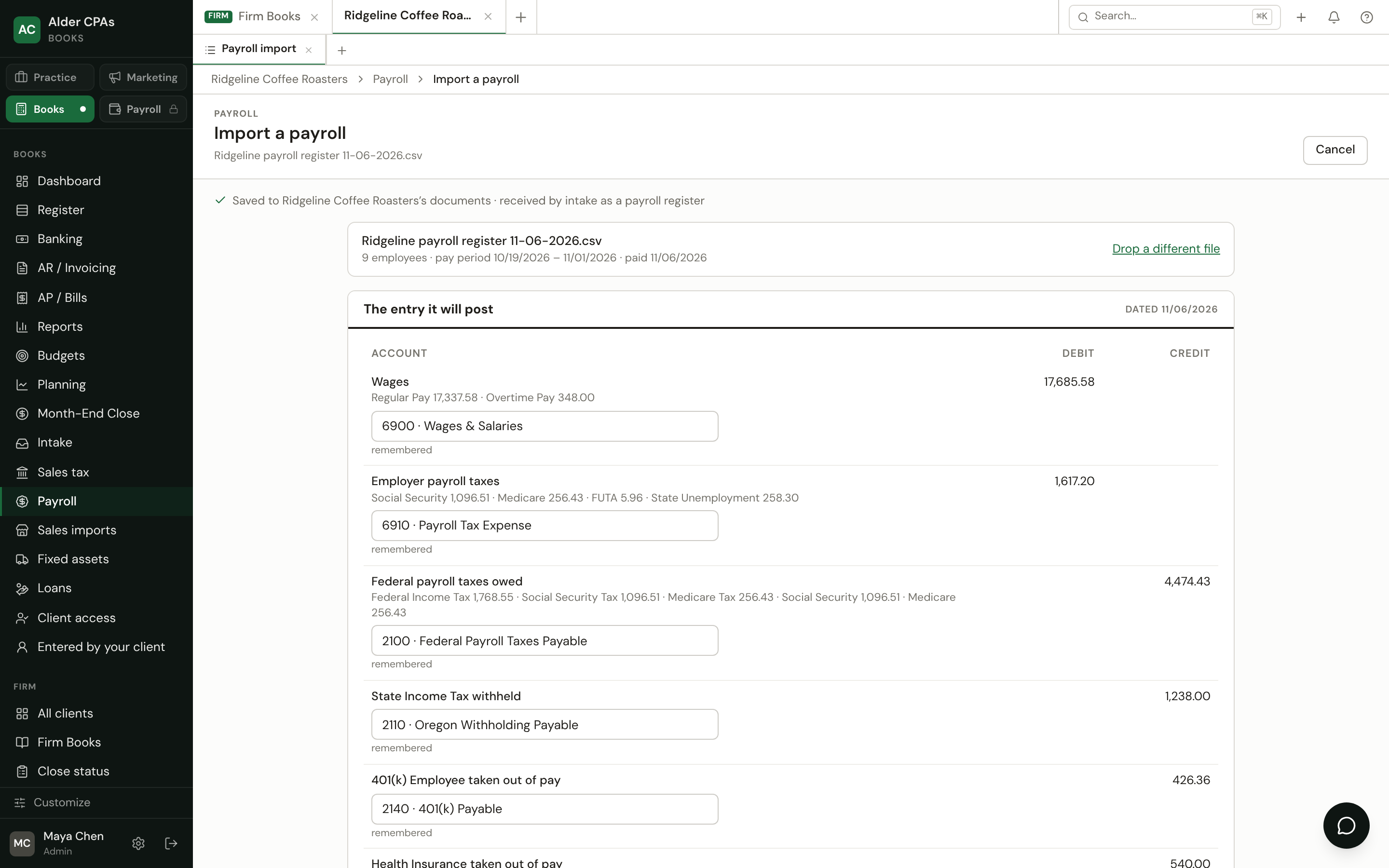 Importing a CSV export: every line already has its remembered account
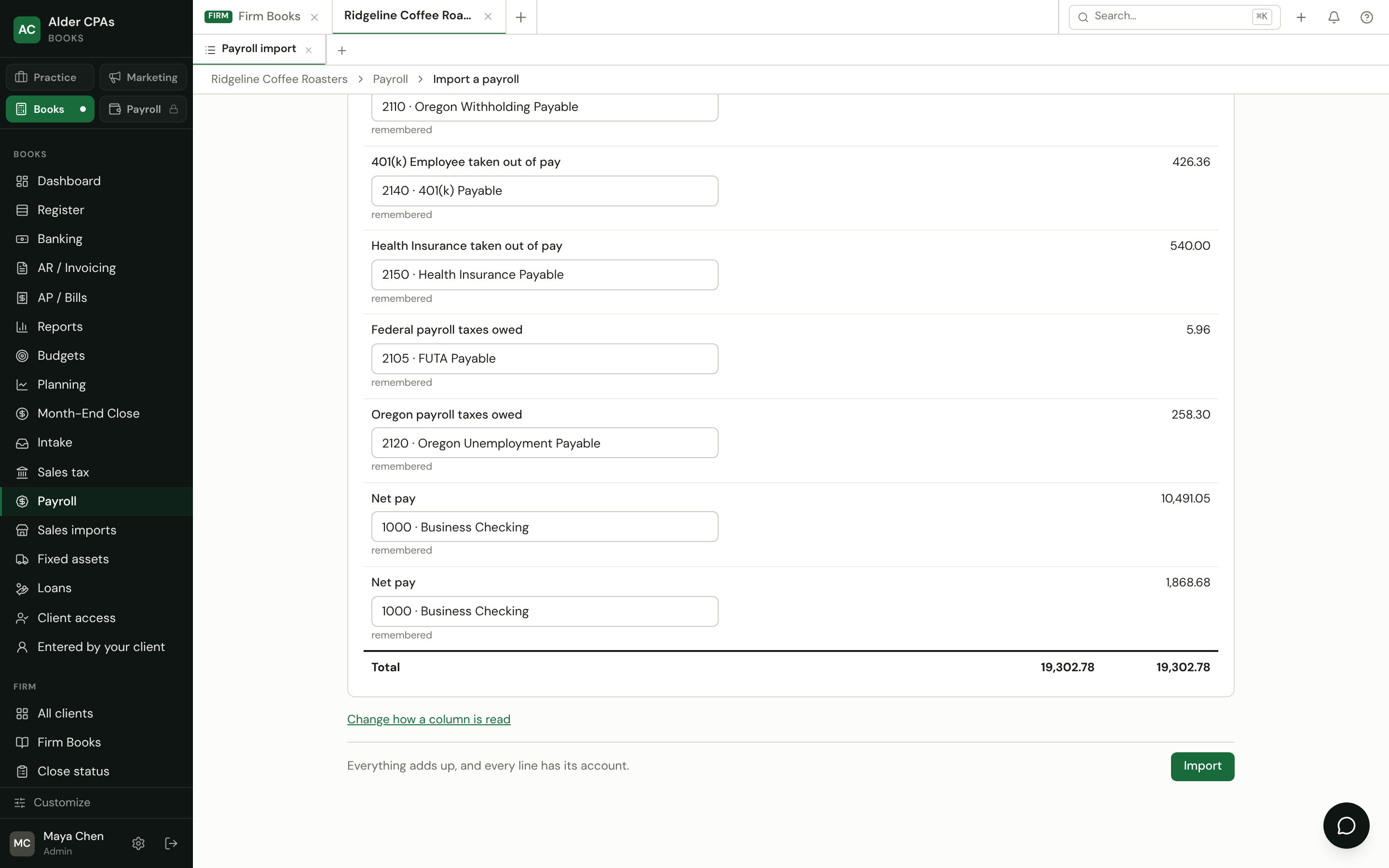 The bottom of the import: the totals tie and Import is ready
Import saves the accounts you chose to the client's mapping, so the next import with the same items fills them in. It also saves how each column was read under the provider's name, so the next export from that provider is read the same way. If any item still has no account, Books opens Payroll mapping for that run; otherwise it opens the run, ready to post.
When a figure doesn't add up
Books checks the file before it offers anything to import: each row's pay less what was taken out must equal its net pay, and gross pay, total deductions, net pay and employer total cost must match the file's own total columns where it prints them. If one check fails, Books says which, in one sentence, and nothing is imported until it holds.
When the problem is one figure on one row, Books shows that row's figure in an editable box, with Use 1,596.80 to accept the figure that would make it add up, and The file says 1,496.80 beside it.
A figure you change is kept with the import and in its history, along with the file's own figure, and you can go back with Use the file's 1,496.80. A run with a changed figure is always marked Needs review, naming how many figures changed from the file.
How Books reads each column
Click Change how a column is read below the entry to see every column of the file and what Books took it to be, for example an earning, a withholding, a deduction, an employer tax, net pay by method, a total to check against, a date, or Not imported.
Hours and rates are not dollar amounts, so Books does not add them to the entry. A column that is a subtotal of other columns on every row is checked, never posted. Change a column's role there if Books read it wrong; the change decides which line of the entry it posts to.
Map payroll items to accounts
Every item on a register (each kind of pay, each tax, each deduction, and net pay by method) is mapped once per client. After that, every run maps itself.
Open Payroll → Mapping to see and change the whole mapping.
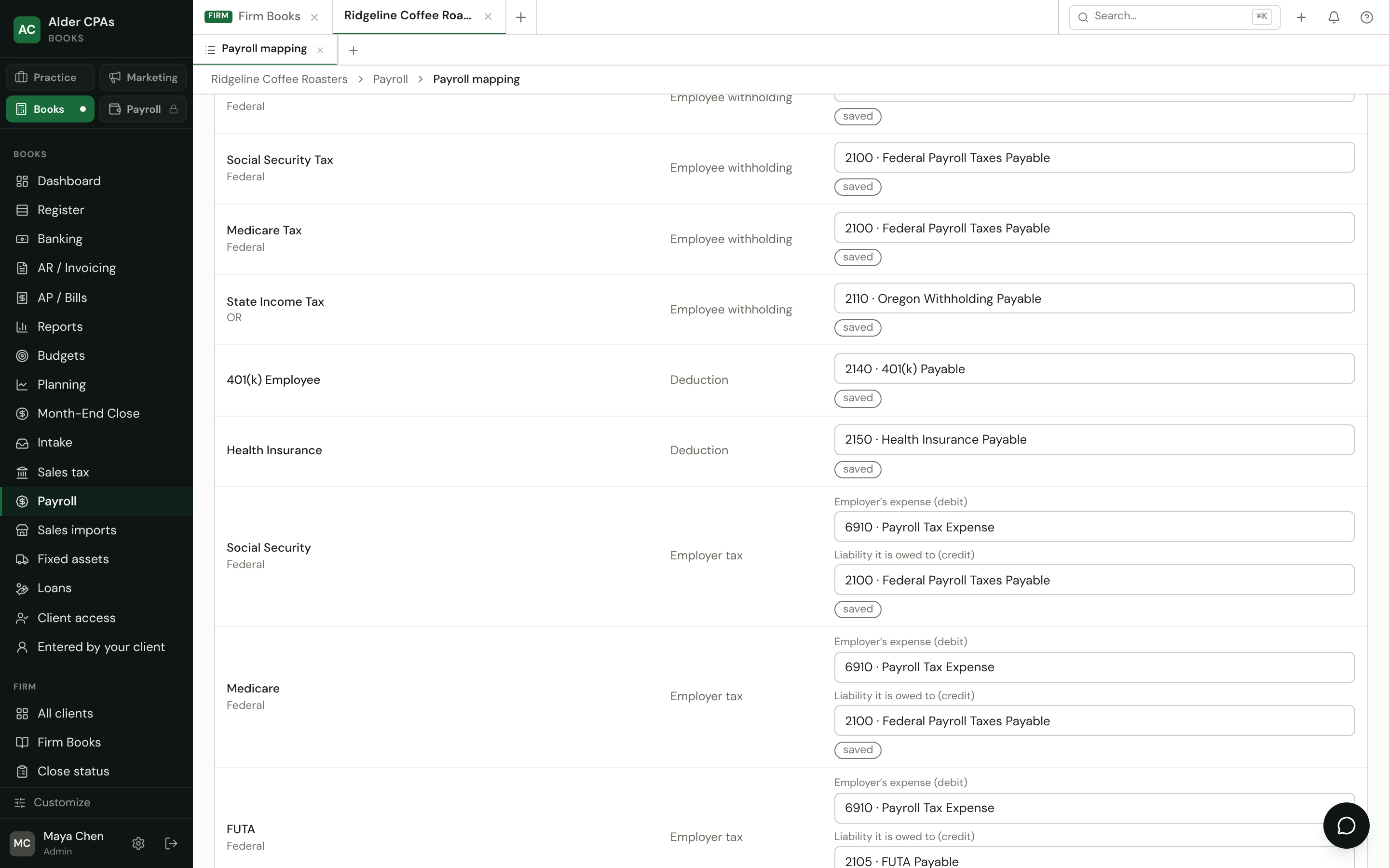 The client's saved mapping: employer taxes show both the expense and the liability they post to
Item on the register, and where it posts lists each item with its Side (Earnings, Employee withholding, Deduction, Employer tax, Employer contribution, Reimbursement, Not in net pay or Net pay) and the account it Posts to:
- An employer tax or contribution has two accounts: Employer's expense (debit) and Liability it is owed to (credit). Only the employer's side is an expense.
- A deduction can post to a liability, or to an expense or other account it offsets (an employee meal charge-back, for example). Any account works except one another part of Books keeps for itself.
- Many items can share one account (every federal tax to one payable), or each can have its own sub-account.
- Taxes carry where they are owed (Federal, a state such as OR), so the same tax for two states maps separately.
Each row is marked saved, suggested or never mapped. Click Save mapping to save everything, or Save and continue later to save only the rows that are complete.
When you open the mapping from a run that stopped at mapping, the page shows that run's items with a This run column of amounts. If the chart is missing payroll accounts the run needs, Books offers to create them.
On a chart with no payroll liability accounts at all, it offers a full set: a liability for each agency with a sub-account for each state item, plus wage and employer-tax expense accounts. Untick any you don't want and click Create N accounts. Books maps to existing accounts first and never renames one.
Which return each tax goes on
The Taxes card on the mapping page lists each withholding and employer tax with the Return it is reported on: 941, 940, State withholding, State unemployment, Local or None. Books suggests one from the item's name and where it is owed. Click Accept suggestions, change any you disagree with, and click Save.
Remove a mapping
The Saved mappings card lists every saved item, department and set of column readings. Remove first tells you what will happen, in Books' words, then asks you to click Delete it or Archive it:
- Nothing posted used it, so it is deleted for good. The next import with this item stops at mapping to ask again.
- Payroll import #14 posted with it, so it is archived, not deleted: it stays on record, is no longer applied, and the next import with this item stops at mapping to ask again.
To bring an archived mapping back, map the item again.
Departments
When a register prints department totals, a Departments card appears. Map a department to a class or a location (and, when the books use jobs, a job), and its wages and employer taxes post there. A department left at Company level posts with the company totals. Click Save departments.
Post the run
Open the run from Imported runs.
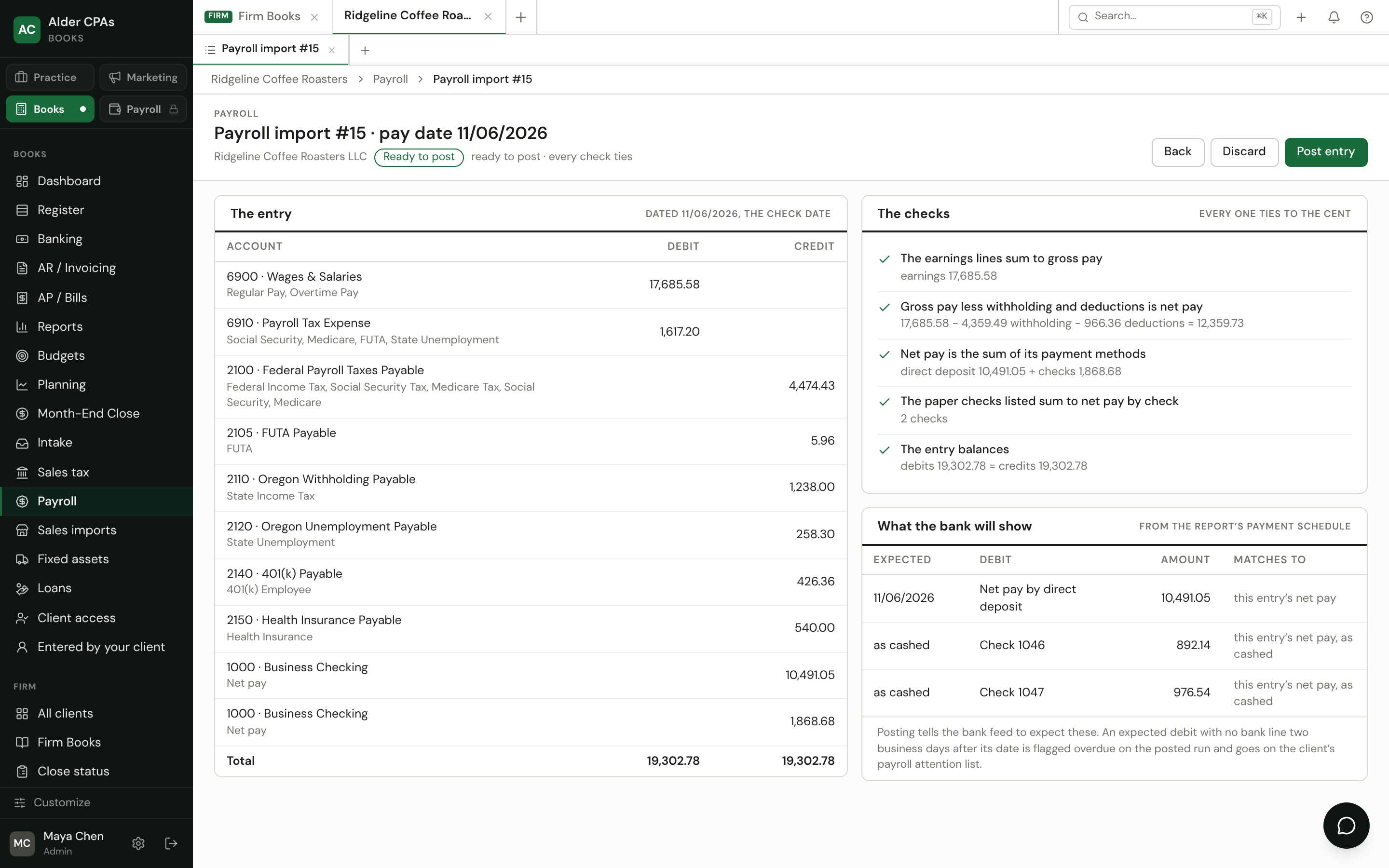 Payroll import #15, ready to post, with the entry, the checks and what the bank will show
- The entry is exactly what will post, dated the check date. When the client's posting policy accrues payroll, a second card, The accrual, shows the accrual dated the pay-period end and reversed on the check date.
- The checks lists every check Books made, each with a check mark when it ties to the cent: The earnings lines sum to gross pay, Gross pay less withholding and deductions is net pay, Net pay is the sum of its payment methods, The entry balances and, when the register prints them, its totals.
- What the bank will show lists the withdrawals the bank should show for this run: net pay by direct deposit, each paper check as cashed, and each tax payment when the register prints a payment schedule.
Click Post entry. Books posts one entry for the run (plus the accrual and its reversal, when the client accrues payroll) and tells the bank feed what to expect.
If something has to be confirmed first (the register says it is a preview, the same file or the same run was imported before), a Confirm before posting card lists it with a checkbox. Tick each one to continue.
Discard removes a run that has not posted. Nothing reached the ledger, so it is deleted; the audit log keeps everything it read, and its number is not reused.
Why didn't my payroll import post?
Start with the run's status, then the sentence under the run's title. Post entry stays off and says why:
| What you see | What to do |
|---|---|
| Ready to post | Nothing is wrong. Importing doesn't post: open the run and click Post entry. |
| 2 items have never been mapped — map them first. | Click Map them, choose their accounts, and save. |
| The register does not foot, so it cannot post. | The checks list shows which one fails and by how much. Fix the file and import it again. |
| Enter this run's employer match first. | The client enters its retirement match on each run. Type the amount or the percentage and click Save the match. |
| An account the entry posts to will not do — see below. | The reason is in red above the entry. Choose a different account in the mapping. |
| Confirm each warning below first. | Tick each box under Confirm before posting. |
| A run with this check date (10/09/2026) and net pay (12,435.39) was already imported as payroll import #13, and posted. Posting this would count it twice. Void payroll import #13 first if this run replaces it. | The same run is already on the books. Discard this one, or void the earlier run if this one replaces it. |
| Period 2026-10 is closed; admin override required. or Period 2026-10 is hard-locked; no postings allowed. | A date the run posts on (the check date, or an accrual date) is in a closed month. Posting payroll has no override: someone with the Reopen a locked period permission reopens the month, then you post. A month locked for good cannot be reopened. |
| These books start on Nov 1, 2026, so nothing can be dated Oct 23, 2026. Date it on or after Nov 1, 2026. | The check date is before the day these books start, so the run cannot post. Payroll from before that day belongs in the opening balances. |
Needs review means Books found something out of the ordinary. It never changes the figures, it only lists what to look at, for example:
- This is the client's first run of 2027. Wage bases reset, so taxes jump; the first run of a year is always reviewed.
- OR appears for the first time on this client's payroll. A new state is always reviewed.
- A new item, or one that was on each of the last 3 runs and is missing from this one.
- Gross or net pay more than 25% from the average of the last 3 runs of the same type, or a headcount more than 10% off.
- An employer tax rate that changed, or a check date off the client's schedule.
When the run is right, post it yourself.
Set the client's payroll policies
Click Change on the Payroll policies card. Saved policies apply from the next run posted.
- Taxes the provider pulls — Post to liabilities; the bank debit clears them (the default), or This provider pays the taxes — credit cash directly with the cash account they come out of.
- Posting date — The check date (the default), or Accrue to the pay-period end, reversed on the check date, with an accrued payroll account. Accrual posts the wages in the period they were earned and reverses them on the check date.
- Officers (S corporations) — the officers' names as the register prints them, one per line. Their wages and employer taxes post to the officer compensation and officer payroll tax accounts you choose.
- Cash tips, and pay that never passes through the bank — No entry (the default), or An entry the firm names with a debit and a credit account.
- Employer retirement match — No match, Posted from the register when it appears, or Entered per run — a percentage or an amount for a match funded outside the register.
- Net pay — an optional Payroll clearing account. When set, net pay credits it instead of the bank, and each check clears against it.
Click Save policies.
Pay the payroll taxes and match the bank
A posted run credits each tax and deduction to its liability account. Those liabilities are paid when the money leaves the bank.
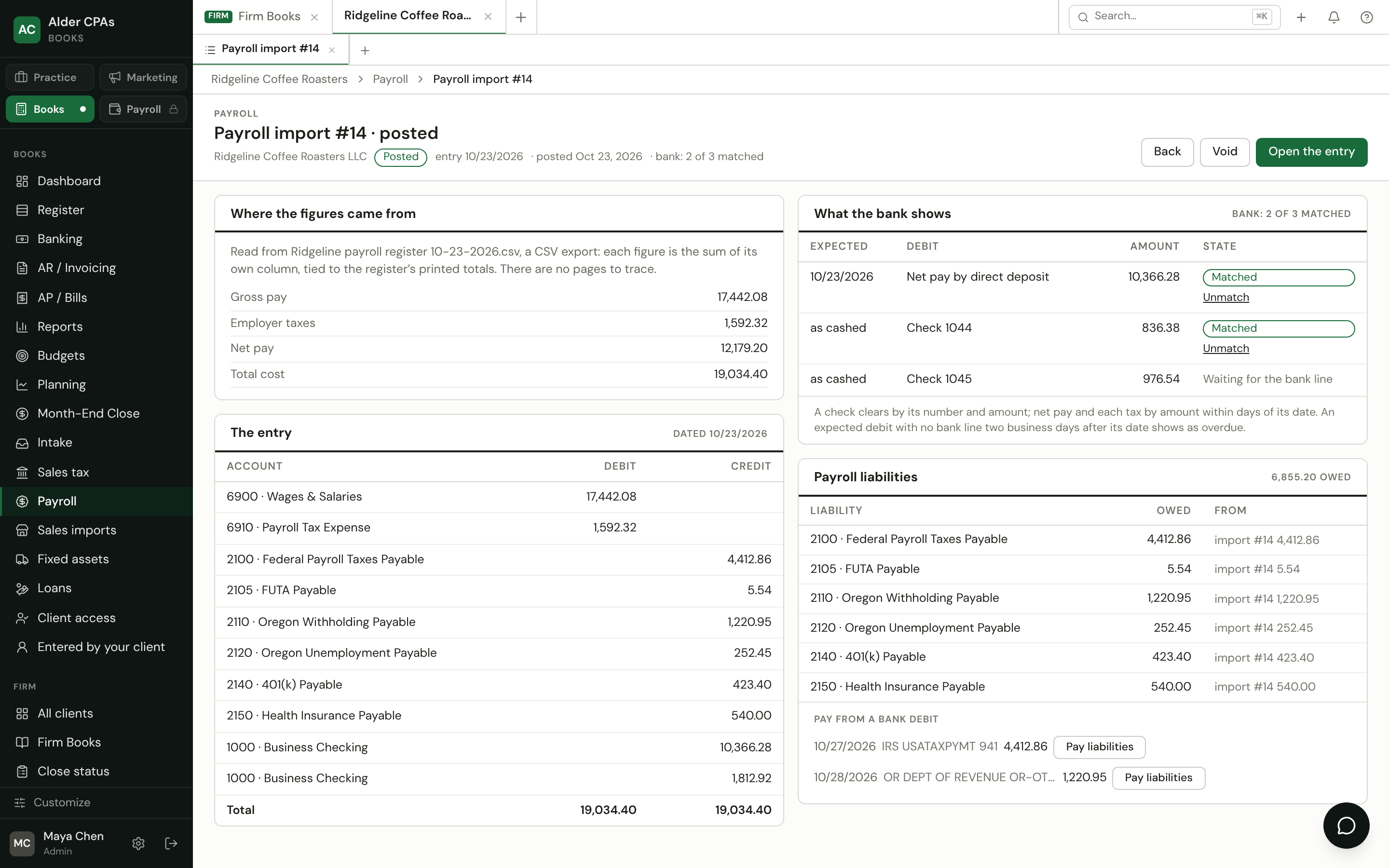 A posted run: what the bank shows, and the payroll liabilities still owed
On a posted run:
- What the bank shows lists each expected withdrawal with its state: Matched, Waiting for the bank line, or Overdue — no bank line yet when no bank line has come in two business days after its date. When bank lines could be it, they are listed with a Match button. A check clears by its number and amount.
- Payroll liabilities shows what the client's posted runs still owe, account by account, and which runs it is from.
Pay liabilities from the run
Under Pay from a bank debit, Books lists the client's bank withdrawals waiting in review since the run's check date. Withdrawals that some set of what is owed adds up to exactly come first.
- Click Pay liabilities beside the withdrawal.
- When exactly one set of what is owed adds up to the withdrawal, Books fills in the split (This debit is exactly what is owed on the accounts filled in below.). When none does, or more than one does, enter what it pays on each account.
- Click Pay 4,412.86 of liabilities.
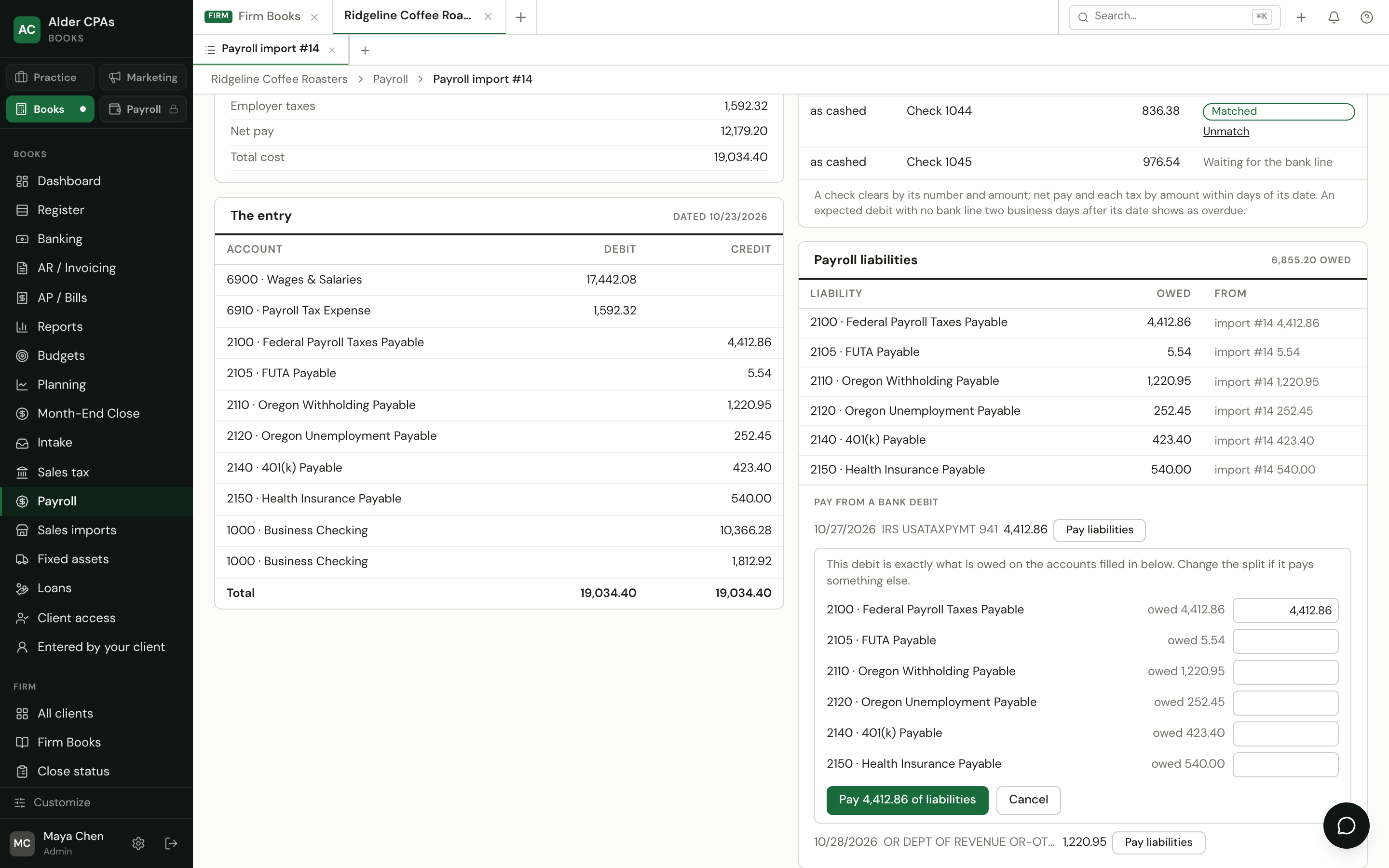 Paying the federal deposit from its bank withdrawal: Books fills in the split
Books posts one payment that debits each liability and credits the bank, and matches the bank line to it. The payment then shows under Paid from the bank for this run.
Pay payroll from the Review queue
You don't have to open the run. In Banking → Review, a withdrawal whose amount is what posted payroll still owes (all of it, or the share of some runs) shows Pay payroll as its main button. Click it to open Pay payroll liabilities, which lists each liability, the payroll run it is from, and the amount, then click Pay 4,412.86.
Nothing posts until you confirm. If the line could pay what is owed in more than one way, the window says so and points you to Open Payroll, to choose the split on the run. See Reviewing Bank Transactions for the rest of the Review queue.
Fix or undo a posted payroll
-
Change a line. Open the entry with Open the entry and click Edit in the register. The entry is changed in place and keeps its history. The lines the bank match expects (such as net pay and the paper checks) stay as they are: This line is the net pay the bank match expects — change the other lines, or void the import to redo it. See Using the Register.
-
Void the run. Click Void, say Why it is being voided, click Check the void, then Void and reverse 19,034.40. The entry is reversed on its own date, or on today's date if its month is closed, together with any accrual.
Anything the bank still expected is marked voided, and net pay or checks already matched go back to Review to be matched again. You can then import the register again as a new run. Voiding the entry from the register voids the whole import the same way.
-
Unmatch a payment. Under Paid from the bank for this run, type why and click Unmatch. The payment is reversed and the liabilities are owed again.
Voiding needs both the Import and post payroll and the Void or reverse a posted entry permissions.
Why can't I…
- Import or change anything? Your role needs the Import and post payroll permission for this client. The buttons turn off and say what is missing.
- Choose from client documents? Registers are read from the client's documents only as PDFs, which is part of Premium.
- Void the run? Payroll import #14 has 1 tax payment matched to the bank (payroll liabilities paid from the bank line of 10/27/2026 4,412.86); unmatch it first. Unmatch the tax payment, then void.
- Post into a closed month? A run is posted on its check date (or its accrual dates), and posting payroll has no override. Reopen the month first.
If you also use Practice
When the firm uses Practice, the client can send you each payroll register through a document request in the client portal. Name the item it asks for Payroll register (or Payroll journal or Payroll summary) so Books knows what it is. When the client uploads it, the Payroll page shows a card such as New payroll register from the client, for the request "Payroll register", with Import it.
- Import it opens the import on that file when the client sent the register as a PDF, on clients on Premium. If the client sent a CSV or Excel export instead, save the file from the client's documents and drop it on the Payroll page.
- Dismiss takes a register off the list for everyone at the firm. It stays in the client's documents, and Dismissed registers can show it again with Show it again.
- Choose from client documents on the Payroll page lists the client's documents, likely payroll registers on top, so you can import a PDF register that was uploaded another way (on clients on Premium).
Shortcuts and tips
| Where | Key or trick | What it does |
|---|---|---|
| Imported runs | Tab, then Enter | Opens the focused run. |
| Any account box | Type part of a number or name, then Enter | Picks the first match. Esc closes the list. |
| The liabilities split, a changed figure, the match amount | Type a sum such as 4412.86+5.54 or =1220.95*2 | Worked out to the cent when you leave the field or press Enter. A leading =, $ and commas are ignored. |
| The file line | Drop a different file | Starts the import over with another file. |
| The import | Change how a column is read | Shows how every column was read, and lets you change it. |
- Second imports are quick. The column reading is saved under the provider's name and the accounts under each item, so the next export from the same provider, with the same items, arrives with every line remembered.
- Nothing per employee is posted. Employee rows are added up into company totals (and department or officer totals when the client uses them). A row that doesn't add up is pointed to by its row number in the file, for example Net pay does not add up on row 6.
- Every check is the file's own. Books compares the file to its own printed totals, so a register that doesn't add up is caught before it posts, not after.
- Post, then match. Post each run as soon as it is imported, so the bank lines in Review have something to match.