
Scheduled (Repeating) Entries
Make a journal entry or a register transaction repeat on a schedule, choose whether each copy waits for you or posts on its own, and handle the dates that could not post.
On this page
Rent on the 1st, an owner draw every month, a standing order every other Monday: some entries are the same every time. Instead of typing them again, make them repeat. Scheduled entries is where every repeating entry for a client lives: what is due, what is waiting for you, and what could not post.
A schedule never skips a date on its own. If an entry cannot post on its date (a closed month, an archived account, an inactive vendor), the schedule stops and waits at that date, tells you why under Needs attention, and tries again each day. Nothing moves past that date until you fix the cause, skip the date yourself with a reason, or pause and later resume the schedule (dates that passed while it was paused are not posted).
Two ways to make an entry repeat
There are two starting points. Both make the same kind of schedule, and both end up on this page.
| Recurring journal entry | Memorized transaction | |
|---|---|---|
| Start from | A new journal entry you are writing | A transaction already in an account's register |
| What repeats | The lines you type | Exactly the lines of the transaction you memorized |
| Posting when you save | Each entry waits for your review | Posts automatically on its dates, if you have the permission (you can untick it) |
| Shown in the Kind column as | Recurring journal entry | Memorized transaction |
Recurring invoices and recurring bills are separate features with their own screens. See "Recurring invoices, batch entry and sales receipts" and "Enter a bill, batch bills and recurring bills".
Repeat a new journal entry
- Press Q (or click + at the top of the screen) to open Quick add, and choose Journal Entry.
- Fill in the Date, Description and the lines as you would for any journal entry. Debits must equal credits.
- Tick Repeat this entry on a schedule instead of posting it now. The schedule settings open below it, already filled in from the entry: the Schedule name from the description, the First entry from the entry's date, and Monthly on that same day of the month.
- Adjust the schedule (see Frequency and end options). The sentence under the fields reads back what you chose, such as Every month on the 1st. Each entry waits for review before it posts — automatic posting can be turned on later from Scheduled entries.
- Click Save schedule.
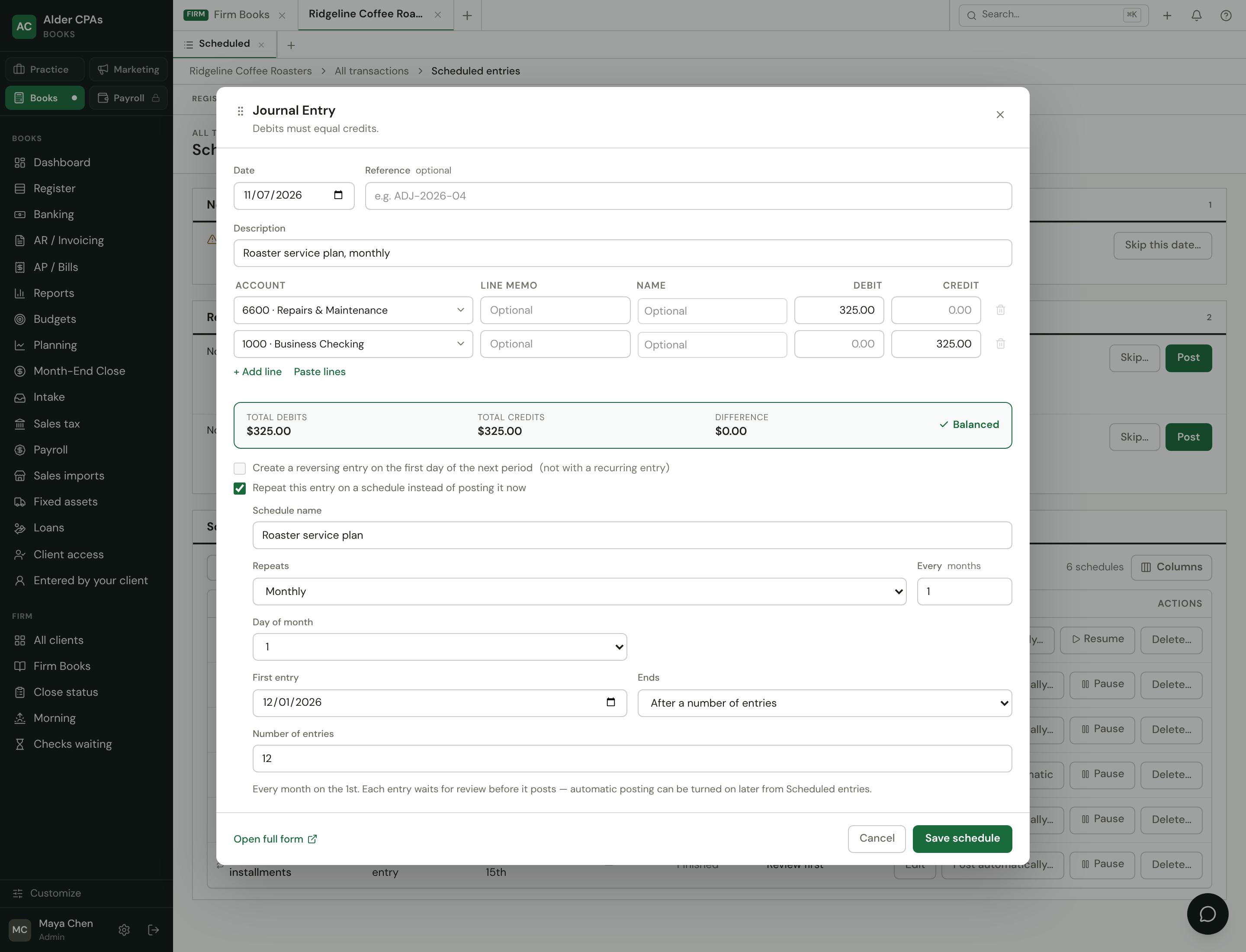 A journal entry set to repeat monthly on the 1st, starting Dec 1, 2026, for 12 entries
Nothing posts when you save. The notice Recurring entry saved tells you the first date, for example The first entry, Dec 1, 2026, will wait for review in Scheduled entries., and Open Scheduled entries takes you there.
A repeating entry can't also be a reversing entry. While Create a reversing entry on the first day of the next period is ticked, Repeat this entry… is unavailable, and the other way around; each says why.
Memorize a transaction from the register
- Open an account's register and find the transaction.
- Open the row's ⋯ menu and choose Memorize….
- The Memorize transaction window shows Each copy: the amount, whether it increases or decreases the account, and the account on the other side (or how many accounts it splits across). You can't change these here. Books copies the lines from the transaction itself, so what repeats is exactly what posted.
- Check the Schedule name (the payee, to start, or Memorized entry when there is none) and the repeat settings.
- Leave Post automatically on schedule ticked to have each copy post on its date, or untick it so each copy waits for your review.
- Click Memorize.
Books chooses the first date for you so you don't post a second copy of a charge you already have. The first copy is the next time the entry's own day of the month comes around, after the entry's date and no earlier than today. Memorizing a $59.99 subscription dated Oct 22, 2026 on Nov 7, 2026 offers Monthly on the 22nd, first entry Nov 22, 2026.
You can memorize entries the register owns, including ones posted from a bank line. You can't memorize the posting of an invoice, bill, payment, deposit, loan or other document. Memorize… is turned off and says why, for example Memorizing isn't available here — this entry was posted from an invoice. Open the document to change or void it. To repeat a sale or a bill, use recurring invoices or recurring bills.
Frequency and end options
| Setting | Choices |
|---|---|
| Repeats | Daily, Weekly, Monthly, Quarterly or Annually |
| Every | 1 to 12 days, weeks, months, quarters or years. Weekly with Every 2 is every other week. |
| On (weekly) | The day of the week |
| Day of month (monthly, quarterly, annually) | 1 to 31. A day past the 28th falls on the last day of a shorter month: the 31st posts on Feb 28 (or 29) and on Apr 30. The Repeats column says so: Every month on the 31st (or the last day of a shorter month). |
| Month (annually) | The month it posts in |
| First entry | The date of the first copy |
| Ends | Never, On a date (then End date), or After a number of entries (then Number of entries) |
A quarterly schedule is every three months from its first entry, on the day of the month you choose.
The save button (Save schedule, Memorize or Save) stays off until the schedule is complete, and the reason shows under the fields: Give the schedule a name., Choose the date of the first entry., Choose the end date., The end date is before the first entry. or Say how many times it repeats.
Understand the Scheduled entries page
The page has three parts, in the order you need them.
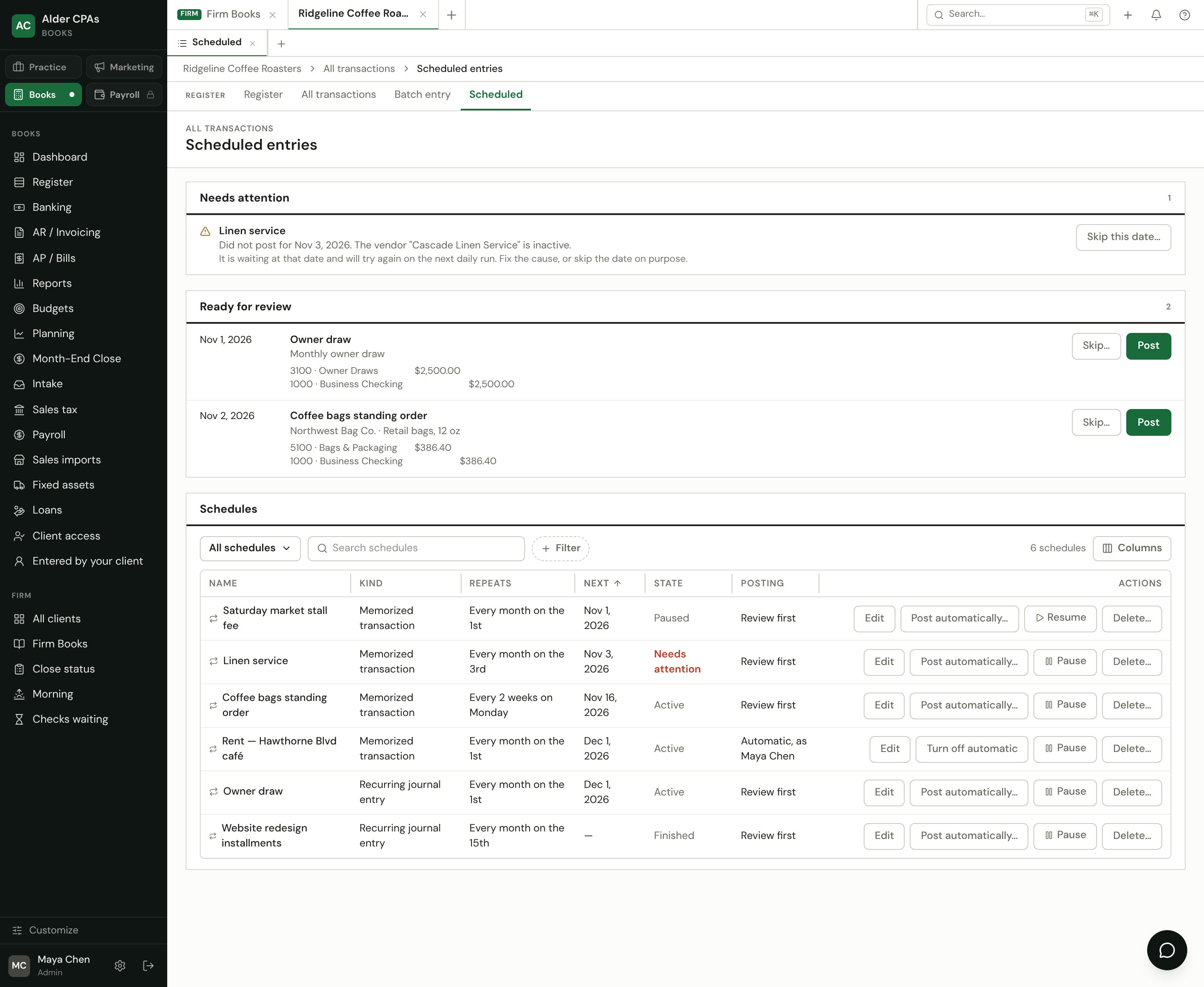 Scheduled entries for Ridgeline Coffee Roasters: one schedule needs attention, two entries are ready for review, and six schedules are listed
Needs attention lists every schedule that could not post, with the date it missed and why: Did not post for Nov 3, 2026. The vendor "Cascade Linen Service" is inactive. When everything ran, it reads Every schedule ran on its last date.
Ready for review lists the entries that review-first schedules created and that are waiting for you. Each shows its date, the schedule's name, the payee and description, and the debit and credit lines it will post. When there are none, it reads Nothing is waiting for review.
Schedules lists every schedule, sorted by its next date. The columns:
- Name
- Kind — Recurring journal entry or Memorized transaction.
- Repeats — the frequency in words, such as Every 2 weeks on Monday.
- Next — the next date it will create or post an entry. A dash means it has no dates left.
- State — what the schedule is doing now (see below).
- Posting — Review first, or Automatic, as Maya Chen: the person each automatic entry is recorded as.
- Last run — the last date it posted or created an entry (Never if it hasn't yet). This column is hidden at first; turn it on from Columns.
- Actions — Edit, Post automatically… (or Turn off automatic), Pause (or Resume) and Delete….
| State | Meaning |
|---|---|
| Needs attention | It tried to post and could not. It is waiting at that date; hover the word for the reason. |
| Overdue | Its next date has passed and the daily run hasn't created it yet. Nothing is lost while it waits. |
| Paused | Someone paused it. |
| Active | Waiting for its next date. |
| Finished | No dates left: past its end date, or it reached its number of entries. |
Use Search schedules to find one by name, payee or description, and Filter to narrow by State, Posting, Kind or Next date.
What happens on each date
Books runs scheduled entries once a day, early in the morning Eastern time. A schedule's dates are days on the Eastern (New York) calendar, not in the client's own time zone, so a date has arrived once it has begun in New York. For each schedule whose date has arrived:
- Review first (every schedule starts this way unless you turn on automatic posting): Books creates the entry and puts it under Ready for review. Nothing posts until you click Post.
- Automatic: Books posts the entry, dated on its scheduled date and recorded as the person who turned automatic posting on.
- It can't post (see Why didn't an entry post?): nothing is created or posted. The schedule goes under Needs attention and waits at that date.
If a day is missed, the next run catches up: each missed date gets its own entry, dated on its own date.
Every entry a schedule posts is an ordinary journal entry, with the schedule's description (or its name, if it has no description) and payee. You'll find it in the account registers and under Journal entries, on its scheduled date.
Review and post a waiting entry
Under Ready for review, check the lines and click Post. The entry posts dated on its scheduled date, not today, and is recorded as you: Entry posted — Dated Nov 1, 2026 and recorded as you.
Before posting, Books checks the entry again, against the accounts, names and periods as they are now. If something has changed since the entry was created, Post is refused with the reason, such as This entry cannot post: The period containing Nov 1, 2026 is closed.
Click Skip… to leave out one date instead (see Skip a date). A review-first schedule keeps creating its later entries while earlier ones wait, so a waiting entry doesn't hold up the next one.
Post a schedule automatically
To stop reviewing an entry you trust, turn on automatic posting.
- On the schedule's row, click Post automatically….
- Read the confirmation. It names exactly what you are agreeing to: "Owner draw" will post on each of its dates without anyone reviewing it, and every entry will be recorded as you. It stops and asks for attention if an account, customer, vendor or period can no longer take it, or if you can no longer post. Editing the schedule turns automatic posting off again.
- Click Post automatically.
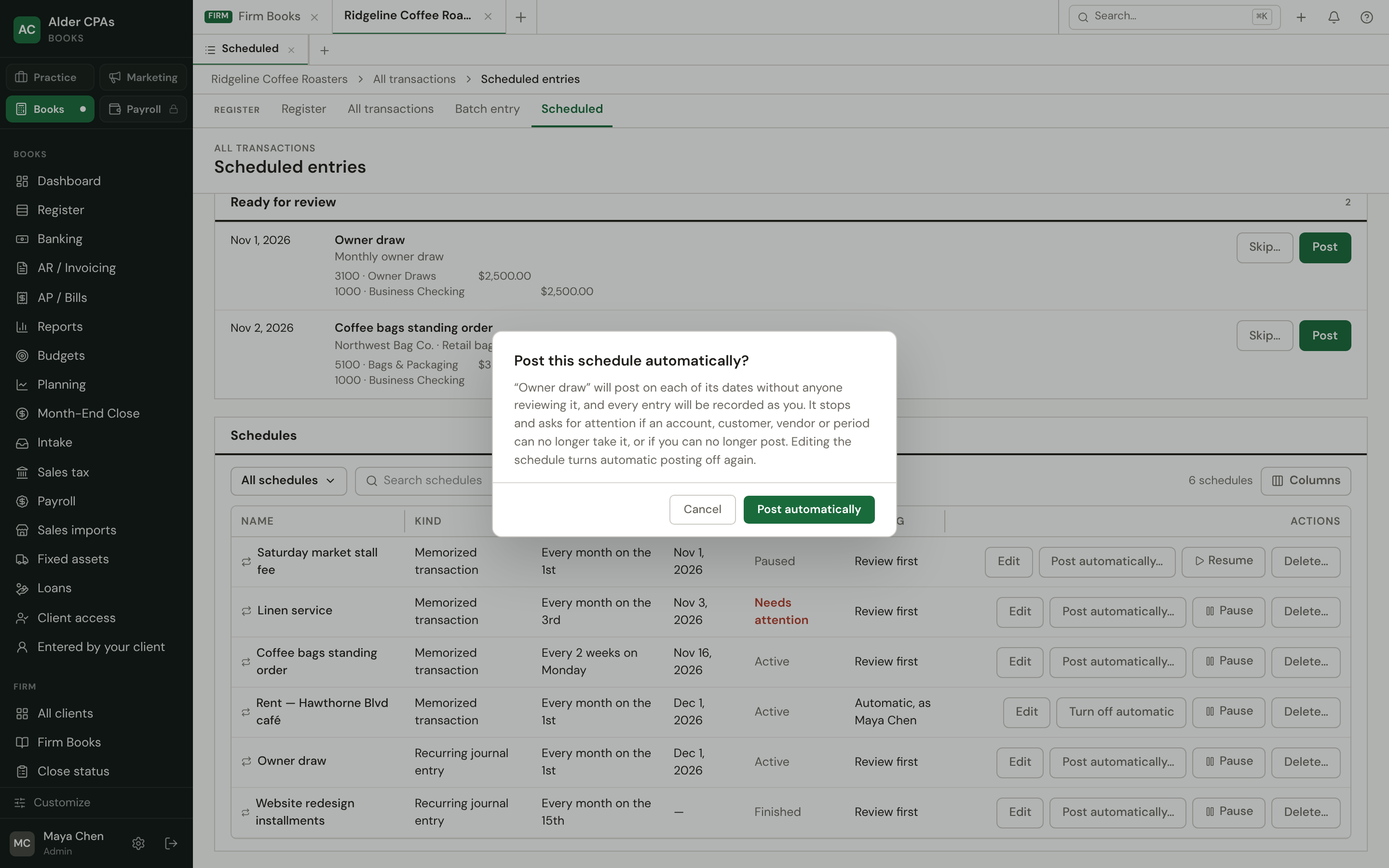 Turning on automatic posting for the Owner draw schedule
The Posting column changes to Automatic, as your name. Before each automatic entry, Books checks that you can still post to these books.
If you can't (for example, you left the firm or your role changed), the schedule stops and says so: Maya Chen, who this schedule posts as, can no longer post to these books. To fix it, someone who can post and has the Bank rules and auto-post permission opens Edit, keeps Post automatically on schedule ticked and saves: the schedule then posts as them. Or they turn automatic posting off.
Turning on automatic posting needs the Bank rules and auto-post permission. Books also checks that the schedule's next entry could post today; if it couldn't, it is refused with the reason: This schedule could not post today, so it cannot post automatically: The account "6100 Rent" is archived.
To go back to reviewing every entry, click Turn off automatic. The notice confirms New entries will wait for review.
Edit a schedule
Click Edit to change the Schedule name, the frequency, the First entry date and the end. The window's subtitle is a promise: Change when it repeats. The entry it creates — accounts and amounts — is unchanged.
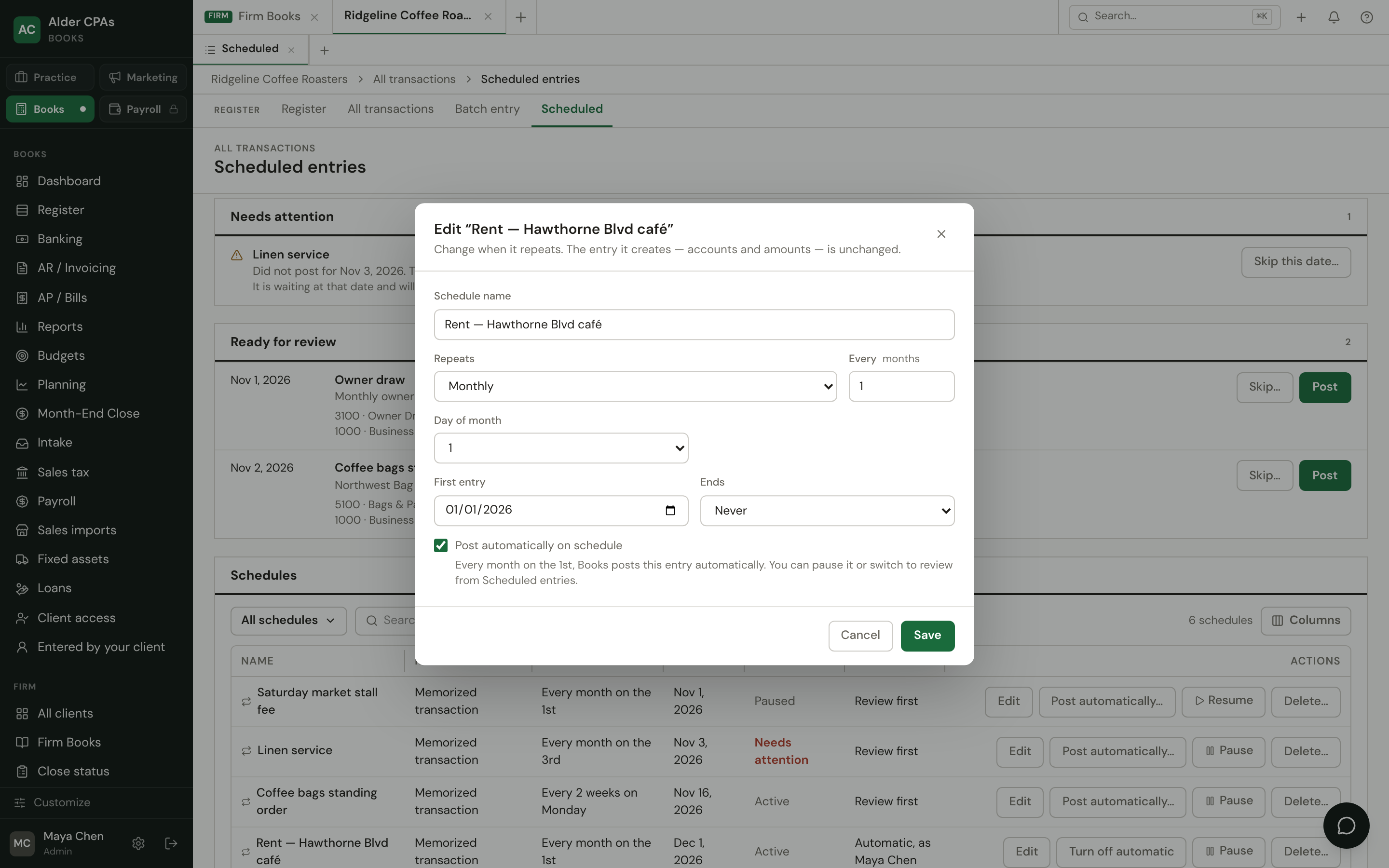 Editing the rent schedule, which posts automatically
-
An edit never re-runs the past. The next date is never earlier than the day after the last entry the schedule made, even if you move the First entry back.
-
An edit turns automatic posting off, unless you keep it on. For a schedule that posts automatically, the edit window opens with Post automatically on schedule ticked (if you have the Bank rules and auto-post permission; without it the box is unticked and turned off).
Leave it ticked and Books turns automatic posting back on as you, for the schedule as you changed it. Untick it and the schedule waits for review from now on.
-
Saving clears Needs attention. If you fixed the cause, the next daily run tries the waiting date again.
The notice confirms the result, such as Schedule saved — Next entry Dec 1, 2026. It posts automatically.
To change the accounts or amounts, make a new schedule with the new lines and delete the old one.
Pause and resume
Click Pause to stop a schedule without losing it. Nothing will be created or posted until it is resumed. Automatic posting was turned off. A paused schedule that needed attention keeps its reason, and its A recurring entry could not post alert stays open.
Click Resume to start it again. Dates that passed while it was paused are not posted: it picks up from the next date that is today or later, and the notice tells you when, as in Next entry Dec 1, 2026. Dates that passed while paused are not posted. That includes a date the schedule was waiting at under Needs attention: resuming clears the reason and moves on. If you want a missed month, enter it yourself.
Resuming never turns automatic posting back on. Click Post automatically… again if you want it.
Skip a date
Skipping leaves one date out on purpose, with your reason recorded.
- For a schedule under Needs attention, click Skip this date…. For an entry under Ready for review, click Skip….
- Write the Reason, such as Rent was waived this month. It needs at least three characters.
- Click Skip this date.
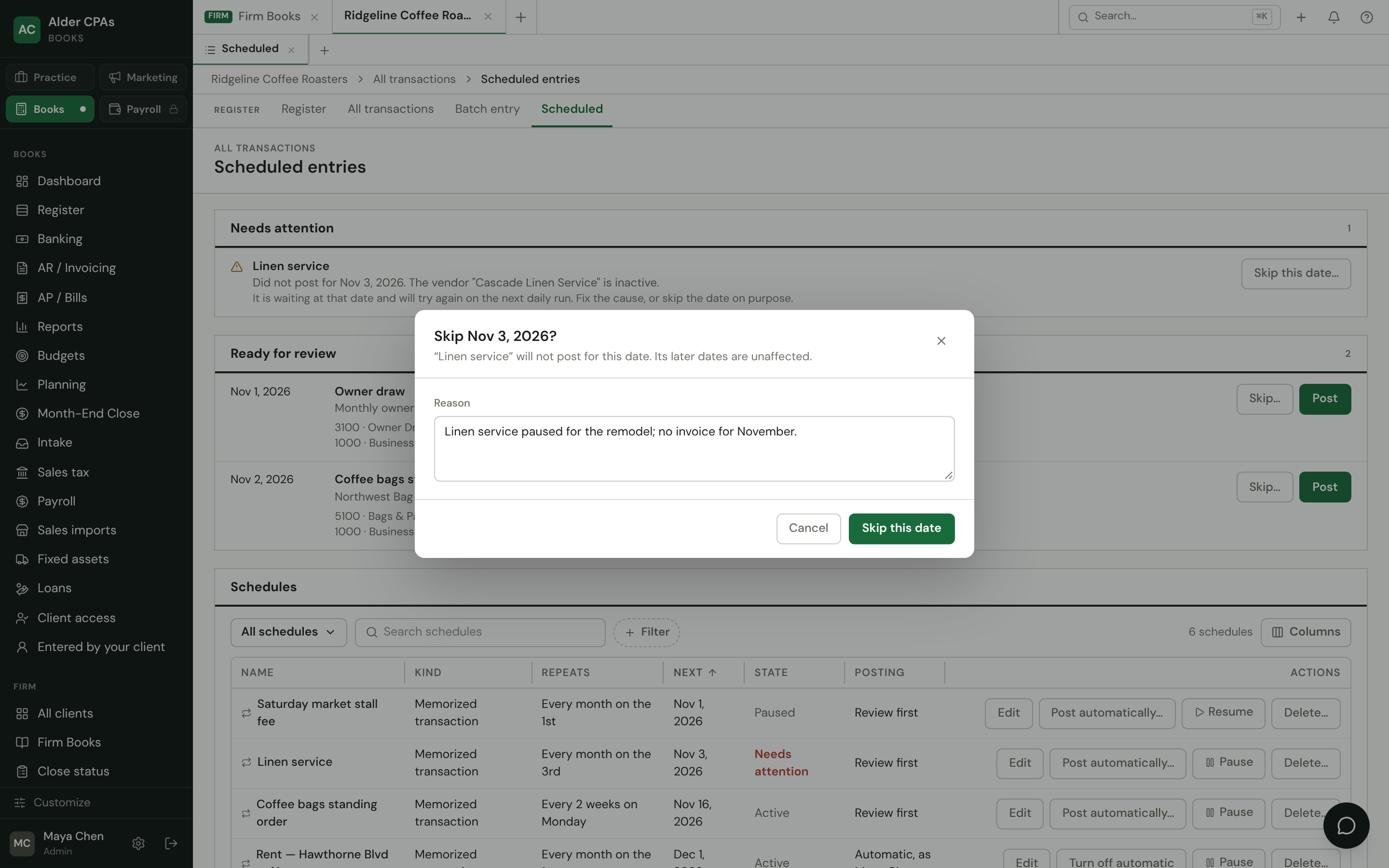 Skipping the Nov 3, 2026 linen service entry, with a reason
"Linen service" will not post for this date. Its later dates are unaffected. The notice confirms that Nov 3, 2026 will not post. The reason is in the audit trail. A schedule that was waiting at that date moves on to its next one.
Delete a schedule
Click Delete…. Before anything is deleted, Books shows what the schedule has done: its frequency and posting, Posted so far (how many entries the schedule has posted and their total, counting any you have voided since), Last posted (the last date the schedule ran), and Next due — the date that will no longer be created.
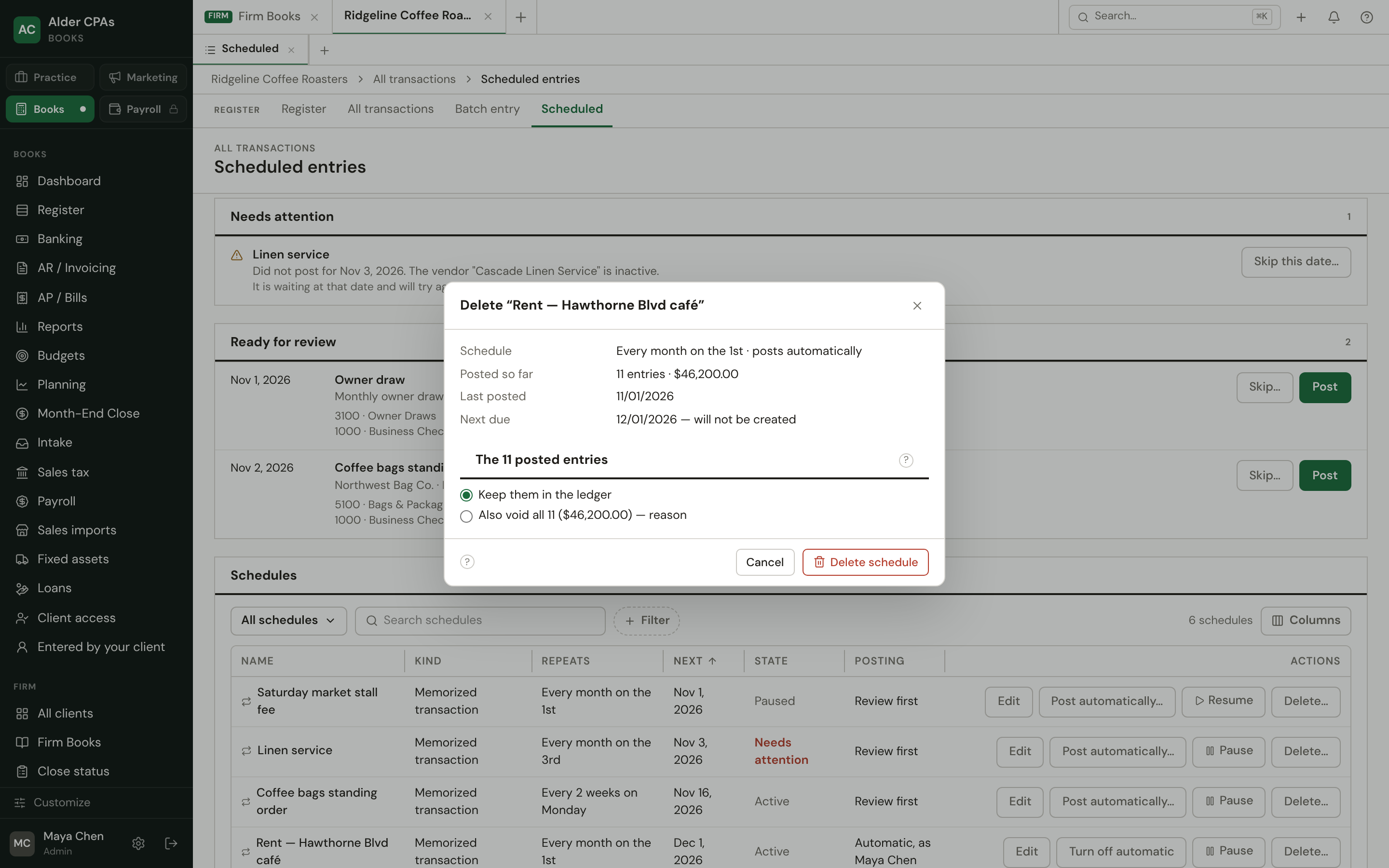 Deleting the rent schedule: 11 entries posted so far, totaling $46,200.00
If the schedule has posted entries, choose what happens to them:
-
Keep them in the ledger (the default). The entries stay exactly as posted.
-
Also void all 11 ($46,200.00) — reason. Write why (at least three characters; at least ten if an entry falls in a year whose tax return has been filed). Books voids each entry that is still posted, then deletes the schedule. Voiding follows the usual rules, so a closed month can stop it.
If one void is refused, Books stops there, deletes nothing, and tells you how far it got: 3 of 11 posted entries were voided, and the schedule was not deleted. The entry dated 04/01/2026 was not voided: … Trying again voids only the rest.
Click Delete schedule. The schedule and anything it created that never posted are deleted for good, and the deletion is recorded in the audit log.
A schedule with entries waiting for review can't be deleted yet. The window says so — "Owner draw" has 1 entry waiting for review. Approve or skip it, then delete the schedule. — and Open entry due 11/01/2026 shows the waiting entry, where you can Approve and post, Skip… or Edit the schedule. Once nothing is waiting, the window shows the usual delete choices.
Why didn't an entry post?
When a date can't post, the reason under Needs attention says exactly what is wrong. The ones you can meet:
| Reason | What to do |
|---|---|
| The period containing Nov 1, 2026 is closed. | Reopen the month (if it can be reopened) and wait for the next daily run, or skip the date and enter it in an open month yourself. Any month that is not open stops a scheduled entry, whether it is soft-locked or hard-locked. |
| The account "6100 Rent" is archived. or …was merged into another account. | Restore the account, or make a new schedule on the right account and delete this one. |
| An account on this entry no longer exists. | Make a new schedule on an existing account. |
| An account another part of Books posts to (receivables, payables, inventory) | The reason names the account and what posts to it. Use a different account. |
| The customer "…" is inactive. / The vendor "…" is inactive. / A vendor on this entry was deleted. | Make the customer or vendor active again, or skip the date. A deleted one can't come back: skip the date, then make a new schedule. |
| The class "…" is archived. / The location "…" is archived. / The job "…" is closed. | Restore it, or skip the date. |
| This client is archived. | Restore the client. |
| Maya Chen, who this schedule posts as, can no longer post to these books. | Someone who can post edits the schedule and keeps automatic posting on as themselves, or turns it off. |
Books also raises an alert for the client, A recurring entry could not post. It clears on its own when a daily run gets that date through (posted, or created for review) or when you skip the date.
Other refusals you may see:
- You can't save the schedule. Books checks the entry when you save. If an account, name, class or job on it can't take an entry now, saving is refused with the reason, such as This entry cannot be scheduled: The vendor "Cascade Linen Service" is inactive. (A closed month doesn't stop you saving; each date is checked when it comes.)
- Post automatically… is turned off. Hover it: Resume the schedule before turning on automatic posting. or Resolve what needs attention first.
- The Post automatically on schedule box is unticked and turned off. You don't have the Bank rules and auto-post permission: You need the "Bank rules and auto-post" permission for this. Ask an admin to grant it. The schedule still saves; its entries wait for review.
- Your client can't schedule entries. Scheduling is for your firm's team. A client who signs in to their own books sees Repeat this entry… and Memorize… turned off, each with its reason: Only your accountant at Alder CPAs can repeat an entry on a schedule. and Only your accountant at Alder CPAs can memorize an entry.
Fix or undo
- An entry posted that shouldn't have. Void it in the register like any other entry. The schedule carries on with its later dates; pause it, or turn off automatic posting so each later entry waits for you.
- Wrong frequency or dates. Edit the schedule. Entries already posted stay as they are.
- Wrong amount or account. Make a new schedule and delete the old one, keeping or voiding what it posted.
- Automatic posting you didn't want. Turn off automatic, or Pause.
Shortcuts and tips
| Key or action | What it does |
|---|---|
| Q | Opens Quick add from anywhere, when you aren't typing in a field. The menu has the focus, so the letters beside its actions work at once: press J for Journal Entry. Press / to move to its search box instead. |
| Esc | Closes the open window. If a list is open inside it, Esc closes just the list. |
| Click a column header | Sorts by that column; click again to reverse, and a third time to clear. |
| Shift+click a header | Adds a second (or third) sort, such as State then Next. |
- The 31st works. A schedule on the 29th, 30th or 31st posts on the last day of shorter months, and still comes back to the 31st when a month has one.
- Memorize the month after. Memorize a charge the day it clears, and the first copy lands on the same day next month. It won't post a second copy for this month.
- Who posted it is always a person. Review-first entries are recorded as whoever clicks Post; automatic entries as the person who turned automatic posting on, and Books checks that they can still post before every one.
- Keep review-first for anything that varies. Use automatic posting for fixed amounts like rent; keep review-first where you want a look before it posts.
- Clear Needs attention before you close the month. A schedule waiting at a date in the month you are closing means an entry you expected is missing.