
Using the Register
Read an account's running balance, enter transactions straight into the register, and edit, void or trace any posted entry with its full history.
On this page
The register is the checkbook view of an account: every posted entry that touches it, in date order, with a running balance after each one. It is where you key a transaction in a few keystrokes, open an entry to see every line behind it, fix it in place, or void it.
A posted entry is edited in place, not reversed and re-entered. When you change an entry from the register, the same entry is changed where it stands, and Books records who changed what, before and after. The edit shows on the entry itself the next time anyone opens it.
The Register page: your balance-sheet accounts
Register opens on a list of the client's active bank, credit card and other balance-sheet accounts (asset, liability and equity accounts). It answers the first question you have when you open the books: what is in each account, and which one has something new.
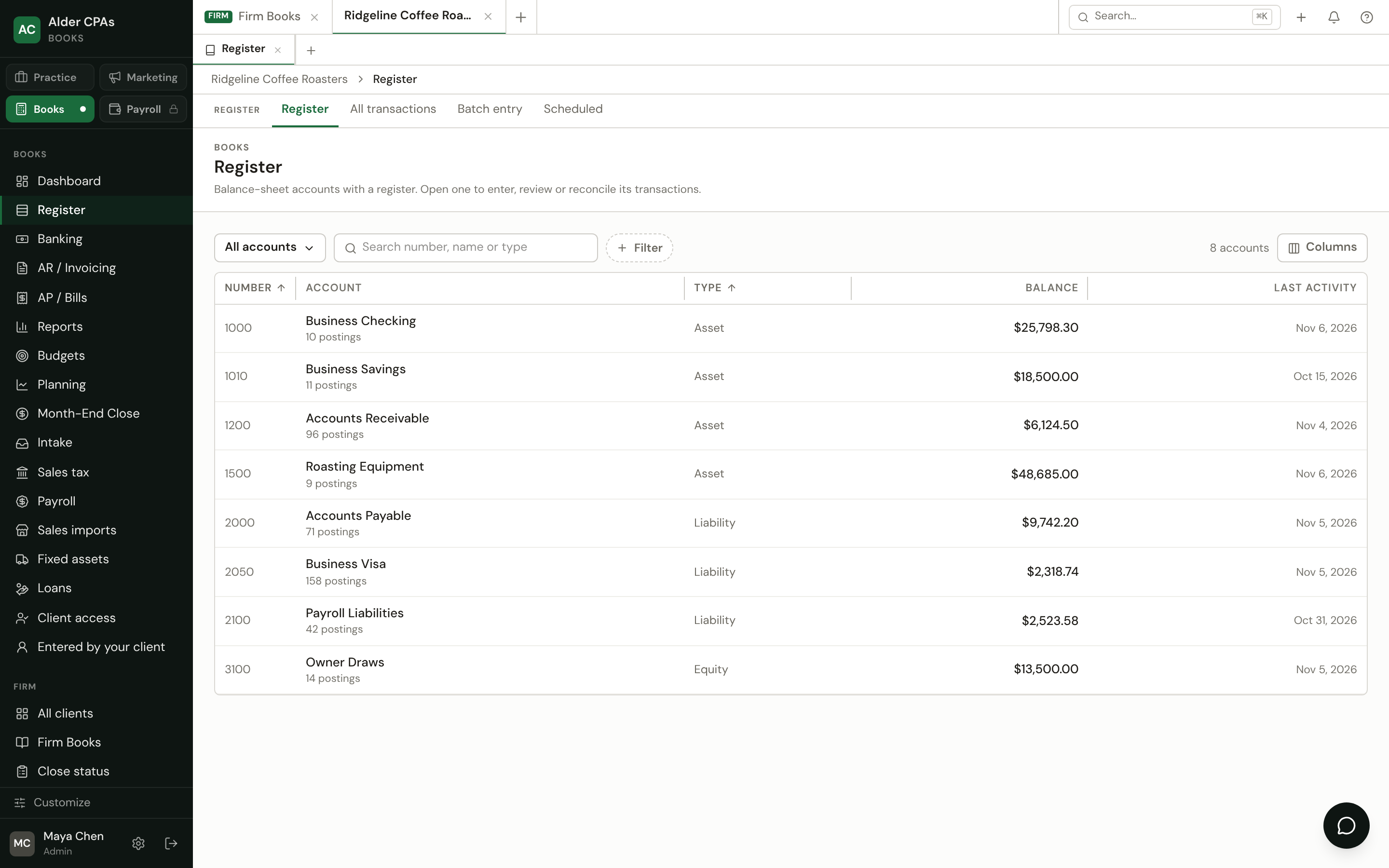 The Register page for Ridgeline Coffee Roasters, listing its balance-sheet accounts with balances and last activity
| Column | What it shows |
|---|---|
| Number | The account number from the chart of accounts. |
| Account | The account name, with the number of postings to it underneath. Click it to open that account's register. |
| Type | Asset, Liability or Equity. The list is sorted by type, then number. |
| Balance | The account's balance as of today. |
| Last activity | The date of the most recent posted entry, or No postings yet. |
Use Search number, name or type, or Filter by type, balance or last-activity date. The strip at the top switches between Register, All transactions, Batch entry and Scheduled.
To jump between accounts without coming back here, click the account name at the end of the breadcrumb on any register: it opens a list of the client's other register accounts.
Read an account's register
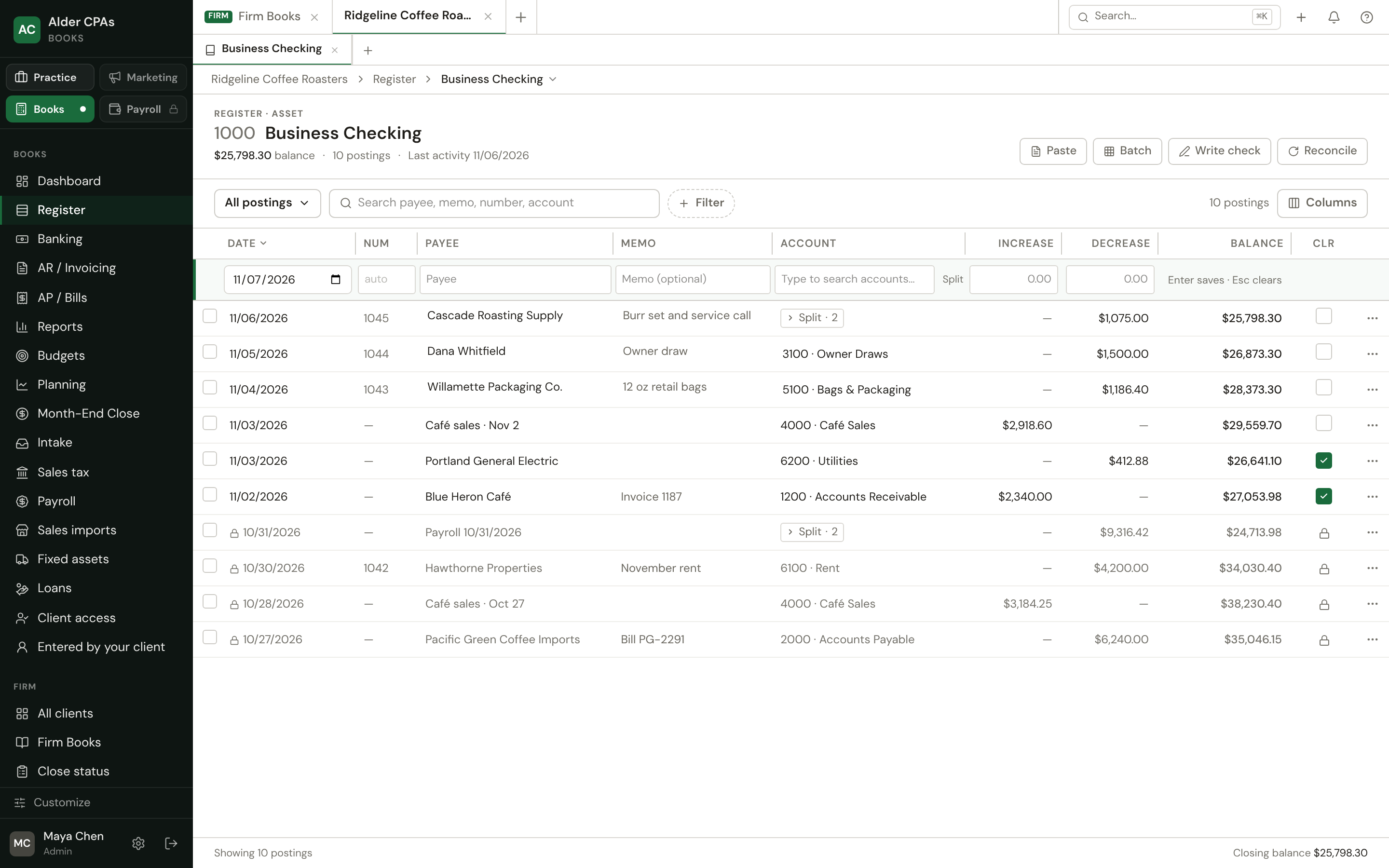 The Business Checking register, newest entries first, with a running balance and cleared marks
The header names the account and its type (Register · Asset), then its balance, the number of postings and the date of the last activity. The buttons on the right are Paste, Batch, Write check (on a bank account) and Reconcile.
Each row is one entry's line on this account. The columns, in order:
| Column | What it shows |
|---|---|
| Date | The entry's date. A small lock before it means the month is closed. |
| Num | The entry or check number, if it has one. |
| Payee | Who the money went to or came from. |
| Memo | The line's memo. |
| Account | The other side of the entry. When the entry is split across several accounts it reads Split · 2 (or however many); click it to see the accounts underneath. |
| Class, Location, Job | Shown only when the client tracks them. |
| Increase and Decrease | The amount. On a bank or other asset register, money in is under Increase and money out under Decrease. Other kinds of account show different headings over these two columns. |
| Balance | The account's balance after this line. |
| Clr | Whether the line has cleared the bank (see below). |
The footer repeats the count (Showing 10 postings) and the Closing balance.
The running balance
The Balance column is the account's balance after each line, counting every line in date order. It only makes sense in date order, so when you sort by anything else, Books hides it and says why: Balance shows only in date order — sorted by Payee, a running balance would not add up. Click Sort by date beside that message to bring it back.
Searching and filtering do not hide it. Each balance is still the true balance after that line, so a filtered register shows real balances with gaps between them.
Cleared and reconciled
The Clr column has three states:
- An empty box — uncleared. The entry is in the books but not yet marked as on a bank statement.
- A checked box — cleared. Click the box to mark a line cleared, and click it again to undo. Clearing a line posts nothing; it is a note that the line is on your statement. It is not a reconciliation, and your next reconciliation still lists the line for you to tick. Lines that a bank-line match confirmed arrive already cleared.
- A lock — reconciled. A finished reconciliation counted this line. The row's text is grayed, and the box can't be changed from here.
If Warn before clearing a row is on for the client (Settings → Numbering), Books asks first, naming the line: The $1,186.40 line on entry 1043 will show as cleared here, a note that it is on your bank statement. It is not reconciled: your next reconciliation still lists it for you to tick. Click the box again to undo.
Search, filter and save a view
- Search payee, memo, number, account narrows the list as you type.
- Filter adds criteria: Date, Cleared (Uncleared, Cleared, Reconciled), Account, Payee, the two amount columns, and Class when lines carry one.
- Columns shows or hides the optional columns. Drag a column header to move it.
- Click a column header to sort by it, and click again to reverse. Shift+click another header to add it as a second sort.
- The All postings menu holds saved views. Set up a search, filters and columns you use often, then choose Save as a new view….
- Export CSV downloads every line the search and filters keep: date, number, payee, memo, account (or the split), class, location, job, debit, credit, running balance, cleared state, type and status. The running balance is written only in date order, as on screen. While older postings are still loading, the button waits: Export waits until every older posting has been read.
Enter a transaction in the register
The blank row at the top of the register is for a new entry (the client can move it below the existing entries in Settings → Numbering → New entry row at the top). It posts the moment you save it.
- Date starts on the client's today, or on the date of the last entry you saved in this register in this browser tab. See the date keys in Shortcuts and tips.
- Num fills in with the client's next journal entry number when Auto-fill journal entry numbers is on (Settings → Numbering). Type over it, or clear it to post with no number.
- Type the Payee. Matching vendors are offered as you type. If the name is new, press Tab and Books creates the vendor for you — the row says Created vendor Rose City Dairy. with an Undo link, and the payee text stays as you typed it.
- Add a Memo if you like.
- Pick the Account for the other side. Start typing a name or number. Accounts hidden with Hide from Quick Add in the chart of accounts are not offered here.
- Type the amount in Increase or Decrease. You can type a sum:
214.60+97.35becomes 311.95 when you leave the field. - Press Enter, or click Save.
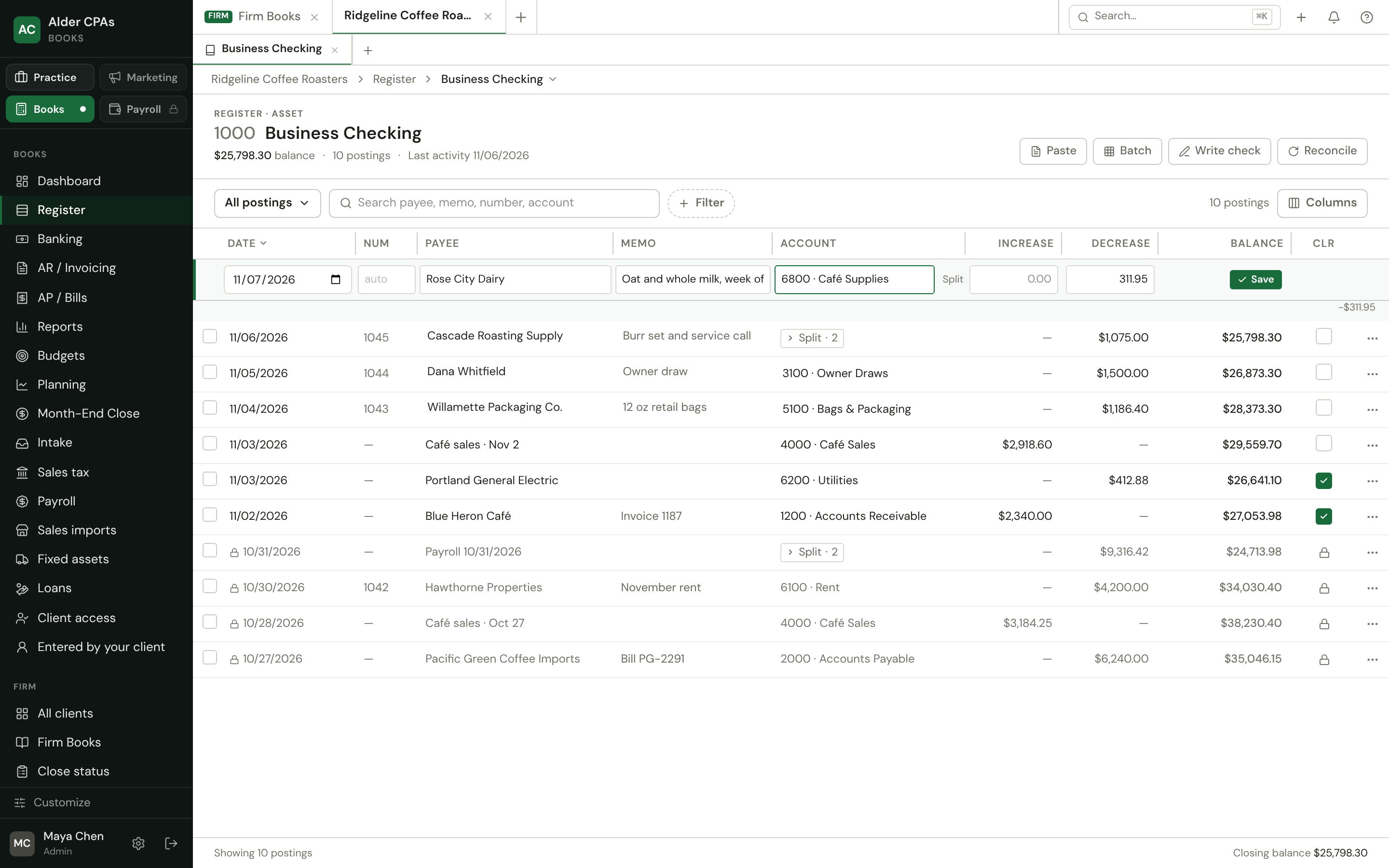 A new entry keyed into the register: payee, memo, account and amount, ready to save
A notice confirms the save (for example Saved · ($311.95)), the new row joins the register, and the blank row clears for the next entry, keeping the date you just saved.
If something is missing, the row says what, under the fields: Pick an offsetting account, Enter an amount, or Splits don't match — allocated $200.00 of $311.95.
Let the payee fill the rest
When Fill from the payee’s last entry is on for the client (Settings → Numbering; it is on unless someone turned it off), leaving the Payee field fills an empty account. Books takes it from a bank rule that matches the payee's name, else from that payee's most recent posted entry (with all of its accounts, if it was split), else from the vendor's default expense account, and a note beside the row says where it came from.
With Also fill the amount on as well, an empty amount fills from the payee's last entry too. Filled fields are outlined with a dashed line until you change them. Press Esc once to clear just what was filled, or click Undo beside the note.
Split one transaction across accounts
Click Split beside the account field. A split editor opens under the row, one line per account, showing what is Remaining until the lines add up to the amount. Press Enter on a split line to move to the next one; on the last line, Enter adds another. When the lines balance, Enter saves the whole transaction.
Other ways to enter transactions
- Paste opens Paste transactions from a spreadsheet: paste rows copied from a spreadsheet, match the columns, check them over, and add them to this account.
- Batch opens Batch entry, for keying many entries in one grid.
- Write check (bank accounts) opens a new check drawn on this account.
Open an entry
Click a row to open it under itself; click it again, or press Esc, to close it. Only one entry is open at a time.
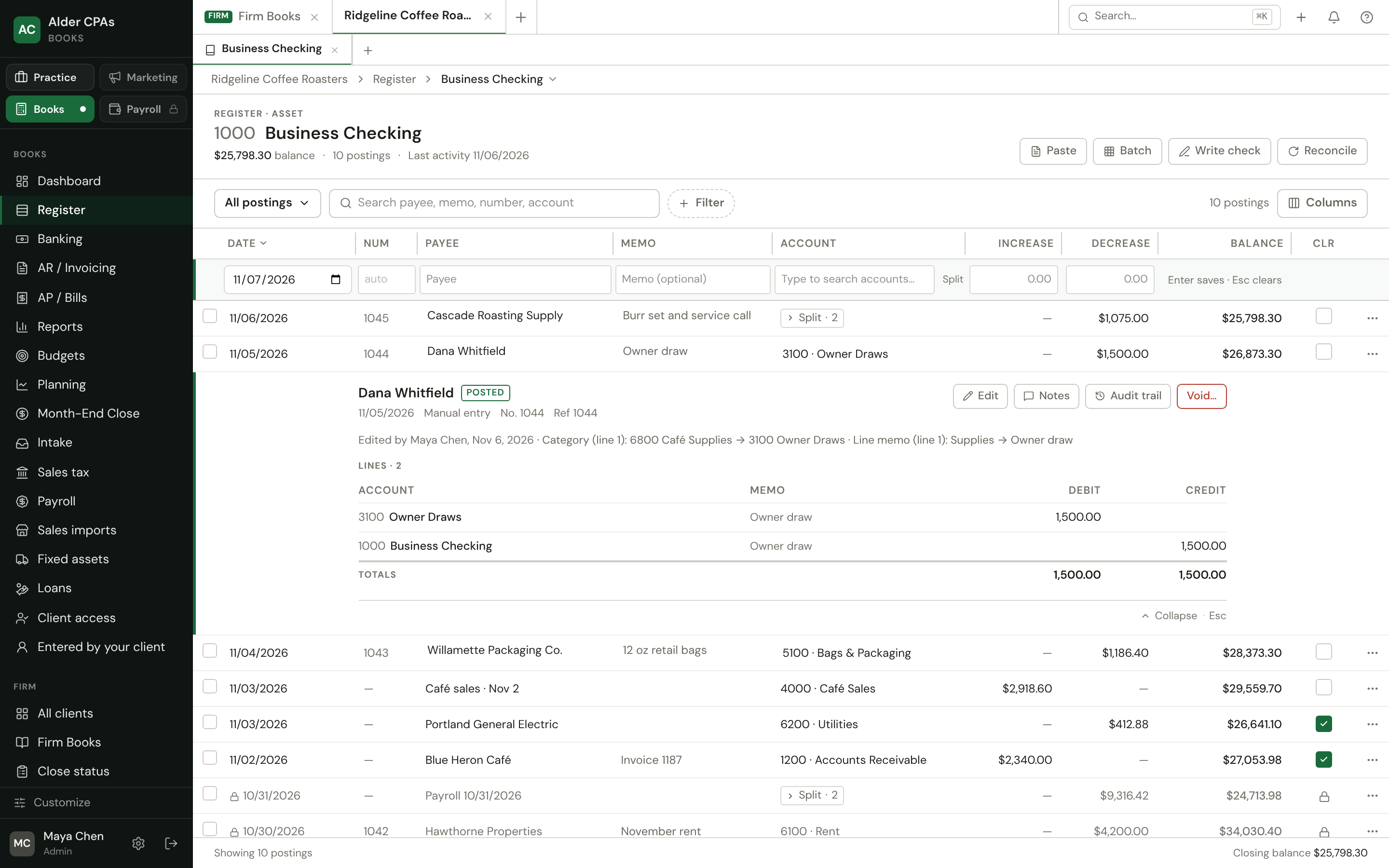 An opened entry with its lines, its edit history and its actions
The opened entry shows:
- The payee, with a status badge (Posted), and Voided or Period locked when they apply. An entry that came from another part of Books carries a badge naming where, such as From Check; click it to open that document.
- The date, where the entry came from (Manual entry, Bill payment, Payroll run and so on), and its number and reference.
- Its edit history, one line per edit, newest first: Edited by Maya Chen, Nov 6, 2026 · Category (line 1): 6800 Café Supplies → 3100 Owner Draws · Line memo (line 1): Supplies → Owner draw. A reason given with the edit shows at the end. The three most recent edits show here; older ones are in the audit trail.
- Every line of the entry, with its account, memo, debit and credit, and the totals.
- Edit, Notes, Audit trail and Void… (Delete draft… on an unposted draft).
The ⋯ menu at the end of each row has Edit, Void… and Audit trail too, plus:
- Duplicate — copies the entry into the blank entry row, so you can change what you need and press Enter. If you had already started typing there, Books asks before replacing it.
- Memorize… — saves the entry as a schedule that repeats.
- Ask the client — sends your client a question about a posted entry. One of the client's contacts needs an email address.
- Billable… — marks a posted line as billable to a customer, when billable expenses are on for the client.
Duplicate and Memorize work only for entries the register owns or that came from a bank line. For an entry from a document such as an invoice or a check, they are off, with the reason; duplicate the document instead.
Edit a posted entry
Change one cell in place
On an entry you keyed in the register, some cells are editable right in the row:
- Payee and Memo: click one (or press Enter or Space on it), type, and press Enter or click away to save. Esc cancels.
- Class, when the client has classes: click it and pick from the list.
- Account, on a bank or credit card register, for an entry with one other account: click it, choose the new account, and click Recode.
On an entry brought in by a payroll import, a sales import or an import of another system's history, Payee, Memo and Class edit in the row the same way; to change its account, open it and use Edit. Entries from a document or a bank line are not edited in the row; open them and use Edit.
Edit the whole entry
- Open the entry and click Edit.
- Change the Date, Payee, Description, Reference or Number, and any line's account, debit, credit or memo. Add line adds another line; the trash icon removes one.
- The totals row reads Balanced when debits equal credits. Click Save changes.
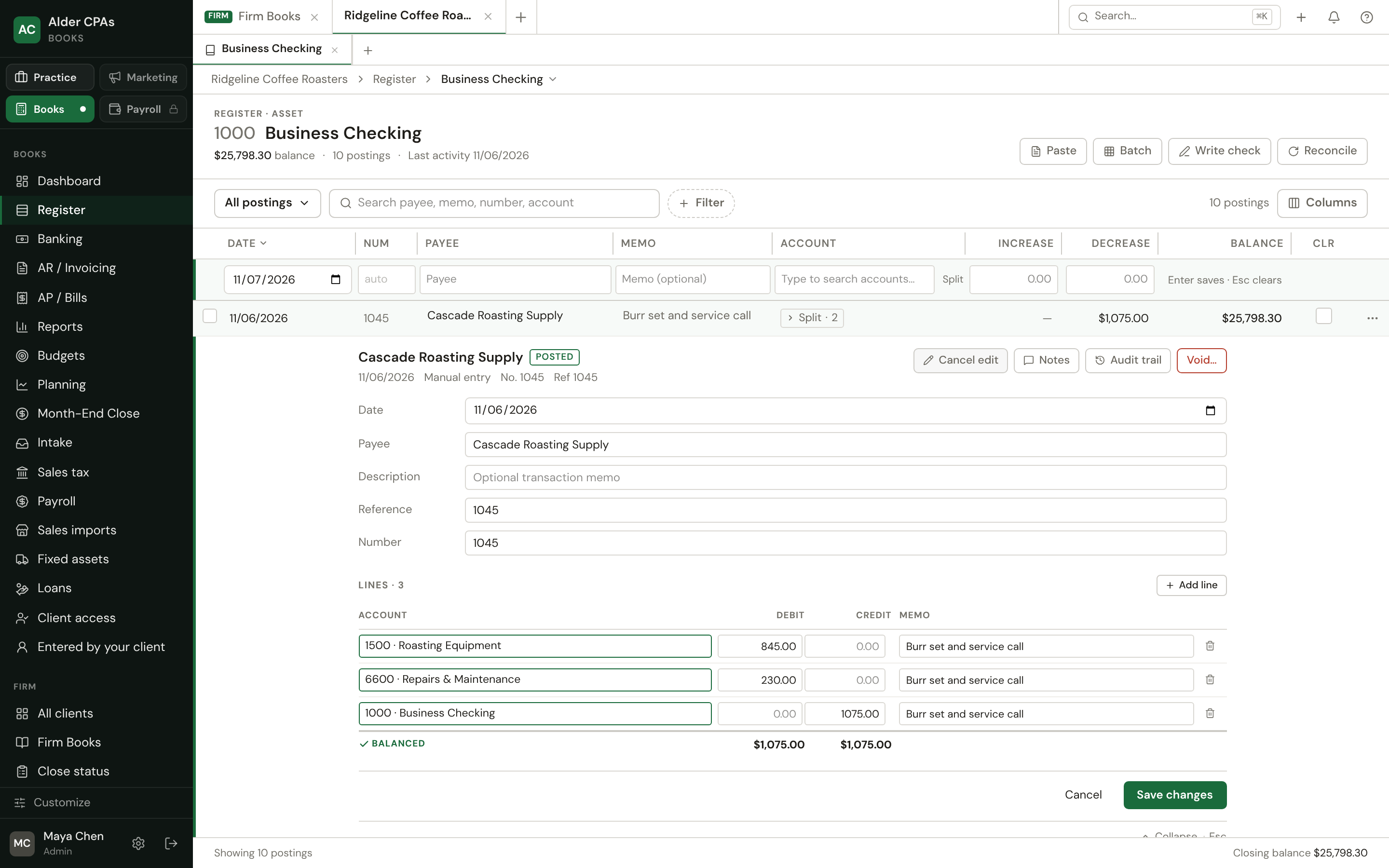 Editing a posted entry in place
The entry is changed where it stands. Lines whose account and amount you did not change keep their cleared state and any reconciliation, and the change is added to the entry's edit history.
Books checks the edit before saving. An entry has to balance (Out of balance — debits $1,075.00 vs credits $1,000.00), and every line needs an account.
Editing a line a reconciliation counted
You can still edit an entry with reconciled lines.
If your change moves the amount, date or account of a reconciled line, Books warns you before saving and names the consequence, for example: This entry was cleared by the Oct 31, 2026 reconciliation of 1000 Business Checking. Saving changes the amount or account of a line it cleared — that reconciliation will be off by $50.00 until it is reopened and done again. Confirm to save anyway.
Click Save anyway to go ahead, or Keep editing. Changing only the payee or a memo doesn't warn.
Editing an entry in a closed month
When the entry's month is closed, the date shows a lock, and for most members Edit is off, with the reason on hover: This entry's period is locked. A soft lock can be reopened from the period's close; a hard lock cannot.
A member with the Lock a period permission can still edit an entry in a month that was closed (soft-locked). The edit form then opens with a box that reads This entry is in a locked period. Saving uses your “Lock a period” permission: the change lands in a locked month, figures already reported for it can move, and your reason is kept in the audit log. It asks for a Reason for the change (at least 10 characters).
A change made in the row asks the same way, in a Change an entry in Oct 2026 box with a Reason of at least 10 characters. If the client has a closing password, Books asks for it first (Unlock for 15 minutes). An entry in a month that is locked for good can't be edited; record a correction in an open month instead.
If you change an entry's date to a day in another month that is closed, Books checks that month too. If it is soft-locked and you have the Lock a period permission, the form shows the same box, headed The new date is in a locked period., and asks for the reason.
Without that permission, saving stops with October 2026 is closed — a member with the Lock a period permission can override the close to move this entry to Oct 29, 2026, or choose a date in an open month. A month locked for good refuses everyone: May 2026 is hard-locked, so this entry can't be moved to May 15, 2026 — a hard lock is final. Choose a date in an open month.
Entries that came from a bank line
An entry posted from the Review queue opens the bank line's own editor when you click Edit: the payee, the category (including a split) and the memo. Saving changes this entry in place, on its own date. The bank side stays as the bank reported it, and the entry keeps a history of what it said before. Add a Reason if it helps the next reader (it is required in a closed month), then click Save change.
The bank's side of the entry — its amount, its date and the bank account — never changes, because it is what the bank reported.
Entries that came from an import
Entries brought in by a payroll import, a sales import or an import of another system's history are ordinary journal entries in the register. Open one and click Edit to change it, with two limits:
- A receivable or payable line keeps its account and amount, and the entry keeps its date, because the imported document still owes that balance. The edit form shows the line as fixed, with the reason.
- On a payroll import, the net pay line stays: This line is the net pay the bank match expects — change the other lines, or void the import to redo it.
Why can't I edit this transaction?
Hover Edit (or the cell you clicked) to see the reason. The most common:
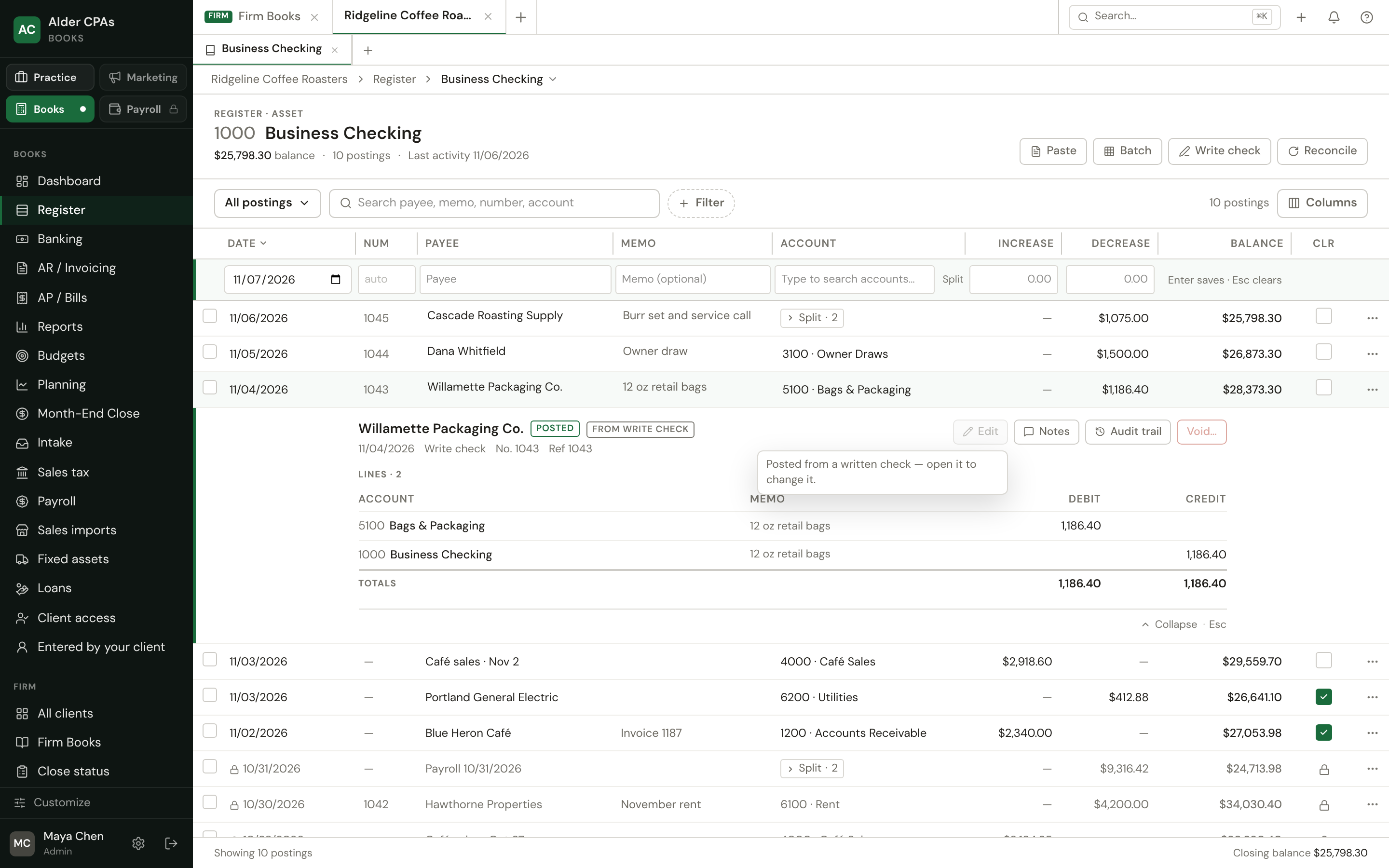 A check's entry in the register: Edit is off, and its reason points to the check
| What you see | Why, and what to do |
|---|---|
| Posted from a written check — open it to change it. (or a bill, an invoice, a payment, a bank transfer pair…) | The entry belongs to a document. Click the badge or the entry's title to open the document, and change or void it there. The ledger follows. |
| This entry's period is locked. A soft lock can be reopened from the period's close; a hard lock cannot. | The month is closed. See Editing an entry in a closed month. |
| This entry has already been voided or reversed, so it can't be edited. Edit the entry that replaced it instead. | The original stays as history. |
| This entry records the void of another entry, so it can't be edited. If the original should stand, enter it again as a new transaction. | This is the reversing half of a void. |
| A finished reconciliation cleared this line, so it can't be changed here. | Only the quick in-row edit stops here. Open the entry and use Edit: Books warns you about the reconciliation before saving. |
| Oct 2026 is closed. A member who can close the books can change it with a reason. | The in-row edit in a closed month, for a member without the Lock a period permission. |
| This entry is split across several accounts. Open it to choose which line to recode. | The in-row Account edit works on single-account entries only. Open the entry and click Edit. |
| Oct 2026 is locked for good, so this entry can't be changed. | The in-row edit in a month locked for good. Record a correction in an open month. |
| Editing isn't available here — this entry was posted from a bill. Open the document to change or void it. | The in-row edit on an entry that came from somewhere else in Books. Open the entry and use Edit, or open its document. |
| This entry came from a bank line. Use Edit on the entry to change it; the bank's amount and date stay. | The in-row edit on an entry posted from the Review queue. Open the entry and use Edit. |
| No cells are editable at all | Your role on this client is read-only. |
Void an entry
Voiding cancels a posted entry without erasing it.
- Open the entry and click Void….
- Type a Reason for voiding. A reason is required — it is kept in the audit log. For an entry from a bank line, it needs at least 10 characters, and the line beside Void entry counts down: The reason needs at least 10 characters — 4 more.
- Click Void entry.
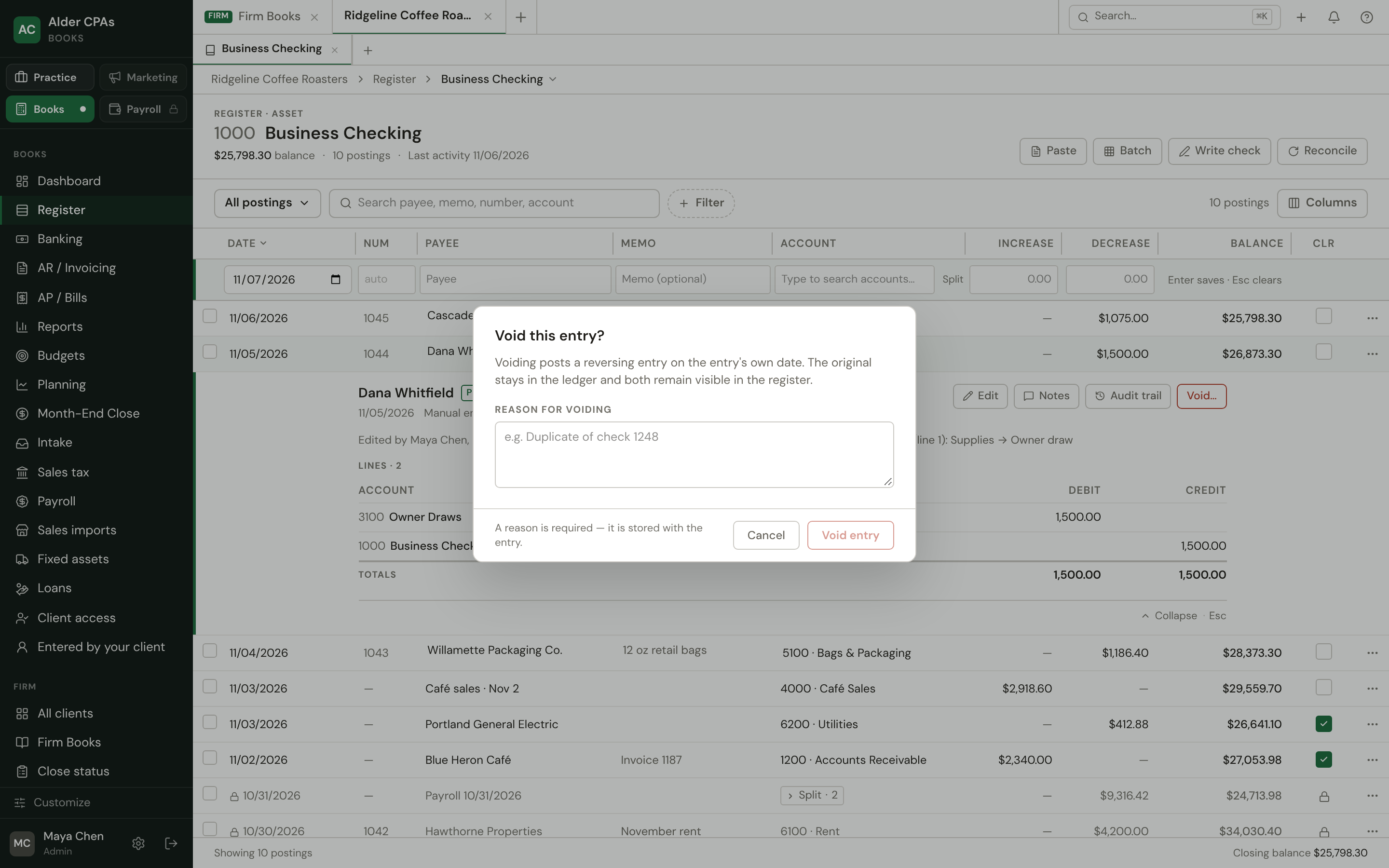 Voiding an entry asks for a reason
Voiding posts a reversing entry on the entry's own date. The original stays in the ledger and both remain visible in the register. The two lines net to zero, so the balance returns to what it was, and the void reason shows when you open the original.
What a void does depends on where the entry came from:
- From a bank line: the confirmation says This returns the $412.88 bank line to For review, unmatched. The entry is reversed; the line stays on the bank statement, so the bank balance does not change. The line waits in the Review queue again.
- From a payroll or sales import, or an imported invoice or bill: the void goes through the import. Before you click Void the import, the confirmation says what is voided with it, and the originals stay in the ledger beside their reversals.
- From a document (invoice, bill, payment, check, deposit and so on): Void… is off. Void the document instead.
Void is refused when:
- A finished reconciliation counted the entry: A finished reconciliation cleared this entry. Reopen it (Banking · Reconcile · History) to void this.
- The month is closed. A member with the Lock a period permission can void into a month that was closed (not one locked for good), with a reason of at least 10 characters, which is recorded.
- The month is closed and the entry came from a bank line. Undoing a bank line's posting has no override: This entry's month is closed, and undoing a bank line's posting has no override. Record a correction in an open month, or have a member with the "Reopen a locked period" permission reopen the month first.
- You don't have the Void or reverse a posted entry permission on this client.
Why doesn't my balance match the bank?
The register shows your book balance: every posted entry in this account. Your bank shows only what has reached it. The usual reasons they differ:
- Lines still in the Review queue. A bank line isn't in the books until you post or match it. Work through Reviewing Bank Transactions first.
- Outstanding items. A check you wrote that hasn't been cashed, or a deposit the bank hasn't credited yet, is in the register but not at the bank. Filter by Cleared → Uncleared to list them.
- Dates. The register's balance is after its newest entry. Compare it to the bank's figure for the same date: click Sort by date if you have sorted, and read the Balance on the last line on or before the statement date.
- A changed reconciled entry. If someone edited an entry a reconciliation counted, that reconciliation no longer ties. Books warns before saving an edit like that, and refuses a void until the reconciliation is reopened.
To prove the difference line by line, click Reconcile: you enter the statement's ending balance and tick what cleared, and what is left over is exactly what you are looking for.
The Balance on the Register page is as of today. The balance at the top of an account's register is the balance after its newest entry, so an entry dated after today makes the two differ.
How do I undo a match?
A match links a bank line to an entry that was already in the books, such as a customer payment. In the register, the matched entry simply shows as cleared — nothing new was posted.
To undo it, go to Banking → Review, click the Matched pill, find the line and click Unmatch. Unmatched. The bank line is back in the queue and the register side is uncleared again. The entry itself is unchanged.
A match can't be undone while the entry is part of a completed reconciliation; undo that reconciliation first.
If the bank line was posted as a new entry rather than matched, undo it by voiding that entry in the register, as described above: the bank line returns to the Review queue.
Shortcuts and tips
Keys in the new-entry row
| Key | Where | What it does |
|---|---|---|
| Enter | Anywhere in the row | Saves the entry. |
| Esc | Anywhere in the row | Clears the row. If the payee just filled the account or amount, the first Esc clears only that. |
| Tab | Date | Leaves the date in one press, not three. |
| t | Date | Today. |
| = | Date | Next day. |
| + (Shift+=) | Date | One week later. The + on a number keypad moves one day. |
| - | Date | Previous day. |
| m | Date | First day of that date's month. |
| h | Date | Last day of that date's month. |
| y | Date | First day of that date's year. |
| Tab | Payee, on a new name | Creates the vendor (with Undo). Tab never creates a vendor when the name matches an existing one, in whole or in part. |
| ↑ / ↓, then Enter | Payee or Account | Choose from the suggestions. In the account list the first match is highlighted as you type, and Tab picks the highlighted account and moves on. |
| Enter | A split line | Moves to the next split line, adds one on the last line, and saves once the splits balance. |
Elsewhere in the register
| Key | What it does |
|---|---|
| Esc | Closes the opened entry. |
| Enter or Space on a cell | Starts an in-row edit; Enter saves it and Esc cancels. |
| Shift+click a column header | Adds a second sort. |
Math in any amount
Every amount field does arithmetic. Type a sum and it settles to the result, to the cent, when you leave the field or press Enter:
500+600→ 1100.00214.60+97.35→ 311.95(125+50)/2→ 87.5012x3or12*3→ 36.00
A leading =, dollar signs, commas and spaces are ignored, so =1,250+$75 works. Parentheses group. The sum is worked out exactly and rounded once, so 10/3*3 is exactly 10.00. A sum that can't be worked out, such as a division by zero, stays as you typed it and is marked, so you can fix it.
Worth knowing
- Nothing you type in the register is a draft. Saving a new row posts it, with its date, number and payee, through the same checks as any other entry: closed months, balance, permissions.
- The history travels with the entry. Any edit — in the row, in the edit form, or in the bank line's editor — is recorded with who, when, before and after. Audit trail shows the full record.
- A control that is off says why. Hover or tab to it to read the reason and, where there is one, the way forward.
Related
- Reviewing Bank Transactions — post, match and exclude bank lines before they reach the register.
- Find, Batch-Enter and Reclassify Transactions — search every account at once and recode lines in bulk.
- Journal Entries — entries that touch any accounts, not just one register.
- Your Chart of Accounts — add accounts, and choose which ones the register's account list offers.