
Journal Entries
Write, save, post, reverse, edit and void journal entries, and know exactly why Books holds one back.
On this page
A journal entry is how you record what no invoice, bill or bank line will: a month-end accrual, a reclass, a correction, an adjustment from the accountant. Journal entries has four tabs: Journal (every entry posted), New entry, Drafts, and Recurring (entries that repeat on a schedule; see the article Scheduled (Repeating) Entries).
Books tells you why before you click. While an entry cannot post, Post entry stays off and the reason sits beside it: out of balance and by how much, a line with no account, a missing memo, a closed month. A draft is the escape hatch: Save draft keeps what you have typed, even unbalanced, and nothing reaches the ledger until you post it.
Understand the Journal
Journal lists the posted entries for this client, newest first, with a count beside Posted entries.
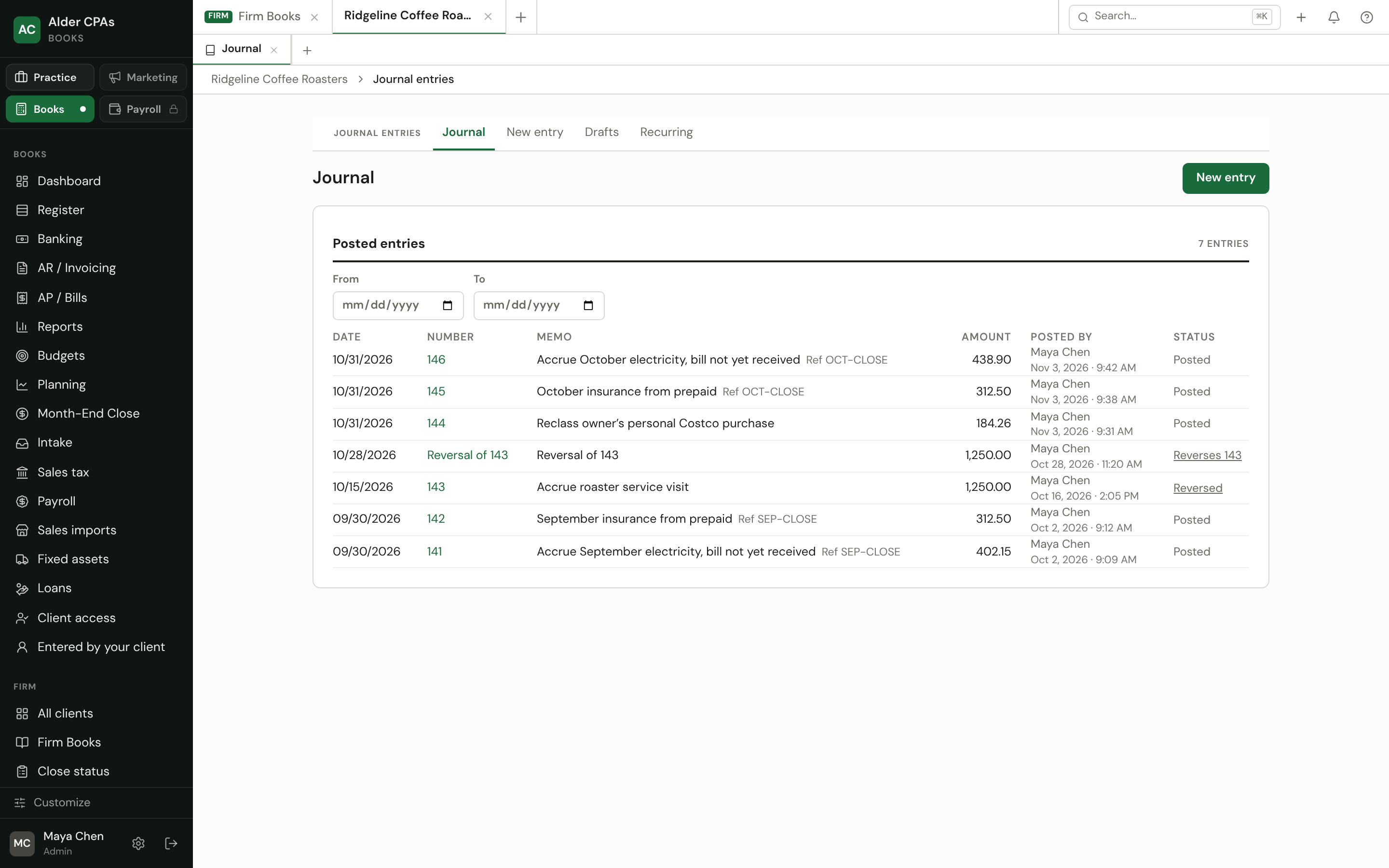 The Journal tab for Ridgeline Coffee Roasters, with October's month-end entries and a reversed accrual
The columns, in order:
- Date — the date the entry is dated (the day it affects the books, not the day it was typed).
- Number — the entry's number. Click it to open the entry.
- Memo — the entry's memo, then its reference in gray (for example, Ref OCT-CLOSE).
- Amount — the entry's total debits.
- Posted by — who posted it, and when.
- Status — Posted; Reversed on an entry that was reversed or voided (click it to open the entry that undid it); or Reverses 143 on the entry that undid entry 143.
A reversing entry, and the counter-entry a void posts, has no number of its own. It is listed on its own date as Reversal of 143, so the original and what undid it both appear in the month each one affects.
Use From and To to show only the entries dated in a range, and Show all dates to clear them. The list shows the latest 200 entries; when there are more, it says so, and choosing dates finds the older ones.
Write and post an entry
- Open New entry.
- Set the Date. It starts on today's date for this client (or on the day these books start, if that is later).
- Write a Memo — what this entry records. It is required to post. Add a Reference if you like (for example, OCT-CLOSE), which helps you find the entry later.
- Fill in the Lines. For each line, choose an Account, add a Line memo if you like, and type the amount under Debit or Credit. The entry starts with two lines; click + Add line for more. An entry keeps at least two lines.
- Watch the Totals row under the lines. It shows both columns and reads Balanced when they agree, or Out of balance by $38.90 when they do not.
- Click Post entry.
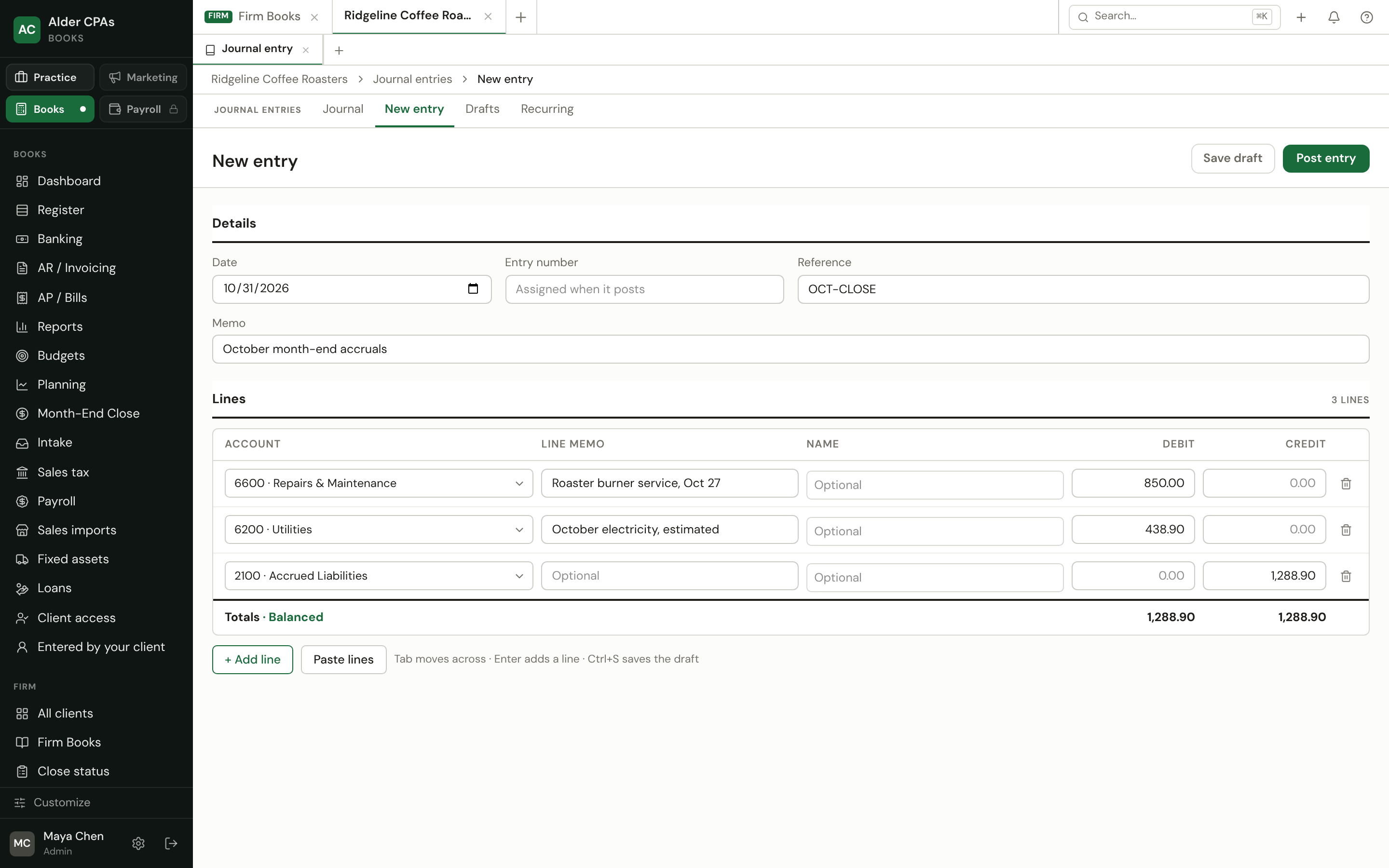 A three-line October accrual, balanced and ready to post
Books gives the entry its number when it posts (Entry number reads Assigned when it posts until then), shows 146 posted, and opens the posted entry.
Name, on each line, ties that line to one of this client's customers or vendors. It is optional. Class, Location and Job columns appear when the client uses them. On a new entry, when a client tracks classes or locations, a line can fill its class or location from the account's default; anything you pick yourself stays as you set it.
Save a draft instead
Click Save draft (or press Ctrl+S) to keep the entry without posting it. A draft can be unbalanced, undated or half-finished. Draft saved confirms it, and the entry waits under Drafts.
Drafts lists each draft with its Date, Memo, number of Lines, total Debits, Status (Balanced or Out of balance) and Last saved.
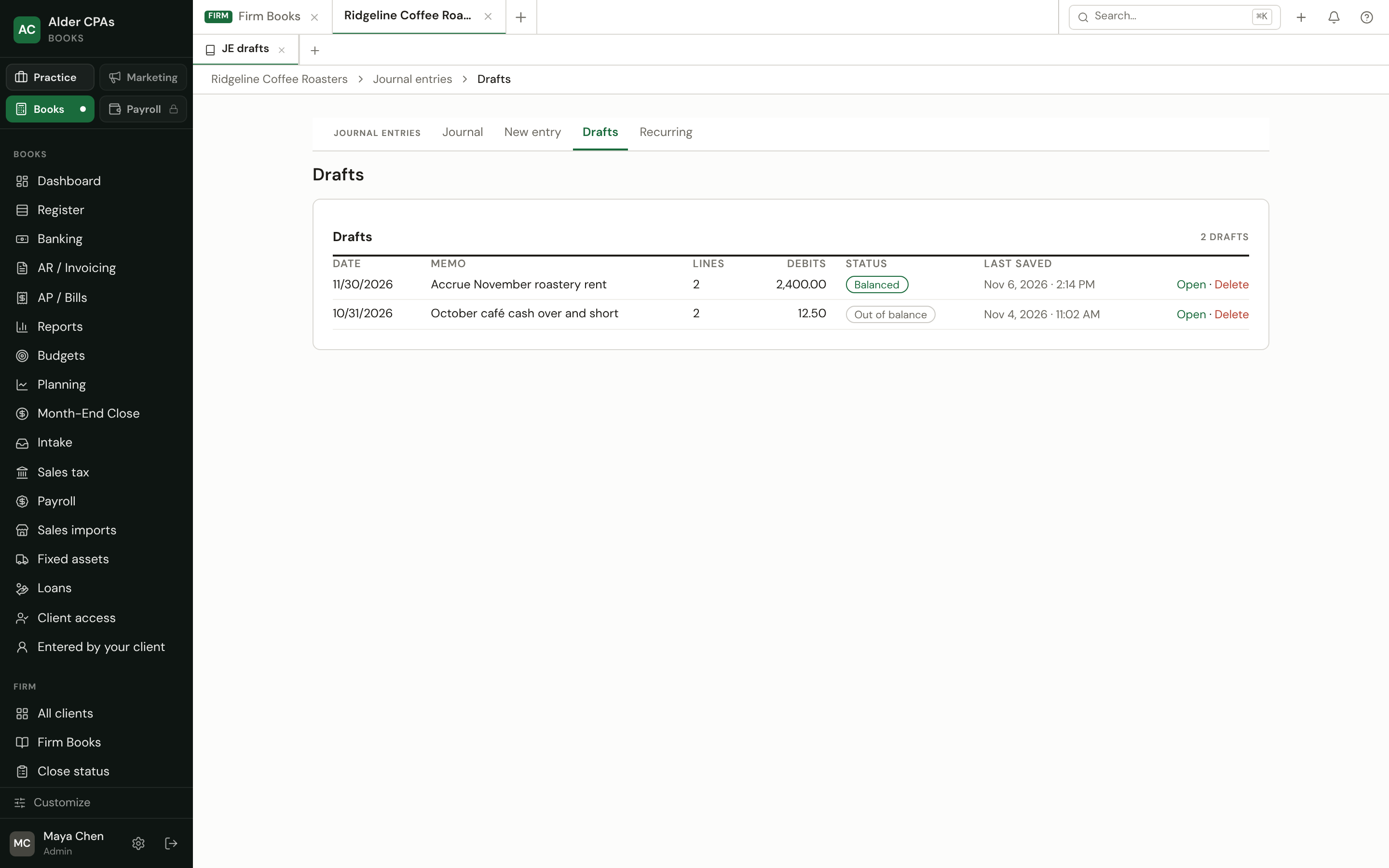 Two drafts: a balanced rent accrual and an out-of-balance cash adjustment
- Open brings the draft back into the entry form, titled Journal entry draft. Post it from there; the draft is removed once it posts.
- Delete asks first, naming what goes: Its 2 lines ($12.50) are removed and cannot be restored here. Nothing was posted, so no balance changes. The audit log keeps a full copy. Click Delete draft, or Keep draft to back out.
The quick entry window
For a fast entry, open Quick add (the + at the top of the screen, or press Q) and choose Journal Entry (or press J). It has a Date, a Reference, a Description and the lines, plus two options:
- Create a reversing entry on the first day of the next period — see Reverse an accrual automatically.
- Repeat this entry on a schedule instead of posting it now — saves a recurring entry under Scheduled entries instead of posting.
You can turn on one of these, not both. Open full form moves the date, reference, description and each line's account and amounts to New entry, where you can save a draft. Line memos and names are not carried over.
Shortcuts and tips
Books is built to be keyed fast. On New entry:
| Key or trick | What it does |
|---|---|
| Enter in a line's memo or amount | Adds a new line at the bottom and moves to it. An amount with a sum in it is worked out first. |
| Tab | Moves across the line, field to field. |
| Ctrl+S (⌘S on a Mac) | Saves the draft, from anywhere on the page. |
| Type in Account | Finds an account by number or name. The list is grouped by account type; within a type, matches at the start of a number or word come first, so 62 finds 6200 before an account that only contains 62. ↑/↓ move through the list, a click picks, Esc closes it. |
| An amount in Debit | Clears that line's Credit, and the other way around. A line holds one side. |
| Paste lines | Copy rows from a spreadsheet and paste them in. See below. |
| Q, then J | Opens the quick entry window from almost anywhere in Books (not while you are typing in a field). |
Math in an amount
Every amount field works out a sum for you. Type 850+438.90 in Credit, press Tab or Enter, and the field settles to 1,288.90. You can use +, -, * (or x), / and parentheses, as in (1200+450)/3. A leading =, a $ and commas are ignored, so a habit from a spreadsheet works too. Books keeps the math exact and rounds to the cent once, at the end: 10/3*3 is exactly 10.00.
If a sum cannot be worked out, the field keeps what you typed, outlines it in red and says why, such as Can’t divide by zero. or A parenthesis is not closed.
Paste lines from a spreadsheet
- In your spreadsheet, copy the rows that hold the lines (account, debit, credit, and optionally memo, class, location or job).
- Click Paste lines and paste into the box. Books reads the rows as soon as you paste (or click Read these rows).
- Check what each column holds. Set any column to Not imported to skip it, and tick First row is headings if it is. When the first row is headings, Books remembers your column choices for those headings on this device.
- The preview shows the totals and Balances or Off by $… before you add anything. Click Add 1 line or Add 5 lines.
The pasted lines go after the lines you already typed; empty starting lines make way for them. A line whose account is kept by another part of Books arrives with the account cleared, for you to choose.
Add an account without leaving the entry
If the account you need does not exist yet, type its name in Account and choose Add “…” as a new account at the bottom of the list. The new account is filled in on the line when it is saved. This needs the Chart of accounts permission.
Dates
The Date on New entry, the Reversal date when you reverse an entry, the Date when you edit one, and From and To on Journal take shortcuts:
- t for today.
- = for a day later and - for a day earlier.
- + (Shift and =) for a week later.
- m, h and y for the first of the month, the last of the month and the first of the year of the date in the field.
One Tab leaves the date field.
The Date in the quick entry window is your browser's own date picker and does not take these shortcuts; one Tab still leaves it.
Reverse an entry
There are two ways to reverse, and they mean different things.
Reverse on a date
Use this for an accrual or estimate that should come back out later — for example, when the real bill arrives.
- Open the entry from Journal.
- Click Reverse on a date….
- Choose the Reversal date. It starts on the entry's own date, and must be on or after it.
- Give a Reason, at least 10 characters.
- Click Reverse entry.
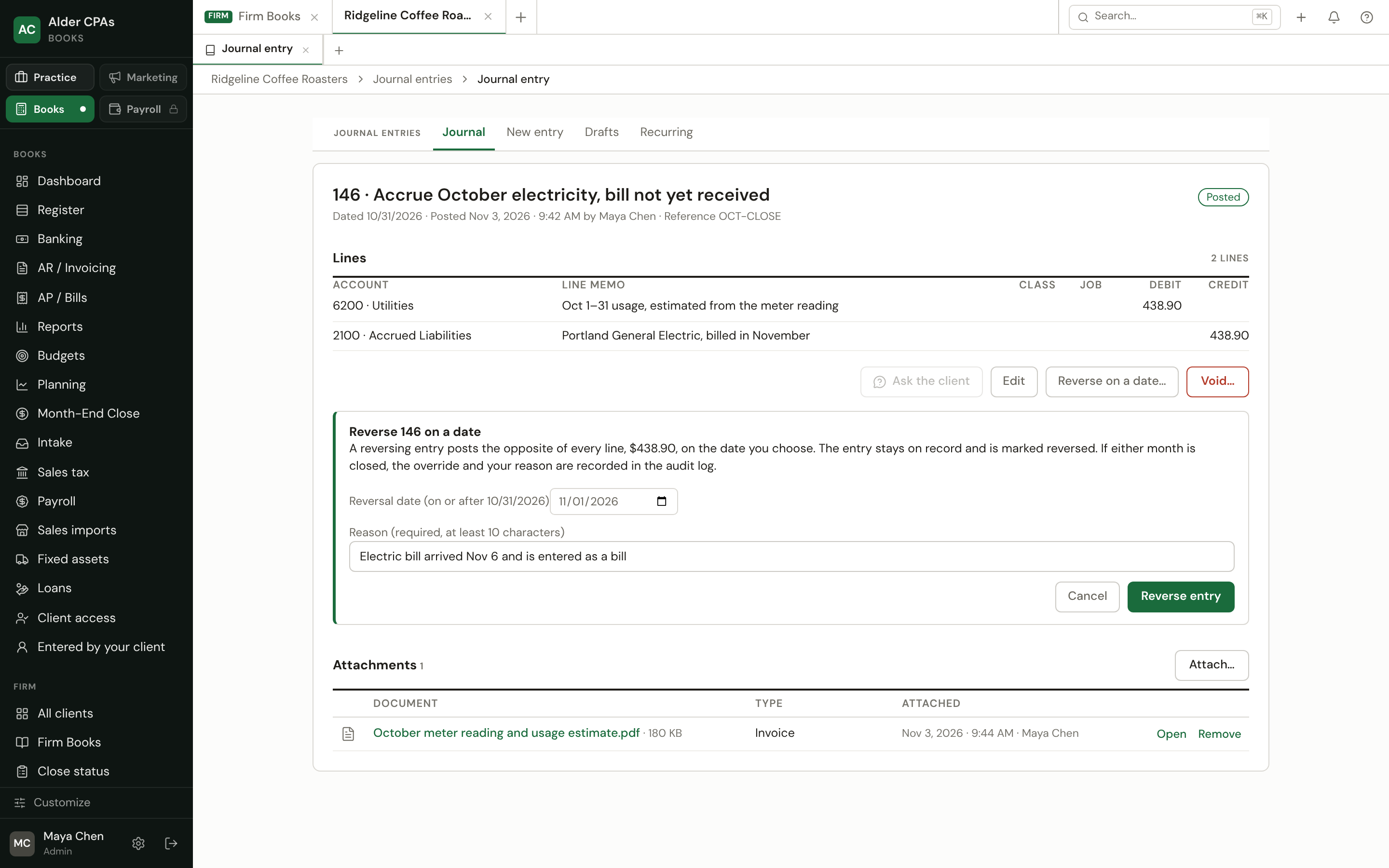 Reversing an October accrual on November 1, 2026
Books posts a reversing entry on the date you chose, with the opposite of every line, and marks the original Reversed. Both stay on record: the original still counts in October, and the reversal takes it back out in November. The notice reads 146 reversed — A reversing entry dated 11/01/2026 was posted; the entry stays on record.
Reversing needs the Void or reverse a posted entry permission.
Reverse an accrual automatically
In the quick entry window, tick Create a reversing entry on the first day of the next period before you post. Books posts the entry and its reversal together: the reversal is dated the day after the period the entry falls in (usually the first of next month), with the memo Reversal of …. Both are recorded as posted by you.
Neither entry gets an entry number. On Journal, the Number column reads Open for both, and each one's own page is titled Entry followed by a short code; find them by date and memo.
The two travel as a pair. To undo them, void the original entry; its automatic reversal is voided with it, under the same reason.
Fix or undo a posted entry
Open the entry from Journal. The page shows its number and memo, its date, who posted it and when, its reference, its lines, and the actions Edit, Reverse on a date… and Void….
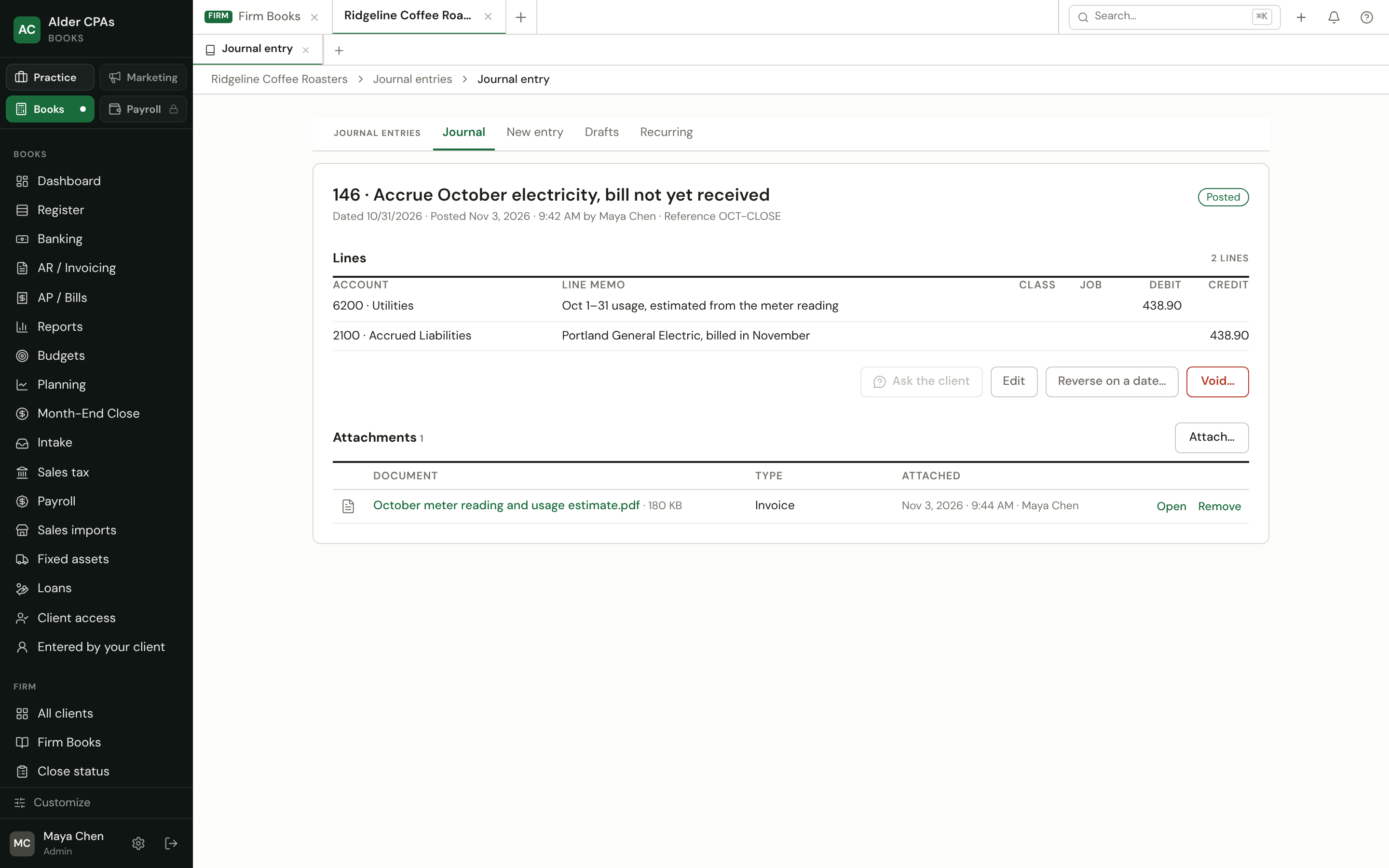 A posted entry with its lines, actions and an attached support document
Edit it in place
Click Edit to change the date, the description (the entry's memo), reference, number or lines right on the entry, then click Save changes. Books changes the entry itself, not a copy: lines whose account and amounts you did not change keep their place, and the audit log keeps what the entry said before (146 saved — The change is recorded in the audit log with what it replaced.).
The edited lines must still balance. The editor works the same way as in the register; see the article Using the Register for every detail, including the warning when a reconciled line changes.
Void it
Click Void…, give a Reason, and click Void entry. Books posts a counter-entry that removes the amount from every account the entry names, and the entry stays on record.
While the entry's month is open, the counter-entry is dated on the entry's own date and the entry's page marks it Voided. On Journal, a voided entry reads Reversed, and its counter-entry is listed as Reversal of 146. Voiding needs the Void or reverse a posted entry permission.
A voided or reversed entry can no longer be edited, reversed or voided. The page says so, and links to the entry that undid it.
Void or reverse? Void says "this entry should never have been": in an open month, the money comes out in the same month it went in. Reverse says "this was right until a later date": the money stays in its month and comes out on the date you choose.
Attach support
Under Attachments, click Attach… to add the backup for the entry: an invoice, a contract, a calculation. Choose from the client's documents (Choose from this client’s documents) or Upload a file — a PDF, image, spreadsheet or Word file up to 100 MB.
An uploaded file is saved to the client's documents and attached to the entry. Open opens a document; Remove takes it off the entry and leaves it in the client's documents. A voided entry's attachments can be opened but not changed.
Why won't my entry save?
The reason is always beside the button. In the order Books checks them:
- You need the "Post journal and register entries" permission for this. Ask an admin to grant it. — you can view the books but not post. Save draft is off for the same reason.
- Choose a date.
- These books start on Jan 1, 2025, so this entry can’t be dated Dec 31, 2024. Date it on or after Jan 1, 2025. — nothing can be dated before the day these books start.
- These books have no active accounts to post to yet. Set up the chart of accounts first. — with Open the chart of accounts under Lines.
- Enter the amounts first. — no line has an amount yet.
- Debits and credits must be equal before this entry can post. It is out of balance by $38.90. A draft can be saved unbalanced. — fix an amount or add a line, or save a draft and come back.
- Every line with an amount needs an account.
- Add a memo. — the entry's Memo is required to post. A line memo is not.
After these come the closed-month reasons in the next section.
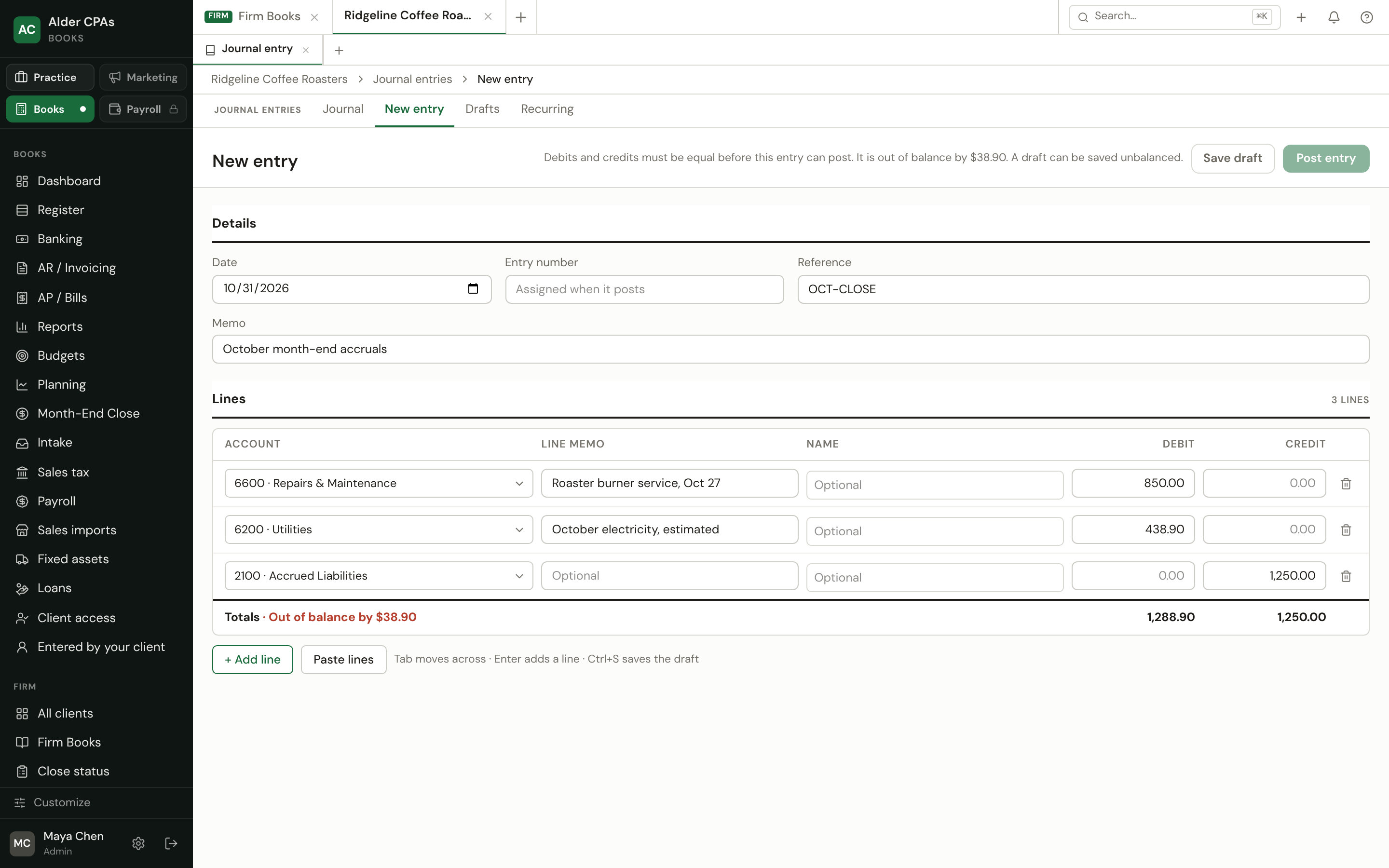 Post entry held back: the entry is out of balance by $38.90
If Books refuses the entry when you click, a panel on the page says This entry was not posted, with Books' reason.
Accounts you can't choose
Some accounts are kept by another part of Books and never appear in a journal entry's account list — for example Accounts Receivable, Accounts Payable, Retained Earnings and Opening Balance Equity.
Their balances are built from invoices, bills, payments, the opening balances and the year-end close, and a journal entry straight to them would put them out of step with the records behind them. Record the invoice, bill or payment instead.
Why can't I post to this date?
The month is closed. When the date falls in a closed month, Books shows a panel such as September 2026 is closed, and the button becomes Post into September.
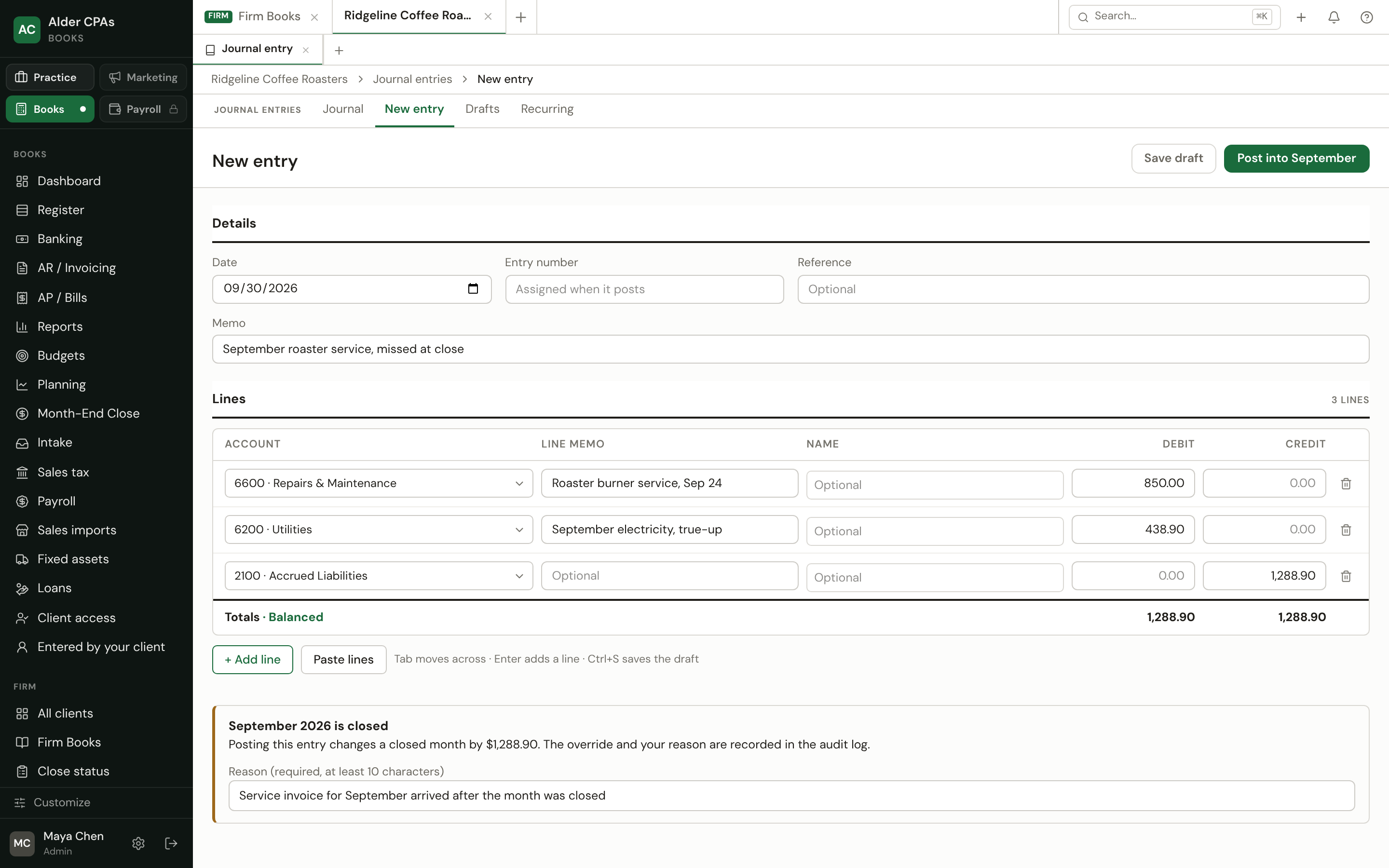 Posting into closed September: the reason is required
- If you may close periods (the Lock a period permission), give a Reason of at least 10 characters. The panel names the amount the closed month changes by, and the override and your reason go into the audit log. If your firm has set a closing password, the panel also asks for it under Closing password: click Unlock, and closed periods are unlocked for you, on this client, for 15 minutes.
- If you may not close periods, the panel says Only a member allowed to close periods can post into it. Ask your firm’s owner or admin, or date the entry in an open month.
The quick entry window does not offer the override: a closed month is refused there, and New entry is where you post into one.
The month is hard locked. October 2025 is hard locked and cannot be posted into. Date the entry in an open month. No one can post into a hard-locked month.
The fiscal year has ended. This is a question, not a block. Posting an entry dated in an earlier fiscal year asks first — for example, Add an entry to fiscal year 2025?, explaining that the year has ended and that saving changes its balance sheet, its profit and loss, and anything already reported or filed for it, such as a tax return.
Click Save to fiscal year 2025 to post, or cancel to change the date. The warning can be turned off under Settings → Accounting (Warn before changing an earlier fiscal year).
When you edit, void or reverse an entry from its page under Journal and its month is closed:
- Edit in a closed month is offered only to a member who may close periods, and asks for a reason of at least 10 characters.
- Void… on an entry in a closed month, soft or hard locked, asks for no override: the counter-entry is dated today, in an open month, and the closed month is not changed. The dialog says so, for example: October 2026 is closed, so the counter-entry is dated today, in an open month, and October 2026 itself is not changed.
- Reverse on a date… checks both months — the entry's and the reversal's — when you click Reverse entry.
- An entry and its automatic reversal can only be voided together while both of their months are open.
Who can do what
| To | You need |
|---|---|
| See Journal and open an entry | Access to the client's books |
| Write, save a draft or post | Post journal and register entries |
| Void or reverse | Void or reverse a posted entry |
| Post into a closed month | Lock a period, and a reason |
The same pages exist for your firm's own books under Firm Books.
A month-end routine
- Post the month's accruals and reclasses dated on the last day of the month, with a shared reference (for example, OCT-CLOSE) so you can find them together.
- Attach the support for each estimate to its entry.
- When the real bill arrives, Reverse on a date… the accrual into the month the bill lands in, so the cost is not counted twice.
- Before you close the month, check Drafts: a draft is not in the books, however finished it looks.