
Fixed Assets and Depreciation
Keep a register of what a client owns, see the book and tax schedules side by side, post depreciation as one entry per period, and record a sale or write-off with its gain or loss worked out for you.
On this page
The Fixed assets register is the list of everything a client owns that lasts longer than a year: a roaster, an espresso machine, a delivery van, the café's tables and chairs.
For each asset Books keeps two schedules side by side: the book schedule, which posts to the ledger, and the federal tax schedule, which feeds the return and posts nothing. Depreciation posts as one journal entry per period, and the register checks itself against the ledger every time you open it.
Saving an asset posts no depreciation. Depreciation reaches the ledger only when a run posts: when you click Post under Run depreciation, or when automatic posting runs on the last day of the period. What saving a new asset can post is its purchase, and only through your answer to How was this paid for?: Record the purchase now posts the purchase, and Already in the books posts one entry to move it when it was posted to another account (see Add an asset).
The register is part of Premium. On a client that is not on Premium and holds no assets, the page shows the line The fixed assets register is part of Premium., with a link to turn Premium on, in place of the register.
A client whose Premium ended after assets were added keeps the register under that line: adding, changing, disposing and posting wait for Premium, but you can still turn automatic posting off and void depreciation runs and disposals. While a firm's Premium is paused for payment, it reads Premium is paused until the firm's payment goes through.
Understand the register
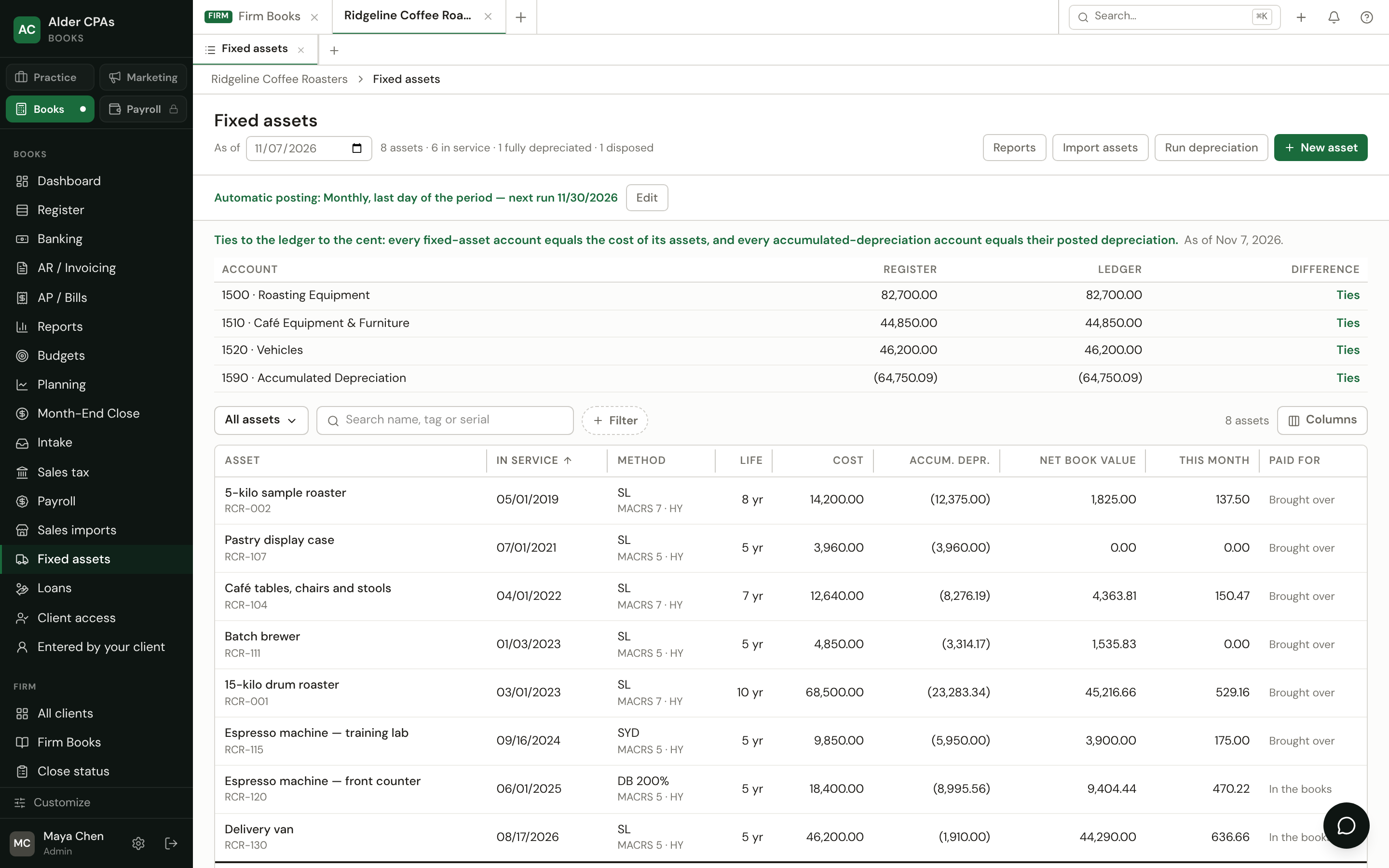 The fixed assets register for Ridgeline Coffee Roasters, tied to the ledger to the cent
Across the top:
- As of — the date the register is read for. It opens on today (or on the day the books start, if that is later); pick another date to see the register as it stood then. Beside it, a count of what the table shows, such as 8 assets · 6 in service · 1 fully depreciated · 1 disposed.
- Reports, Import assets, Run depreciation and New asset.
- Automatic posting — one line saying whether depreciation posts on its own, for example Automatic posting: Monthly, last day of the period — next run 11/30/2026, with Turn on or Edit beside it.
The tie to the ledger
Under the header, Books compares the register with the ledger, account by account:
- Each fixed-asset account (here 1500 · Roasting Equipment, 1510 · Café Equipment & Furniture and 1520 · Vehicles) should equal the cost of the assets in it.
- Each accumulated-depreciation account (1590 · Accumulated Depreciation) should equal the depreciation those assets have recorded.
When everything matches it says so in green: Ties to the ledger to the cent: every fixed-asset account equals the cost of its assets, and every accumulated-depreciation account equals their posted depreciation. When it does not, the Difference column names the account and the amount. A difference that is only assets with no purchase linked shows in amber with unlinked assets under it, and the sentence tells you to Link the purchase on each row.
A difference nothing explains shows in red: Does not tie to the ledger. The difference is stated per account below — a balance with no asset behind it, or an asset with no balance. Right after you import a ledger, before you have entered any assets, the line simply reads The ledger has $173,750.00 in fixed asset accounts and no assets recorded. Import your asset list or add assets.
The columns
| Column | What it shows |
|---|---|
| Asset | The name, with the tag or serial number under it. |
| In service | The date the asset was placed in service. Depreciation starts here, not at purchase. |
| Method | The book method (SL, DB 200%, DB 150%, SYD, MACRS, None), with the tax schedule under it, such as MACRS 7 · HY. Hover the header for the key to the abbreviations. |
| Life | The useful life, such as 10 yr. For a MACRS book method it is the tax class. |
| Cost | What the asset cost. |
| Accum. depr. | Depreciation recorded so far: what was taken before Books started posting, plus every run posted through the As of date. |
| Net book value | Cost less accumulated depreciation. |
| This month | The book schedule's depreciation for the month of the As of date. |
| Paid for | How the purchase reached the books: In the books, Recorded, Brought over, or a Link the purchase button when part of the cost has no purchase behind it. |
Class, Location, Job and Status are off by default. Turn them on from Columns; they sort once shown. Use Search name, tag or serial, or Filter by status, class, location, job, in-service date or cost.
The Shown row totals the rows in view. A disposed asset stays in the list (its Status, when you show that column, reads Disposed) but is not counted in the totals or the tie: Disposed assets are listed but not counted in the totals or the tie — they left the books on their disposal dates. Drafts are listed under the table, not in it.
Click any row to open the asset.
Add an asset
- Click New asset.
- Under The asset, enter the Name, a Tag or serial if you use one, Acquired (the purchase date; it defaults to the in-service date), Placed in service and Cost. Class, Location, Job and Bought from are optional.
- Answer How was this paid for? (see below). The box under the answer shows exactly what Books will post, such as Posts one entry: with the debit to the asset account and the credit to the account that paid.
- Under Accounts, choose the Asset account, Accumulated depreciation and Depreciation expense accounts. When the client has only one account of a kind, it is chosen for you.
- Under Schedules, set the Book side (Method, Useful life in years, Salvage value, First year) and the Tax side (System, Property class, Election).
- Click Save. Or click Save as draft to keep an asset you are still working out: a draft needs only a name, is not in the register or the tie, and is never depreciated.
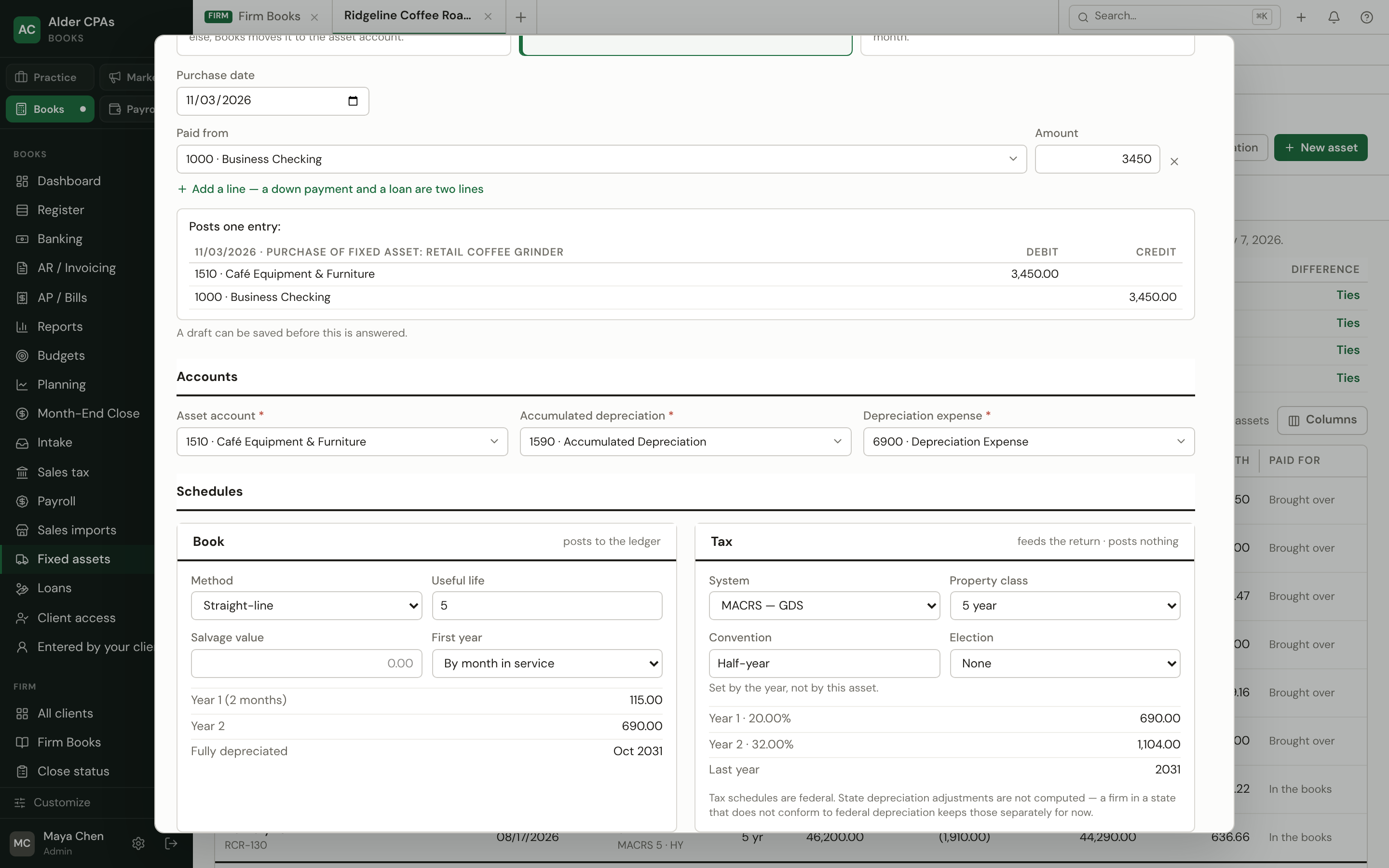 Entering a retail coffee grinder, with both schedules worked out before saving
As soon as the asset has its dates, cost, accounts and method, Books works out both schedules and shows them under each side: Year 1 and Year 2, the month the book side is Fully depreciated, and the tax side's Last year. These are the same figures saving will store, worked out by the same checks, so a problem shows here, in red, before you save.
For the grinder above (cost $3,450.00, straight-line over 5 years, in service Nov 3, 2026), the book side shows Year 1 (2 months) 115.00, Year 2 690.00, fully depreciated Oct 2031; the tax side shows Year 1 · 20.00% 690.00 and Year 2 · 32.00% 1,104.00.
How was this paid for?
Every new asset answers this once, so the register can tie:
- Already in the books — the bill, check or entry that bought it is already posted. Search for it under Find the bill, check or entry and pick the line. If it posted to the asset account, it is linked and nothing posts. If it posted somewhere else (to Repairs, say), Books moves it to the asset account with one entry; if that line's month is closed, the move is dated today instead.
- Record the purchase now — say what paid for it (Paid from an account, with the Amount), and Books posts the purchase. A loan and a down payment are two lines: click Add a line — a down payment and a loan are two lines. A line paid from accounts payable becomes a real bill, so it asks who it is Owed to. The lines must add up to the cost.
- Brought over from another system — bought before these books began. Nothing posts. Enter the Depreciation already taken and the month it runs Through the month of; Books starts depreciating after that month.
An entry this posts is changed from the asset's page, under How it was paid for.
How depreciation is worked out
Books works out both schedules itself, year by year, and keeps every figure to the cent.
The book methods
Book basis is cost less salvage value. The book schedule never takes an asset below its salvage value, and the last year takes exactly what is left.
Straight-line (SL)
The book basis spread evenly over the useful life.
Declining balance 200% / 150% (DB)
A rate of 2 (or 1.5) divided by the life, applied each year to cost less depreciation so far. Salvage is not taken off before the rate is applied; it is the floor. When straight-line over the remaining life would give more, Books switches to that.
Sum of years' digits (SYD)
Each year takes a falling share of the book basis: on a 5-year life, 5/15, then 4/15, then 3/15 and so on. Part-years are prorated. The life must be in whole years.
MACRS
The book schedule is the tax schedule, taken whole, for a client kept on a tax basis. It needs a tax system and class, and the useful life is the class's recovery period.
Not depreciated
For land, or anything else that does not wear out. No schedule: nothing accumulates and nothing posts.
The first year
The First year setting decides how much of a year the first calendar year gets (it does not apply to MACRS or Not depreciated):
- By month in service — the month the asset was placed in service counts in full, so an asset in service any day in March gets 10 months in its first year, and the last calendar year takes the months that are left.
- Half year — half a year in the first calendar year, whatever the month, so the last half year falls one calendar year later: a 5-year life is spread over 6 calendar years.
- Full year — a whole year in the first calendar year.
Each year's figure is then spread evenly over the months of that calendar year the schedule covers, rounded so the months add up to the year exactly. A monthly run posts the month's share.
Worked examples from Ridgeline Coffee Roasters:
- 15-kilo drum roaster — cost $68,500.00, salvage $5,000.00, straight-line over 10 years, by month, in service Mar 1, 2023. Book basis $63,500.00, so $6,350.00 a year. 2023 has 10 months: $5,291.67. Each month after that is $529.16 or $529.17. The last 2 months fall in 2033: $1,058.33.
- Espresso machine — front counter — cost $18,400.00, salvage $1,400.00, declining balance 200% over 5 years (a 40% rate), by month, in service Jun 1, 2025. 2025: $18,400.00 × 40% × 7/12 = $4,293.33. 2026: ($18,400.00 − $4,293.33) × 40% = $5,642.67.
- Espresso machine — training lab — cost $9,850.00, salvage $850.00, sum of years' digits over 5 years, half year, in service Sep 16, 2024. Book basis $9,000.00. 2024 is half of the first year's 5/15: $1,500.00, spread over September to December. 2025 is the other half of 5/15 plus half of 4/15: $2,700.00. 2026 is $2,100.00, which is $175.00 a month.
The tax schedule
The tax side is federal MACRS, under MACRS — GDS or MACRS — ADS, read from the IRS's published percentage tables for the Property class (3, 5, 7, 10, 15, 20, 27.5 or 39 years). Under ADS, personal property needs its ADS recovery period from Publication 946, Table B-1; real property's period is set by law. The tax basis is the full cost: salvage is ignored. The tax schedule posts nothing.
The Convention is set by the year, not by the asset:
- Half-year, unless more than 40% of the depreciable basis the client placed in service that year (not counting section 179) went in during October to December. Exactly 40% is still half-year.
- Mid-quarter when that test is crossed. It changes the first-year figure of every asset placed in service that year, so when the asset you are entering is the one that tips the year, the form warns you before you save: This asset moves the whole year to the mid-quarter convention. Click See the N affected to see each asset's first-year figure before and after.
- Mid-month for 27.5- and 39-year real property, by the month placed in service.
The Election can be Bonus depreciation, Section 179, or Section 179, then bonus (section 179 first, then bonus on what is left, then MACRS on the remainder). Year 1 is then explained in words under the schedule, for example Year 1 is 10,000.00 section 179 elected plus ….
Real property takes no bonus, and takes section 179 only when it is 39-year property marked Qualified real property (a roof, heating and air-conditioning, fire protection and alarm, or security system added after the building was placed in service); the form offers only the elections the asset can take.
An asset with a section 179 election shows a Section 179 panel for its year with the Form 4562 Part I lines: the dollar limit, the phase-out, the business income limit and the carryforward. Record the year's business income there.
Schedules run by calendar year. State depreciation adjustments are not computed.
One asset, book and tax side by side
Open an asset to see its whole life in one table: Book depreciation, Book accumulated, Tax depreciation, Tax accumulated and the Difference for every year, with the totals at the bottom. When one schedule ends before the other, its accumulated figure carries forward and its depreciation reads 0.00, so the difference is stated for every year.
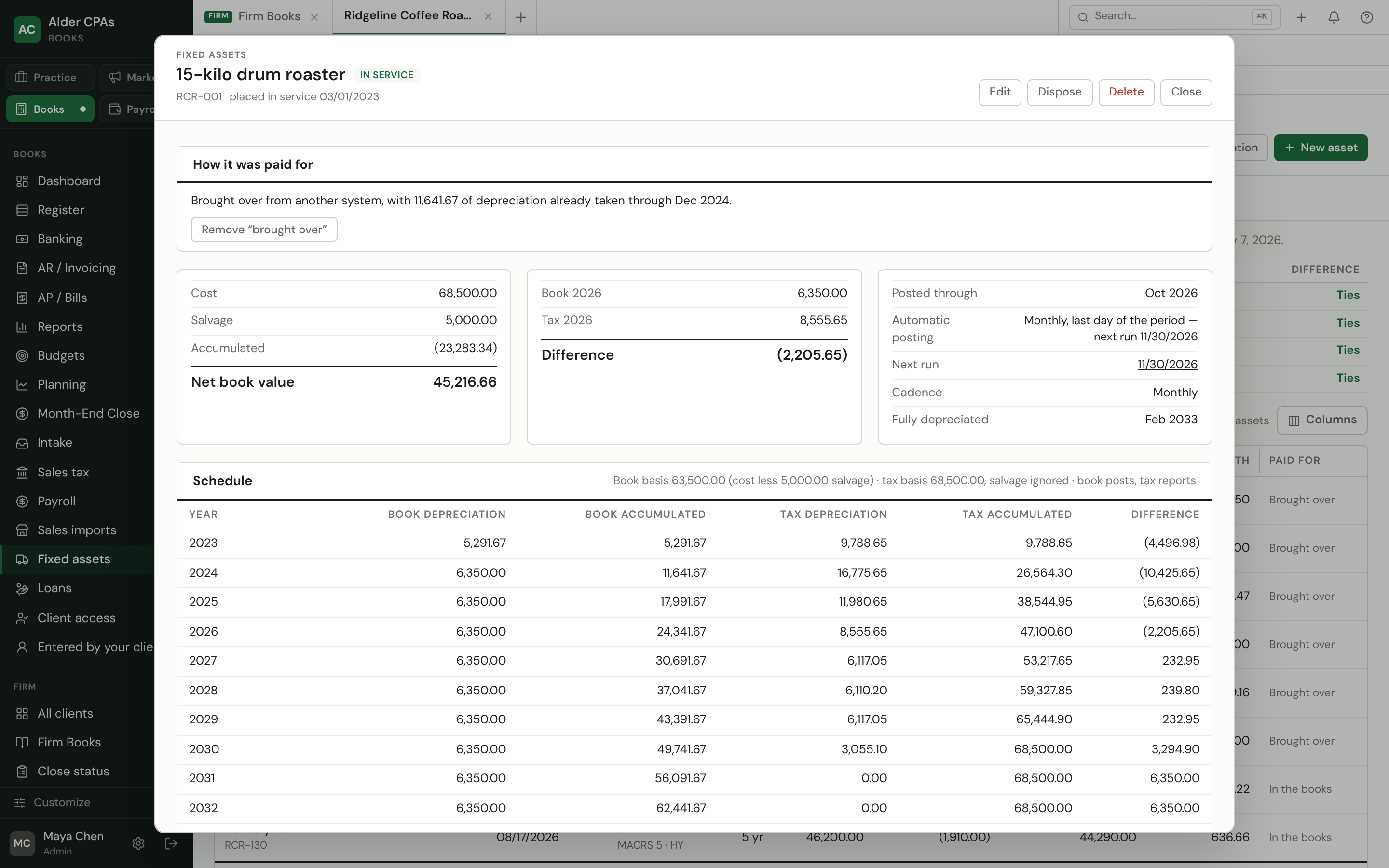 The 15-kilo drum roaster: book and tax by year, with the difference
Above the table: Cost, Salvage, Accumulated and Net book value; this year's Book, Tax and Difference; and the posting status: Posted through, Automatic posting, Next run, Cadence and the month it is Fully depreciated.
Post depreciation
Run it yourself
- Click Run depreciation. The panel opens on the next period due.
- Check The entry: one debit to depreciation expense per expense account and class, and one credit per accumulated-depreciation account. Click · see N on any line to see the assets behind it, with each one's Schedule to date, Already recorded and This run.
- Check Before this posts: whether the period is Open, anything already posted for it, which assets are fully depreciated or disposed, and anything left out.
- Click Post (it shows the total, such as Post 2,099.01).
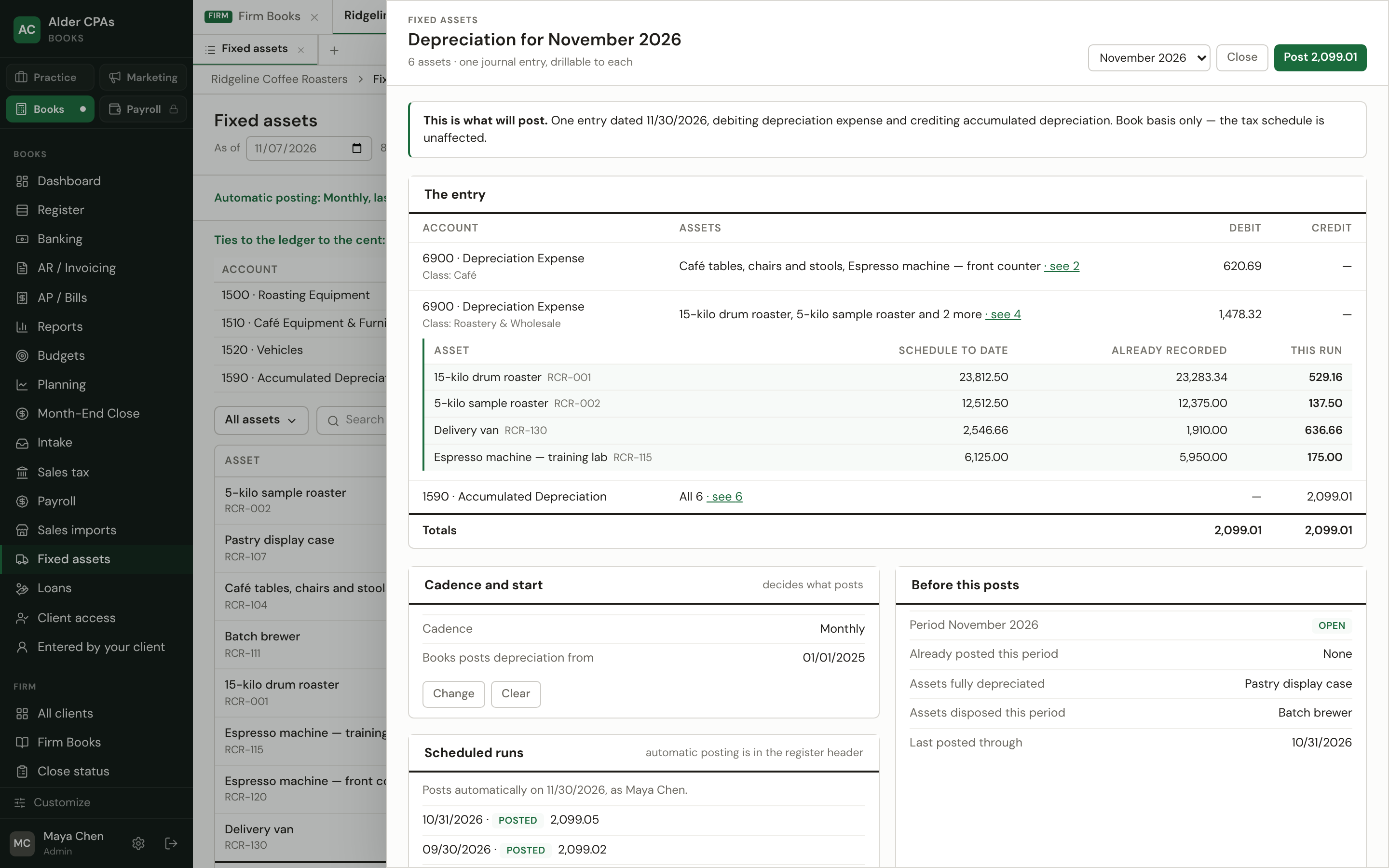 The November 2026 run for Ridgeline: one entry, $2,099.01, drilled into the Roastery & Wholesale line
The entry is dated the last day of the period. Each asset's part is its schedule to date less what is already recorded for it, so a period that was skipped is caught up by the next run and nothing is counted twice. That is also why changing an asset is safe: the next run posts the difference.
Use the period picker beside Close to choose between the period due and the one after it.
Cadence and start
Before the first run, Books asks two things under Cadence and start:
-
Cadence — Monthly, Quarterly or Annually. It is monthly unless you change it.
-
Books posts depreciation from — a month (a quarter's first month, or January, for the longer cadences). Depreciation before it counts as recorded outside Books: the register counts it as opening accumulated depreciation and nothing posts for it.
Books suggests the earliest month any asset (other than one brought over) went into service or, with none, the month these books started. An asset brought over from another system starts after the month its depreciation was taken through, whatever this says.
Click Save — Books posts from …. Change and Clear are there afterward, but once a run has posted the start date is fixed, because moving it would recount or drop what posted, and the settings cannot be cleared until those runs are voided. They also cannot be cleared while automatic posting is set up.
Let it post on its own
- In the register header, click Turn on beside Automatic posting.
- Check the Cadence and the month Books posts depreciation from.
- Under Each run, choose Posts automatically, as you or Waits for a person to review and post it.
- Click Turn on.
It runs on the last day of each period. Posted runs are marked by the schedule. Runs that wait for review are listed under Scheduled runs in the Run depreciation panel with Approve and Skip; if an asset changed after the run was prepared, approving shows the new entry first, and you approve it again to post it.
To stop it, click Edit, then Turn off. Automatic posting that has already posted runs is paused rather than removed, and the line then reads Automatic posting: Paused.
Why didn't depreciation post?
Start with the Automatic posting line in the register header, then open Run depreciation: the reason is printed beside the Post button or in a box above the entry.
-
Automatic posting: Off. (or Paused) Nothing posts until someone posts a run, or turns automatic posting on.
-
Save the month Books posts depreciation from, under Cadence and start — the cadence is monthly unless you change it. The first run cannot post until the start month is saved.
-
November 2026 is closed. Reopen it to post depreciation into it. The period is closed. Reopen it, or post when it is open. A hard-locked period reads … is hard locked, so nothing can post into it.
-
Nothing is due for this period. Every asset is fully depreciated, disposed of, already posted for the period, or not yet in service.
-
One asset is missing from the entry. Look under Before this posts. Left out — needs review names it with the reason: usually that more has posted for it than its schedule now allows, because it was changed after it posted (… more has posted for this asset than its schedule through Nov 30, 2026 — it was changed after it posted. Nothing posts for it until a person corrects it.), or that its schedule cannot be worked out. Fully depreciated and disposed assets are listed there too, and drafts are never in a run.
-
Automatic posting is waiting. The header line ends with · waiting: and the reason (a closed period, for example), and Scheduled runs in the Run depreciation panel says Waiting at 11/30/2026: …. Fix what it names. When a scheduled run finds that nothing is due, or that the period was already posted by hand, it is skipped rather than posted.
-
The plan. Posting depreciation, by hand or on a schedule, is part of Premium. On a client that is not on Premium and holds no assets, the page shows only the Premium line, and the register, Run depreciation and Automatic posting are not shown.
A client that already holds assets keeps them under the Premium line: Post and turning automatic posting on wait for Premium, while turning automatic posting off (Edit beside Automatic posting, then Turn off) and voiding a run still work.
-
Permission. Posting a run needs permission for journal entries on the client; voiding one needs void permission. A button you cannot use says why when you hover it.
Dispose of an asset
When an asset is sold, scrapped, stolen or lost, record it from the asset itself. Books works out the gain or loss; you never type it.
- Open the asset and click Dispose.
- Enter the Disposal date (it starts on today) and choose How: Sold, Scrapped, or Stolen or lost.
- Enter the Proceeds (leave 0.00 when there were none) and the account it was Received into — a bank or other current-asset account.
- Choose the Gain or loss account — an other-income or other-expense account. If the one you need is not there, type its name and choose Add “…” as a new account.
- Read What this works out to: Cost; the depreciation line, with what is posted now (for a disposal on 11/07/2026, Depreciation through 11/30/2026 (the whole month) on an asset depreciated By month in service, or Depreciation to 11/07/2026 on Half year or Full year); Net book value; Proceeds; and the Gain on disposal or Loss on disposal.
- Click Record disposal.
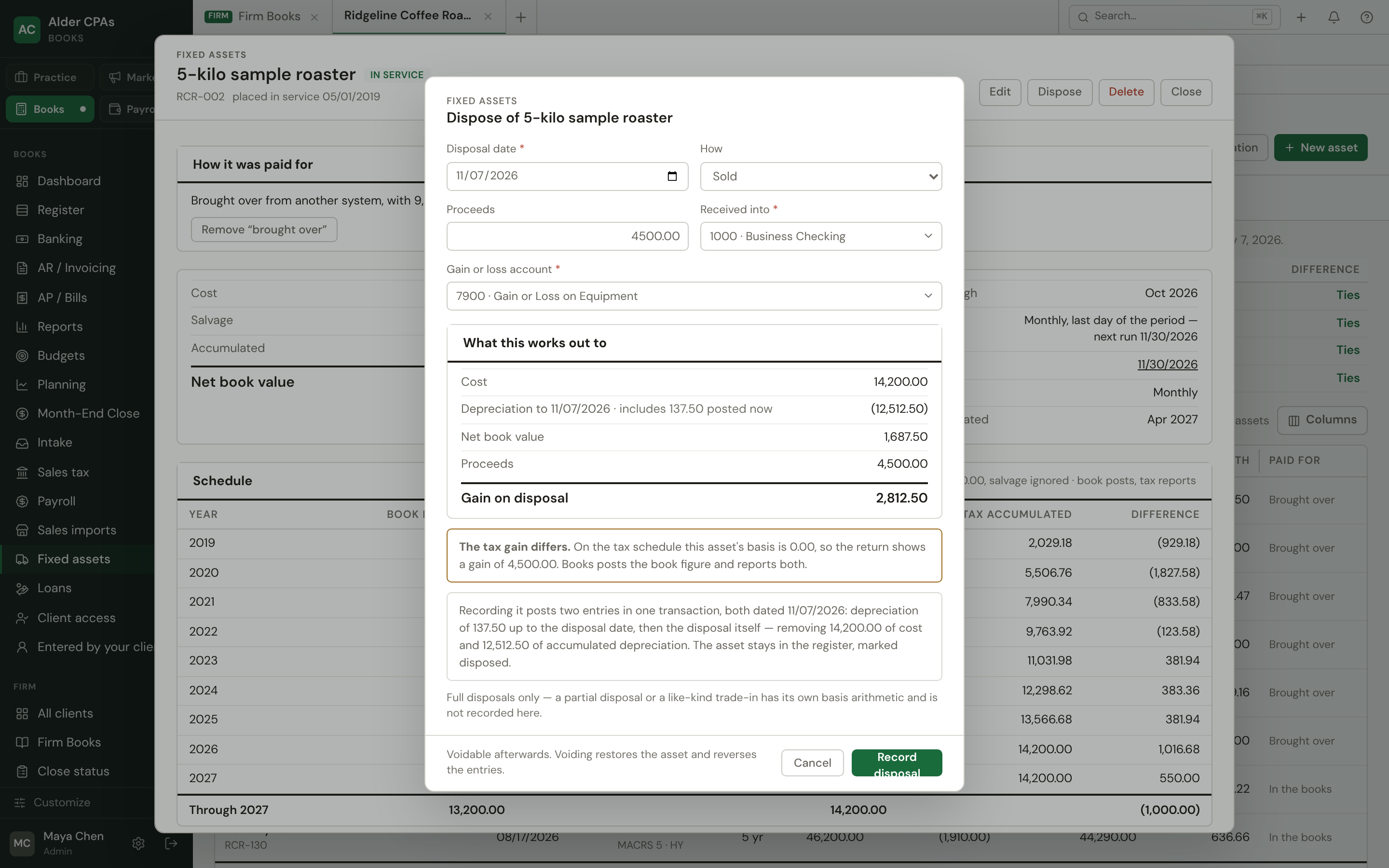 Selling the 5-kilo sample roaster for $4,500.00: a $2,812.50 book gain, with the tax gain shown beside it
Recording it posts, in one go and both dated on the disposal date:
- Depreciation up to the disposal date that has not posted yet. On an asset depreciated By month in service, the disposal month counts in full; on Half year or Full year, only the months that have ended by the disposal date count.
- The disposal itself: the cost comes off the asset account, the accumulated depreciation comes off, the proceeds go to the account you chose, and the gain or loss goes to the gain-or-loss account.
In the example, the sample roaster (cost $14,200.00, salvage $1,000.00, straight-line over 8 years) had $12,375.00 recorded through October. Selling it on Nov 7, 2026 posts November's $137.50 first, for $12,512.50 in all, leaving a net book value of $1,687.50. Sold for $4,500.00, that is a Gain on disposal of $2,812.50.
When the tax gain differs, Books says so beside the figures and does not post it: here the roaster is fully depreciated for tax, so the return shows a gain of 4,500.00. Books posts the book figure and reports both. If the asset was placed in service in the same year it is disposed of and taking it out changes that year's mid-quarter test, the dialog says so and names the other assets whose first-year tax figures move.
The asset stays in the register, marked disposed, and is never depreciated again. Only whole assets are recorded here: Full disposals only — a partial disposal or a like-kind trade-in has its own basis arithmetic and is not recorded here.
Import an asset list
When a client comes to Books with an existing asset list, import it instead of typing each asset.
- Make sure Books posts depreciation from is set (under Run depreciation → Cadence and start). The import checks each asset's accumulated depreciation as of the day before that date. If it is not set, the import page asks for it in place: Save and check the sheet.
- Click Import assets, then paste rows copied from a spreadsheet, or drop or choose a CSV or Excel (.xlsx) file. Any column order works; there is no template.
- Check How Books read it: the role Books matched to each column, by its heading and contents. Change any column's role from the menu above it. A value missing from the sheet — one accumulated-depreciation account for every asset, say — can be set once for every asset. Accounts can be written by number, by name, or both.
- Books checks every row and shows the result on its line. Fix any refusal in the sheet, or in the page.
- Click Import N assets.
What the import insists on:
- All or nothing. One refused row and nothing is kept.
- Each row's accumulated depreciation must match its own schedule to the cent as of the day before Books posts from. If it does not, the row says by how much: Correct the method, life, dates or figure; Books will not store a number its own schedule contradicts. Tax accumulated depreciation, when the sheet has it, is checked the same way, through the last December 31 on or before that day.
- The register must tie to the ledger with the imported assets in it. If the ledger does not carry those balances yet (these books started fresh), the page offers to Bring the balances over as opening balances, dated the day before the books start, against Opening Balance Equity.
- An asset placed in service on or after the date Books posts depreciation from, and an asset the sheet marks as sold or disposed, are refused, each with the reason. At most 1,000 assets per import.
Importing posts no entry. If you answer that the sheet's accumulated depreciation runs through the current year, Books imports each asset's figure less this year's and lets its own runs post the year.
Reports
Click Reports in the register. It opens the Depreciation schedule; Additions and disposals is the button beside it. Each report has a CSV and an Excel download.
Depreciation schedule — every asset for a Year: Cost, the year's Book and Tax depreciation (headed Book 2026 and Tax 2026) and their Difference, Book accumulated, Tax accumulated, the Cumulative difference and Book value, with totals (Tax accumulated and Cumulative difference have none). An asset disposed of during the year is marked Disposed in 2026 and its year runs to the disposal date.
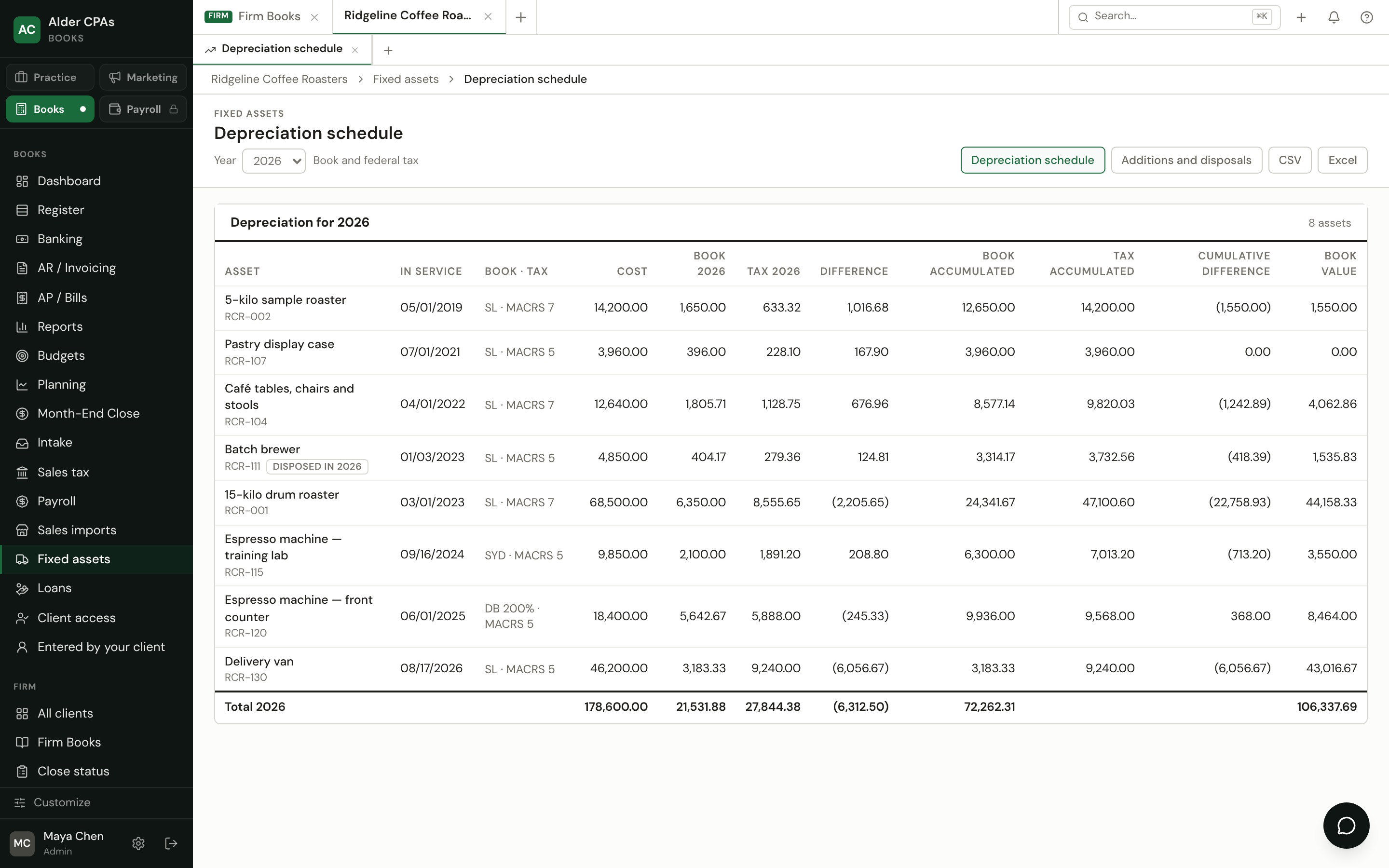 The 2026 depreciation schedule: book and federal tax for every asset
Additions and disposals — for any From and To dates, what was Placed in service (with its Tax first year) and what was Disposed of: How, Holding (Long-term when held more than a year, otherwise Short-term), Cost, Accumulated, Book value, Proceeds, Book gain (loss) and Tax gain (loss).
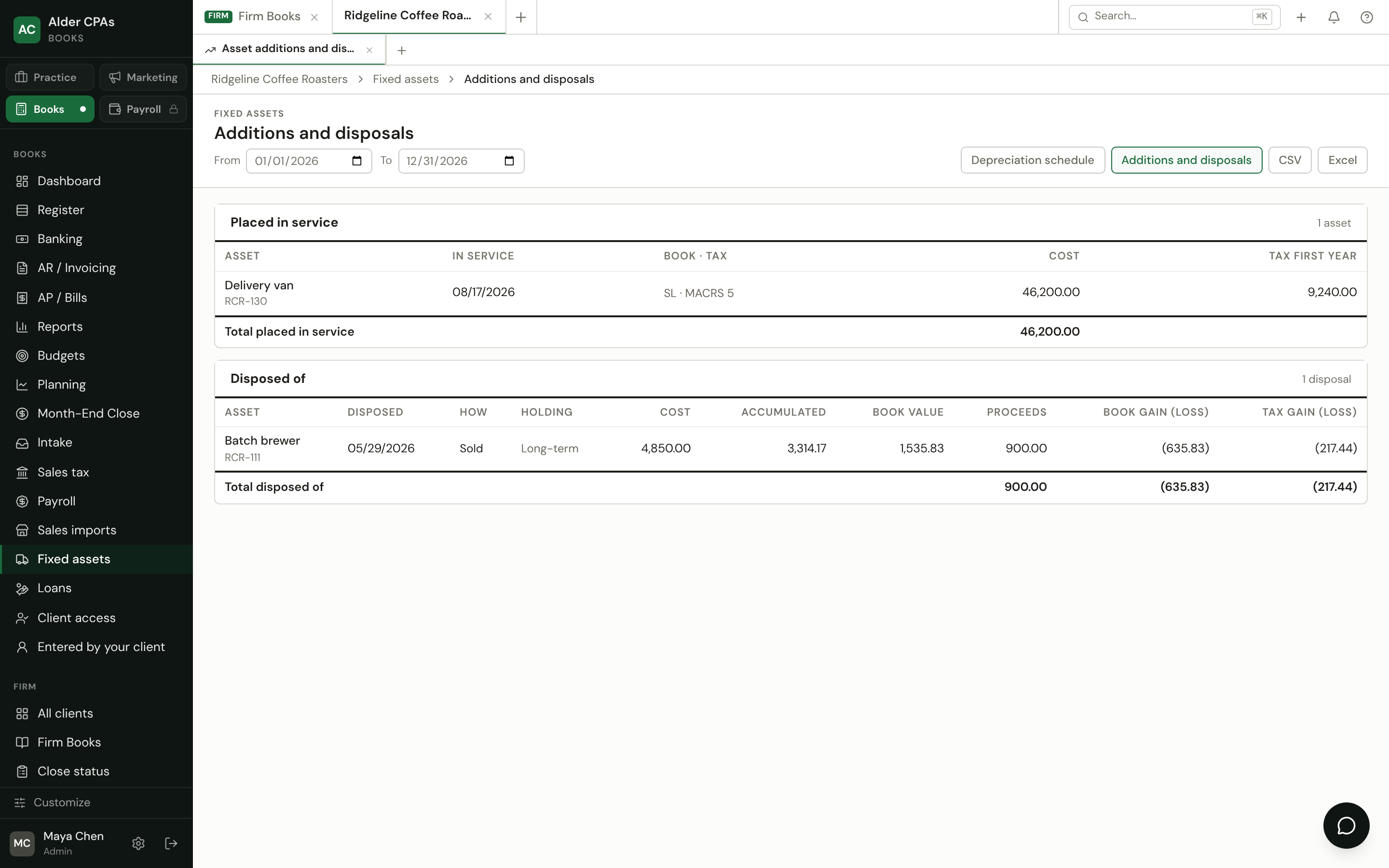 Additions and disposals for 2026: the delivery van placed in service, the batch brewer sold at a loss
A total is never a partial sum: on the depreciation schedule, when any asset has no figure for a column, that total is left blank and the line under the table names the assets.
Why can't I …
- … edit, dispose of, or delete a disposed asset? It is the record of what happened. Its only action is Void disposal.
- … delete an asset? Deleting is for an asset that never posted anything. Books refuses when depreciation has posted for it (dispose of it instead, or void those runs first), when a run that named it was voided, when a disposal of it was voided, or when how it was paid for posted an entry. Deleting removes the asset and both schedules; the ledger does not change, and the whole record is kept in the audit log.
- … dispose of a draft? A draft has not been placed in service — delete it instead.
- … record this disposal? The reason shows in red in the dialog. The common ones: the date is in the future (A disposal is recorded once it has happened — the date is in the future.), before the asset went into service, before the date Books posts depreciation from, or in a closed month (November 2026 is closed. Reopen it to record the disposal in it.); or a run already posted past the disposal date (void that run first, or date the disposal on or after it).
- … save the asset? The form says which field needs what, for example The in-service date is needed for an asset in service. or Sum of years' digits needs a life in whole years. Not ready to fill it all in? Save as draft.
- … use Sum of years' digits with a 2.5-year life? It needs whole years.
- … choose an account? Each role takes one kind: a fixed-asset account, an accumulated-depreciation account, a depreciation-expense account. If the client has no fixed-asset or accumulated-depreciation account, the form says so in place and offers Create one, with a name and number suggested; click Add and use it.
- … see Edit, Dispose or Run depreciation at all? A client who signs in to their own books can read the register and the reports, but adding, changing and posting are for the firm.
- … see the register at all? The register is part of Premium. On a client that is not on Premium and holds no assets, the page shows only The fixed assets register is part of Premium. A client whose Premium ended after assets were added keeps the register, so automatic posting can still be turned off and runs and disposals voided.
- … add, change or delete an asset? That needs permission for the chart of accounts on the client. Recording a disposal needs permission for journal entries.
Fix or undo
-
Change an asset. Open it and click Edit. Saving an edit posts nothing. The next run posts whatever the new schedule says is still due. If the change means more has already posted than the schedule now allows, the asset is left out of runs until a person corrects it (void the runs that overshot, or change it back).
-
Void a depreciation run. In Run depreciation, under Posted runs, click Void on the latest run and give a reason of at least 10 characters. Books reverses the entry with a reversing entry on the same date; the run stays as a record, marked voided, and the next run posts what it covered again.
Only the latest run can be voided, because later runs were worked out on top of earlier ones. A run that posted depreciation for an asset disposed of since is refused until that disposal is voided.
-
Void a disposal. Open the asset and click Void disposal, with a reason of at least 10 characters. The disposal entry is reversed (and the depreciation it posted to the disposal date, if any), the asset returns to in service with its cost, and the next run catches it up.
-
Change how it was paid for. On the asset, under How it was paid for: an answer that posted is reversed with a reason, and one that posted nothing can be removed.
-
Delete a draft or an asset that never posted anything: Delete, then Delete asset.
Shortcuts and tips
Type a sum into any money field. Cost, salvage value, section 179 amount, proceeds, amounts paid and depreciation already taken all work out arithmetic when you press Tab or Enter or leave the field. Type 3000+450 and the field settles to 3450.00.
You can use +, -, * or x, / and parentheses; a leading =, a $ and commas are ignored. The result is rounded to the cent once, at the end, so 10/3*3 is exactly 10.00. A sum that cannot be worked out stays as you typed it with the reason beside it, such as Can’t divide by zero.
Keys in the Disposal date field:
| Key | Does |
|---|---|
| = | Next day |
| - | Previous day |
| + (Shift and =) | A week forward |
| t | Today |
| m | First day of that month |
| h | Last day of that month |
| y | January 1 of that year |
| Tab | Leaves the date for the next field |
In the register:
| Do | To |
|---|---|
| Click a column heading | Sort by it; Shift-click to add a second sort |
| Drag a column's edge | Resize it; double-click the edge to reset; Alt+←/→ while the heading has focus |
| Type in Search name, tag or serial | Narrow the list; Enter applies at once, Esc clears |
| Esc | Close the open asset or the Run depreciation panel |
The New asset and Edit forms close only with Cancel, so a stray click or Esc never loses your work. The page's address holds what is open, so a link to an asset or to the run panel, or a reload, lands on it.
In account pickers, start typing a number or name, then use ↑ ↓ and Enter; Esc closes the list.
More that saves time:
- Useful life takes 7, 7 years or 2.5.
- When you edit an asset, picking a bill line under From a bill sets the asset account and vendor from the bill, and fills the cost, dates and name if they are still empty.
- Clicking Save twice never makes two assets.
- The new-asset form, the run panel and the disposal dialog show what saving or posting will actually do, worked out with the same checks, before you click.
A month-end routine
- Enter or import every asset bought during the month, answering How was this paid for?, so the register ties.
- Glance at the tie line. Green means the register and the ledger agree to the cent.
- Let automatic posting run on the last day of the month, or open Run depreciation, check the entry and Post it.
- Record any sale or write-off with Dispose before you close the month, so the catch-up depreciation and the gain or loss land in the right period.
- At year end, download the Depreciation schedule and Additions and disposals for the tax preparer.
Loans that financed an asset are kept separately; see Loans.