
Find, Batch-Enter and Reclassify Transactions
Search every posted entry in one list, key a stack of entries at once, move miscoded lines in bulk, fix text everywhere it is written, and apply open credits to open invoices and bills.
On this page
All transactions is every posted entry in a client's books in one list, whatever it came from: invoices, bills, payments, bank lines, payroll, depreciation and journal entries.
Beside it sit the tools you reach for when there is a lot to do at once: Batch entry for keying a stack of entries, Mass reclassify for moving lines that were coded to the wrong account, Find and replace for fixing a name or memo everywhere it appears, and Match open credits for applying credits that are still sitting open.
Every tool here shows you what it will do before it does anything. Batch entry checks every row first, and if one row is refused, nothing posts. Mass reclassify, Find and replace and Match open credits each show the result first: the balances that change, the places that change, the credits that apply. Lines a tool can't change are listed with the reason, and nothing changes until you confirm.
Understand All transactions
The page lists one row per entry, newest first. Only posted entries are listed. A voided entry stays in the list, and so does the entry that reverses it. Drafts are not listed: find them under Journal entries → Drafts.
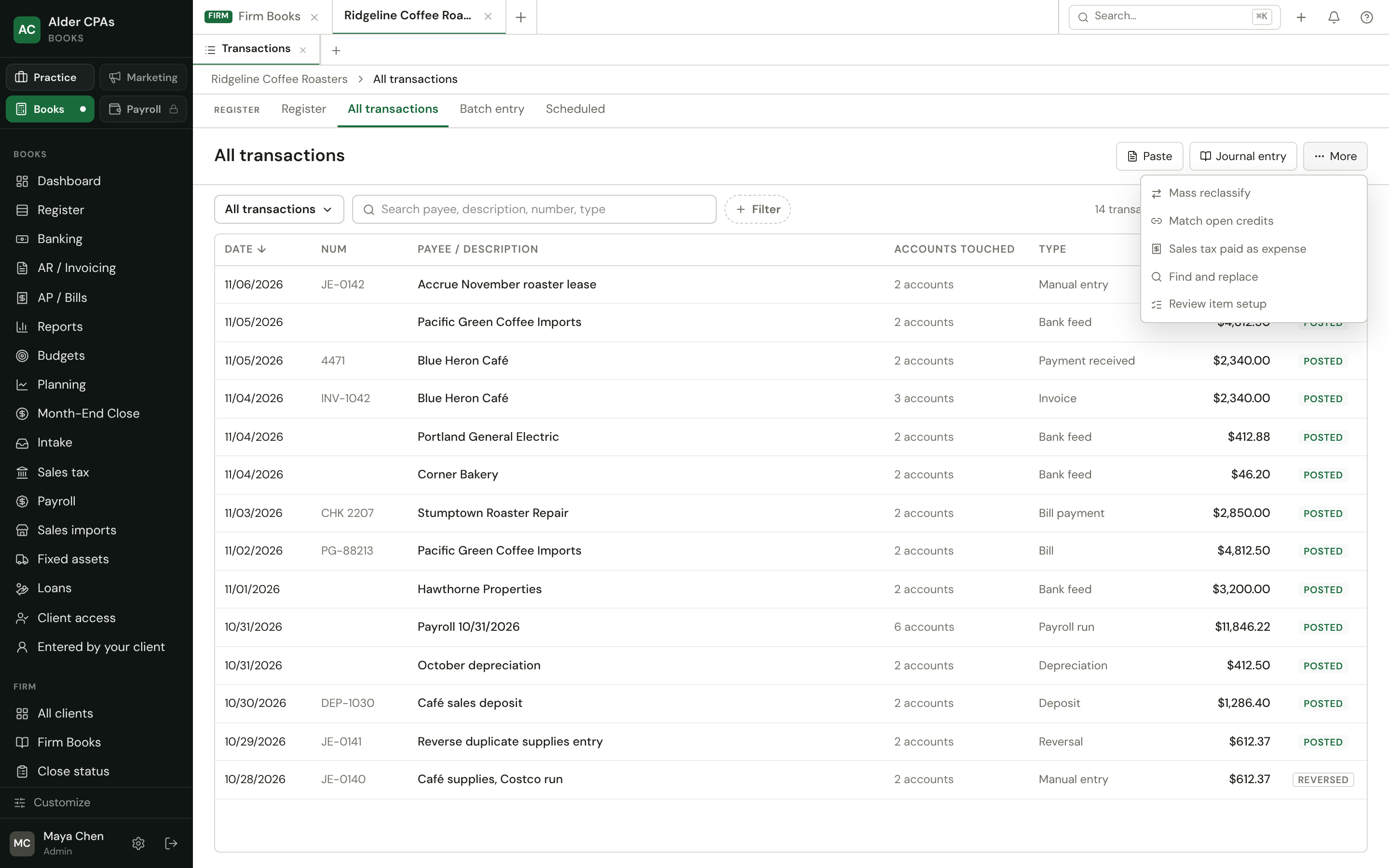 All transactions for Ridgeline Coffee Roasters, with the More menu open
The columns, in order:
| Column | What it shows |
|---|---|
| Date | The entry's date. |
| Num | The entry's own number. If it has none, the number of the document it came from: a check number, an invoice number, a payment reference. |
| Payee / Description | The entry's description. |
| Accounts touched | How many accounts the entry posts to, such as 3 accounts. |
| Type | Where it came from: Invoice, Bill payment, Bank feed, Payroll run, Manual entry, Reversal and so on. |
| Amount | The entry's total: the larger of its total debits and total credits. |
| Status | Posted or Reversed. |
The bar under the title has everything you use to narrow the list:
- All transactions (the first button) is your saved views. Save as a new view… saves the search, filters, sort and columns you have now, for Just me or the Whole firm. Sharing a view with the whole firm, and changing, renaming or deleting a firm view, needs the owner or admin role.
- Filter adds a filter: Date, Type, Status, Payee / Description or Amount. Each filter you add shows as a chip you can change. Clear search and filters removes them all.
- The count on the right says how many entries are shown, for example 14 transactions.
- Export CSV downloads every entry that matches, not only the ones on screen, in the columns shown.
- Columns hides, shows and reorders columns. Date and Payee / Description are always shown.
The More menu holds the tools in this article, plus Sales tax paid as expense and Review item setup. It appears on a client's books. Your firm's own books have All transactions without it.
Find a transaction
- Open Register → All transactions.
- Type in Search payee, description, number, type. Every word you type has to appear somewhere in the entry: the number, the reference (a check number like CHK 2207, an invoice number, a journal entry's reference), the description, the payee, the type or the status. So
blue heron invoicefinds the invoices to Blue Heron Café. - To narrow it more, click Filter and add a date range, a type, a status, a payee or an amount range.
- Click a column heading to sort by it. Click again to reverse it.
- Click a row to open the entry right there in the list, with its lines, debits and credits. Click the row again, or press Esc, to close it.
The address in your browser keeps your search, filters and sort. Bookmark it, or send it to a colleague, and the list opens the same way.
The open entry has Edit, Notes, Audit trail and Void….
Why can't I edit this transaction?
Open the entry and hover over Edit (or Void…). When the button is off, it says why, and what to do instead.
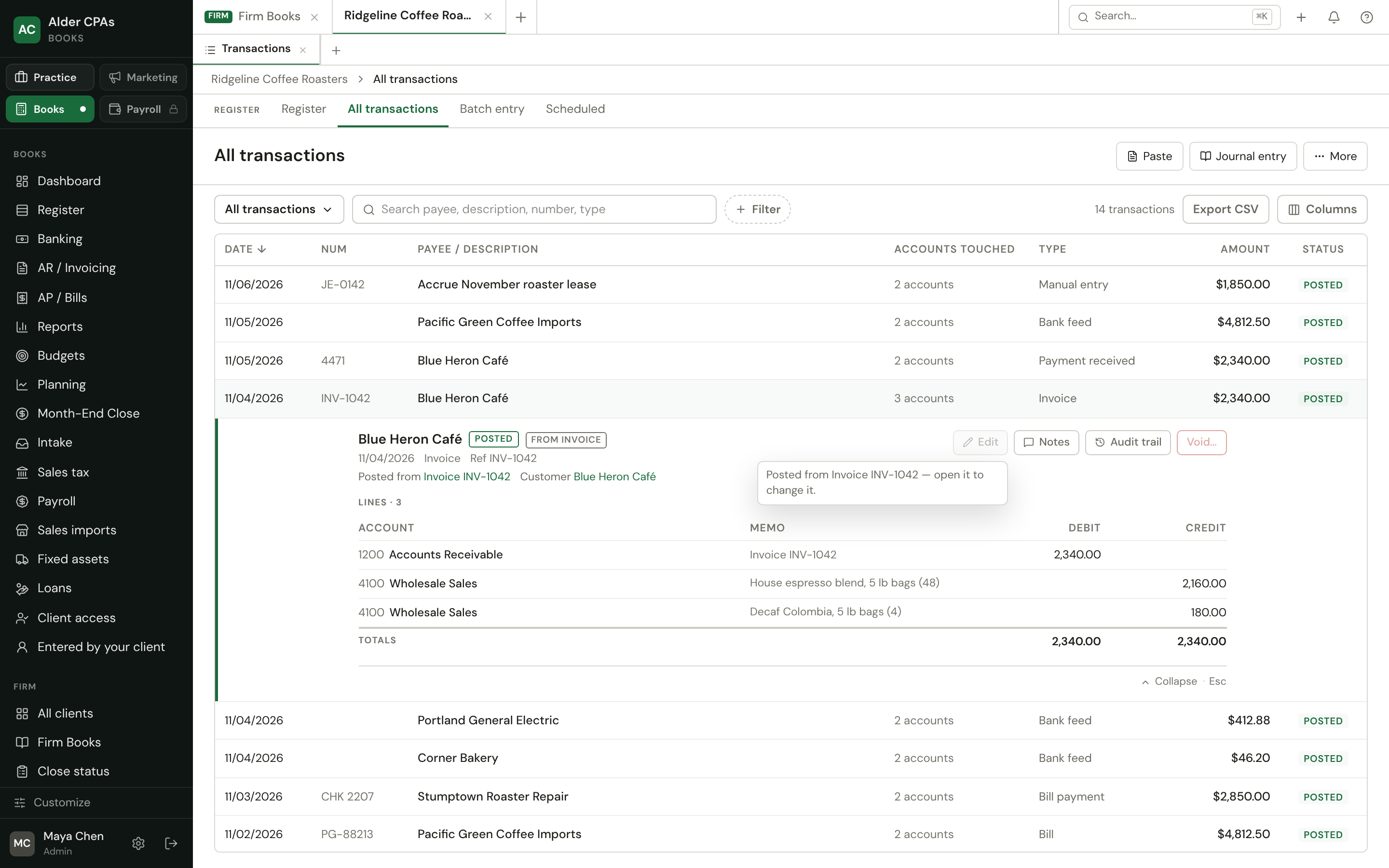 An invoice's entry opened in All transactions, with the reason Edit is off
What each reason says, why, and what to do:
Posted from Invoice INV-1042 — open it to change it.
The entry belongs to a document: an invoice, a bill, a payment, a deposit, a loan, a depreciation run and so on. Change the document, and the entry follows. The entry's title, its From Invoice tag and the Posted from Invoice INV-1042 line under the title all link to it.
This entry's period is locked. A soft lock can be reopened from the period's close; a hard lock cannot.
The entry is in a closed month. A member with the Lock a period permission can still edit an entry in a soft-locked (closed) month, with a reason that is kept in the audit log. A hard-locked month cannot be changed.
This entry has already been voided or reversed, so it can't be edited. Edit the entry that replaced it instead.
The entry was voided.
This entry records the void of another entry, so it can't be edited. If the original should stand, enter it again as a new transaction.
This is the reversing half of a void.
A few more you may meet:
- A bank-feed entry opens the bank line's own editor when you click Edit. The bank's amount, date and bank account never change.
- An entry imported with payroll, a sales import or your import from another system can be edited here like a journal entry. Voiding one voids the whole import it came from, and Books says so before you confirm.
- Void… is off on an entry a finished reconciliation cleared: A finished reconciliation cleared this entry. Reopen it (Banking · Reconcile · History) to void this.
- A client signed in to their own books can't void anything: Only your accountant at Alder CPAs can void an entry.
Editing a posted entry changes it in place, and keeps what it said before in the entry's history. For more on editing and voiding entries, see Using the Register.
Enter many transactions at once with Batch entry
Batch entry is for keying a stack of entries quickly, such as a month of checks from a checkbook or a pile of receipts. Each row becomes its own entry against one account you choose at the top.
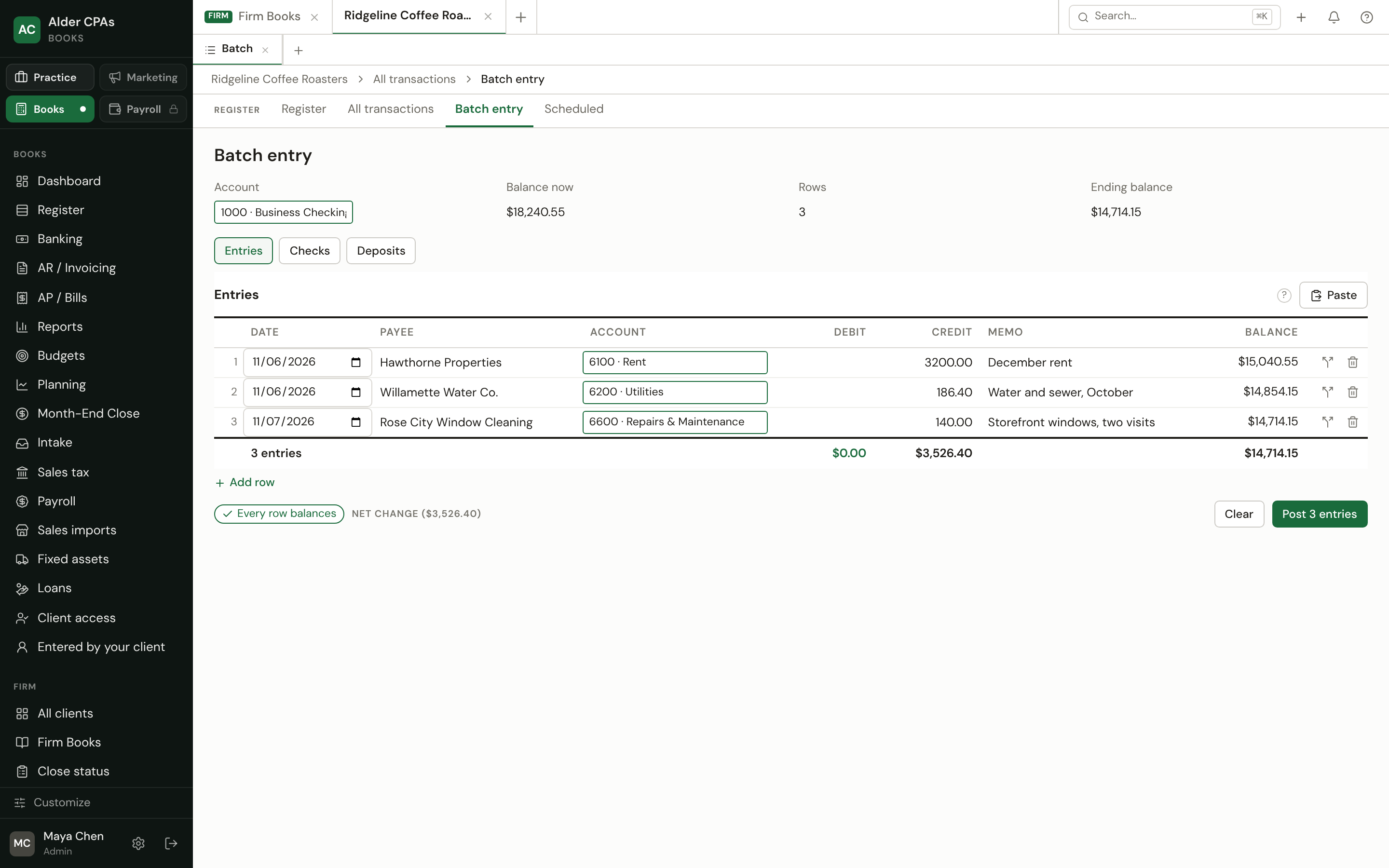 Batch entry with three payments out of Business Checking
- Choose the Account the rows are entered on, such as 1000 · Business Checking. Balance now shows its balance with every posted entry counted, including any dated in the future.
- Choose what the rows are:
- Entries — both Debit and Credit are open.
- Checks — adds a Check no. column. A check is paid out of the account above, so only Credit is open.
- Deposits — adds a Deposit no. column. A deposit is paid into the account above, so only Debit is open.
- Fill in each row: Date, Payee, Account (the other side of the entry), the amount in Debit or Credit, and a Memo. Class, Location and Job columns appear when the client uses them.
- Press Enter to add the next row. A new row starts with the date of the row above it.
- Watch the Balance column. It runs the account's balance down row by row, and Ending balance at the top shows where it lands.
- When the pill under the grid reads Every row balances, click Post 3 entries (the button counts your rows).
Debit and Credit are the sides of the account at the top. On a bank account, a Debit adds money and a Credit takes it out. Hover the ? above the grid for a reminder of which way the account you chose goes.
What Books checks before it posts
While you type, Books checks every row and names the first problem in place of Every row balances, and Post stays off until it is fixed. For example:
- Row 2: enter a debit or a credit.
- Row 2: a row takes a debit or a credit, not both.
- Row 2: enter the amount in the other column instead of as a negative.
- Row 3: choose an account.
- Row 3: choose an account other than the one above.
- Row 3: the split does not match the row's amount.
- Row 1 has an amount in Debit; a check is paid out, so enter it in Credit. (in Checks)
When you click Post, Books runs every real check on every row first, then posts them all. If any row is refused, nothing posts. The refused row turns red with the reason on it, and the pill reads 1 row needs a change · nothing was posted. Fix that row and post again.
The date checks:
-
A closed month. This one is checked when you click Post. If you have the Lock a period permission, the row says Row 2: Oct 29, 2026 is closed. Use the override on this screen, with a reason, or choose a date in an open month. and Post with an override appears.
Give a reason, and the rows post with your name and that reason on the record. Without that permission, the row says Row 2: Oct 29, 2026 is closed. Choose a date in an open month, or ask a member with the "Lock a period" permission to do this.
-
A month locked for good. Also checked when you click Post: Row 2: Oct 29, 2026 is hard-locked, and a hard lock is final. Choose a date in an open month.
-
Before the books start. Nothing can be dated before the day the client's books start. While a row is dated earlier, Post stays off and the pill names the row and the start date, such as Row 2: These books start on Jan 1, 2026, so this row can’t be dated Dec 31, 2025. Date it on or after Jan 1, 2026.
-
A fiscal year that has ended. Books asks you to confirm first, because those figures may already have been reported or filed. Cancel posts nothing.
Each row posts as its own journal entry (type Manual entry), and the batch clears, ready for the next stack. Clicking Post twice, or retrying after a dropped connection, never posts the batch twice.
Split one row across several accounts
Click the split icon at the end of a row (Split row 1) to spread the other side over several accounts, such as one check that paid for both supplies and a repair. If the row already has an account, the split starts with it and the row's amount on the first line.
Add lines with Add line until Left to assign reads $0.00, then click Done. The row's Account cell then reads 2 accounts; click it to change the split.
Paste rows from a spreadsheet
Click Paste above the grid and paste rows copied from a spreadsheet. Books reads them as soon as you paste (if you type or edit the text instead, click Read these rows). It works out which column is which from its heading (Date, Payee, Account, Debit, Credit, Description, Class, Location, Job) or from what is in it, and you can change any of them.
A Description column fills the row's Memo. A row that can't become a line stays on screen, struck through, with its reason. Books remembers your column choices for the same headings the next time, in this browser. Click Add 3 lines (the button counts them), and the rows land in the grid as ordinary rows you can still change before you post.
Move miscoded lines with Mass reclassify
Mass reclassify moves posted lines to another account, class, location or job in one go. Use it when a run of expenses was coded to the wrong place: say, software subscriptions that were posted to Repairs & Maintenance all year.
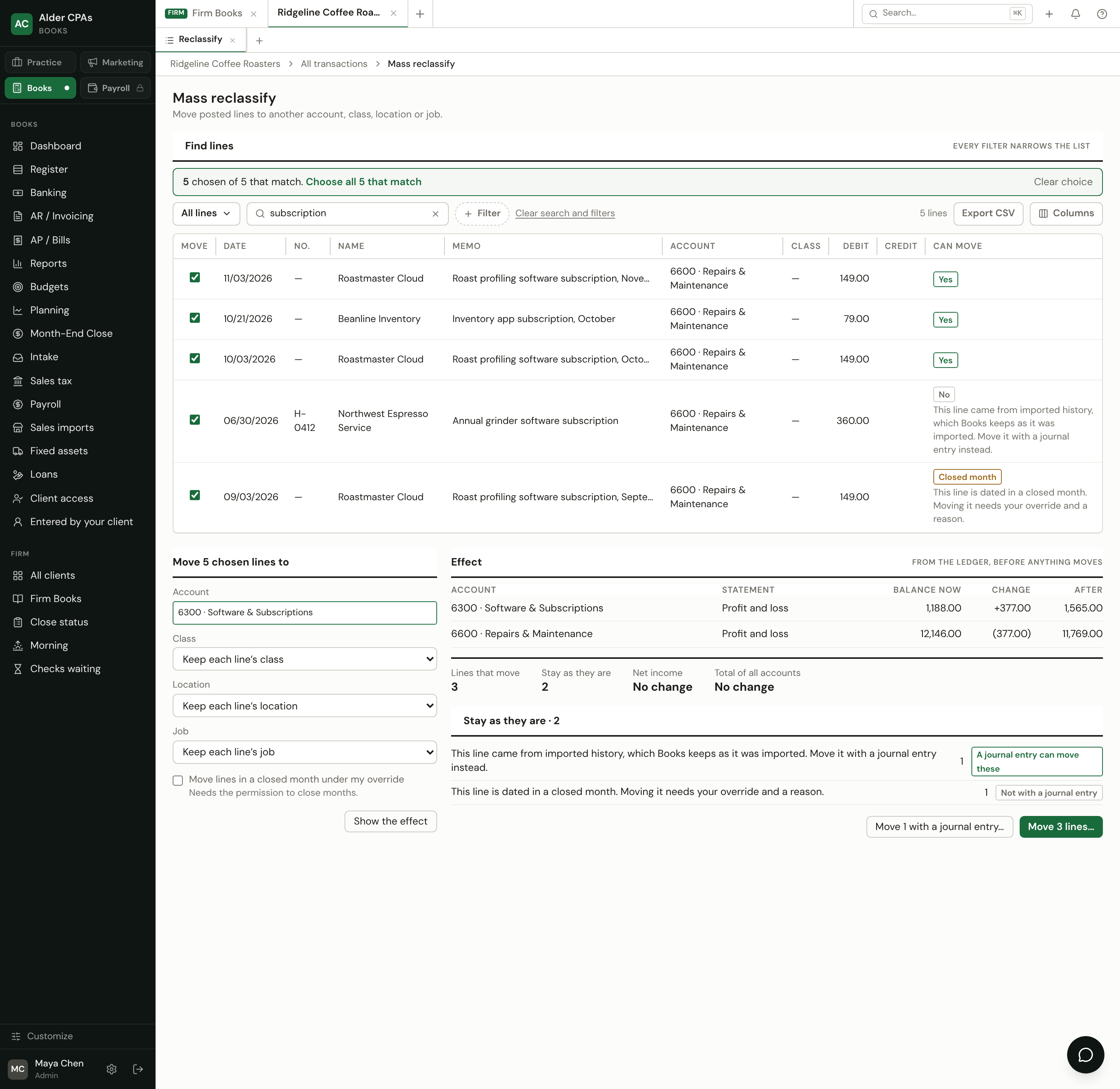 Mass reclassify, moving software subscriptions from Repairs & Maintenance to Software & Subscriptions
- Find the lines. Every filter narrows the list: Account, Class, Location, Job, Name, Memo, Date, Source and Amount. The search box, Search memos, looks in the lines' memos. The Can move column says, line by line, whether it can move, and why not.
- Choose them. Tick lines one by one, or click Choose all 5 that match. Up to 2,000 lines move at a time; above that, narrow the filter and move them in parts.
- Choose where they go. Under Move 5 chosen lines to, pick an Account, and a Class, Location or Job if those should change too. Each one you leave on Keep each line's … stays as it is. No class (and No location, No job) clears it.
- Click Show the effect. The Effect panel shows each account that changes, whether it is on the Profit and loss or the Balance sheet, and its Balance now, Change and After, with Lines that move, Stay as they are and the change to Net income. Moving between two expense accounts reads No change for net income.
- Click Move 3 lines…. The confirmation names the consequence: 6600 · Repairs & Maintenance falls by $377.00, and 6300 · Software & Subscriptions rises by $377.00. Click Move 3 lines to finish.
The lines themselves change. Each keeps its own date and amount, and no new entry is posted. Every line moved is recorded in the audit log with its account, class, location and job before and after.
Lines that stay as they are
Books decides line by line, at the moment you move, and lists each line it held back with its reason under Stay as they are:
| Reason shown | What to do |
|---|---|
| This line belongs to a bill. Change it there, and the ledger follows. (or an invoice, a payment, a bank transaction, a payroll run…) | Change the document. Or, for some of these, move it with a journal entry (below). |
| This line came from imported history, which Books keeps as it was imported. Move it with a journal entry instead. | Use Move 1 with a journal entry…. |
| This entry was reversed, so it and its reversal already cancel out. Leave both as they are. | Nothing to do. |
| This line is reconciled. Moving it to another account would change a reconciled balance; undo the reconciliation first. | Moving its class, location or job is fine. Changing its account needs the reconciliation undone. |
| This line is dated in a closed month. Moving it needs your override and a reason. | Tick Move lines in a closed month under my override and give a reason of at least 10 characters. This needs permission to close months. |
| This line is dated in a locked month. It can't change until the month is reopened. | A locked month never changes here. |
| The account this line would land on requires a class. Choose a class too. | Pick a Class as well. |
Move with a journal entry instead
Some lines can't change in place because a document or an import owns them. For those, Books offers a reclassifying journal entry: the original lines stay exactly as they are, and a new entry moves the amount from one account to the other.
When you have chosen an Account and any held lines qualify, each reason under Stay as they are is marked A journal entry can move these or Not with a journal entry, and Move 1 with a journal entry… appears beside Move 3 lines….
Click it, check the Date (it starts on the last day of the latest month that is still open, never later than today), add a Memo if you like, and click Post the entry…. The confirmation reads like Post a journal entry on Nov 7, 2026 moving $360.00 to 6300 · Software & Subscriptions? To undo it later, void that journal entry; its lines can then be moved again.
Lines on an invoice, bill, credit memo or vendor credit can't be moved this way: they change on their document.
Undo a move
After a move, the result shows the new balances with View in the audit log, Move them back… and Find more lines. Move them back… shows what would go back before anything moves.
A line that was moved again since, or is already back, stays as it is, with its reason. The lines that go back go in one act: if any part is refused, none of them move. The same move can be reversed later from its entry in the audit log, with Move them back….
Fix a name or memo everywhere with Find and replace
Find and replace changes text everywhere it is written in a client's books: when a customer's name was spelled two ways, or a vendor changed its name. Amounts and accounts never change here.
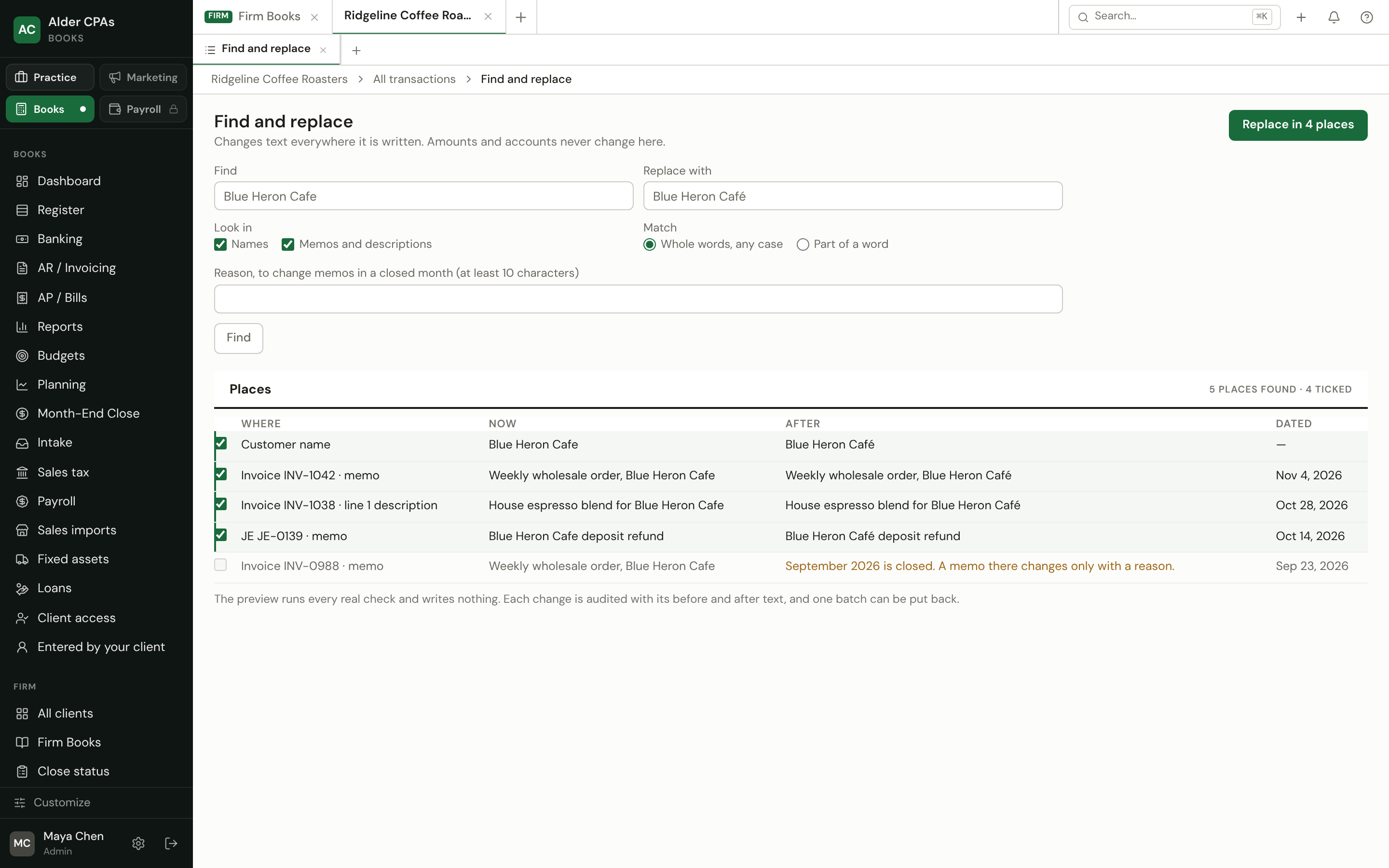 Find and replace, fixing a customer's name in five places
- Type what to Find and what to Replace with (up to 500 characters each).
- Under Look in, tick Names, Memos and descriptions, or both:
- Names — customer, vendor, item, class, location and account names.
- Memos and descriptions — the memo and line descriptions of journal entries and other entries (posted and drafts), invoices and bills.
- Under Match, choose Whole words, any case (the default) or Part of a word.
- Click Find. Places lists every match: Where it is (Invoice INV-1042 · memo, Customer name), the text Now, the text After, and the date it is Dated on. Everything that can change starts ticked; untick anything you want left alone.
- Click Replace in 4 places (the button counts what is ticked). Books checks each place again and shows what would change, then click Replace in 4 places in the window to finish.
Right after replacing, Put back in the same window puts every place back as it was. A place that someone has changed since stays as it is, and Books says so.
Some places are held back:
- A closed month. September 2026 is closed. A memo there changes only with a reason. Type a reason of at least 10 characters in Reason, to change memos in a closed month (it appears when there is one) and tick the place. This needs permission to close months.
- A locked month. November 2026 is hard-locked. A memo in a hard-locked month cannot change.
- A tax year that has been filed. A place dated in a filed tax year can't change here, and it shows the reason.
- If you change Replace with after finding, find again: The replacement changed since the last Find. Find again to see each place after it.
One find lists up to 1,000 places. If there are more, the count says the first 1,000 shown.
Apply open credits with Match open credits
Customers overpay, pay before the invoice exists, or get a credit memo. Match open credits finds every credit still open and proposes where each one should go, so you can apply them all at once.
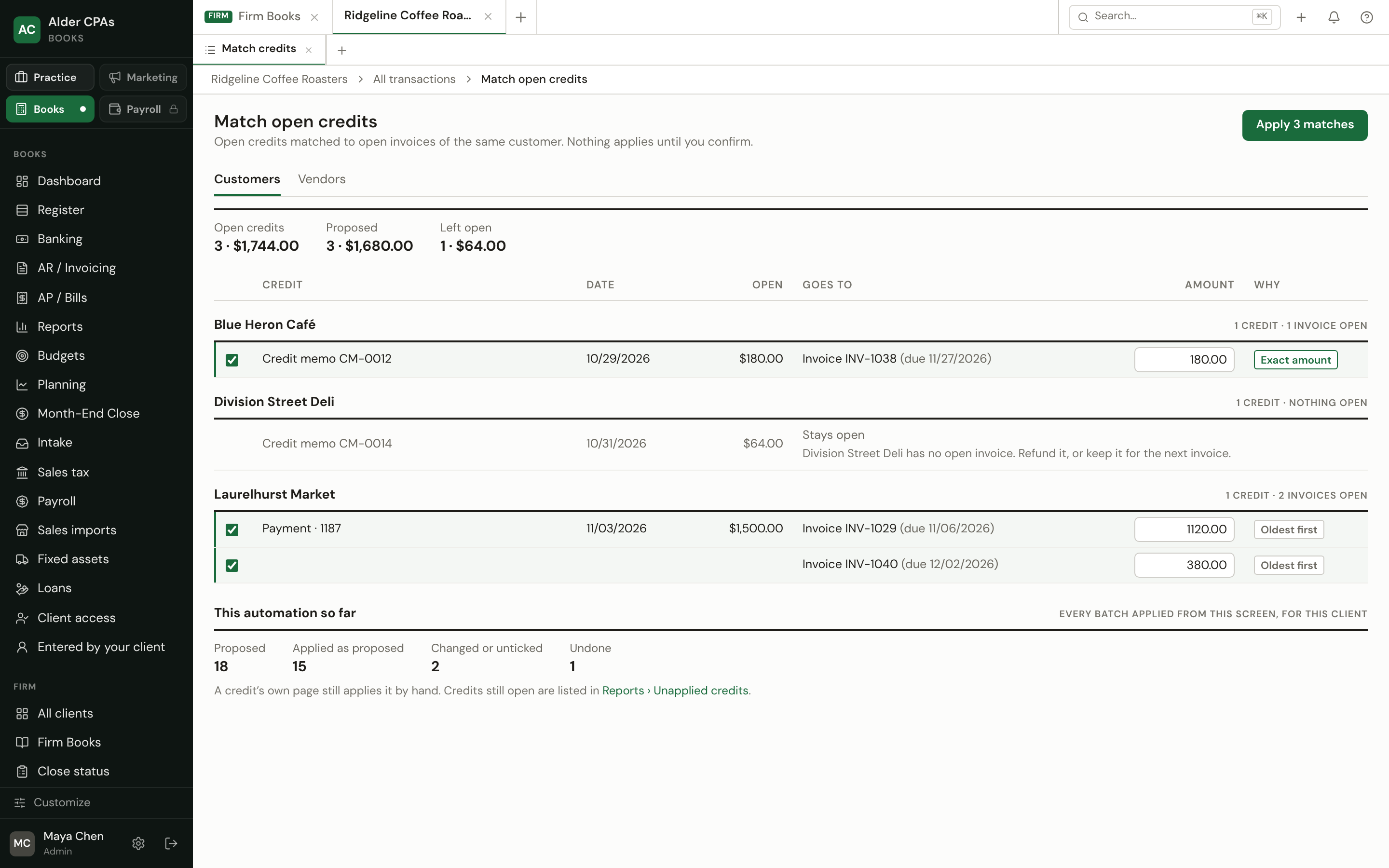 Match open credits, with three proposed matches and one credit left open
- Choose Customers (unapplied payments and credit memos, matched to open invoices) or Vendors (unapplied bill payments and vendor credits, matched to open bills).
- Read the strip at the top: Open credits, Proposed and Left open, each with a count and a total.
- Check each proposal. The Why column says how Books chose it:
- Exact amount — the credit equals what is still owed on one open invoice (or bill), so it goes to that one, whole.
- Oldest first — otherwise the credit pays off the customer's open invoices oldest-due first, never more than either one holds.
- Untick anything you don't want, or lower an Amount. A match can be lowered, never raised past what was proposed.
- Click Apply 3 matches. The window says what will happen before anything does, then click Apply $1,680.00.
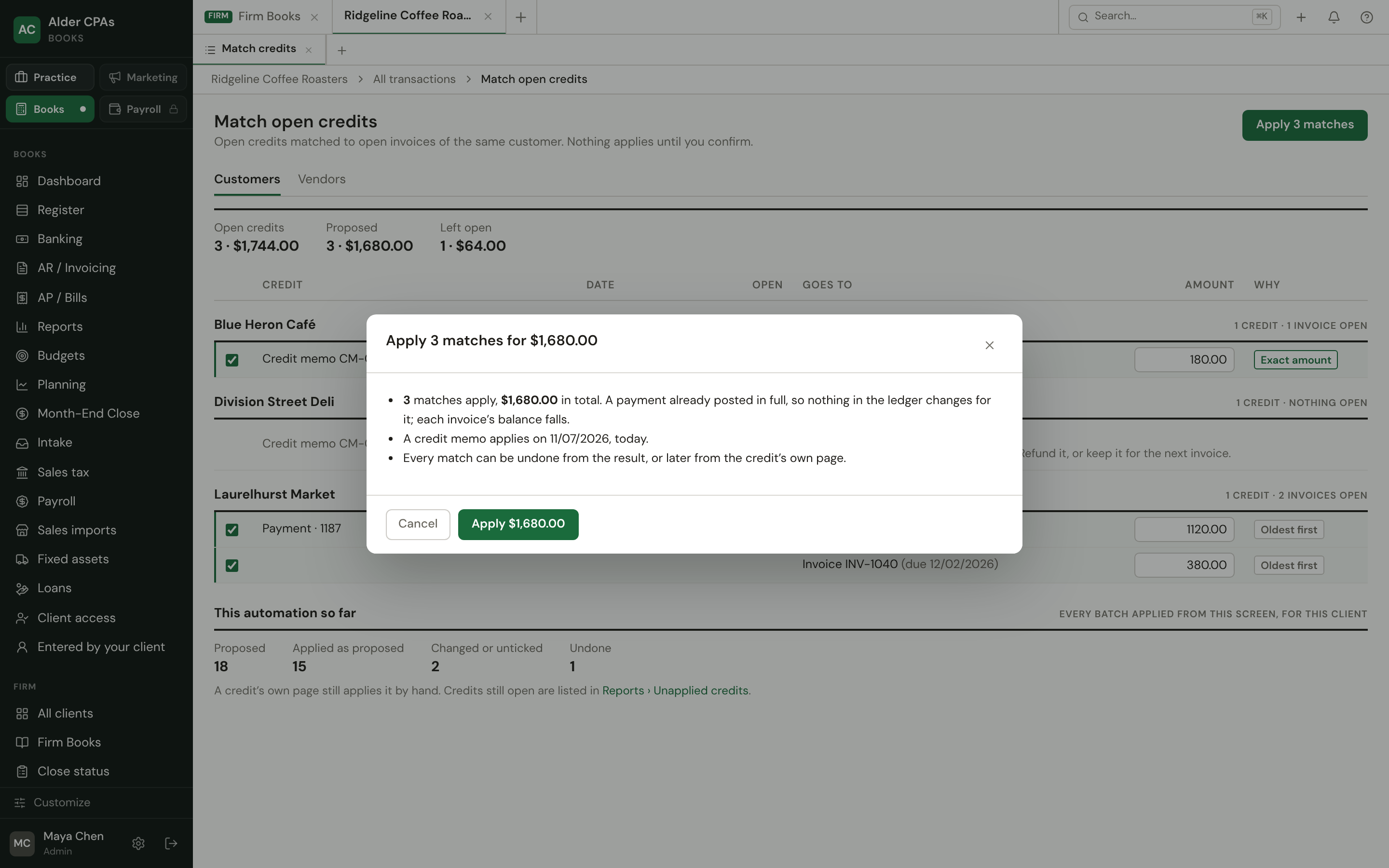 The confirmation before the credits apply
A payment already posted in full, so applying it changes nothing in the ledger: each invoice's balance falls. A credit memo or vendor credit applies today. A credit that can't apply stays as it was and says why.
After applying, Undo all 3 in the same window takes the batch back: each invoice or bill owes again what it owed before, and each credit holds again what it held. A credit that has changed since the batch stays as it is, and the window says so; change it from its own page. Each credit's own page can also unapply it later.
Things to know:
- A credit with nothing to go to shows Stays open, such as Division Street Deli has no open invoice. Refund it, or keep it for the next invoice.
- Only invoices that have been sent count as open. Draft invoices are not matched.
- One batch takes up to 200 matches.
- This automation so far counts every batch applied from this screen for the client, on the tab you are on: Proposed, Applied as proposed, Changed or unticked and Undone.
- Credits still open are listed in Reports › Unapplied credits.
- The Customers tab needs permission to apply payments; the Vendors tab needs permission to pay bills.
Shortcuts and tips
Keys
| Where | Key | What it does |
|---|---|---|
| All transactions | Esc | Closes the open entry. |
| A list's search box | Esc | Clears the search. |
| A list's search box | Enter | Searches right away, without waiting for you to stop typing. |
| Column headings | Shift+click | Adds a second (and third) sort level instead of replacing the first. |
| Batch entry | Tab / Shift+Tab | Moves to the next or previous cell. |
| Batch entry | Enter | Adds a row (or moves to the next one if you are not on the last row). |
| Account picker | ↓ / ↑, then Enter or Tab | Picks the highlighted account. Tab also moves to the next cell. |
| Account picker | Esc | Closes the list. |
| Date cell | T | Today. |
| Date cell | = / - | One day later / one day earlier. |
| Date cell | + (Shift+=) | One week later. (The + on a number pad has no Shift, so it moves one day.) |
| Date cell | M / H | The first / last day of the date's month. |
| Date cell | Y | January 1 of the date's year. |
| Date cell | Tab | Leaves the date in one press, instead of stepping through month, day and year. The left and right arrow keys still move between them. |
Math in any amount
Every amount field in Books works like a calculator. Type a sum and press Tab or Enter, and it settles to the answer to the cent:
95+45becomes 140.00(125+50)/2becomes 87.5012x3or12*3becomes 36.00- A leading
=, a$and commas are ignored, so=1,200+$85works too.
Books works the sum out exactly before rounding once, so 10/3*3 is 10.00, not 9.99. A sum it can't work out stays as you typed it, marked, with the reason, such as Can't divide by zero.
More tips
- Find before you fix. Search All transactions for a payee, then use Export CSV to send the list to your client or check it in a spreadsheet.
- Save the views you use often, such as every Bank feed entry over $500, and share them with the whole firm.
- Clean up coding before you close a month. Mass reclassify can't move a line in a closed month without an override, and never in a locked one.
- Repeating entries — rent, a loan payment, a monthly accrual — belong in Scheduled on the Register strip. See Scheduled (Repeating) Entries.
- For a single entry with many lines, use a journal entry instead of Batch entry. See Journal Entries.