
Mail Checks for a Client
Set up check mailing once for a client, then pay a bill with a mailed check: Books prints the check on the client's own account, mails it to the vendor, and tracks it until it clears the bank.
On this page
With check mailing, you pay a vendor by check without touching paper. You record the payment in Books, and Books mails the check: printed with the client's bank numbers and signature, drawn on the client's own bank account, and sent to the vendor's address with every bill it pays listed on the stub. The payment page then shows where the check is, from queued to delivered, and marks it cleared when the bank pays it.
A mailed check posts when you record it, exactly as a check you write by hand. The money leaves the book balance on the payment date, and the bank feed clears it later. Mailing is a separate step that follows. Mailing checks is part of Premium for the client, and each check mailed costs $2.50 for printing and postage, billed on your firm's LedgerOS subscription, never taken from the payment.
Set up check mailing
Set it up once per client, under Settings → Check mailing. The page says at the top what is still missing, each item a link to its field, until it reads Set up. "Mailed check" is available when paying bills.
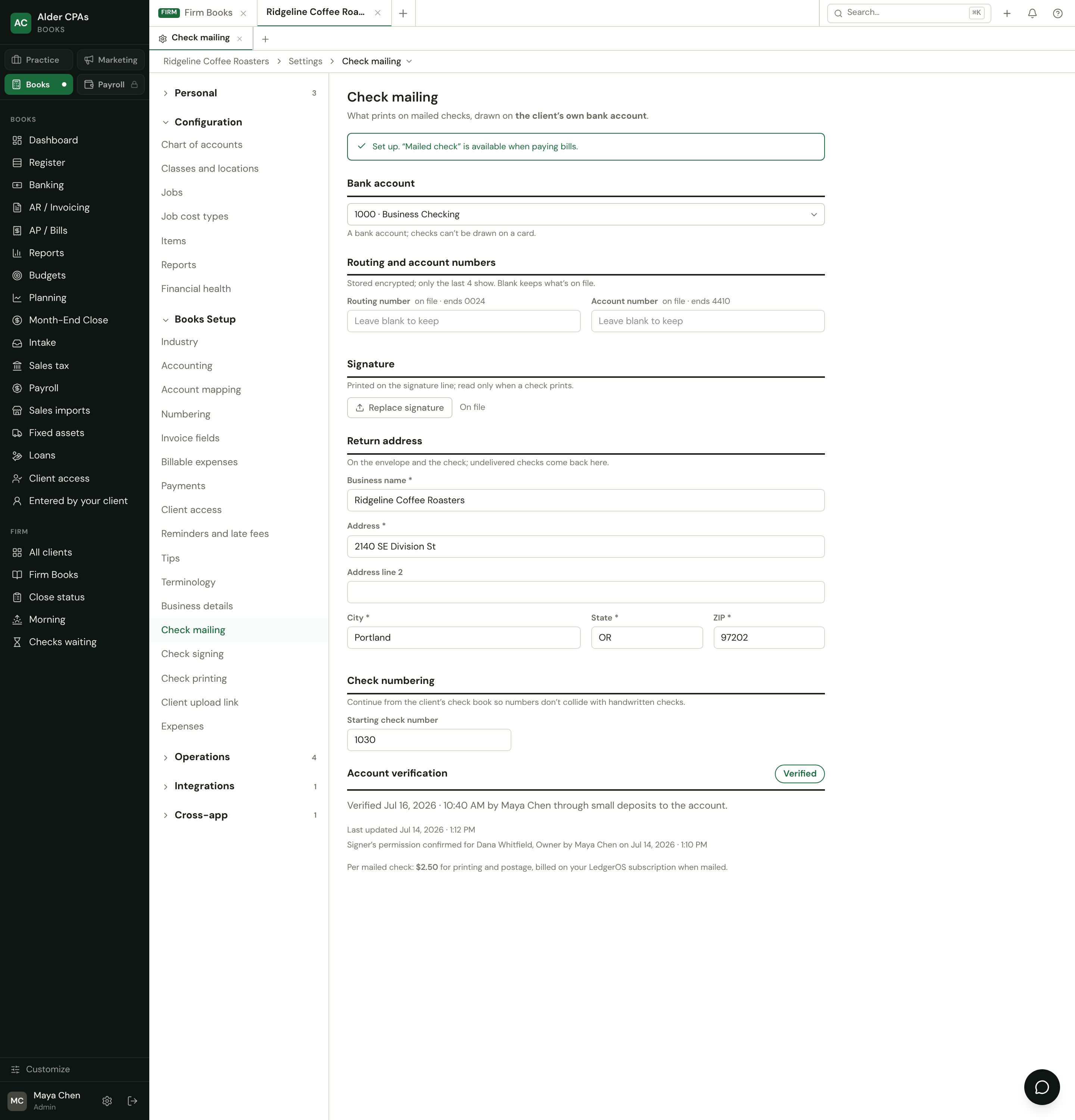 Check mailing for Ridgeline Coffee Roasters, set up and verified
Fill in the sections in order:
- Bank account: the account in the chart the checks are drawn on. It must be a bank account; checks can't be drawn on a card.
- Routing and account numbers: the numbers printed along the bottom of the check. They are stored encrypted, and only the last four digits show afterward. Leave a field blank to keep what is on file.
- Signature: Upload signature with an image of the authorized signer's signature. It is printed on the signature line.
- Return address: Business name, Address, City, State and ZIP. It goes on the envelope and the check, and an undelivered check comes back here.
- Check numbering: Starting check number, to continue from the client's own checkbook so mailed checks don't reuse a number written by hand.
- Account verification (below).
The bank account, return address and starting number save themselves as you leave each field, with a Saved confirmation. The routing and account numbers and the signature are different: they wait for a confirmation.
A change that can't be saved yet says so under the field and stays as you typed it, for example Not saved yet: the return address needs a name, street, city, state and ZIP. The routing and account numbers are never kept on your device: while they are typed and not saved, the page says Not saved yet. Press Confirm and save below; leaving this page clears these numbers.
Confirm the signer's permission
When you enter new routing or account numbers, or upload a signature, a Confirm the signer's permission section opens. It needs the firm's owner or an admin, and a two-step sign-in code.
- Type the Authorized signer's name, and their Signer's title if you like.
- Read the confirmation Books shows and tick it: it says the client's authorized signer gave your firm permission.
- Click Confirm and save.
After a change to the numbers or the signature, mailed checks for that client wait 48 hours before they go out. The page says until when. Printing checks yourself is never held.
Verify the account
Books mails checks only from an account it has verified. Account verification is last on the page, because it needs the numbers saved first, and only the firm's owner or an admin can do it.
- Verify with your bank checks the numbers you entered: sign in to the bank in its own window, or let Books send two small deposits to the account, which takes 1 to 2 business days. The card shows Pending while the deposits are on their way.
- Verify this account appears when the client's bank connection for that account can confirm the numbers, and verifies it right away.
Once verified, the card reads, for example, Verified Jul 16, 2026 · 10:40 AM by Maya Chen through small deposits to the account. If the numbers or the bank account change later, it reads Verify again and mailing stops until you do.
Mail a check for one vendor's bills
- Go to AP / Bills → Payments → Pay bills and choose the vendor.
- Set Method to Mailed check.
- Tick the bills to pay. Vendor credits apply the same way as for any payment, except on a check that waits for the owner's approval: apply the credits on their own first, then send the check.
- Check Mail the check to. It fills in from the vendor's mailing address. What you enter here is stored with this payment, so editing the vendor later doesn't change where this check went.
- Leave Check # blank for the next number, or type one.
- Click Record and mail check.
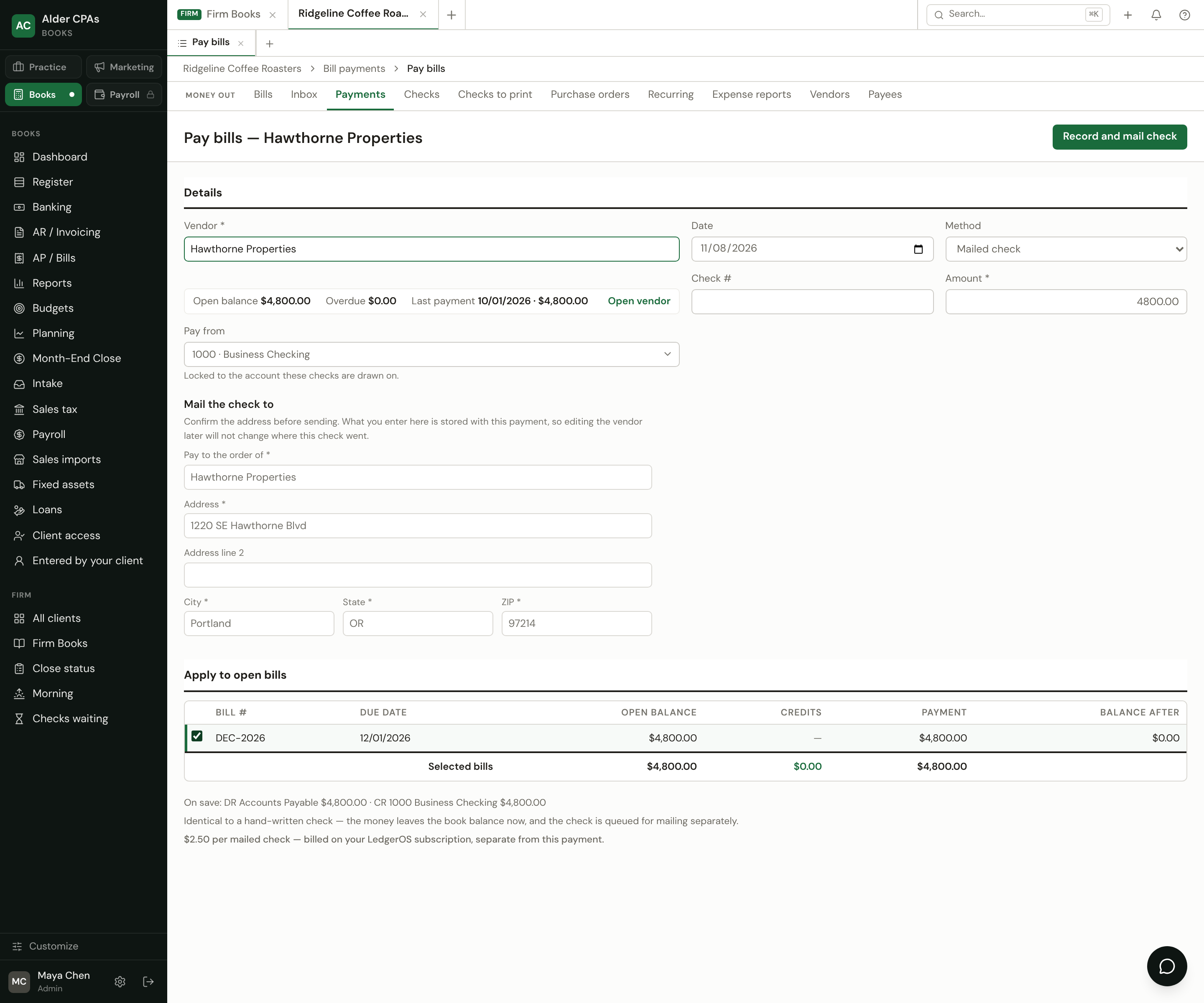 Mailing Hawthorne Properties' December rent: the address from the vendor, Pay from locked, and the $2.50 charge shown before you record it
Some things to know:
- Pay from is locked to the account set up for mailing, Locked to the account these checks are drawn on, because those are the numbers printed on the check.
- The check number left blank is the next number on that bank account, counting checks written in Books and checks mailed alike, and never below the Starting check number. A number you type wins, and Books warns you if another check on the account already uses it.
- Before you record, the bottom of the form shows the entry, says Identical to a hand-written check — the money leaves the book balance now, and the check is queued for mailing separately., and shows the charge, such as $2.50 per mailed check — billed on your LedgerOS subscription, separate from this payment.
- The toast reads Payment recorded — check queued for mailing, and the payment's page opens.
If the client's owner signs their checks and approves them first, the button reads Send for approval instead, and Books says what happens to the check. Nothing posts until that check mails.
Mail checks to several vendors at once
On Review payments (tick bills on AP / Bills → Bills, then Pay selected), set Method to Mailed check on any vendor's card. That card reads Drawn on the check account and mailed to the vendor's address, with every bill it pays on its stub. The address comes from the vendor's record.
When you click Record, Books asks once for every mailed check together:
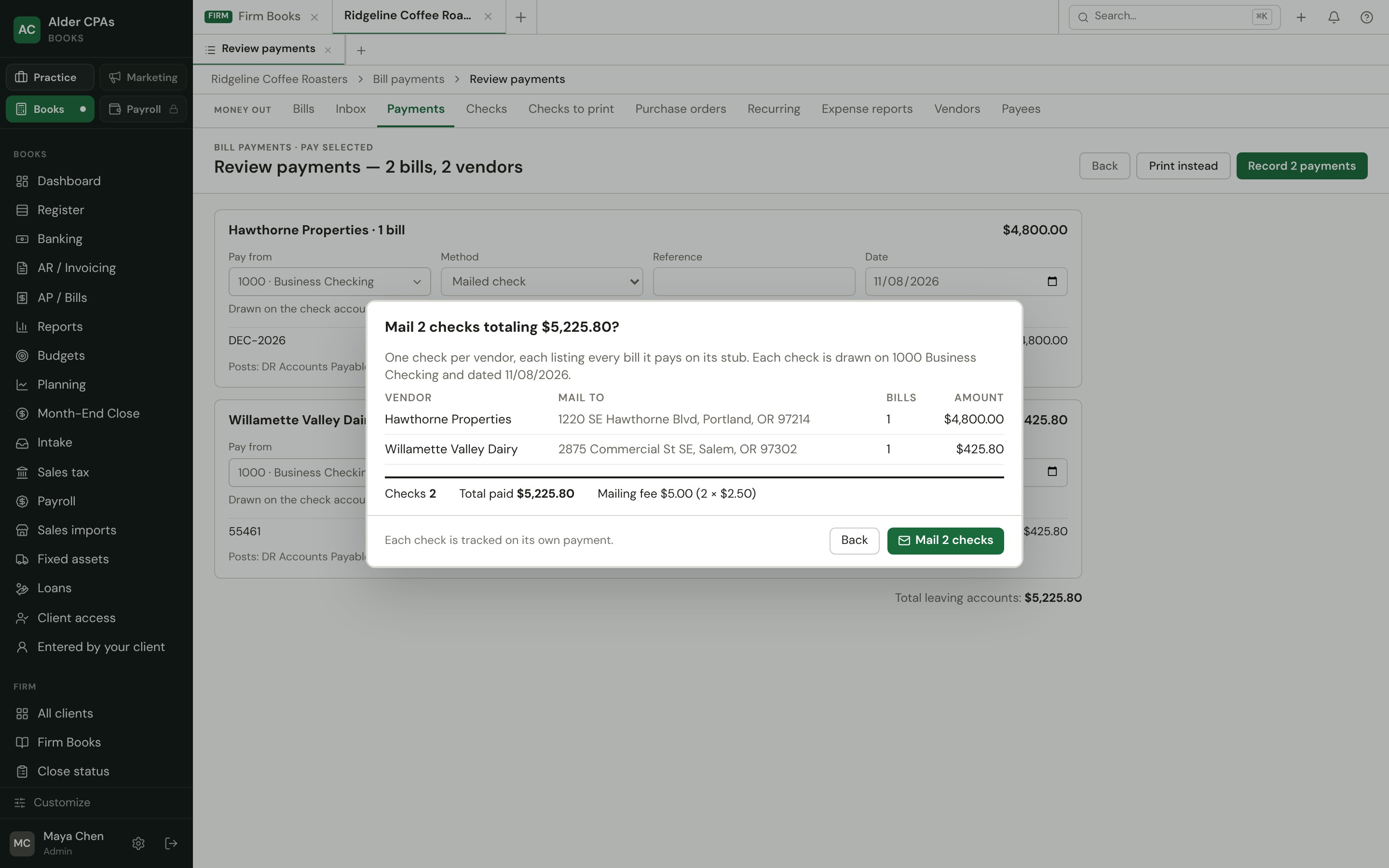 Mail 2 checks totaling $5,225.80?, with each vendor's address and a $5.00 mailing fee
The confirmation lists each Vendor, where it will Mail to, how many Bills and the Amount, then the number of checks, the Total paid and the Mailing fee. A vendor with no complete mailing address is named under Not included: and its bills stay open. Click Mail 2 checks to record them all, or Back to change something. The other payments on the page are recorded with them. A check that goes to the owner for approval is counted on its own, for example 2 checks go for approval and post nothing until they mail.
Print instead at the top of the page turns every mailed check on the page back into a printed check.
You can also mail a check you write from Write check: choose the bank account set up for mailing and click Save and mail.
Track a mailed check
A mailed check carries its status on AP / Bills → Payments under the method. Open the payment to see its Mailing card:
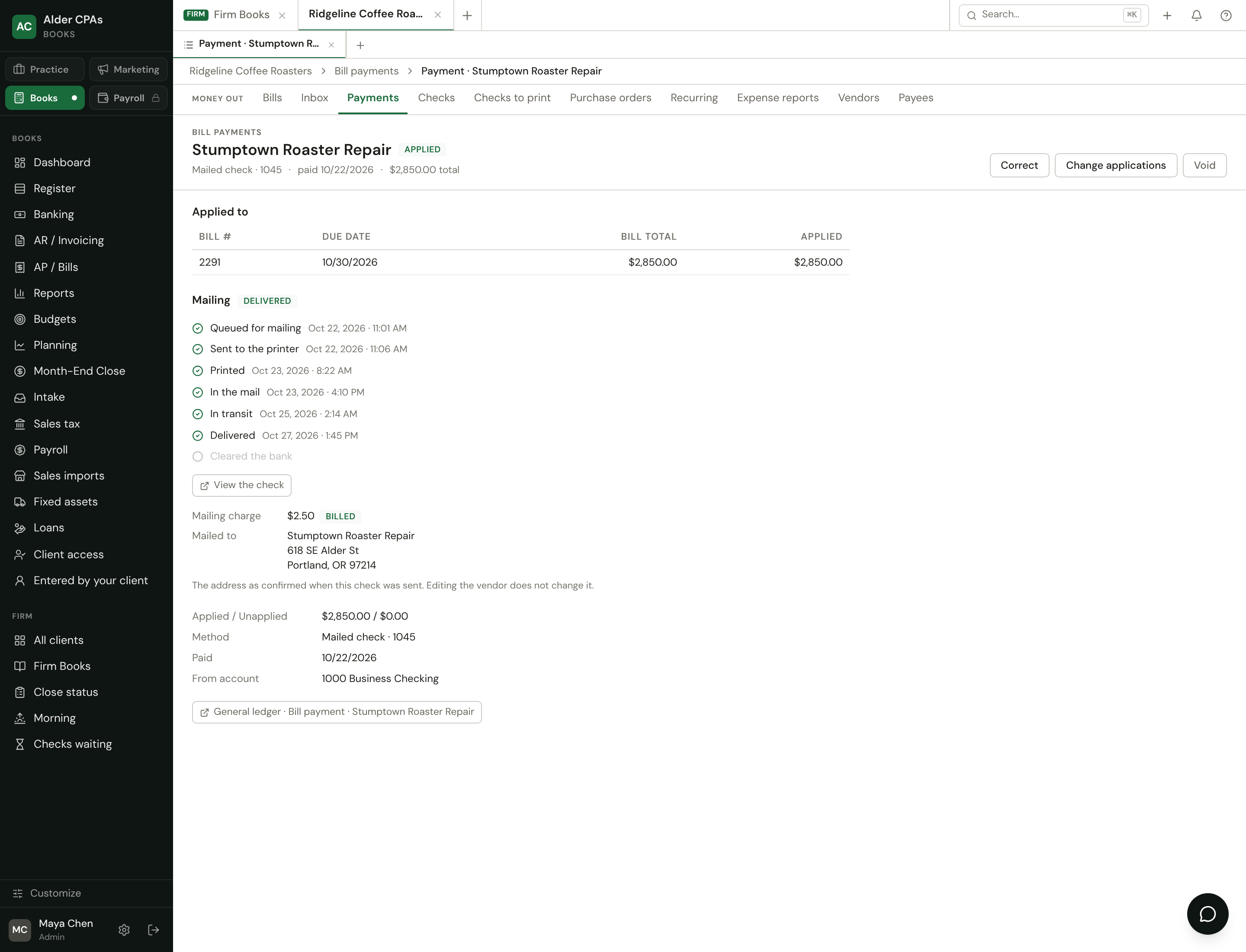 Check 1045 to Stumptown Roaster Repair, delivered on Oct 27, 2026, with its $2.50 charge billed
Each step is listed when it happens, with its date and time, and the steps still to come are grayed out:
| Status | What it means |
|---|---|
| Queued for mailing | The payment is recorded and the check waits to be handed over. |
| Sent to the printer | The check has been handed over for printing. |
| Printed | The check is printed. |
| In the mail | The check has been mailed. From here, only a stop payment at the bank can recall it. |
| In transit | The check is on its way. |
| Delivered | The check reached the vendor's address. |
| Cleared the bank | The bank paid it: a bank line was matched to the payment. The line is linked from here. |
| Returned to sender | The check came back undelivered. |
| Could not be printed | The check was never printed. |
Under the steps:
- View the check opens an image of the check as it was printed, once it has been handed over. It needs the Pay bills permission, because it shows the account numbers and the signature.
- Mailing charge is what this check cost, with Billed, Not billed yet or Not billed beside it, or No charge.
- Mailed to is the address the check went to, as stored with the payment when you recorded it.
The Mailed check status report lists every mailed check in a period with the day each step happened: see Check Reports: Outstanding, Voided, Number Gaps and Positive Pay.
When a check comes back
A returned check says so in the Mailing card, with the reason that was reported:
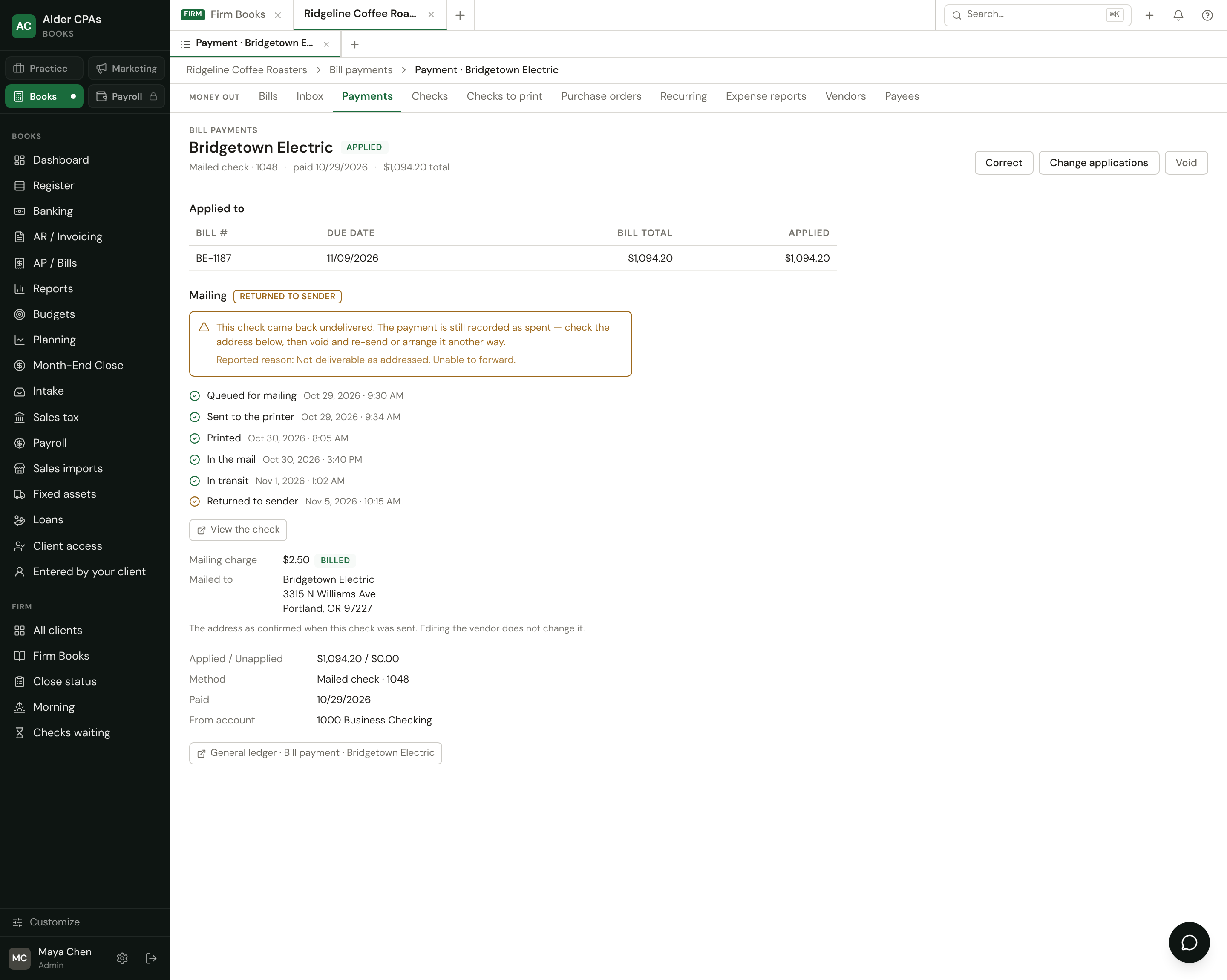 Check 1048 to Bridgetown Electric, returned to sender on Nov 5, 2026
This check came back undelivered. The payment is still recorded as spent — check the address below, then void and re-send or arrange it another way.
- Fix the vendor's mailing address on the vendor's page.
- Open the payment and click Void. Give a reason of at least 10 characters, and click Void payment. What the payment paid goes back on the bill, so it is open again, or partly paid if a credit was applied with it.
- Pay the bill again with a new mailed check, which takes the corrected address.
A check that Could not be printed is handled the same way: the payment is still recorded as spent, so void it to release the bills, or pay the vendor another way.
Void a mailed check
How a void works depends on where the check is:
- Before it goes out, voiding stops it. Books reads the check again just before handing it over, and a voided check is never mailed.
- While it is being handed over, the void waits: This check is being sent for mailing right now, so it can't be voided yet. Try again in a few minutes. If it has gone out by then, voiding it reverses it in your books, and only a stop payment at your bank recalls the paper.
- Once it is in the mail, the void reverses the payment in the books, but the paper is real. The void asks you to read this first: This check is already in the mail. Voiding reverses the entry in the books, but the paper check is real and can still be cashed. To stop it, call the bank and place a stop payment on it — nothing here can recall it.
- Once it has cleared the bank, voiding still reverses the payment in the books, but a stop payment comes too late: This check has already cleared the bank. Voiding reverses the entry in the books, but the money has left the account and a stop payment can no longer recall it. To get it back, ask the payee to return it.
- If it was returned to sender, the vendor never received it: This check was returned to sender. The payee never received it, so it cannot be cashed and no stop payment is needed. Voiding reverses the entry in the books.
What mailing a check costs
Each mailed check is $2.50 for printing and postage, shown on the Check mailing page, on the payment form before you record, and in the confirmation for several checks. The charge goes on your firm's LedgerOS subscription when the check is mailed. It is never part of the payment and never in the client's ledger.
Your firm's Settings → Billing lists the Mailed checks charged, and See charges by client opens the Mailed check charges report: every check mailed in a period by the date it was mailed, grouped by client, with the Check amount and the Charge, ready to pass on to each client. Owners and admins can open it.
Why a check wasn't mailed
Mailed check on the payment form says why it can't be used, and the reason is shown under the form, with Record grayed out:
- The client isn't on Premium. Books shows Mailing a check is a premium feature with the way to turn on Premium for the client. Recording a check you write yourself stays free: use the Check method.
- Check mailing isn't set up. Mailed check needs setting up first — still needed: and what is missing, with Set up check mailing.
- The account isn't verified. This client's check bank account hasn't been verified through its bank connection. Verify it in Settings, then Check mailing. After a change to the numbers: The bank numbers on these checks changed after they were verified. Verify the account again in Settings, then Check mailing. While deposits are on their way, Books says verification is still in progress.
- The bank details changed in the last 48 hours. The check is recorded and waits, and the check says so: Held until the time shown, Mailed checks wait 48 hours after the bank numbers or signature change. You can print it now. A queued check also waits, with no set time, if the account stops being verified, and mails once it is verified again.
- The owner signs and hasn't authorized mailing yet. Books names the owner and says they haven't authorized mailing checks with their signature, and to send the authorization request from Settings → Check signing. You can print the check meanwhile.
- The check is waiting for the owner's approval. Once they approve it, it comes back to Review payments as Approved · ready to mail, and it mails when you click Mail. Nothing posts until then.
- The check was voided before it went out. It is never mailed.
- Books couldn't hand it over. If a check still hasn't gone out after three tries, Books raises an alert for the client saying the payment is recorded as spent but the check wasn't mailed. Void it, or write the check by hand and clear the alert.
Why is check mailing off for this client? The top of Settings → Check mailing says what is still missing, or that the account still needs verifying. Mailing also needs Premium for the client.
Why can't I change the bank numbers? A change to the bank account, routing or account number is refused while a check is queued, at the printer or printed, because that check was made from the numbers on file. The page says so under the field. Changing the numbers or the signature also needs the firm's owner or an admin.
Tips
- Set the starting check number from the client's checkbook before the first mailed check, so the numbers don't collide with checks written by hand.
- Keep vendors' mailing addresses current. Each check takes the address on the vendor when you record it, and a check already sent keeps the address it went to.
- Pay several vendors in one confirmation. On Review payments every mailed check is confirmed together, with the total and the fee, before anything is sent.
- Let the bank clear it. When the bank line for a mailed check is matched in Review, its Mailing card moves to Cleared the bank and links the line.