
Enter a Bill, Batch Bills and Recurring Bills
Enter a vendor's bill line by line, enter a stack of bills at once from a spreadsheet, set up the bills that come every month, and change, void or delete a bill afterward.
On this page
A bill is what your client owes a vendor: the invoice the dairy left with the milk, the packaging supplier's statement, the monthly service plan. Entering it in Books puts the cost on the books on the bill's date and the amount in Accounts Payable, where it waits until you pay it. Books gives you three ways in: one bill at a time, a whole stack in one grid, or a schedule that makes the same bill every month.
Save bill puts the bill on the books. It debits each line's account and credits Accounts Payable for the total, on the bill date. Save as draft keeps it off the books entirely until you save it from the bill's page. Before you save, the form shows the exact entry under the lines, starting Ledger entry on save:.
Understand the Bills list
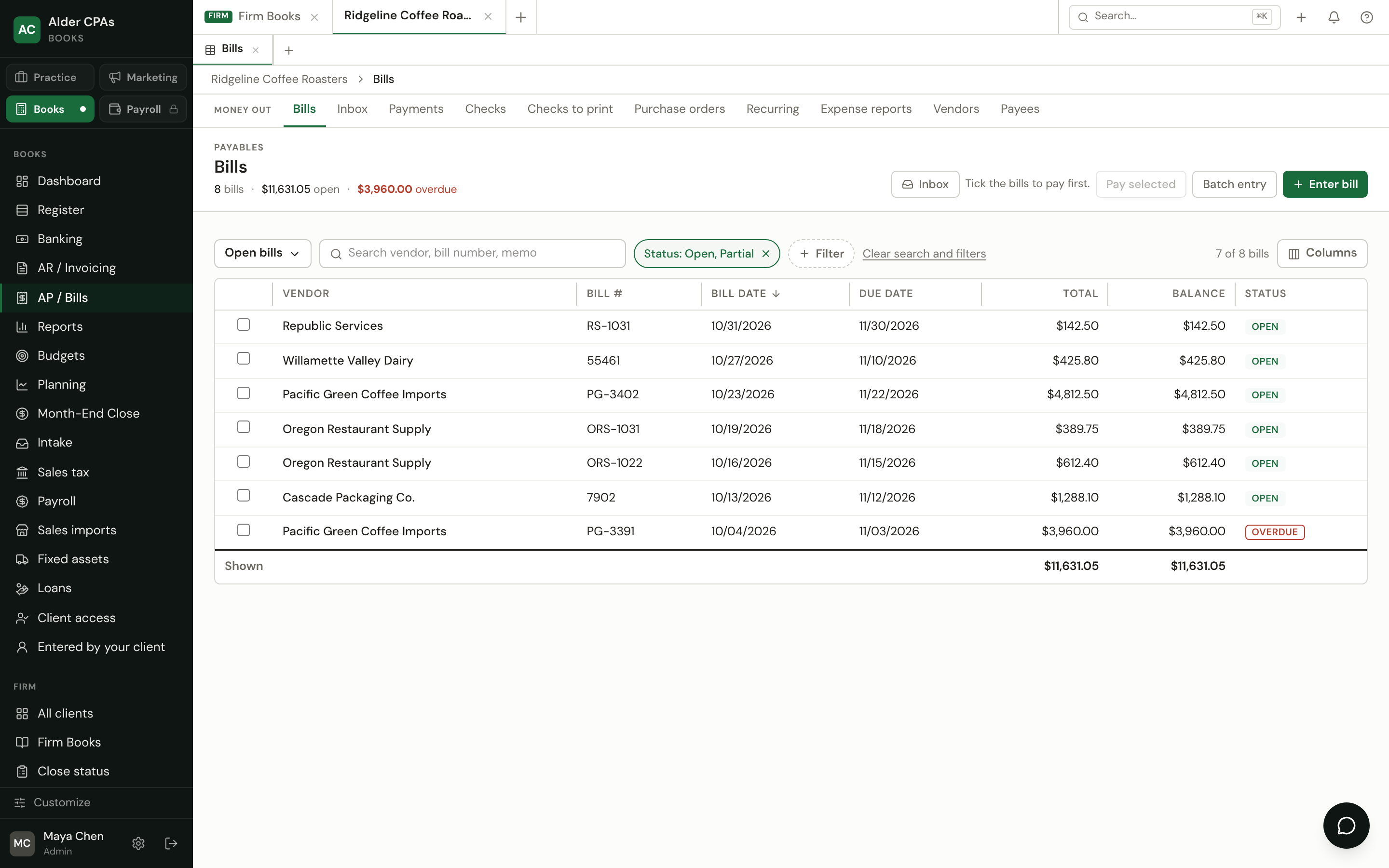 The Bills list for Ridgeline Coffee Roasters: seven open bills, $11,631.05 open and $3,960.00 overdue
Under the title, Books sums up the client's whole payables: how many bills, how much is open, and how much is overdue (in red, when any is). The list opens on the Open bills view, with a Status: Open, Partial filter you can clear to see drafts, paid and void bills too.
The columns are Vendor, Bill #, Bill date, Due date, Total, Balance and Status, and Columns adds a hidden Memo column. Status reads Draft, Open, Partial, Paid or Void, and an open or part-paid bill whose due date has passed reads Overdue instead. A bill Books posted on its own from an upload carries an Auto badge beside its status.
- Search looks in the vendor, bill number and memo.
- Filter adds Status, Due (Overdue or Not overdue), Vendor, Bill date, Due date, Total and Balance, and an Entered by filter that finds the bills your client entered themselves.
- The Shown row at the bottom totals what the filters leave on screen. Void bills are left out of the Total, and only open and part-paid bills count in the Balance.
- Tick bills to act on several at once. The bar that appears offers Pay for the ticked bills still owed, Void for the saved ones and Delete drafts for the drafts. A void bill has no box, because there is nothing left to do with it.
At the top right: Inbox (the bills uploaded and waiting to be read or reviewed, with a count of the ones that need you), Pay selected, Batch entry and Enter bill.
Why is this bill overdue? Its due date has passed and it still has a balance. The due date comes from the bill's terms, counted from the bill date, unless someone typed a different one. A paid, draft or void bill is never overdue.
Enter a bill
- Click Enter bill.
- Choose the Vendor. Books fills the Payment terms from the vendor and gives the first line the vendor's usual account.
- Type the vendor's invoice number in Bill #.
- Check the Bill date. The Due date follows the terms (From terms · editable) until you change it yourself.
- Enter each line: a Description, an Account and an Amount.
- Click Save bill, or Save and add another to save it and start the next one. The next bill keeps the vendor (its lines start again with the vendor's default account) and the bill date, clears the number, memo, discount, lines and any attached file, and puts the cursor in Vendor.
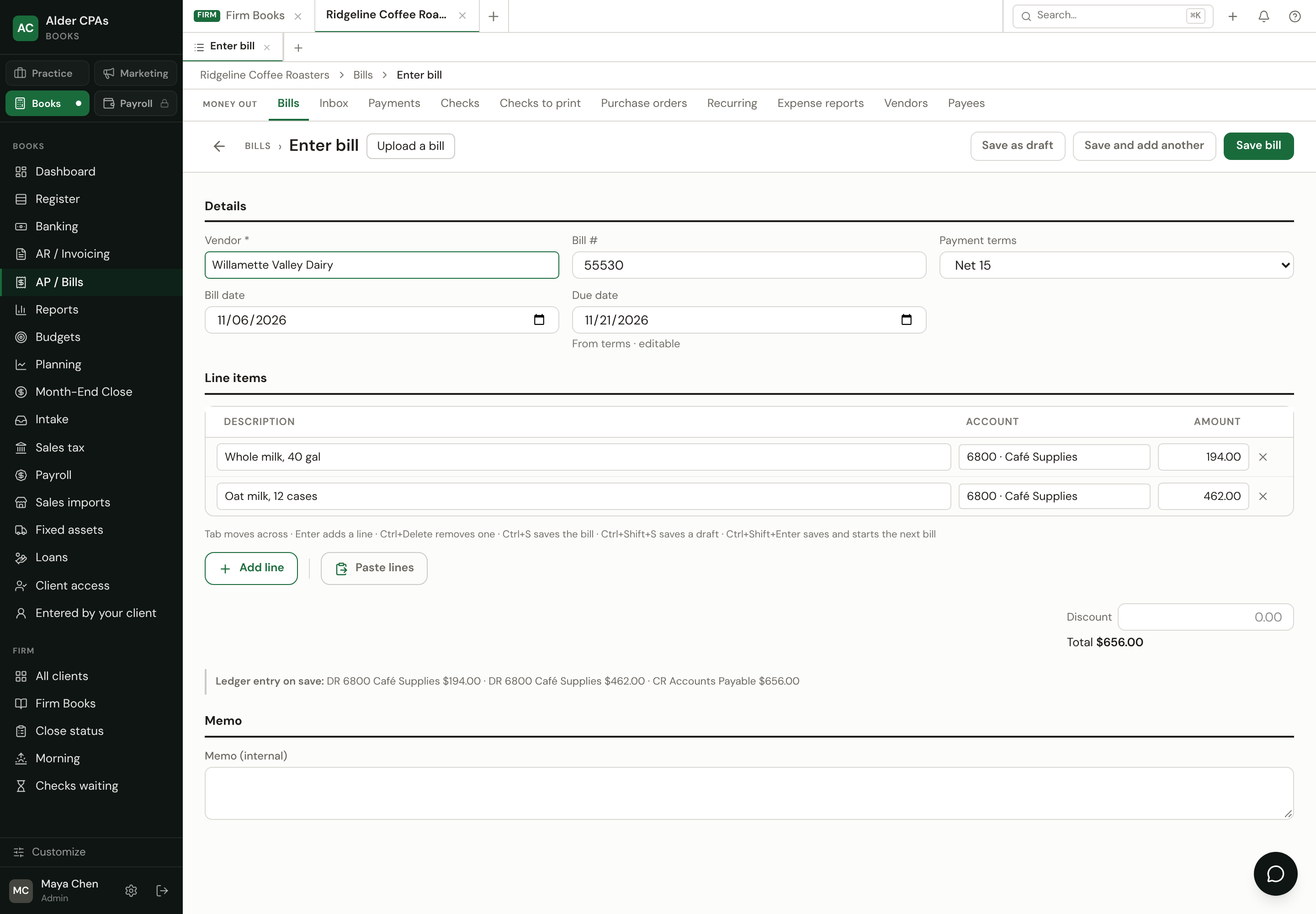 Entering Willamette Valley Dairy's bill 55530: two lines, $656.00, with the ledger entry Books will post
Some things the form does for you:
- Amounts take arithmetic. Type
12*38.50or=12*38.50in an amount and it settles to 462.00 when you leave the field. You can add (+), subtract (-), multiply (*orx) and divide (/), and group with parentheses. A leading=, a$, commas and spaces are ignored, and the result is rounded to the cent once, at the end. - The account proposes itself. When you type a line's description, Books fills the account this vendor's same line went to last time. The first line starts with the vendor's default account or, without one, the account on the vendor's last bill. Books only fills an empty account, never one you picked.
- Duplicates are caught before you save. The same bill number for the same vendor, whatever its capitals, shows Already entered with the earlier bill's number, date, amount and status, and Save bill stays off until you change it. A bill for the same vendor with the same amount and date shows Possible duplicate, which you can Dismiss and save anyway if it is a separate charge.
- Discount under the lines takes an amount off the total. The entry spreads it across the expense lines.
- Paste lines under the grid takes rows copied from a spreadsheet. You say which column is which. When the pasted rows start with a heading row, Books remembers that choice for the same headings next time, in this browser.
- Upload a bill at the top reads a PDF or photo of the bill and fills the form for you to check, marking each field it was unsure of with Check this. Reading an upload is part of Premium for the client; on the free plan, enter the bill by hand.
If the client tracks classes or locations, Bill-level class — fills all lines and Bill-level location — fills all lines set every line at once, and a line's own pick overrides them. A client with inventory items also sees Item, Qty and Rate on each line.
Keyboard shortcuts
| Keys | What they do |
|---|---|
| Tab / Shift+Tab | Move across a line |
| Enter | Go down to the next line, adding one at the bottom |
| Ctrl+Delete | Remove the current line |
| ↑ / ↓ in Account | Move through the suggestions; Tab or Enter takes one |
| Ctrl+S | Save the bill |
| Ctrl+Shift+S | Save as a draft |
| Ctrl+Shift+Enter | Save and start the next bill |
On a Mac, use Cmd for Ctrl.
Enter a stack of bills at once
Batch entry on the Bills page opens Enter bills in a batch: one row per bill, up to 200 in a batch.
- Type the rows, or click Paste rows and paste from a spreadsheet, one row per bill, with the columns in this order: Vendor · Bill no. · Date · Due · Account · Description · Amount. Click Add the rows.
- Every row has + line: click it to add another line under that row, for a bill with more than one line. Amounts take the same arithmetic as the bill form:
2*106settles to 212.00 when you leave the cell. - Leave Post them (off: save as drafts) ticked to put the bills on the books, or untick it to save them all as drafts.
- Click Check 5 bills (the count is yours). Books runs every real check on every row and writes nothing.
- Read what it says it will do, then click Enter 3 bills.
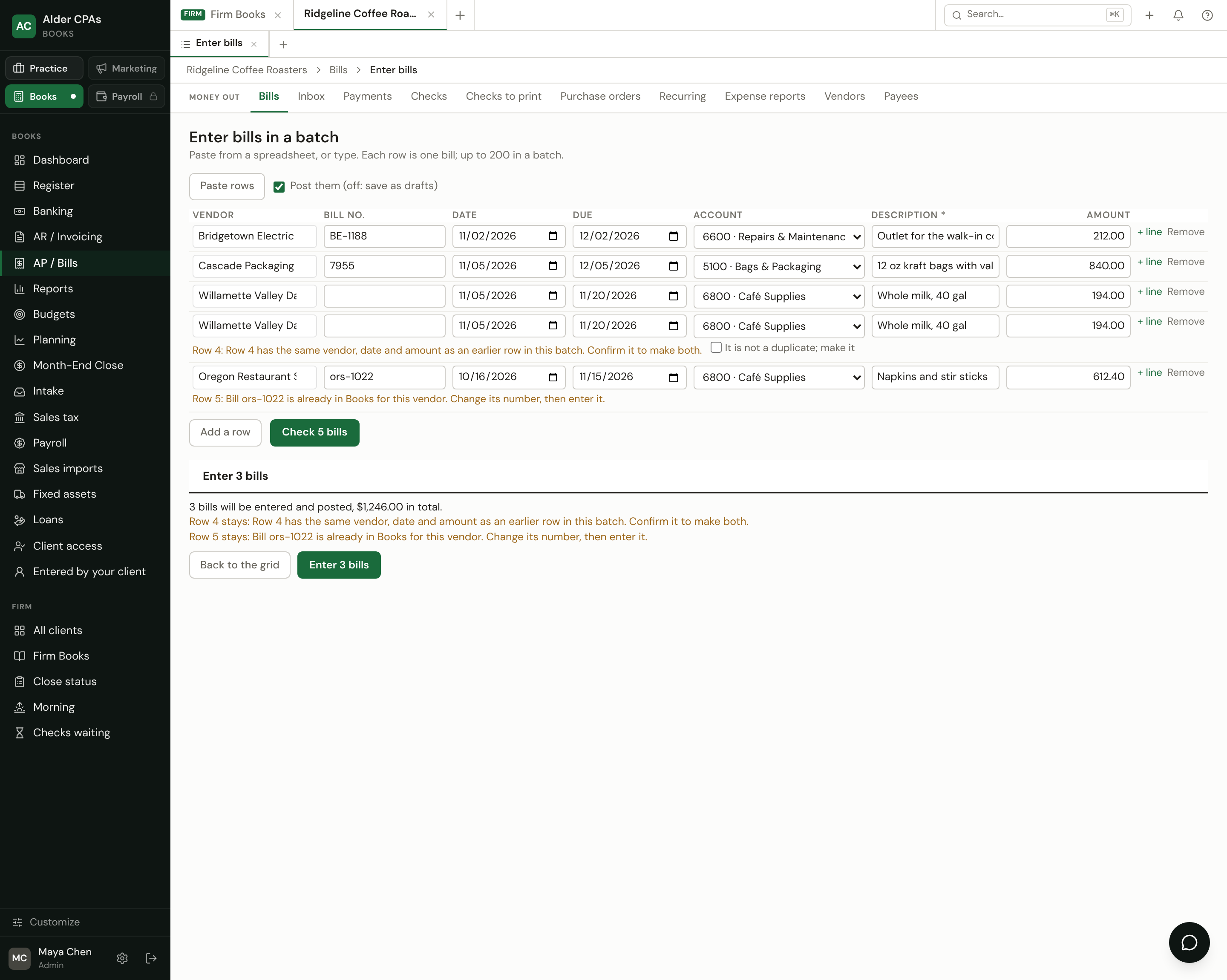 A batch of five bills checked: three will be entered and posted, $1,246.00 in total; row 4, a second Willamette Valley Dairy bill with no number on the same date and for the same amount as row 3, is held with a tick to make it anyway, and row 5, typed ors-1022, is held because Oregon Restaurant Supply's ORS-1022 is already in Books
A row Books won't make stays in the grid with its reason, and the rows it did make leave the grid. Duplicates are held two ways:
-
A row with no bill number that matches a bill already in Books, or another row in the batch, on vendor, date and amount is held until you tick It is not a duplicate; make it beside it and check again: Row 4 has the same vendor, date and amount as an earlier row in this batch. Confirm it to make both.
-
A bill number the vendor already has can't be entered again, at any amount, and capitals don't matter: ors-1022 matches ORS-1022.
The row says Bill ors-1022 is already in Books for this vendor. Change its number, then enter it., or, when two rows in the batch share a vendor and number, Row 5 has the same vendor and bill number as an earlier row in this batch. Change its number, then enter it. There is no tick for these: change the number (or leave it out) and check again. A voided bill's number can be used again.
Every line needs an account, a description and an amount other than zero, and a vendor typed that Books doesn't know is named so you can pick or add it.
Bills that come every month
Recurring on the Money Out strip lists the client's recurring bills: Name, Vendor, Repeats, Creates, Amount, Next, Last, Made and Status.
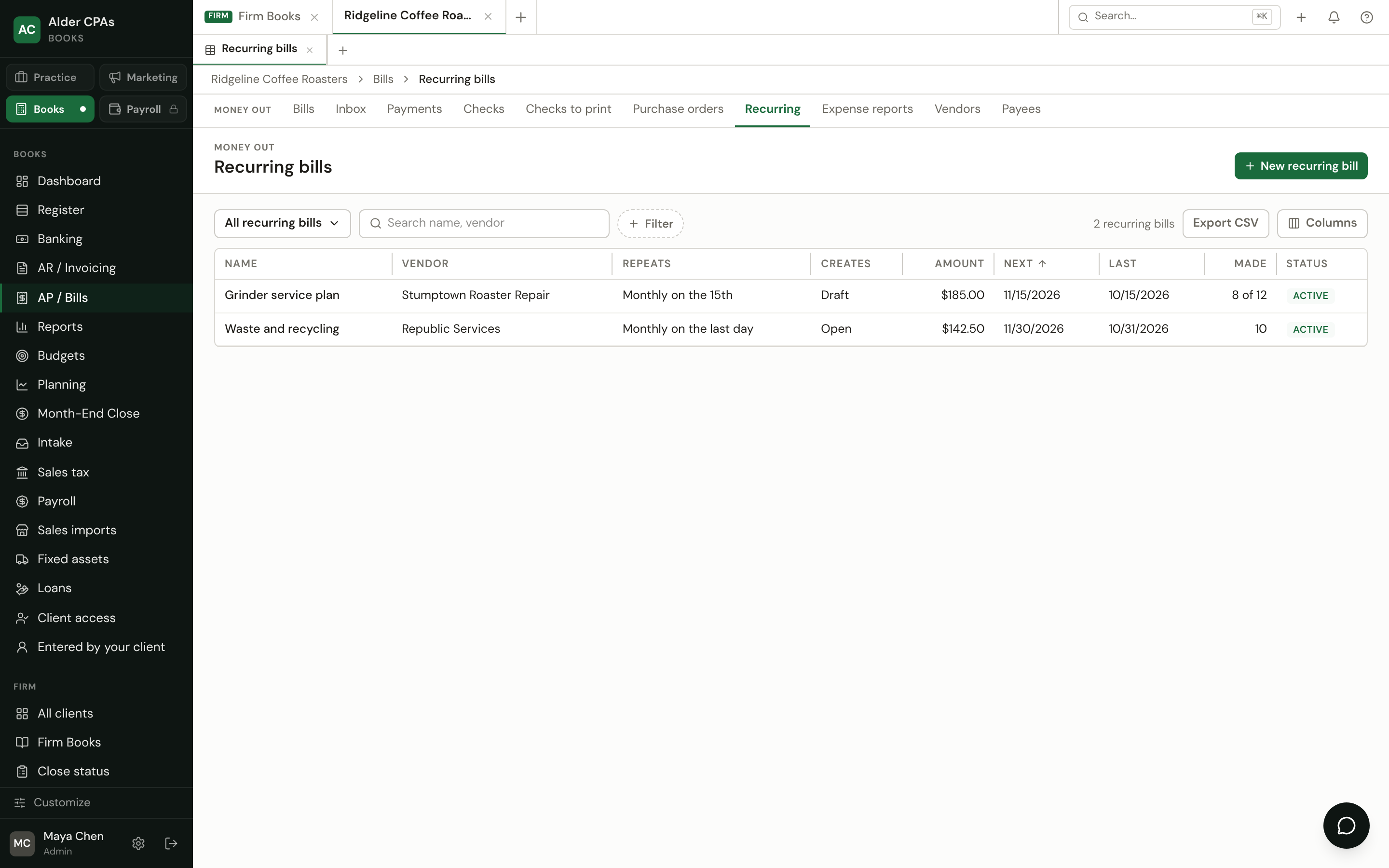 Two recurring bills: the grinder service plan, made as a draft on the 15th, and waste and recycling, posted on the last day of each month
Click New recurring bill, or click a schedule to change it:
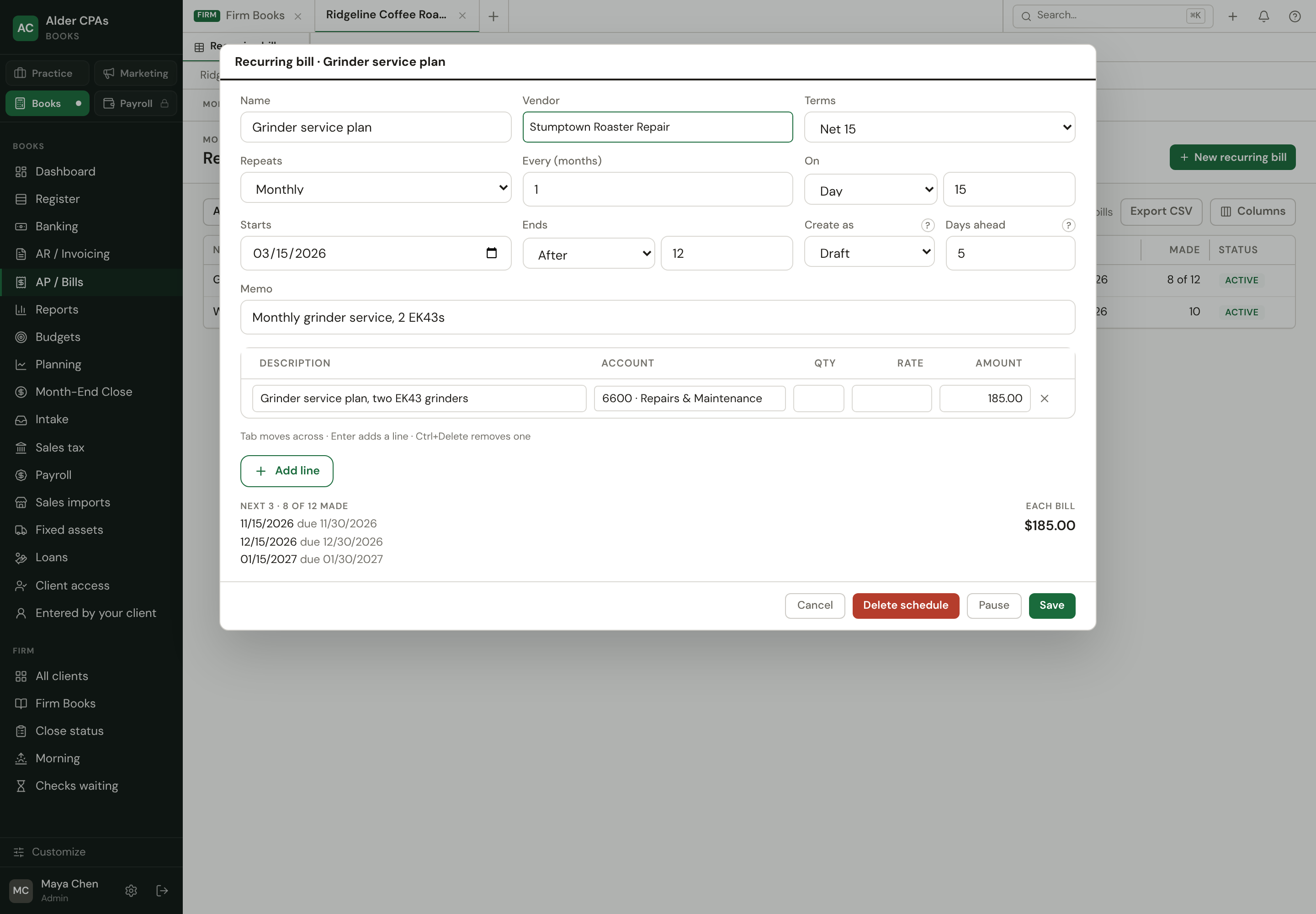 The grinder service plan's schedule: monthly on the 15th, 8 of 12 made, made as a draft 5 days ahead, with its next three dates
- Repeats: Weekly, Monthly, Quarterly or Annually, with Every for every 2 weeks, 3 months and so on.
- On: a weekday for weekly bills; for monthly ones a Day of the month, the Last day, or a Weekday such as the 2nd Tuesday.
- Starts and Ends: Never, On date, or After a number of bills.
- Create as: Draft waits for someone to post it. Open posts when it is made, with you as the person who posted it.
- Days ahead: how many days before its date each bill is made, from 0 to 60.
- The bottom of the window shows the Next 3 dates with their due dates, and the amount of Each bill.
Status reads Active, Paused, Finished (no dates left) or Needs attention (a bill could not be made; hover the badge or open the schedule to see why). Pause stops a schedule, and Resume starts again from the next date from today on: it never catches up on the dates it missed.
Delete schedule removes only the schedule. It first tells you how many dates were still to come, and that the bills already made and any drafts waiting stay as they are.
A vendor with a recurring bill can't be archived while the schedule is still running: pause it, end it or delete it first.
Fix or undo a bill
How you change a bill depends on whether it is on the books.
A draft has Delete draft, Edit details, Edit lines and Save bill on its page. Deleting a draft really deletes it; if it came from an uploaded document, the document goes back to the bill inbox.
A saved bill is changed in place. Choose More → Edit, change the dates, number, terms, memo, discount or lines, and click Review changes. Books shows what changes on the bill and its ledger entry before anything is saved, then Save changes. The entry keeps its number, and the bill's history records the before and after. A few things to know:
- The vendor stays as it is, and the form says so under it: A saved bill keeps its vendor. For another vendor, enter a new bill and delete or void this one.
- A bill in a closed month can be changed only by someone with the Lock a period permission, who gives a reason of at least 10 characters that is kept in the bill's history. Anyone else is refused. A bill with a reconciled line warns you that the reconciliation will be off by the change, and you tick to go ahead.
- The total can't go below what has been paid or credited; unapply a payment or credit first.
- A bill that receives inventory items can't be edited; void it and enter it again.
Void a saved bill with More → Void…. Give a reason of at least 10 characters, and the dialog says exactly what the void does, for example Voiding takes $4,812.50 off 2000 · Accounts Payable and off 5000 · Green Coffee Purchases ($4,452.50) and 6500 · Shipping & Postage ($360.00), dated Oct 23, 2026.
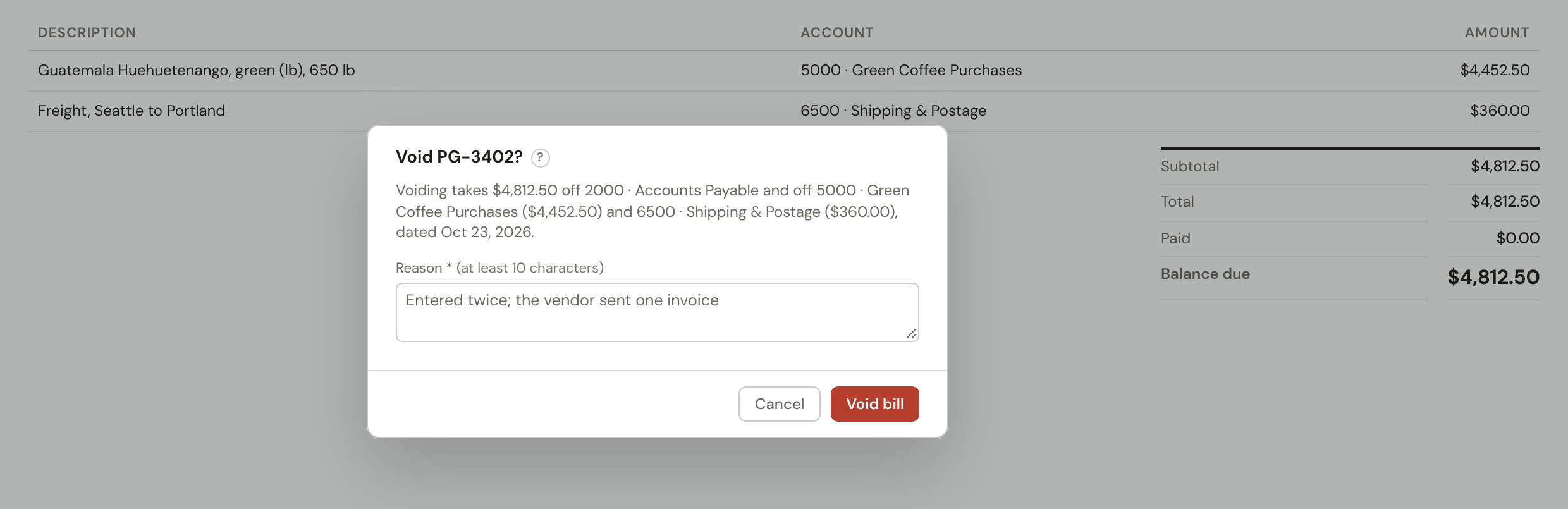 Voiding PG-3402: the amount, the accounts and the date of the reversal, named before you confirm
The reversal is dated on the bill's own date while that month is open, and today once it has closed. A bill with a vendor credit applied can't be voided until you unapply the credit. If payments were applied to the bill, the dialog says so: the money comes back to the vendor as unapplied money you can apply to another bill or have refunded.
The More menu also has Split to journal entry, which turns a line into journal entry drafts (to reclass it, or spread it over months), and Convert to vendor credit…, which makes a draft vendor credit from the bill's lines.
Why can't I save this bill?
Save bill is grayed out with its reason beside it. The common ones:
- Choose a vendor.
- A bill needs a bill date and a due date.
- This bill number is already used for this vendor: change the number, or open the earlier bill.
- The discount must be less than the lines it comes off.
- A line without an account or amount, or with an amount that isn't a figure, is named by line.
- A date before the books start is said at the bill date, and the bill can't be saved there. A draft can.
- A closed month. Someone with the Lock a period permission can still post the bill into it, with a reason that is kept in the audit log. Anyone else is told that an owner or admin can reopen it, or to date the bill in an open month. A month locked for good takes nothing.
- Your role. Entering, editing and saving bills needs both the Bills and vendors and the Post journal and register entries permissions; voiding needs Void or reverse a posted entry.
If saving a new bill fails after it was created, Books says Saved as a draft, but it could not be finished, with the reason, and opens the draft. Nothing you typed is lost.
Tips
- Enter a pile with the keyboard alone: choose the vendor, Tab through the lines, and press Ctrl+Shift+Enter to save and start the next bill. The vendor and bill date carry over, so a run of bills from one vendor goes fastest.
- Type the math the invoice shows. 12 cases at $38.50 is
12*38.50; a split freight charge is360/2. - Let the vendor fill the form. Set each vendor's terms and default account once, and every bill from them starts right.
- Check before you enter a batch. The Check step runs every rule and writes nothing, so you see every refusal at once.
- Pay from the list. Tick the bills and click Pay selected to pay several vendors in one pass.
- Bills from orders and bills for customers. A bill can start from a purchase order: see Purchase Orders. To pass a bill's cost on to a customer, see Billable Expenses: Bill Your Customer for Costs.