
Expense Reports
Gather the receipts an employee paid for out of pocket into one report, take off any advance they were given, approve it into a bill payable to them, and void it if it was approved by mistake.
On this page
When someone at the business pays for a work expense with their own money, an expense report is how you pay them back. You gather that person's receipts for a period into one report, they are submitted, and a person approves it.
Approving creates one bill payable to the employee, with each receipt on the account it belongs to, and posts it. If you gave the employee money up front, approving takes that advance off what they are owed. You then pay that bill like any other.
Nothing posts until a report is approved. A draft, a submitted report and a report you send back are only a list of receipts. Approving creates and posts the bill, all at once. Every receipt on a report is treated as money the employee spent for the business: a receipt paid with a company card belongs with its bank line, not on a report.
Understand the Expense reports list
The list shows one row per report, newest period first.
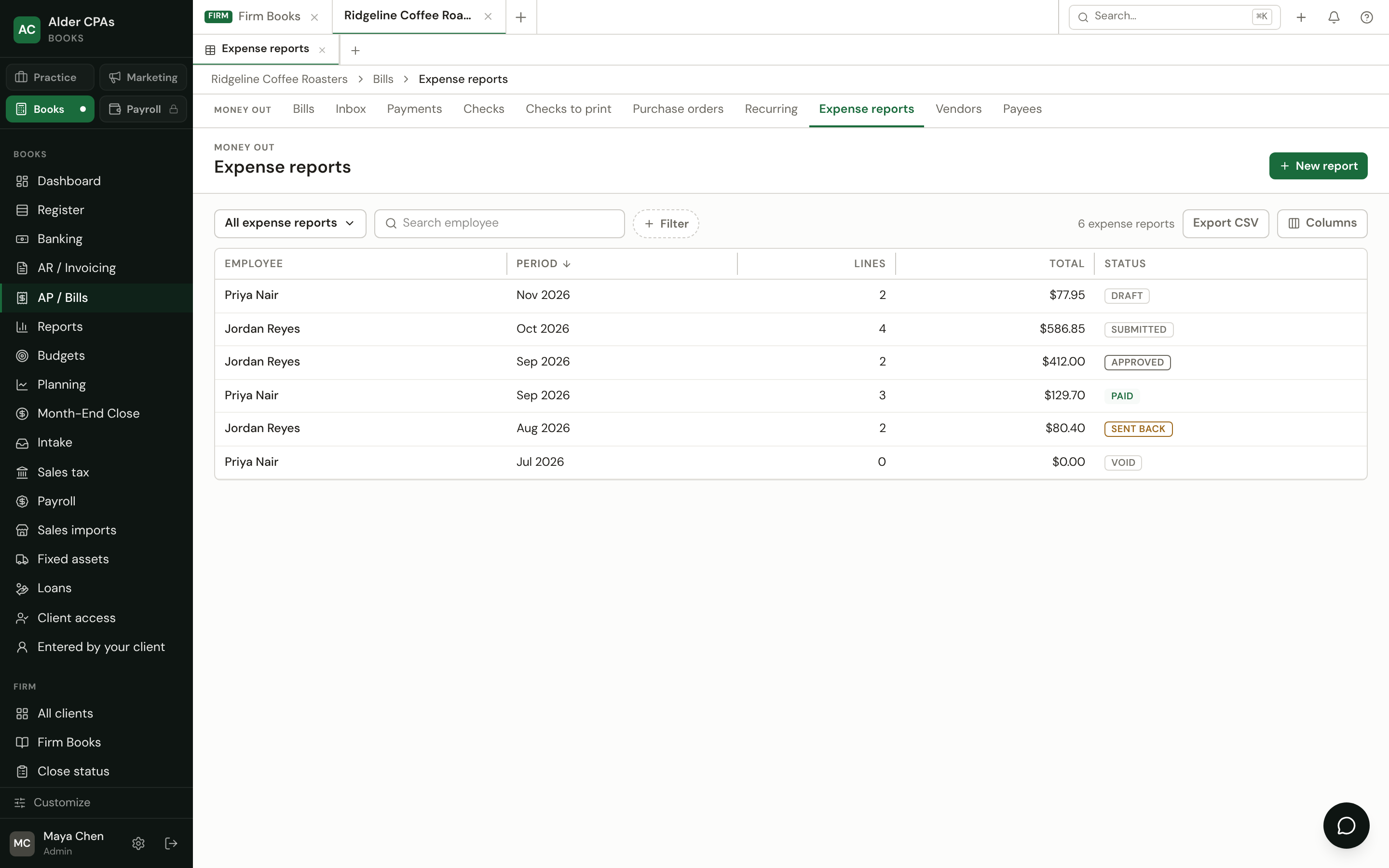 The Expense reports list for Ridgeline Coffee Roasters, with reports in every status
- Employee — who the report pays back.
- Period — the dates the report covers. A report that covers a whole month shows the month, such as Oct 2026; any other period shows both dates.
- Lines — how many receipts are on it.
- Total — the receipts added together. This is the receipts, before any advance comes off.
- Status — where the report stands:
| Status | What it means | What you can do |
|---|---|---|
| Draft | Being put together. | Add or remove receipts, add an advance, Submit, Remove report. |
| Submitted | Waiting for someone to approve it. | Approve or Send back. |
| Sent back | Returned with a reason, to be changed and submitted again. | Same as a draft. |
| Approved | Its bill has been created and posted. | Open the bill, or Void. |
| Paid | Its bill is paid in full, or the employee's advance covered all of it. | Open the bill, or Void (void any payment on the bill first). |
| Void | Voided after approval. Its bill is void and its receipts were set free. | Nothing; it stays as a record. |
Hover the status of a sent-back or voided report to read the reason that was given.
To narrow the list, type a name in Search employee, or click Filter to filter by Status, Employee, Period ends or Total. Click a column heading to sort by it; Shift-click a second heading to sort by both. Export CSV downloads the rows you are looking at, and Columns hides or reorders columns.
Click a row to open the report.
Create a report
- Click New report.
- Under Employee, start typing a name. People already marked as employees are listed first, under Employees; everyone else is under Other vendors. Use the arrow keys and Enter, or click, to choose.
- Check the period. Period from and Through start as the first and last day of the current month.
- If you gave the employee money up front, you can enter it under Advance (optional) now, or add it on the report later (see Take an advance off the report).
- Click Create report. The new report opens, empty and in Draft.
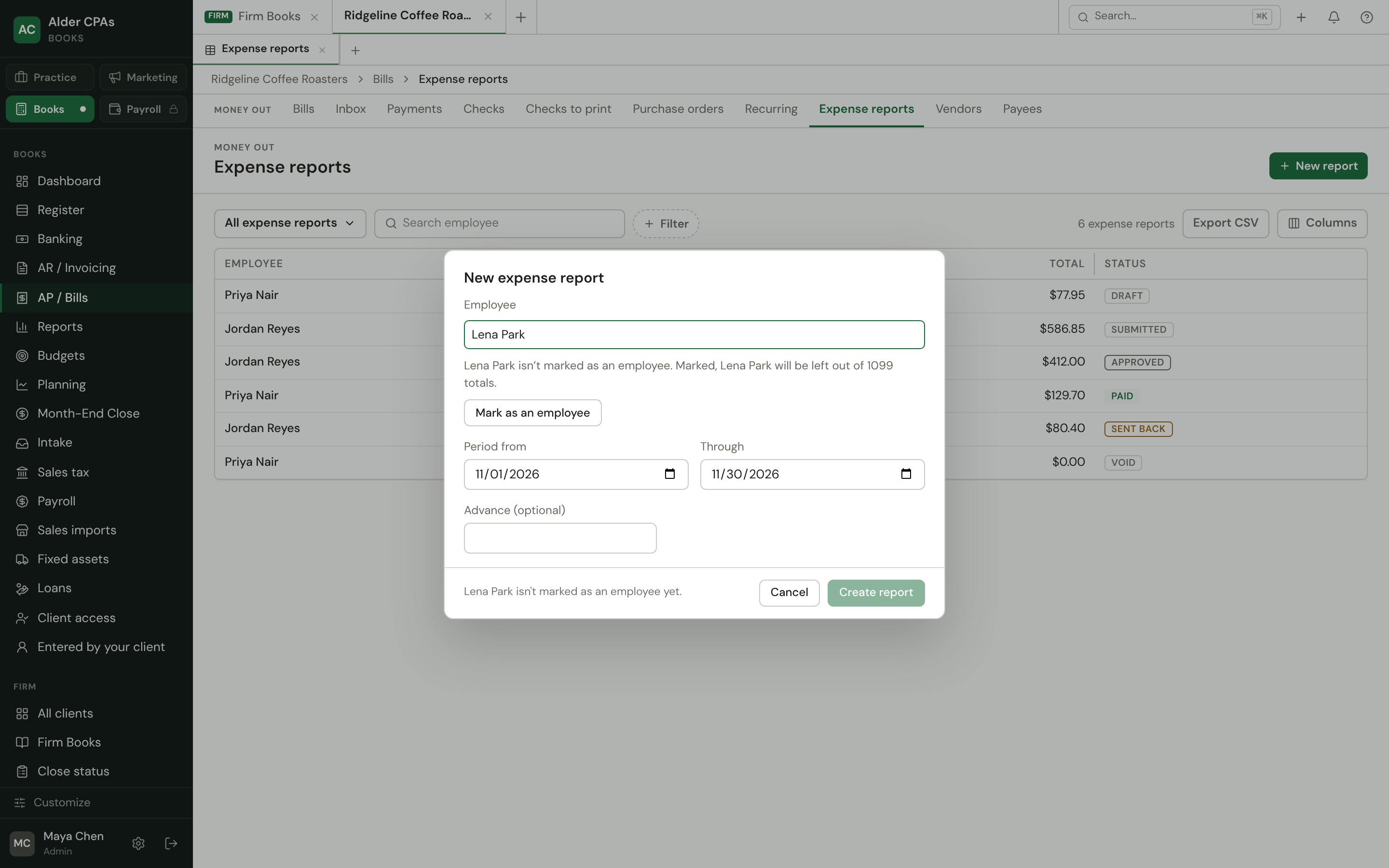 A new expense report for a vendor who is not yet marked as an employee
While Create report is unavailable, the line beside it says what is missing: Choose the employee., Lena Park isn't marked as an employee yet., Give the period., The period starts after it ends. or The advance is not an amount.
The person must be marked as an employee
A report can only be made out to a vendor marked as an employee, so the person needs to be in your vendor list first. If the client has no vendors yet, the dialog says so and links to the vendor list.
If you pick someone who is not marked yet, Books tells you, for example Lena Park isn’t marked as an employee. Marked, Lena Park will be left out of 1099 totals. Click Mark as an employee to mark them right there. If you marked the wrong person, click Undo on the line that appears.
Someone tracked for 1099s can't be marked. Books refuses with, for example, Pacific Green Importers is tracked for 1099s; turn that off before marking them an employee. Turn off 1099 tracking on that vendor first, if they really are an employee.
An owner can be reimbursed this way too, as long as they are set up as a vendor and marked as an employee. If an owner paid personally and you are not paying them back, there is no report to make: when you review that receipt, choose An owner, personally under Who paid instead.
Add receipts to a report
A report's lines are receipts that are already saved in Books. When you review a receipt that no bank line explains, choose An employee, to be reimbursed under Who paid and click Save for a report. Nothing posts then: the receipt waits, unmatched, until it goes on a report and the report is approved.
To put receipts on a draft or sent-back report:
- Open the report and click Add receipts.
- Click each receipt you want, or tick its box. The selected rows are highlighted, and the bottom of the dialog adds them up, for example 2 receipts · $36.25.
- Click Add to report.
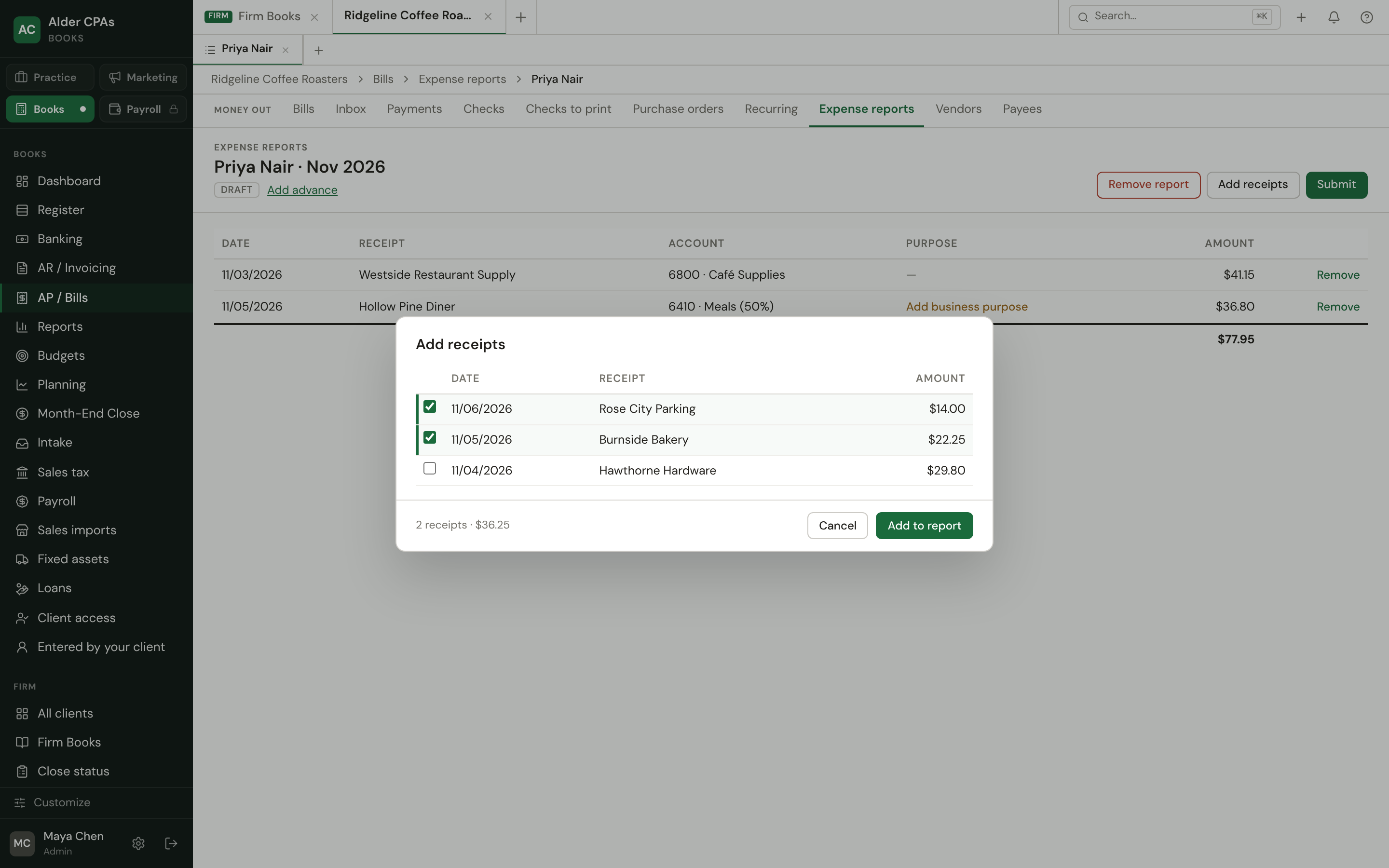 Adding two unmatched receipts to Priya Nair's November report
The dialog lists the client's unmatched receipts, newest first; it shows the newest 200. A receipt matched to a bank line, already posted, or on another report is not offered. When nothing is left, it says No unmatched receipts to add. A receipt matched to a bank line, posted, or on another report can't be added.
A receipt Books has since suggested for a bank line can still appear in the list, but adding it is refused with A bank line may already show this; confirm or turn down the match first. Settle that suggestion in the Review queue first.
A report holds up to 200 receipts.
Take a receipt off a report
Click Remove at the end of its row. The receipt is not deleted; it goes back to unmatched and can be added to another report.
Read a report
The report's title is the employee and the period, with its status underneath, and the advance, if there is one. Each receipt is one row:
- Date and Receipt — the receipt's date and merchant.
- Account — where the expense goes. A receipt split across more than one account shows, for example, Split · 2 accounts; hover it to see each account and amount. A receipt split several ways on the same account shows that one account.
- Purpose — the business purpose recorded on the receipt, or a dash when there is none. Add business purpose shows where one is needed and missing (see below), and Edit beside a purpose lets you change it.
- Amount — the receipt's total.
Total, at the bottom, adds up every receipt. It is what the employee spent. Without an advance it is the amount of the bill; with one, the bill is this total less the advance.
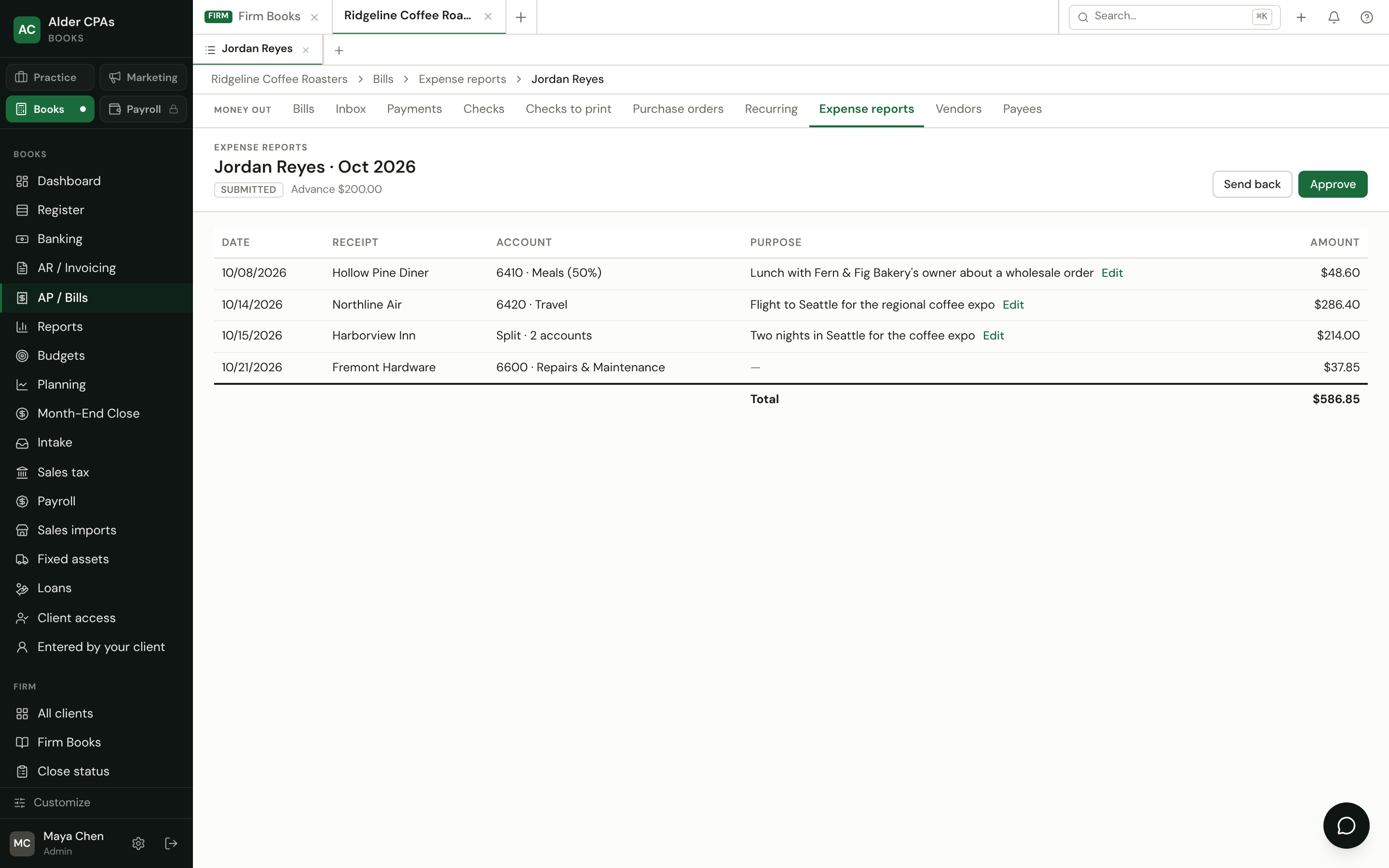 Jordan Reyes's October report, submitted with a $200.00 advance and waiting for approval
Late expenses are flagged, not refused
When a report is submitted, Books flags any receipt dated more than 60 days earlier: under the table you see the receipt's date and Submitted more than 60 days after the expense. Hover the flag for what it means: This amount may be wages under a non-accountable arrangement. Books flags it for your tax preparer and never reclassifies it. The flag never stops the report from being approved.
Add a missing business purpose
Receipts on a meal, travel, lodging, entertainment or gift account need a business purpose before the report is submitted (these are the accounts flagged under the client's expense settings). You can add one to a receipt that is already on a report.
- On the report, find the receipt that shows Add business purpose in the Purpose column, and click it.
- The Business purpose · Hollow Pine Diner dialog opens, with the receipt's date, merchant and amount at the top. Type the Business purpose. You can also add Attendees (a name and their relationship, with + Add for each) and the Place; anything the receipt already had is kept unless you change it.
- Click Save. It stays unavailable until there is a purpose (Write the business purpose first.).
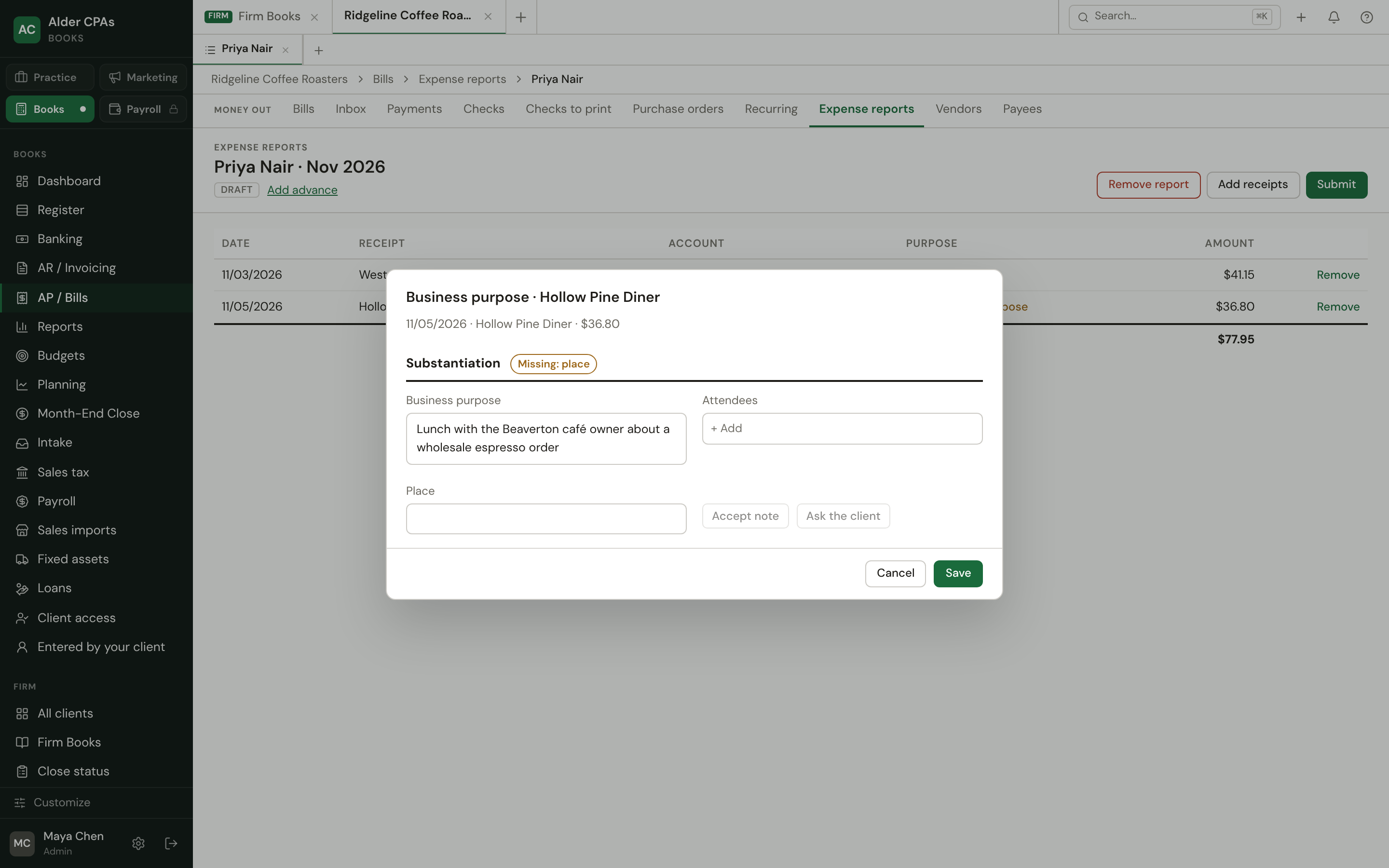 Adding the business purpose to a diner receipt on Priya Nair's November report
A purpose can be up to 1,000 characters, and a place up to 300. The Edit beside an existing purpose opens the same dialog, on any report that isn't void.
Take an advance off the report
If the employee was given money before they spent it, record it on the report. Approving then takes it off what they are owed.
- On a draft or sent-back report, click Add advance beside the status (it reads Edit advance once there is one).
- Type the Amount.
- Choose the asset account the advance was paid from in the box below the amount. Leave it on The Employee advances account in Settings to use the account mapped there, under Settings → Account mapping → Employee advances. Only the client's active other current asset and other asset accounts are offered.
- Set Date paid (optional): the day the employee got the money.
- Click Save advance.
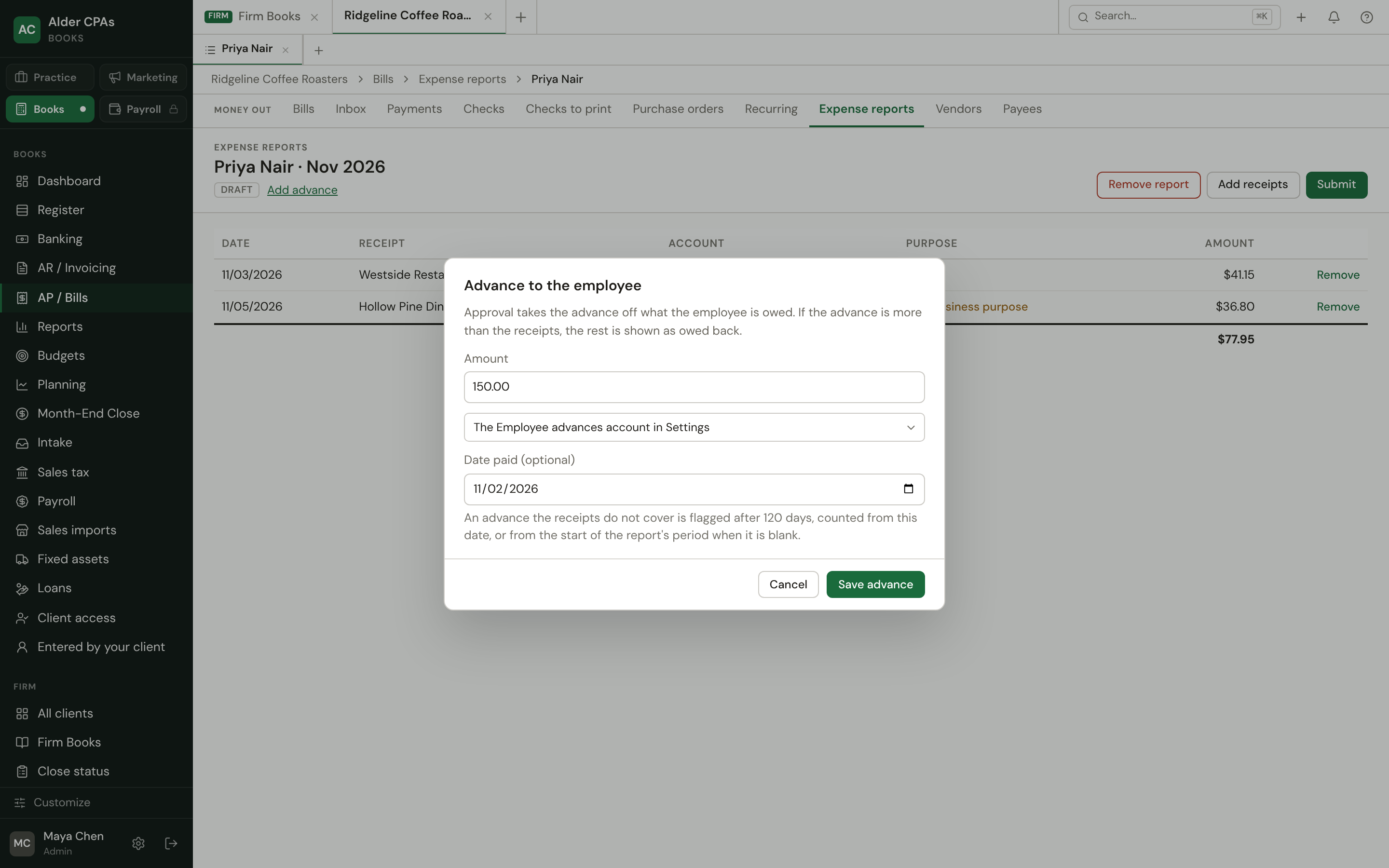 Recording a $150.00 advance paid to Priya Nair on Nov 2, 2026
Save advance stays unavailable, and says why when you hover it, if the amount isn't an amount (Amount must be an amount like 125.00.), is zero or below (Amount must be greater than zero.), or the date is after today (The advance date can't be after today.). To take an advance off, clear the amount and save.
Here is how approving uses the advance:
- The expenses are recorded in full, on their accounts, whatever the advance.
- The advance is used up to the receipts' total. That much is credited to the advance account, and the bill to the employee is the rest. With $586.85 of receipts and a $200.00 advance, the bill is $386.85.
- If the advance is more than the receipts, it covers them all. The bill is $0.00 and posts as paid, so the report shows Paid at once. What is left of the advance stays in the advance account as owed back by the employee; Books doesn't post anything else for it. When the employee pays it back, record that money to the same advance account.
An advance with no account
If a report has an advance, but no account was chosen and nothing is mapped to Employee advances in Settings, submitting is refused: This report has an advance of $150.00. Choose the account the advance was paid from on the report, or map Employee advances in Settings → Account mapping. Click Choose the advance account under the message to pick one.
An advance that isn't covered within 120 days
When the receipts don't cover the whole advance, and more than 120 days have passed since Date paid (or since the start of the report's period, if no date was given), Books flags it under the table at submit and again at approval, for example Advance not accounted for within 120 days. $20.30 is not covered by receipts, counted from the advance date. Like the late-expense flag, it is for your tax preparer and never stops the report.
Submit a report
Click Submit on a draft or sent-back report. Submit stays unavailable until the report has at least one receipt (Add at least one receipt before submitting.).
Books checks that every receipt needing a business purpose has one. If one does not, the report is not submitted and Books names the receipt: A meal or travel line needs its business purpose before the report is submitted (Hollow Pine Diner). The message says "meal or travel" for lodging, entertainment and gift receipts too. Click Add the business purpose for Hollow Pine Diner under the message, add it, and submit again.
Approve a report
- Open a submitted report and click Approve.
- Books works out exactly what approving will do, running every check it will run for real, and tells you before anything is written. Without an advance: Creates a $586.85 bill payable to Jordan Reyes, due on receipt, and posts it. With one, it also says what comes off: Creates a $386.85 bill payable to Jordan Reyes, due on receipt, and posts it: $586.85 of receipts less the $200.00 advance. The expenses are recorded in full, and $200.00 of the advance is taken off the employee advances account.
- Click Approve and create bill.
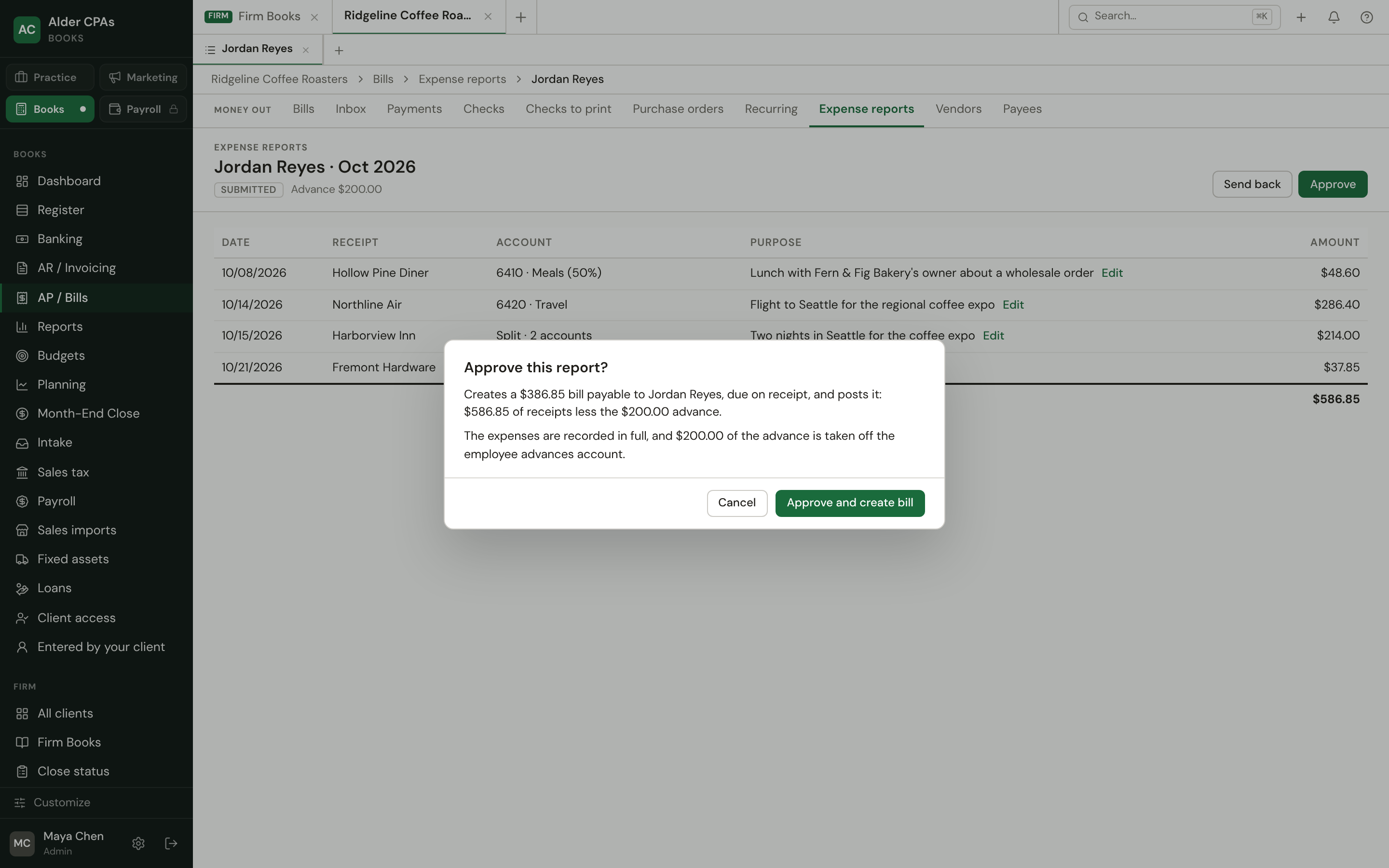 The approval prompt, naming the bill it creates and the advance it takes off
If the advance covers every receipt, the prompt says so instead, for example Creates a $0.00 bill to Priya Nair and posts it as paid: the advance covers the $129.70 of receipts., then The expenses are recorded in full, and $129.70 of the advance is taken off the employee advances account., then Priya Nair still owes back $20.30 of the advance. It stays in the employee advances account.
If Books finds a problem while working this out, the prompt shows the reason instead, and Approve and create bill stays unavailable.
What approving posts
Approving creates one bill to the employee and posts it:
- Dated the client's current date, due on receipt, with the memo Expense report, Oct 1, 2026 to Oct 31, 2026.
- One bill line per receipt split. Each line goes to the split's account, for the split's amount, described with the merchant and date, such as Hollow Pine Diner · Oct 8, 2026.
- The advance used is credited to the advance account.
- The rest is Accounts Payable, owed to the employee.
For Jordan Reyes's October report, with its $200.00 advance, the entry adds up to this, by account:
| Account | Debit | Credit |
|---|---|---|
| 6410 · Meals (50%) | $73.60 | |
| 6420 · Travel | $286.40 | |
| 6430 · Lodging | $189.00 | |
| 6600 · Repairs & Maintenance | $37.85 | |
| 1350 · Employee Advances | $200.00 | |
| Accounts Payable (Jordan Reyes) | $386.85 |
The $73.60 to Meals is the diner receipt ($48.60) plus the meal on the hotel bill ($25.00). Debits and credits both total $586.85.
Once approved, the report's header reads the advance as the bill used it: Advance $300.00 · applied in full, or, when the receipts didn't use all of it, Advance $150.00 · applied $129.70 · owed back by Priya Nair: $20.30.
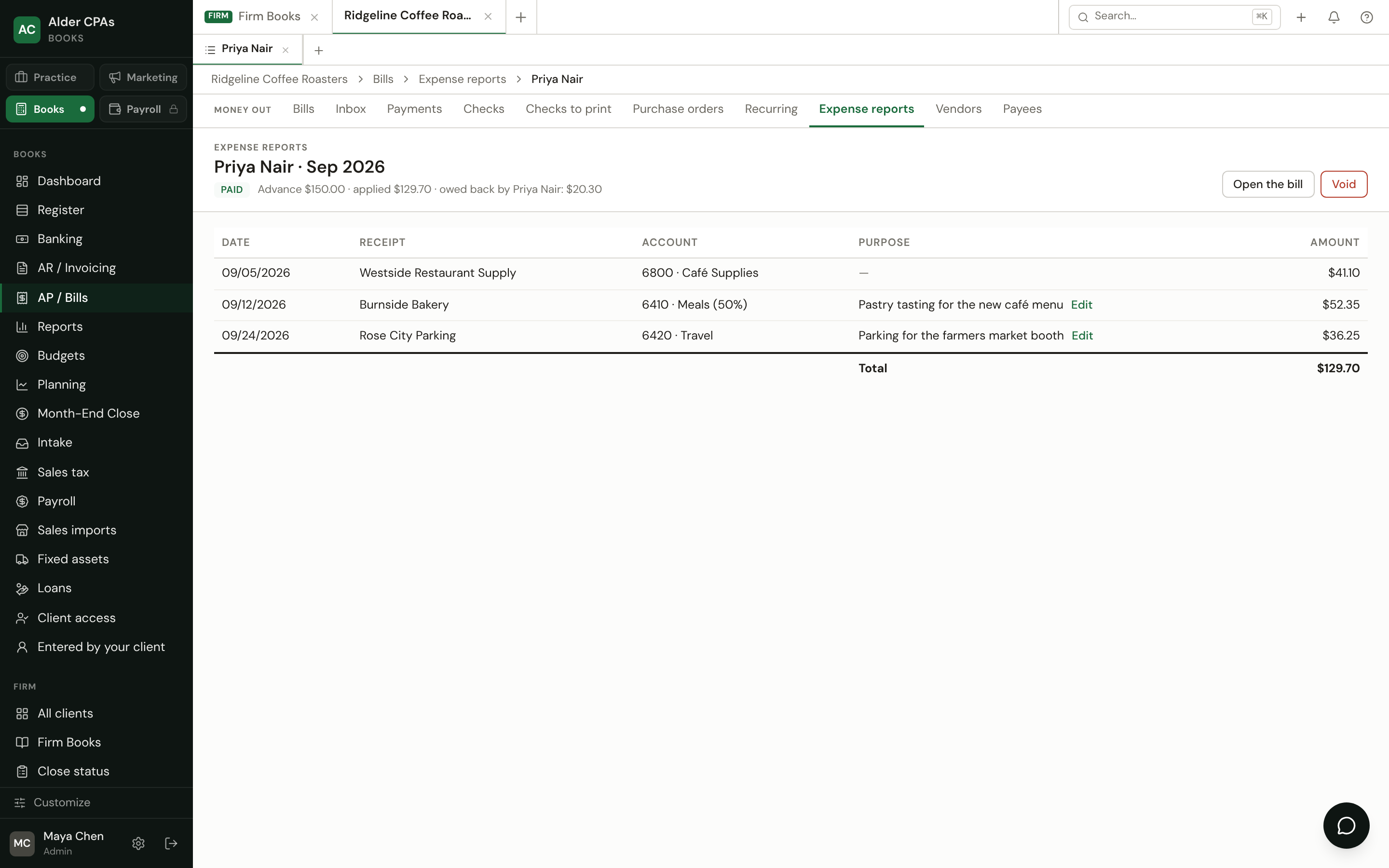 Priya Nair's September report: the advance covered the receipts, the report is Paid, and $20.30 is owed back
If a receipt split was marked billable to a customer, approving also makes it a billable charge for that customer, on the bill line it became.
Approving takes a person. A connected app can't approve a report.
Send a report back
When something needs fixing, click Send back on a submitted report. The prompt says what happens: Sends Jordan Reyes's report back with your reason, to be changed and submitted again. Nothing posts. Type the reason under Why it is going back and click Send back.
The report shows Sent back, with your reason above its receipts.
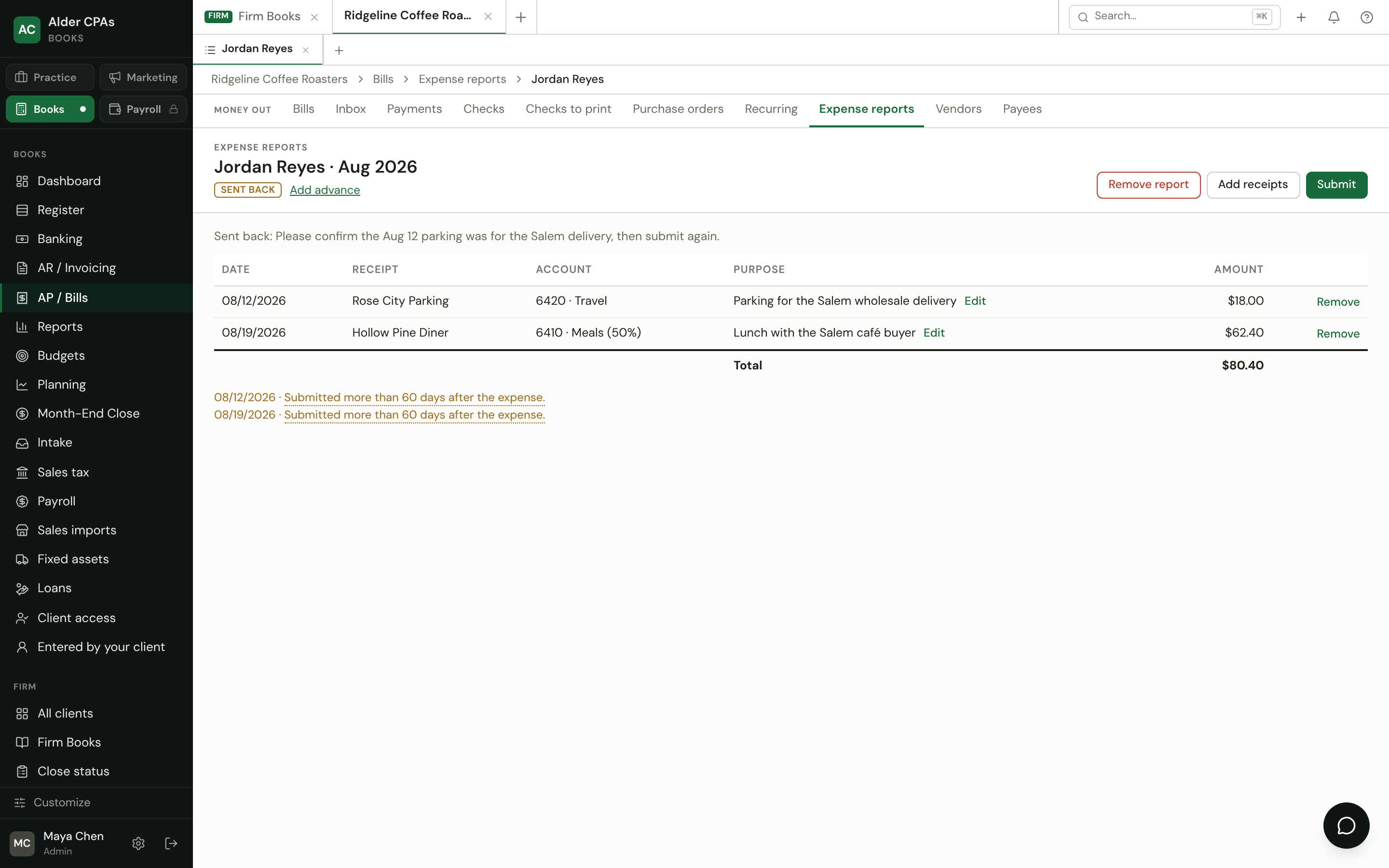 A report sent back with its reason, and two late-expense flags
A sent-back report can be changed and submitted again. Adding or removing a receipt puts it back to Draft, and the reason line is no longer shown.
Pay the employee
Once a report is approved, click Open the bill to see the bill it created. Pay it the way you pay any bill. When the bill is paid in full, the report shows Paid. A bill the advance covered in full needs no payment: it is already paid.
Fix or undo a report
Remove a draft or sent-back report
- Click Remove report. Books checks whether it can be removed, then names the report and what happens: for example The 2 receipts go back to unmatched. No bill was made from this report.
- Type a Reason.
- Click Remove report.
The report is deleted and its receipts go back to unmatched. Books keeps a record of what was removed and why.
Void an approved report
An approved report is voided, never deleted. An approved report has no Remove report.
- Open the report and click Void. The prompt names the bill as it was posted, and the advance it used: Voids the $112.00 bill payable to Jordan Reyes (and gives back the $300.00 of the advance it used), reverses its posting, and returns the 2 receipts to unmatched.
- Type a reason of at least 10 characters under Reason (stored with the void).
- Click Void the report and its bill.
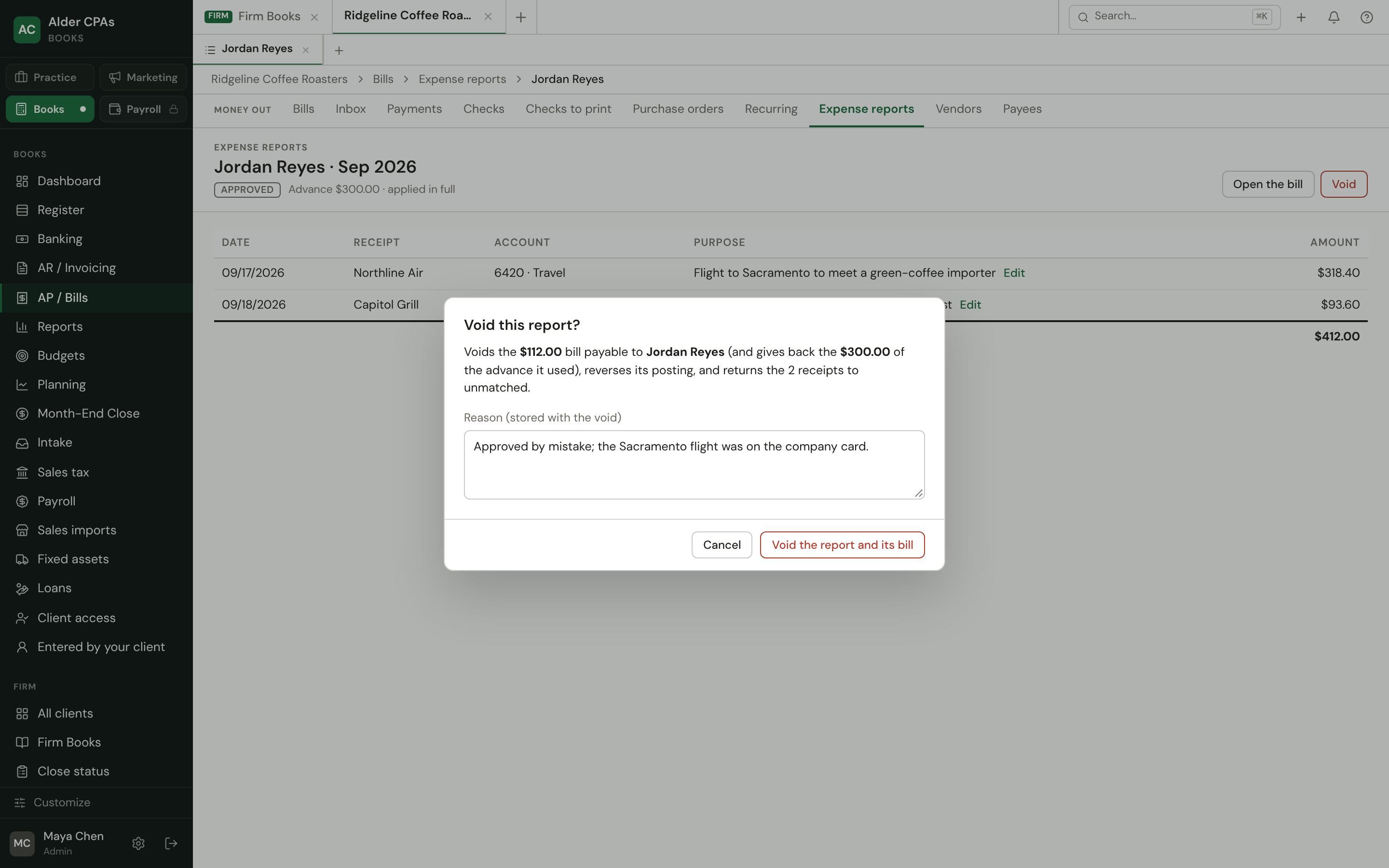 Voiding an approved report whose bill used a $300.00 advance
The bill's entry is reversed, so the expenses come off and the advance goes back on the advance account. The reversal is dated on the bill's own date when that month is open, and otherwise on today's date.
The report stays in the list as Void, with the reason shown as Voided: … on the report. Its receipts are free again, so a void report shows 0 lines and $0.00 in the list and no receipts when opened, and the receipts can go on a new report. Opened, it says No receipts on this report. Voiding it returned them to unmatched. A report with an advance reads, for example, Advance $300.00 · released when this report was voided, and back in employee advances.
Why can't I…
…create the report? The person isn't marked as an employee. Mark them in the New expense report dialog. If Books says they are tracked for 1099s, turn that off on the vendor first.
…find a receipt in Add receipts? Only unmatched receipts are listed. A receipt matched to a bank line, posted as an expense, or on another report can't be added. If it is on another report, remove it there first.
…submit the report? It has no receipts yet (Add at least one receipt before submitting.), a receipt is missing its business purpose (see Add a missing business purpose), or it has an advance with no account to put it in (see An advance with no account).
…change a submitted or approved report? Receipts and the advance change only on a draft or sent-back report. Send a submitted report back first. An approved report can only be voided; its receipts then go on a new report. A receipt's business purpose can still be added or edited on any report that isn't void.
…void the report? Books refuses with This reimbursement has a payment; void the payment first. once any payment is on its bill. Void that payment; the report goes back to Approved and can then be voided. A closed month can also stop the void.
Books refuses it when the month the reversal is dated in is locked. Voiding into a closed month takes someone who may close periods. If the month is also protected by a closing password, Books asks for it, naming that month, and then voids.
…click a button at all? Grayed-out buttons say why when you hover them. Creating reports, adding receipts and advances, adding a business purpose, submitting and sending back need access to Bills, expenses and vendors on that client. Approving also needs Journal entries, because it posts the bill; without it, the approval prompt shows the refusal. Voiding needs permission to void or reverse a posted entry.
Questions people ask
How do I enter a bill from a receipt, for an employee? You don't enter the bill yourself. Save the receipt with An employee, to be reimbursed under Who paid, add it to that employee's report, and approve the report. Approving creates and posts the bill to the employee for you, one line per receipt split.
Does the advance come off the bill? Yes. Approving records the expenses in full, credits the advance account with as much of the advance as the receipts use, and makes the bill for the rest. If the advance is more than the receipts, the bill is $0.00 and paid, and the rest is shown as owed back by the employee.
Where do I set the account advances go to? Map Employee advances in Settings → Account mapping, or choose an account on each report when you add the advance. The report's own choice comes first.
Why does a void report show $0.00? Voiding sets its receipts free, so it no longer has any. The bill it created is void, and the reason stays on the report.
Why does the report still say Approved after I paid part of the bill? A report shows Paid only when its bill is paid in full.
Can I see expense reports for my firm's own books? Yes. The same page is under your firm's own books.
Shortcuts and tips
| Where | Key or input | What it does |
|---|---|---|
| Employee | Type, then ↑ ↓ and Enter | Search and choose |
| Employee | Tab | Takes the highlighted name and moves on |
| Employee | Esc | Closes the list |
| Period from, Through | t | Today |
| Period from, Through | + or = / - | One day later / earlier (with Shift, one week) |
| Period from, Through | m / h | First / last day of that date's month |
| Period from, Through | y | First day of that date's year |
| Advance (optional), and the advance's Amount | 200+150, 3*45.50, =600/2 | Works out the sum and settles to the result when you leave the field |
- Math in the advance fields. Type a sum with
+,-,*(orx) and/, with parentheses if you like. A leading=, a$and commas are ignored, and the result is rounded to the cent once, at the end. - The approval prompt is the real check. What it shows is what approving will do, the advance included, worked out by the same checks, so a problem shows up before you click, not after.
- Removing asks first, too. Remove report checks with Books before it offers the button, and names how many receipts go back to unmatched.
- Recommended routine. Have employees send receipts as they spend, save each one for a report with its business purpose filled in, and build one report per person per month. Record any advance with the day it was paid, so the 120-day flag counts from the right day. Submit within 60 days of the oldest receipt, so nothing is flagged for your tax preparer.
For the accounts each receipt goes to, see Your Chart of Accounts. Receipts paid on a company card are matched in Reviewing Bank Transactions.