
Purchase Orders
Record what your client ordered from a vendor, turn it into bills as the goods and invoices arrive, and close what will never come.
On this page
A purchase order (PO) records what your client ordered from a vendor before the bill arrives: what, how many, at what price, and when it is expected. When the vendor's invoice comes in, you copy the order into a bill, all at once or a shipment at a time, and the PO keeps count of what has been billed and what is still on order.
A purchase order never touches the ledger. It is a commitment, not a transaction: saving, editing, closing or deleting one writes nothing to the books. Money moves only when a bill made from it is posted. That is also when inventory items on it are received into stock.
Understand the Purchase orders page
The page lists every purchase order for the client, newest first, with a totals row underneath.
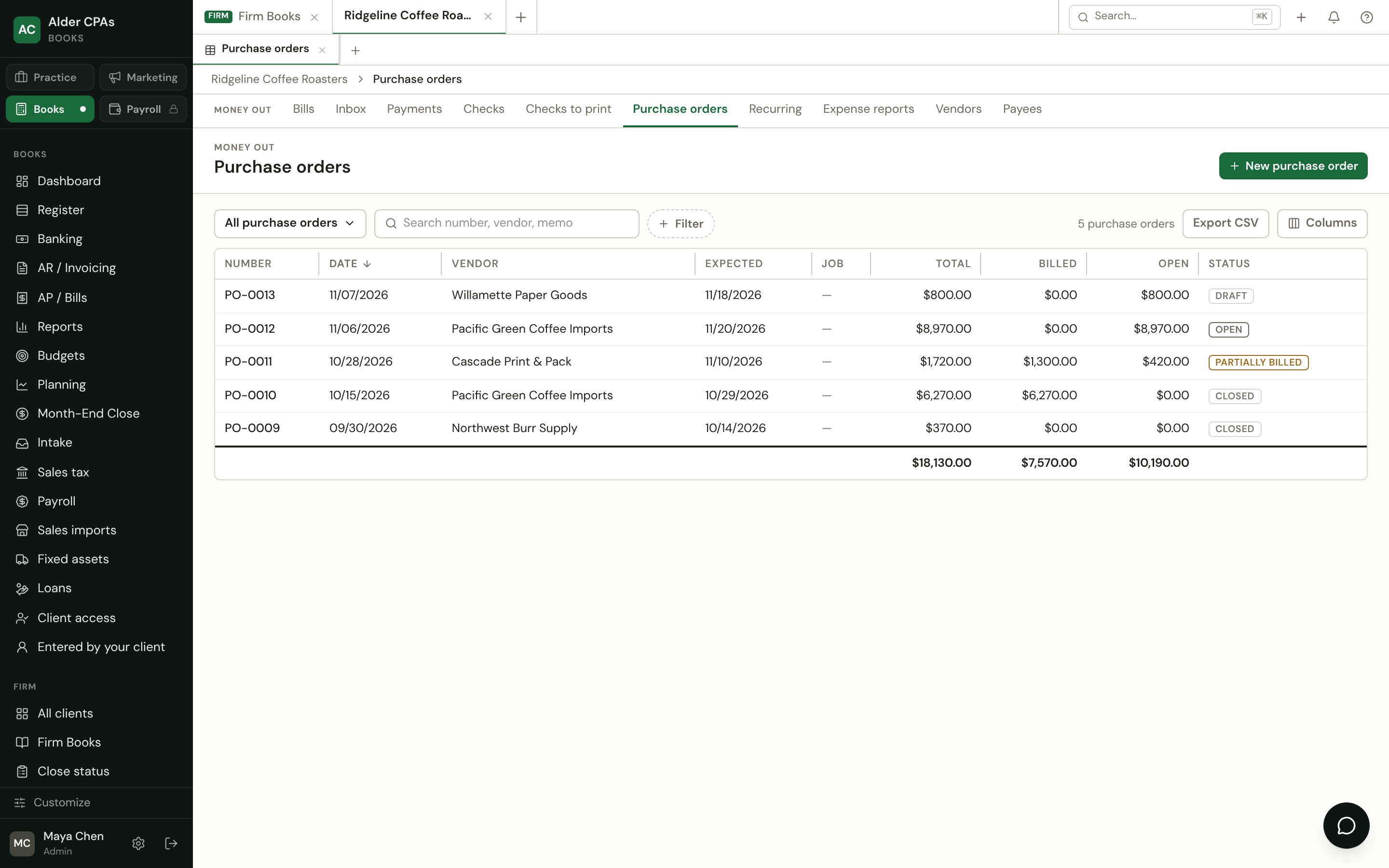 The Purchase orders list for Ridgeline Coffee Roasters, with a draft, an open order, a partially billed order and two closed ones
The columns, in order:
- Number — the PO number, such as PO-0012.
- Date — the day the order was placed.
- Vendor — who it was ordered from.
- Expected — the day the goods are due, if you entered one.
- Job — the jobs named on the order's lines, if any.
- Total — the whole order: the sum of its lines.
- Billed — how much of it is already on bills. A bill that was voided counts nothing here.
- Open — what is still on order and not yet billed. A closed PO shows $0.00 here, because closing it released what was left.
- Status — see the table below.
The totals row adds up Total, Billed and Open for the rows you are looking at, so it follows your search and filters. The Open total is what the client has on order right now.
Use Search number, vendor, memo to find an order by its number, vendor, memo, vendor ref, job or status. Filter narrows by Status, Vendor, Date, Expected or Open amount. Export CSV downloads the rows you are looking at, and Columns chooses which columns show. Click any row to open that purchase order on top of the list.
What each status means
| Status | What it means | What you can do |
|---|---|---|
| Draft | Saved but not placed yet. | Change it, Save and open it, or Delete it. Nothing can be billed from a draft. |
| Open | Placed, and nothing billed from it yet. | Change the lines and details, Copy to bill, Close or Delete it. Once a bill has been made from it, even one voided since, the lines stay as they were when that first bill was made, and Delete gives way to Close. |
| Partially billed | Some of it is on bills; some is still on order. | Change the dates, vendor ref, ship-to and memo, Copy to bill for the rest, or Close it. |
| Closed | Either everything was billed, or someone closed it with a reason. | Read it. Reopen it if something is still unbilled, or Delete it if no bill made from it is on record. |
A PO moves from Open to Partially billed to Closed by itself as bills are made from it. When the last open quantity is billed, it closes with the reason Fully billed.
It also moves back by itself: when a bill made from it is voided, or a draft bill made from it is deleted, those quantities go back on order and the PO returns to Partially billed or Open, even if it had closed as Fully billed (see When the bill changes).
Create a purchase order
- Click New purchase order.
- Choose the Vendor. Only active vendors are offered. For a new vendor, type its name and choose Create "…" at the bottom of the list.
- Leave Number blank to take the next number in the client's series (see PO numbering), or type your own.
- Check the Date (it starts on the client's today) and fill in what you know: Vendor ref (the vendor's quote or order number), Expected, Ship to and Memo.
- Add the lines. For each one, type a Description, choose an Account (or an Item, when the client uses items), and enter Qty and Rate. Amount works itself out. Click Add line, or press Enter, for the next one.
- Click Save and open to place the order, or Save as draft to finish it later.
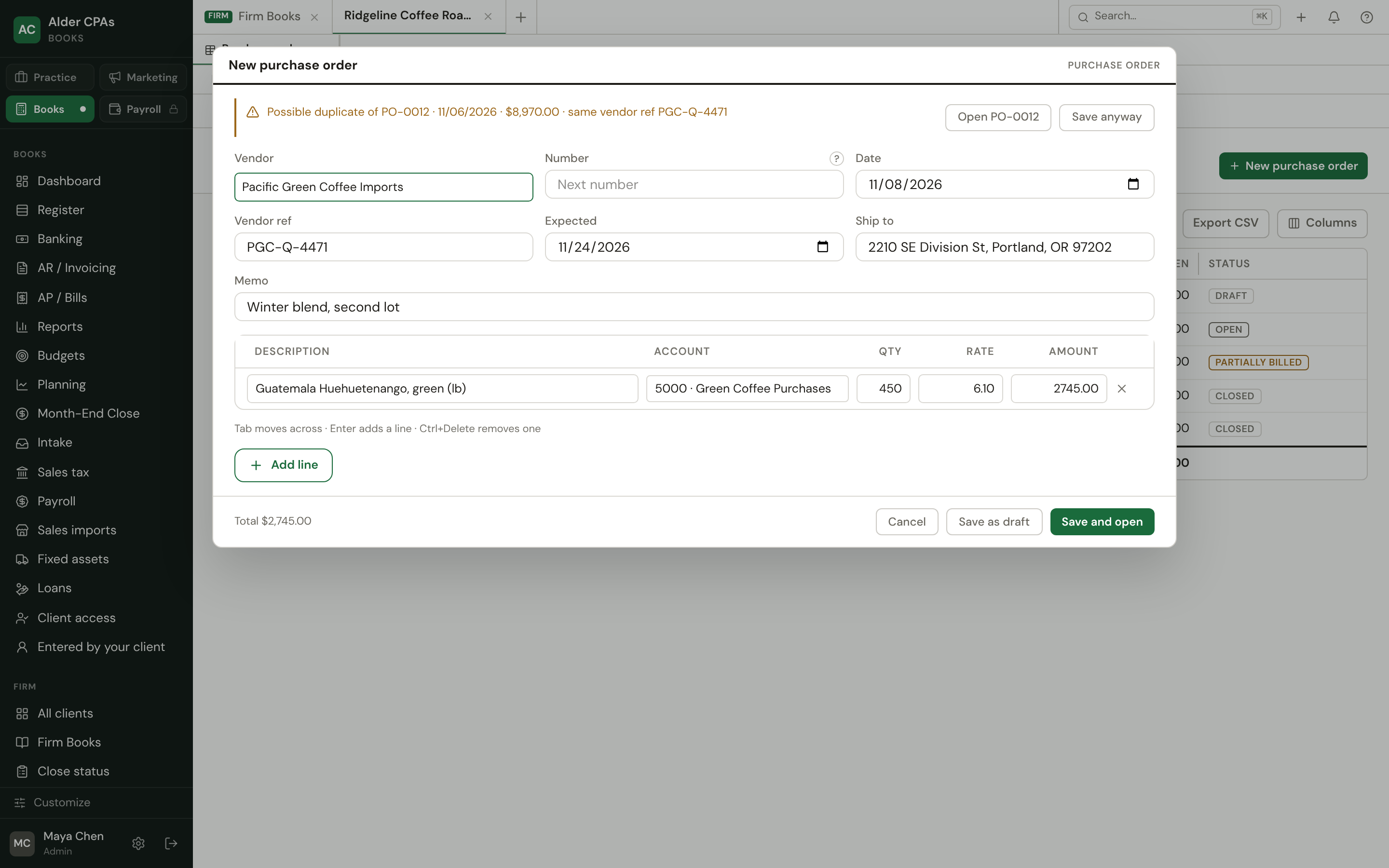 A new purchase order to Pacific Green Coffee Imports, with the possible-duplicate warning above the fields
The footer shows the order's Total as you type. A notice confirms the save, for example PO-0014 saved, and the order stays open on screen so you can keep working on it.
A few things about lines:
-
A line is an order: a quantity at a rate. Type both. If you type only an Amount (no Qty and no Rate), Books saves the line as one unit at that amount.
-
A saved line's amount is always Qty × Rate. If you type an Amount that differs, the line says so in red and the save buttons stay off until you fix it: Amount was typed and differs from Qty × Rate ($2,745.00). A purchase order line is Qty × Rate, so it cannot be saved until they agree: change the amount, Qty or Rate. Meanwhile the footer's Total adds up what you typed, so read the red note before you trust it.
To match a quoted line total, work the Rate out from it: type the total divided by the quantity, such as
2700/450, in Rate (see Shortcuts and tips). -
Picking an item fills the line. The description comes from the item (its description, or its name if it has none), and the account is the item's expense account (its inventory asset account, for an inventory item). If the item has a Cost, that becomes the rate and the quantity becomes 1 if it was blank; an inventory item with no cost still gets a quantity of 1. Everything stays yours to change.
-
Blank lines are skipped when you save.
-
Class, Location and Job columns appear when the client uses them, and each line keeps its own. A bill made from the order carries them over.
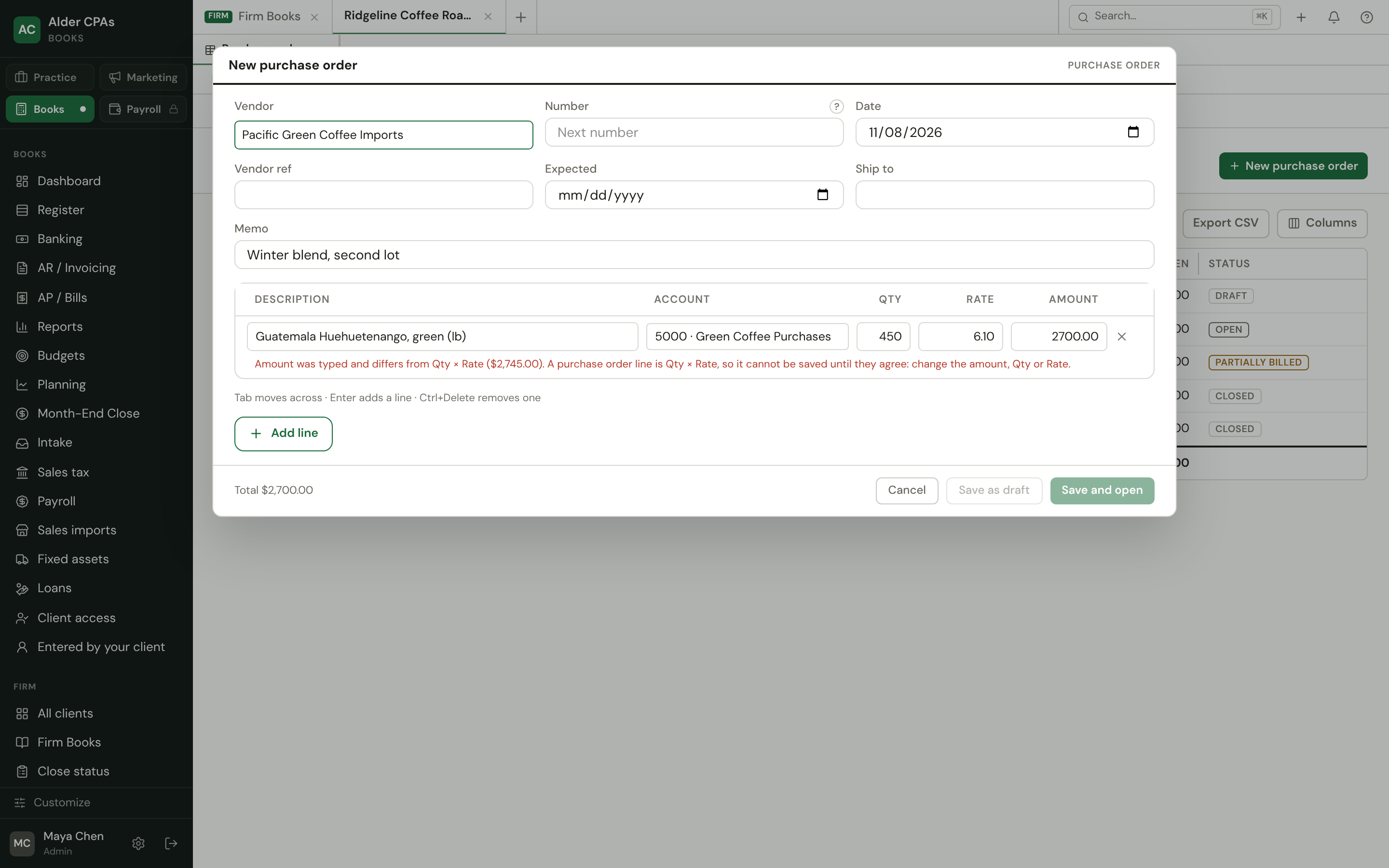 A purchase order line typed as $2,700.00 when 450 × $6.10 is $2,745.00: the red note says why it can't be saved, and the save buttons are off
Books warns you about a possible duplicate
As you choose the vendor and fill in the vendor ref, date and lines, Books looks for another purchase order to the same vendor with the same vendor ref, or with the same total dated within two weeks. If it finds one, a warning appears at the top:
Possible duplicate of PO-0012 · 11/06/2026 · $8,970.00 · same vendor ref PGC-Q-4471
(or … · same total within two weeks). Click Open PO-0012 to look at the other order, or Save anyway to hide the warning and carry on. The warning never stops you from saving.
Change a purchase order
Open the order from the list, make the change, and click Save (on a draft, Save keeps it a draft and Save and open places it).
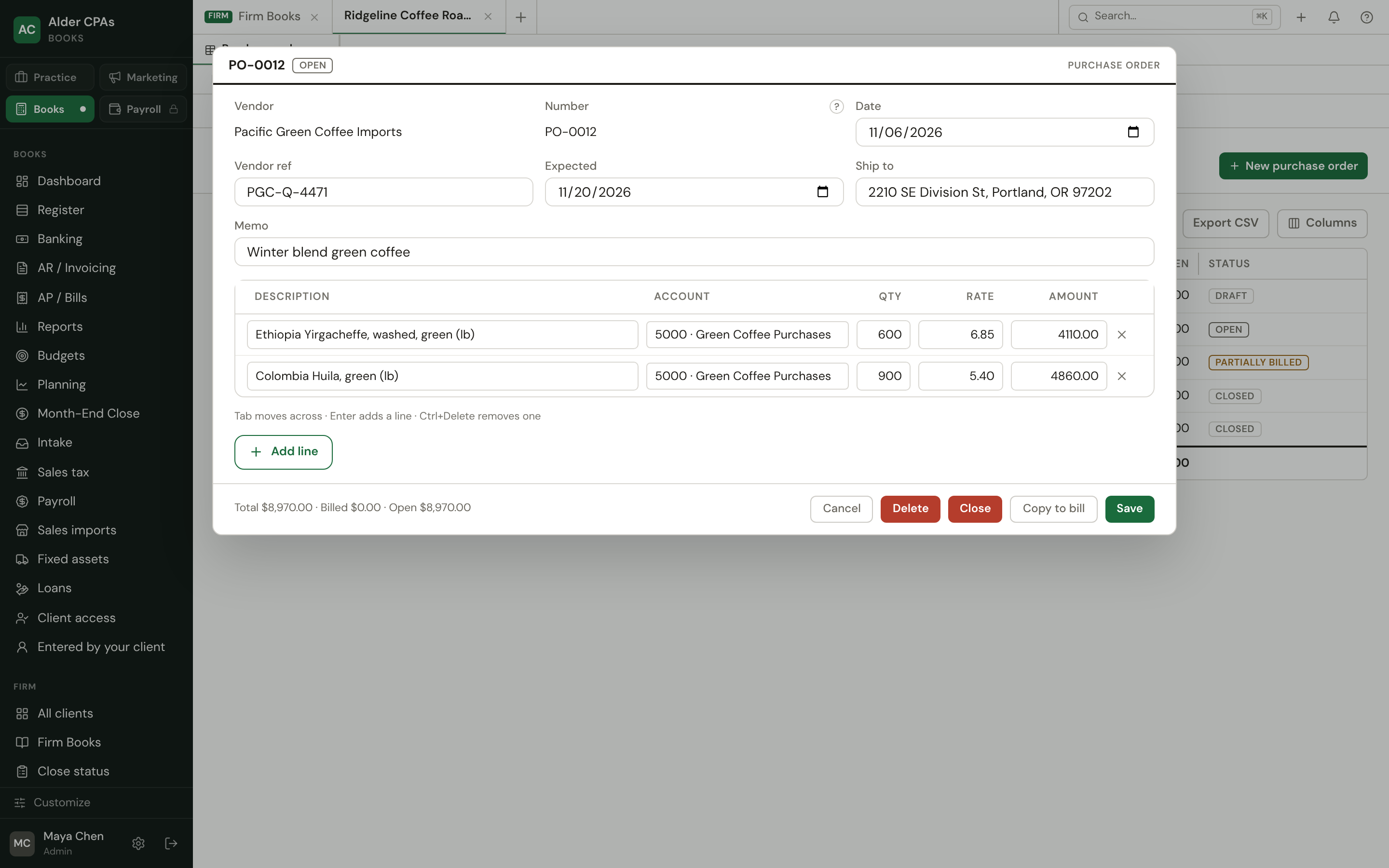 PO-0012, an open order with nothing billed yet: its lines can still be changed
What you can change depends on how far the order has gone:
- Draft, or Open with nothing billed — everything except the vendor and the number, including the lines.
- Partially billed, or any order a bill was made from (even one that was voided since) — the Date, Vendor ref, Expected, Ship to and Memo. The lines stay as they were when the first bill was made from them, even if that bill was voided since, and the order shows them with Billed qty and Open qty beside each one.
- Closed — nothing. Reopen it first (see Reopen a closed purchase order).
The vendor and the PO number are set when the order is first saved. To order the same goods from a different vendor, create a new purchase order.
Turn a purchase order into a bill
When the vendor's invoice arrives, copy the order into a bill. You can bill everything that is still open, or just what came in on this shipment.
- Open the purchase order and click Copy to bill. It is offered on Open and Partially billed orders that still have something open.
- Set the Bill date (it starts on the client's today, or on the day the client's books start if that is later) and type the vendor's invoice number in Bill number.
- Under Copy, choose All open to bill every open quantity, or Choose quantities and type, in This bill, how many of each line this invoice covers. A line set to 0 is left off the bill.
- Under Create as, choose Draft (the bill posts nothing until someone posts it) or Open (the bill posts now and is recorded as owed to the vendor).
- Check the Bill total, and the line at the bottom that says what will still be open, for example Open after this bill · 450 Colombia Huila, green (lb).
- Click Create draft bill (or Create bill, for an open one).
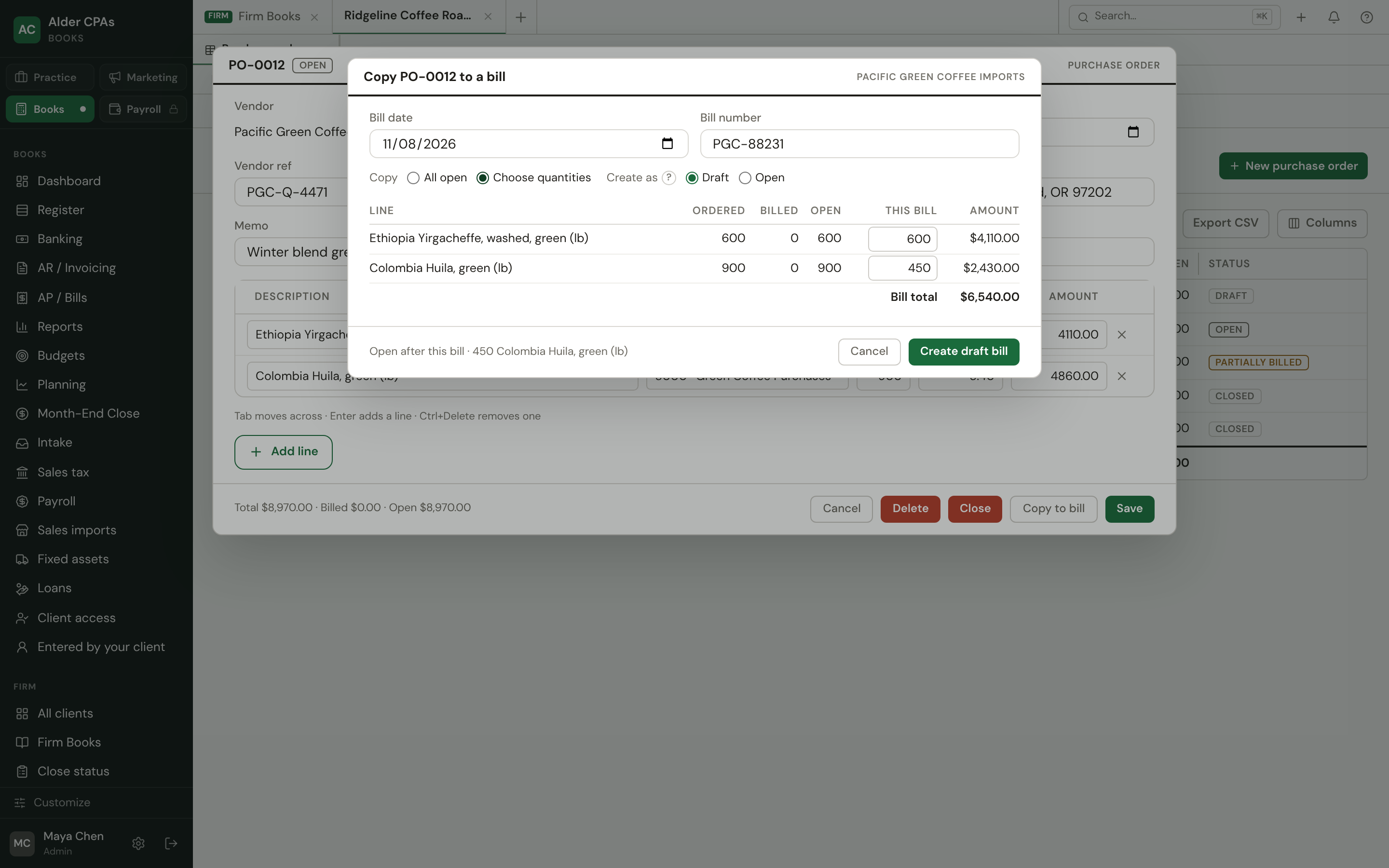 Copying PO-0012 to a bill for the first shipment: all 600 lb of the Ethiopia and 450 of the 900 lb of Colombia
Books runs the real checks on the bill before it offers the button. If something would be refused, the reason shows in red in the dialog and the button stays off. A notice confirms the bill, for example PGC-88231 created from PO-0012, and the new bill opens on top of the order.
The bill is made for the PO's vendor, and each of its lines carries the PO line's description, account or item, class, location, job, quantity and rate. Its due date comes from the vendor's default terms, counted from the bill date: a bill dated Nov 8, 2026 to a vendor on Net 30 is due Dec 8, 2026. A vendor with no default terms gets a bill due on its bill date. You can change the due date on the bill afterward.
A draft bill counts as billed right away. As soon as a bill is made from the order, draft or not, its quantities move from Open to Billed on the PO. That way the same goods are never billed twice while a draft waits to be posted.
See the bills made from an order
Once a bill has been made from the order, the order lists Bills from this PO, oldest first, each with its number, date and total. A bill that was voided stays on the list, so you can still open it, and is marked Voided, not billed: it counts nothing toward Billed.
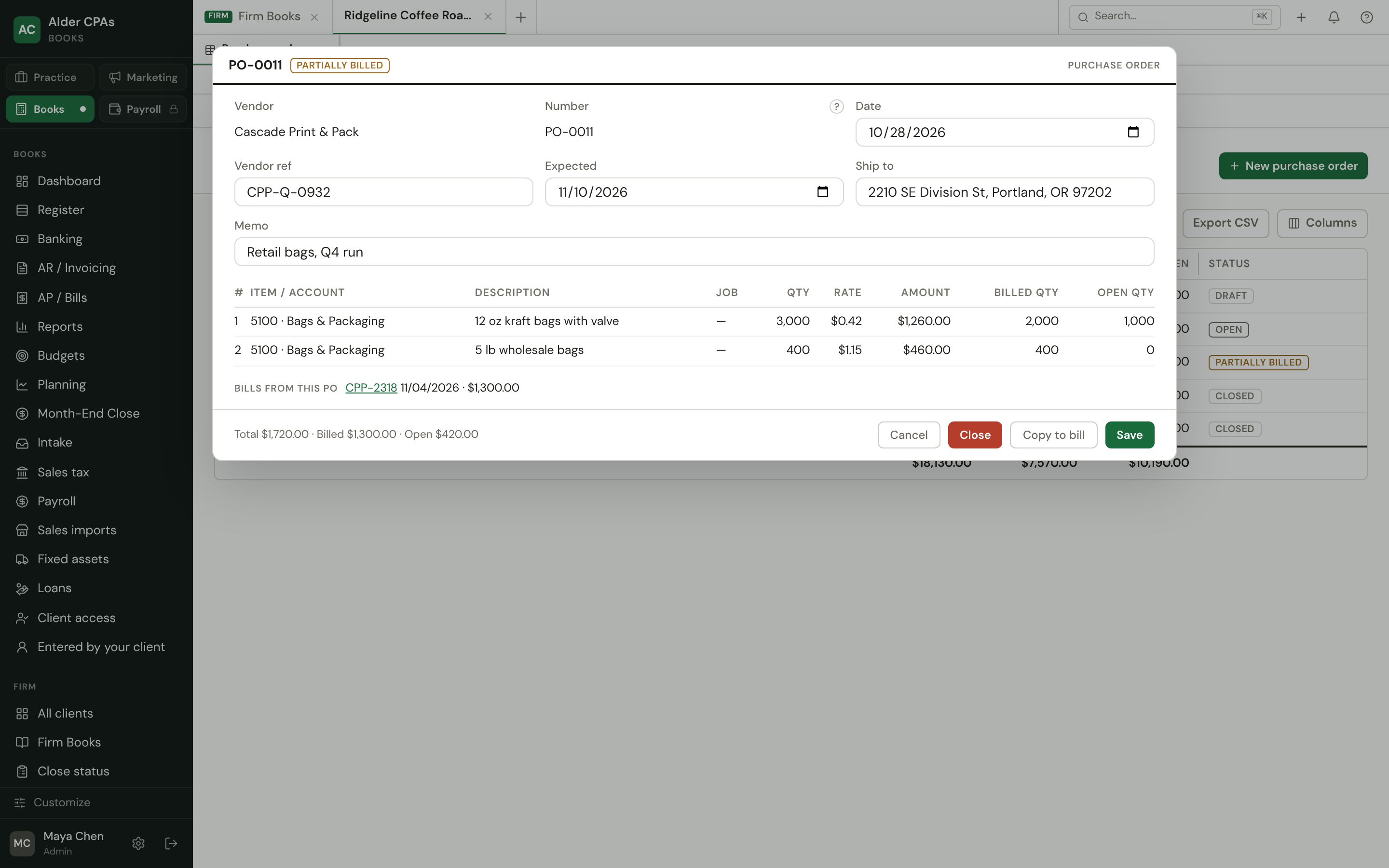 PO-0011, partially billed: 2,000 of the 3,000 12 oz bags and all 400 wholesale bags are on bill CPP-2318
Click a bill's number to see it on top of the order, with its vendor, bill date, due date and lines. Close takes you back to the purchase order. Open full bill goes to the bill itself, where you post, pay or void it.
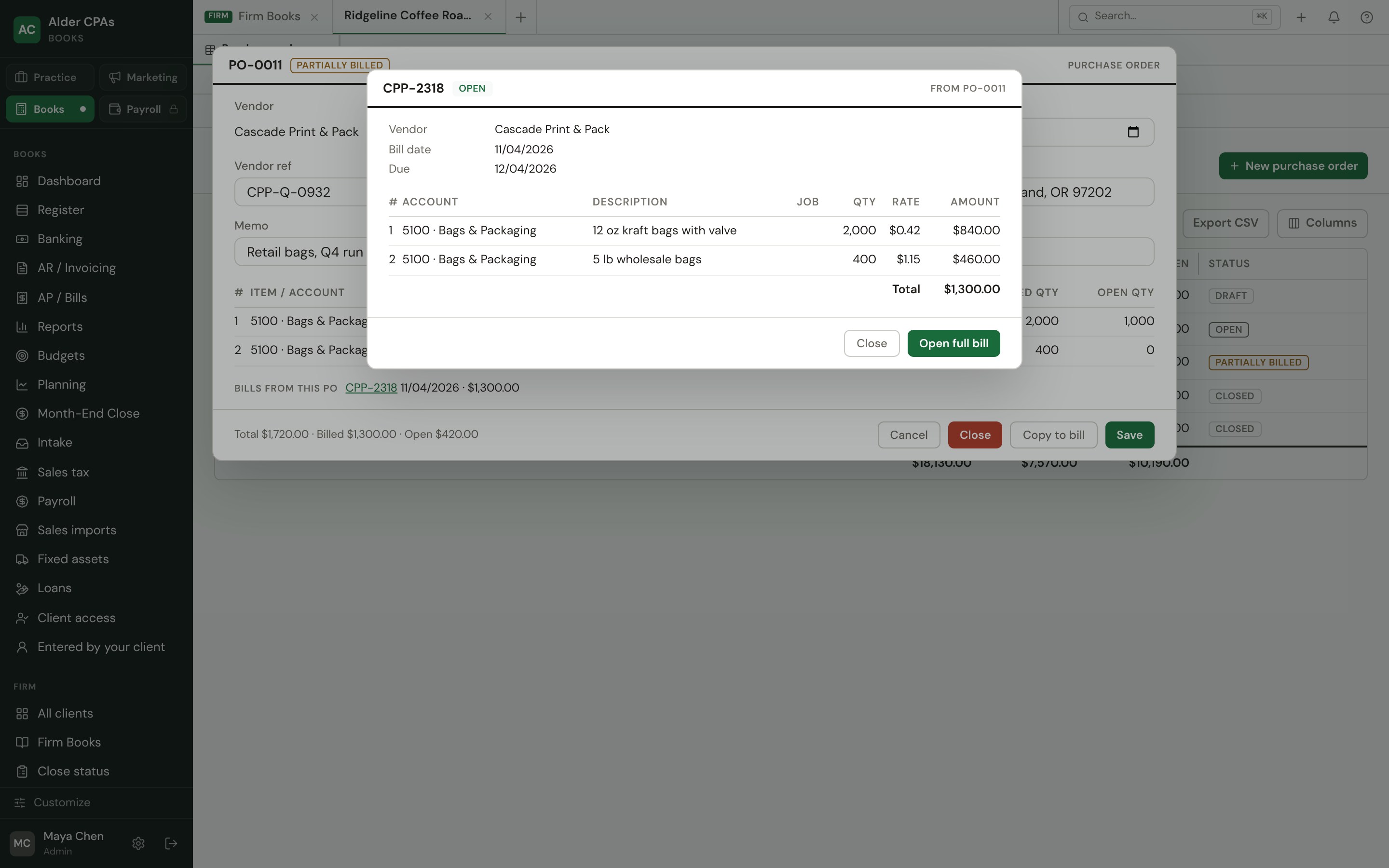 Bill CPP-2318, opened from PO-0011
Inventory items on a purchase order
Ordering an inventory item does not put it in stock. The bill made from the order does that when it posts: an Open bill straight away, a Draft bill when someone posts it. The item is received into its inventory asset account at the bill's quantity and rate.
When the bill changes
-
Changing a line on the bill, such as its quantity, keeps the bill tied to the order: it stays under Bills from this PO, and the PO's Billed and Open figures and its status follow the new quantity.
A bill made from a purchase order always shows Qty and Rate on its lines, so you can change them on the bill itself. A bill can never bill more of a PO line than was ordered, counting every bill made from it that is not voided.
-
Removing a PO line from the bill puts that line's quantity back on order, while the bill's other lines from the order stay tied to it. At least one line from the order has to stay on the bill (see Why can't I… below). A line you add to the bill yourself is the bill's own and doesn't count against the order.
-
Voiding the bill (on the bill, More → Void…) puts its quantities back on order. The PO's status follows: an order the bill had fully billed reopens as Partially billed, or Open if nothing else is billed on it, and Copy to bill can bill those quantities again. The voided bill stays under Bills from this PO, marked Voided, not billed.
-
Deleting a draft bill does the same, except the deleted bill drops off the order's list.
-
An order someone closed by hand stays closed when a bill is voided. Its unbilled amount grows by what the bill had, and you can Reopen it to bill again.
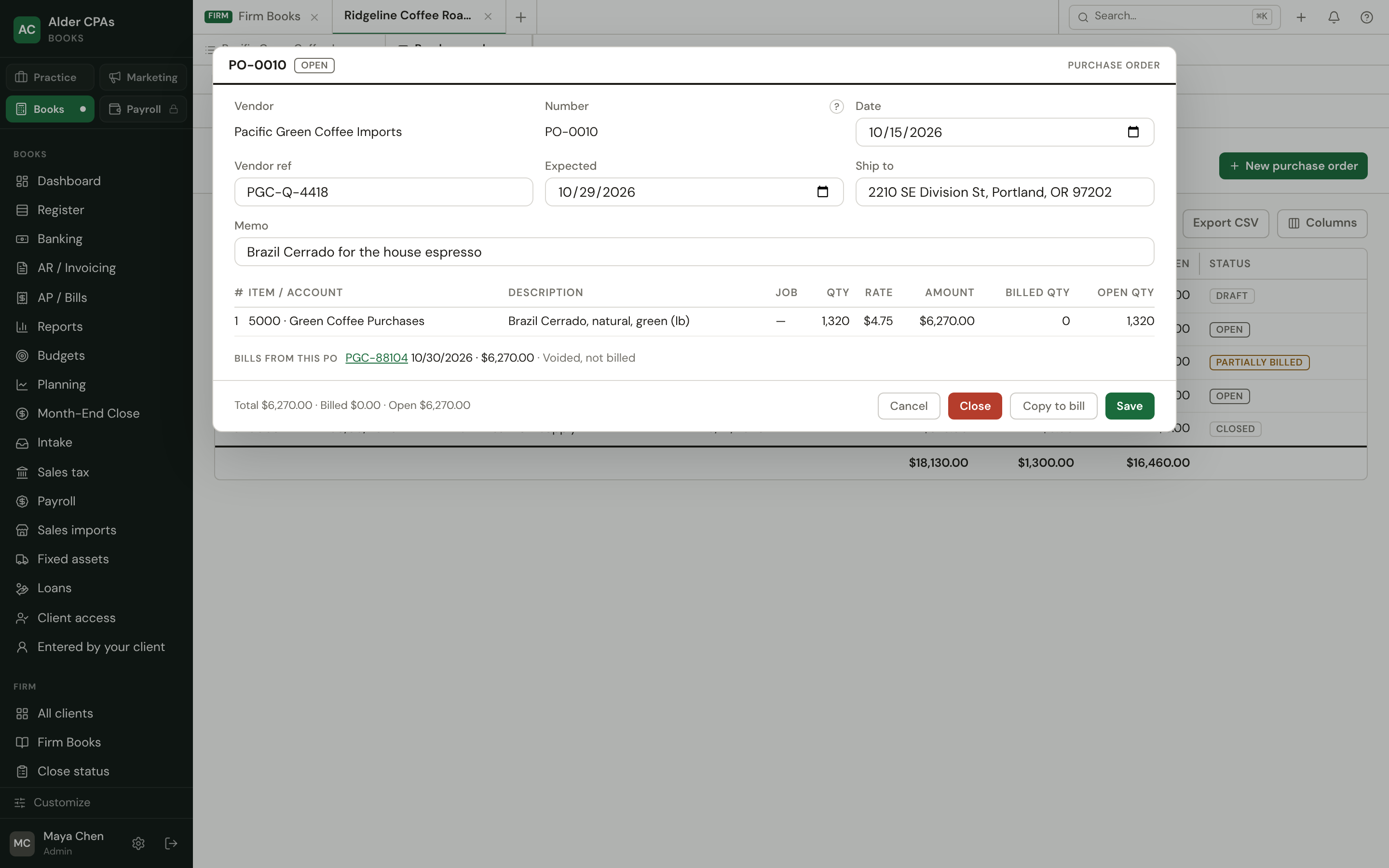 PO-0010 after its only bill, PGC-88104, was voided: the order is Open again, the bill is marked Voided, not billed, and Billed is $0.00
Close a purchase order
Close an order when the rest of it is never coming: the vendor short-shipped, discontinued an item, or the client changed their mind. Closing keeps the order and every bill made from it. It just stops what is left from being billed.
- Open the purchase order and click Close.
- Check what the dialog shows: what was Billed (and on which bills; a voided bill is named apart, after voided:), and what is Open, released: the amount and the number of items that will no longer be on order.
- Type a Reason of at least 10 characters. It is kept on the order.
- Click Close PO-0011 (the button names your order).
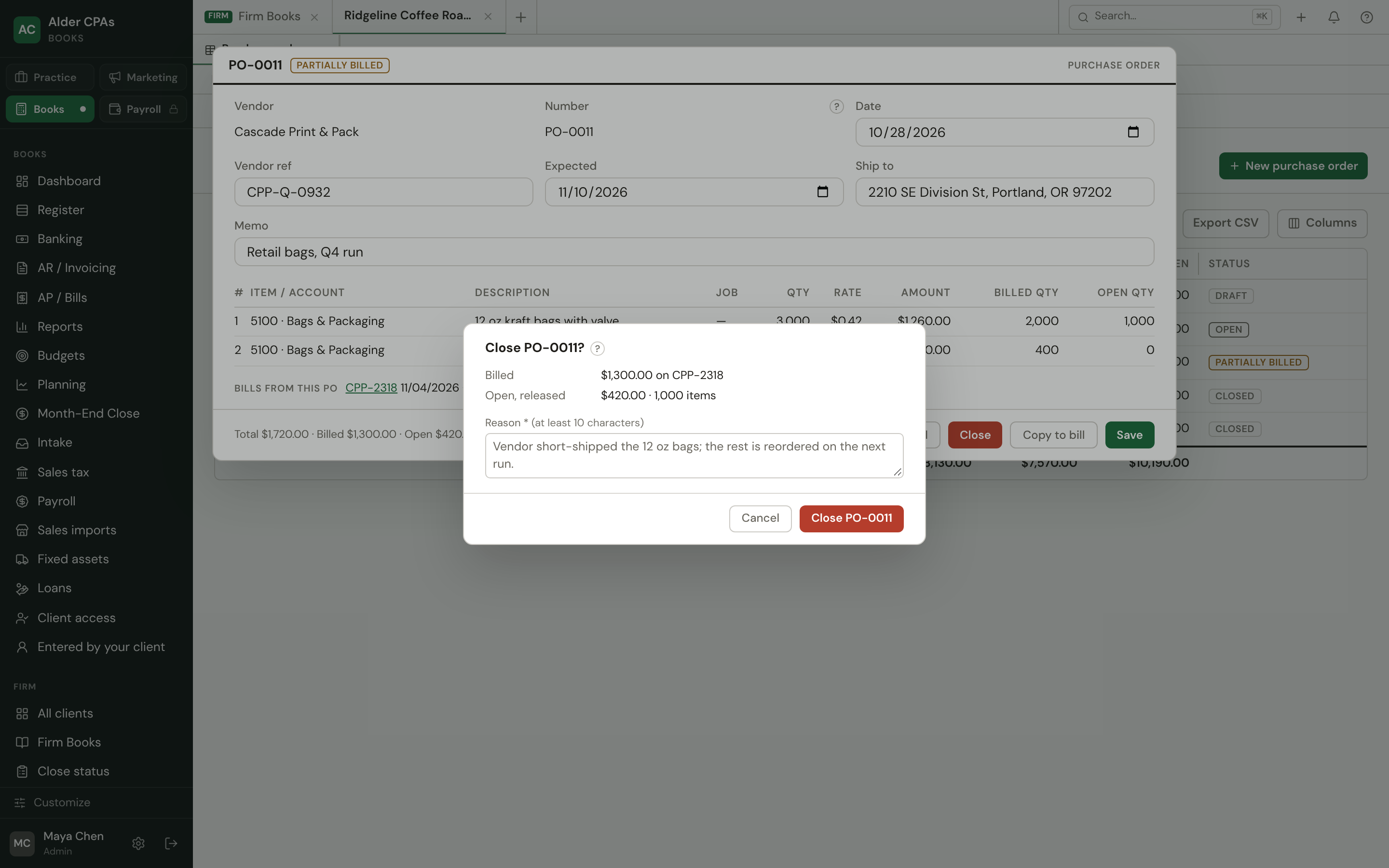 Closing PO-0011: $1,300.00 billed on CPP-2318, and $420.00 · 1,000 items released
A closed order shows your reason under its lines (Closed: followed by the reason), and its footer adds Released with the amount closing let go. On the list, its Open shows $0.00, so the open total counts only what is really still on order.
An Open order no bill was ever made from offers both Close and Delete: close it if you want to keep a record that it was placed, delete it if it was entered by mistake.
Reopen a closed purchase order
A closed order that still has something unbilled shows Reopen. Click it and the order goes back to Partially billed (or Open, if nothing on it is billed), the close reason is cleared, and you can bill the rest. An order that closed because everything was billed has nothing to reopen, and doesn't need it: voiding one of its bills reopens it by itself.
Delete a purchase order
You can delete a purchase order as long as no bill made from it is on record, voided or not, whatever its status: a draft, an open order, or one you closed.
- Open it and click Delete.
- Check the dialog: it names the Vendor, the Status, the Total, how many Lines removed, and Billed from it: Nothing.
- Click Delete PO-0013 (the button names your order).
The order and its lines are removed for good, and Books records what was deleted in full. Its number is not reused by the series.
Once a bill has been made from an order, even a bill that was later voided, the order can't be deleted: it keeps the record of that bill. It shows Close instead of Delete. (A draft bill that was deleted doesn't count: it leaves no record on the order.)
If a bill was made from the order after you opened it, for example in another window, Delete is still on screen. Click it and Books refuses, naming each bill with its total, and marks a voided one (voided):
PO-0012 has bills made from it (PGC-88231 $6,540.00); close it instead.
Click Close instead to close it with a reason.
PO numbering
Purchase order numbers run in their own series for each client. By default they read PO-0001, PO-0002 and so on, four digits after the prefix. If the client already has PO-numbered orders when the series starts (for example, from an import), it continues from the highest one.
To change the prefix, the next number or the number of digits, go to Settings → Numbering and edit the Purchase order row.
You can also type a number on a new order instead of taking the next one. Books refuses a number the client has already used for another purchase order: Purchase order PO-0012 already exists for this client. If you have typed numbers ahead of the series and the next number turns out to be taken, you will see the same message on a blank Number: set the series' next number past the ones you typed, in Settings → Numbering.
Questions people ask
Does a purchase order show up in my reports or balances? No. A purchase order writes nothing to the ledger. Only the bills made from it do, when they post.
How do I bill one shipment at a time? Use Copy to bill with Choose quantities, and type how many of each line arrived on this invoice. Do it again for the next shipment. The order stays Partially billed until the last of it is billed, then closes by itself.
The vendor sent less than we ordered and the rest is not coming. What do I do? Bill what arrived, then Close the order with a reason such as "Vendor short-shipped; balance canceled." The unbilled amount is released and drops out of the Open total.
Why is this bill overdue? A bill made from a purchase order takes its due date from the vendor's default terms, counted from the Bill date you set in Copy to bill, not from the PO's date or its Expected date. If the bill date was early, or the vendor's terms are short, the bill can come due sooner than you expected. To change it for the next bill, change the vendor's default terms before you copy it.
Why did the order close on its own? Every line was fully billed. Its reason reads Fully billed.
Why did a closed order open again? A bill made from it was voided, or a draft bill made from it was deleted, so part of it is on order again. Only an order that closed as Fully billed reopens this way; one someone closed with their own reason stays closed.
Can I change the vendor or the number? No, both are set when the order is first saved. Delete the order (if no bill was ever made from it, voided or not) and create a new one.
Can I see the bills made from an order? Yes. They are listed under Bills from this PO on the order, oldest first, with voided ones marked. Click one to see it.
Why can't I…
…click New purchase order, Save, Copy to bill, Close or Delete? Working with purchase orders needs permission to manage the client's bills. Copy to bill also needs permission to post, because the bill it makes is written to the books; without it the button is off and says Copying to a bill writes it to the books. followed by the reason. A button you cannot use is turned off; hover it (or, for New purchase order, read the line under it) to see why.
…save the order? Save stays off until the order is complete. Hover it to see what is missing:
| Message | What to do |
|---|---|
| Choose a vendor. | Pick the vendor. |
| A purchase order needs a date. | Fill in Date. |
| The expected date is before the purchase order date. | Move Expected on or after Date, or clear it. |
| A purchase order needs at least one line. | Add a line. |
| Line 2 needs a description. | Type a description on that line. |
| Line 2 needs an item or an account. | Pick an Account or an Item. |
| Line 2 needs both a quantity and a rate. | Fill in the missing one, or clear both and type just an Amount. |
| Line 2: Quantity must be greater than zero. | Enter a quantity greater than 0. |
| Line 1: the amount is $2,700.00, but 450 at $6.10 is $2,745.00. Change the amount, the quantity or the rate so they agree. | Clear the Amount to let it follow Qty × Rate, or change Qty or Rate. |
If an item on the order has no account to post to, Books refuses the save and names it: Line 1: Replacement burr set has no expense account. Set one on the item, then save the purchase order. Set the account on the item, then save again.
…change the lines? A bill has been made from the order, even one that was voided since, so its lines stay as they were when that first bill was made. You can still change the dates, vendor ref, ship-to and memo. To order more, create a new purchase order.
…see Copy to bill? It is offered only on Open and Partially billed orders with something still open. Place a draft with Save and open first, and reopen a closed one.
…create the bill? The dialog shows the reason in red. The common ones:
| Message | What to do |
|---|---|
| Colombia Huila, green (lb) has 900 open; this bill asks for 1,000. | Bill no more than is open on that line. |
| Every quantity is zero, so there is nothing to bill. | Type a quantity on at least one line. |
| These books start on Jan 1, 2025, so this bill can’t be dated Dec 15, 2024. Date it on or after Jan 1, 2025. | An Open bill can't be dated before the client's books start (the reason also shows under Bill date). Change the Bill date, or create it as a Draft. |
Books also refuses a bill number already entered for this vendor. Use the vendor's number exactly once.
…save my change to a bill made from a purchase order? A bill keeps its tie to the order through at least one of the lines that came from it. A save that would take every one of those lines off the bill is refused with This save would remove every line this bill took from its purchase order. Keep at least one of those lines, or void the bill to release the purchase order.
To take a bill off the order entirely, void it (or delete it, if it is still a draft): its quantities go back on order, and Copy to bill can bill them again.
…click Close PO-0011? The reason is too short: A reason of at least 10 characters is required.
…delete the order? A bill was made from it at some point, even if that bill was voided since, so it can only be closed: Delete is not offered, or, if the bill came after you opened the order, Books refuses and names the bill, as shown in Delete a purchase order. Use Close.
Fix or undo
| What happened | How to fix it |
|---|---|
| Saved a draft that should be placed | Open it and click Save and open. |
| Entered an order by mistake | Delete it, as long as no bill was ever made from it. |
| Closed an order too soon | Click Reopen on it. It goes back to Open or Partially billed. |
| Billed the wrong quantity | Change the quantity on the bill; the PO's open quantity follows. |
| Made the wrong bill from the order | Void it (or delete it, if it is still a draft). The quantities go back on order and the PO's status follows, so Copy to bill again. |
| Typed numbers that got ahead of the series | Set the Purchase order row's next number in Settings → Numbering. |
Shortcuts and tips
| Key | Where | What it does |
|---|---|---|
| Tab / Shift+Tab | The lines | Moves across a line. |
| Enter | The lines | Moves to the next line's description, adding a line at the bottom (not below a line that is still empty). |
| Ctrl+Delete (or Cmd with the forward Delete key) | The lines | Removes the current line. |
| ↑ / ↓, then Tab or Enter | Account, after typing part of a name or number | Moves through the matching accounts and takes the highlighted one. |
| Esc | Account | Closes the list of matches and clears what you typed. |
Rate does math. Type a sum such as 2940/600 or 6.25-0.15 in a line's Rate, and when you press Enter or leave the box it settles to the result, to the cent. Use + and -, *, x or × to multiply, and / or ÷ to divide; parentheses group. A leading =, $, commas and spaces are ignored. Qty takes a plain number, with up to four decimals, so half-pounds and partial cases work.
More details worth knowing:
- Use the vendor ref. Typing the vendor's quote or order number in Vendor ref makes the duplicate warning catch the same quote entered twice, and it is searchable on the list.
- Bill by shipment, not by guess. Choose quantities bills exactly what arrived, and the line at the bottom of the dialog tells you what will still be on order before you commit.
- Every dialog checks before it acts. Copy to bill, Close and Delete each ask Books to run the real checks first, so what the dialog shows (the bill total, the amount released, the lines removed) is what will happen.
- Fix a wrong bill without touching the order. Void the bill (or delete a draft) and the order's figures and status put themselves right; nothing on the PO needs editing.
- Watch the Open total. With the list filtered to a vendor, the Open total in the bottom row is what the client still has on order from them.