
The Bill Inbox: Upload Bills, or Send Your Client an Upload Link
How bills reach a client's bill inbox (upload, email or a no-login upload link), how Books reads each file and sorts statements and sales reports from bills, and how to review a read into a bill.
On this page
The bill inbox is where a client's bills arrive before they are bills. You drop in a PDF or a photo, your client forwards an email, or whoever opens the mail uses a no-login upload link.
Books reads each file, matches the vendor, proposes the lines and accounts, and checks it against the bills already entered. Nothing in the inbox touches the books until a person saves it, or until Books posts it for a vendor that has earned automatic posting and has it turned on.
Rows in the inbox are documents, not bills. A row can have a blank amount or a vendor Books only guessed at, and that is fine: nothing has posted. A bill exists only once you review the row and click Save as draft or Save → next (or Books posts it automatically for a vendor that has earned it).
Three ways bills get in
| Way in | How | Shows in the Source column as |
|---|---|---|
| Upload | Click Upload bills, or drop files on the dashed box. You can pick several files at once. | Upload, or Uploaded by Maya Chen when a signed-in person sent it |
| Email or forward a bill to the client's address, shown at the top of the inbox: Email bills to ridgeline.coffee@in.ledgeros.example, with Copy and Change. | ||
| Upload link | Send the client's upload link to whoever handles the mail. They need no account (see Send your client an upload link). | Link |
Files that come in through the client's documents (for example, Client intake or a client's answer to a question) show as Intake or Client answer. A client user who uploads shows as Uploaded by Dana Whitfield (client).
The inbox takes PDFs, images (JPG, PNG, WebP and HEIC) and CSV or Excel files.
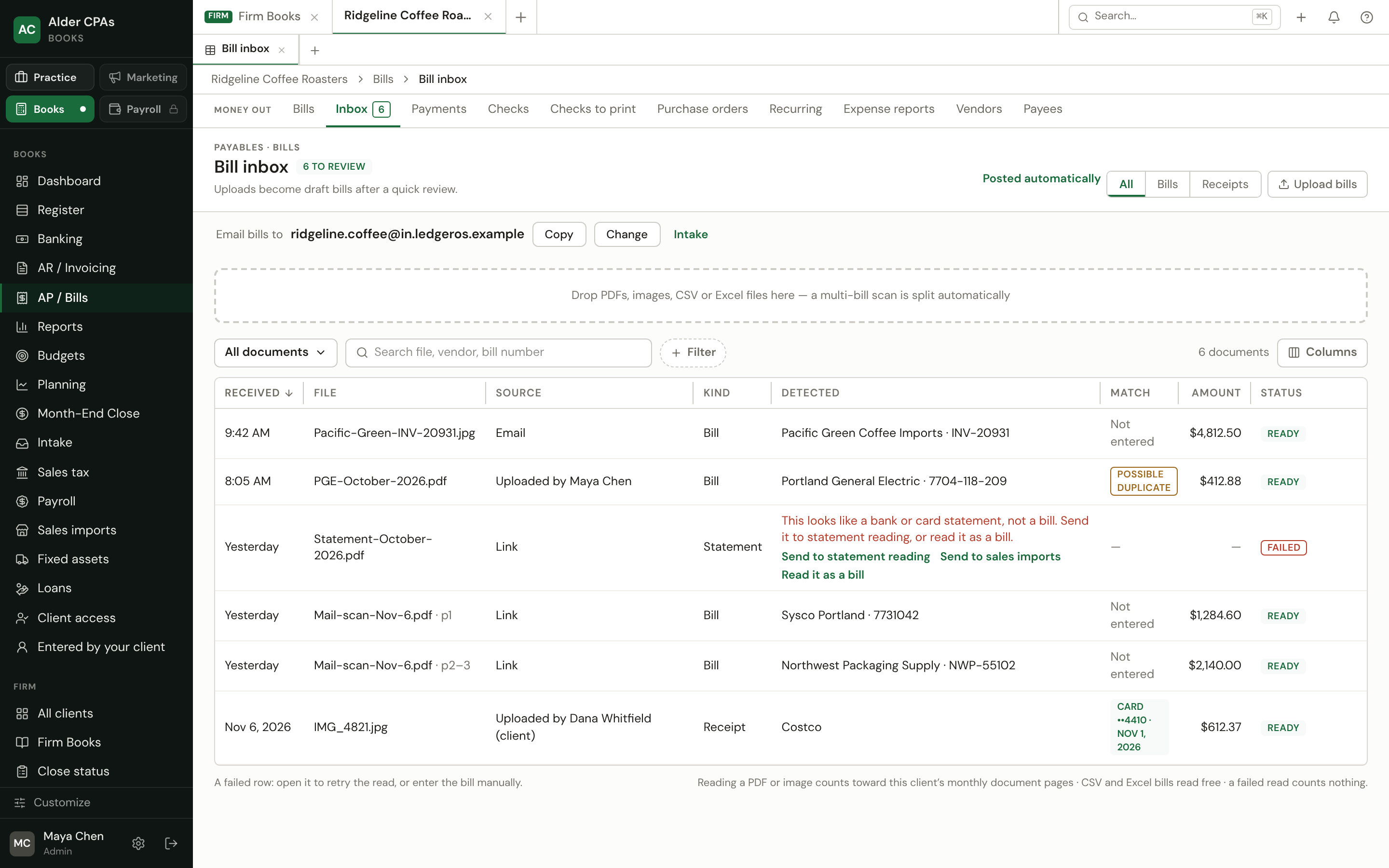 The bill inbox for Ridgeline Coffee Roasters: two bills read and waiting, a mail scan split into two bills, a statement Books recognized, and a receipt the client uploaded
One scan, several bills
Whoever does the mail often scans a stack of bills into one PDF. Books splits it: each bill becomes its own row, named with its pages, such as Mail-scan-Nov-6.pdf · p1 and Mail-scan-Nov-6.pdf · p2–3.
When you open one, a strip at the top shows the whole upload (Mail-scan-Nov-6.pdf — 3 pages → 2 proposed bills). If Books split it in the wrong place, click a divider to merge two bills, or click between two pages to split one.
Understand the inbox
The header counts the documents that are ready to review or whose read failed (6 to review). The All, Bills and Receipts buttons narrow the list by kind. Posted automatically, beside them, opens the list of bills Books posted on its own (see Bills Books Posted Automatically).
The columns, in order:
- Received — the time today, Yesterday, or the date.
- File — the file name, with its pages when one upload was split.
- Source — how it arrived (see the table above).
- Kind — Bill or Receipt. A dash means it hasn't been read yet. Bill or receipt? means two reads disagree: open it and pick. On a row whose read failed, Kind names what Books recognized instead, Statement or Sales report, or shows a dash.
- Detected — the vendor and bill number Books read, or the reason a read failed.
- Match — whether this bill is already in the books:
- Not entered — no bill in the books or elsewhere in the inbox matches it.
- Possible duplicate — a bill for the same vendor and amount, on the same date, is already entered.
- Already entered — this vendor already has a bill with this number.
- Also in the inbox — another copy of the same bill is waiting in the inbox; its file is named beside it (hover for why). Click Dismiss to drop this copy.
- For a receipt, the bank line it matches, such as Card ••4410 · Nov 1, 2026, or No bank line.
- Amount — the total Books read. A dash means no total was read; it is never shown as $0.00.
- Status — Received (waiting to be read), Ready to review, Reading, Being checked (Books is deciding whether the bill can post on its own), Pick a kind, or Failed.
Under the list, a line sums up what reading costs: Reading a PDF or image counts toward this client’s monthly document pages · CSV and Excel bills read free · a failed read counts nothing.
Use the search box to find a file, vendor or bill number, and Filter for status, source, date received or amount.
How Books sorts what arrives
Books reads each file once, and the same read says what the file is: bills or receipts, a bank or card statement, a sales report, or something it can't tell.
A statement or a sales report is never read as a bill. Its row stops with Failed, its Kind reads Statement or Sales report, and a sentence says what Books found:
- This looks like a bank or card statement, not a bill. Send it to statement reading, or read it as a bill.
- This looks like a sales report, not a bill. Send it to sales imports, or read it as a bill.
Under the sentence are three choices, with the kind Books recognized first:
- Send to statement reading — moves the file to Client intake, where it is read for its bank account. The notice reads Sent to statement reading. It waits in Client intake for its bank account. or Sent to statement reading. It is read for its bank account in Client intake. (See Upload a Bank Statement or Bank File for what happens to a statement.)
- Send to sales imports — the notice reads Sent to sales imports. It waits on the Sales page as a new report.
- Read it as a bill — reads the file again as a bill (Reading it as a bill.).
Nothing is sent on until you click. Your choice stands even if it differs from what Books recognized. A file sent on leaves the inbox; it is not deleted.
The same three choices appear on every row whose read failed, including a file in which Books found no bill at all.
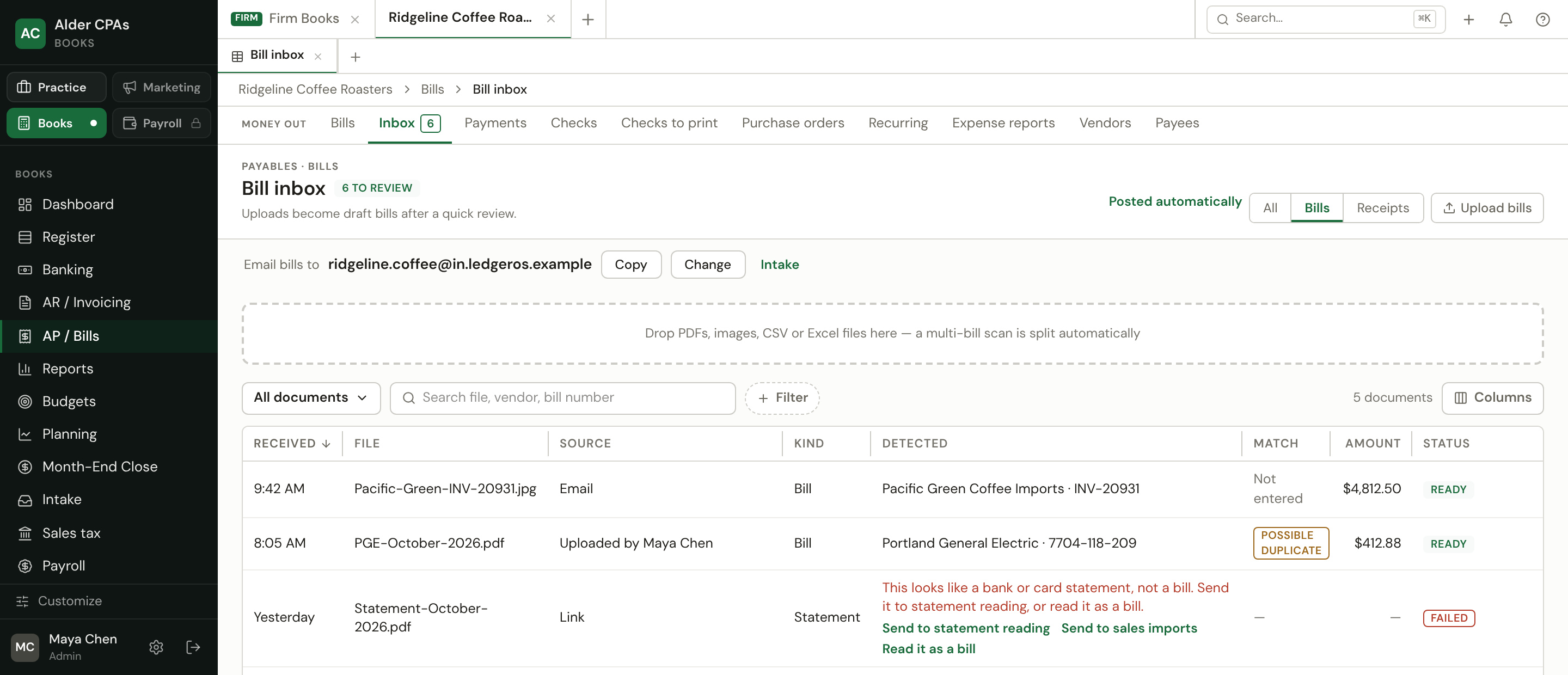 A statement uploaded through the link: Books says what it found, and offers to send it to statement reading first
Review a bill
Click a Ready row. The review screen puts what Books read on the left and the original document on the right (Open original opens it in its own tab).
If the person who uploaded the file added a note, it shows above the form: The client’s note with this upload: “Supplies run for the café, paid with the debit card” (on your firm's own books, Your note with this upload:).
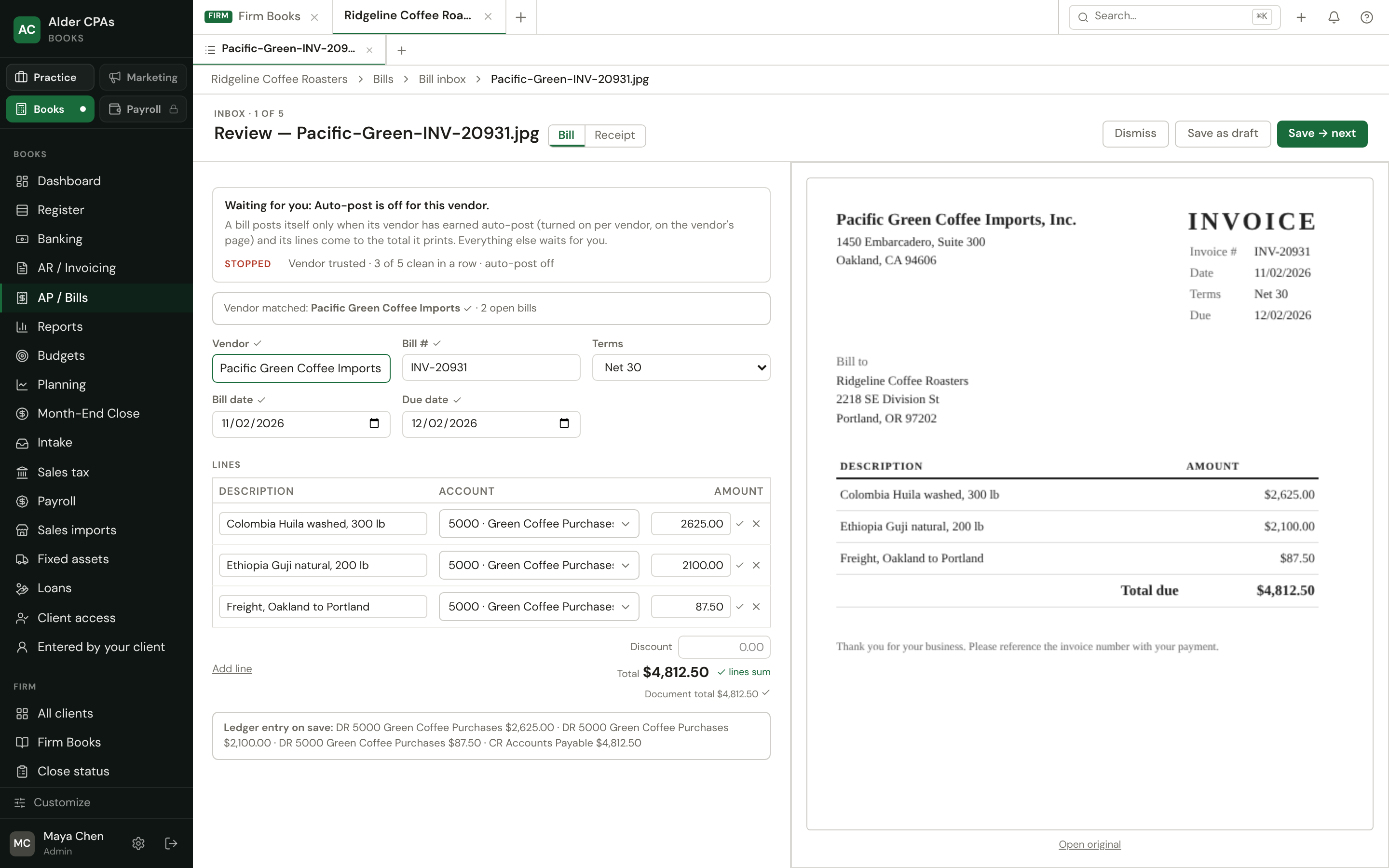 Reviewing Pacific Green's invoice: the read beside the original, the ledger entry it will make, and why it is waiting for a person
-
Check the vendor. A box above the form says Vendor matched: Pacific Green Coffee Imports with how many open bills the vendor has.
If the name on the bill doesn't match a vendor exactly, Books offers close names first (No exact match for … Is it one of these?), and only then add "…" as a new vendor, so your list doesn't fill up with three spellings of one company. With no close name, it says No vendor matches … Pick one below, or add it. with Add vendor.
-
Check the fields. Vendor, Bill #, Terms, Bill date and Due date. A check mark beside a label means the value was read from the document. A due date that isn't printed says Not on the document — set from terms and follows the terms you pick.
-
Check the lines. Each line has a description, an account and an amount. Books proposes an account for each line; where it has a reason, it says so with Use it and Choose another. Remove a line with its ×, or add one with Add line.
-
Read the totals. Under the lines, Total shows what you are about to save, and Document total shows what the bill printed. If they differ, a warning says by how much.
When the lines come to less, it adds Often tax, freight or a fee printed below the lines. and offers Add the difference as a line; when they come to more, Check for a line entered twice. If you save anyway, Books asks first and names both figures, with Go back and Save at this amount (Save draft at this amount for a draft).
-
Read the entry. Ledger entry on save shows exactly what will post, for example DR 5000 Green Coffee Purchases $2,625.00 · … · CR Accounts Payable $4,812.50.
-
Click Save → next to save and post the bill and open the next document waiting, or Save as draft to save it unposted. The notice reads Bill saved or Saved as a draft, and may add a second line about the vendor:
- Confirmed with no corrections. when you kept everything exactly as read;
- Your correction turned off auto-post for UPS. It is earned again from zero. when you changed something on a bill from a vendor whose automatic posting was on;
- Your correction started UPS's clean run toward auto-post over (it had 3 in a row). when the vendor was on its way to earning it.
The bill stays linked to its document either way.
Save → next posts the bill. Saving with nothing changed is also how a vendor earns automatic posting: each bill posted exactly as read counts toward it. A draft does not count. See Bills Books Posted Automatically.
Why a bill is waiting for you
At the top of the form, Books says why this bill did not post on its own, for example Waiting for you: Auto-post is off for this vendor. Below it, the vendor, plan, read and usual-bill checks it reached are marked Passed or Stopped. Until a vendor earns automatic posting, this is the usual reason. The other reasons are in Bills Books Posted Automatically.
Duplicates
Books checks the vendor, bill number, total and date against the bills already entered, as you edit. A possible duplicate is a bill for the same vendor and amount on the same date:
- Already entered — … Change the bill number, or dismiss this document as a duplicate. Save stays off until you change the number or dismiss the document.
- Possible duplicate — same vendor, $412.88, near this date (…). Create it anyway if this is a separate charge. A possible duplicate doesn't stop you saving. If it is a separate charge, save as usual; Dismiss hides the warning.
Turn a receipt into a bill, or a bill into a receipt
Books decides whether each file is a bill or a receipt. If it decided wrong, use the Bill / Receipt switch beside the title on the review screen. The notice reads Marked as a bill or Marked as a receipt. If the file has to be read again as the other kind, it adds It is being read again. and you go back to the inbox while it reads.
A row marked Bill or receipt? is one where two reads disagree; open it and pick.
Once a person has picked the kind, the switch is no longer offered for that document.
Dismiss a document
Dismiss anything that shouldn't become a bill: a duplicate, a file that isn't a bill, a bill for the wrong client.
- Open the document and click Dismiss at the top.
- Type a Reason. It needs at least three characters.
- Click Dismiss (or Keep it to go back).
The window says what happens: It leaves the inbox and no bill is created. The document and your reason stay on the record. The notice reads Document dismissed.
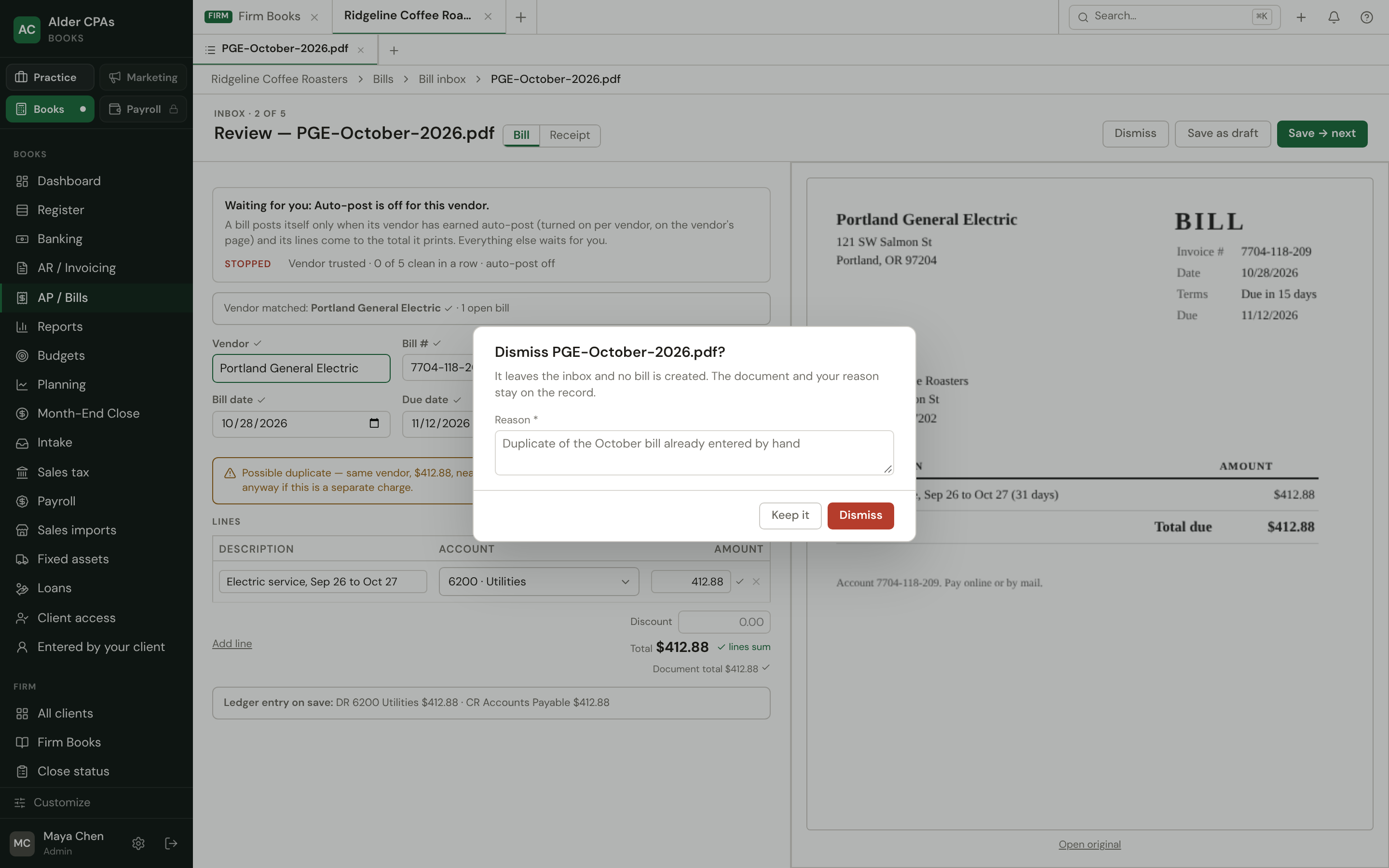 Dismissing a possible duplicate: a reason is required
Send your client an upload link
Each client has one upload link. Anyone with it can upload bills, receipts and bank statements, and nothing else: they don't sign in, and they can't see any bills, vendors or other people's uploads.
The page shows:
- Where uploads go (the client's bill inbox, for review), with Open the bill inbox and how many are waiting.
- The link, the number of uploads and when it was last used (37 uploads · last used Nov 7, 2026 · 2:20 PM), with Rotate link and Revoke.
- Bills by email: the client's email address, with a link to change it or its trusted senders in Client intake.
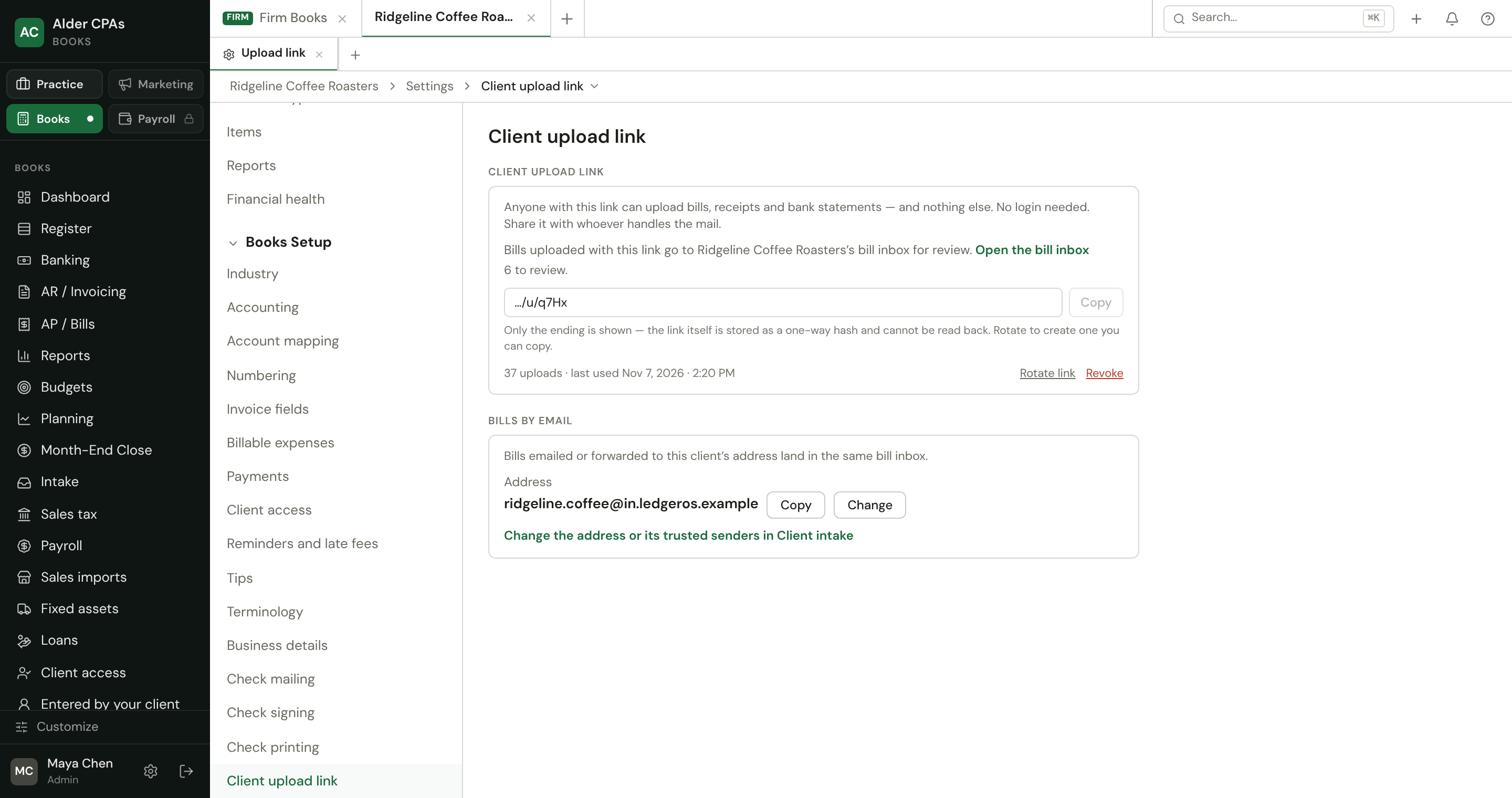 Settings → Client upload link for Ridgeline Coffee Roasters
The full link is shown only once, when it is created. After that, Books shows only its ending (…/u/q7Hx) and Copy is off: the link is stored so that it can't be read back. If you need to send it again, click Rotate link and copy the new one. Rotating stops the old link at once (New link created. The old link stopped working now.), so send the new one to everyone who used the old one.
This page needs the Books settings and account mappings permission.
What the person with the link sees
The link opens a single page, Upload documents, that works on a phone. It says the file goes straight to whoever keeps these books, and that the person needs no account and won't see anything else.
- Bills and receipts takes PDFs, photos (JPG, PNG, WebP, HEIC), and CSV or Excel files, up to 25 MB each, several at a time. These land in the bill inbox. This is a receipt for something already paid suggests they are receipts (the read still decides), and What was it for? adds a note of up to 500 characters, which you see when you review the file, as a bill or as a receipt.
- Bank or card statement takes one PDF at a time, up to 25 MB, with an optional Note. It goes to statement reading, not to the bill inbox.
Each file shows Uploaded or the reason it failed, with Try again (not for an empty file or one over 25 MB). Once a file is in, the page says Your file is in. You can close this page, or add another. (2 files are in. for several).
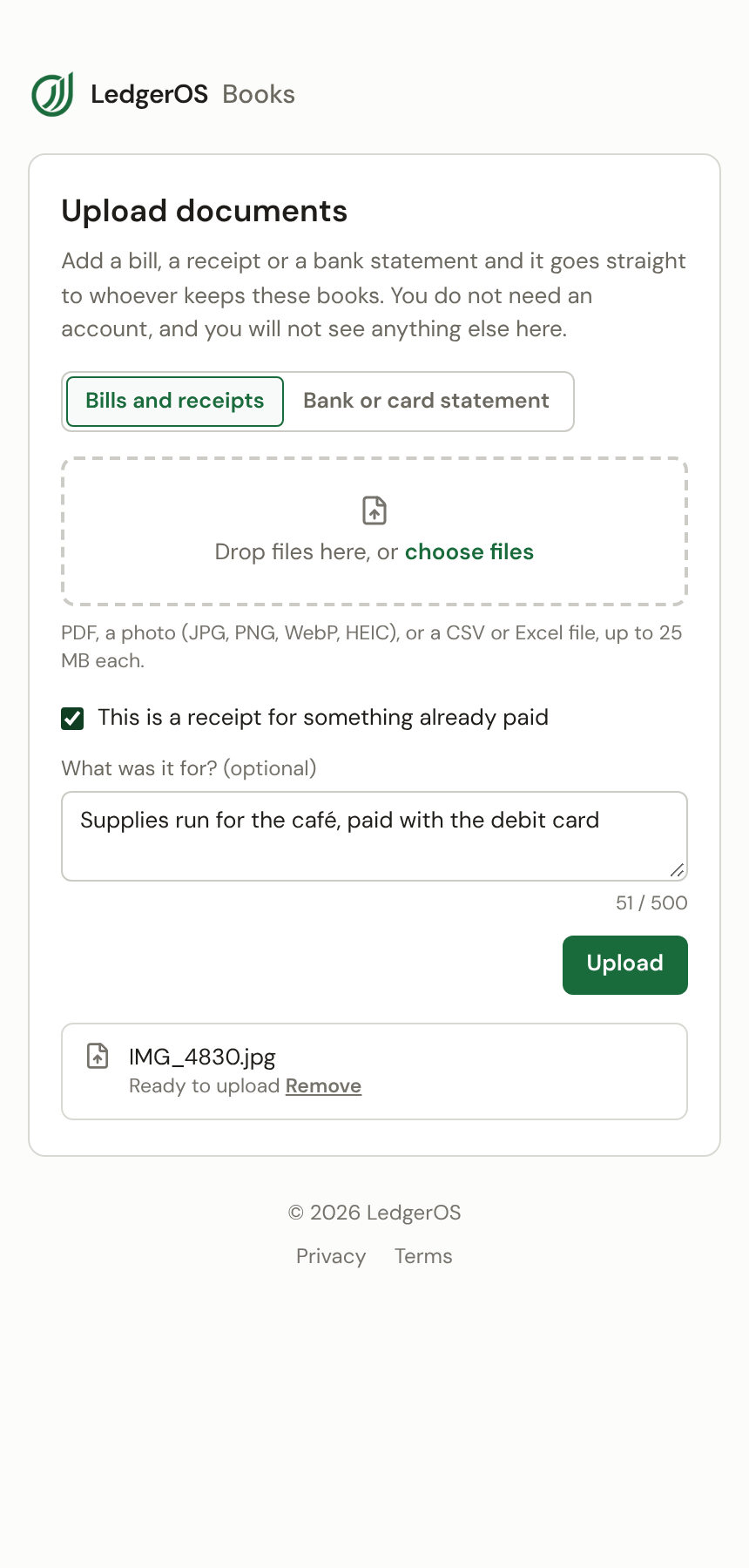 The upload page at phone width: a receipt photo ready to upload, the receipt box ticked and a note, ready to upload
A link that was rotated or revoked opens a page that says This link no longer works, then It was turned off or replaced by whoever sent it to you, or it was never a valid upload link. Ask them for a new one if you still need to send something. A mistyped link gets the same page, so the page never tells anyone whether a link was real.
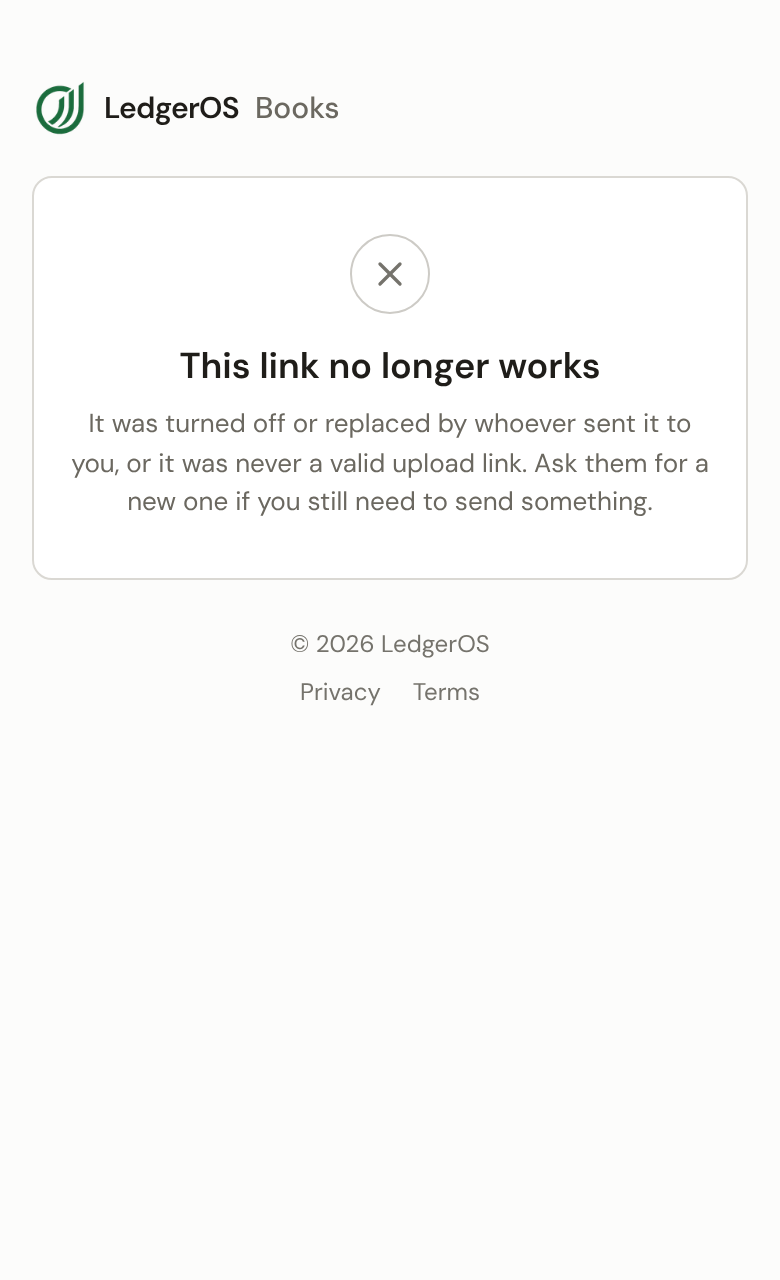 A link that no longer works, at phone width
Revoke the link
Revoke stops the link and makes no new one. Use it when nobody should be uploading for this client, for example when a client leaves.
- Click Revoke. Books asks first: Revoke this upload link? and The link stops working at once for the client and anyone you shared it with. Anything already uploaded stays in the bill inbox, and you can make a new link later. On your firm's own books it says for anyone you shared it with.
- Click Revoke link (or press Enter), or Cancel to keep the link. The notice reads Link revoked.
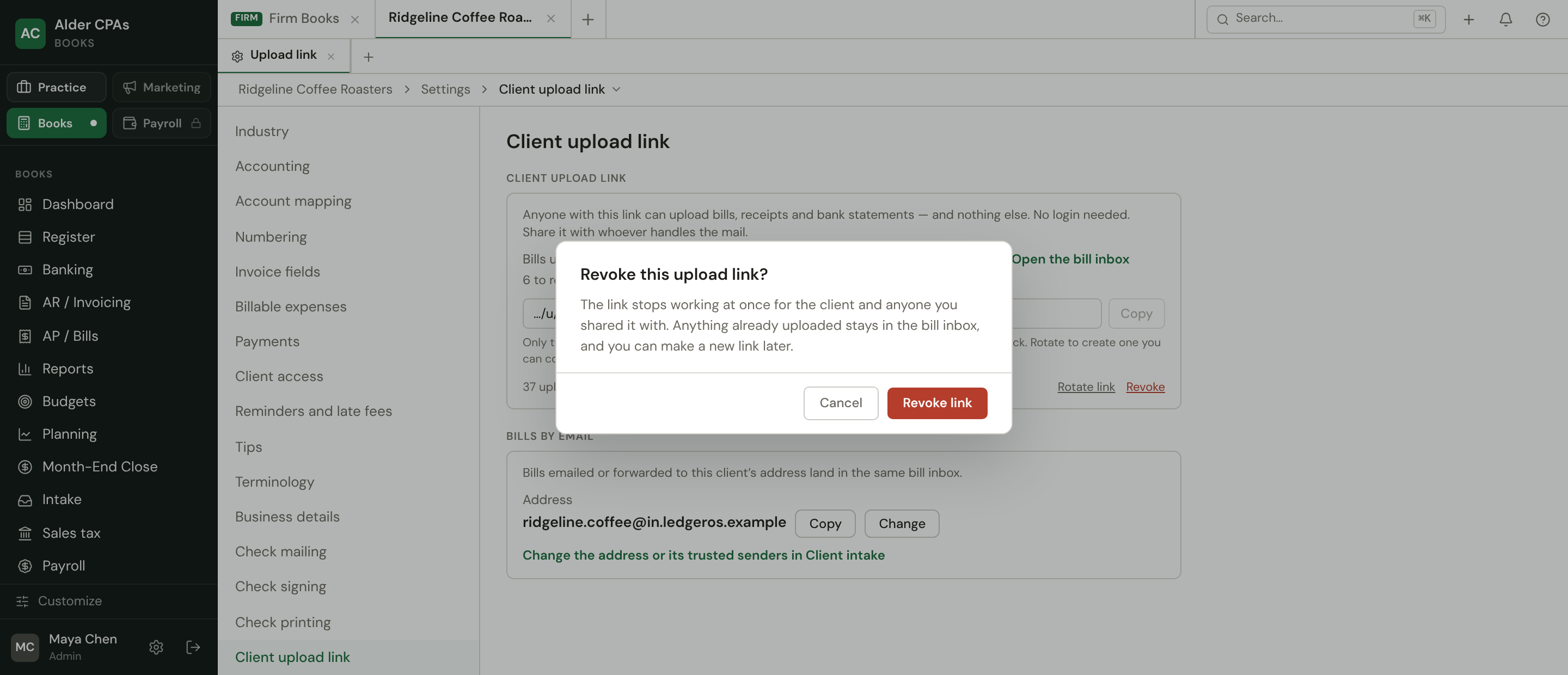 Revoke asks first and says what happens
The card then says There is no upload link right now: the last one was revoked, so nobody can upload with it. Nothing changes until someone clicks Make a link, which creates a new link and shows it once: New link created. Copy it now; it is shown this once.
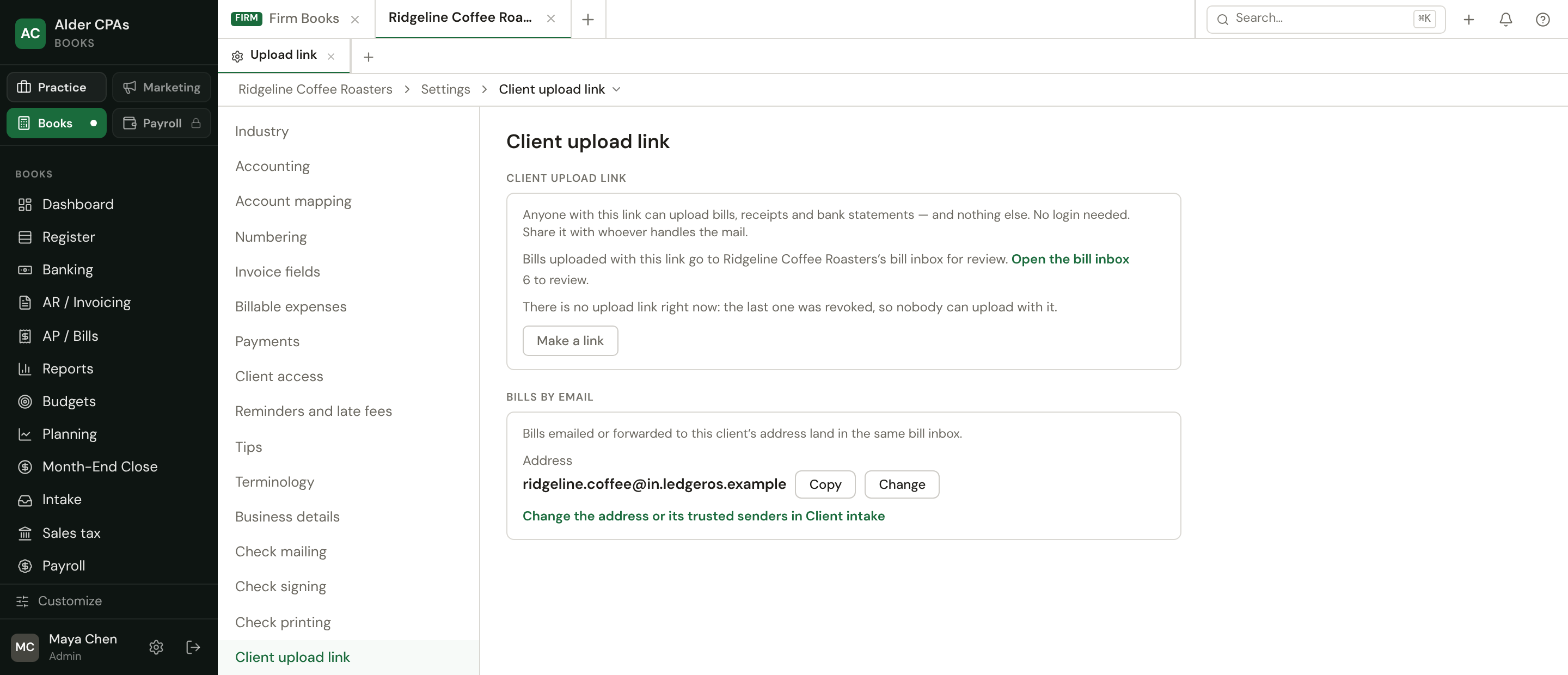 After Revoke: no link until someone makes a new one
Why couldn't this document be read?
A failed row says why in the Detected column, and the review screen says it again with Retry the read. Some common reasons:
-
It isn't a bill. Books recognized a statement or sales report, or found no bill in it. Use the choices on the row (see How Books sorts what arrives).
-
The read didn't finish. A row marked Reading can't be opened for its first 10 minutes. After 10 minutes the row says The read is taking too long. Open it to retry. and opens to its review screen, which says This document has been reading for over 10 minutes, so the read is taken as failed. Click Retry the read, or enter the bill by hand.
-
The client isn't on Premium. Reading PDFs and images into draft bills is part of Premium. On other plans, the inbox still takes every file: the header reads CSV and Excel bills become drafts after a quick review. PDFs and images are filed for you to enter by hand.
Each PDF or image shows Filed, not read · Enter bill, and opens beside an empty form: Filed, not read. Enter the bill by hand below. It stays linked to this file.
-
The client has used its document pages for the month. The file stays in the inbox, and a card above the list says so.
You can always enter the bill by hand on the review screen. The bill stays linked to the file. A failed read doesn't count toward the client's monthly document pages.
Why can't I …
-
…save the bill? Hover Save → next or Save as draft for the reason. Common ones: a line has no account, the bill number is already used for this vendor, the document is still being read (The document is being read. Save opens when the read lands.), or Books hasn't finished deciding whether the bill can post on its own (The auto-post check has not run on this bill yet. Run the check, then review it., with Check now).
-
…post it into a closed month? A sentence under Bill date says the month is closed. If you are allowed to post into it, it reads like October 2026 is closed. You can still post this bill into it, with a reason kept in the audit log. and a reason field appears.
Otherwise Save → next stays off, and the sentence says the bill can't be saved on that date: an owner or admin can reopen the month, or you can date the bill in an open month. A month locked for good can't be posted into at all. Either way, Save as draft stays available.
-
…open a row? A row that is still being read can't be opened for its first 10 minutes. Hover the file name: This document is still being read. After that it opens, so you can retry the read.
-
…send a file to statement reading? An older upload that was never added to the client's documents can't be sent on. Books says so and asks you to download it and upload it on the statements screen.
-
…see the inbox at all? The inbox needs the Bills and vendors permission, and saving a bill from it also needs Post journal and register entries.
If your firm also uses Practice
Everything that arrives in the bill inbox is also kept in the client's documents in Practice, in a Bills folder, so the file is where your team looks for client paperwork. A statement sent through the upload link's Bank or card statement option is kept with the client's statements instead.
When you send a file from the inbox to statement reading or sales imports, it moves to the client's statements or sales reports folder. An older upload that was never added to the client's documents can't be sent on; Books says so when you try.
Shortcuts and tips
| Key | Where | What it does |
|---|---|---|
| Cmd+Enter (Mac) or Ctrl+Enter (Windows) | Review screen | Save → next: posts the bill and opens the next document |
| Enter | An amount | Works out a sum you typed |
| Tab | Bill date, Due date | Leaves the date in one press |
- Do math in an amount. Type a sum such as
4*420or=1680+460in any line amount or the discount. It works out to the cent when you press Enter or leave the field. - Work the inbox top to bottom. The review screen shows your place (Inbox · 1 of 5), and Save → next and Dismiss both take you straight to the next document.
- Fill in an account for good. When a vendor's bills keep the same account, Books offers Fill it in for you from now on? It never posts on its own. Click Fill it in, or Keep suggesting.
- Watch the Match column before you open anything. Already entered and Possible duplicate catch a bill your client emailed and also mailed.
- Give your client the link and the email address. Paper goes through the link from a phone; bills that arrive by email can be forwarded to the address. Both land in the same inbox.