
Write and Print Checks
Write a check to anyone, split across accounts and items, then print it on your client's check stock with Books numbering every check only once you confirm it printed.
On this page
Write check records a check your client writes to a vendor, a customer, an employee or anyone else: the payee, the bank account it is drawn on, what it paid for, and the memo that prints on it. Saving it puts it on the books. Printing is a separate step, on Checks to print, where a check gets its number only once you confirm the sheet came out right.
A check you save is on the books right away: the money leaves the bank account's book balance on the check's date, and the bank feed clears it later. A check saved to print later has no number until its print run is confirmed, so a sheet that jams never uses up a number silently.
Write a check
- Go to AP / Bills → Checks and click Write check.
- Under Payee, choose what kind of payee it is (Vendor, Customer, Employee or Other name), then the payee. The address that prints fills in from the payee's record.
- Choose the Bank account the check is drawn on, and the Date.
- For the number, either leave Check number blank to take the account's next number, or tick Add to Checks to print under Print later to number it when it prints (the field then reads Assigned when printed).
- Type the Memo (prints on the check).
- Enter what the check paid for. The Expenses tab takes lines to accounts; the Items tab takes lines to the client's items with a quantity and rate. A check can have both, and each tab shows its own total. Stock items aren't offered on a check: stock is received on a bill, so enter a bill and pay it with a check.
- Click Save check.
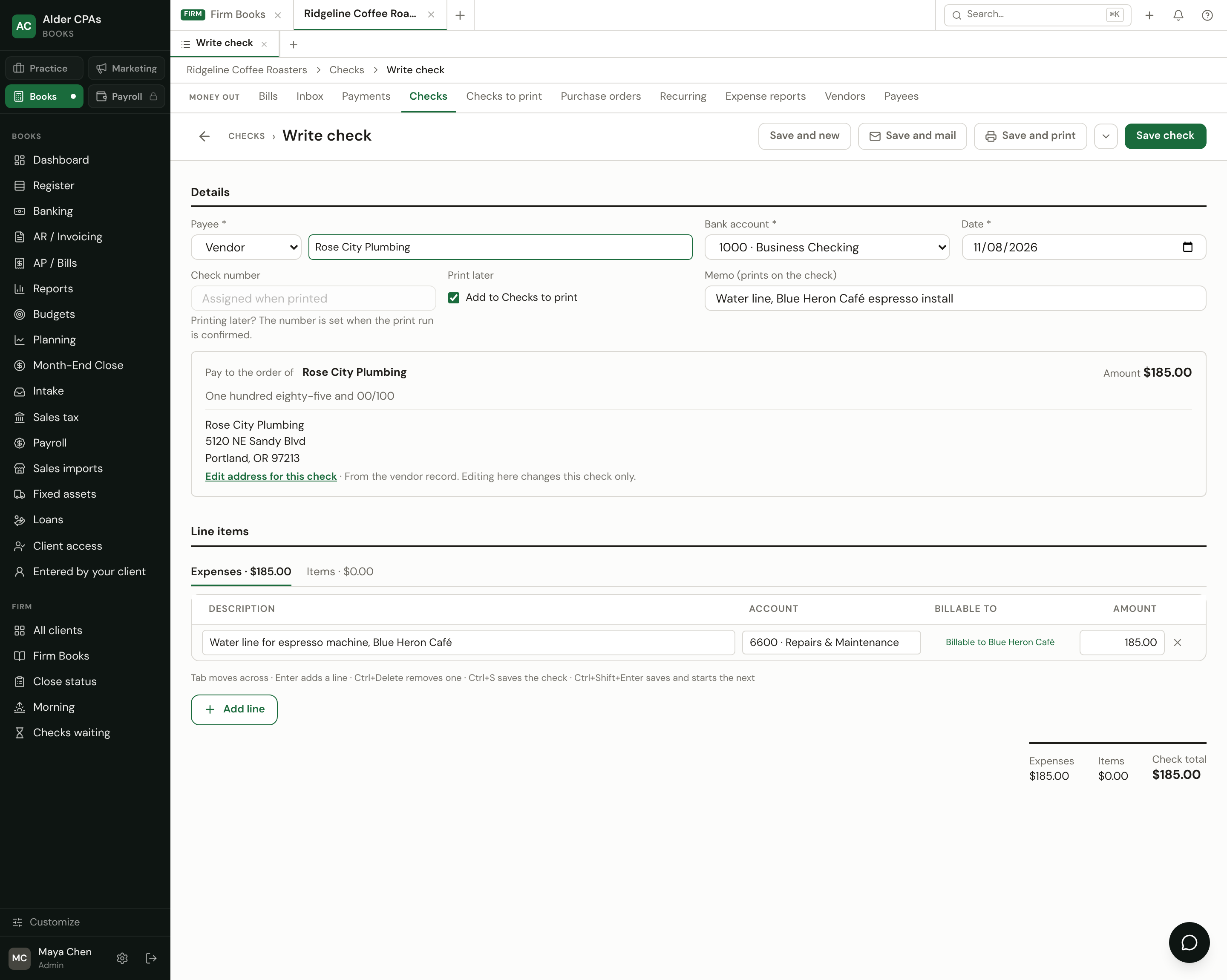 Writing a $185.00 check to Rose City Plumbing, to print later, with its line billable to Blue Heron Café and the check face showing the amount in words and the vendor's address
The check face under the details shows the check as it will read: Pay to the order of the payee, the amount in figures and in words, and the address that prints. Edit address for this check changes the address on this check only; the payee's record stays as it is.
The amount in words comes from the same place every printed check takes it from, so what you see on the screen is what prints.
Bill a cost on to a customer
When the client has billable expenses turned on, each line on both tabs has a Billable to column, as a bill line does. Use it when the check pays for something a customer will be invoiced for, like the plumber Ridgeline paid to run a water line for the espresso machine it installed at Blue Heron Café.
- Click Billable on the line.
- Choose the Customer, and a Job if the customer has jobs.
- Choose the Markup: The customer's, the item's or the books' markup (the usual choice), No markup, Percent or Amount.
- Click Done. The line now reads Billable to Blue Heron Café.
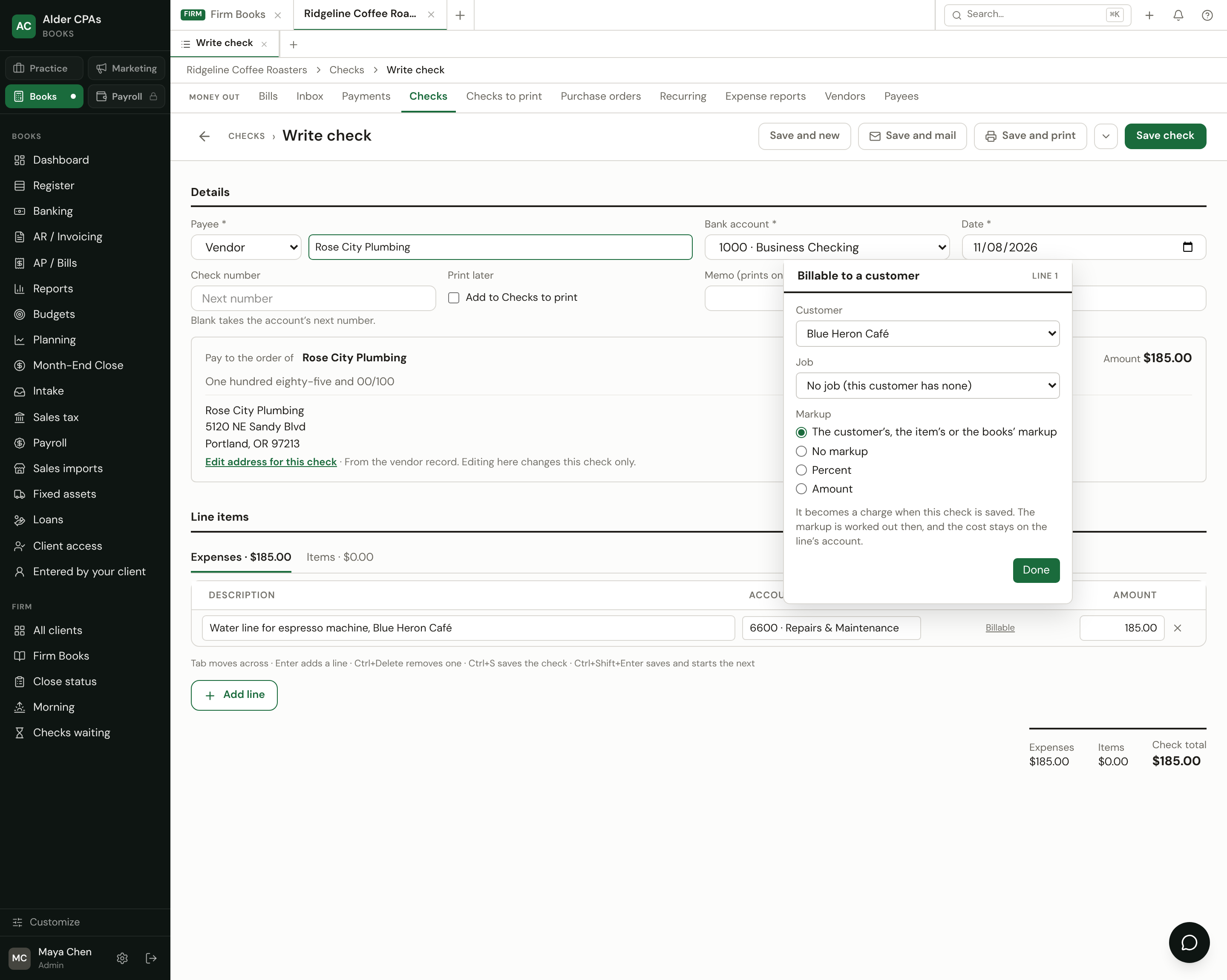 The Billable to window on a check line: customer Blue Heron Café, no job, and the markup choices
As the window says, It becomes a charge when this check is saved. The markup is worked out then, and the cost stays on the line's account. Once saved, the cost waits on the customer's Unbilled tab with the rest of their billable expenses: see Billable Expenses: Bill Your Customer for Costs.
The charge follows the check:
| You… | The charge… |
|---|---|
| Change the line's amount | Takes the new amount as its cost. |
| Change the customer, job or markup, or click Not billable | Follows the change, or stops being billable, while it isn't on an invoice (below). |
| Remove the line | Is no longer billable. |
| Void the check | Is no longer billable. |
Only a line on an expense account can be billed (cost of goods sold included), not one on a depreciation or payroll account.
Once the charge is on an invoice, the line's amount and account can't change: This line's cost is already billed to the customer on invoice INV-1052, so its amount and account can't change. Take it off that invoice first, then edit the entry.
Its customer, job and markup are held too, and Not billable doesn't take the charge back: the save is refused with Check not saved and This check is on invoice INV-1052. Void the invoice to change it. (while the invoice is still a draft, the message reads This check is on a draft invoice. Remove its line from the draft to change it., with the draft's number when it has one), and the check stays as it was. Marking a check's line needs the same Pay bills permission as writing the check.
Ways to save
- Save check saves it. With Add to Checks to print ticked, it goes onto Checks to print; otherwise it takes the next number now.
- Save and print saves it and opens Checks to print with just this check chosen, ready to print.
- The arrow beside it has Save and print later, which adds the check to Checks to print to print with others.
- Save and new saves it and starts a blank check with the cursor in Payee.
- Save and mail saves it and sends it with check mailing, when the client is on Premium and has check mailing set up: see Mail Checks for a Client. If the client's owner approves checks before they mail, the button reads Save and send for approval, and the check, which is already on the books, waits for them; once they approve it, its page offers Mail.
Shortcuts and tips on the form
| Keys | What they do |
|---|---|
| Tab / Shift+Tab | Move across a line |
| Enter | Go down to the next line, adding one at the bottom |
| Ctrl+Delete | Remove the current line |
| Ctrl+S | Save the check |
| Ctrl+Shift+Enter | Save and start the next check |
Amounts in the line grid take arithmetic: 3*61.50 settles to 184.50. On a Mac, use Cmd for Ctrl, and Cmd+fn+Delete to remove a line.
Copy on a saved check starts a new check with the same payee, bank account, memo, address and lines, dated today, with the number left blank.
Pay a vendor's bills with the check
When the payee is a vendor with open bills or unused credits, Books asks Pay any of them with this check? and lists them. Tick the bills the check pays, and any credits to use against them; the check total becomes the bills less the credits. The check is then a bill payment: it pays bills only. Lines you had already typed are kept, and open on a new check once this one is saved.
Understand the Checks list
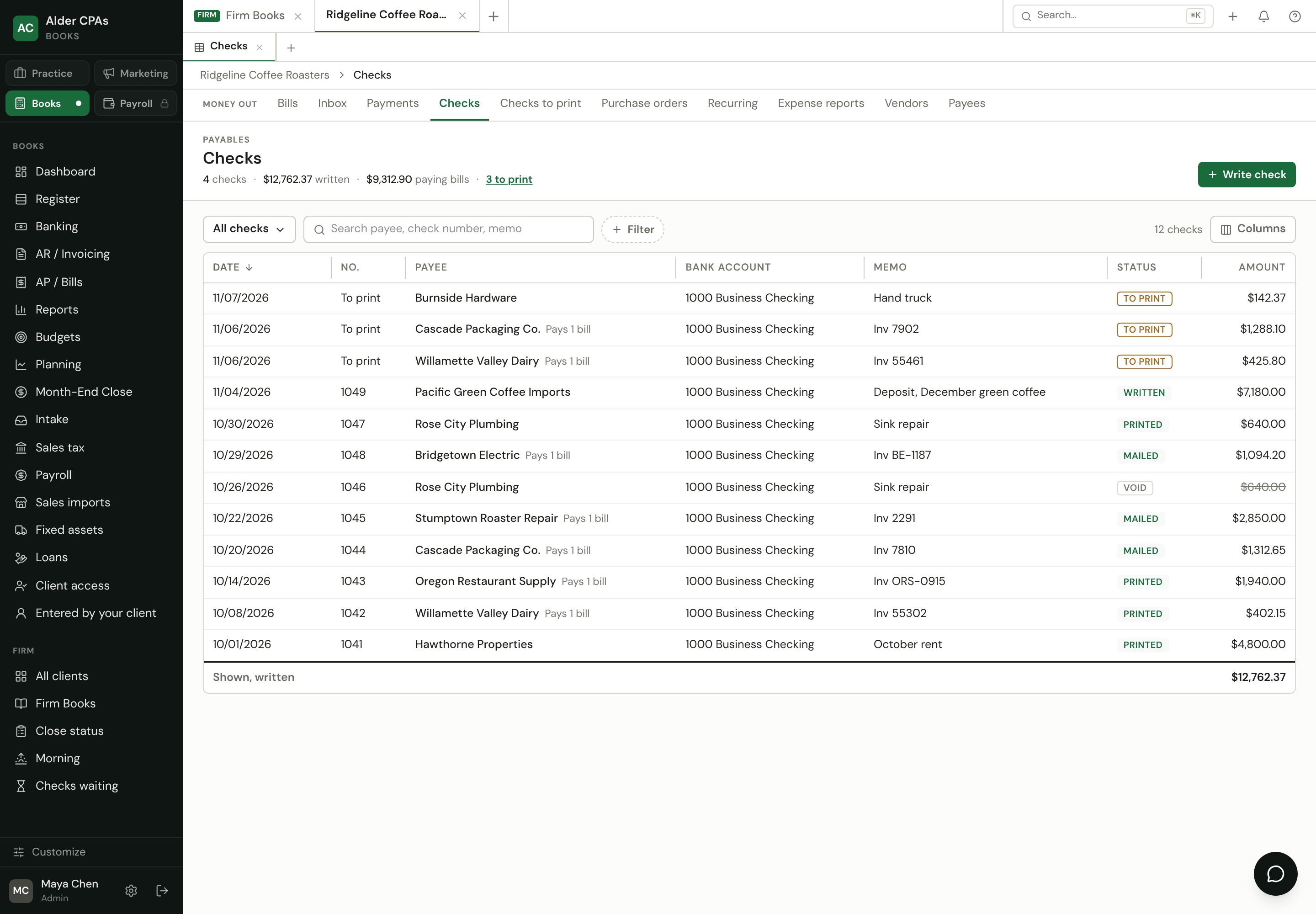 Checks on 1000 Business Checking: three waiting to print, the rest numbered, with check 1046 void
The columns are Date, No., Payee, Bank account, Memo, Status and Amount. The list holds written checks and the checks that paid bills; a bill payment says how many bills it pays beside the payee (Pays 1 bill), and a payee who isn't a vendor shows their kind. Status reads Written, To print, Printed, Mailed or Void, and a void check's amount is struck through.
The line under the title counts the written checks and their total, adds what was paying bills separately, and links 3 to print when checks are waiting. The Shown, written total at the bottom counts written checks only, not bill payments or void checks.
Print checks
Checks to print (on the Money Out strip, or Print them under the Checks to print report) lists every check waiting on a bank account, written checks and bill payments by check alike.
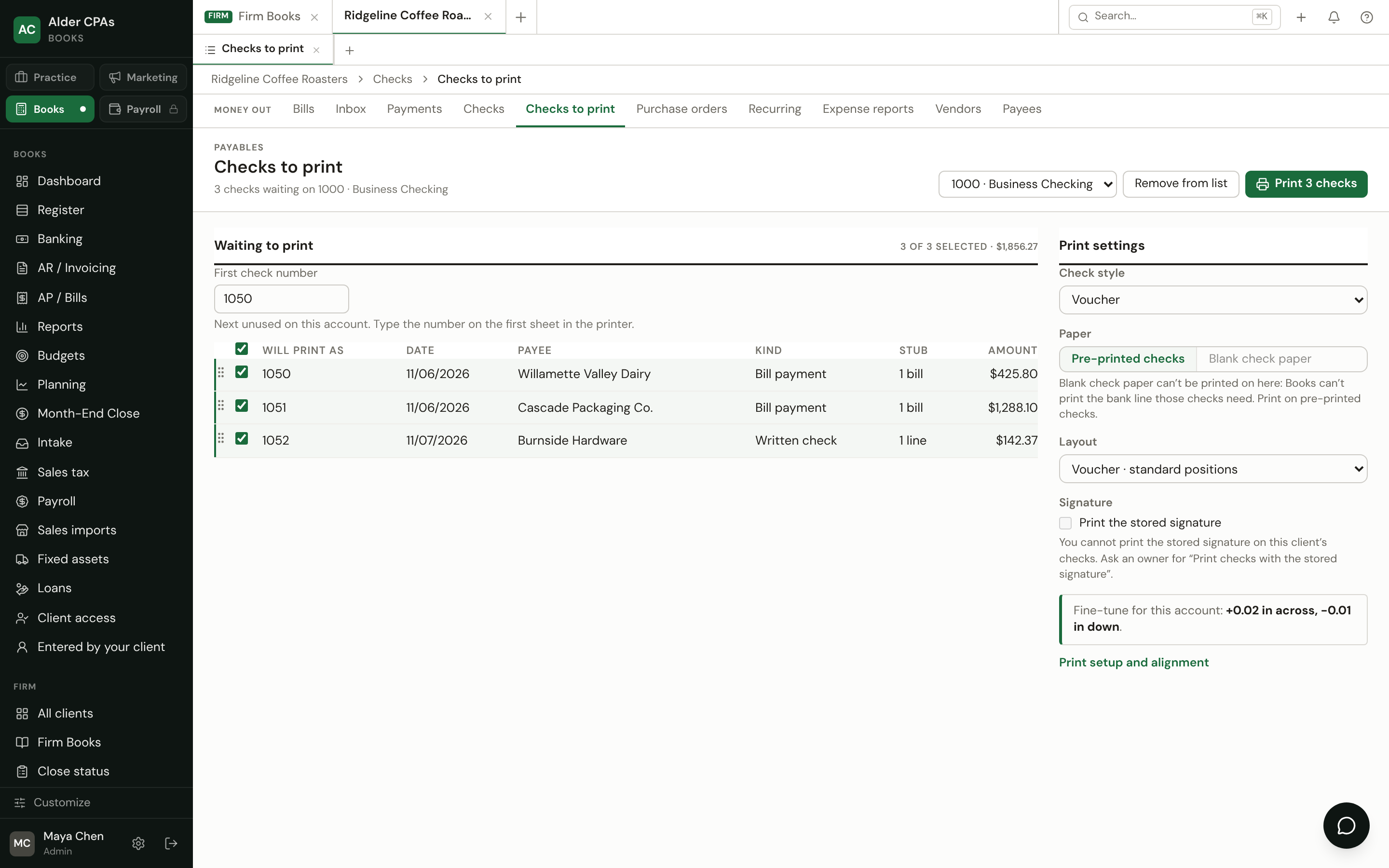 Checks to print: three checks on 1000 Business Checking that will print as 1050, 1051 and 1052, $1,856.27 in all
- Choose the bank account at the top, if the client has more than one.
- Check First check number. It starts on the next number not used on the account; type the number on the first sheet actually in the printer. Will print as shows the number each check will take.
- Untick any check you don't want in this run. Drag a check by its handle to change the order, or press Alt+Up / Alt+Down on it.
- Check the Print settings on the right: Check style (Voucher, Standard or Wallet), Paper, Layout, and Print the stored signature if you are allowed to (below).
- Click Print 3 checks. Books draws one PDF of the whole run and opens it for you to print.
- Books then asks Did checks 1050 to 1052 print correctly? Each check starts as Printed. Change any that jammed or misprinted to Spoiled, print again, or click Reprint from this one to mark that check and every later one spoiled in one step, as a jam does.
- Click Confirm. Each printed check gets its number. A spoiled number is recorded as spoiled, so the number gaps report can explain it, and that check stays on the list to print again under a new number.
Back on that question records nothing: no check is numbered and no number is used. Remove from list takes the chosen checks off the list without printing or numbering them; they stay on the books.
Blank check paper can't be printed on here, because Books can't print the bank line those checks need. Print on pre-printed checks.
Why does a check say it will be numbered when printed? It was saved with Add to Checks to print. Its number is set when you confirm the print run, so the number on the paper and the number in the books are the same.
Reprint a check
A printed check's page has Reprint. It prints again under a new number, and the old number is recorded as spoiled; destroy the first copy, so only one check for this payment is ever out. Nothing changes in the books.
Line up the printing
Print setup and alignment (or Settings → Check printing) sets each bank account's check style, paper and default layout, and lines the print up with the client's check stock. Changing print setup and alignment needs the Books settings and account mappings permission:
- Click Print alignment test and print it on plain paper, at 100% (Actual size), never "Fit to page".
- Hold it over a sheet of checks against a window or a light.
- If the text sits off the lines, move it with Fine-tune: Across and Down, in hundredths of an inch, up to half an inch either way. On the preview, the arrow keys move it by 0.01 in, and with Shift by 0.10 in.
For check stock that puts its fields somewhere unusual, Match my checks from a photo and Edit layouts let you place them yourself. Each account shows Aligned with a date once it has been lined up.
Print with the stored signature
Print the stored signature prints the signature kept with check mailing. It needs the Print checks with the stored signature permission, which owners hold, and every run that prints it records who printed it. When the client's owner signs their own checks, the owner also chooses which of your firm's team may print with their signature, on their own approval page.
Change or void a check
A check that hasn't printed or mailed can be changed: open it, change it, and click Save changes. Its ledger entry follows. If the check is on a finished reconciliation, Books asks first.
A printed or mailed check can't be changed: void it and write a new one. Void asks for a Reason (kept with the check) of at least 10 characters. The check stays in the register as void, with its number, and reverses in the books.
For a check that isn't in the mail, the dialog names the date the reversal takes. A check dated in a month that is still open reverses on its own date, so the reversal lands in the same month as the check: voiding check 1049, dated Nov 4, 2026, says Voiding reverses $7,180.00 in your books, dated 11/04/2026, the check's date. A check in a month that has been closed reverses today instead, and a check dated today says dated today.
Until the reason is long enough, the dialog states both halves of that rule; once Books has checked the void, it names the one date.
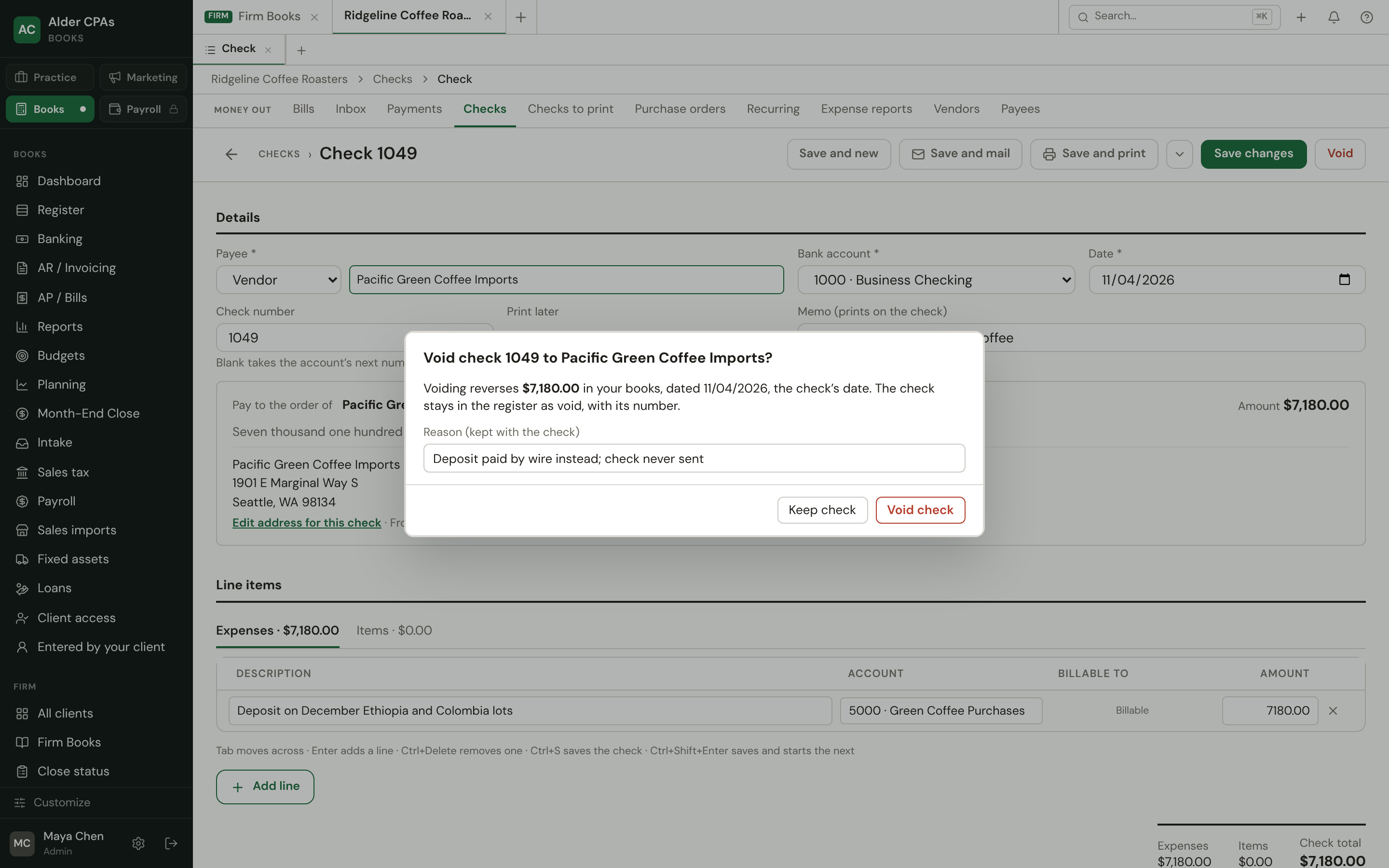 Voiding check 1049 to Pacific Green Coffee Imports: the $7,180.00 reversal is dated 11/04/2026, the check's date
-
A printed check: voiding reverses it in the books; destroy the paper, or ask the bank to stop it if it was handed over.
-
A mailed check: the dialog says it is already in the mail, and the button reads Void in my books: voiding reverses it in your books but doesn't stop the paper; only a stop payment at the bank recalls it. If you place one, record the bank's fee as its own entry when it posts. A mailed check that has already cleared the bank, or was returned to sender, says that instead, and its button reads Void check: a cleared check can no longer be stopped (ask the payee to return the money), and a returned one can't be cashed, so it needs no stop payment.
-
A check that pays bills is a bill payment: void it from the payment's page. Its dialog says when the reversal is dated, by the same rule (for check 1043, The reversal is dated 10/14/2026, the payment's date, while that period is open, or today once it is closed.), and that Voiding takes back what this payment paid; anything else paid on those bills, such as a credit, stays applied.
Each bill is listed with what it owes again, so a bill that also had a vendor credit goes back to partly paid, not to open.
How do I void a check that was mailed? Open it and click Void, then place a stop payment with the bank. Mail Checks for a Client explains what happens at each stage of mailing.
Why can't I save this check?
Save check is grayed out with its reason. The common ones:
-
Choose who the check is to. · Choose the bank account the check is drawn on. · A check needs a date.
-
Add at least one line saying what the check paid for. · A check must total more than zero.
-
These books have no bank account to write checks from. Add a bank account in the chart of accounts., with Open the chart of accounts.
-
A date before the books start, said at the date.
-
A closed month. A new check that pays no bills can be dated in a closed month by someone with the Lock a period permission: type a Reason for posting into a closed month (at least 10 characters) under the date. If the client's closed months also have a closing password, saving asks for it (unless you unlocked closed periods in the last 15 minutes).
The window is titled with the month (Oct 2026 is closed) and says Enter the closing password to unlock closed periods for 15 minutes, and what you were saving is sent again. Type the password and click Unlock for 15 minutes: the check saves, with your reason, without a second click. Cancel saves nothing. Anyone else is told to reopen the month or date the check in an open one.
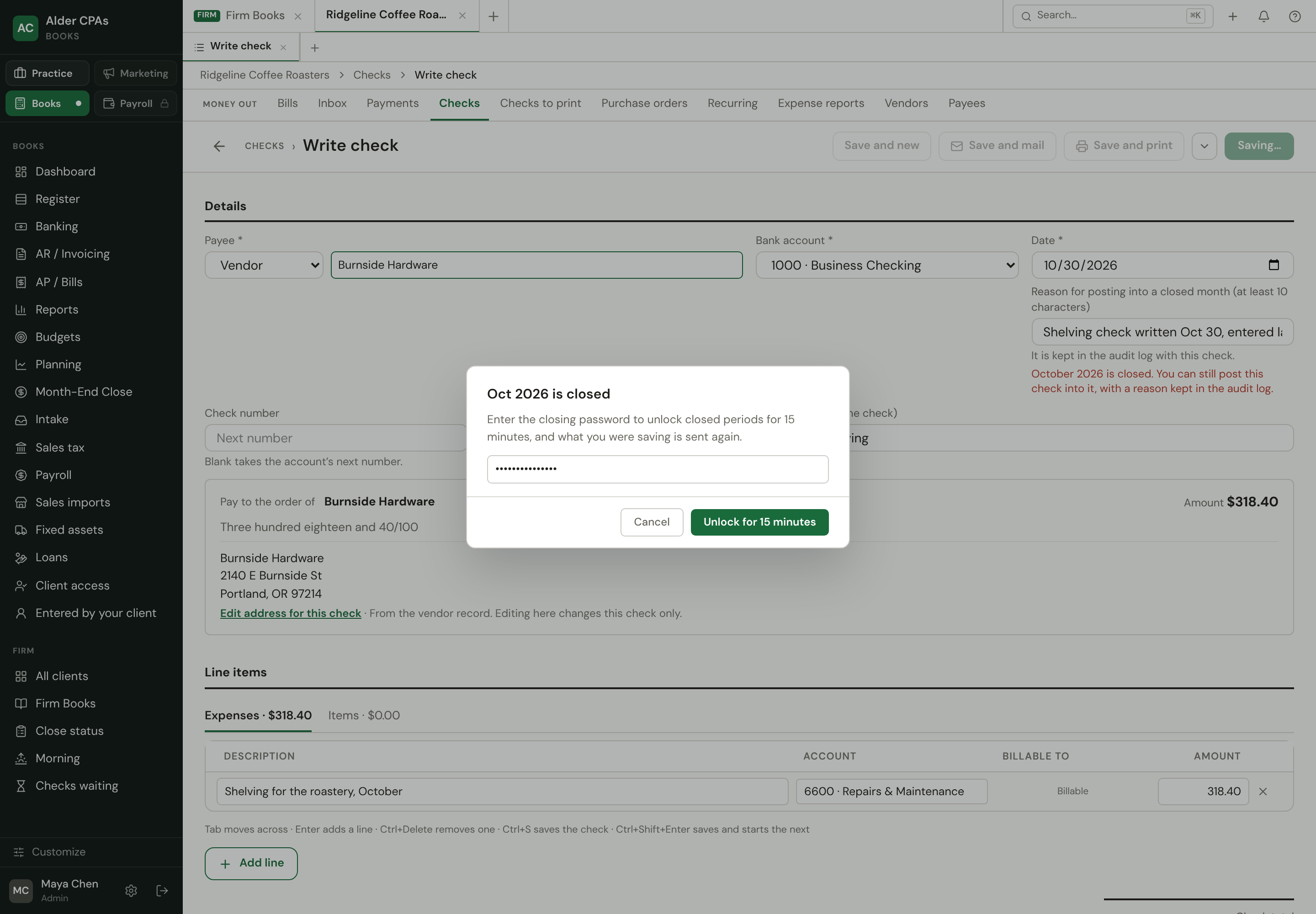 Saving a check dated Oct 30, 2026 into closed October: the reason is under the date, and Books asks for the closing password
- A credit is used against the bills it pays. Tick the bills this check pays, or untick the credit.
- The credits cover these bills, so no check is written. Apply them from Pay bills.
- Your role. Writing, changing and printing checks needs the Pay bills permission; voiding needs Void or reverse a posted entry. Changing print setup and alignment needs Books settings and account mappings.
Tips
- Load the paper, then type the first number. Type the number on the sheet actually in the printer, not the one you expect, and the books stay in step with the paper.
- Print a stack at once. Save each check with Add to Checks to print, pay bills by check the same way, and print them all in one run.
- Mark a jam honestly. Reprint from this one records the spoiled numbers, so the number gaps report explains every missing number: see Check Reports: Outstanding, Voided, Number Gaps and Positive Pay.
- Keep employees and other payees under Payees on the Money Out strip, so a check to them prints their name and address.